BalanceLink™ Setup
BalanceLink™ connects supported balance scales to Compound Direct, allowing weight readings to flow directly into your compounding workflow. By linking your balances through the BalanceLink™ application, your pharmacy can reduce manual entry, improve weighing accuracy, and streamline day-to-day preparation tasks.
Whether you are setting up BalanceLink™ for the first time, updating the application, configuring individual scales, or troubleshooting connection issues, this guide walks you through each stage of the process. It is designed to help you get your balances connected reliably so your team can work with greater confidence and consistency.
This guide will help you:
- Set up BalanceLink™ and connect supported balance scales to Compound Direct.
- Configure and manage scale settings, including ports, balance types, and advanced communication options.
- Update and troubleshoot BalanceLink™ so your balances remain connected and ready for use.
Prerequisites:
- Confirm if your balances are included in the supported balances by Compound Direct.
- Check that all required cables and drivers are installed correctly.
- Make sure the balance is connected properly and powered on.
Now that you understand what BalanceLink™ does and what you need before getting started, let’s go through the setup process step by step.
Setting up BalanceLink™
-
Click the settings gear icon in the top-right navigation bar to open ‘Workspace settings’.
-
In the left-hand side menu, under ‘Compounding’, select ‘scale Balance Settings’.
-
Click on the ‘content_copy Copy’ button to copy the BalanceLink™ Connection Key for logging in to the application.
-
Click on the ‘Download BalanceLink™ for Windows’ button to download the application.
-
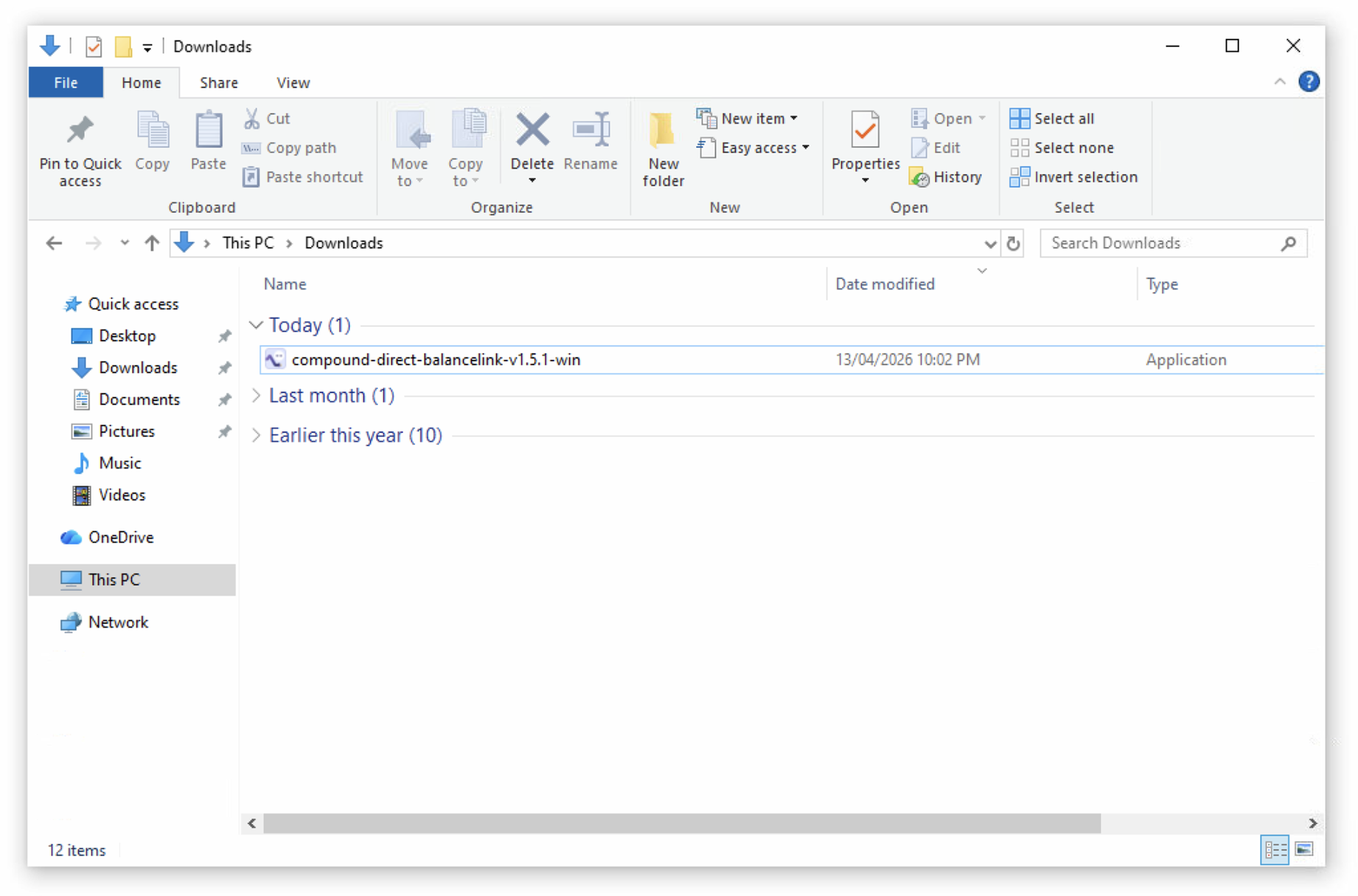
Click on the downloaded file named ‘compound-direct-balancelink-v1.8.0-win.exe’ to install.
-
-
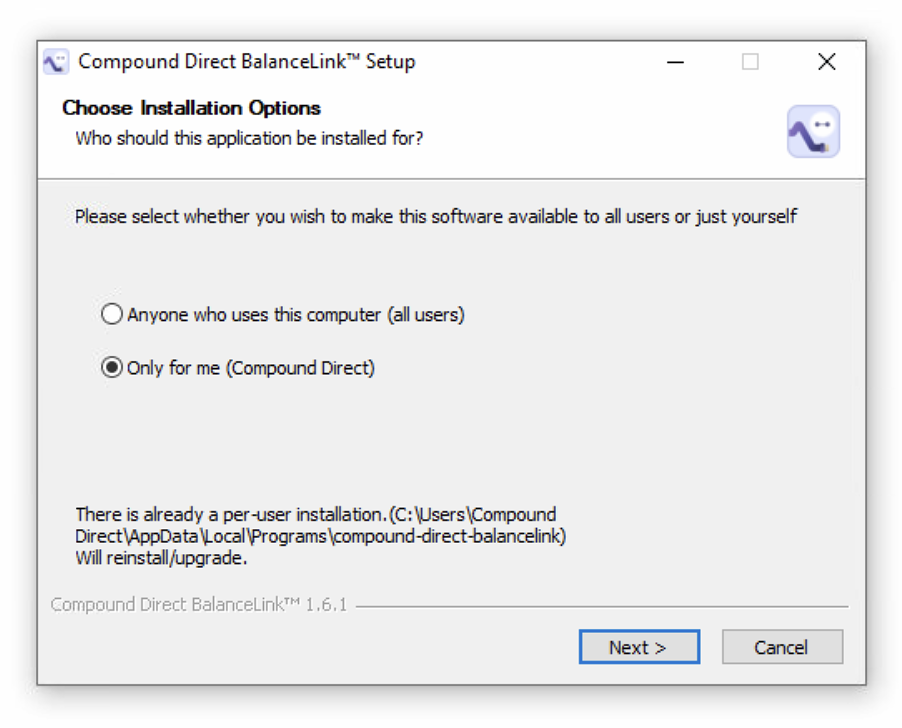
Select ‘Anyone who uses this computer (all users)’ to make this software available to all users of your computer or ‘Only for me (Compound Direct)’ which is the currently logged-in user.
- Once the installation option is selected, click ‘Next >’.
-
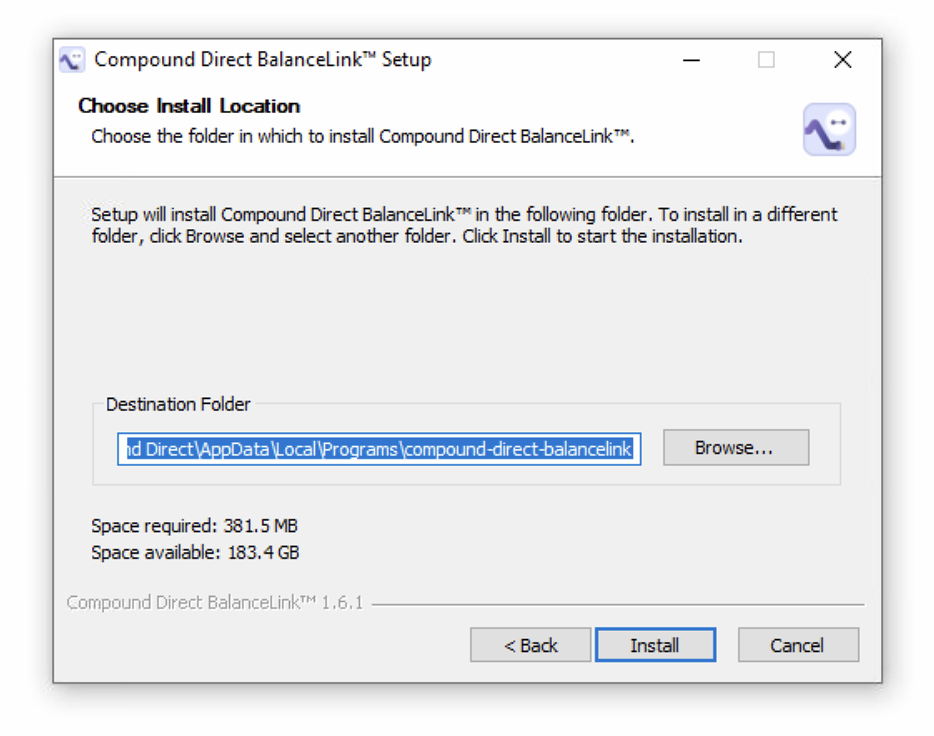
To install in a different folder, click ‘Browse’ and select another destination folder where to install the Compound Direct BalanceLink™ file on your computer.
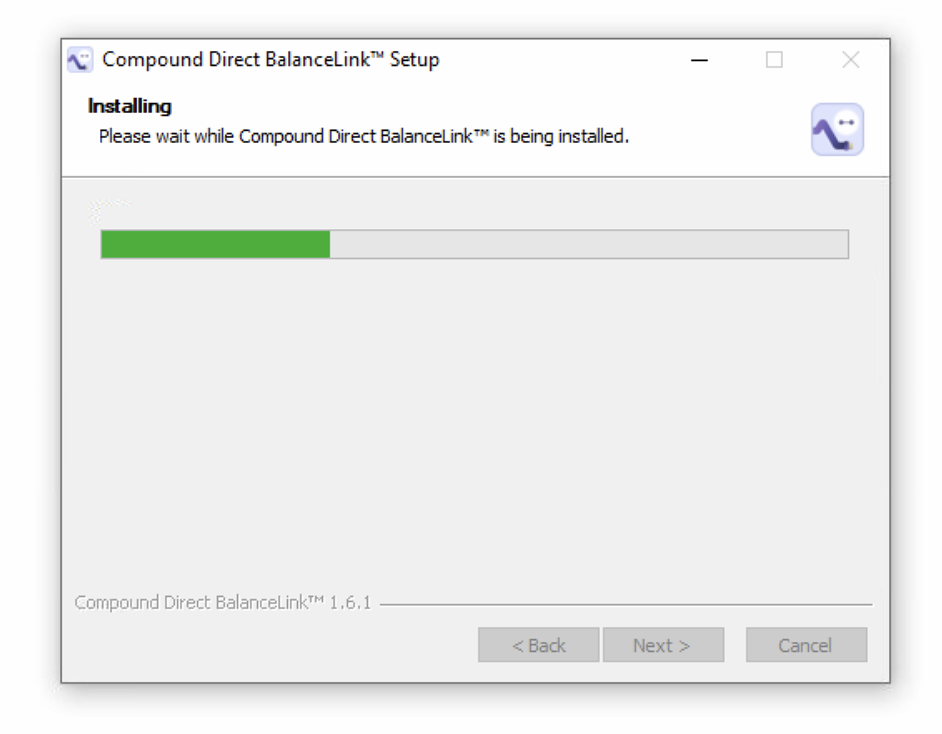
- Click ‘Install’ to proceed.
-
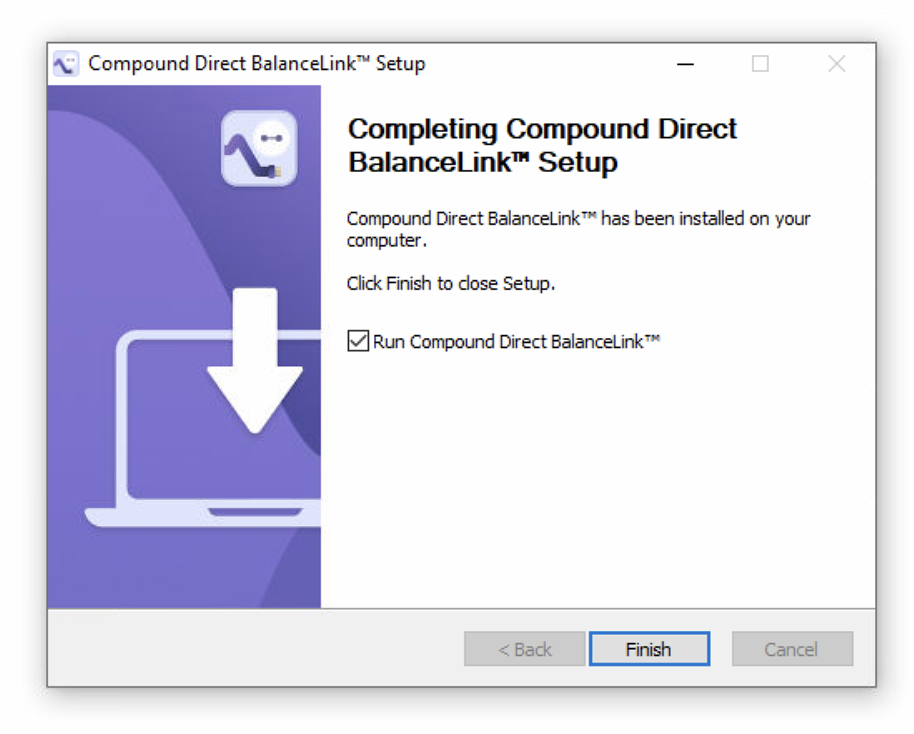
Click ‘Finish’ to open the Compound Direct BalanceLink™ application.
-
-
For better accessibility, after the installation:
- Right-click on the ‘Compound Direct BalanceLink™’ application on the taskbar and select ‘push_pin Pin to taskbar’.
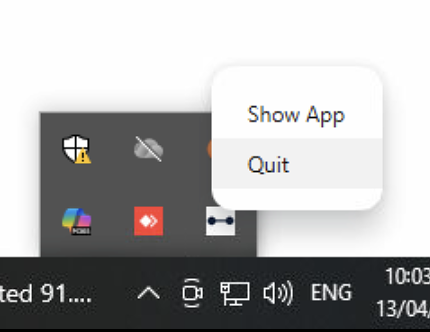
- You can also access this via the system tray by clicking on the keyboard_arrow_up icon to ‘Show hidden icons’.
-
Right-click on the ‘Compound Direct’ logo and select ‘Show App’ from the drop-down menu.
-
-
-
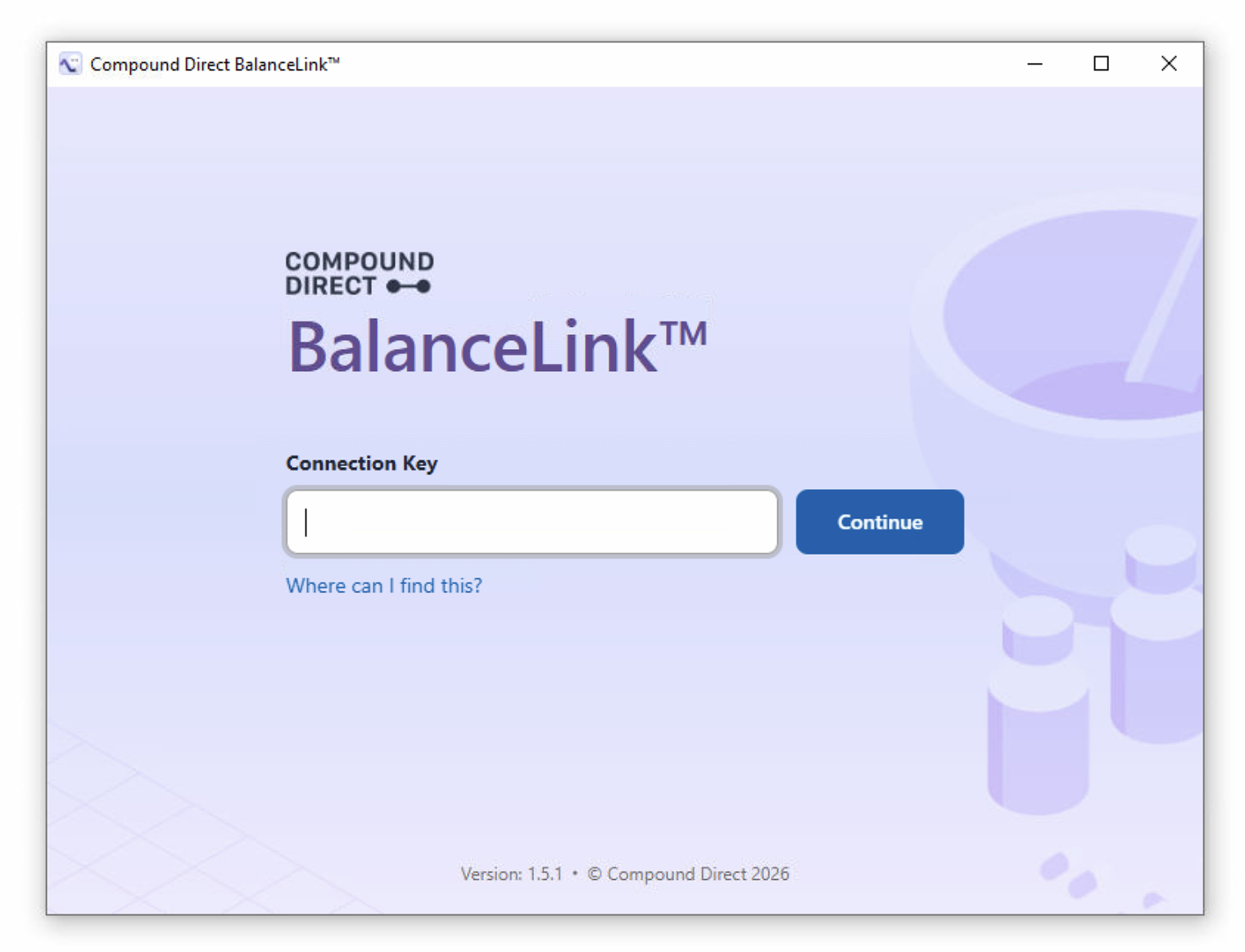
Paste the unique
connection keyand click on the ‘Continue’ button.-
-
Once logged in, you will automatically be logged in each time you open the application.
-
-
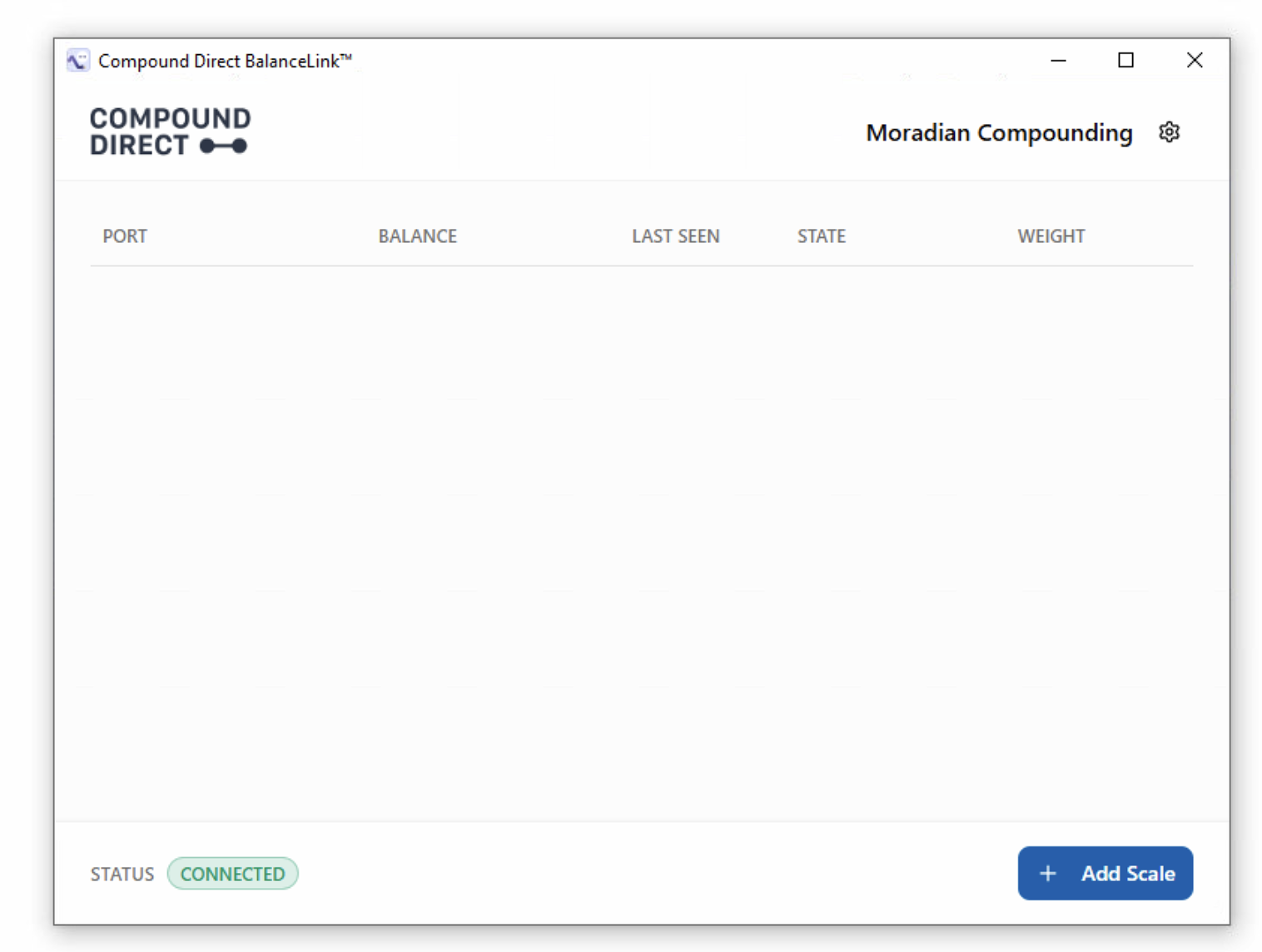
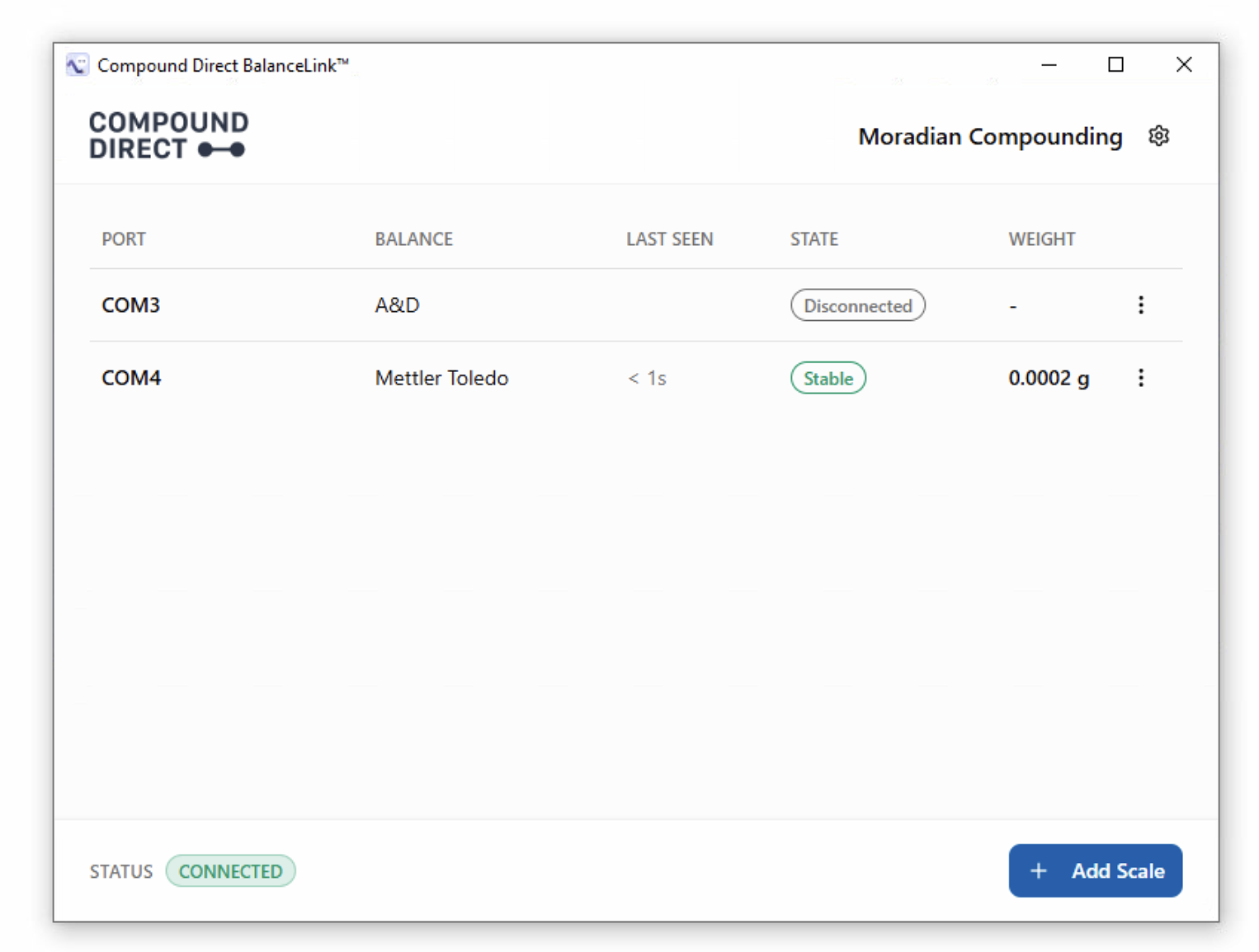
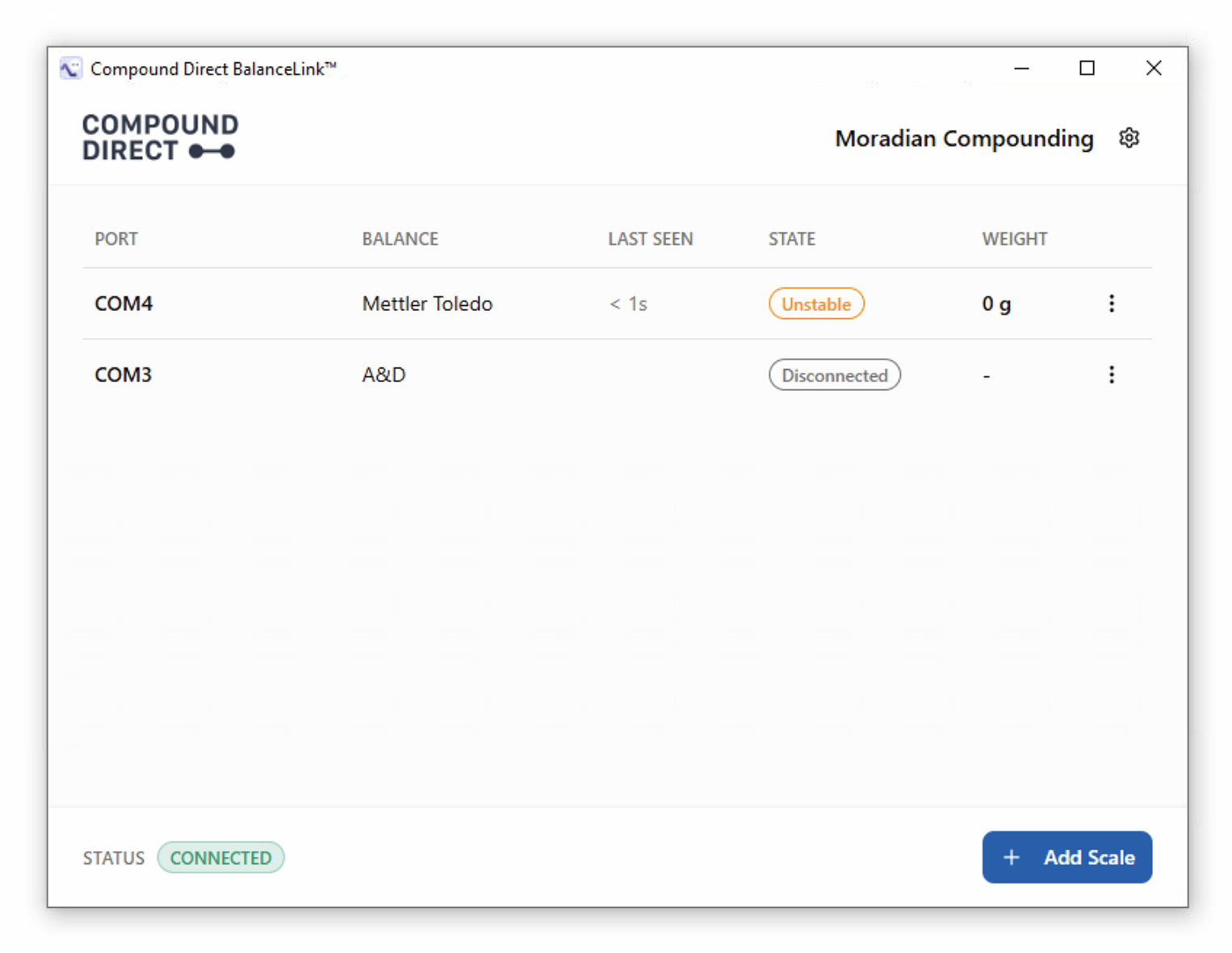
A list of all connected balance scales will be displayed, including their Port, Balance, Last Seen, State, and Weight.
-
Click on the ‘add Add Scale’ button to add a balance scale.
-
-
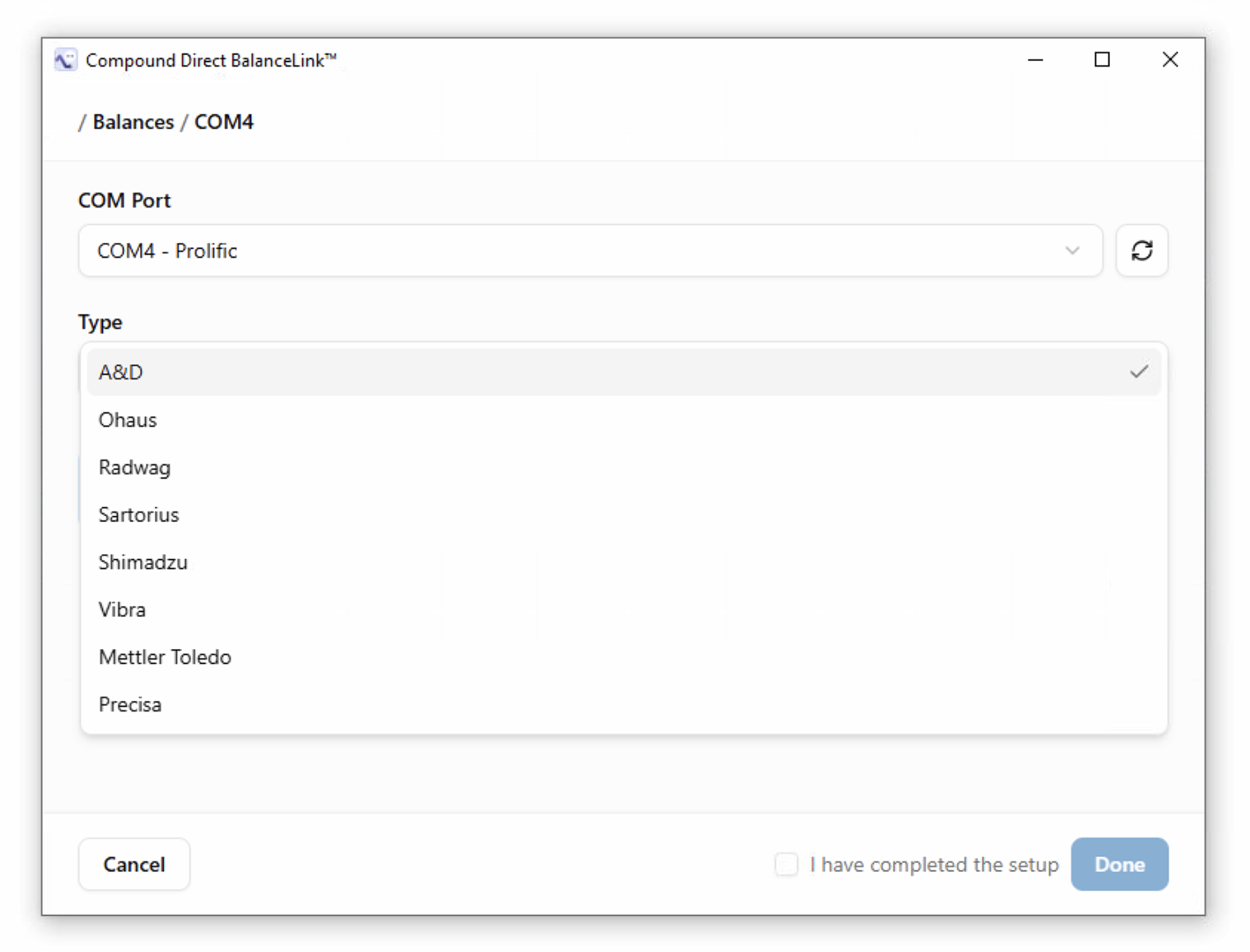
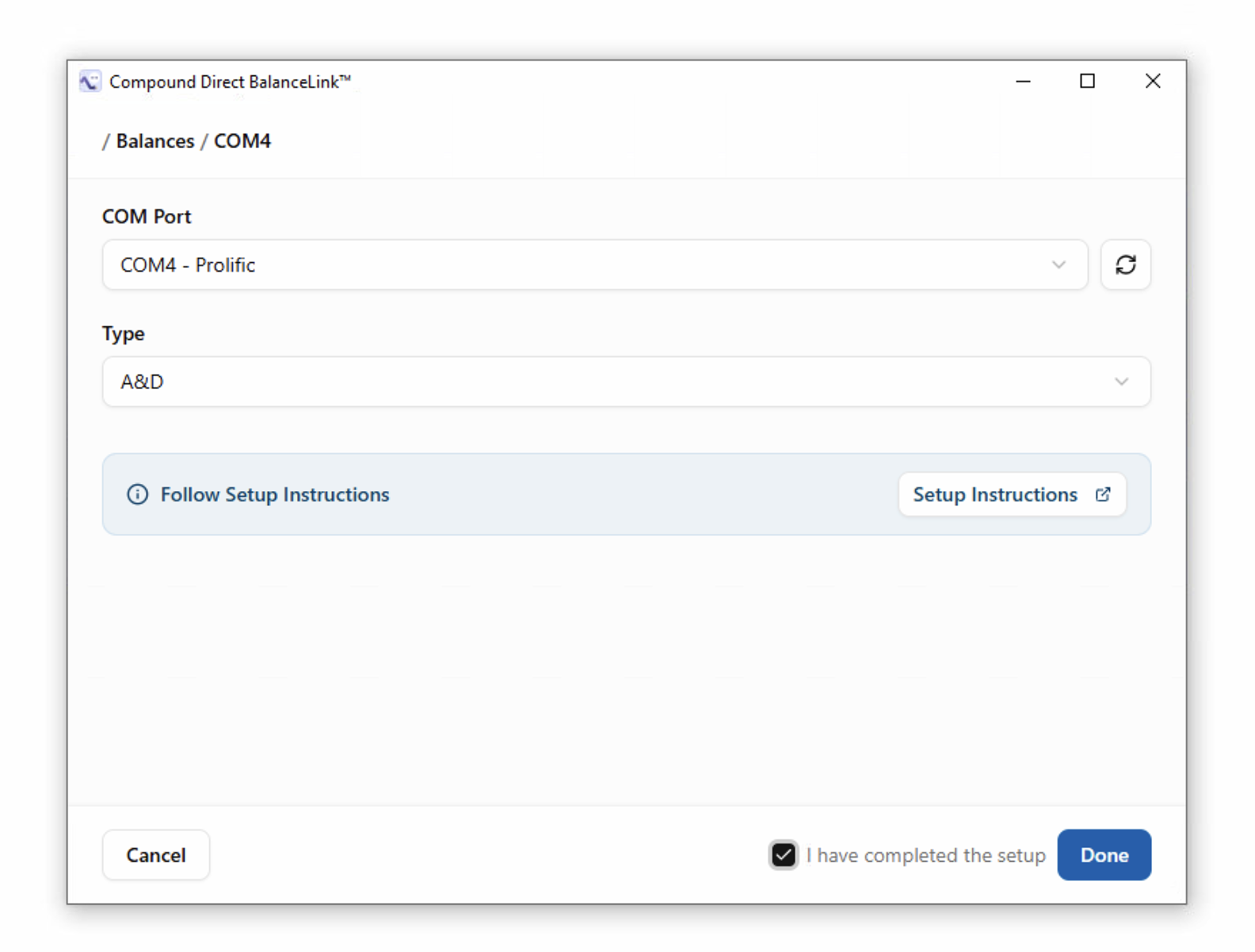
Select the ‘COM Port’ and ‘Type’ of balance from the drop-down menu.
-
For more information about setting up supported balance scales, see the Balance Setup guide. If your balances are not supported by Compound Direct, you may reach out to the support team via email:
support@compound.direct -
-
-
After following the ‘Setup Instructions launch’ for the specific supported balance scale, tick ‘check_box I have completed the setup’ to acknowledge.
-
-
Click on the ‘Done’ button to add the new balance scale.
-
The added balance scale should appear with a Stable State.
-
If it’s in an Unstable Disconnected or Error State, you may follow the Troubleshooting BalanceLink™ tutorial.
-
-
To check the added scales from the application in your workspace, you may:
- Click the settings gear icon in the top-right navigation bar to open ‘Workspace settings’.
- In the left-hand side menu, under ‘Compounding’, select ‘scale Balance Settings’.
- On the ‘Balance Settings’ page, you may check:
-
Connected balances to Compound Direct that are displayed, including the Balance, Current Weight, and Connection Status.
-
Connection Status can be in one of the following conditions:Connected,Re-connecting,Stale,orDisconnected.
-
-
To rename a balance, you may either:
- Click on the ‘Balance Name’ directly and edit the
balance name.- Click on the more_vert icon and select ‘Rename’ if desired.
- Enter a new
balance name. - Click on the ‘Save’ button.
- Enter a new
- Click on the more_vert icon and select ‘Rename’ if desired.
- Click on the ‘Balance Name’ directly and edit the
Updating BalanceLink™
-
Click on the ‘BalanceLink™’ application to open.
-
To update the BalanceLink™ application to the latest version:
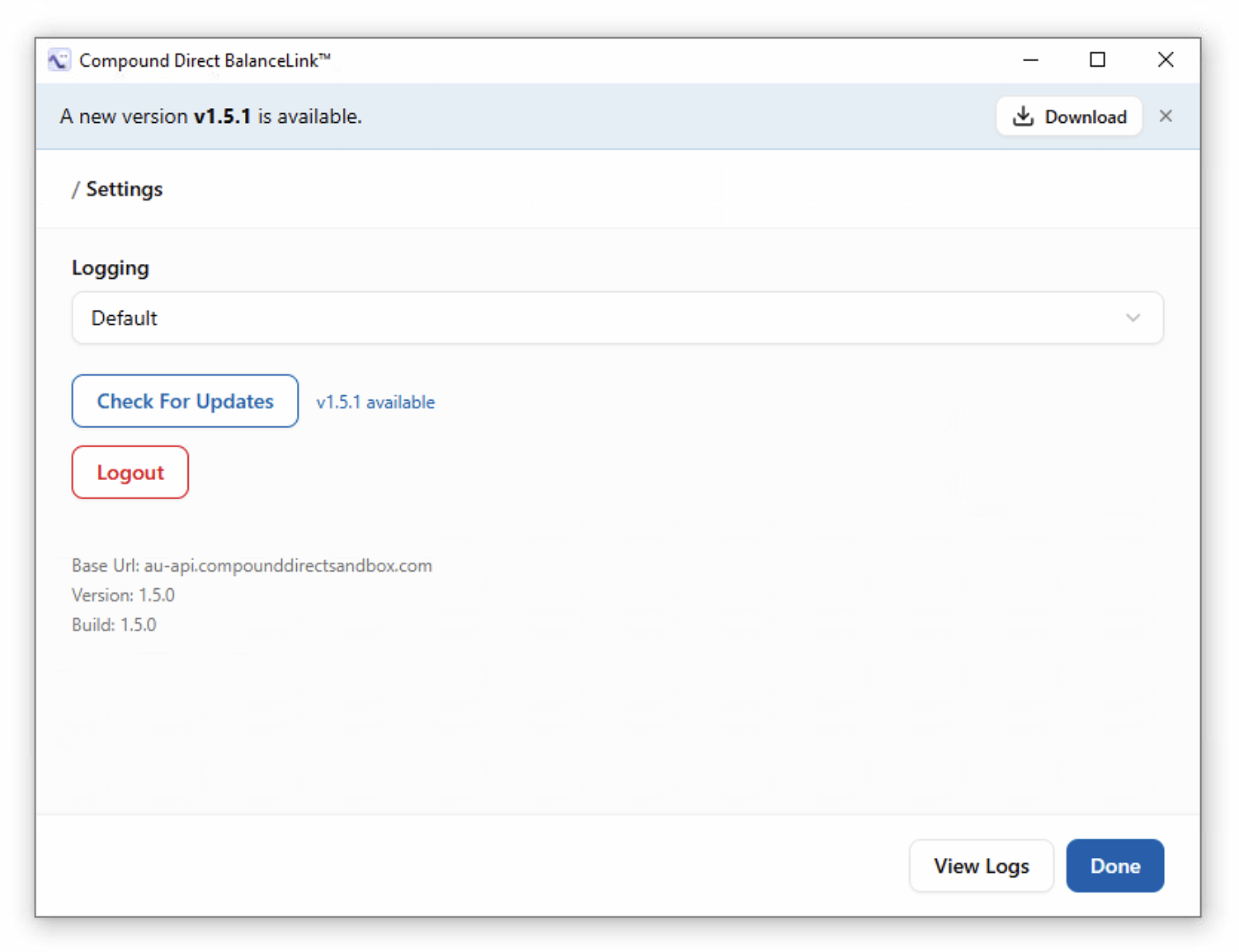
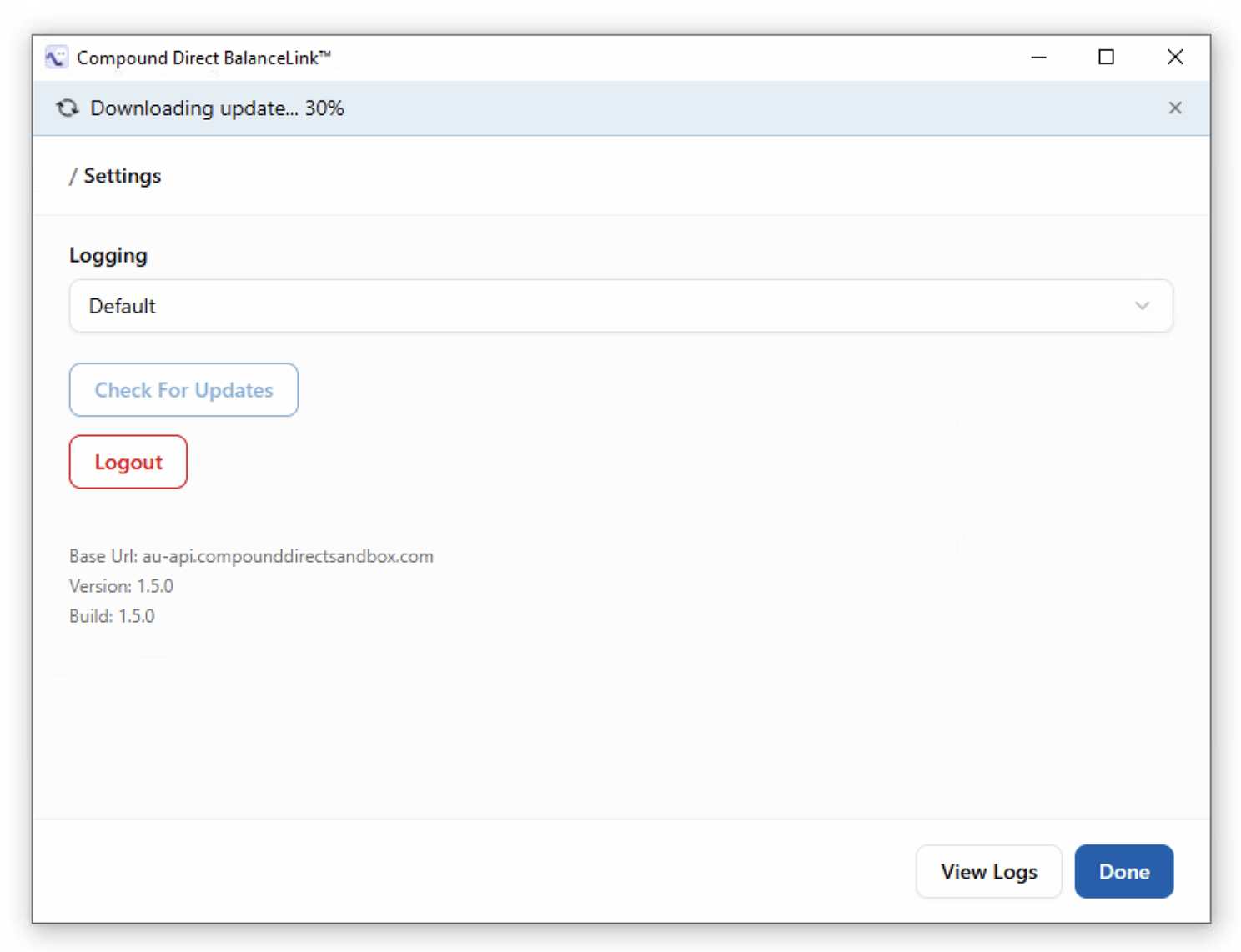
- On the banner, which will appear at the top of the application, click the ‘vertical_align_bottom Download’ button to begin downloading the update.
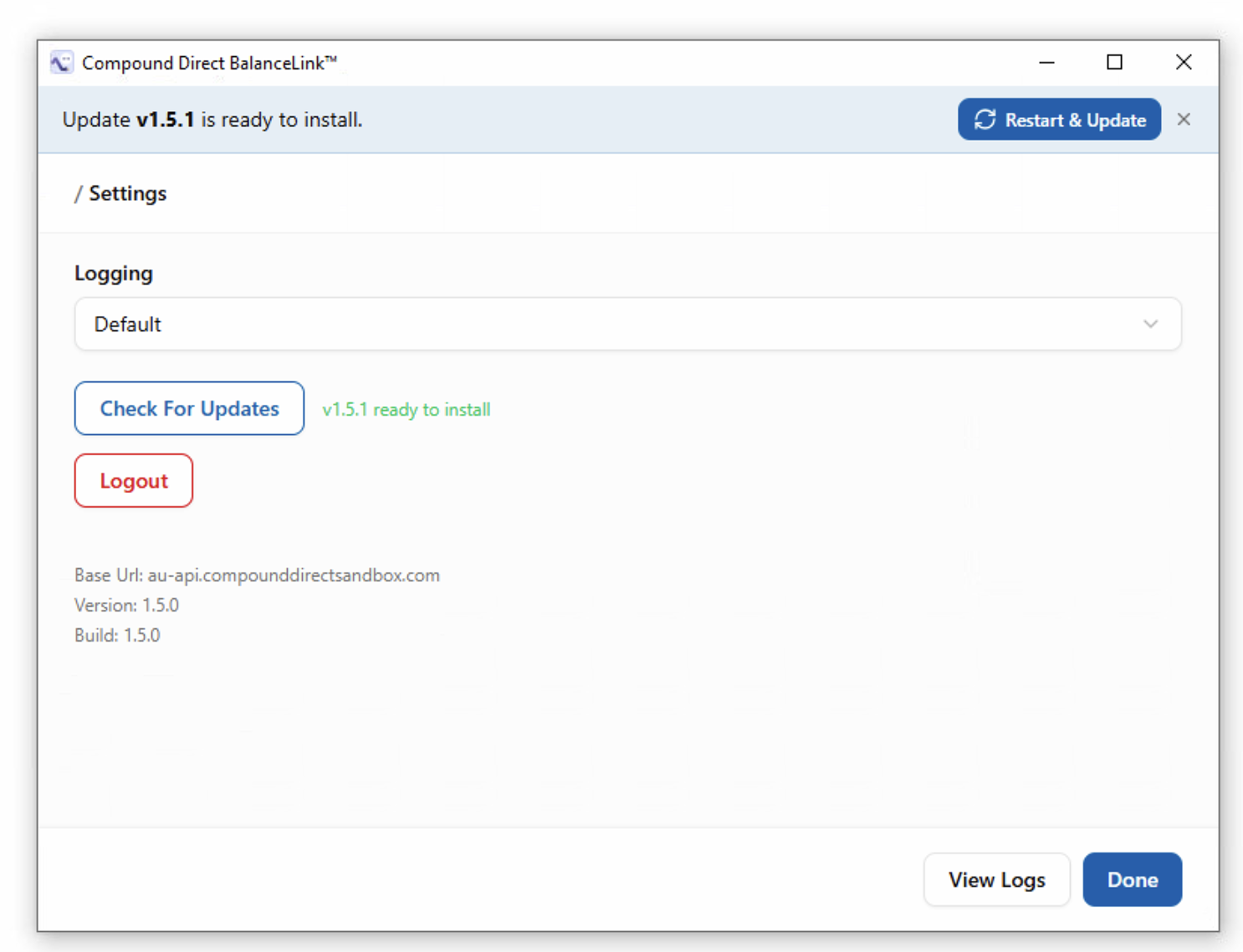
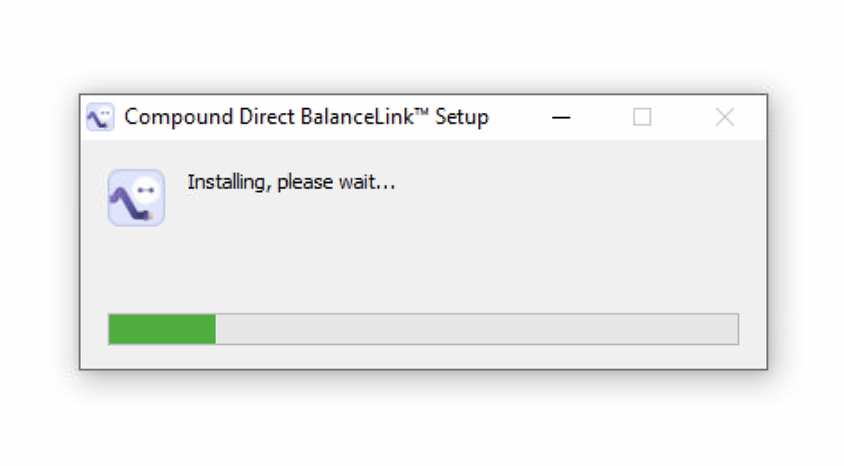
- Once the download is complete, click on the ‘cached Restart & Update’ button.
-
- On the banner, which will appear at the top of the application, click the ‘vertical_align_bottom Download’ button to begin downloading the update.
-
To check the current version and check for updates, you may:
- Click on the settings icon to open the Compound Direct BalanceLink™ / Settings.
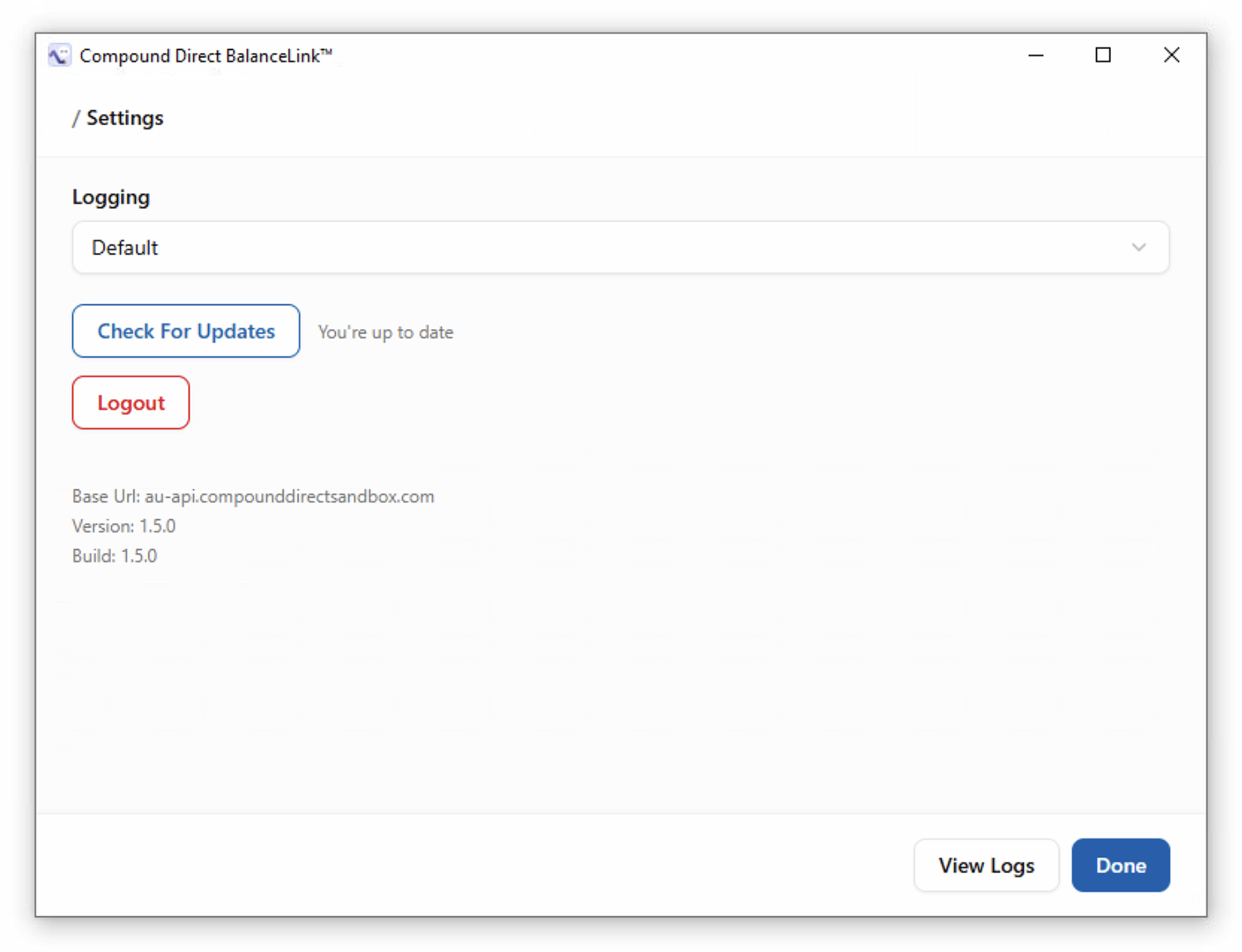
- Click on the ‘Check For Updates’ button, and an indicator will appear beside it. For example:
- v1.8.1 available - if there’s a new version available for download.
- v1.8.1 ready to install - if the download is completed and the update is ready to be installed.
-
You’re up to date - if the downloaded update is installed.
Configuring balance scales
-
Click on the ‘BalanceLink™’ application to open.
-
A list of all connected balance scales is displayed, including their Port, Balance, Last Seen, State, and Weight.
-
Click on the more_vert icon to select from the drop-down menu and select ‘edit Edit’.
-
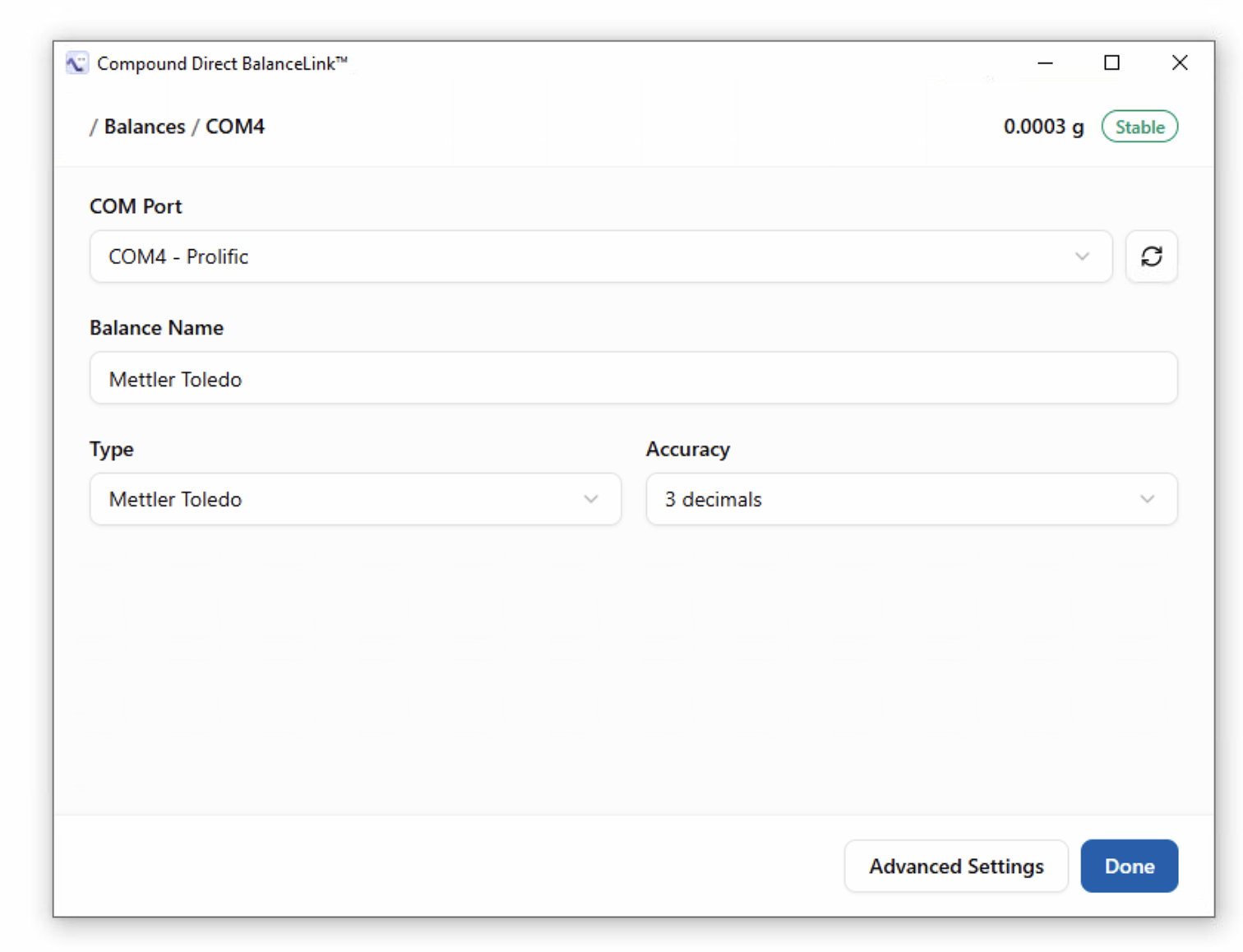
Select a different ‘COM Port’ from the drop-down menu, if needed.
-
Click on the cached icon to refresh the COM Port menu, if needed.
-
Edit the
balance nameas desired. -
You may select a different ‘Type’ and ‘Accuracy’ from the drop-down menu.
-
Click on the ‘Done’ button when finished.
-
-
To edit the serial communication settings, click on the ‘Advanced Settings’ button.
- Select a differentBaud Rate,Parity,Data Bits,Stop Bits,orPoll For Updatesfrom the drop-down menus.
-
Click on the ‘Done’ button when finished.
-
-
To delete a balance scale, click on the more_vert icon and select ‘delete Delete’.
-
Troubleshooting BalanceLink™
If your balance does not connect using the recommended preset, you may need to verify and adjust its serial communication and other settings manually. While presets are designed to work for most supported models, differences in configuration, cables, or system setup can prevent a successful connection. Use this section to check your balance scale settings and make any necessary adjustments to establish a stable and connected state/connection status.
-
Click on the ‘BalanceLink™’ application to open.
-
Click on the settings icon to open the Compound Direct BalanceLink™ / Settings.
-
Select a differentLoggingfrom the drop-down menu.
- ‘Default’ – Records only essential events and errors for normal operation.
- ‘Verbose’ – Records detailed information, including all communication and internal processes, useful for debugging.
-
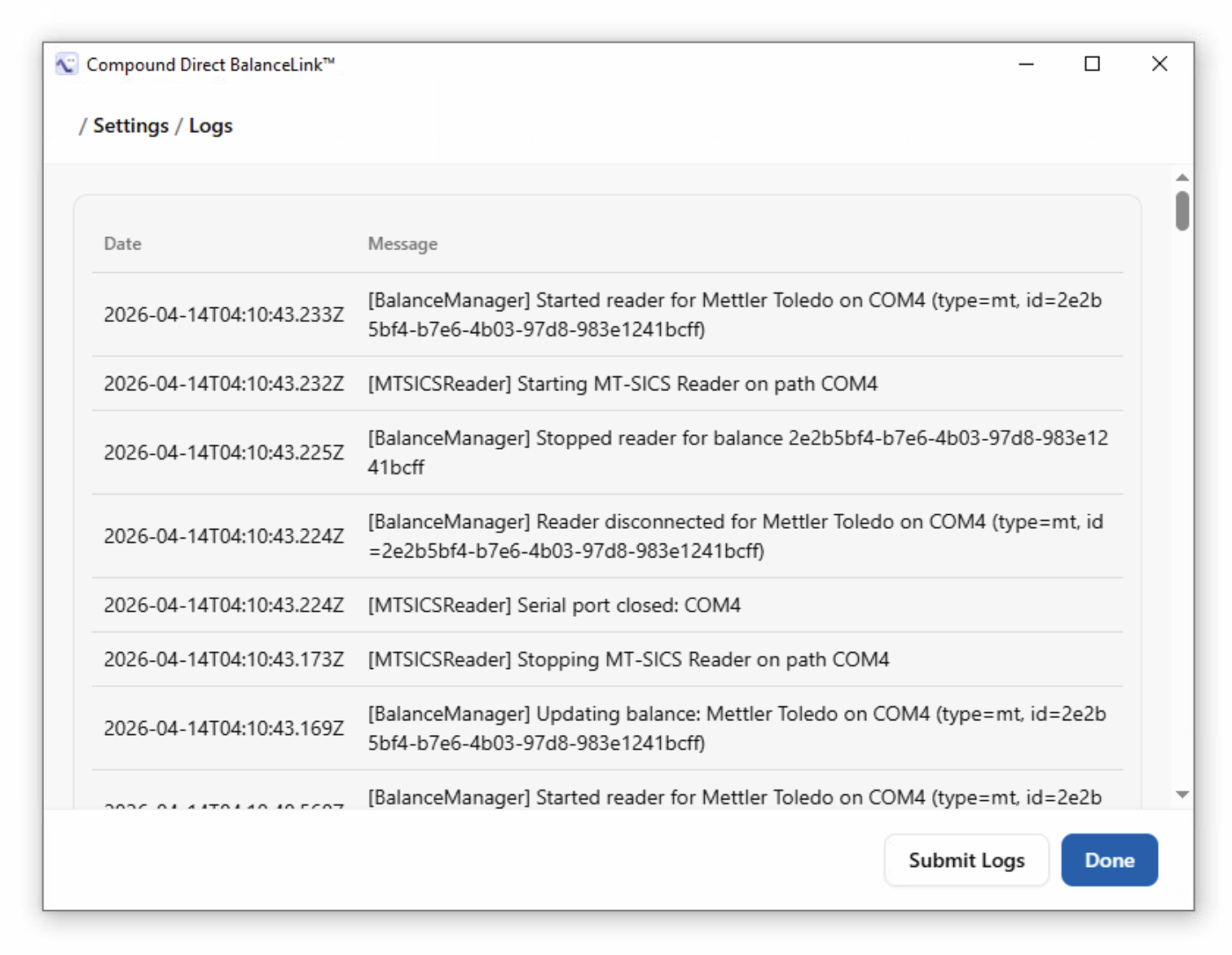
Click on the ‘View Logs’ button. A list of all logs is displayed, including their Date and Message.
- Click on the ‘Submit Logs’ button for troubleshooting.
-
This will send the log history to the support team to help diagnose problems.
-
Click on the ‘Done’ button when finished.
-
-
If the balances are still in the state of Unstable Disconnected or Error you may:
- Click on the settings icon to open the Compound Direct BalanceLink™ / Settings.
- Click on the ‘Logout’ button.
You will not be automatically logged in after logging out.-
Log in again using the unique
connection key. -
-
Once logged in, click on the more_vert icon of the desired balance.
-
Select ‘edit Edit’ from the drop-down menu.
- Select the appropriate ‘COM Port’ from the drop-down menu.
- Click on the cached icon to refresh the menu.
- Select the appropriate ‘Type’ and desired ‘Accuracy’ from the drop-down menu.
-
-
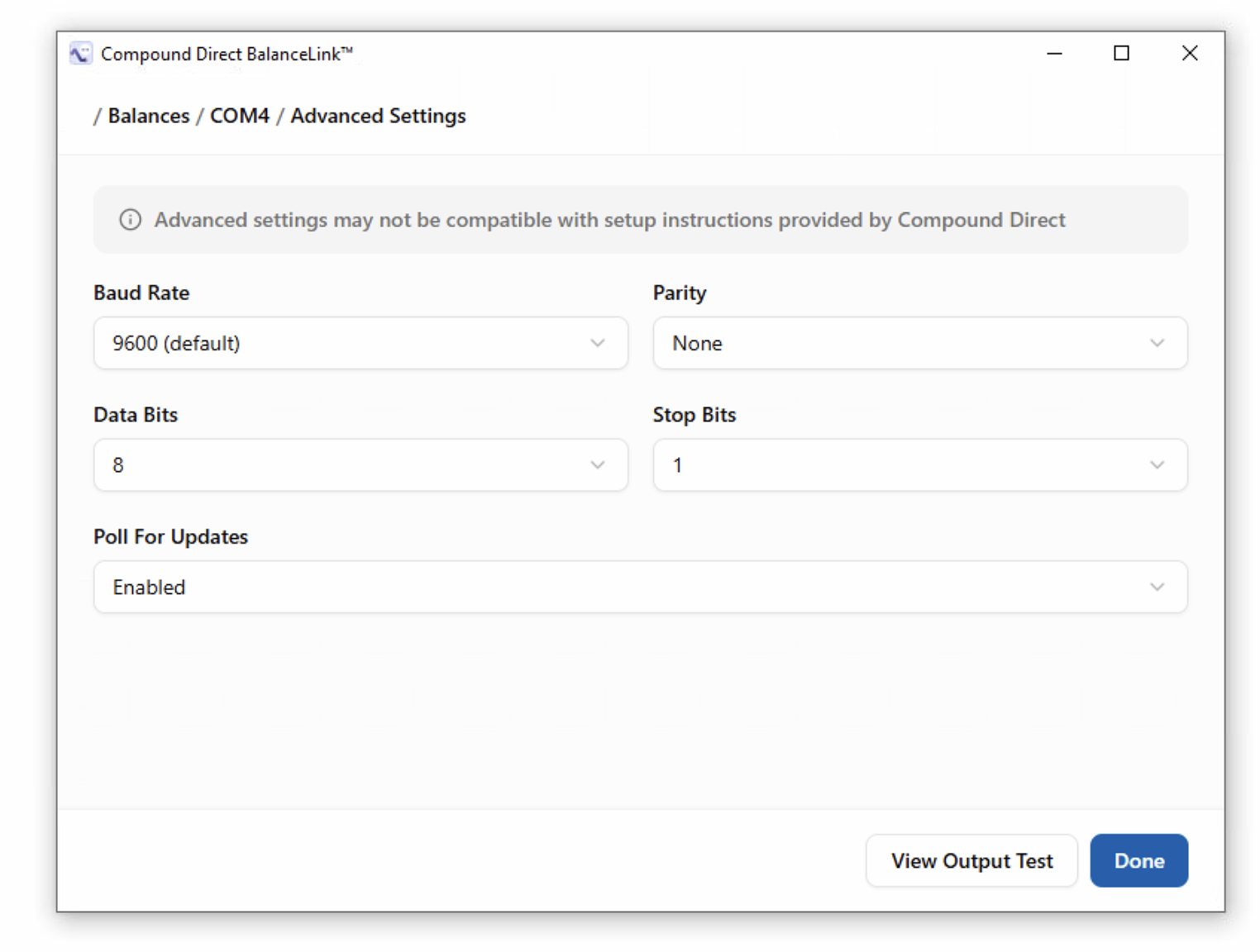
Click on the ‘Advanced Settings’ button.
-
Select the appropriateBaud Rate,Parity,Data Bits,Stop Bits,orPoll For Updatesfrom the drop-down menus.
-
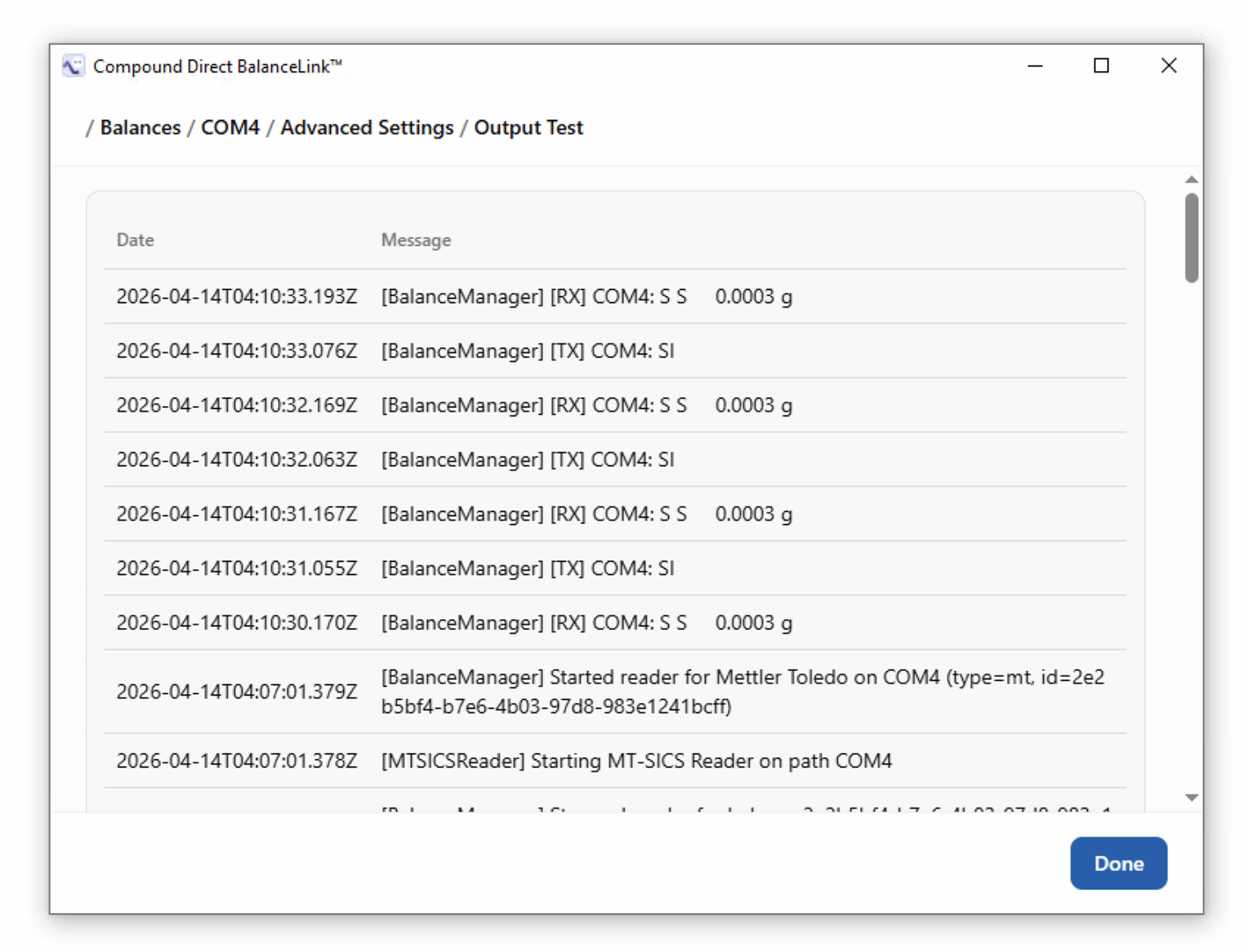
Click on the ‘View Output Test’ button. A list of all output tests is displayed, including their Date and Message.
-
-
Click on the ‘Done’ button when finished.
-
-
-
To delete and re-add the scale, you may:
-
Click on the more_vert icon.
-
Select ‘delete_outline Delete’ from the drop-down menu.
-
Click on the ‘add Add Scale’ button to re-add a balance.
-
-
If the status at the bottom of the modal is Disconnected you may need to check your internet connection.
-
To reboot the BalanceLink™ application:
-
On your computer's system tray, click on the keyboard_arrow_up icon to ‘Show hidden icons’.
-
Right-click on the ‘Compound Direct’ logo.
-
Select the ‘Quit’ option from the drop-down menu.
-
-
To uninstall the BalanceLink™ application, you may either:
- Go to the Window ‘Settings’ of your computer.
- Search for and open the
installed appson your computer's settings.- Search for the
Compound Direct BalanceLink™ 1.8.0application. - Click on the more_vert icon and select ‘Uninstall’ from the drop-down menu.
- Search for the
- Search for and open the
- Search for the
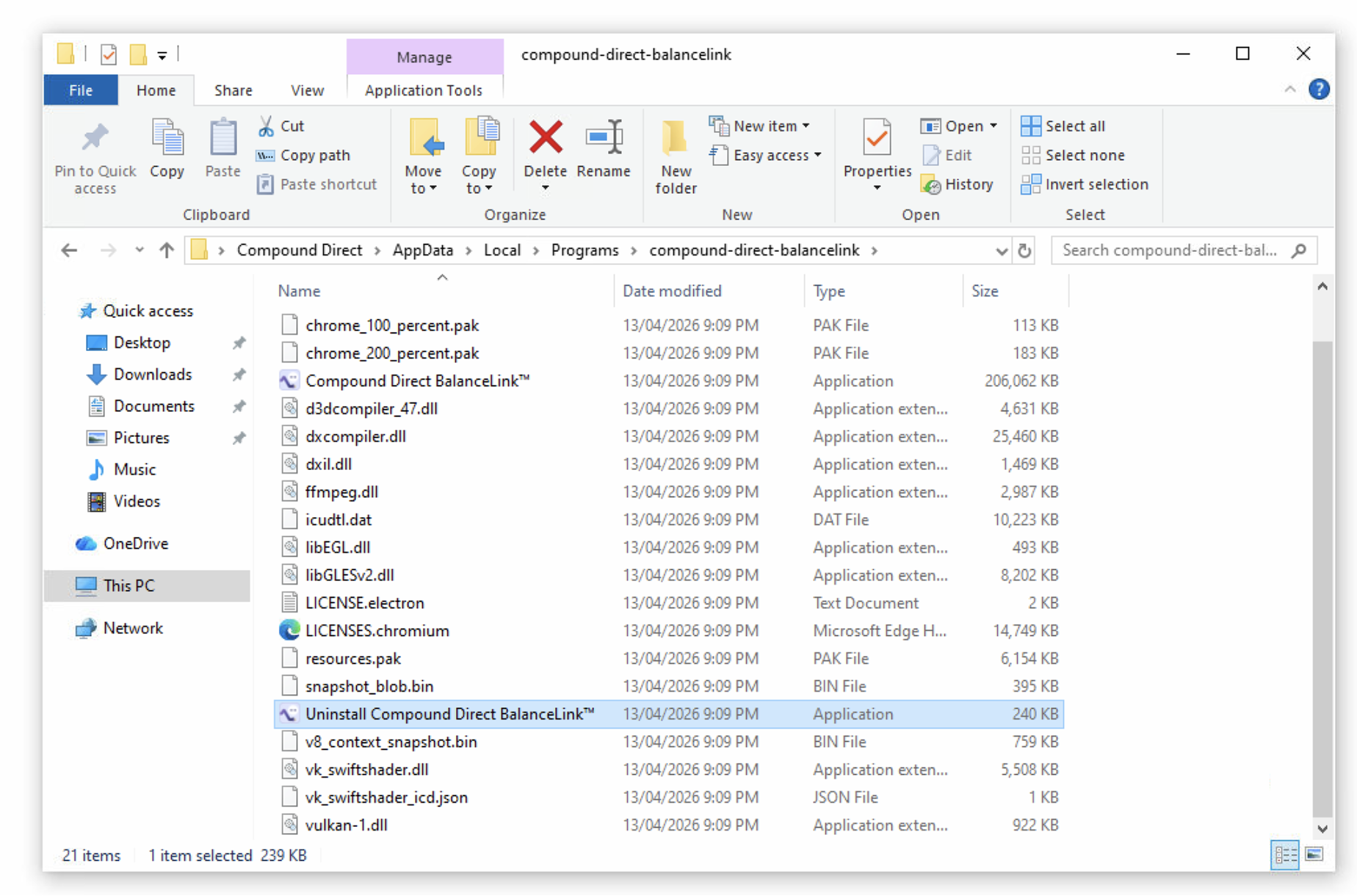
Uninstall Compound Direct BalanceLink™file in your File Explorer.- Click on the
Uninstall Compound Direct BalanceLink™file and the ‘Okay’ button.
- Click on the
- Go to the Window ‘Settings’ of your computer.
-
To reinstall the BalanceLink™ application, click on the downloaded file named ‘compound-direct-balancelink-v1.8.0-win.exe’ in your Downloads.