
Order Workflows in Action: Processing in-store and online orders in Compound Direct

In-store and Online orders in Compound Direct are processed through a single, streamlined workflow that optimises every stage of the order lifecycle, including quoting, payment, risk assessment, and order collection.
This blog outlines how both in-store and online orders are handled, detailing the key stages involved in each process. It explains how pharmacy staff efficiently manage these orders using pre-configured workflows, from order creation and progression through to fulfilment, while ensuring customers remain informed via automated communications.
To support efficient and consistent order handling, workflows should be configured in advance and tailored to the specific type of order being processed. For guidance on setting up and customising workflows, see Compound Direct Order Workflows: Streamlining pharmacy operations.
Stages of an order
This section breaks down the individual stages an order passes through, explaining the actions required at each step and how orders move from draft creation through to payment, dispensing, fulfilment, and collection or delivery.
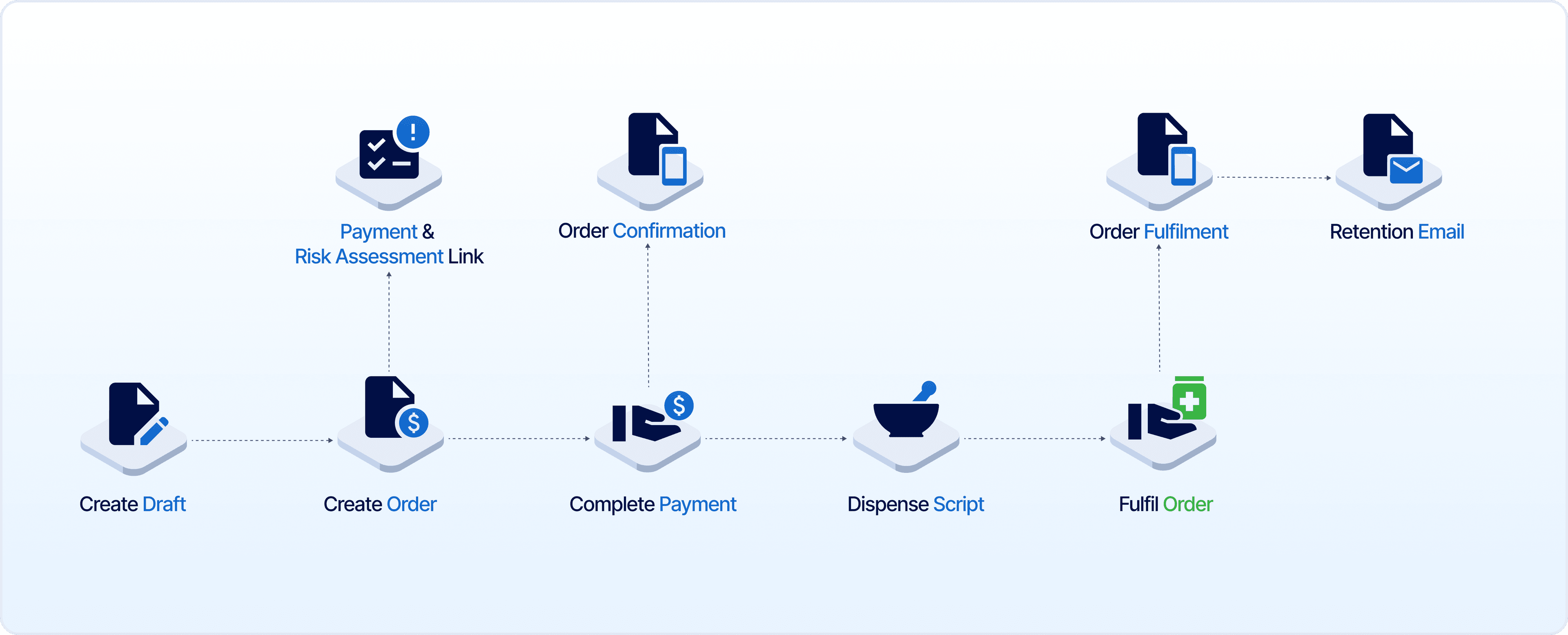
Stage 1: Creating the draft
A draft can be created immediately after the script is received. Information from the Drafts page, such as compound pricing, can be confirmed with the customer before proceeding with the order process.
If the order is placed online, some pharmacies prefer to send a confirmation message to the patient to inform the patient that they have received their script or order.
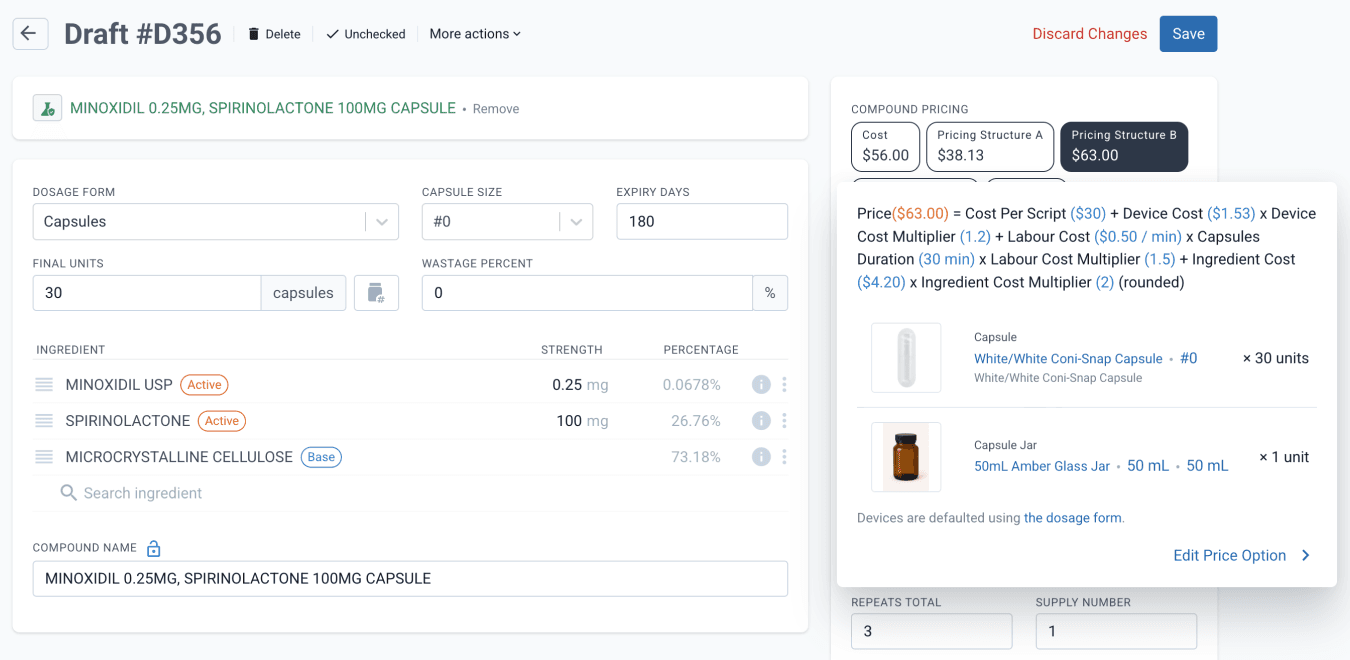
From the drafts page
Stage 2: Creating the order
You can also create an order directly from the Orders page. Drafts and Dispensed scripts can be added to an Order. A single order can include multiple products for multiple patients, each with different prescribers. Formulations, batch stock, commercial drugs, and retail products can all be searched directly from this page.
For more information on the different ways drafts can be added to an order, see our blog Drafts to Orders: A guide to order creation in Compound Direct.
Products with set pricing will show their available quantities and prices, and both can be adjusted as needed.
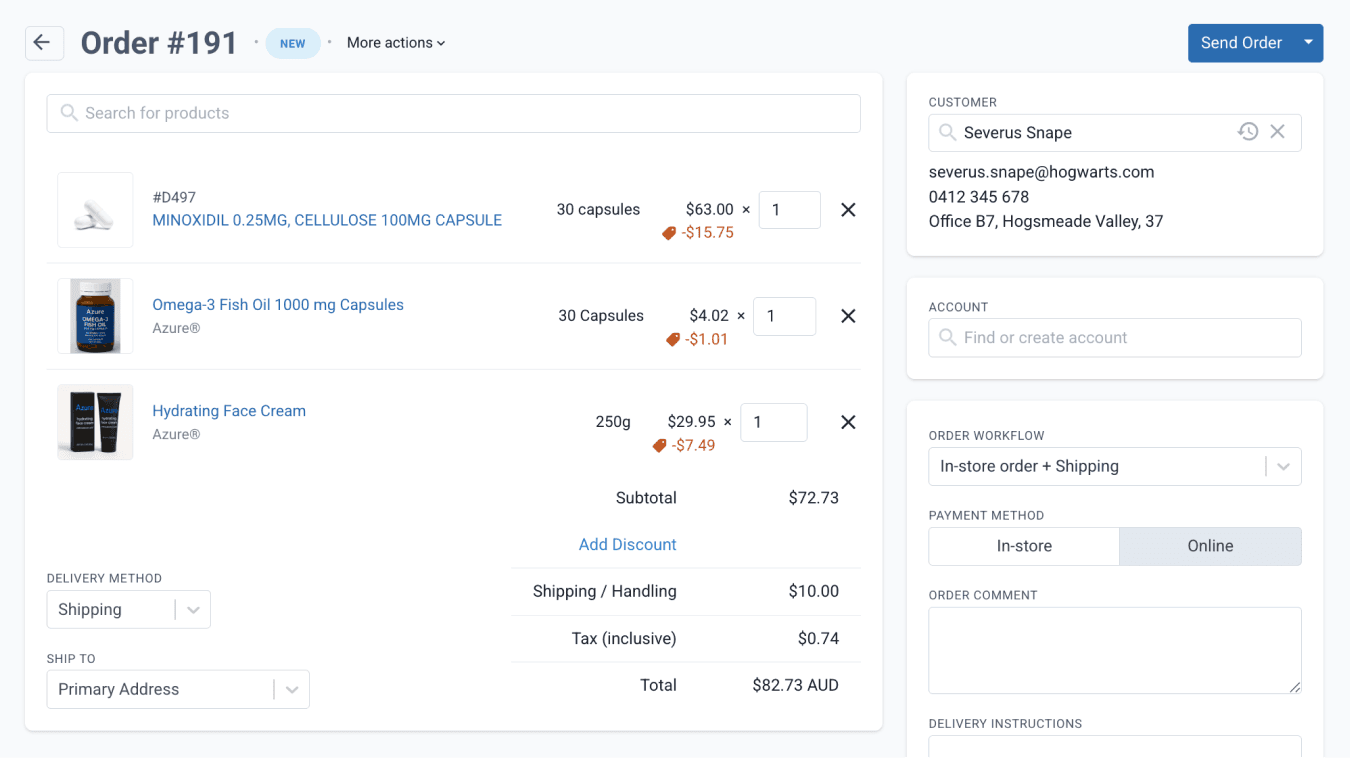
From the orders page
Order workflow defaults
After confirming that the correct product and patient have been added to the order, the next important step is selecting the appropriate order workflow.
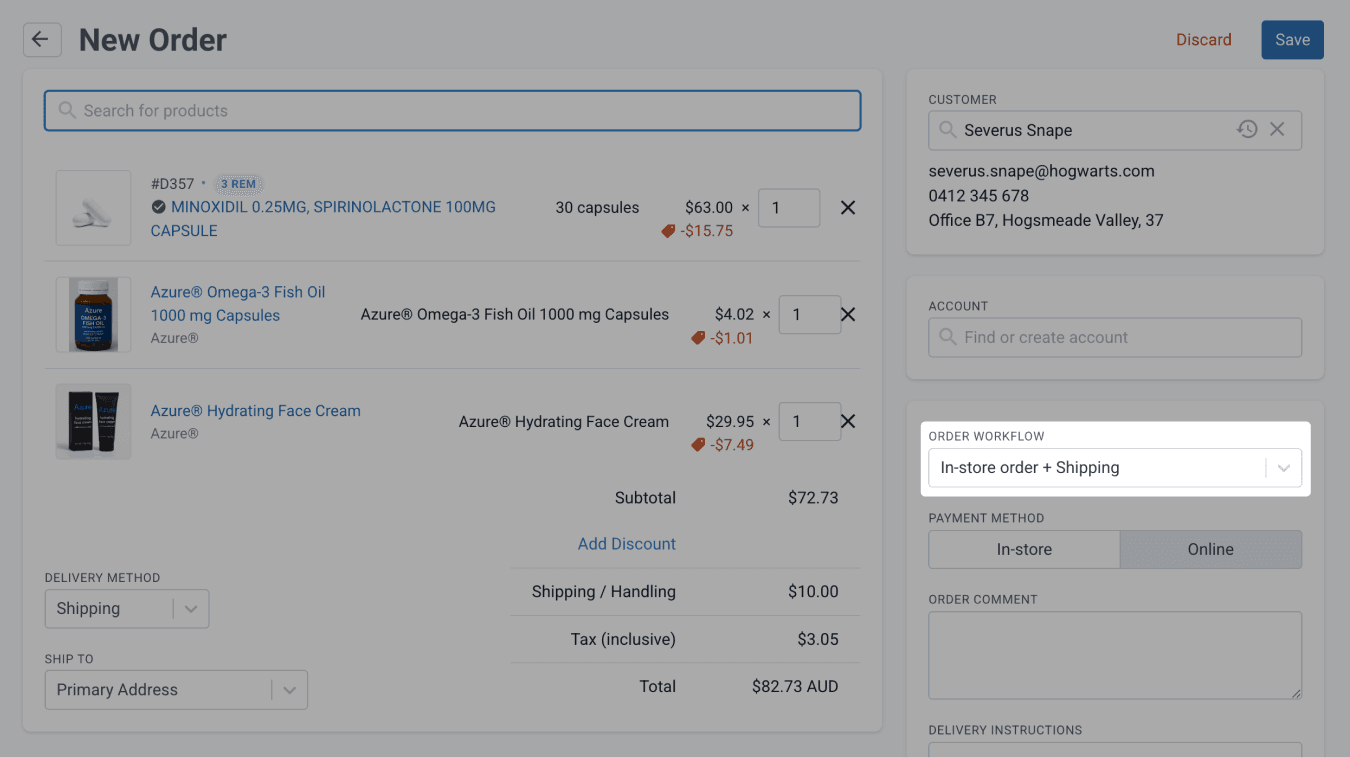
From the orders page
The selected order workflow determines the default account, delivery method, shipping fee (if the default delivery method is shipping), tax, and payment method. These fields will be pre-selected based on how the workflow was configured.
Selecting a workflow does not restrict the order settings. All fields can still be adjusted if needed, except for the payment method. The payment method can only be changed if it is enabled in the order flow settings (Configure workflow basics).
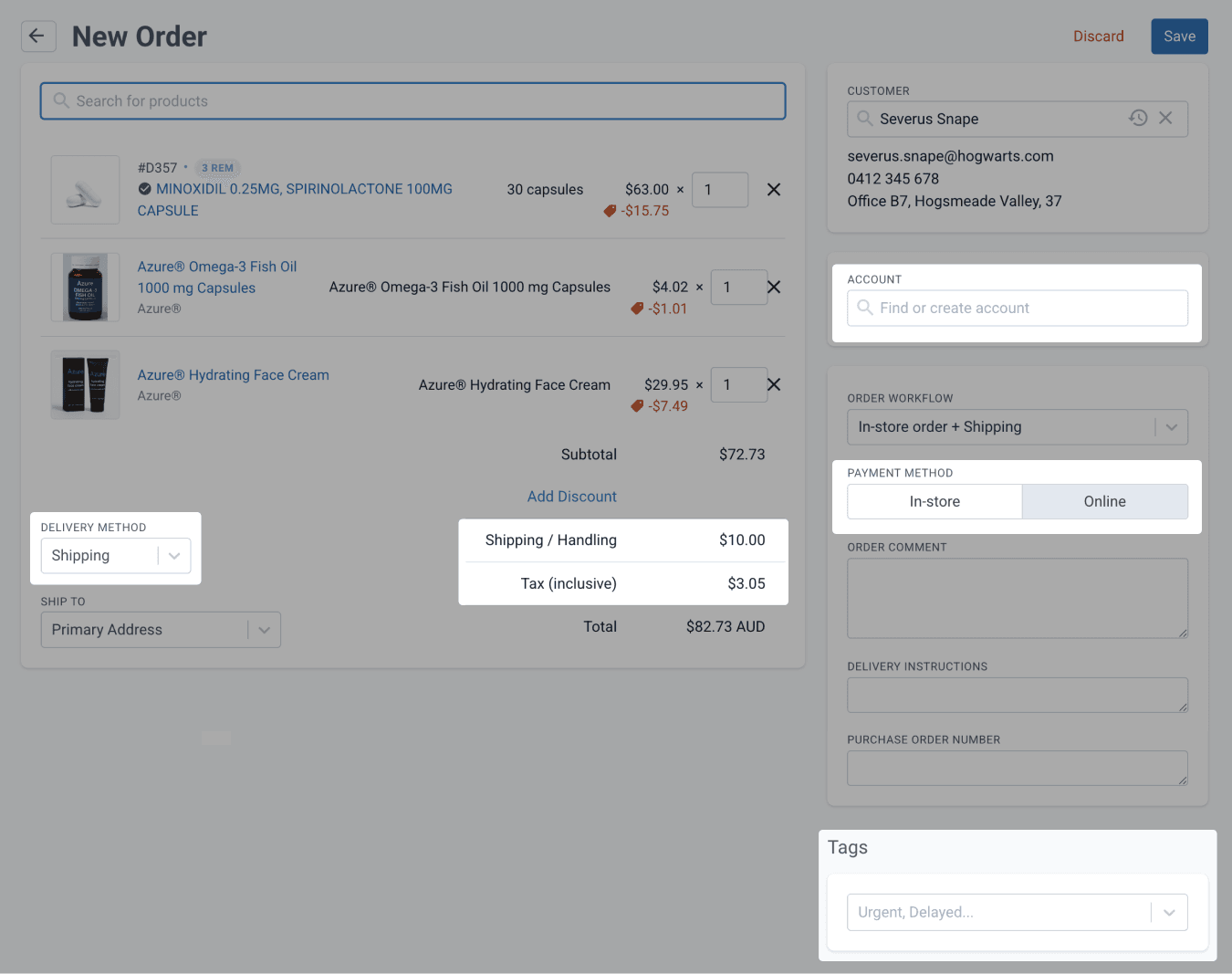
From the orders page
These settings can be configured when setting up a workflow. The Compound Direct Order Workflows: Streamlining pharmacy operations blog provides a step-by-step guide on how to create and customise these parts of the workflows.
A. Delivery Method
If the default delivery method for the selected workflow is Shipping or Send to clinic, the corresponding default shipping option will be pre-selected on the Orders page. You can switch to any other shipping option configured within the workflow (Customise shipping and pickup options) or enter a custom shipping or handling fee if none of the preset options apply.
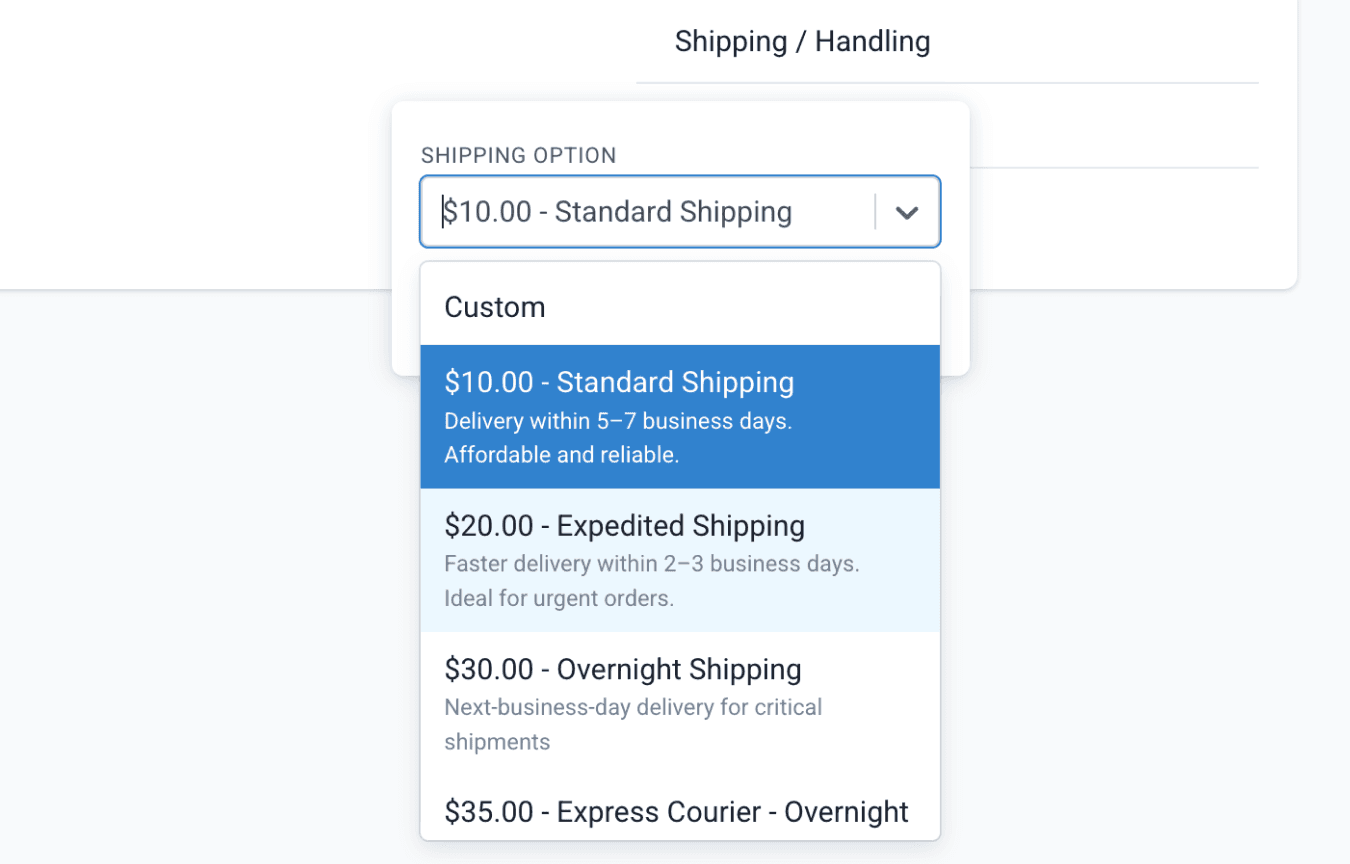
From the orders page
If the customer linked to the order has more than one address saved in their profile, you can select the appropriate shipping address from the Ship To dropdown menu to specify where the order should be sent.
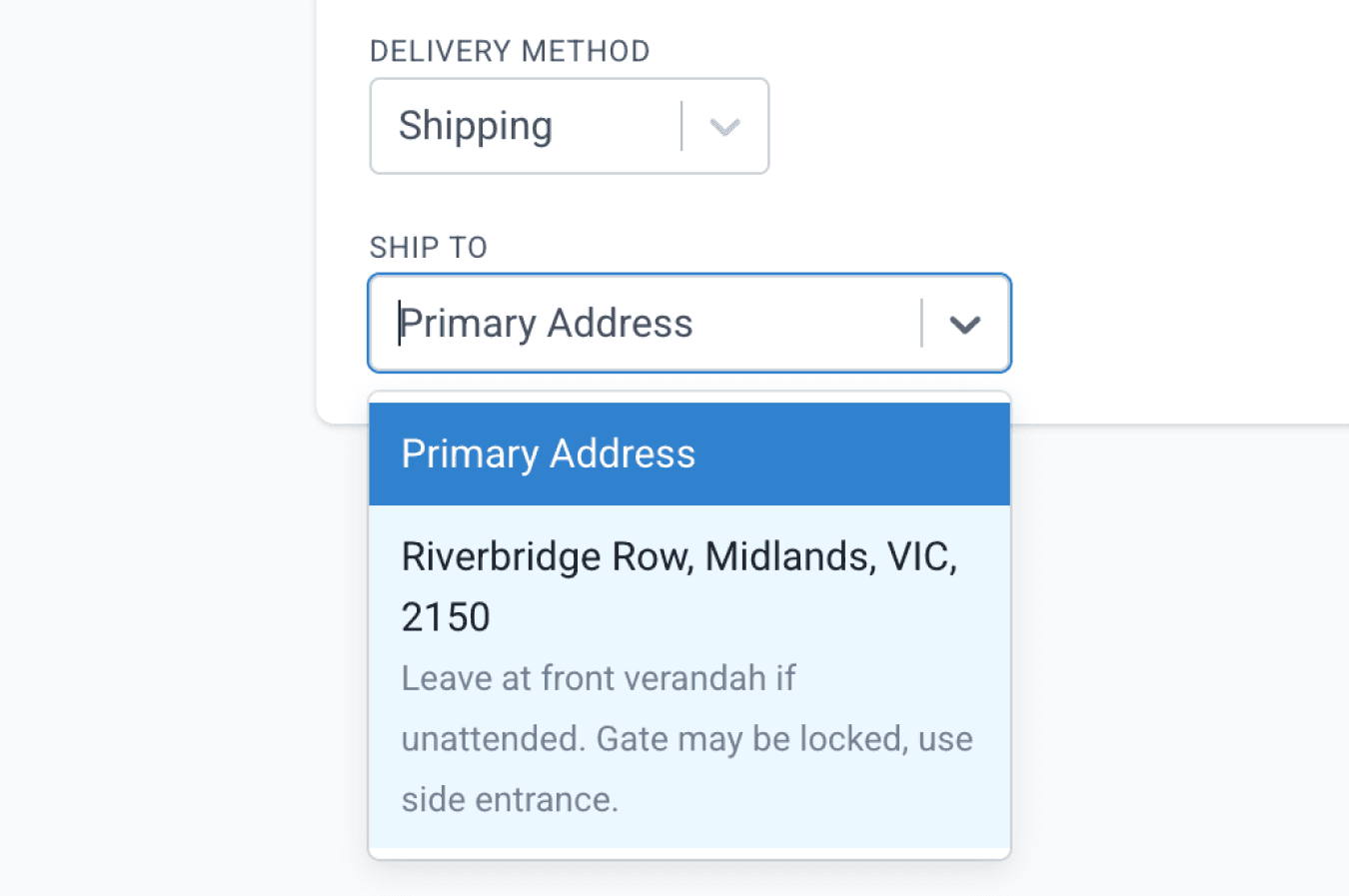
From the orders page
Use the dropdown menu to switch the delivery option to pickup. Any pickup locations added to the workflow will then appear as selectable options in the menu.
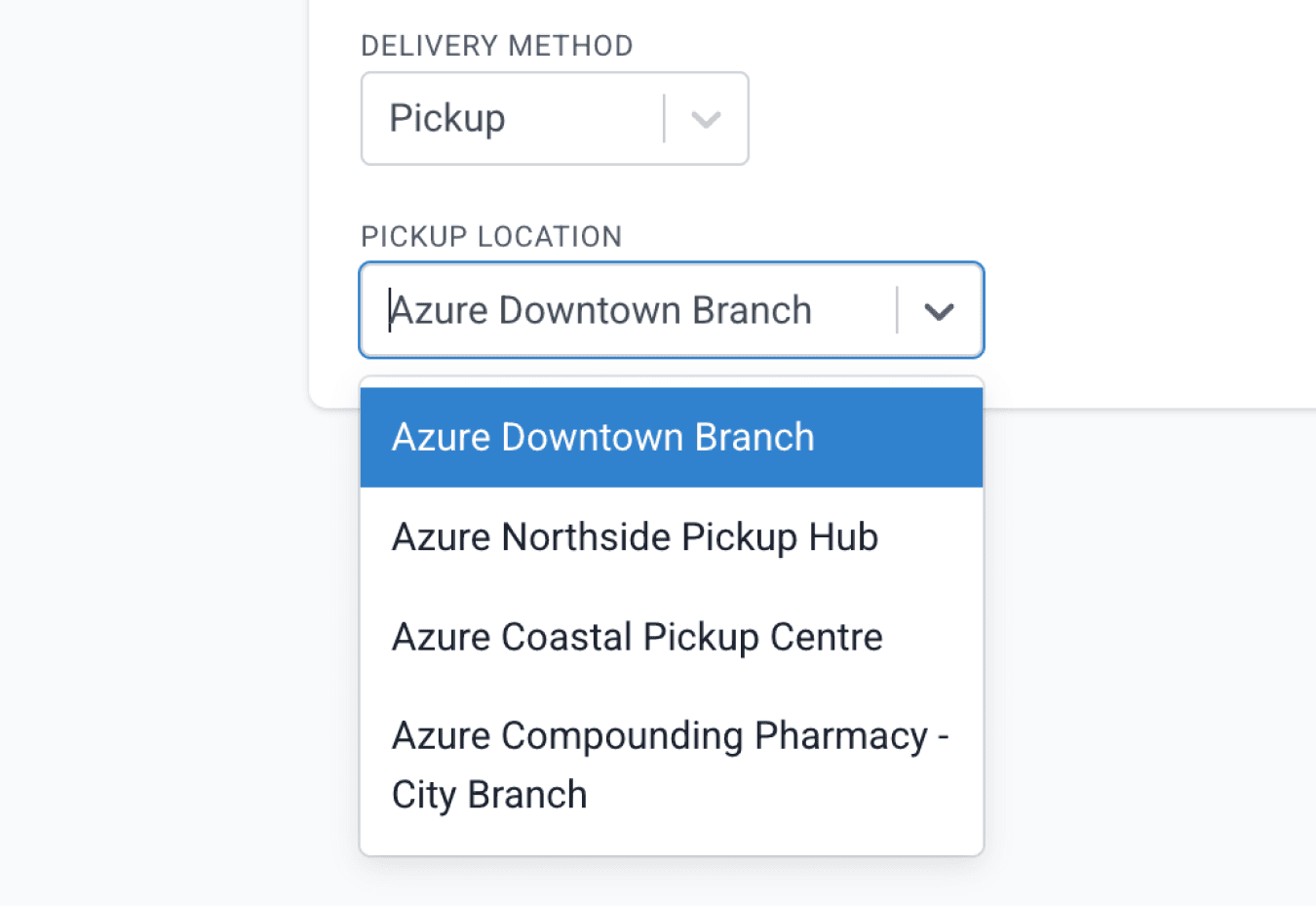
From the orders page
To learn more about setting up delivery methods, see our blog Compound Direct Order Delivery: A guide to pickup and shipping options.
B. Tax
The default tax settings defined in the workflow will be applied here, including whether tax should be added and whether the item is tax inclusive (Set up tax settings).
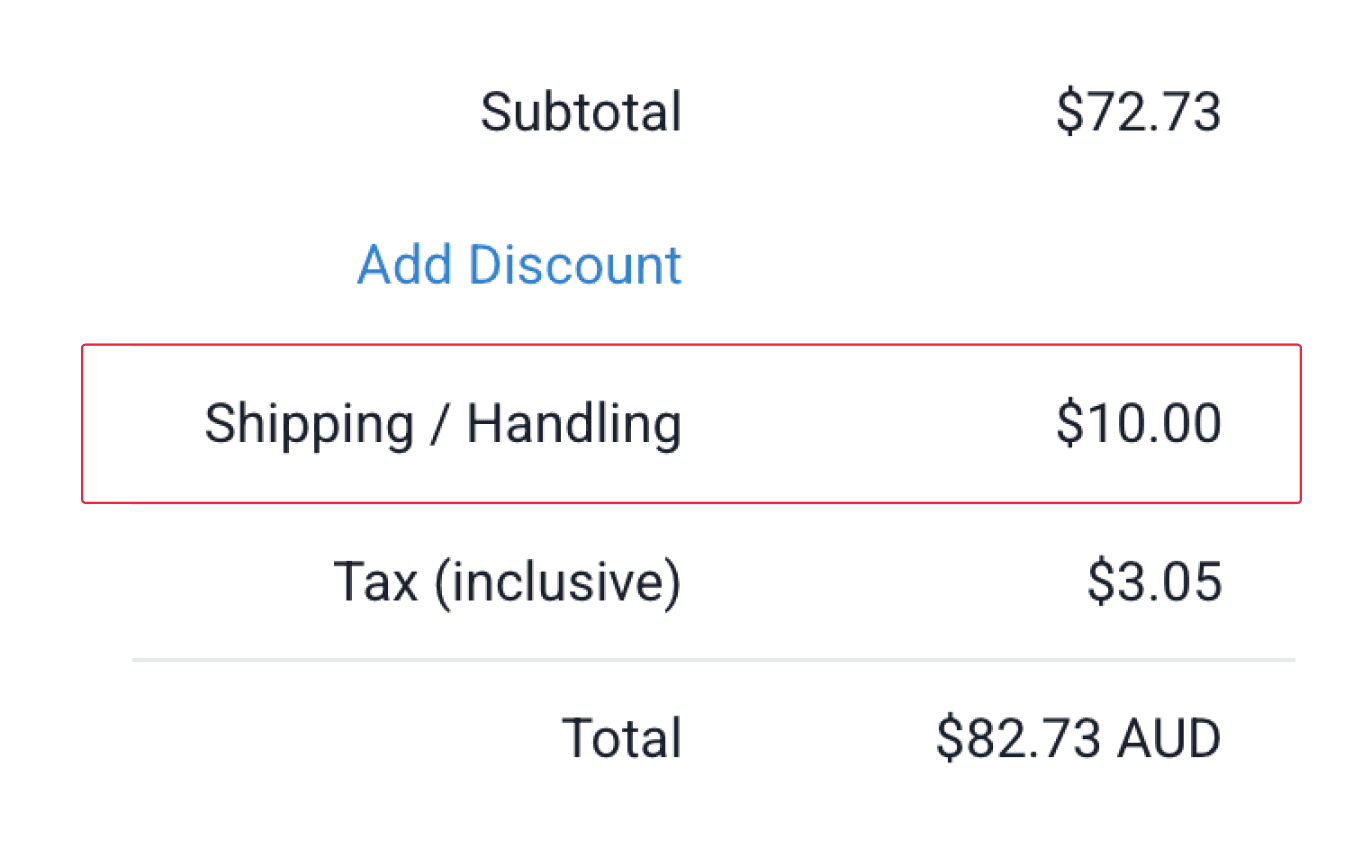
From the orders page
C. Payment Method
The default payment method will depend on the selected order flow under the order workflow settings. The payment method options will only appear on the orders page if it is enabled under the workflow settings. (Configure workflow basics)
If a default billing account is added on a workflow, the Account payment method will automatically appear on the orders page. As long as an account is associated with an order this payment method will be available. The Account the payment method will allow the order to be charged to the clinic’s account, and each transaction will appear on the account statements.
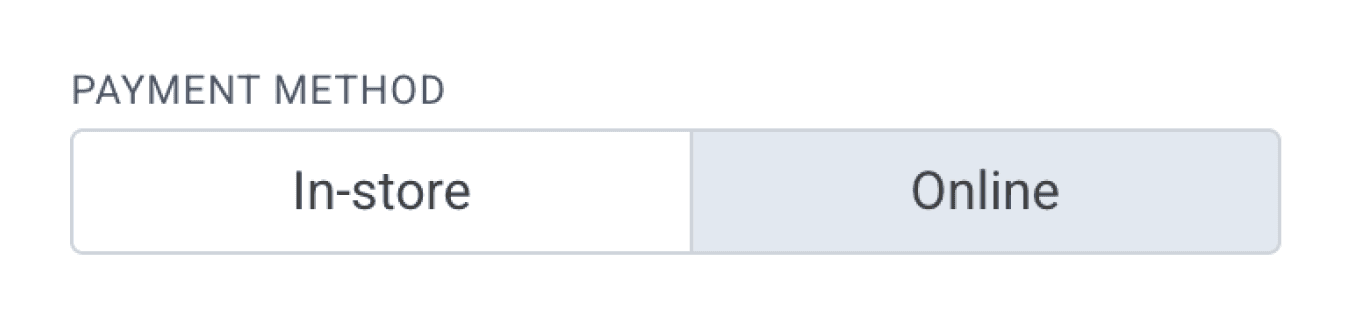
From the orders page
D. Accounts
If a default billing account is selected when setting up a workflow, it will be pre-selected when creating an order (Billing account). You can choose to bill the order to an account or clinic, or simply associate the order with that account without charging it, allowing the customer to pay directly instead. This flexibility means you can send an order to a patient but bill the clinic, or send the order to the clinic while having the customer pay for it.
The accounts and orders system is a broad topic and is explored in detail in the blog: Accounts & Orders System: Managing pharmacy to clinic orders in Compound Direct.
E. Tags
Once an order is saved, auto-tags that are added in the workflow will appear on the Orders page (Set up auto-tags). You may also add additional tags if needed.
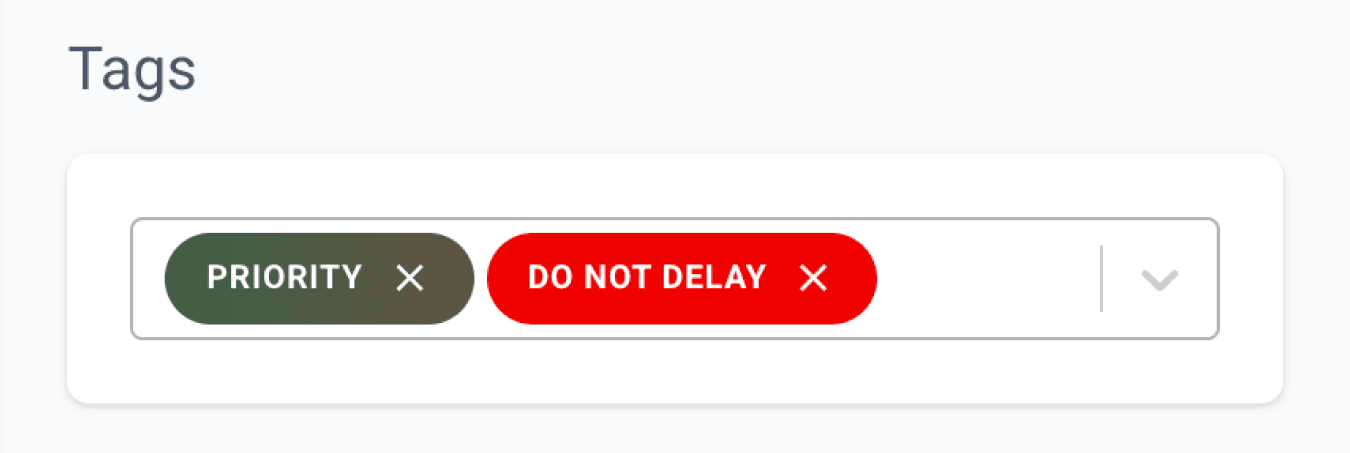
From the orders page
Discounts
Discounts can be applied to orders and are configured from the Discounts page, where they can be set to apply to eligible items. You can also create account-specific discounts from the Accounts page for greater pricing flexibility.
To learn more about setting up discounts, see our blog: Compound Direct Order Discounts: Take control of pricing and promotions.
Before saving your order, ensure all order details, such as the customer name, order comment, and delivery instructions, are correct.
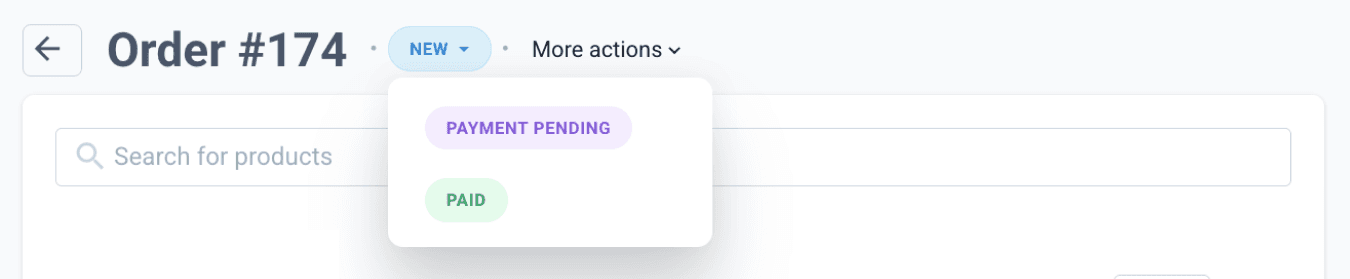
For orders created using the Payment Link or Invoice Link method, you may mark the payment status as Paid or Payment Pending while awaiting payment.
Important note: Delivery instructions added by staff on the Orders page will be overridden if the customer updates their delivery instructions on the checkout page.
Stage 3: Sending the risk assessment survey and purchase link
Before proceeding with an order, the patient may complete a risk assessment survey. This stage is skipped for orders where a risk assessment is not required, such as retail or over-the-counter (OTC) products. Risk assessment links sent to a patient can be configured under an order workflow. (See Select a risk assessment survey)
For Online orders, the risk assessment links are sent along with the purchase link. When the payment method is online, the ‘Send Order’ button will appear, and you can proceed to send the link for the purchase link, and risk assessment.
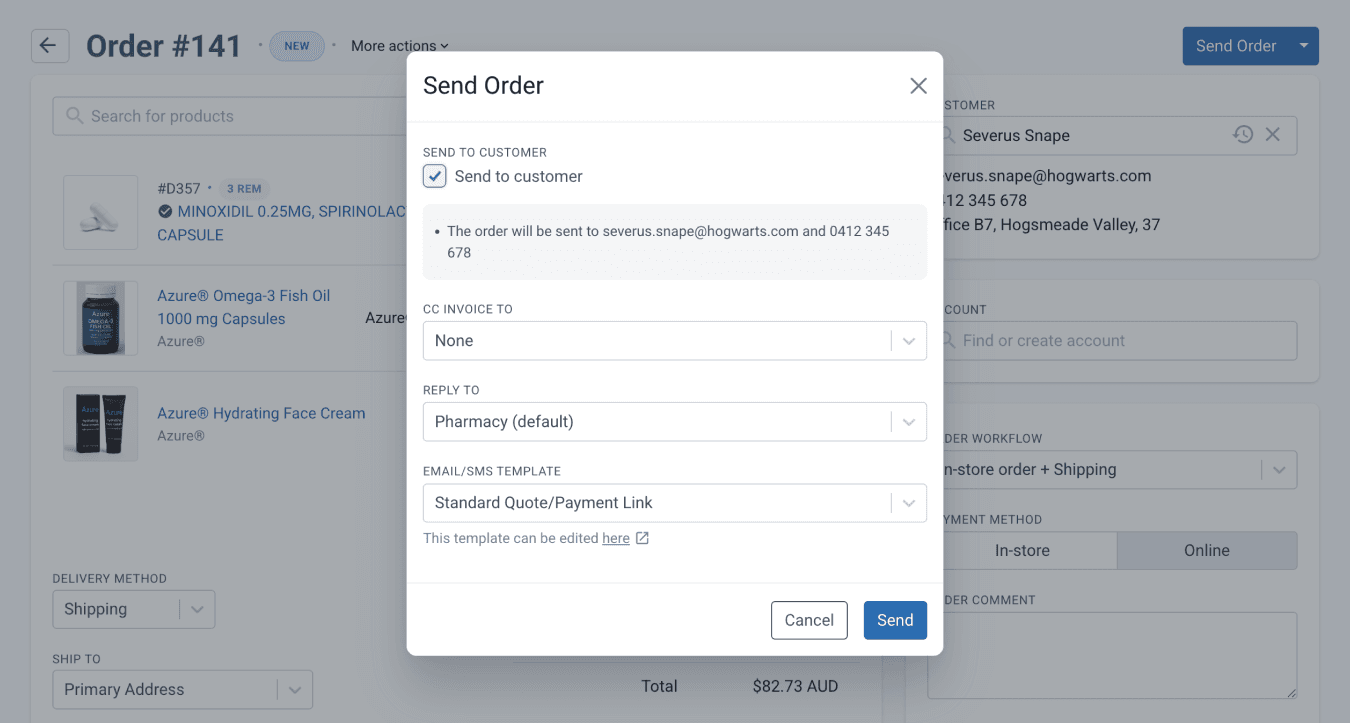
From the orders page
You can choose to schedule the sending of an order quote using the Send Order drop-down menu and selecting ‘Schedule Send’. Specify the date and time you want the customer to receive the quote. Invoices can be scheduled and sent in the same way. This is especially helpful when preparing orders in advance for repeat scripts.
If a quote is scheduled to be sent, the ‘Payment Pending’ status badge will appear at the top of the order page.

Once the quote has been sent, the ‘Quote Sent’ status badge will appear at the top of the order page.

From the orders page
The customer will receive the link via email or SMS, depending on how the email and SMS template settings are configured. Using this link, the customer can proceed to complete the risk assessment and payment.
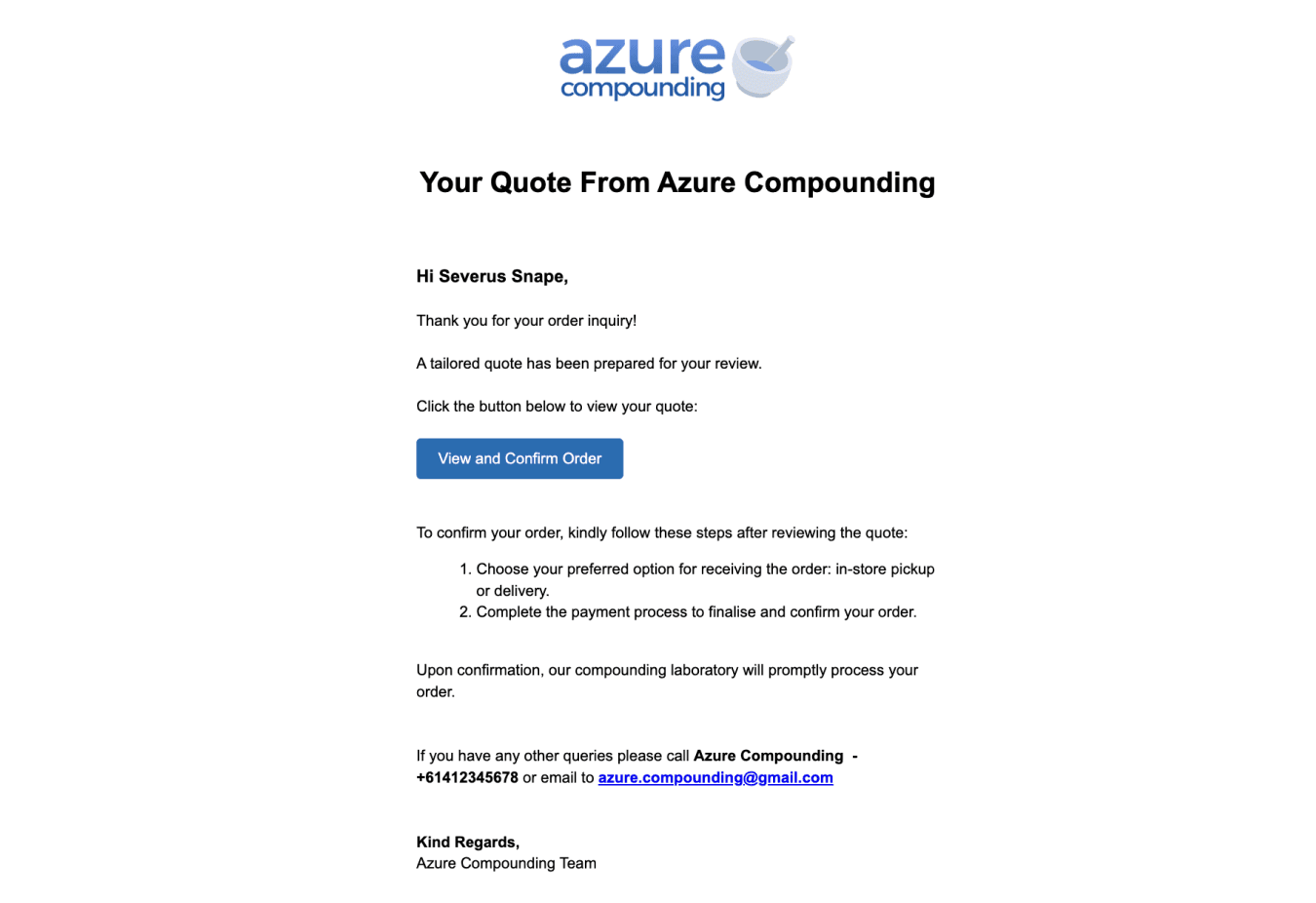
From the customer's email
Checkout settings can also be configured when setting up an order workflow (Set up checkout settings).
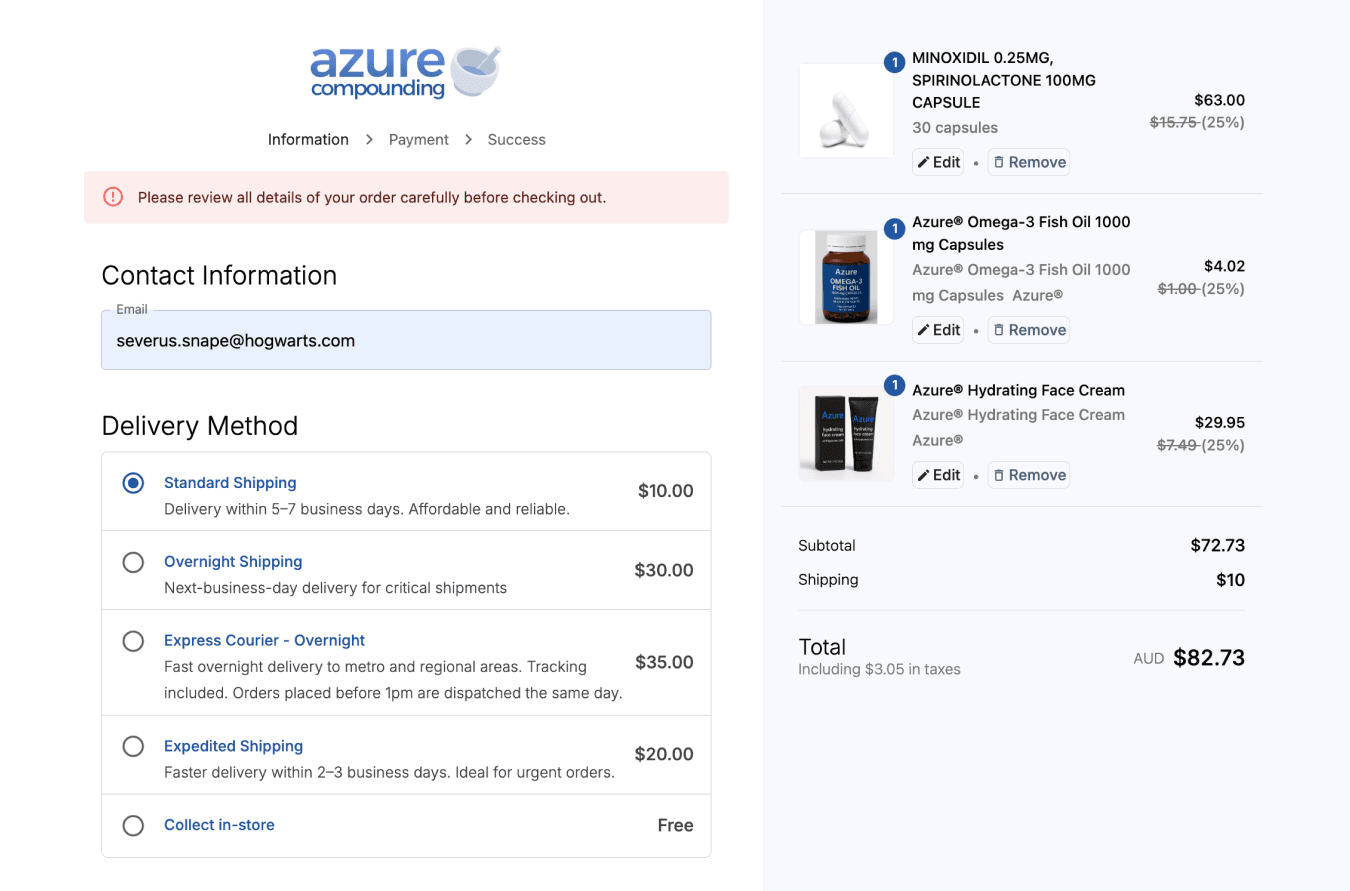
From the customer checkout link
In-store orders do not require an online purchase link, so the risk assessment link can be sent directly from the Customer page.
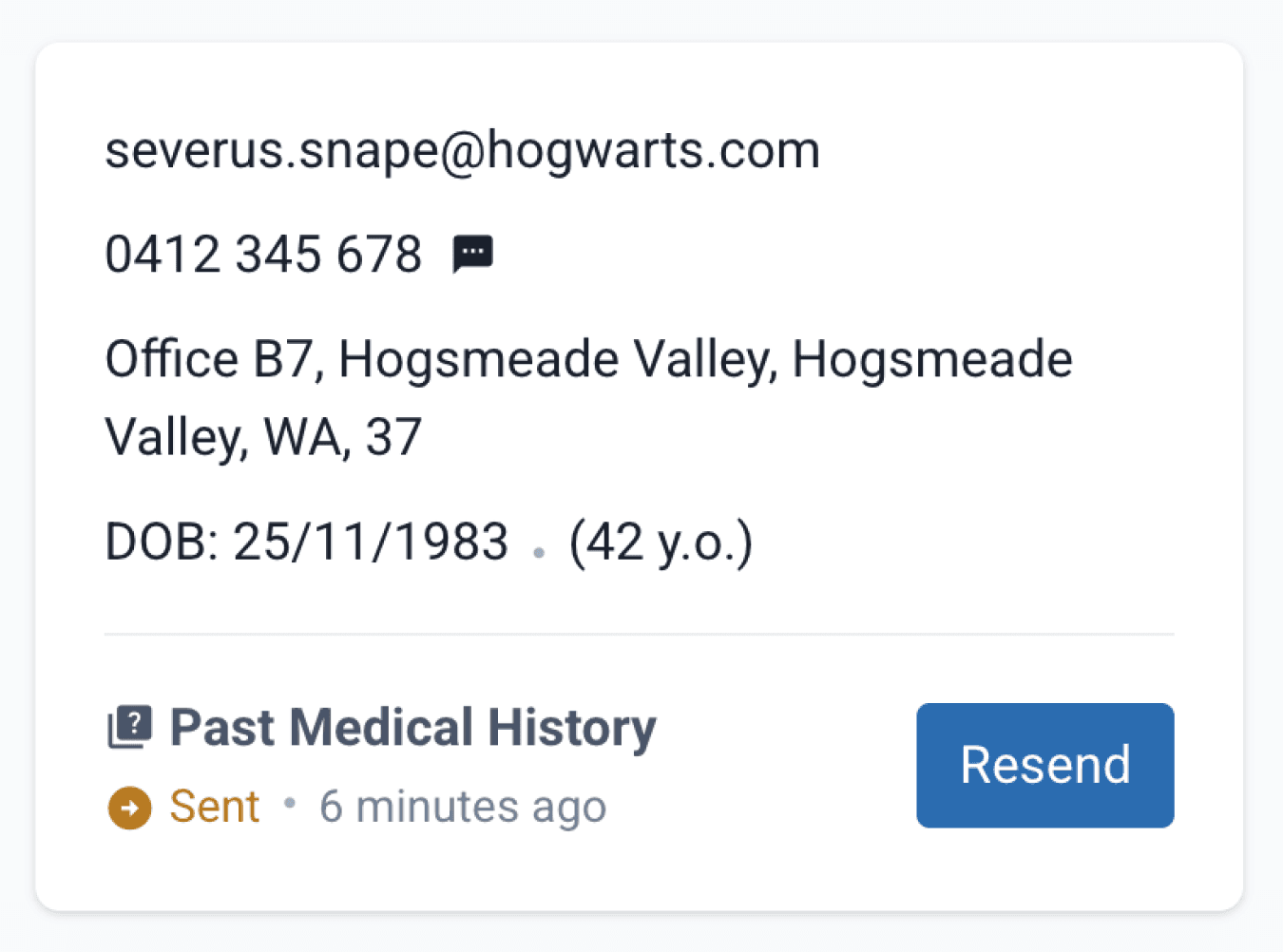
From the customer page
Alternatively, you may send the same purchase link used for online orders. In this case, the customer must select ‘Collect in store’, complete the risk assessment survey, and skip the payment details.
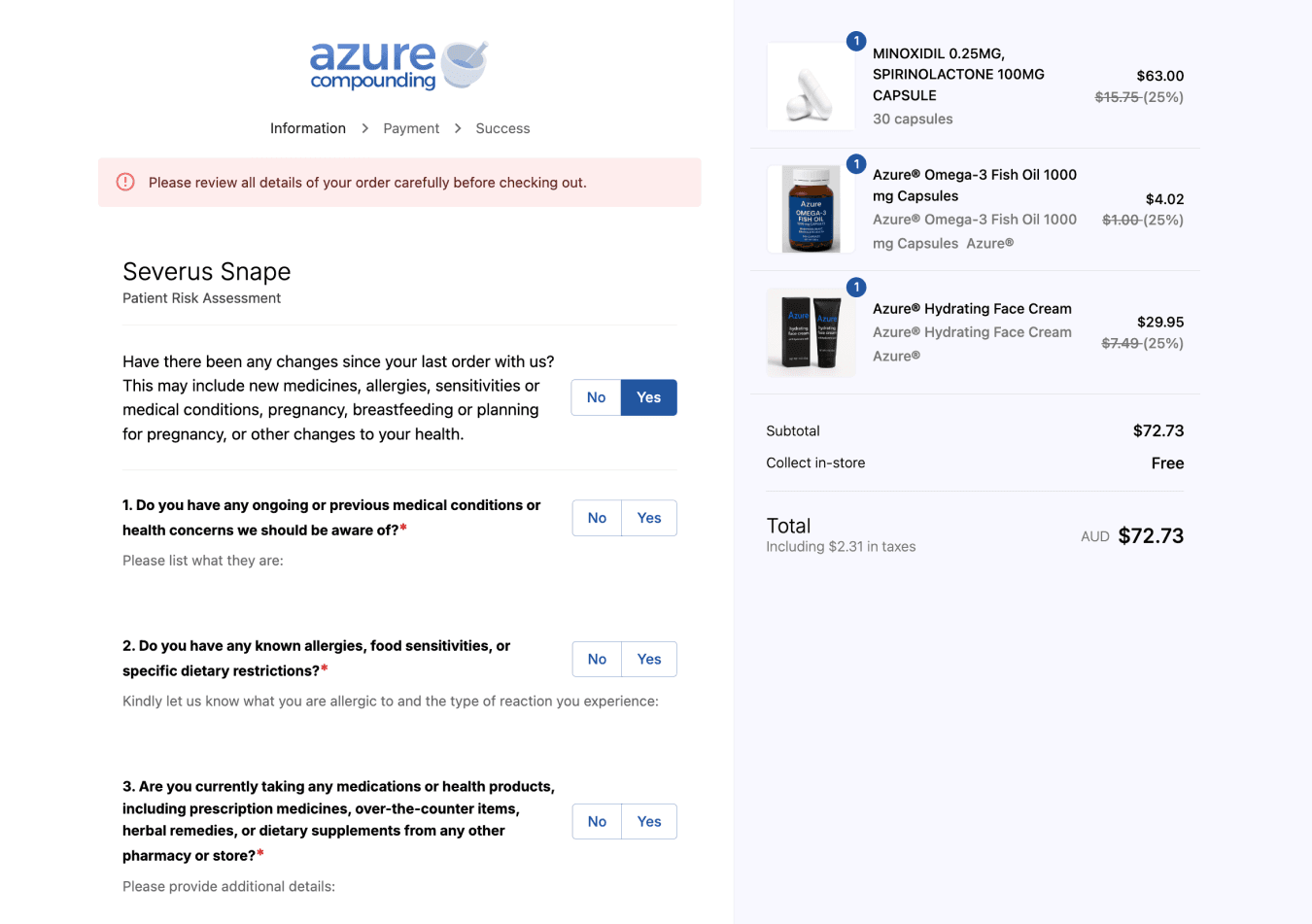
From the customer checkout link
If an order includes multiple patients, each patient will complete a separate risk assessment survey using a single link.
Stage 4: Completing the payment
This stage covers how payments are completed for both Online and In-store orders. Depending on the selected payment method, payments can be processed online through a purchase link or taken in-store using supported payment options, with payment statuses and history recorded automatically.
Online payment method
For Online orders, payment can be completed on the same link used to complete the risk assessment. The purchase link allows you to review and confirm your order summary and delivery method, complete the risk assessment survey, and enter your card details and billing address to complete the payment.
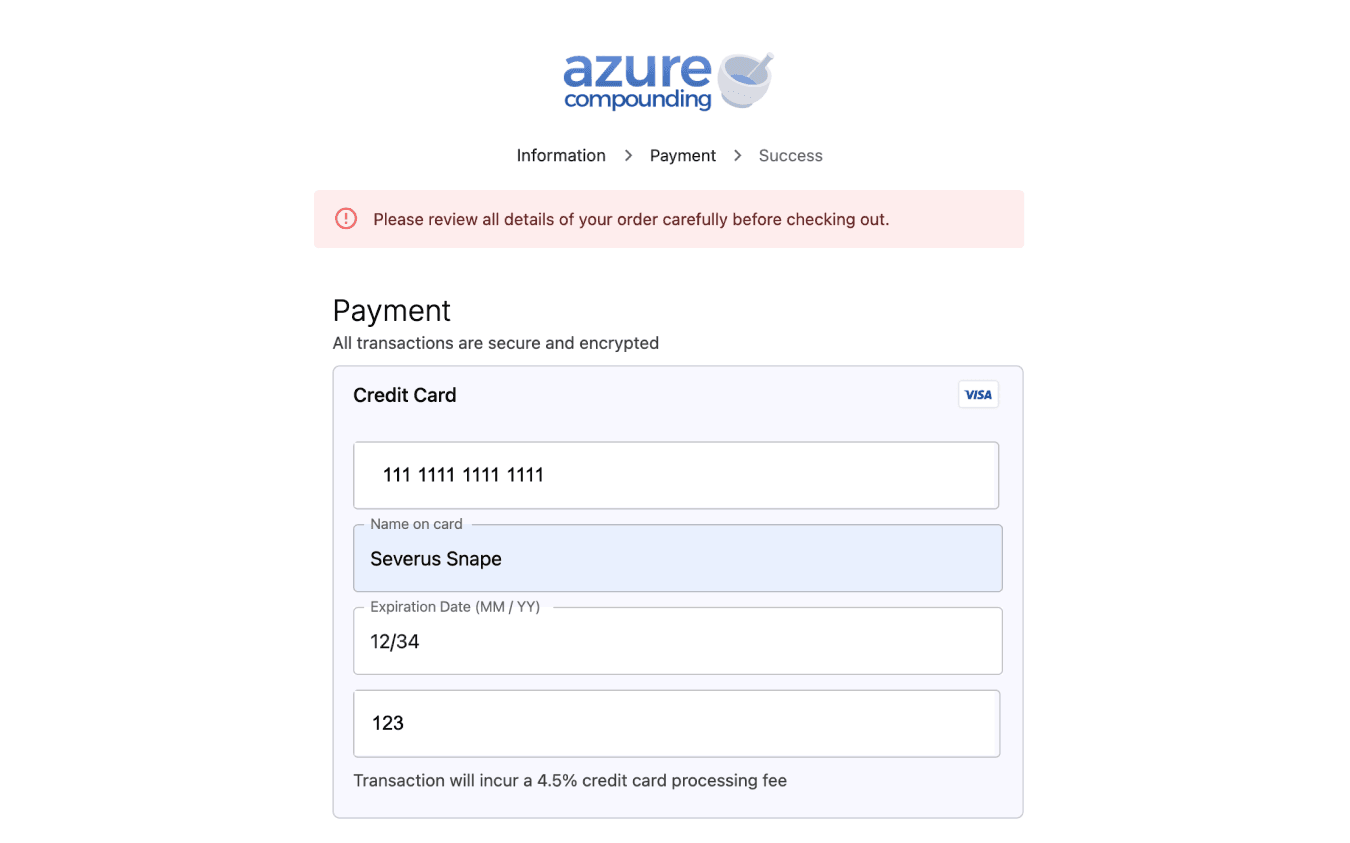
From the customer checkout link
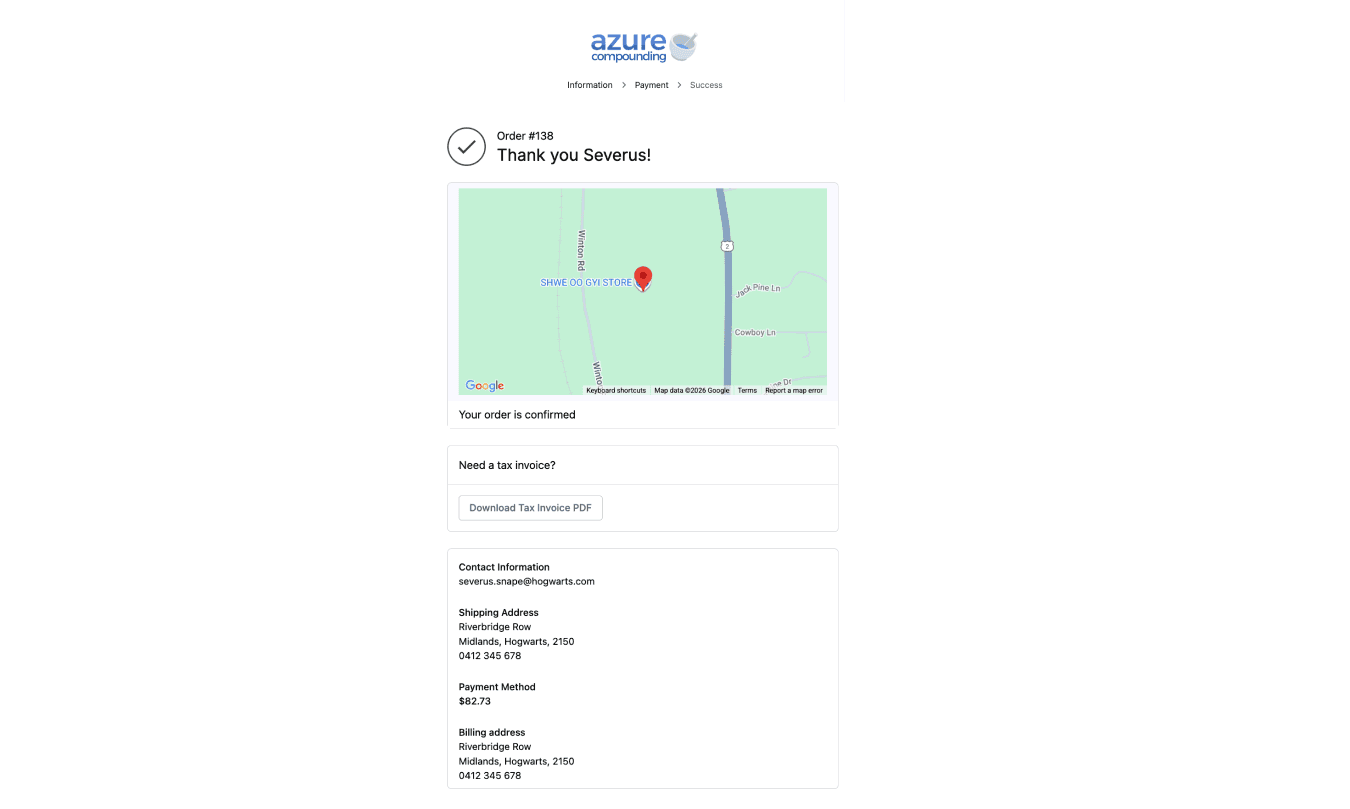
From the customer checkout link
Data such as the pharmacy address, public email addresses, logos, and brand colours for the payment page can be customised by going to ‘Settings’, selecting ‘Your Workspace’, and then choosing the ‘Pharmacy’ tab.
In-store payment method
For In-store payments, you may directly collect the payments by clicking on the ‘Cash’ or ‘EFTPOS’ button.
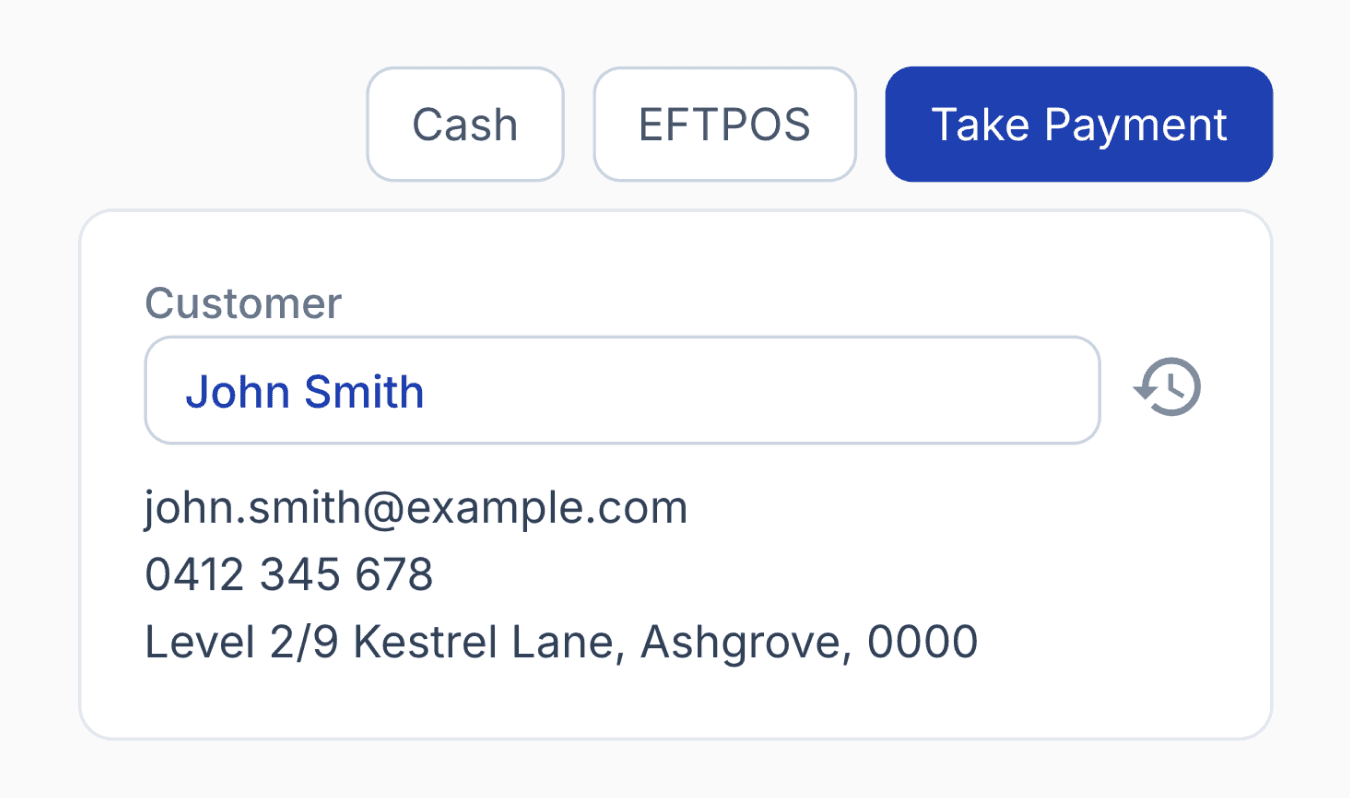
From the orders page
Click on the ‘Take Payment’ button to display the other payment options available.
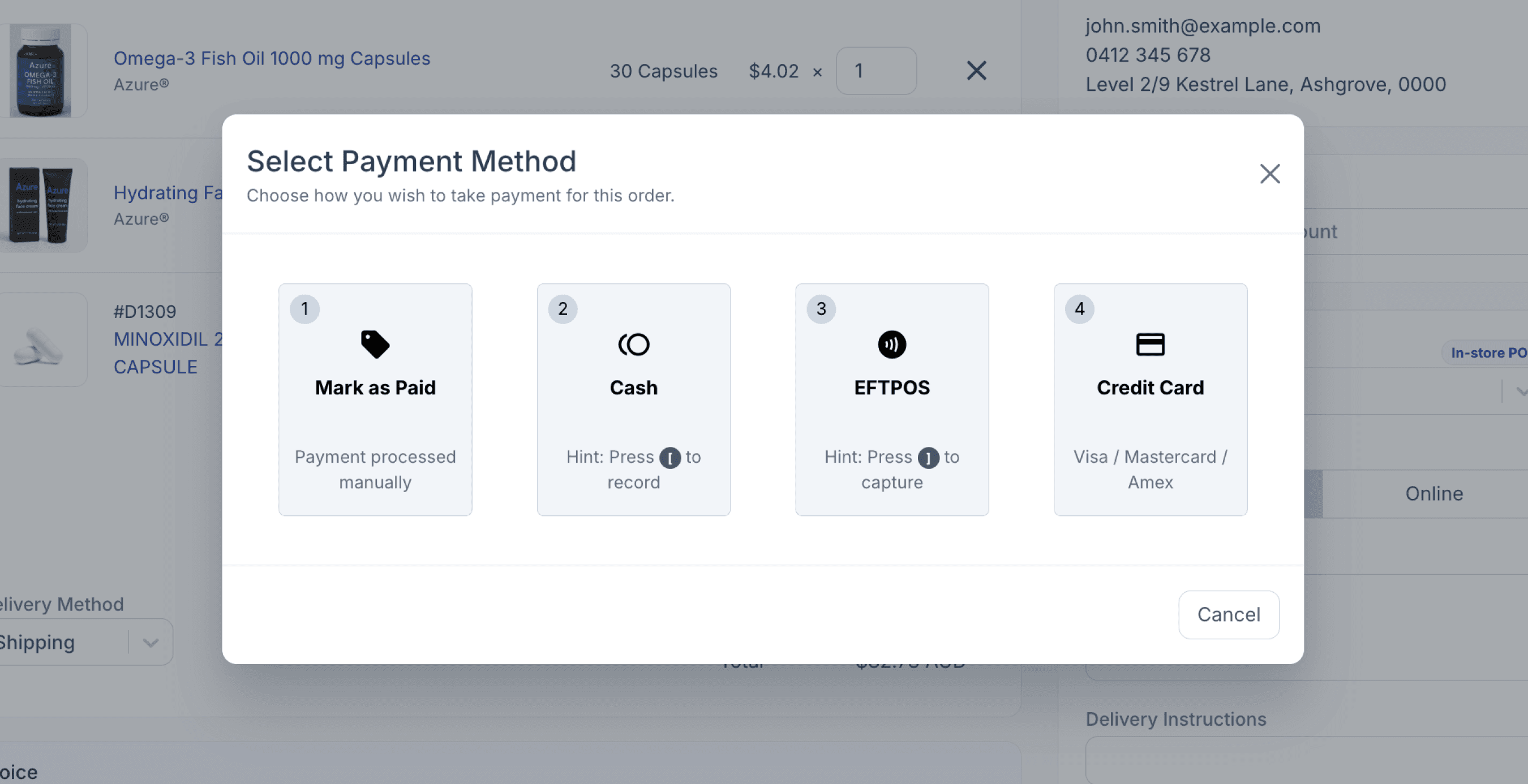
From the orders page
Mark as paid
Mark as Paid option allows you to manually confirm that a customer has paid for an item outside of Compound Direct, such as through online bank transfers or other third-party payment methods. Once you select ‘Confirm’, the order is immediately marked as paid and no additional payment details are required. This option is the simplest way to record a payment, but it is financially minimal. It does not record how the payment was made and only indicates that payment has been completed.
For this reason, it is strongly encouraged to create separate billing accounts for each method of payment (e.g., bank transfer, WePay, Apple Pay) as this makes it clear how items were paid, and allows your accounts to reconcile financial transactions received within those systems to transactions within Compound Direct.
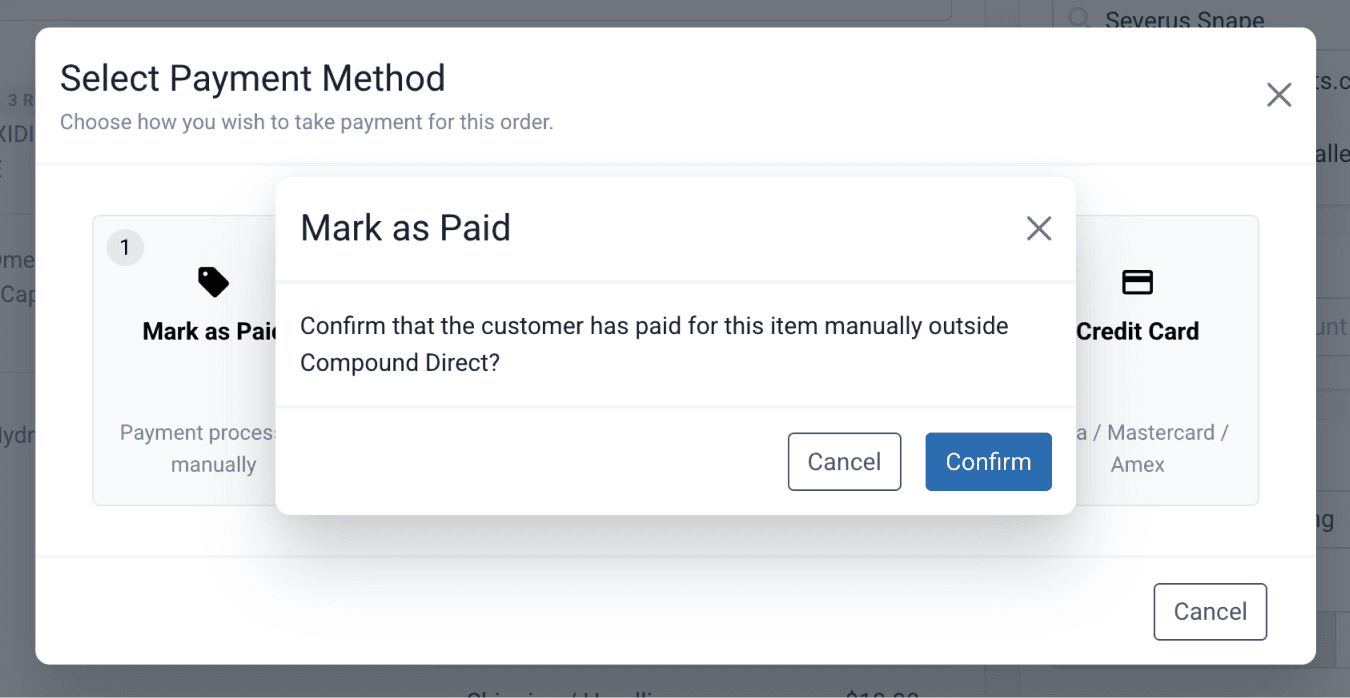
Cash payment
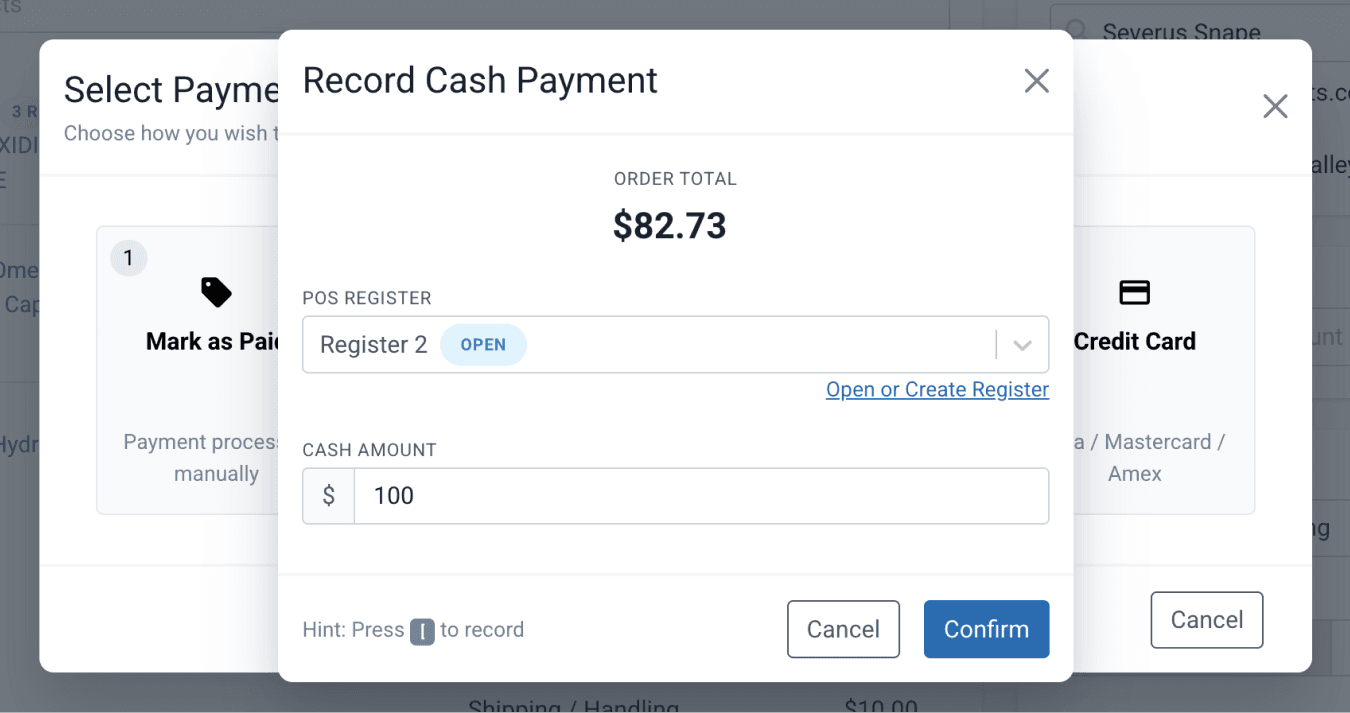
Cash payment option allows you to select a POS register and enter the cash amount received.
You can also use the ‘[’ hotkey to record a cash payment. You may press ‘Enter’ if the exact amount is received.
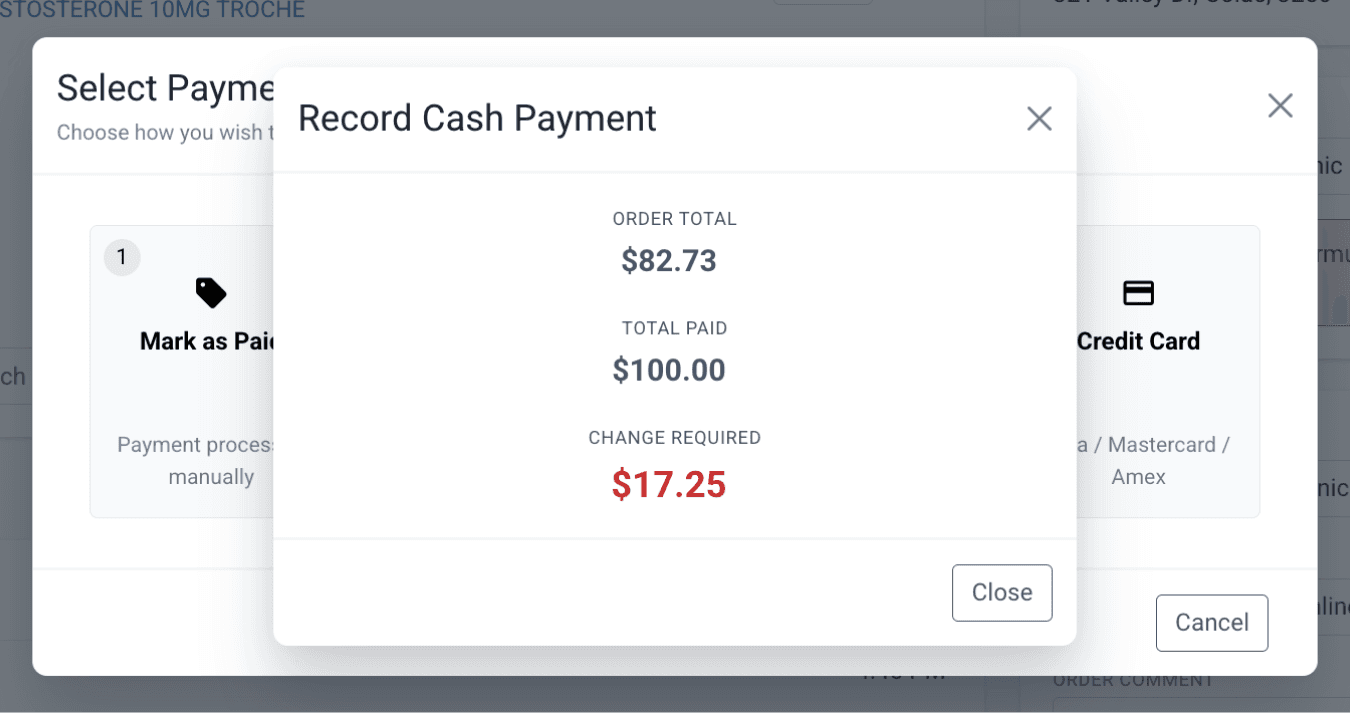
Once the cash payment received is entered, the modal displays the order total, total paid, and any change required.
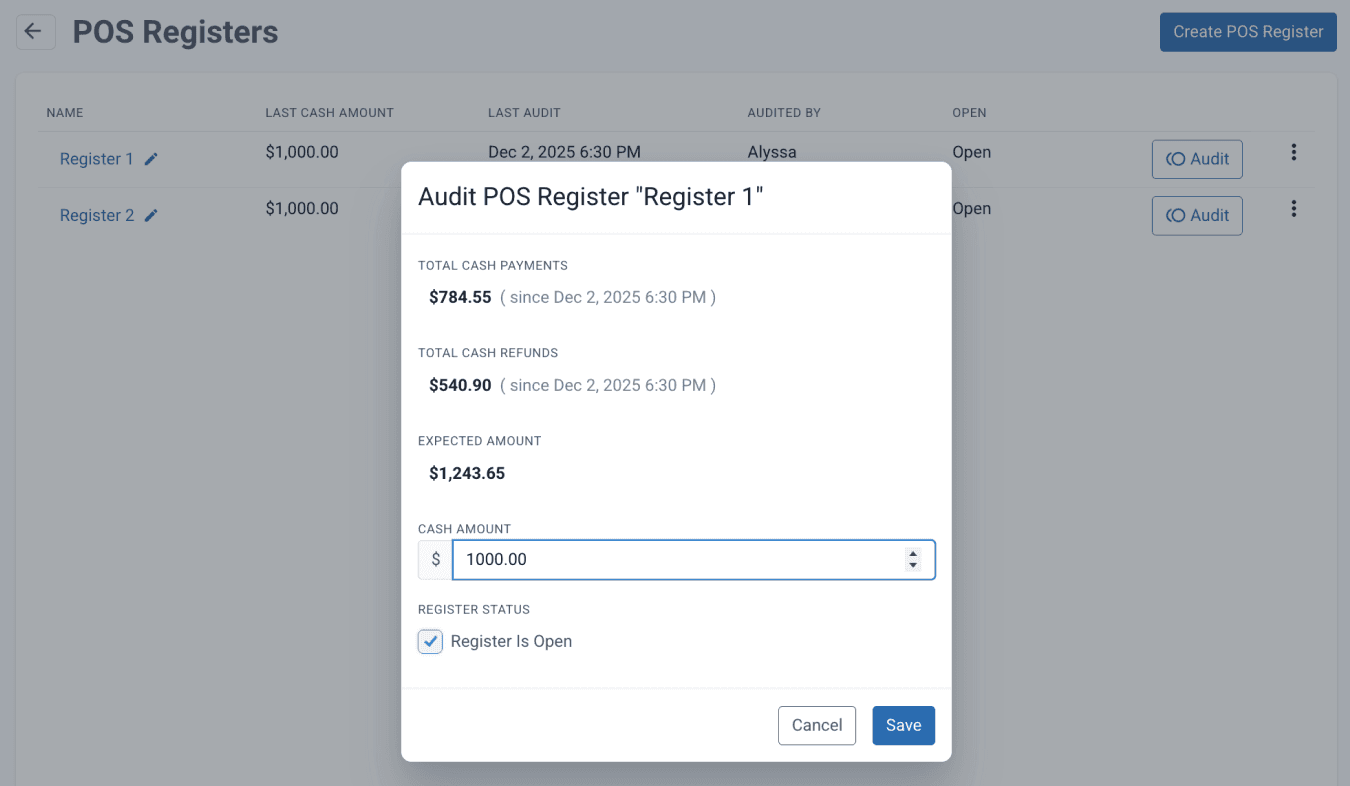
POS Registers can be viewed and audited at any time from the POS Registers page, allowing you to review cash activity since the last audit, including total cash payments, refunds, the expected cash amount, and the cash amount left after the audit.
Cash drawer control
You can control when and how the cash drawer opens during checkout. Configure which transaction types trigger the cash drawer, helping align drawer behaviour with your pharmacy's workflow and reducing unnecessary manual openings.
You can configure this under POS Registers settings.
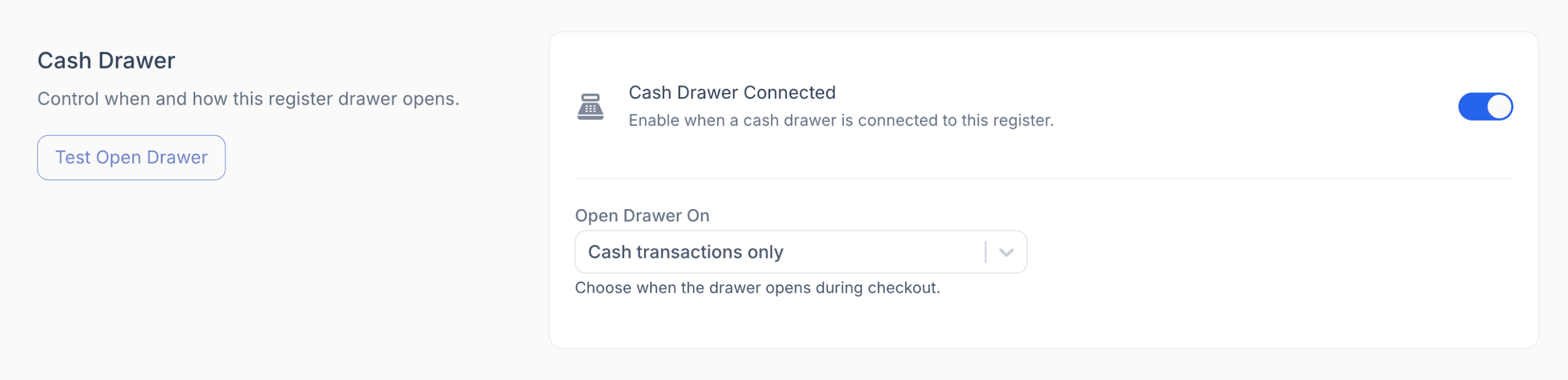
From Settings > POS Registers page
EFTPOS
EFTPOS payment method allows you to take payment using the selected terminal device and enter the amount to be charged. This payment method allows customers to make purchases using debit or credit cards at retail locations. It enables secure transactions by transferring funds electronically from the customer's bank account to the merchant's account.
You can also use the ‘]’ hotkey to charge EFTPOS.
For more information about the EFTPOS payment method, see our blog: From order to payment: A step-by-step guide to using Compound Direct’s EFTPOS integration.
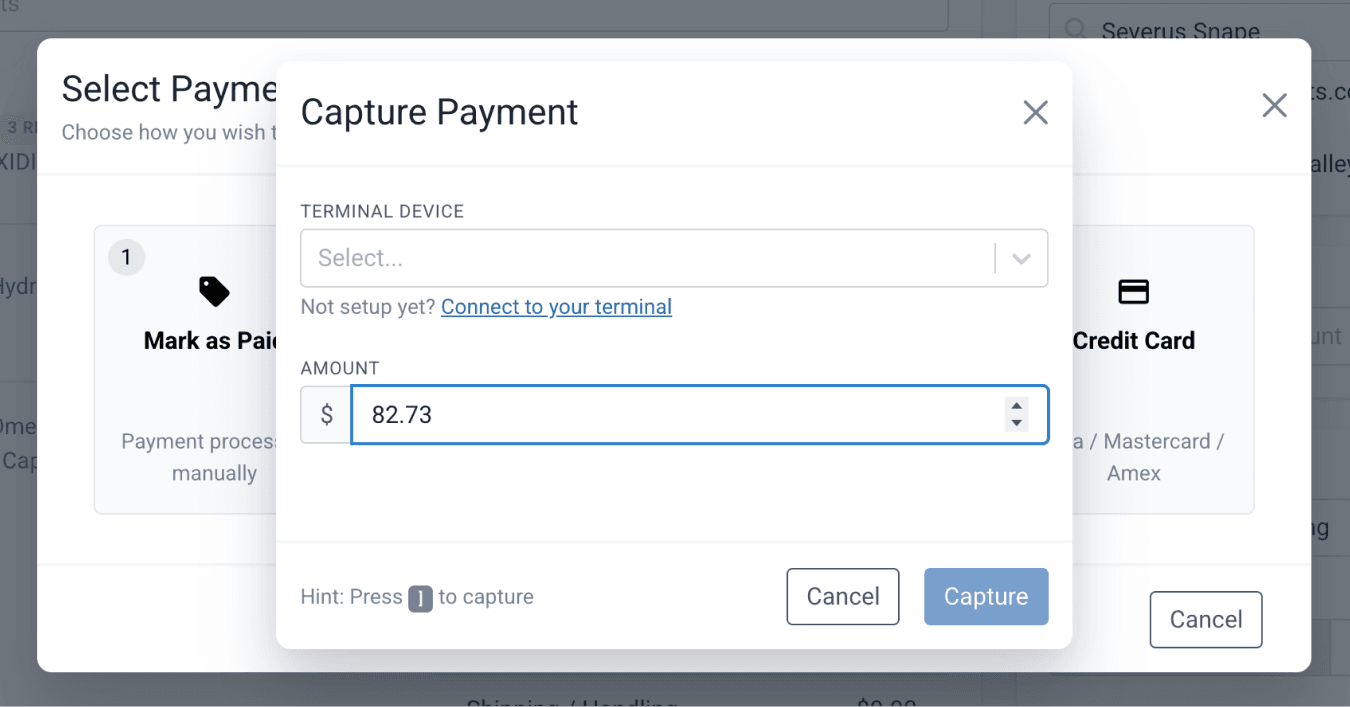
Available in AU and NZ sites only
Card payment
Card payment method allows you to charge a Visa, Mastercard, or American Express credit or debit card by entering the card details and payment amount.
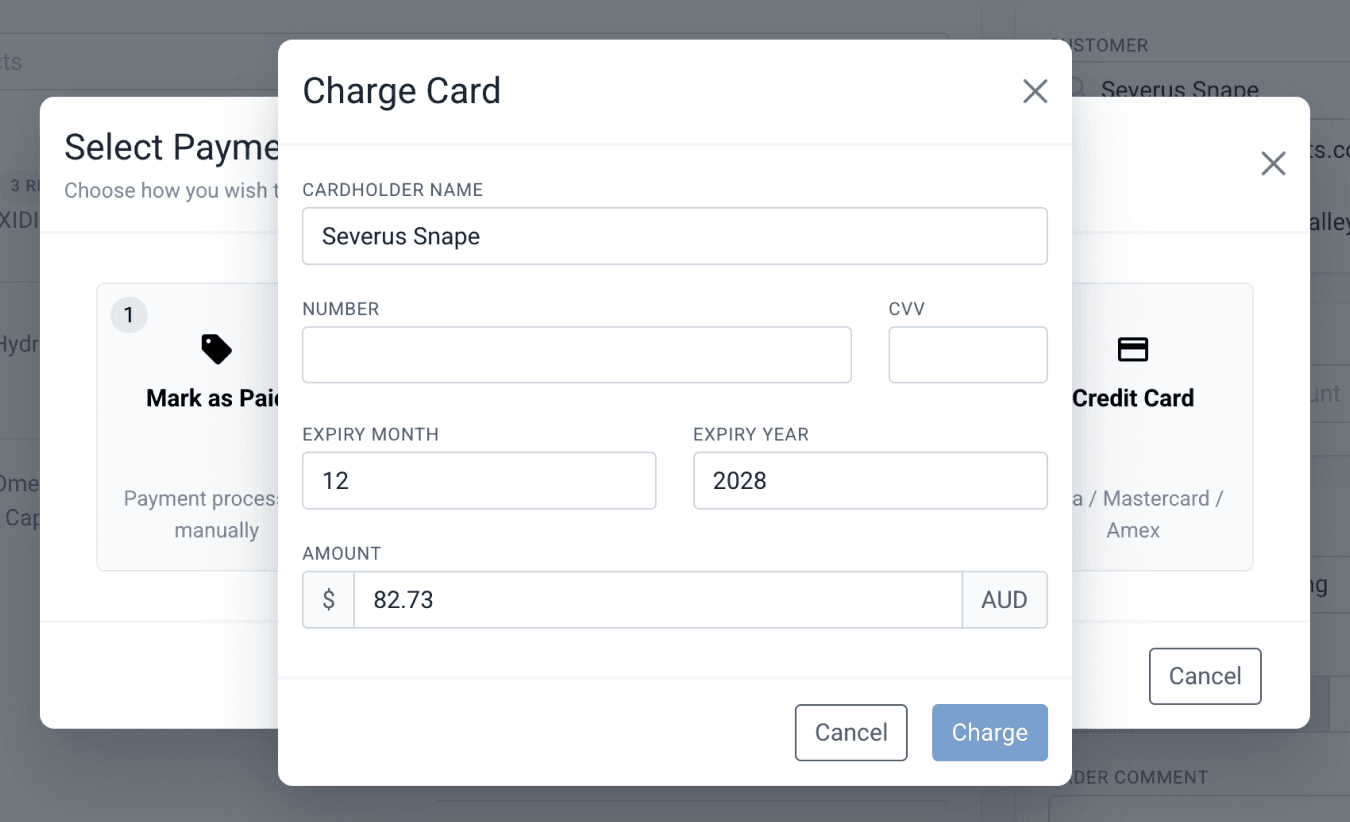
When the payment has been completed, the paid status badge will appear on the top of the page.

Partial payments
Partial payments are accepted for in-store payment methods, including cash, card, and EFTPOS.
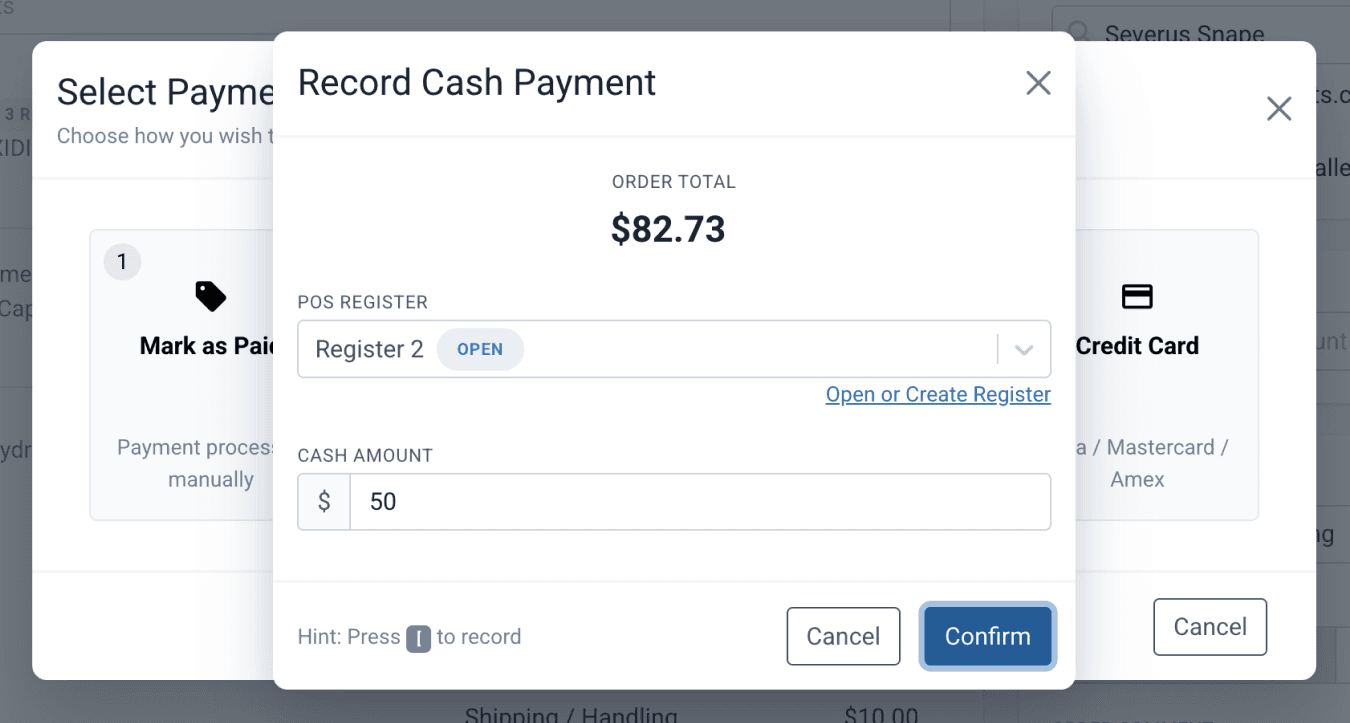
When the order is partially paid, the partially paid status badge will appear on the top of the page.

Payment pending
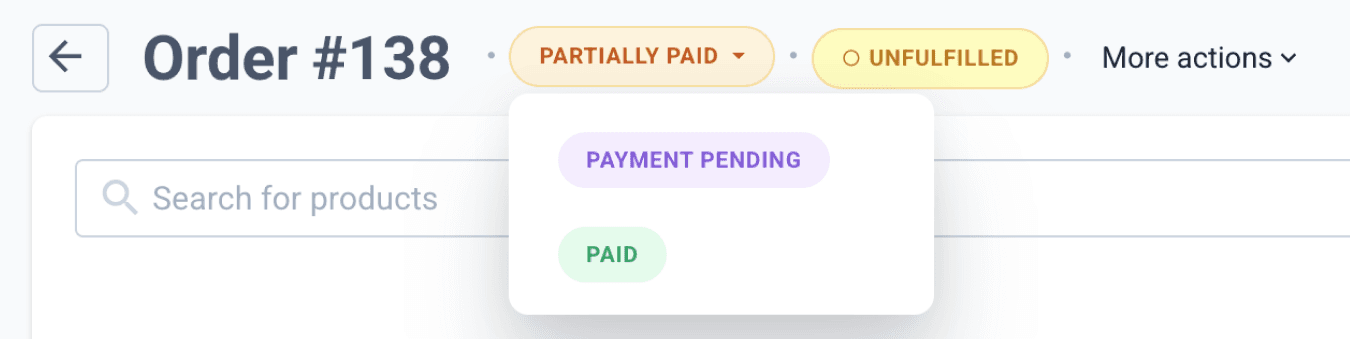
If an order has a confirmed incoming payment, it can be marked as payment pending.
You can change the payment status using the status badge drop-down menu.
Refunds
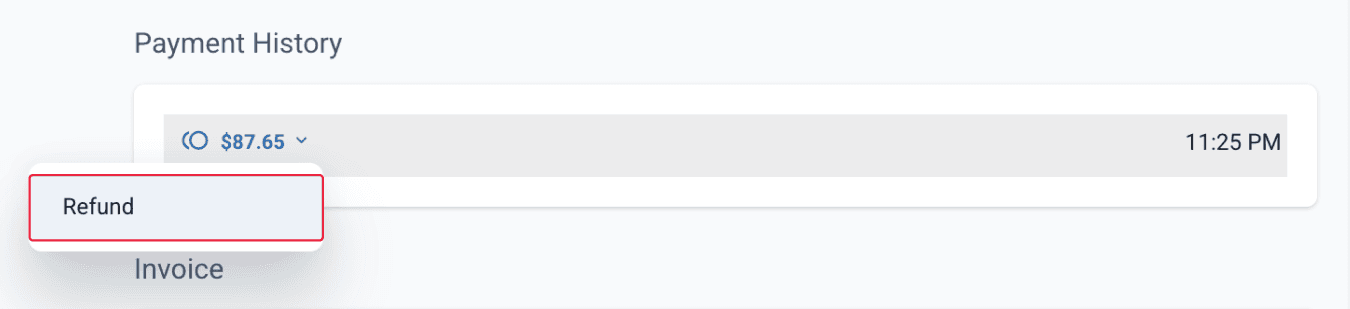
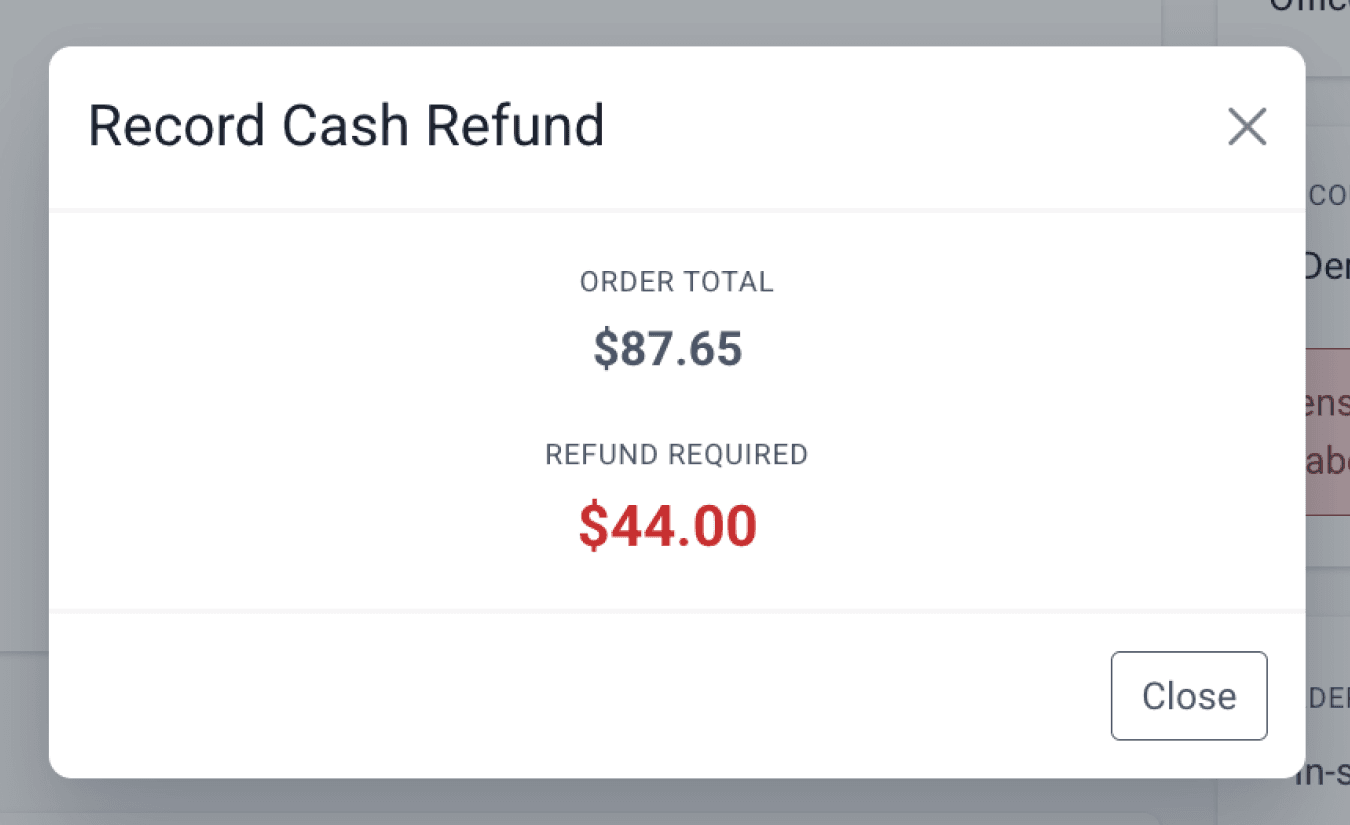
You can refund a transaction by clicking on the transaction and then selecting the ‘Refund’ button. In the refund modal, enter the amount to be refunded. When processing a refund, you may add a note to explain the reason or include any relevant documentation. These notes can be edited even after the refund has been completed.
Partial refunds are supported. Refund amounts cannot exceed the original transaction amount.
Once an order has been fully refunded, a ‘Refunded’ status badge will appear next to the order number.

If a partial refund is issued, a ‘Partially Refunded’ status badge will be displayed.

Payment History
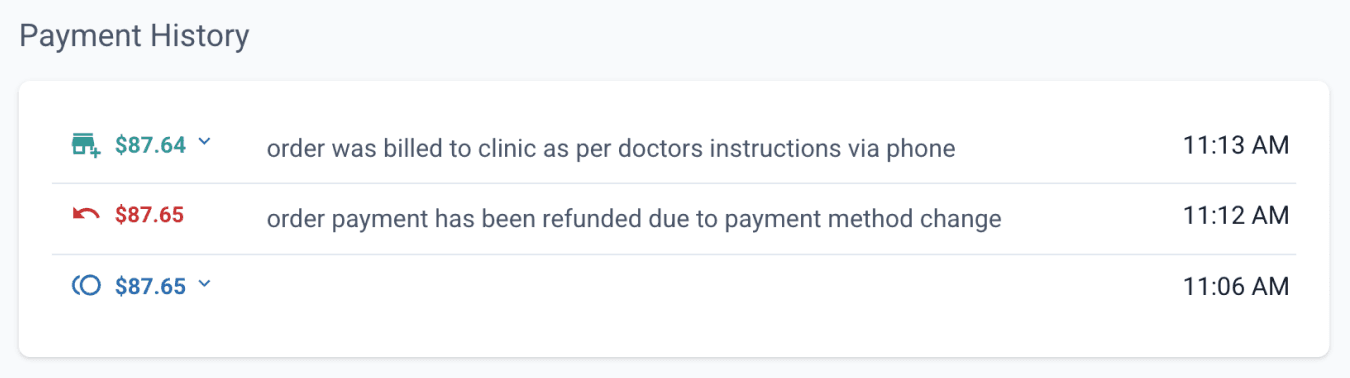
All payment transactions, including in-store and online payments, charges billed to an account, and refunds, are recorded under Payment History for easy tracking and reference. From this section, you can also add or edit notes on each transaction.
Order Invoice
An invoice is automatically generated and displayed on the Orders page for easy access and reference. Default invoice templates can be configured in your workflow settings, allowing you to select the invoice type you want to use for your orders (Configure workflow basics).
Invoices can also be sent to the customer when ‘Invoice Link’ is selected as the payment method in the order workflow (Configure workflow basics). In this case, the pre-selected payment method on the order page will be Invoice, and the customer will receive a copy of the tax invoice when the order is sent, rather than a payment link.
You can also ‘Schedule Send’ an invoice similar to scheduling send a quote.
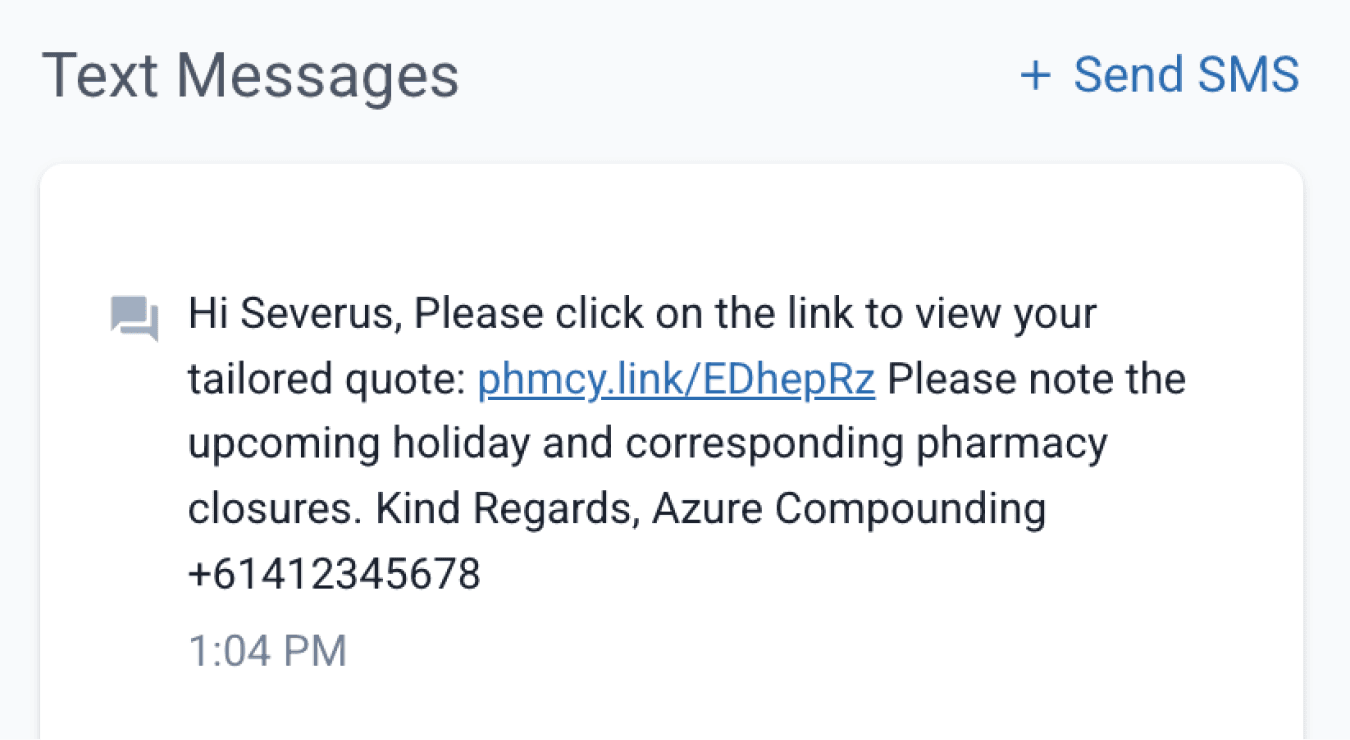
Invoice links sent to the customer will also appear under ‘Text Messages’ on the Customer page.
From the customer page
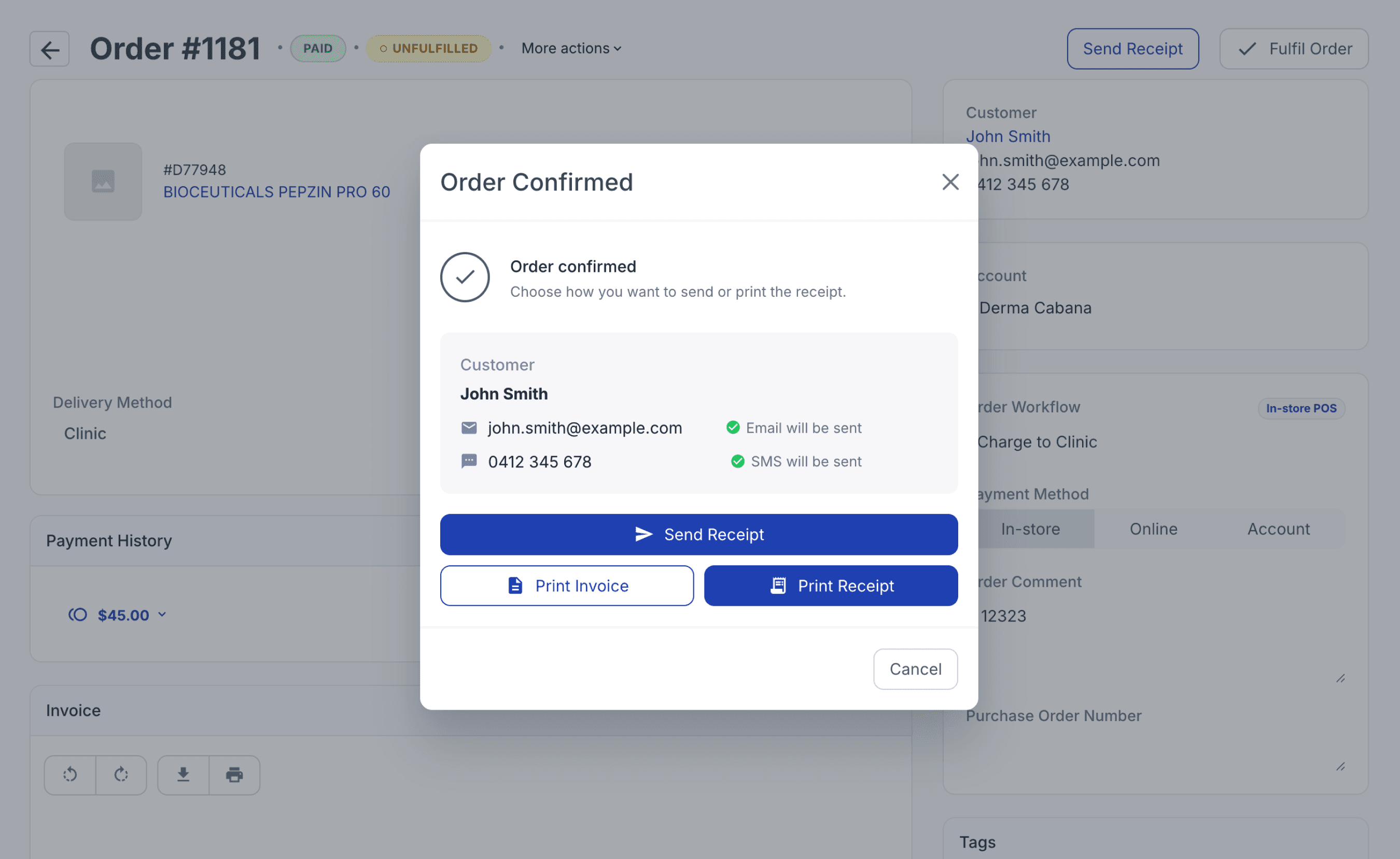
For orders paid in-store, you can print or send a copy of the receipt to the customer using the ‘Send Receipt’ button. The order receipt will be sent using the correspondence configured in the Email & SMS Templates.
Order confirmation
Orders that have been marked as Paid, Partially Paid, Payment Pending, Refunded, and Partially Refunded are considered confirmed.
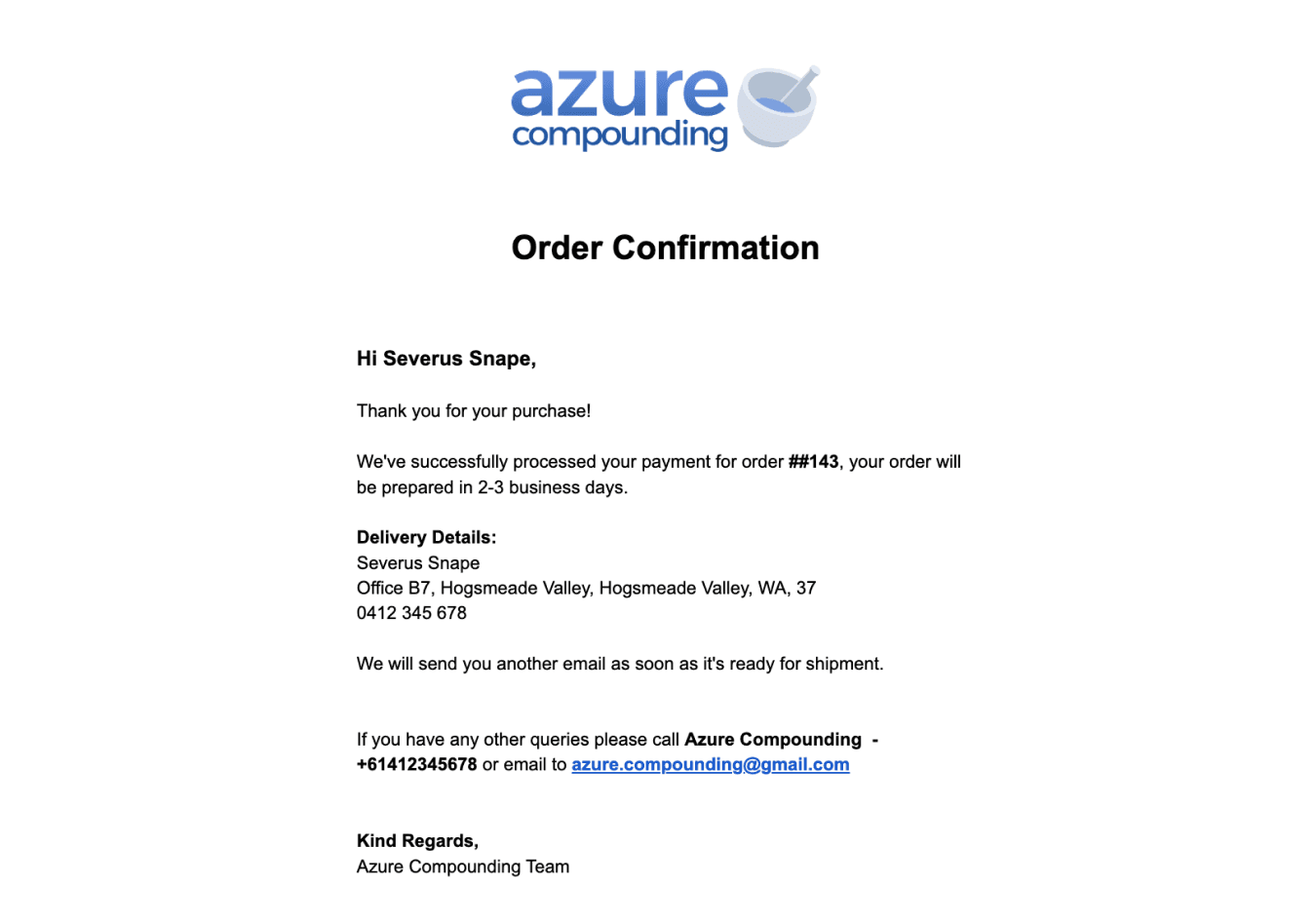
The customer may receive an order confirmation message informing them that payment has been received and outlining the expected preparation time. This automated confirmation message can be configured based on the communication settings enabled in the order workflow (Set up communication settings).
From the customer email
Stage 5: Dispensing the order
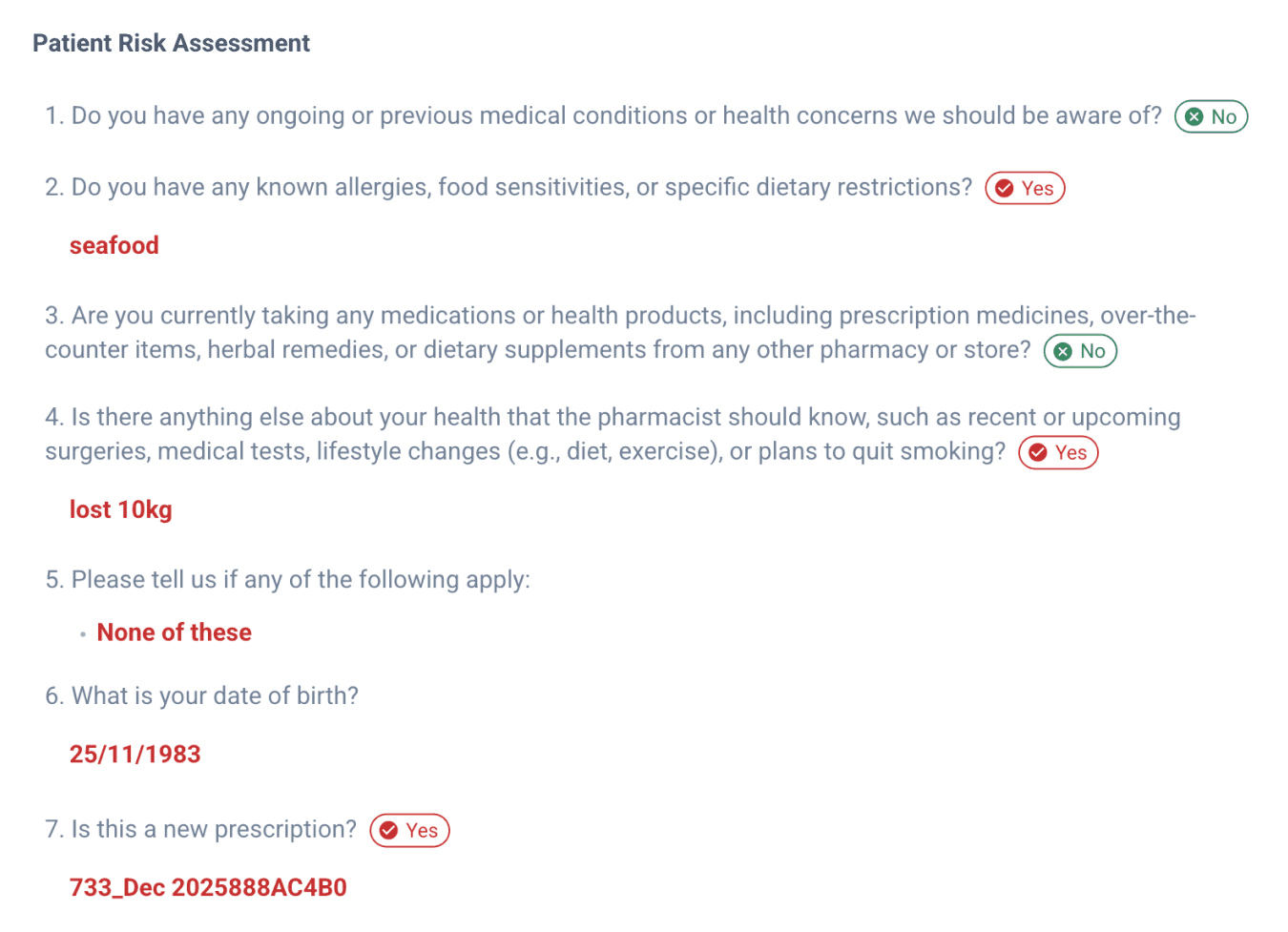
Once payment has been completed, the script can now be dispensed. From the Dispensed page, the pharmacist can review the risk assessment before proceeding to preparation. Products that do not require compounding can skip this step and proceed directly to fulfilment.
Stage 6: Fulfilling the order
Once the dispensed script has been prepared, you can proceed to ‘Fulfil’ the order. Orders can be viewed and fulfilled directly from the Orders page. You may also view and fulfil the order from the Orders dashboard, Drafts, and Dispensed page.

From the orders page
When fulfilling an order that has not been signed off, a warning will be displayed on the sign off modal. From this modal, you can choose whether to notify the customer that the order has been fulfilled.
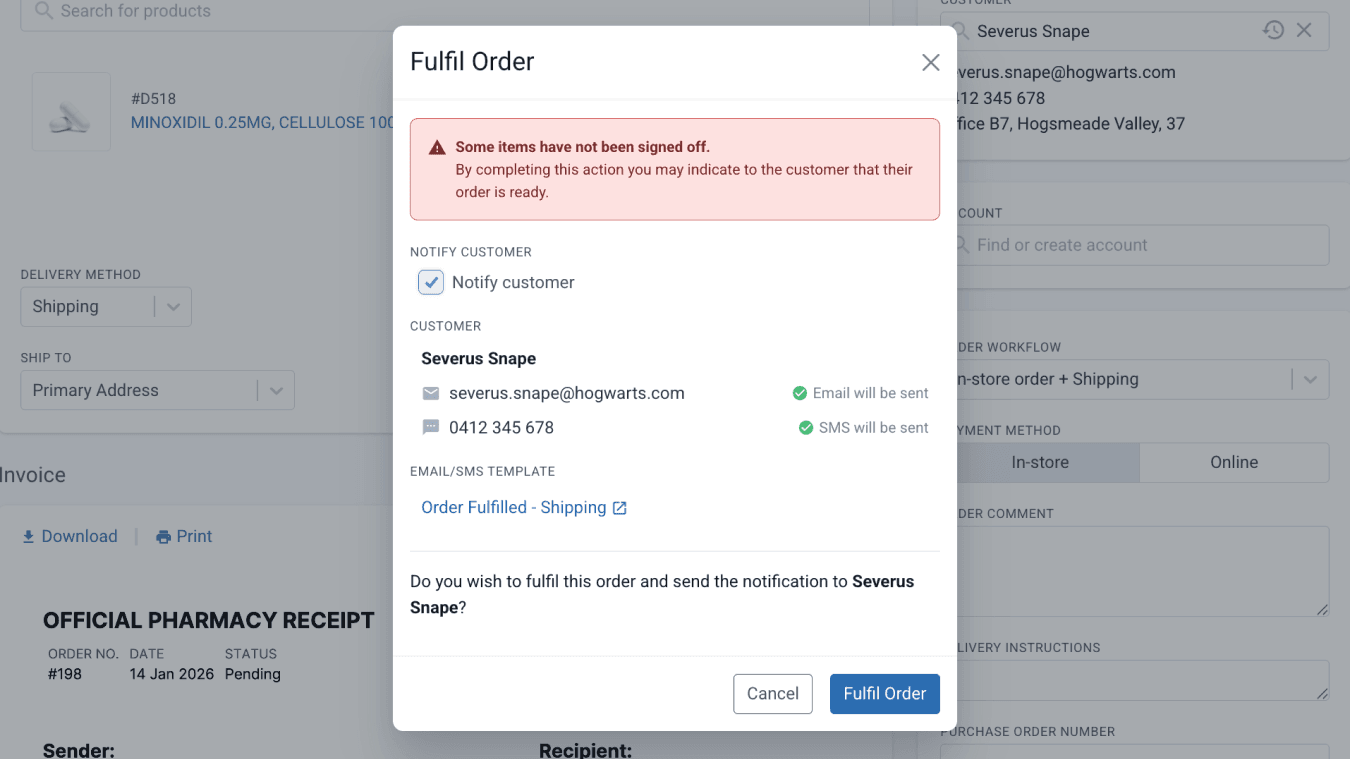
From the orders page
Order fulfilment notification
Once the order is Fulfilled, the customer may receive an order fulfilment message informing them that the order has been completed and is ready for shipping or collection. This automated message can be configured based on the communication settings enabled in the order workflow (Set up communication settings).
If the order is set for shipping, it will be automatically archived once it is marked as fulfilled.
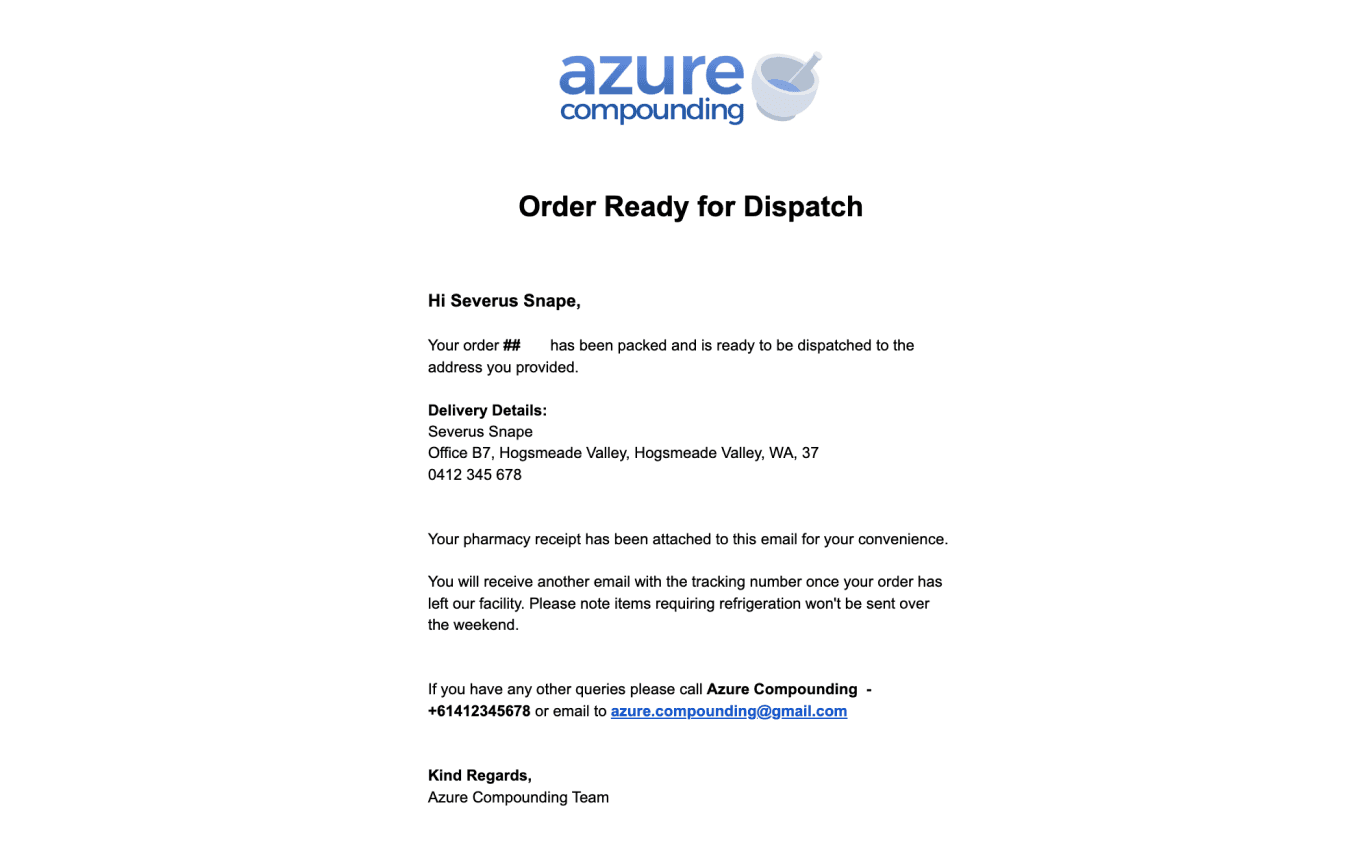
You may customise an auto-archive period for unfulfilled orders under order workflow settings (Workflow automations).
The fulfilment stage of an order is discussed broadly on our blog: Order Fulfilment: Complete orders with ease in Compound Direct.
If the order delivery method is pickup, the ‘Order Collected’ button will appear once the order is fulfilled. After the order is marked as collected, it will be automatically archived.
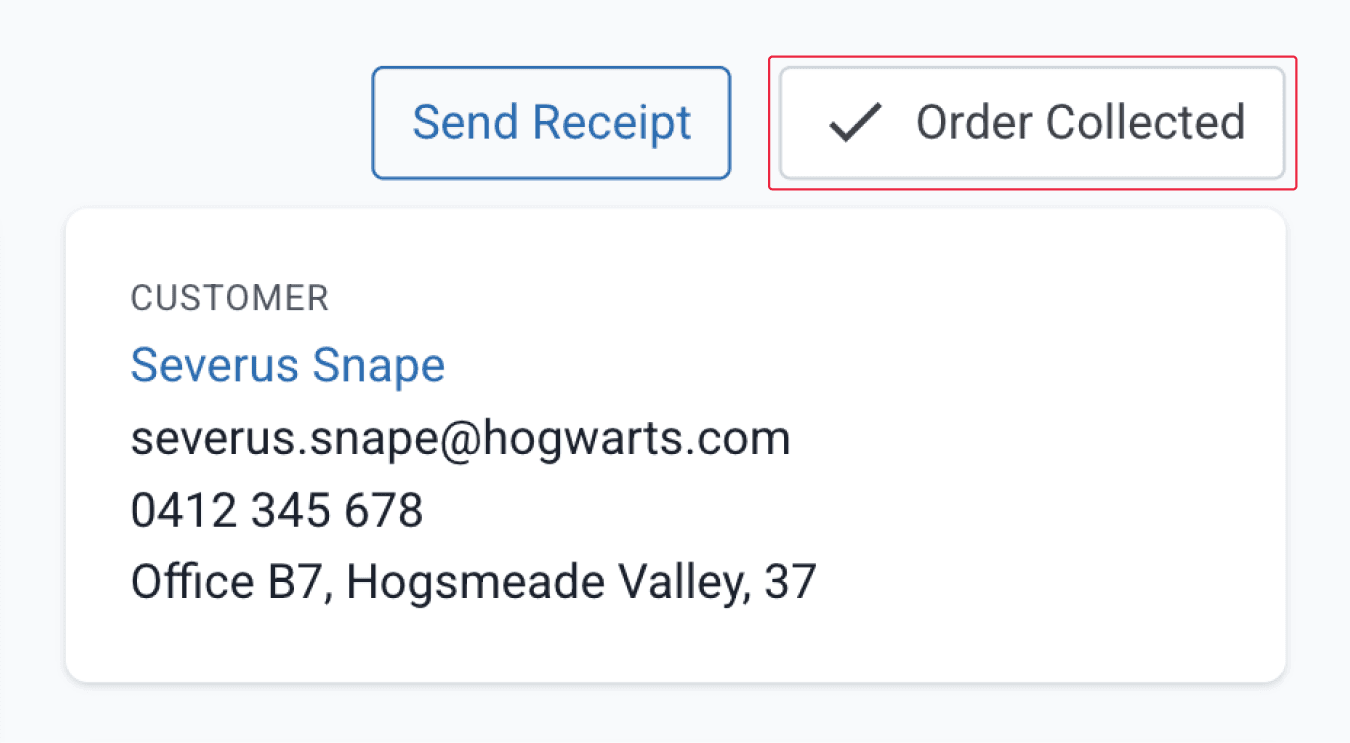
From the orders page
The ‘Order Collected’ button can also be found from the Orders dashboard.

From the orders dashboard
Order receipt, tickets, and packing slips
The system supports printing key order documents and slips, including Transaction Receipts, Order Tickets, and Packing Slips, to support payment, fulfilment, and dispatch workflows.
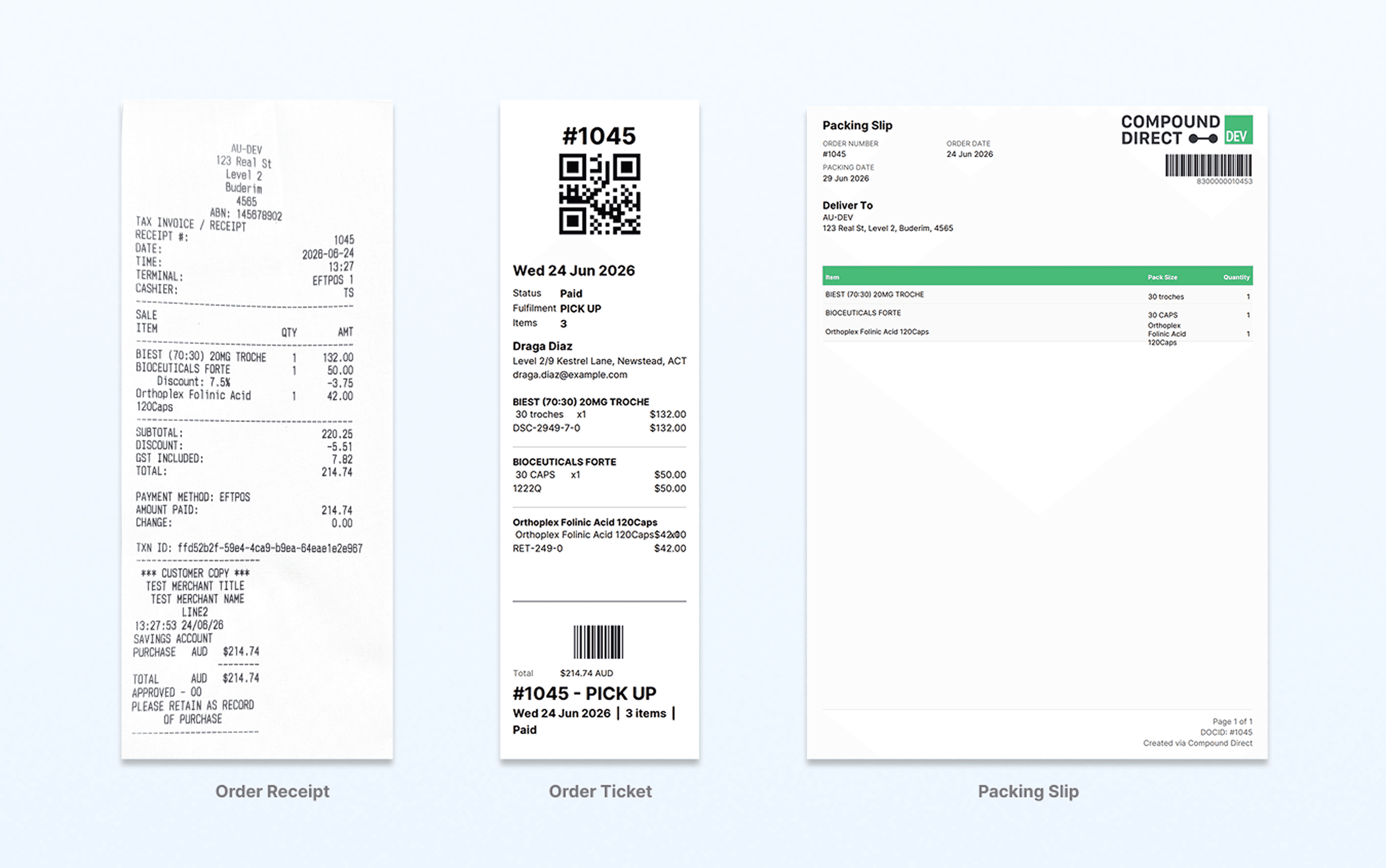
Order transactions receipt
Order Transaction Receipts provide a detailed record of an order payment, including purchased items, quantities, discounts, tax, payment method, transaction details, and terminal information where applicable.
To print an order receipt, click on the ‘Send receipt’ button then select ‘Print Receipt’.
Order tickets
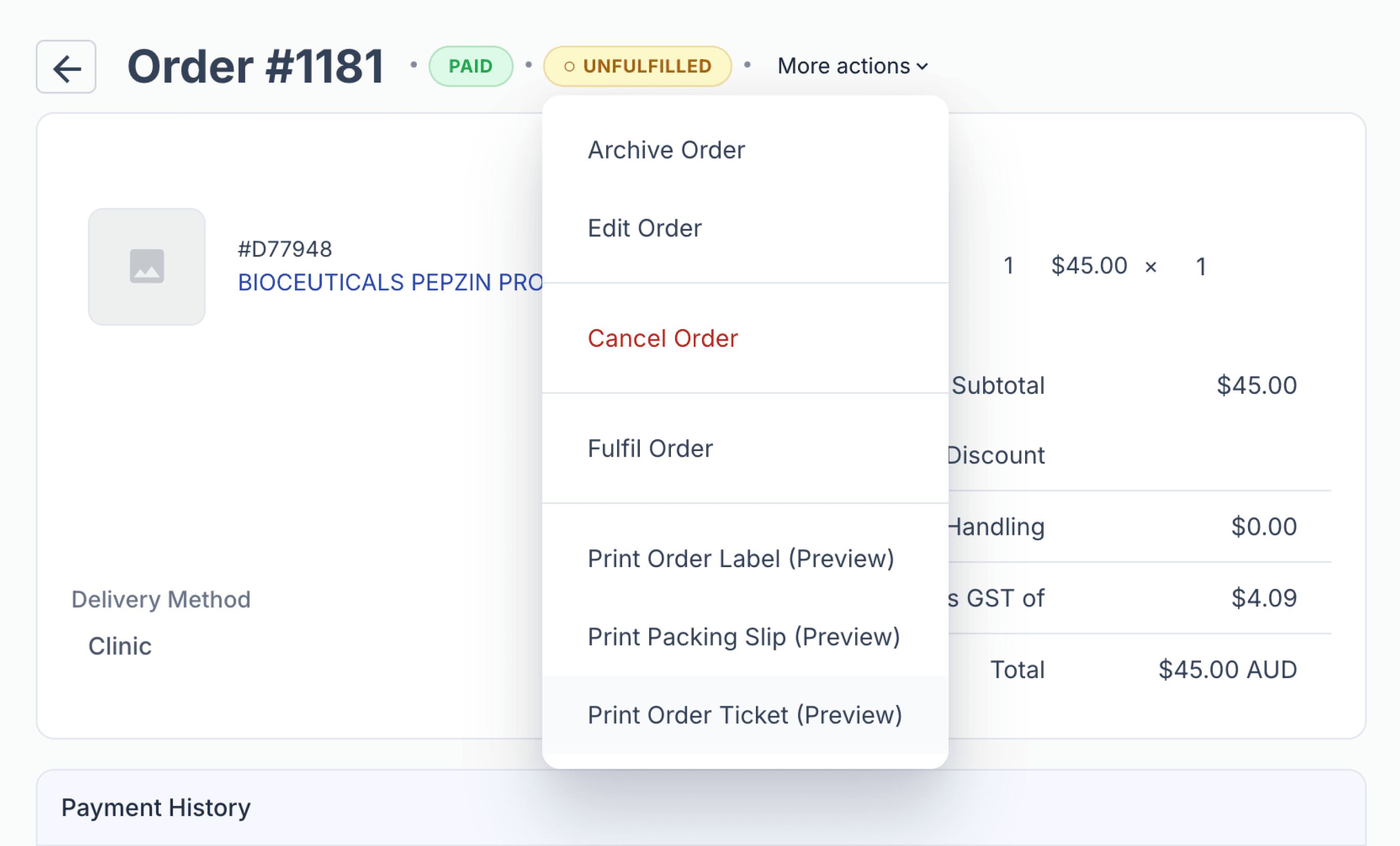
Order Tickets provide fulfilment staff with the information needed to prepare orders, including order details, line items, quantities, and delivery instructions.
Packing slip
Packing Slips provide a customer-facing document to accompany the order during dispatch or collection.
To print an order ticket or a packing slip, click on ‘More Actions’.
Bulk printing orders
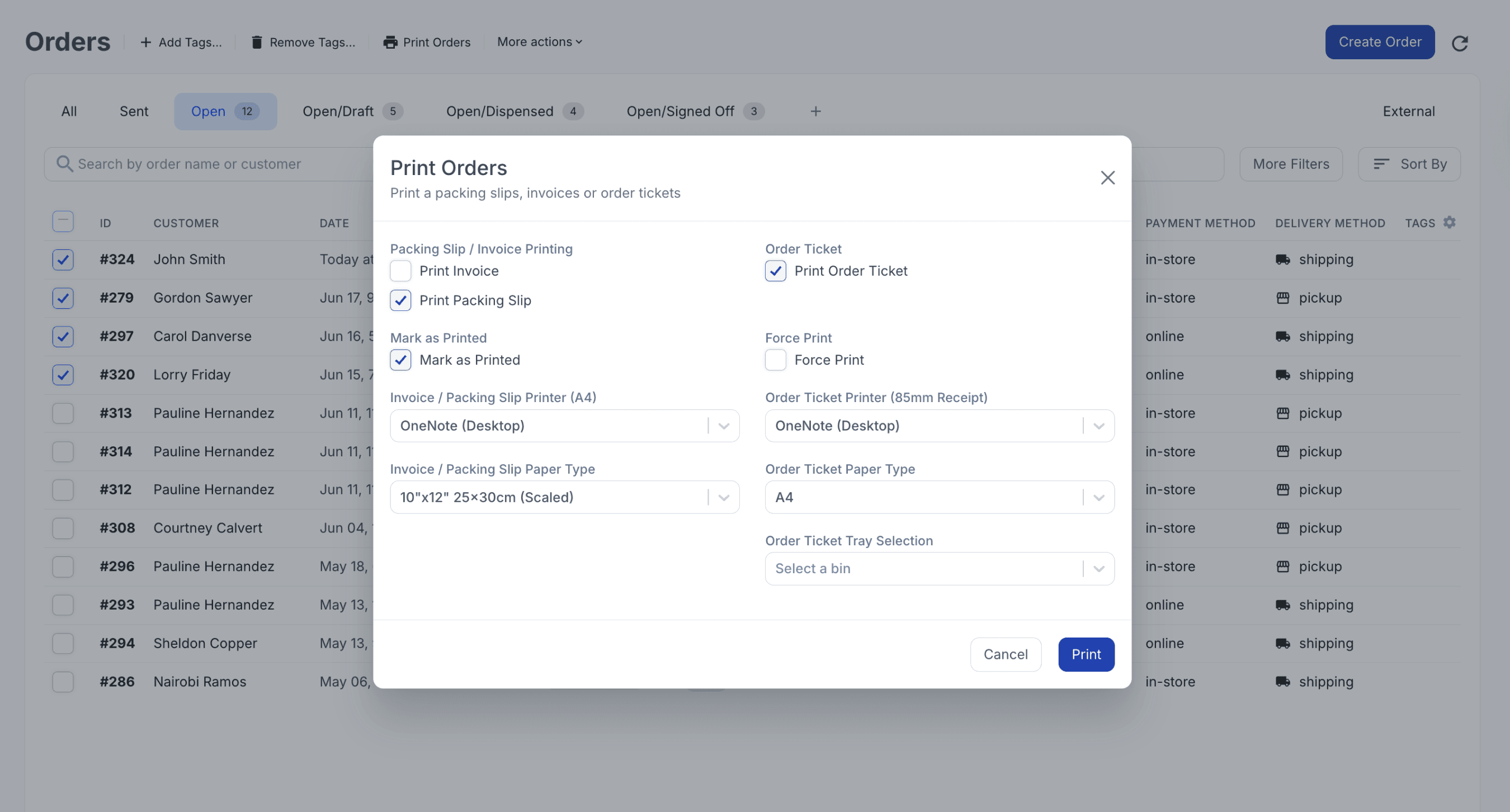
You can also print Order Tickets, Packing Slips, and Invoices in bulk from the Orders Dashboard. Select the orders you want to print, and the ‘Print Order’ button will appear in the top-left of the dashboard.
From the orders dashboard
Retention emails
Retention emails can be sent to maintain engagement and may also be used for relationship-building or educational purposes, helping to ensure a smooth and consistent customer experience.
Customer order overview
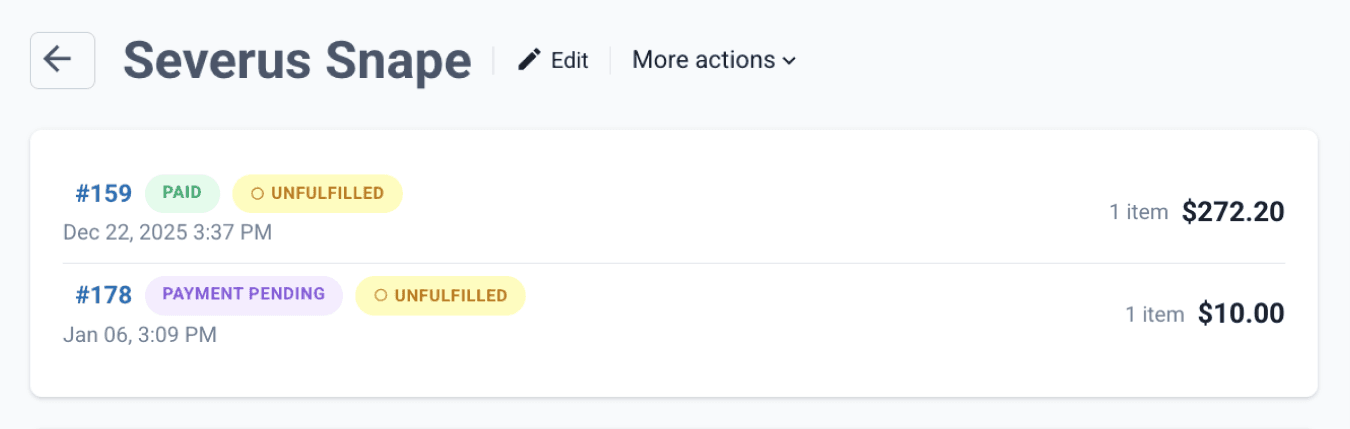
Orders for a customer appear in the Customer page overview, providing a quick snapshot rather than a full list and offering a reference for support calls or order issues. Recent orders remain visible for about one week, while unfulfilled orders are shown for approximately 30 days. To view a customer’s full order history, search for their profile on the Orders page.
From the customer page
Exporting orders
Orders can be exported with comprehensive data, including customer details, pricing, shipping and tracking information, discounts, payment activity and detailed line item records. This enables pharmacies to customise reports based on their operational, financial and reporting requirements.
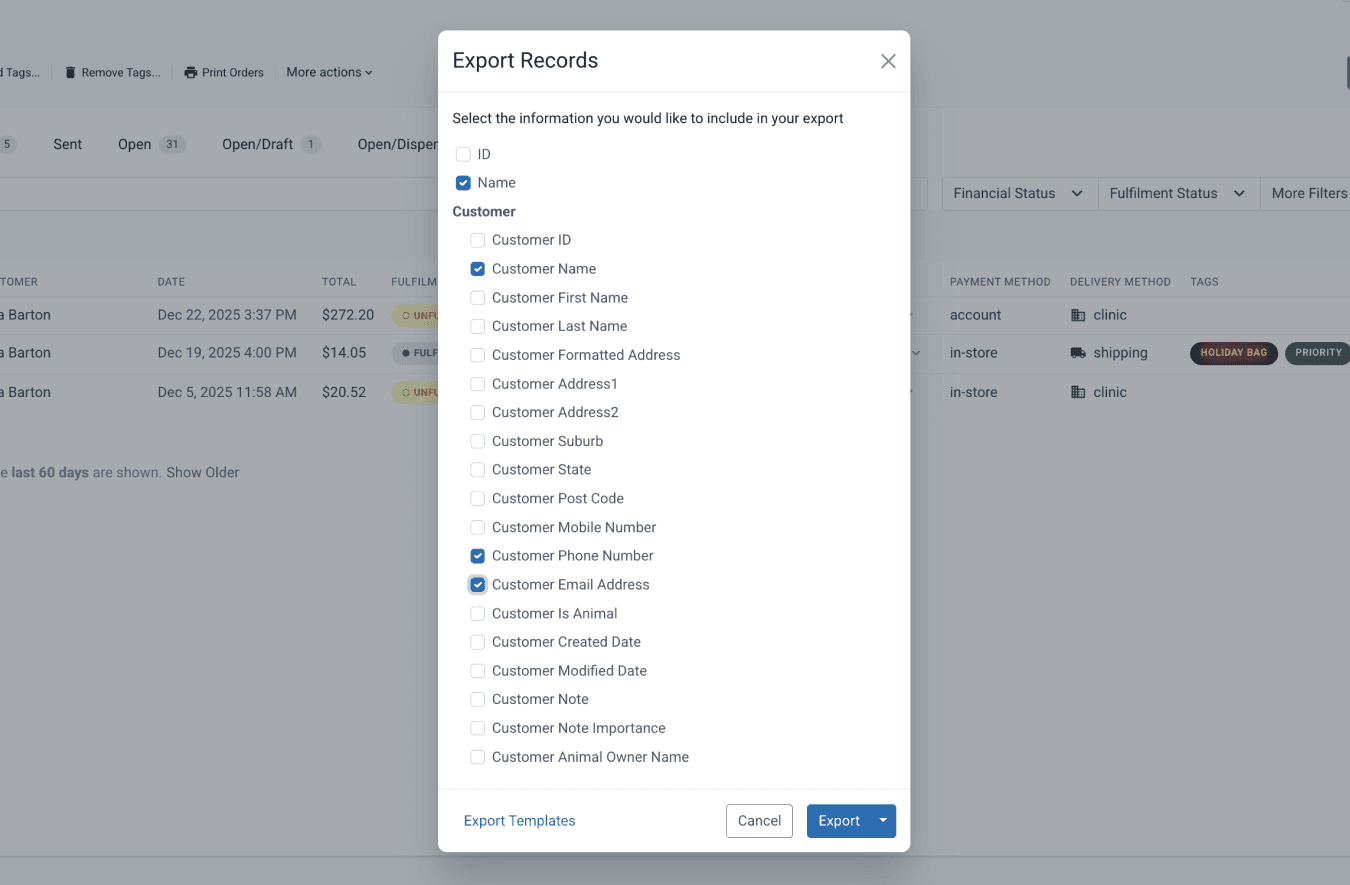
From the orders dashboard
Deleting and cancelling orders
An order can only be deleted if it has not been confirmed, meaning it has not been paid, marked as paid, or set to payment pending. Confirmed orders cannot be deleted and must be cancelled instead. Refunded and partially refunded items are still considered confirmed unless they are cancelled.
Once an order is cancelled, a ‘Cancelled’ status will appear next to the order number. If the cancelled order has no associated payment transaction, both ‘Cancelled’ and ‘Voided’ statuses will be shown. Cancelling an order is permanent and cannot be undone.
Summary
Compound Direct processes both In-store and Online orders through a single, configurable workflow that standardises each stage of the order lifecycle, from draft creation and quoting through to payment, risk assessment, dispensing, fulfilment, and collection or delivery. While the same core process applies to all orders, workflows are tailored to suit different order types, automatically applying defaults for delivery, payment, tax, accounts, tags, and customer communications.
Payments can be completed either online or in-store, depending on the selected workflow, with automated status updates keeping customers informed at key stages. By setting up workflows in advance, pharmacies can reduce manual handling, maintain consistency, and deliver a clear and efficient experience for both staff and patients.
All names and medical data shown in software screenshots are fictional and for demonstration purposes only. These figures represent fictional persons; any resemblance to real individuals is purely coincidental. Use of existing fictional names is for illustrative purposes and does not imply affiliation or endorsement.