
Compound Direct Order Delivery: A guide to pickup and shipping options

Order Delivery in Compound Direct plays a key role in how orders are created, processed, and fulfilled. From choosing the right shipping method to offering convenient pickup locations, delivery settings help ensure orders move smoothly from creation to completion.
Compound Direct allows you to configure shipping options, delivery costs, and pickup locations to suit different workflows and customer needs. You may also allow customers to choose their preferred delivery or pickup method, or to add custom shipping instructions during checkout.
This guide walks through how delivery methods work, how to set up shipping and pickup locations, and how to select the correct delivery option when processing an order. It also shows where configured shipping and pickup options appear when preparing an order and how customers can view or edit these options during checkout, giving you clear control over each stage of the order lifecycle.
Shipping options
Go to ‘Settings’, then type or select the ‘Shipping Options’ button. You can choose to edit an existing shipping option or create a new one.
On the New Shipping Option page, enter all key details, such as the name, description, and price of the shipping option. You can also customise whether the shipping option is taxable, including the tax rate (%) to be applied. Shipping options that are created can be selected as defaults when setting up a workflow.
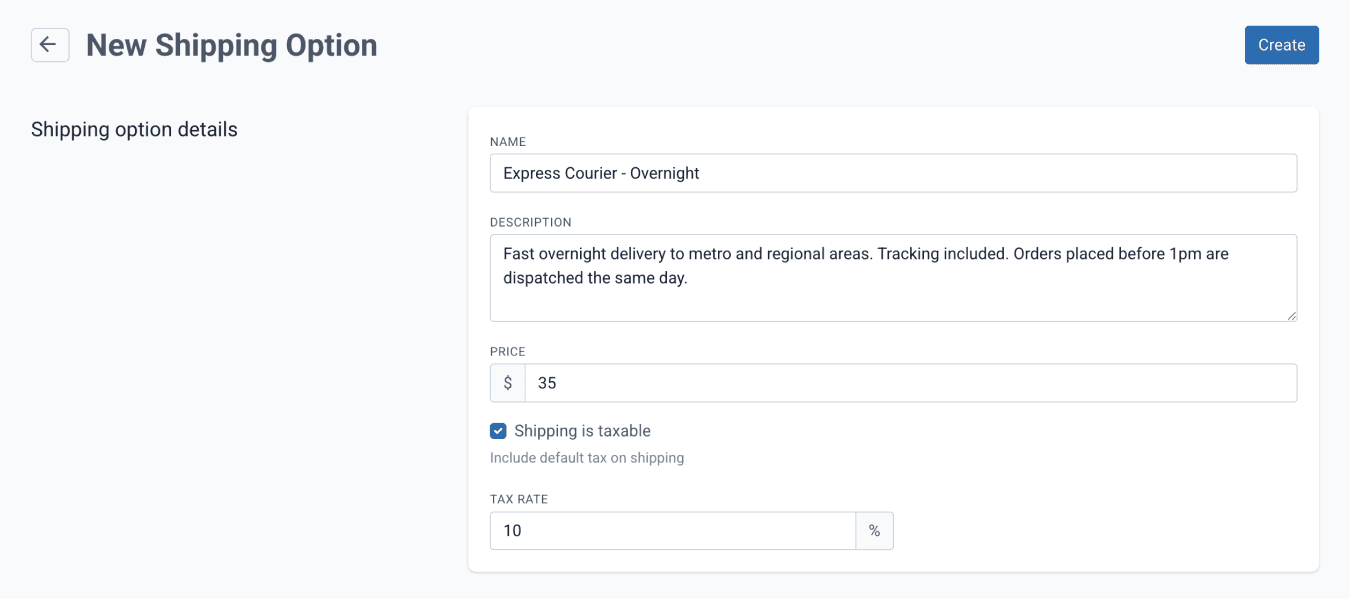
From the shipping options page
When configuring an Order Workflow, the shipping options you have created can be added as available options. Adding shipping options with set prices provides customers with details such as the delivery timeframe and the cost of delivery. You can add multiple shipping options and choose which one should be selected by default.
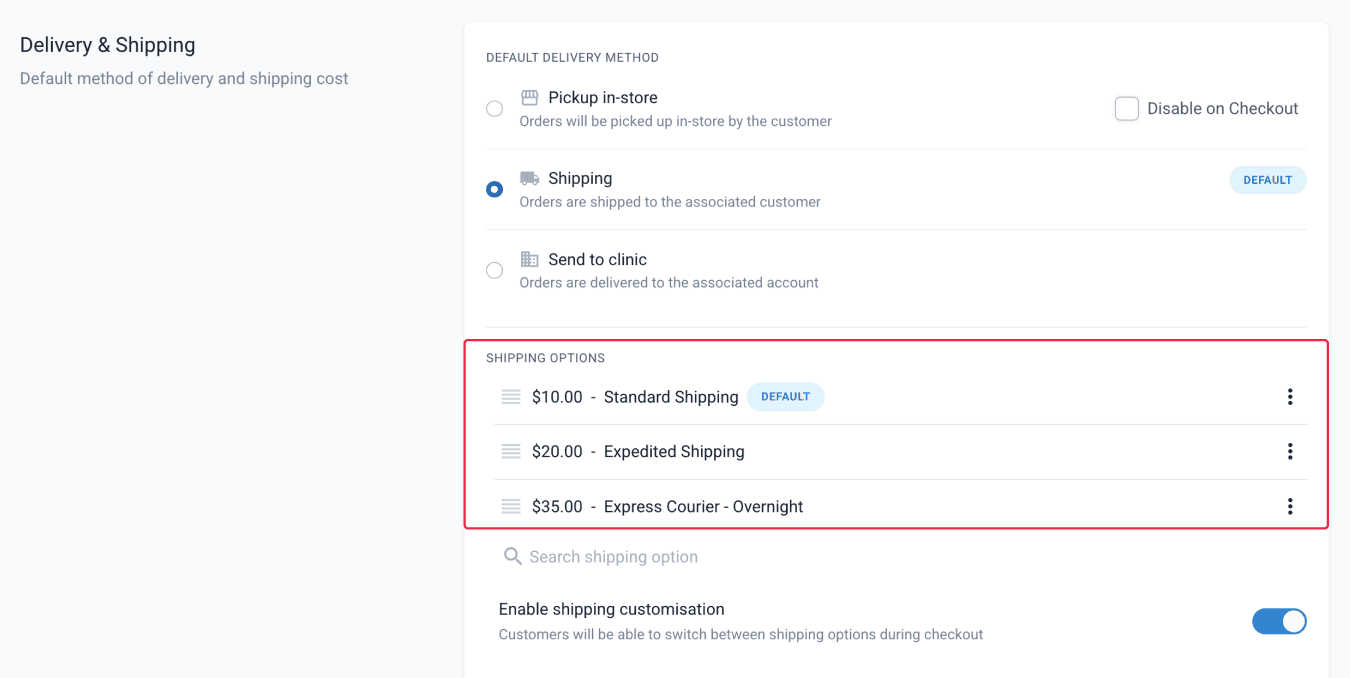
From the order workflows page
If the default delivery method for the selected workflow is Shipping or Send to clinic, the corresponding default shipping option will be pre-selected on the Orders page. You can switch to any other shipping option configured within the workflow or enter a custom shipping or handling fee if none of the preset options apply.
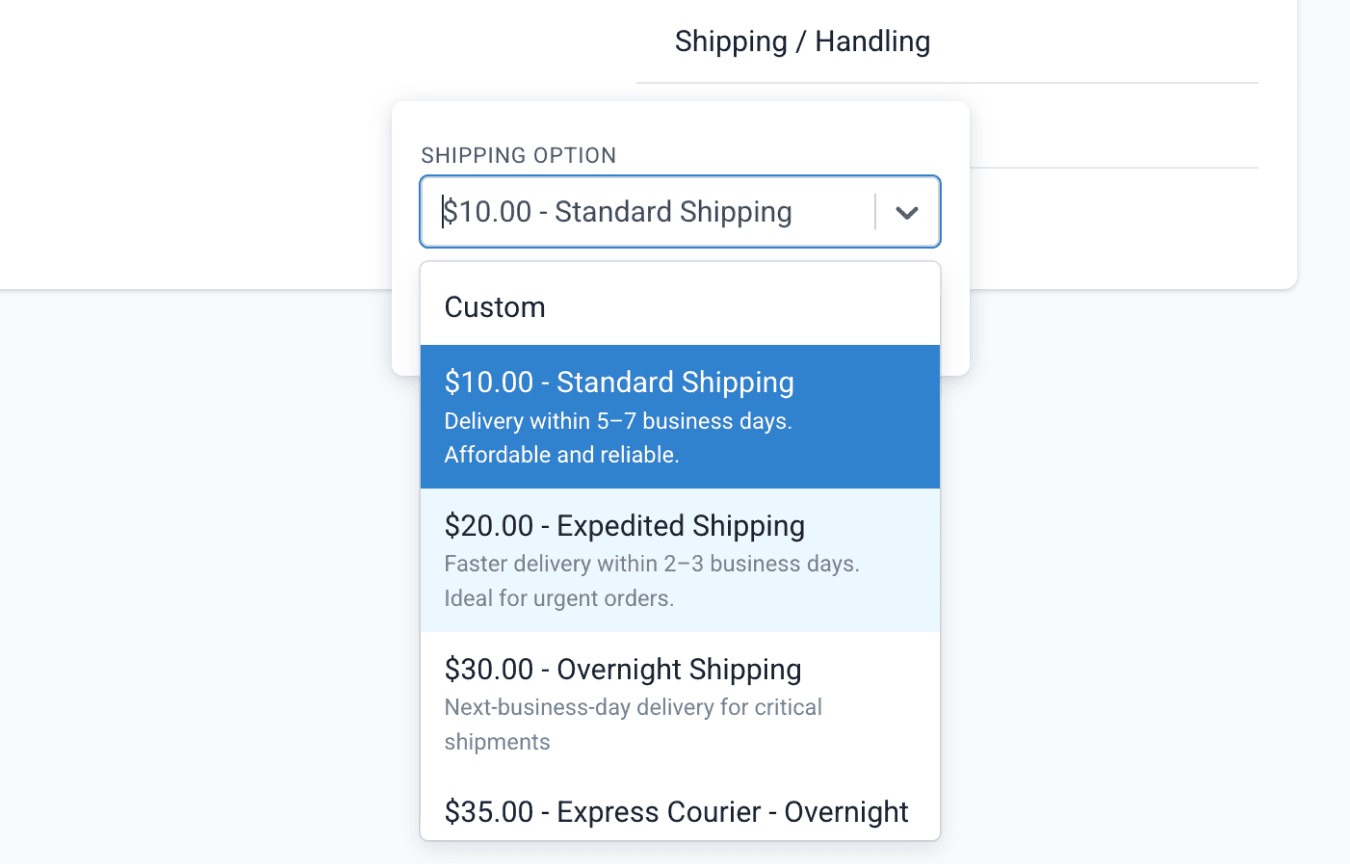
From the orders page
If the customer linked to the order has more than one address saved in their profile, you can select the appropriate shipping address from the ‘Ship To’ drop-down menu to specify where the order should be sent.
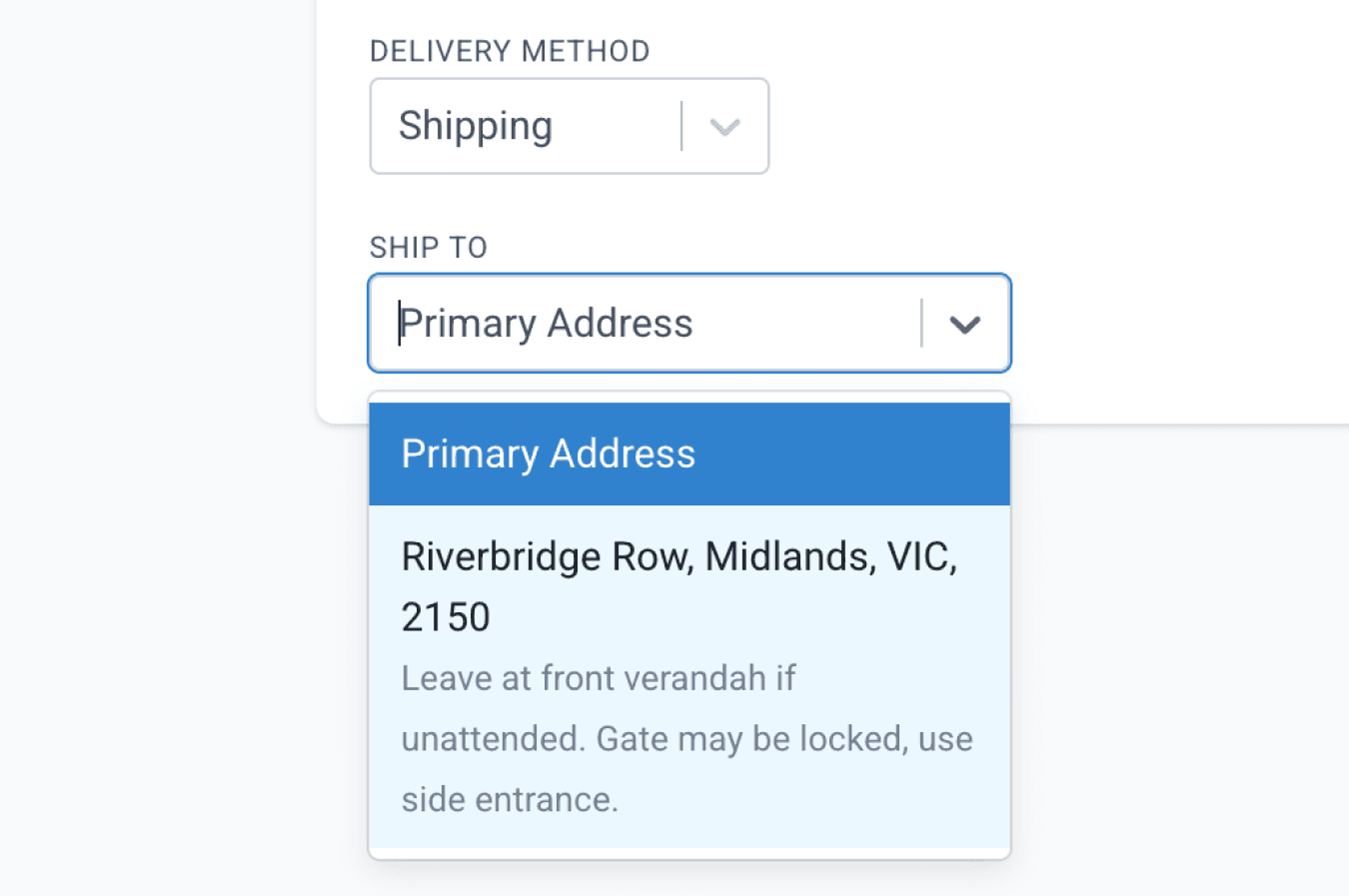
From the orders page
‘Enable shipping customisation’ to allow customers to switch between available shipping options during checkout and update the delivery instructions.
You may choose to disable this option when a specific shipping method is required for the intended workflow. This can be useful in scenarios where delivery options must be controlled, such as when refrigerated items require express shipping using a specific delivery method.
Delivery instructions that are added or edited on the checkout link are applied in real time to the delivery instructions displayed on the Orders page and Customer page.
Important note: Delivery instructions added by staff on the Orders page will be overridden if the customer updates their delivery instructions on the checkout page.

From the order workflows page
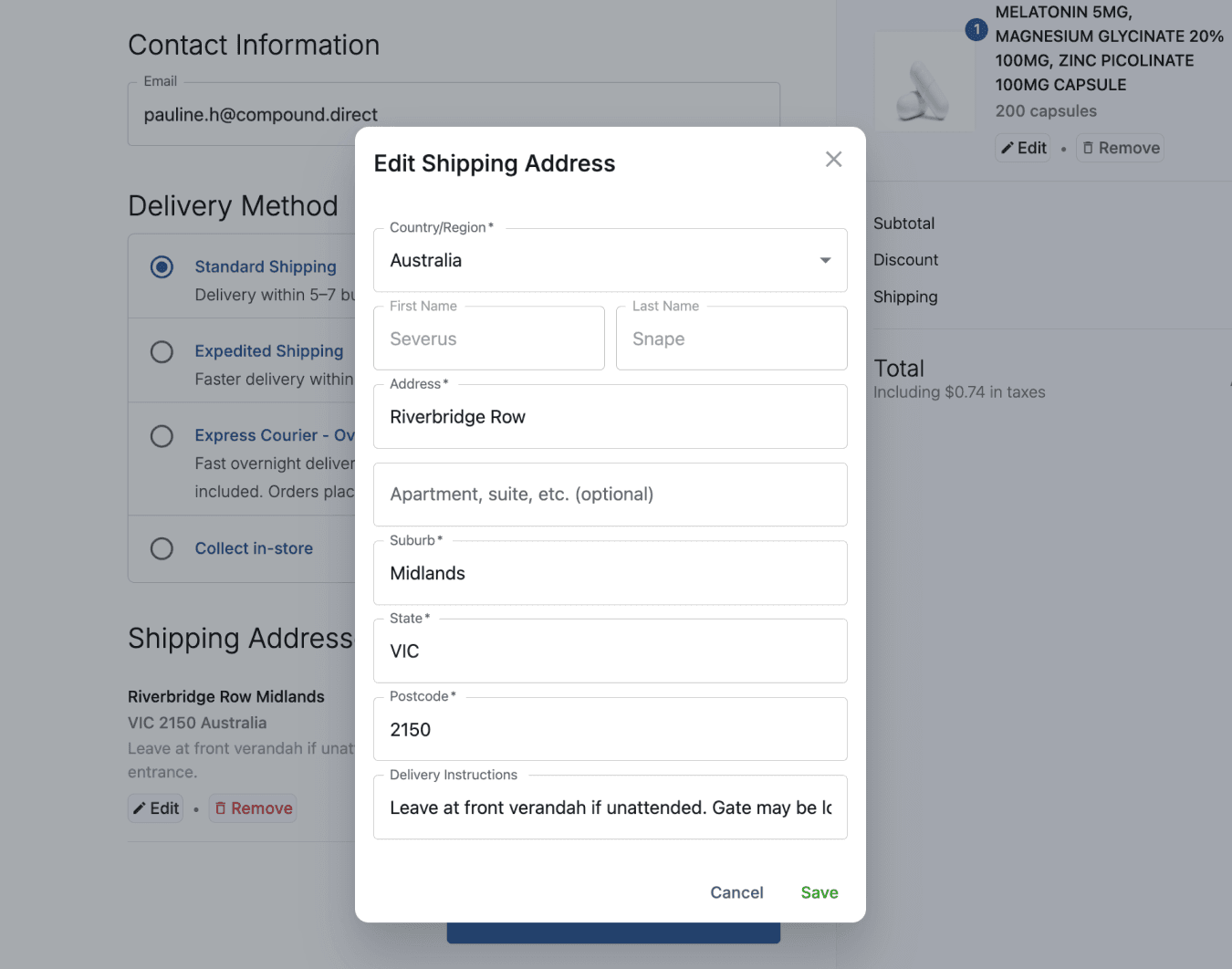
From the customer checkout link
Ship to clinic
Orders with Clinic delivery method are shipped directly to the clinic address using the selected shipping fee.
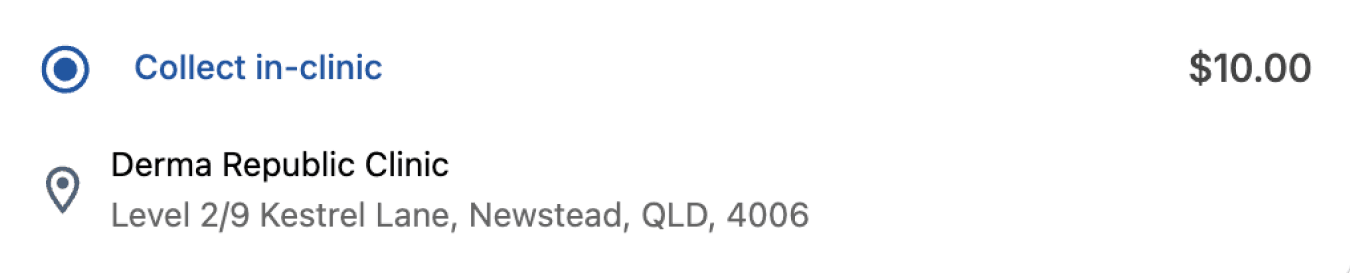
From the customer checkout link
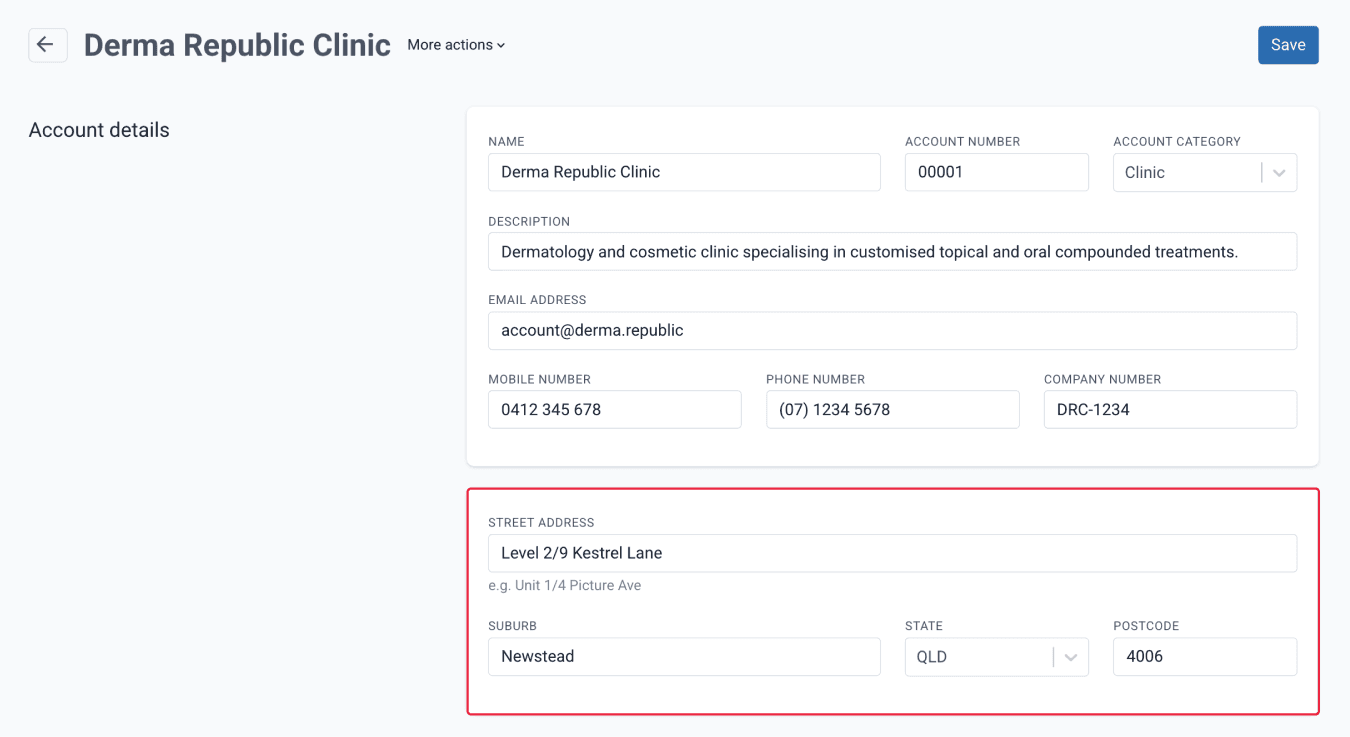
From the accounts page
Pickup locations
Go to ‘Settings’, then type or select the ‘Pickup Locations’ button. You can choose to edit an existing pickup location or create a new one.
On the New Pickup Location page, enter the pickup location details, including the name, description, and address information.
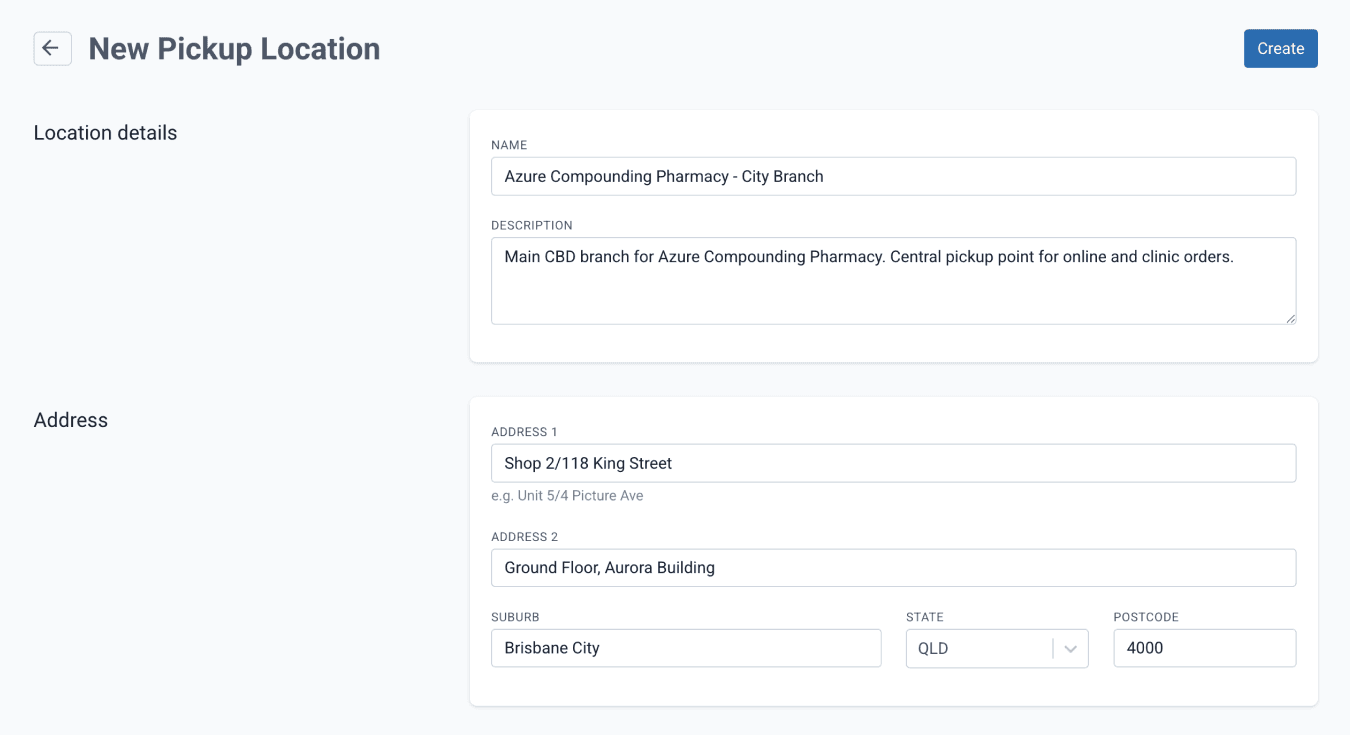
From the pickup locations page
Pickup locations you create will appear when configuring pickup options on the Order Workflows page and will be available as options when Pickup is selected as the delivery method for an order.
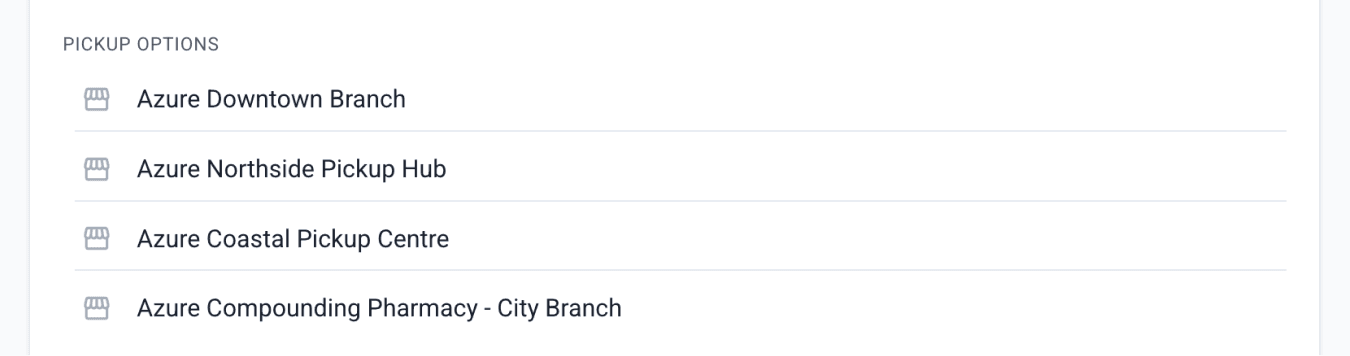
From the order workflows page
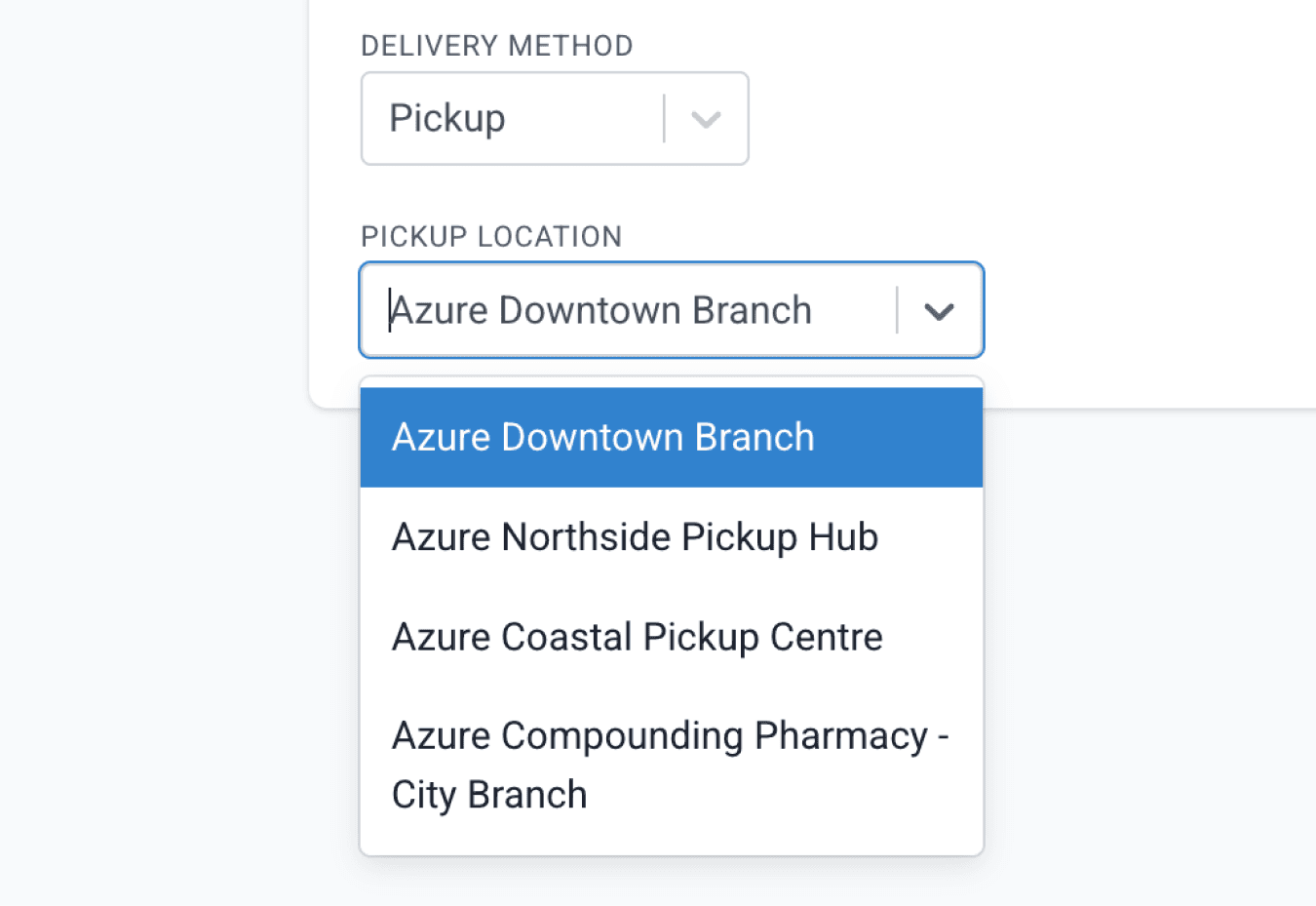
From the orders page
‘Enable pickup location customisation’ allows customers to choose a pickup location during checkout. You may choose to disable this option when a specific pickup location is preferred for the intended workflow.

From the order workflows page
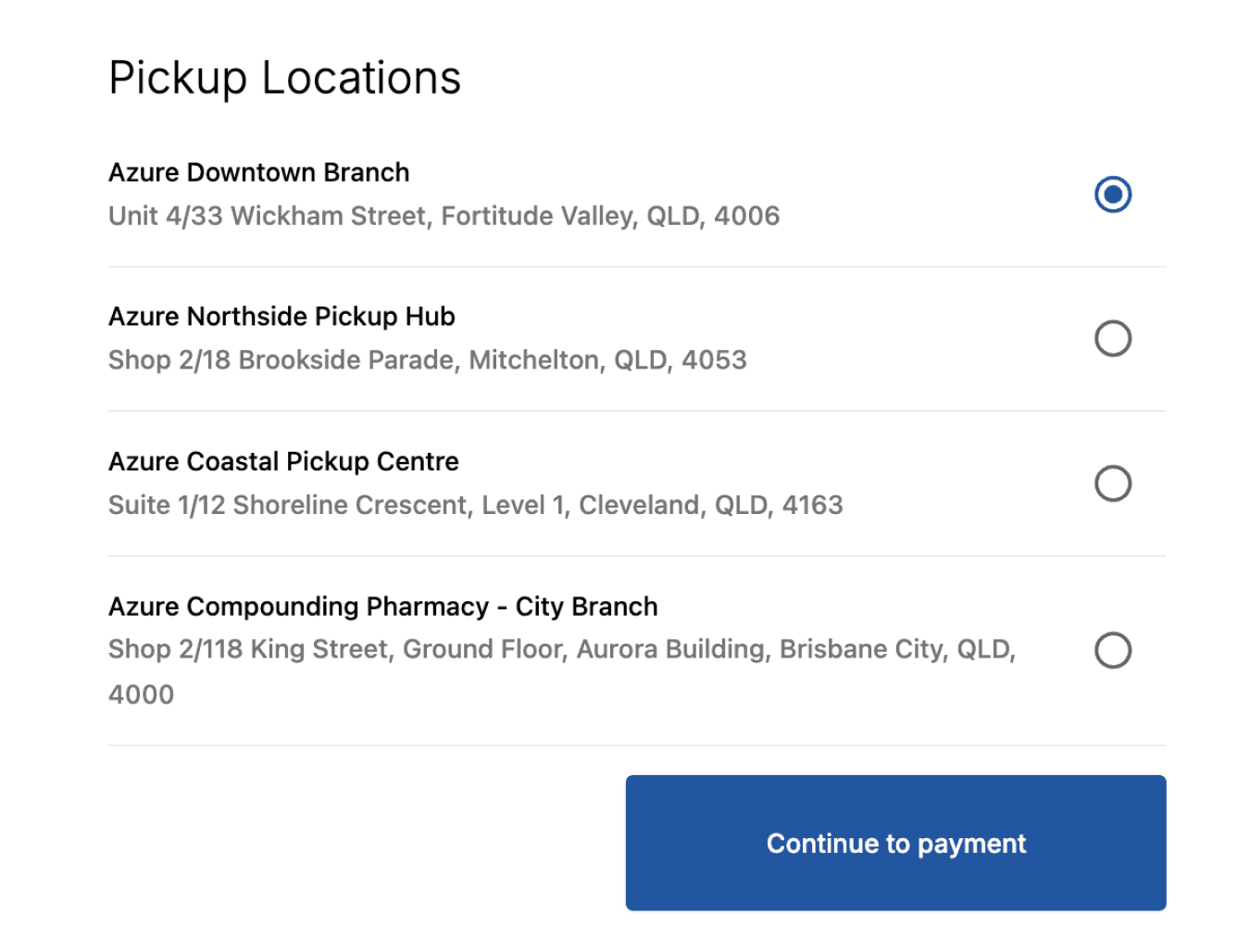
From the customer checkout link
If no pickup locations are added, the ‘Collect In-store’ option will still appear on the checkout link, and the pharmacy address will be used as the default pickup address.

From the customer checkout link
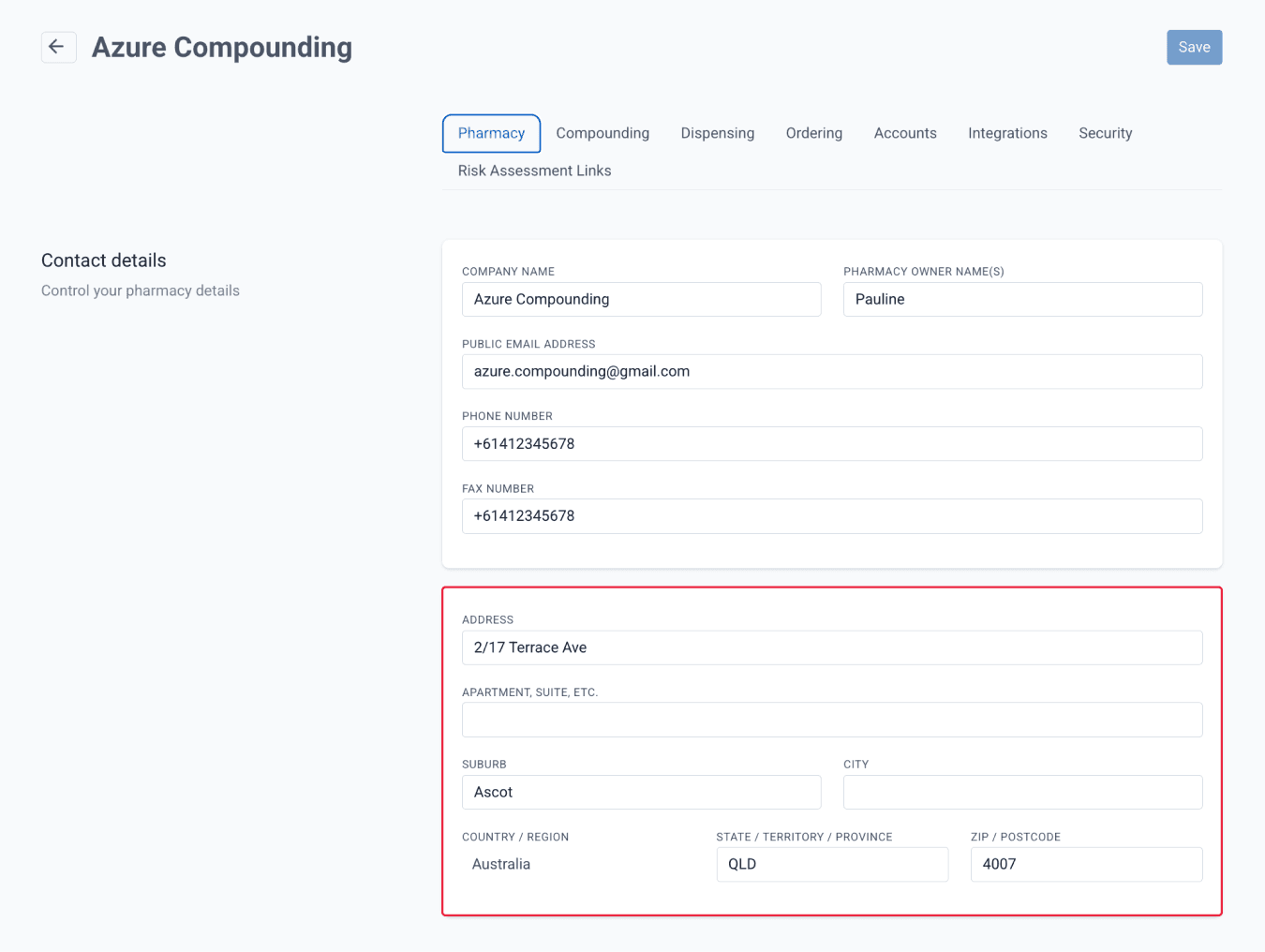
From your workspace page
Summary
Order Delivery in Compound Direct gives pharmacies flexible control over how orders are shipped or collected. Shipping options and pickup locations can be configured in advance and added to order workflows, allowing you to define delivery methods, costs, tax settings, and default selections. You can choose whether customers are able to select their preferred shipping method or pickup location and provide delivery instructions during checkout, or restrict these options to support specific workflows. Clear delivery settings, selectable addresses, and visible cost breakdowns help ensure orders are processed accurately and move smoothly from creation through to fulfilment.
All names and medical data shown in software screenshots are fictional and for demonstration purposes only. These figures represent fictional persons; any resemblance to real individuals is purely coincidental. Use of existing fictional names is for illustrative purposes and does not imply affiliation or endorsement.