
Drafts to Orders: A guide to order creation in Compound Direct

Compound Direct’s Drafts to Orders system explains how to progress from receiving a script to creating a complete, manageable order. It covers how drafts are generated, added to orders individually or in bulk, and combined into a single order that can include multiple products and patients. The guide also outlines how orders are prepared and updated as they progress, helping teams maintain clear visibility, accurate details, and efficient order management throughout the workflow.
Preparing the draft
Drafts provide a safe workspace to prepare prescriptions before they become official pharmacy records. They allow formulations, pricing, tags, documents, and prescriber details to be reviewed and refined in one place before the draft is confirmed and added to an order.
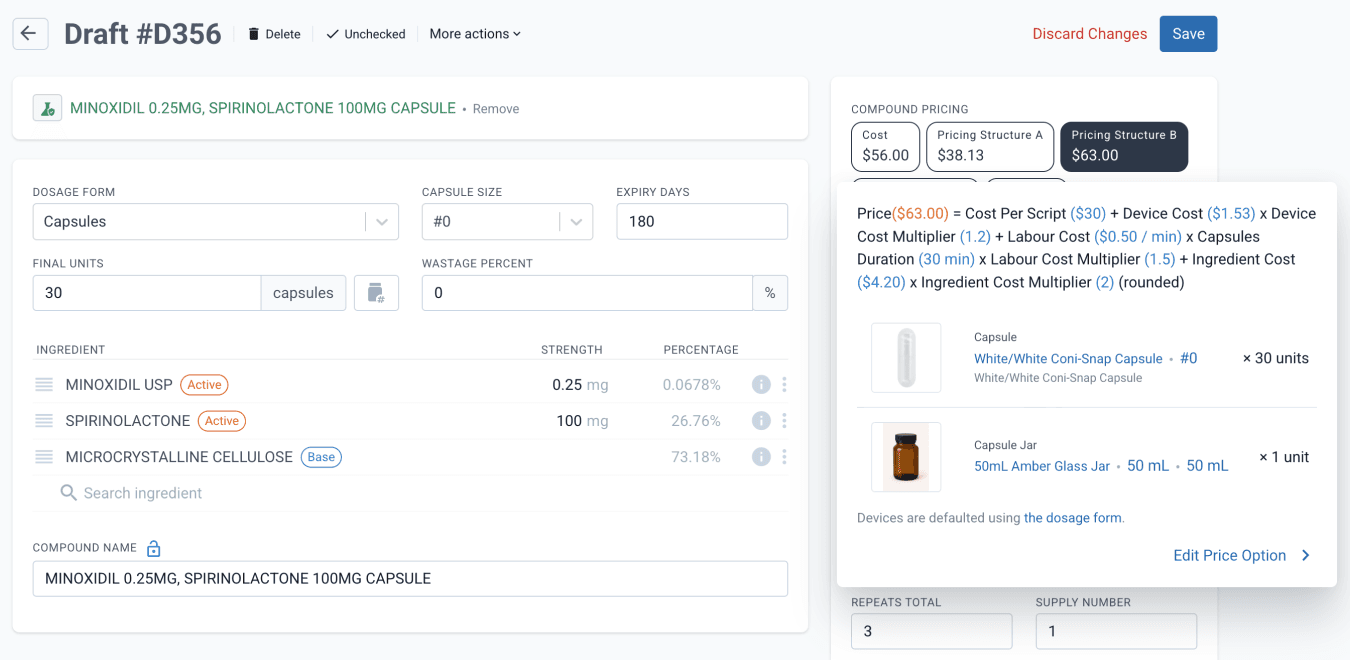
From the drafts page
Drafts can be added to an Order by clicking ‘More Actions’ and selecting ‘Add to Order’ or the hotkey ‘]’.
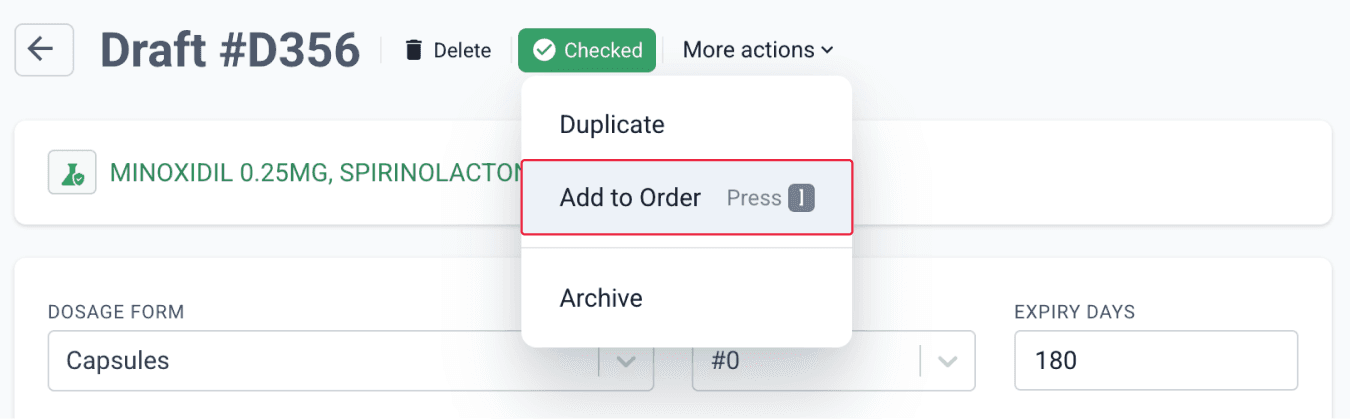
From the drafts page
You can add multiple drafts from the Drafts dashboard by selecting the relevant records and clicking the ‘Create Order’ or ‘View Order’ button.
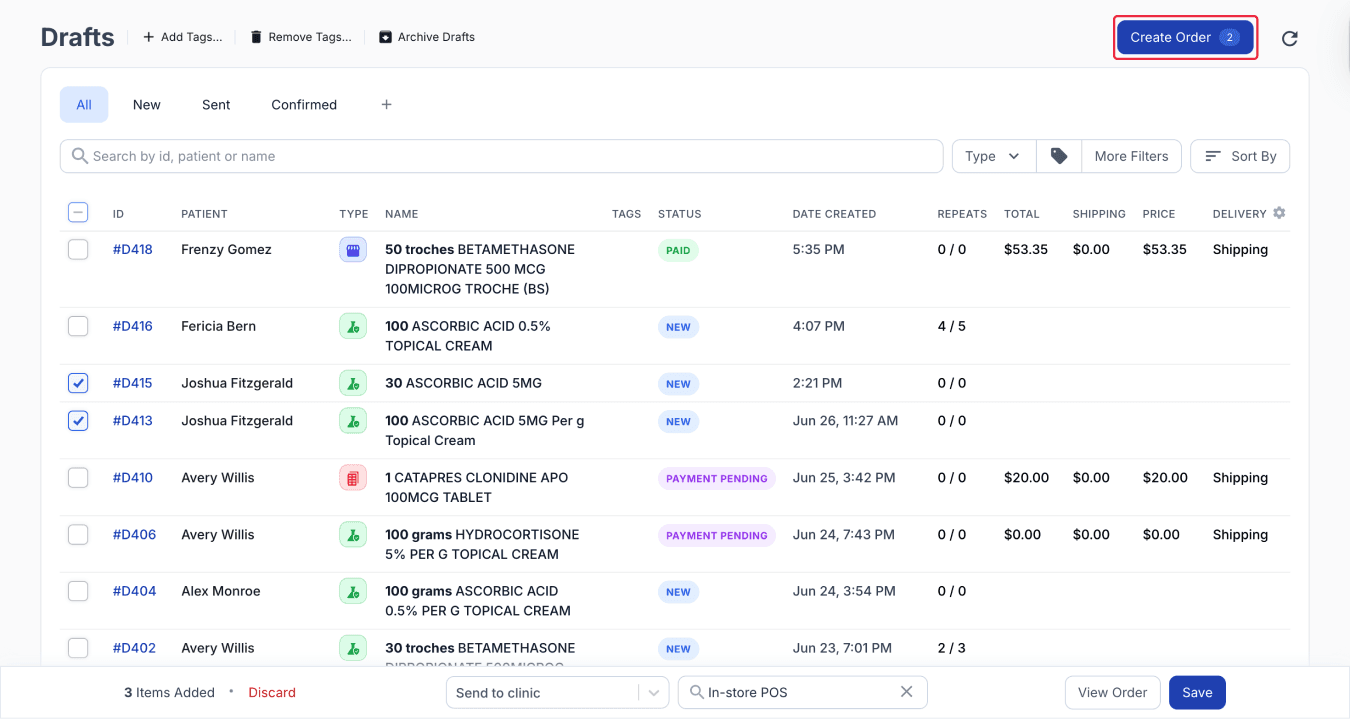
From the drafts dashboard
Dispensed scripts can be added to an order using the hotkey ‘]’. A single order can include multiple products for multiple patients, each with different prescribers.
You can select the order workflow and account directly from the bottom navigation bar on draft and dispense pages, before going to the Orders page.
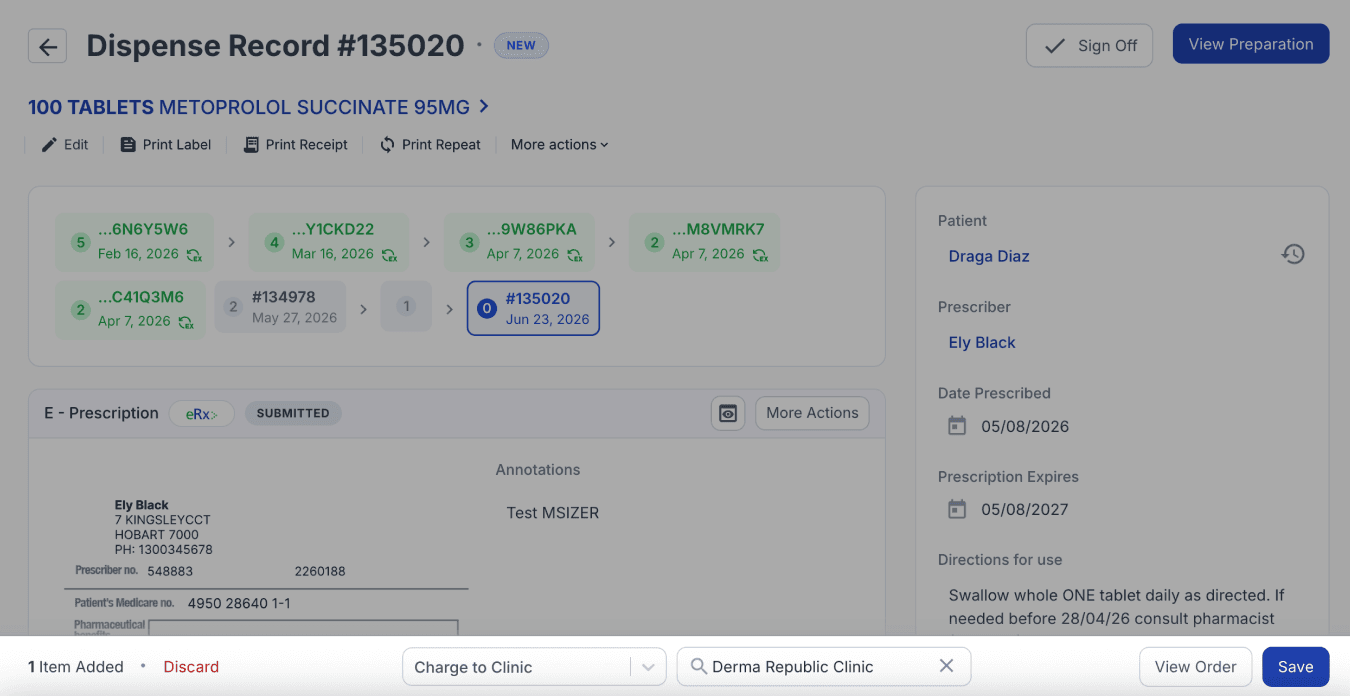
From the dispensed record
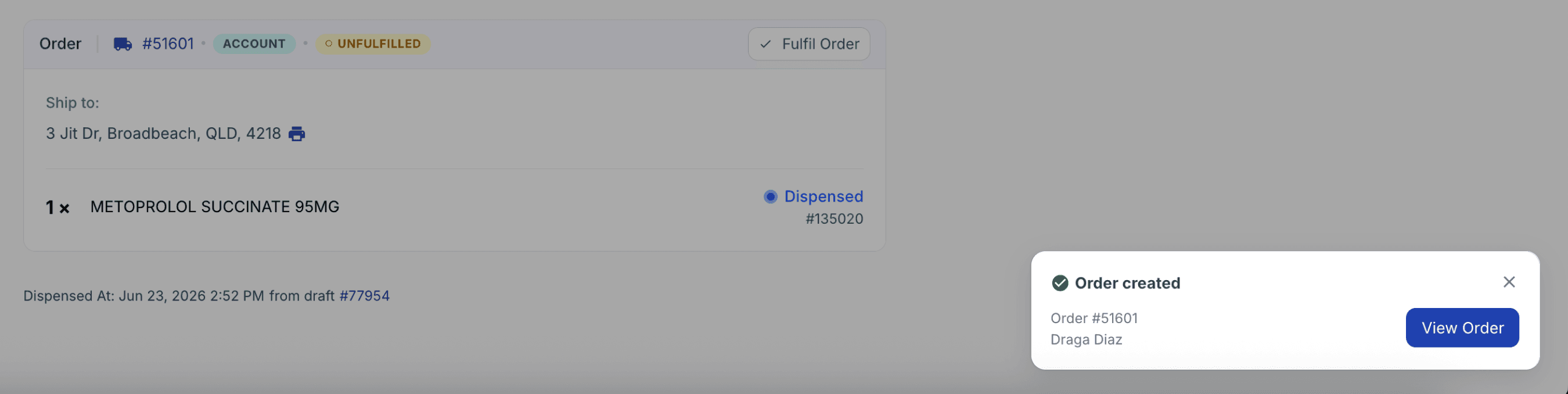
An Order created pop-up will appear when a new order has been successfully created and provides a direct option to open the order immediately.
Multiple order warning
If a draft has been added to multiple orders, the system will now display a warning to highlight the duplicate usage and help prevent accidental processing of the same draft across multiple orders.
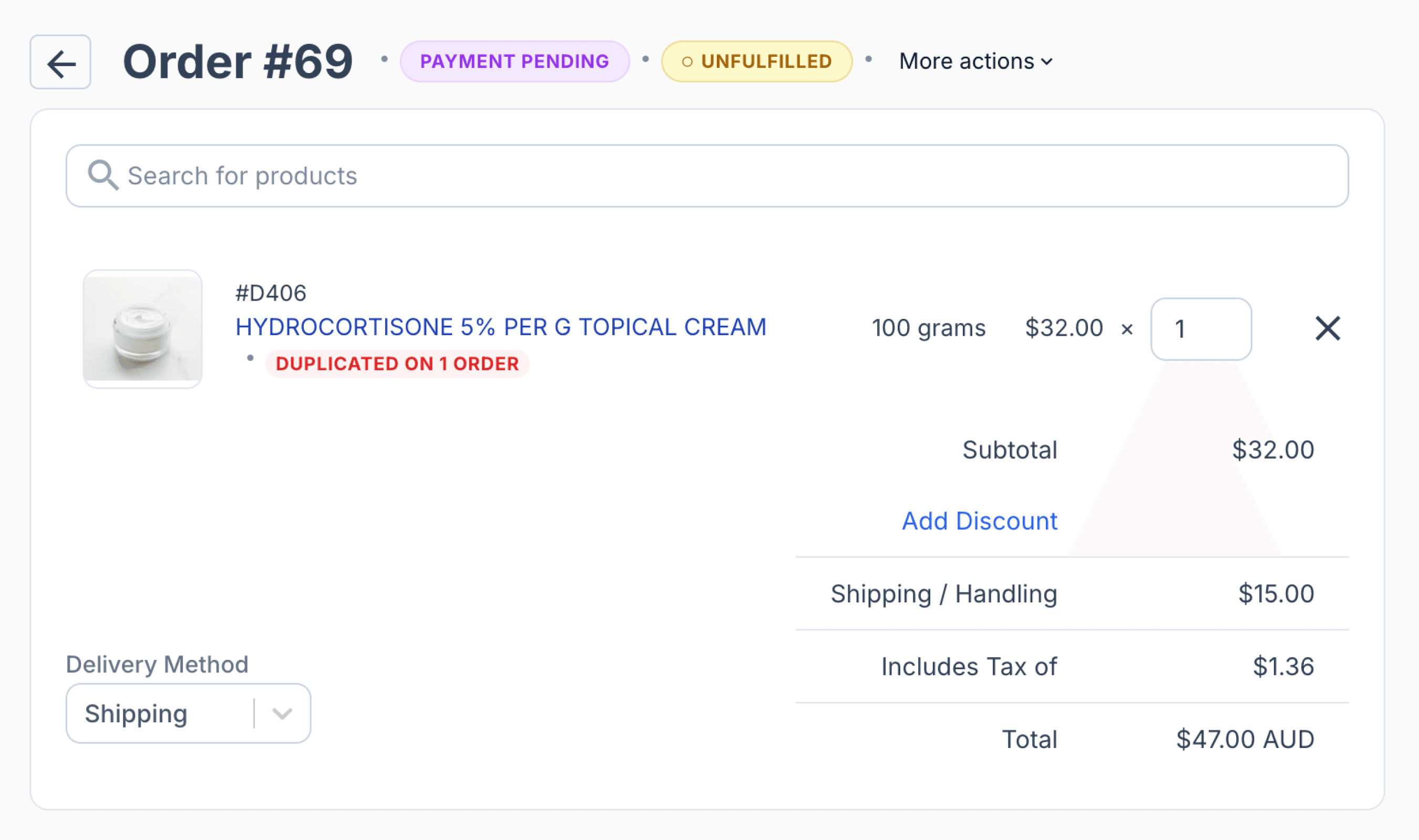
From the orders page
Preparing the order
You can also create an order directly from the Orders page. Once saved, a draft will be automatically generated. Compounding items and batch manufactured products can be added from the Orders page, with required details entered in the Drafts modal before they are added to an order. Other details can be edited from the Drafts page.
Retail products do not generate a draft when created directly as an order but can be added to an order from the Drafts page.
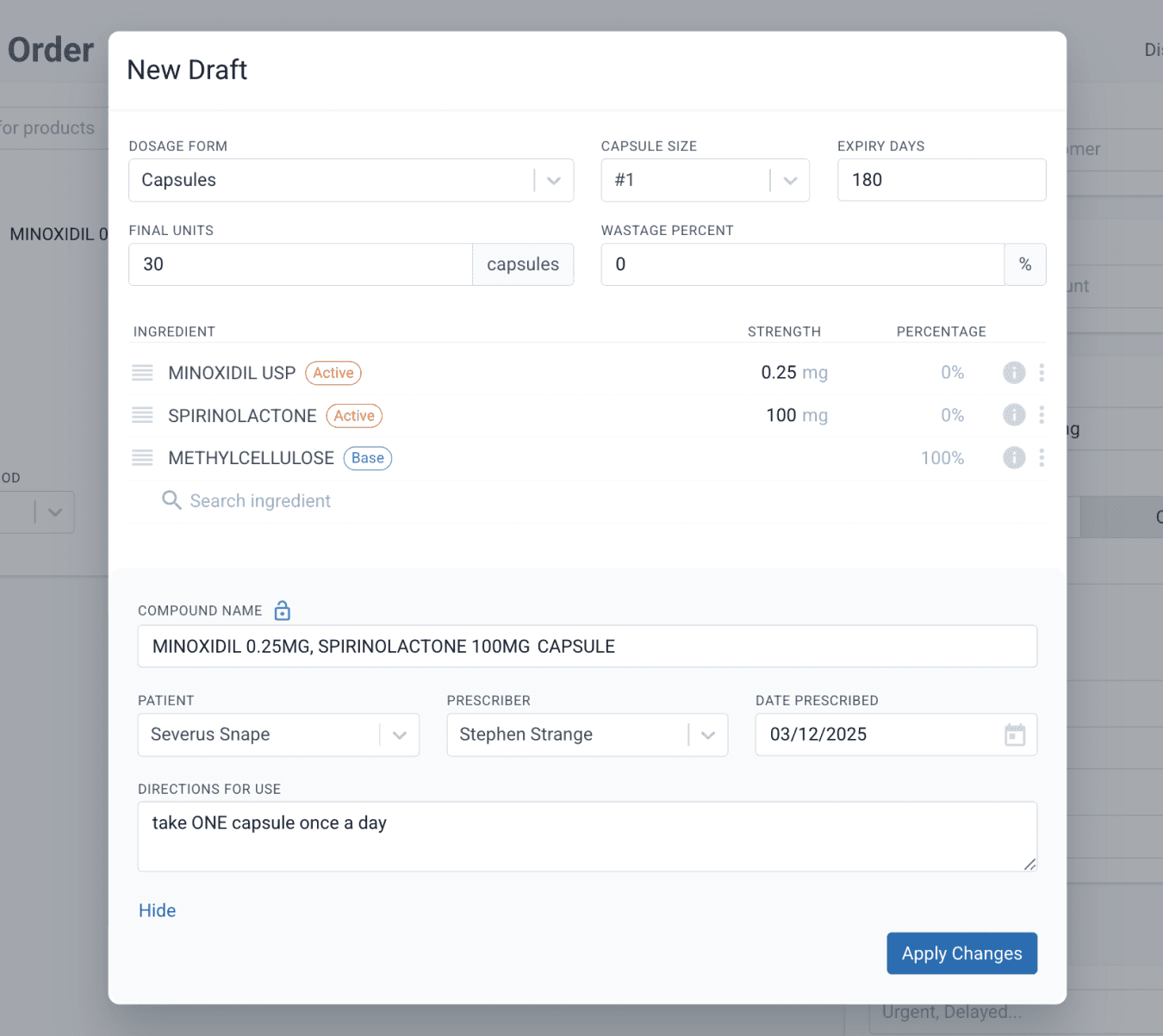
From the orders page
You can browse products under the All Products tab or locate them through the Customer Script, Unpaid Scripts, or Related Customers tabs.
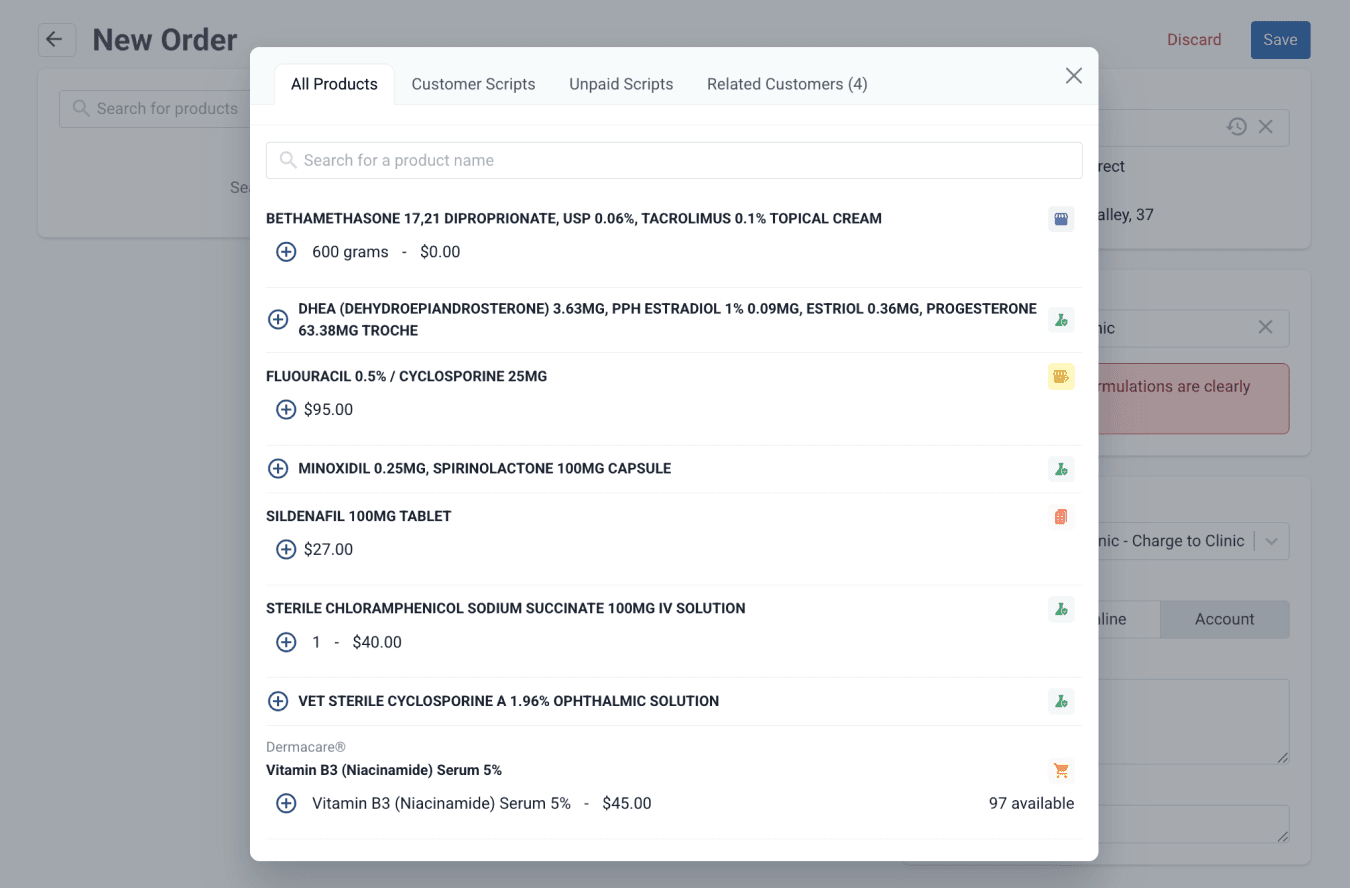
From the orders page
On the Orders page, you can add multiple products to an order. Existing formulations, batch stock, commercial drugs, and retail products can all be searched directly from this page. Products with set pricing will show their available quantities and prices, and both can be adjusted as needed.
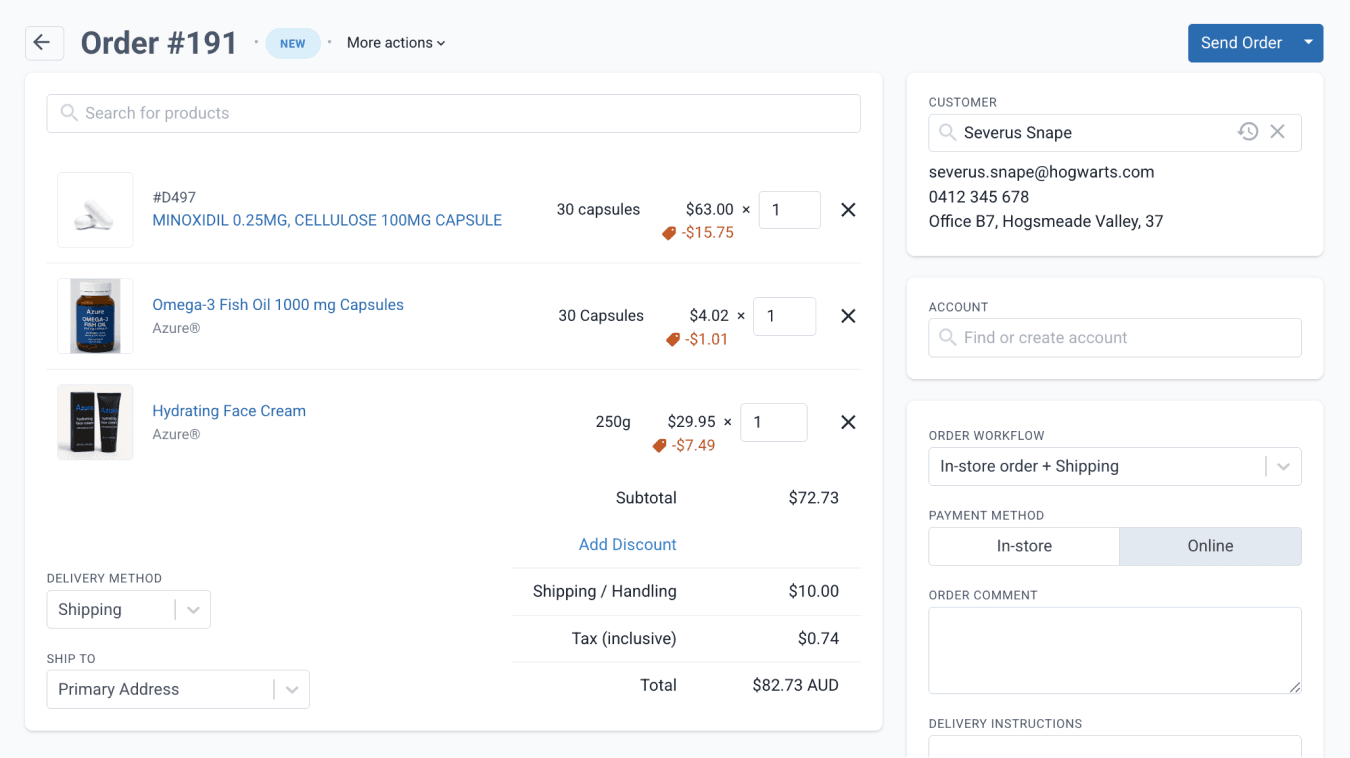
From the orders page
Deleting a draft
Deleting a draft that is part of an order requires a force delete before you can proceed.
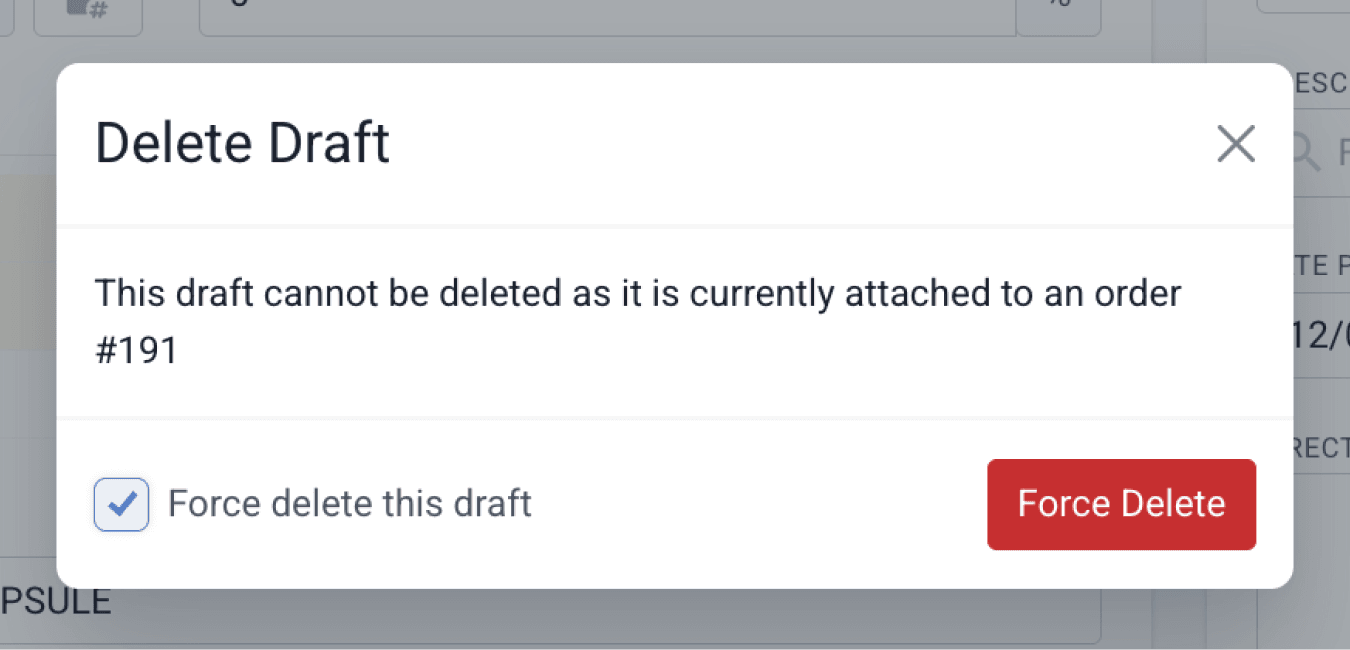
From the drafts page
If a draft that has already been added to an order is deleted, the item will be marked as ‘Unknown’ on the Orders page. The item must be removed from the order before you can proceed.

From the orders page
Summary
Adding drafts to orders in Compound Direct covers how orders are created and managed from the point a script is received. It explains how drafts are added individually or in bulk, and combined into a single order that can include multiple products and patients with different prescribers. The guide also outlines how orders are prepared and updated from the Orders and Drafts pages, including adding compounded, batch manufactured, commercial, and retail products, adjusting pricing and quantities, and renaming orders to improve visibility and organisation. Finally, it explains how draft deletion works and what happens when drafts linked to an order are removed.
All names and medical data shown in software screenshots are fictional and for demonstration purposes only. These figures represent fictional persons; any resemblance to real individuals is purely coincidental. Use of existing fictional names is for illustrative purposes and does not imply affiliation or endorsement.