
Workflow Setup Guide: Charge to Clinic – Send to Patient

The Charge to Clinic – Send to Patient workflow is designed for orders where clinics are billed directly, while medications are delivered to the patient’s address or made available for pickup. This guide walks through the key workflow settings required to configure this setup, covering delivery methods, account-based payments, tax handling, automated communications, and workflow automations to support a smooth and reliable clinic ordering process.
Pre-requisites
Before setting up an Order Workflow, we recommend preparing several components in advance. Workflows may use Shipping Options, and integrate Invoice Templates, Accounts, which are sent using Email and SMS Templates. To ensure a smooth setup process, it’s best to prepare these components before building your workflow
See Pre-requisites to learn more about the different components you need to set up before building an order workflow.
Workflow presets
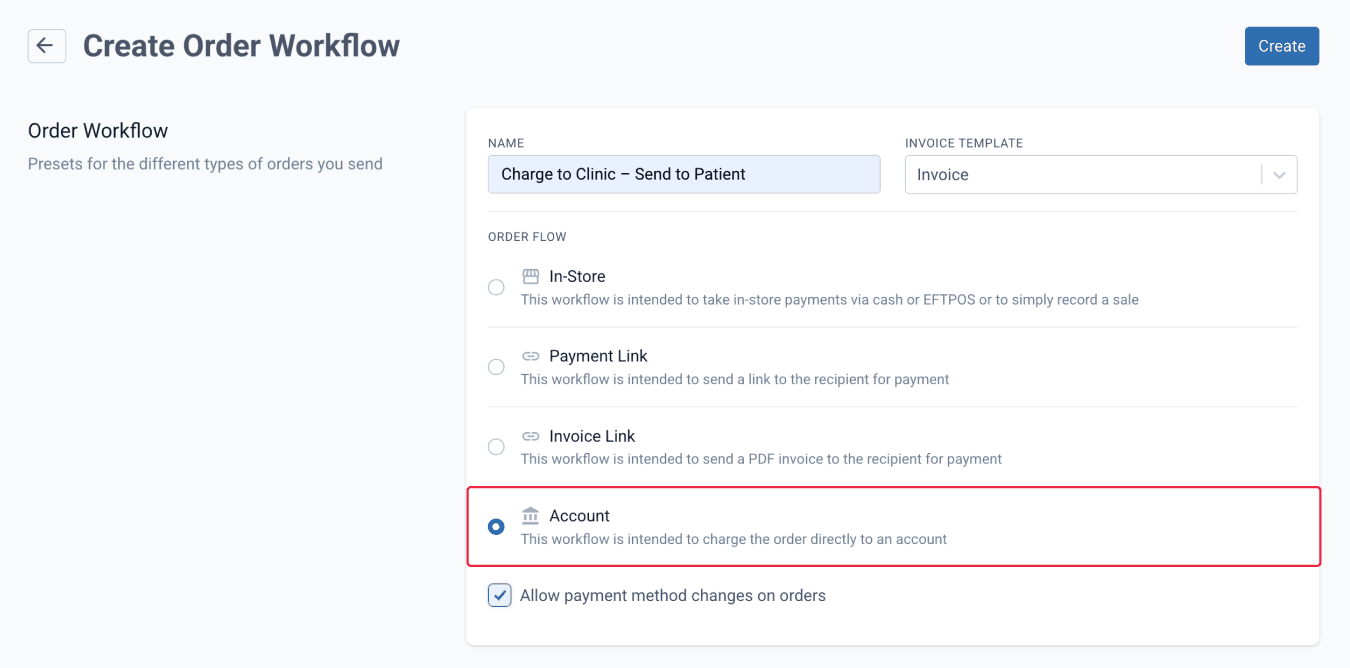
Workflow name
Use a clear name so staff can easily recognise the workflow. For general use, name it Charge to Clinic – Send to Patient. If the workflow is intended for a specific clinic, use the clinic name, such as Derma Republic.
Invoice template
Select the invoice template that will be used for this workflow to ensure billing documents are consistent and accurate.
Order Flow (Payment method)
For this workflow, select the Account payment method.
Tick ‘Allow payment method changes on orders’ to allow the payment method to be edited, even when an order workflow has been selected.
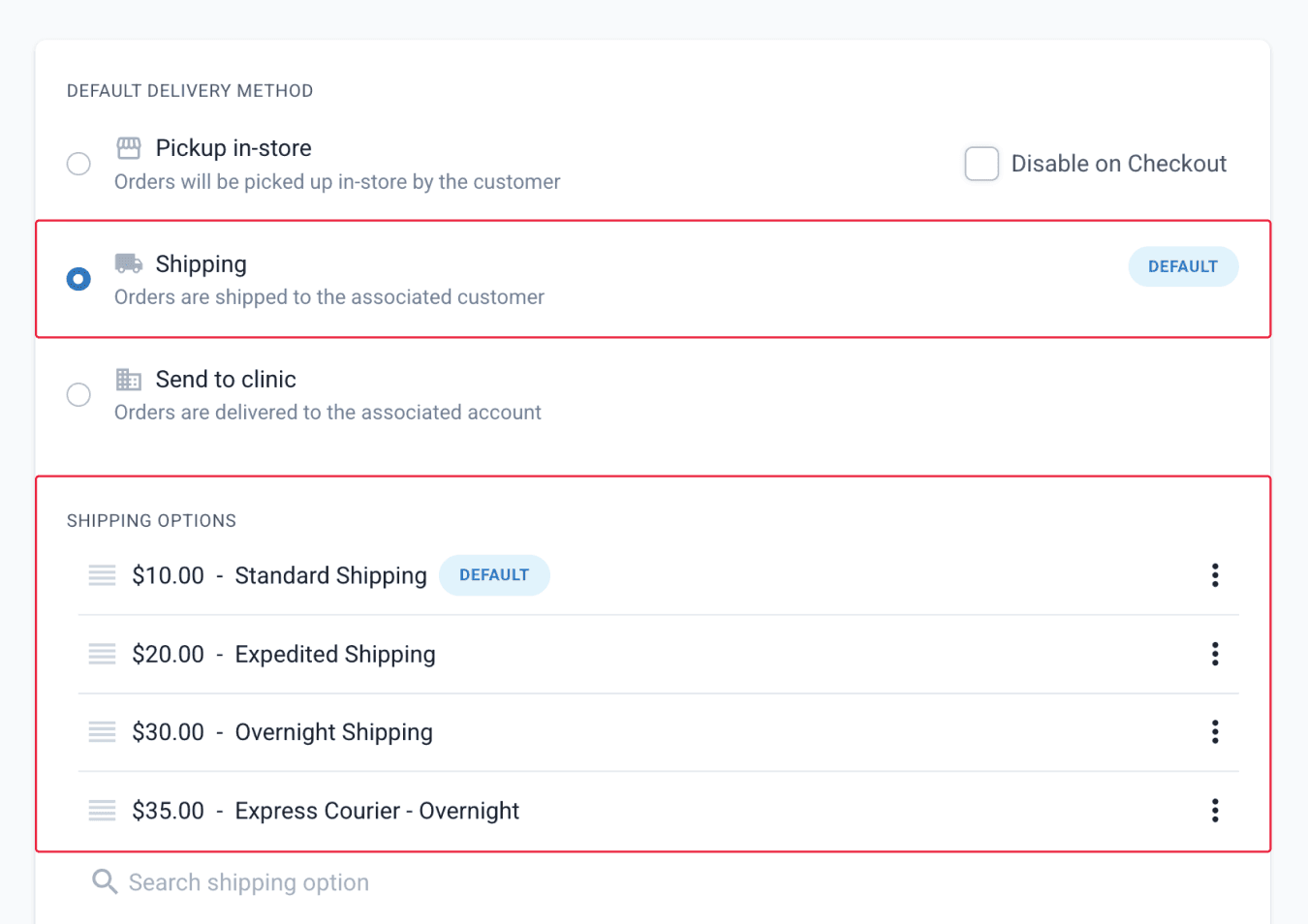
Delivery method
Select Shipping as the default delivery method to ensure all orders are delivered to the customer address. Any shipping options added to the workflow will be available when creating an order, and the default shipping option will be pre-selected during order preparation.
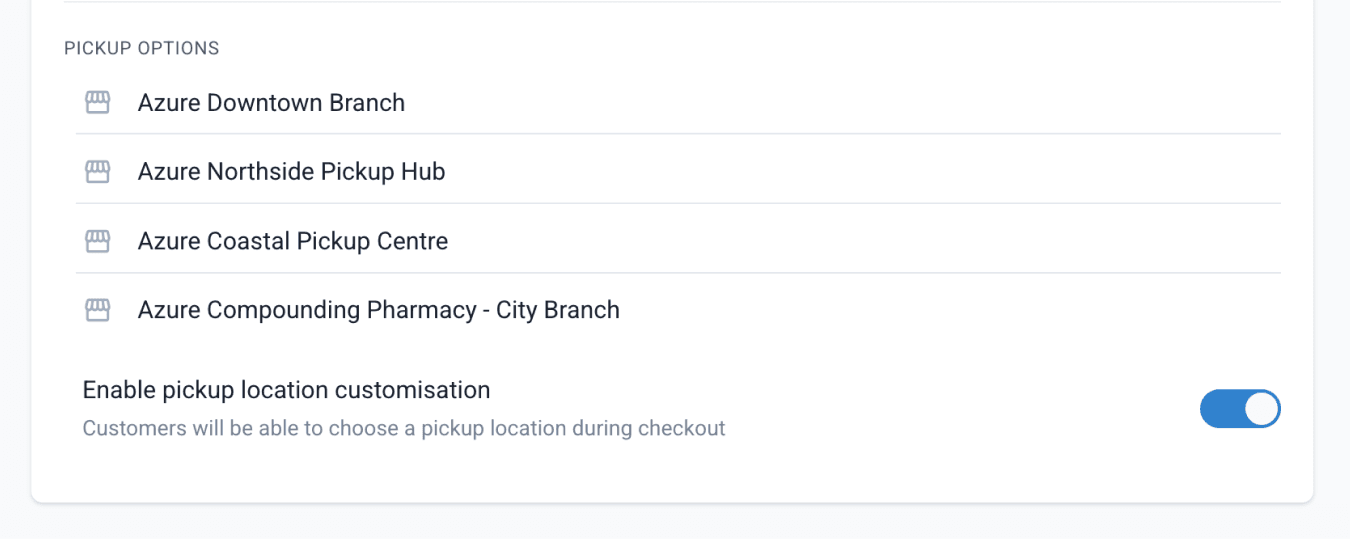
You can also add pickup options to provide flexibility for patient order collection. Any available pickup options will appear in this section when creating a workflow.
To learn how to set up shipping, pickup, and other delivery method configurations, see our blog: Compound Direct Order Delivery: A guide to pickup and shipping options
Billing account
Default billing account
Enter a default billing account if this workflow is intended for a specific account, noting that it can be changed during order creation. This automatically assigns the account to orders and, if Set account as invoice recipient is enabled, sends invoices directly to the account holder.

If a default billing account is added on a workflow, the Account payment method will automatically appear on the orders page. As long as an account is associated with an order, this payment method will be available. The Account payment method will allow the order to be charged to the clinic’s account, and each transaction will appear on the account statements.
For more information on charging orders to accounts, see Charge to Clinic for details on how orders are charged, refunded, and displayed in payment history.
Tax
Decide whether orders processed through this workflow are taxable. Tick ‘Taxable’ to ensure that tax is applied to the items in the order. If the items are taxable, determine tax inclusion. Tick ‘Tax is inclusive’ if the item price already includes tax. If this is not selected, tax will be added on top of the item price during checkout.

Communications
Customise how and when customers receive updates about their orders by choosing which automated messages are sent when an order is confirmed or fulfilled, and who should receive each correspondence. Notifications are sent using pre-configured Email and SMS templates tailored to your pharmacy's workflow.
To learn how these templates are set up and used in order workflows, see our blog: Email & SMS Templates: Customised Communication with Compound Direct.
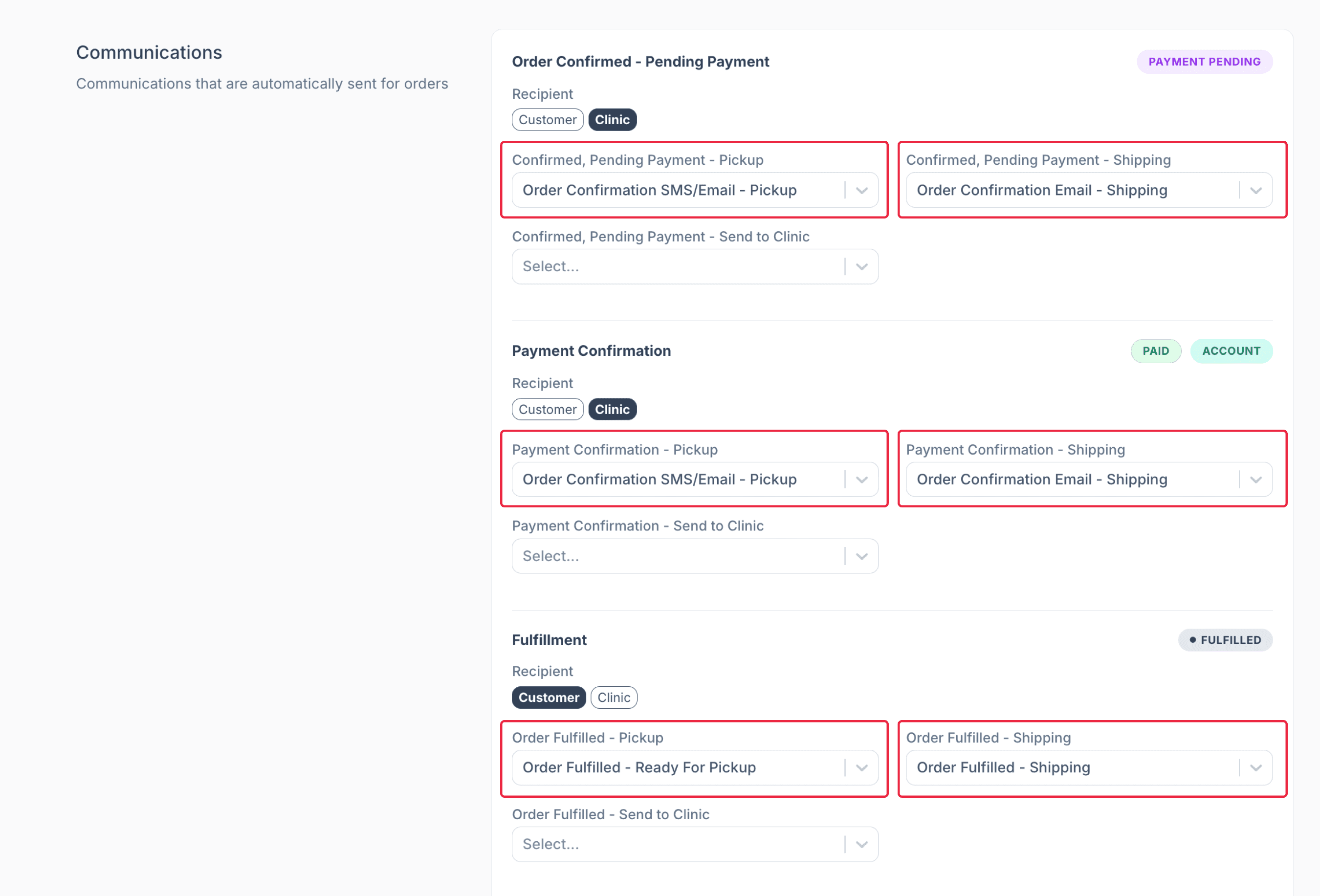
From the order worfklows page
To set up automatic Order Confirmation or Order Fulfilment messages, first choose whether the Customer or Clinic should receive the correspondence.
As this workflow is Charge to Clinic – Send to Patient, you may select ‘Clinic’ as the recipient for order confirmation correspondences, and select ‘Customer’ for order fulfillment correspondence.
Since the order will be received by the patient, configure the Pickup and Shipping correspondences, choose the relevant template from the drop-down menu.
If you prefer not to send communications, leave the selection set to ‘None’.
To see how these communications are received, see Order Confirmation and Order Fulfilment.
Workflow automations
Choose which automations should occur when an order is paid or saved. Enable the following options depending on how you want orders to be handled once they are paid or saved.
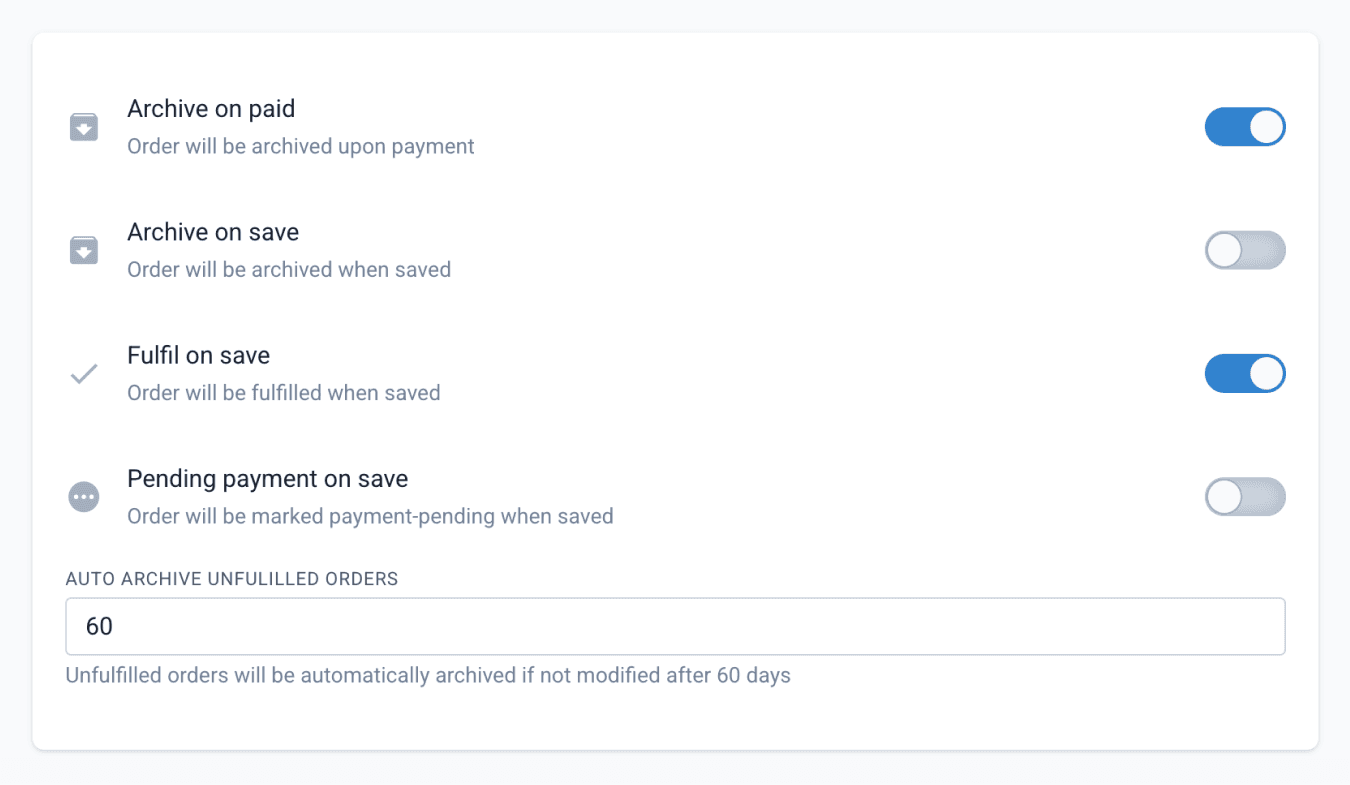
- ‘Archive on paid’ will automatically archive the order once the order has been charged to an account.
- ‘Archive on save’ will automatically archive the order when it is saved.
- ‘Fulfil on save’ will automatically mark the order as fulfilled when it is saved.
- ‘Pending payment on save’ will automatically mark the order as payment-pending when it is saved.
- Enter the number of days before an unfulfilled order is automatically archived.
Auto-tags
Add tags under Auto-Tag on Creation in your workflow. Any tags added here will automatically be applied to every new order created using that workflow. These tags will appear once the order is saved, not during the order build stage.
Workflow settings
For a more detailed walkthrough on configuring additional workflow settings, such as invoice settings, notifications, order pending reminders, and other options, see our blog: Compound Direct Order Workflows: Streamlining pharmacy operations
To see how these workflow settings work in practice, along with other order-related processes, see Accounts & Orders System: Managing pharmacy to clinic orders in Compound Direct
Summary
The Charge to Clinic – Send to Patient workflow is designed to support clinic billing while delivering orders directly to patients. By configuring workflow presets, delivery methods, tax settings, payment handling, communications, automations, and auto-tags, pharmacies can create a reliable and efficient ordering process tailored to their operational needs. Taking the time to set up each section correctly helps reduce errors, improve customer experience, and streamline ongoing clinic order management within Compound Direct.
All names and medical data shown in software screenshots are fictional and for demonstration purposes only. These figures represent fictional persons; any resemblance to real individuals is purely coincidental. Use of existing fictional names is for illustrative purposes and does not imply affiliation or endorsement.