
Compound Direct Email & SMS Templates: Standardise pharmacy communication

Email and SMS templates in Compound Direct make communicating with your customers faster, easier, and more professional. Instead of drafting messages from scratch each time, you can use pre-built templates designed to support order workflows, including order confirmations for pickup or shipping, order fulfilment notifications, payment links, risk assessment requests, and account statements. Templates can also be used for everyday communications such as prescription expiry reminders, holiday closure notifications, or simple updates to let customers know when a compound is ready.
By using templates, you can save time, reduce errors, and ensure messages reach the right customers at the right time. When working with different order workflows, whether you are sending quotes, order updates, follow-up messages, or general announcements, templates make it easy to standardise communication across your business. Templates can be sent via SMS or email and can be automatically personalised using placeholders such as the customer’s name or order link.
In this blog, we’ll show you how to make the most of these templates, explore the different types available, and guide you through creating custom templates tailored to your workflows.
The Role of Email & SMS Templates
The role of Email & SMS Templates is to standardise communication between the pharmacy and the customer, whether that customer is a patient or a clinic. These templates ensure consistent, professional, and timely messaging at every stage of the ordering process.
Templates also play a key role in setting up and using Order Workflows by helping automate essential steps such as sending quotations, payment links, and order updates.
To learn how Order Workflows incorporate Email & SMS Templates to create streamlined pharmacy operations, we recommend reading: Compound Direct Order Workflows: The key to streamlined pharmacy operations
Send via Email or SMS?
When a template is used in an order workflow, you can choose whether to send it as an email, an SMS, or both. Some sites prefer to use SMS only, while others choose to send both email and SMS communications.
When choosing between SMS and email, it’s important to weigh both cost and message importance. While SMS incurs a per-message charge, it offers immediacy and is ideal for urgent updates, alerts, or time-sensitive actions. Email, on the other hand, is free and better suited for non-urgent, informational, or promotional messages. To balance effectiveness and cost, it’s recommended to reserve SMS for critical or high-impact communications, and use email for regular updates or longer-form engagement.
To set this up, go to the New Template or Edit Template page. Under SMS/Email Settings, use the checkbox icons to select which options to enable.
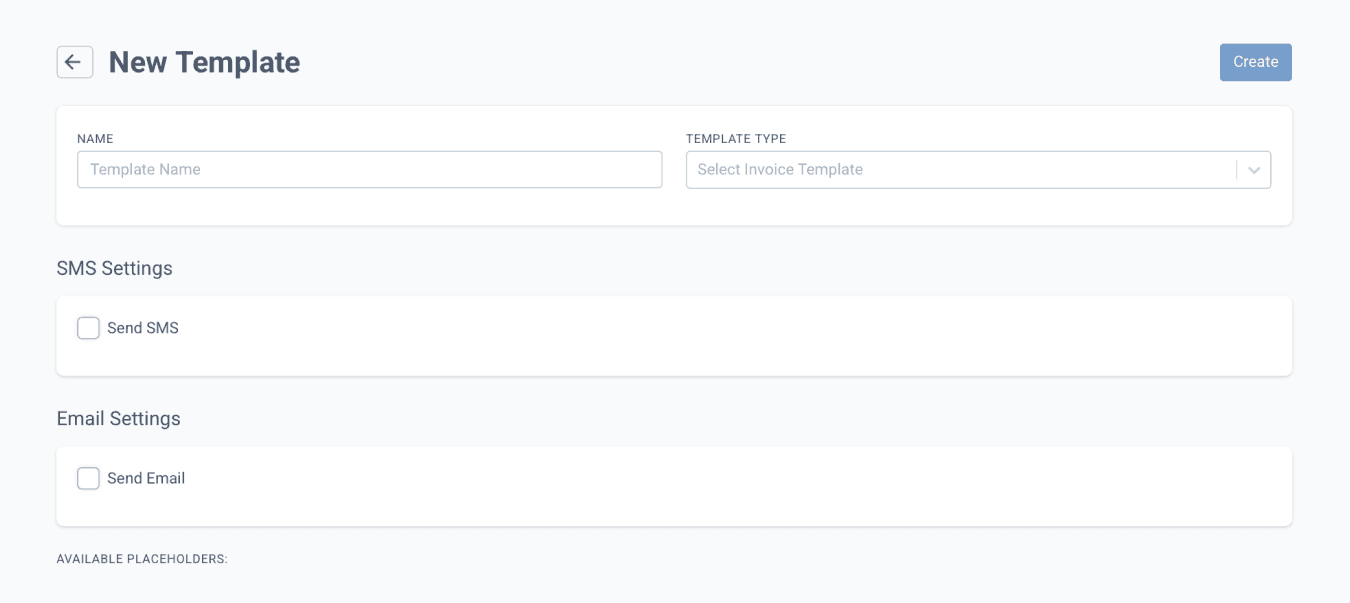
From the email & sms templates page
Placeholders
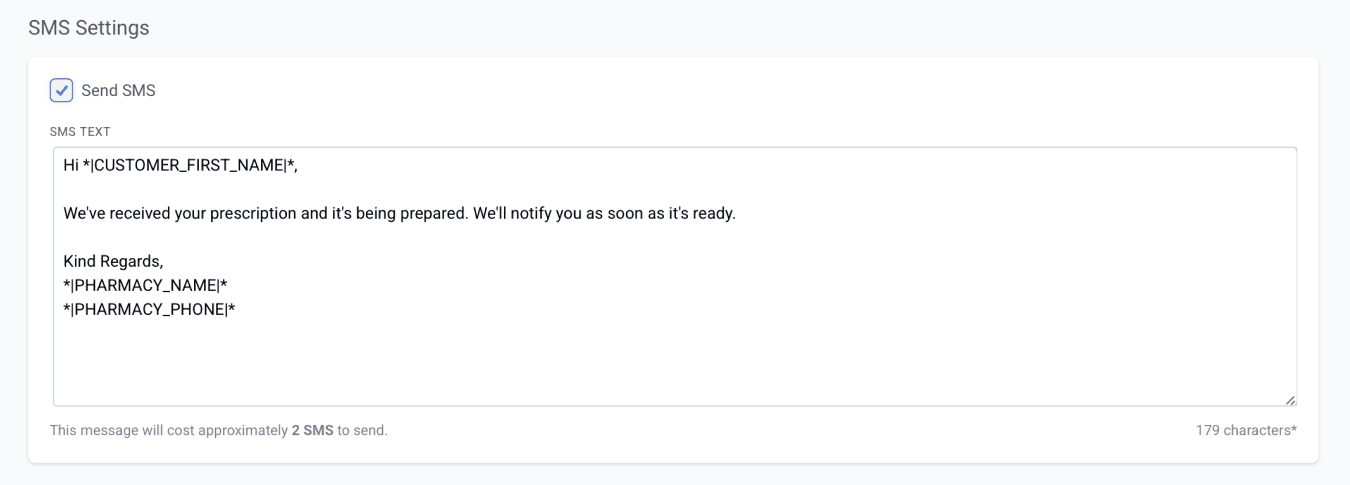
Placeholders are predefined text markers *|Text|* that will be replaced with the appropriate information stored in the system (e.g., customer name, pharmacy name, etc.) The available placeholders for each template type appear at the bottom of the template page.

From the email & sms templates page
You can use placeholders when customising an SMS or email template to automatically pull in the correct customer or pharmacy details. This ensures that each message includes the right information without the need for manual entry. An estimated SMS cost is displayed below the text field, showing how many messages your text will require. This number may vary depending on the specific customer and pharmacy data included.
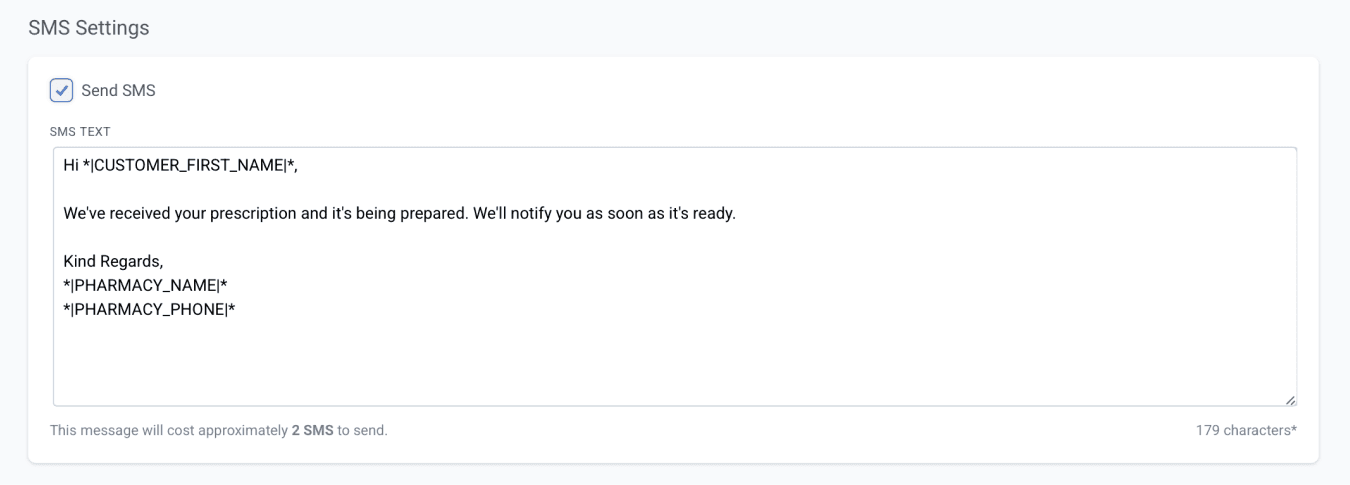
From the email & sms templates page
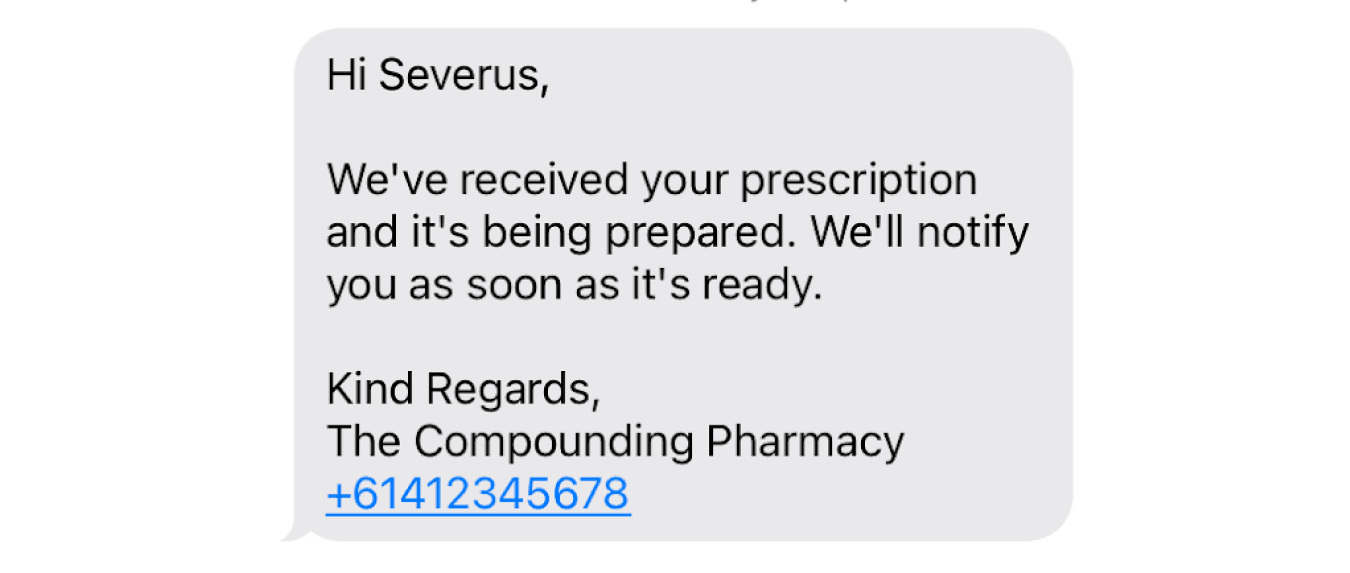
When customers receive the SMS, this is how it will appear on their device. It is recommended to preview the message beforehand to ensure that all details are displayed correctly.
Under Email Settings, enter the email subject, the sender name, and an email address that customers can reply to.

From the email & sms templates page
You can also customise the email design using the tools provided in the Email Design section to create a layout that matches your branding and messaging needs.
Quick guide to email design
A well-designed email is clear, easy to read, and encourages your readers to take action. This guide walks you through the basics of structuring and styling your email so it looks polished on any device.
- Add Components
Build your layout by dragging in elements such as text blocks, images, buttons, dividers, or spacers. Arrange them in the order you want your content to appear. - Edit Text
Click any text area to type directly. Use the toolbar to format, style, or add links for emphasis and interactivity. - Replace Images
Swap placeholder images with your own uploads or select from the gallery. Adjust size, padding, and borders to fit your design. - Insert Buttons
Add call-to-action buttons, customise the label, and link them to a page, file, or external website. - Organise Layout
Use dividers to separate sections and spacers to create visual breathing room for a clean, balanced look. - Preview & Test
Always review your design in both desktop and mobile views to ensure everything looks and functions perfectly before publishing or sending.
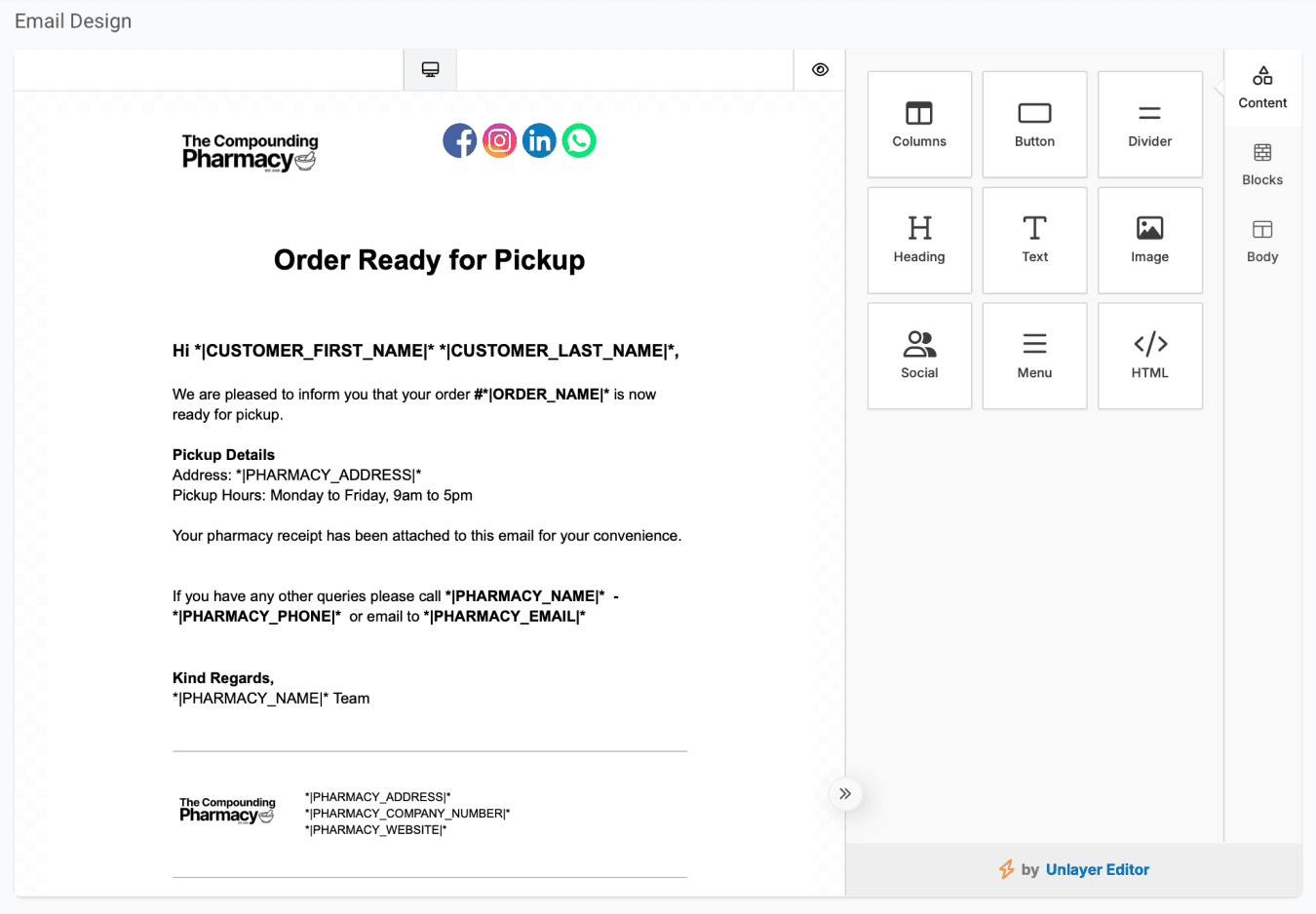
From the email & sms templates page
This is how the email will appear from the customer’s perspective, using the components selected and the information saved in the system.
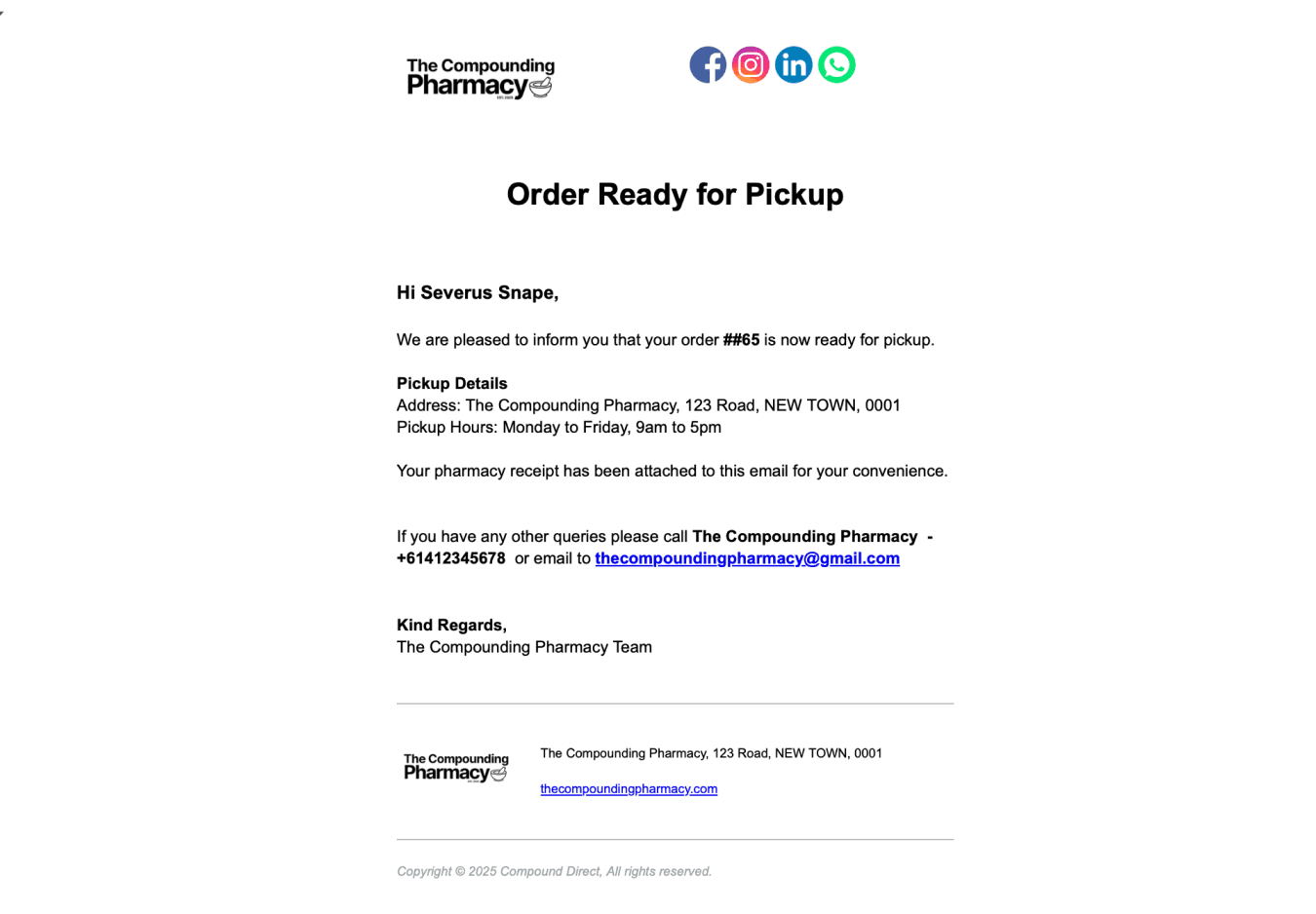
From the email & sms templates page
Understanding template types
Your pharmacy relies on sending timely messages every day. While many common messages are covered by default templates, there are times when more flexibility is needed. This section outlines the different template types, the information they deliver to customers, and how each template is used within an order workflow.
On the Email/SMS Templates page, you can view template names, whether they are enabled for SMS or email, and the template type used. The templates available in your workspace can be configured to suit your needs. Each template type includes a pre-set design and content that can be customised to match your preferred layout and information. You can also create new templates as needed and tailor the details included in each one.
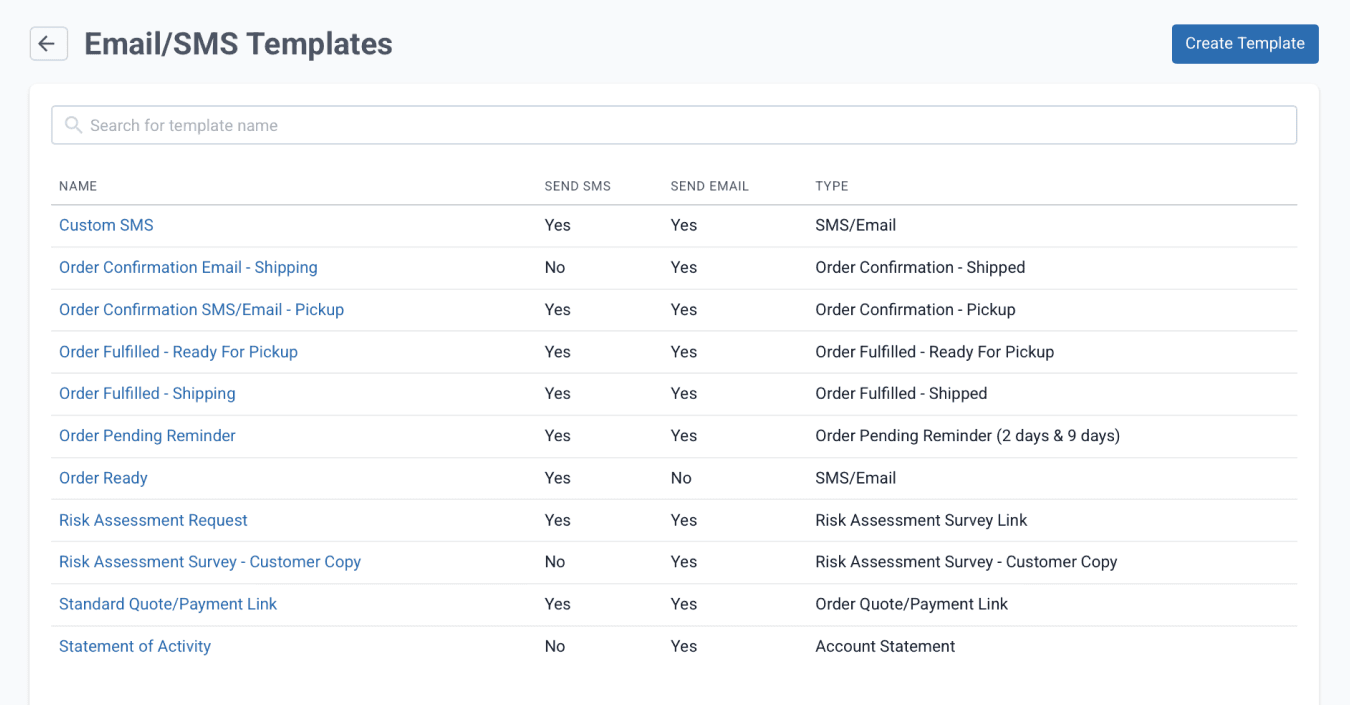
From the email & sms templates page
SMS
The use of default SMS templates may vary from one pharmacy to another. Some pharmacies use them to notify patients that their prescription has been received, while others use them to inform customers about important details of an order. Sending an SMS does not need to be part of a workflow and can be done separately if required.
An SMS can be sent from the Customer page. Under Text Messages, click ‘+ Send SMS’. In the SMS modal, the default SMS template will appear and can be edited before sending.
You can also send an SMS by clicking the message icon beside the customer’s mobile number. Previous messages sent to the patient can also be viewed from this page.
From the email & sms templates page
To use a different prefilled message, select one from the ‘Prefill’ drop-down menu. Click ‘Send’ to send immediately, or use the dropdown to ‘Schedule Send’.
Risk assessment request and copy
A Risk Assessment Request is a template used to send a message inviting a patient to complete a risk assessment form (e.g., a medication history) through a secure online link. After submitting the form, customers can choose the ‘Send to Email’ option to receive a copy of their completed responses, allowing them to keep a personal record for future reference. This can be customised using the Risk Assessment Survey - Customer Copy template.
This template is used when the risk assessment is sent from the Drafts or Customer page. Risk assessment surveys sent through Order Workflows are paired with the payment link when an order is sent to the customer.
To learn more about creating and using risk assessment links, see our blog: Automate patient medical history by sending risk assessment link
Order quote & payment link
An Order Quote and Payment Link template is used when an order has been sent to the customer. This template is typically applied in order workflows designed for remote orders or when the preferred payment method is online via a purchase link.
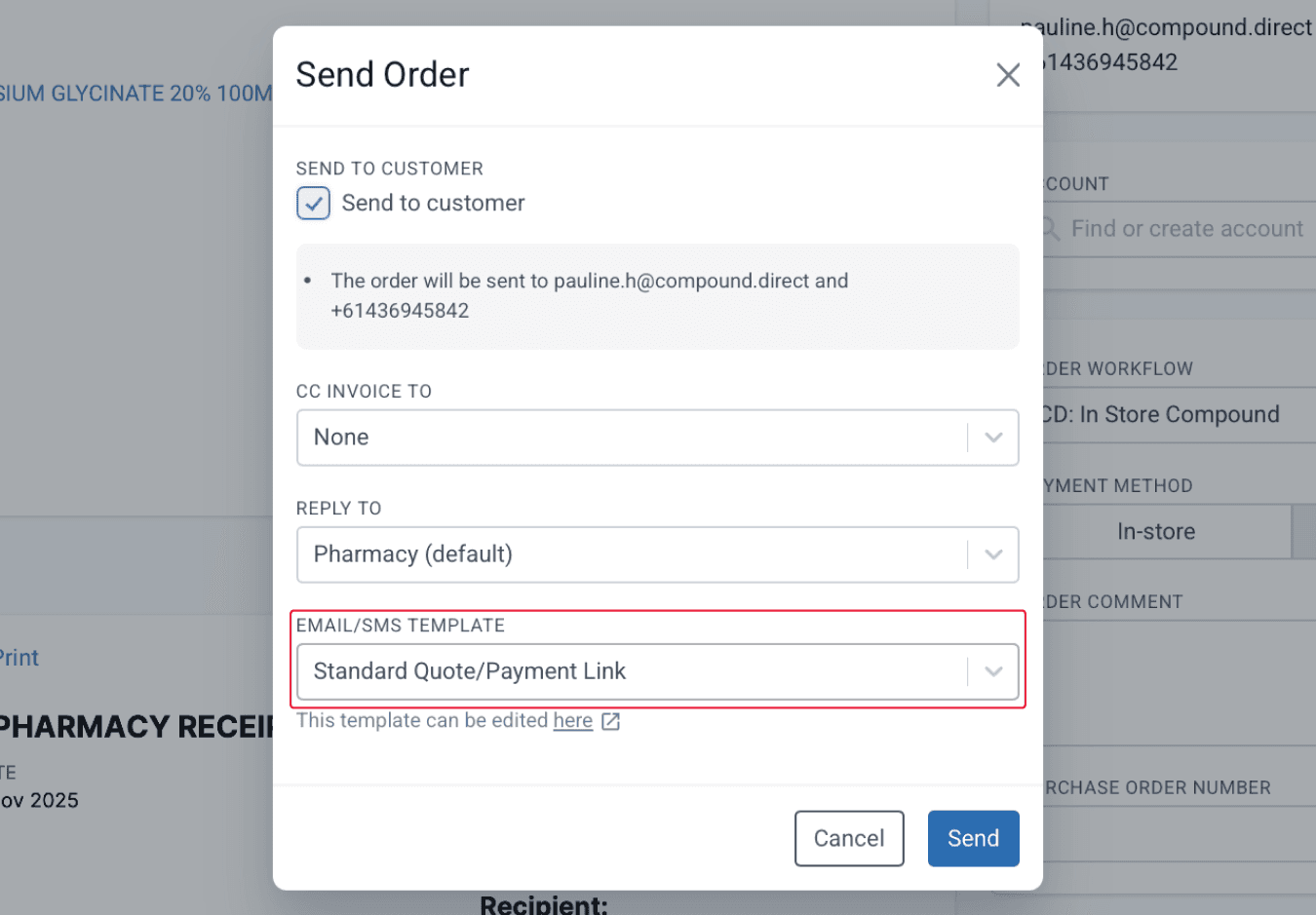
From the orders page
Order confirmation
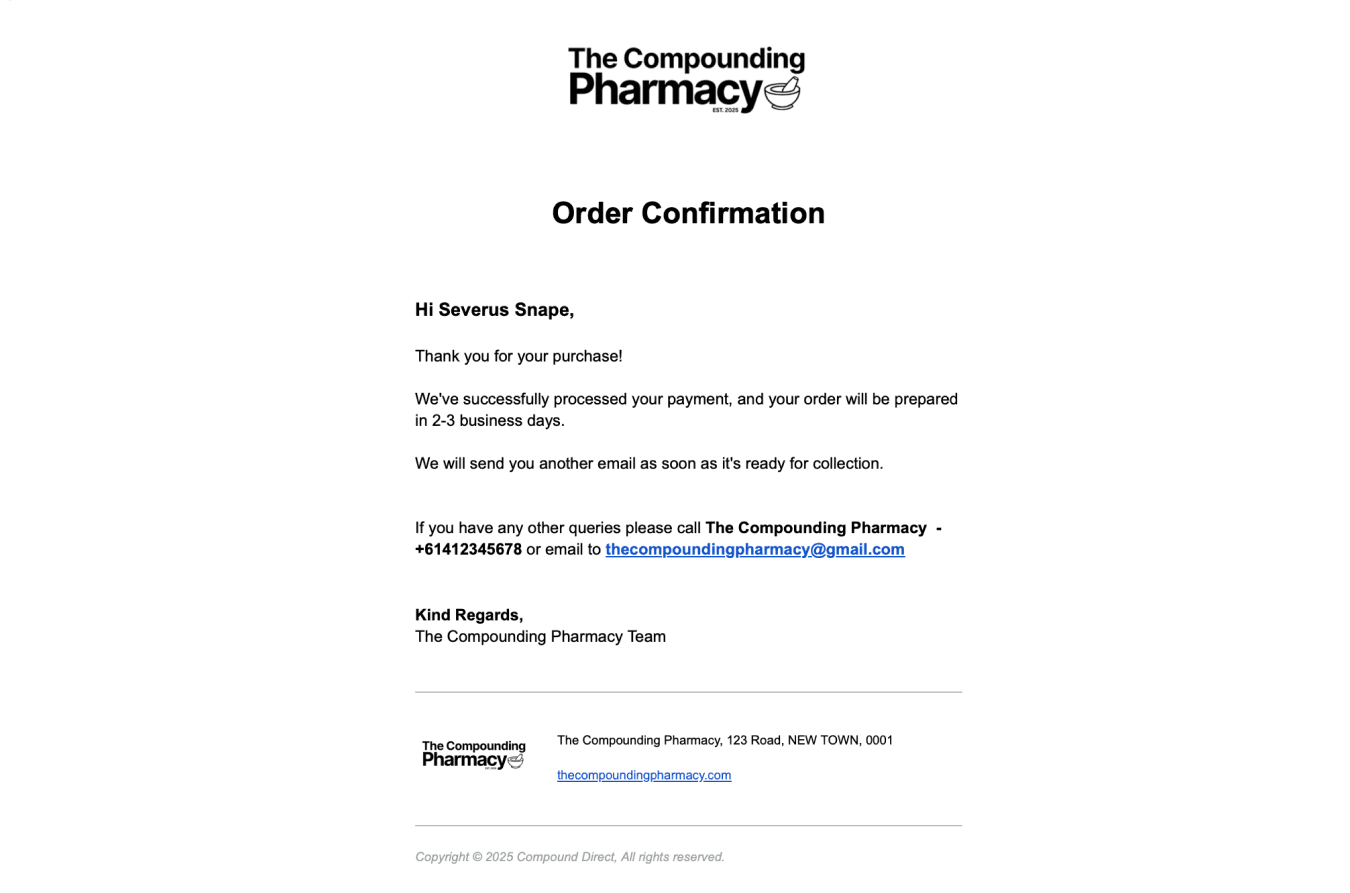
An Order Confirmation template is used when a patient confirms their order and completes payment. The order confirmation message can be sent automatically once the order is marked as paid. It includes key details such as the estimated preparation time and information about the selected delivery method. This template type is organised into three categories based on the delivery method: Pickup, Sent to Clinic, or Shipping.
Order receipt
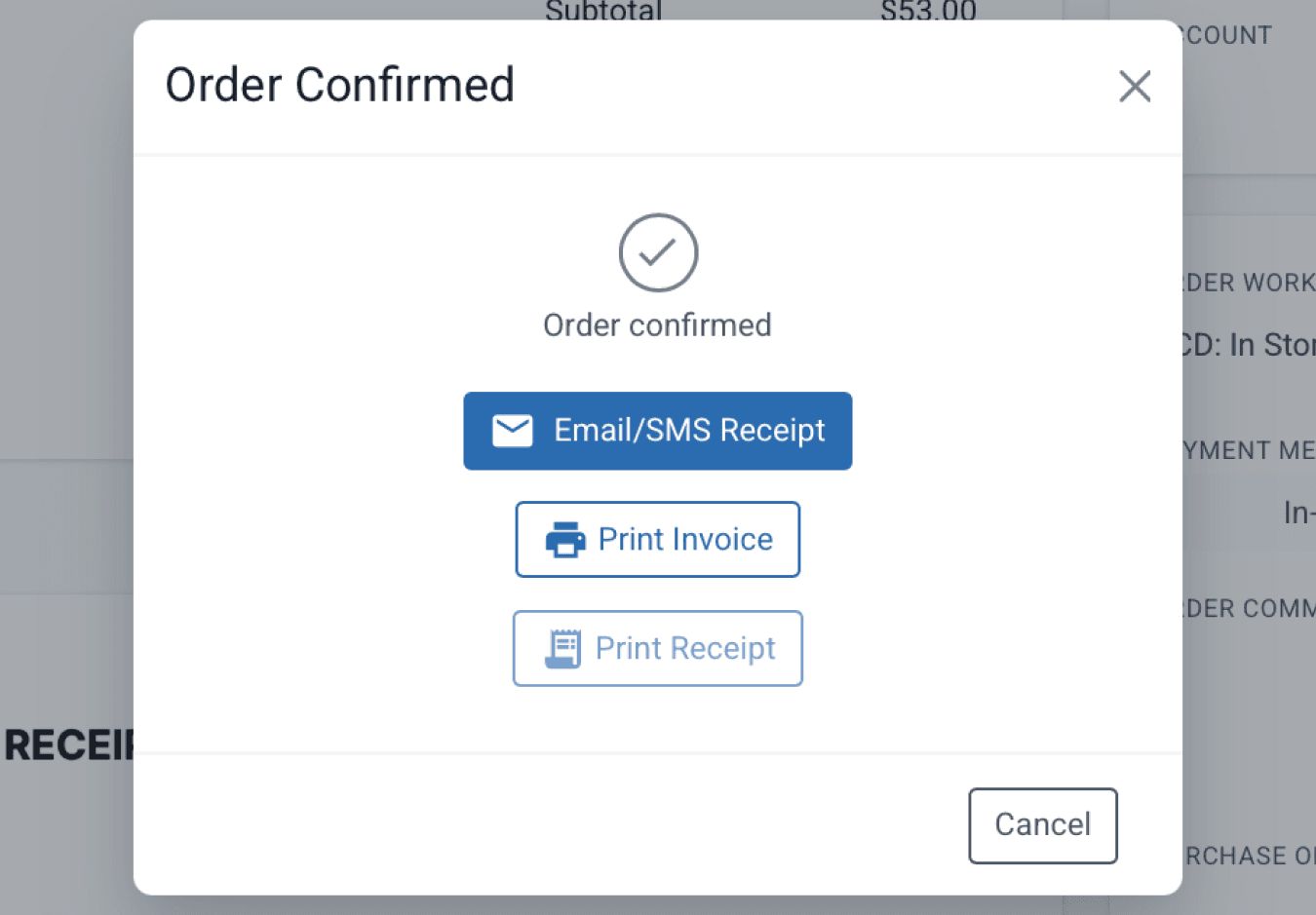
Once payment has been completed, an Order Receipt can be sent to the patient as confirmation of their purchase. For SMS notifications, the patient will receive a message containing a link to view the tax invoice online, while email notifications will include the tax invoice as a PDF attachment. Receipts can also be printed directly for the patient if preferred.
From the orders page
The link used in an Order Receipt template corresponds to the invoice template that has been selected for the order workflow in use. Invoice templates can be customised under Invoice Templates to reflect your preferred layout and branding.
Order pending reminder
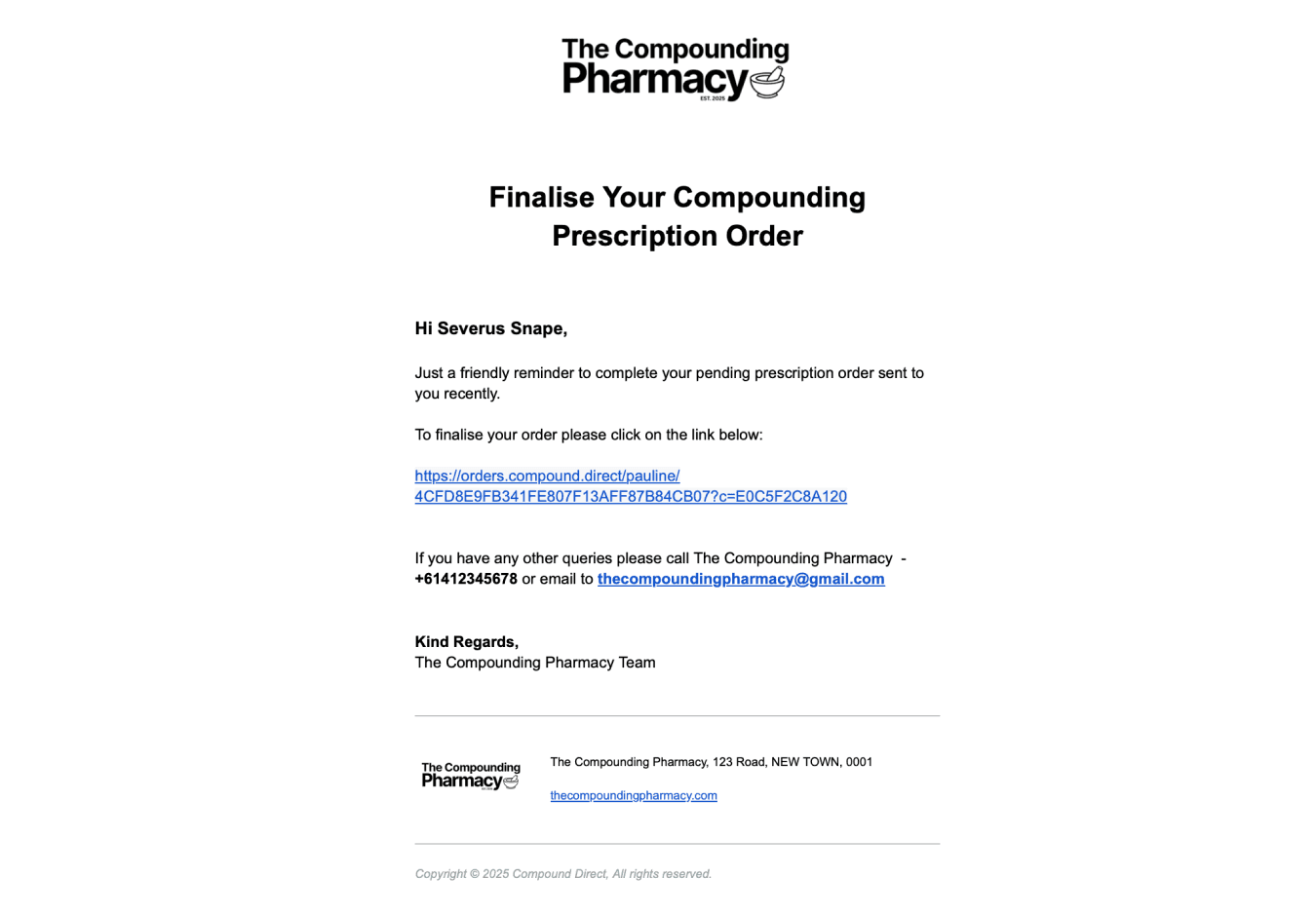
An Order Pending Reminder will be sent when a workflow has the pending reminder enabled. This can be enabled when setting up an order workflow. This message includes a friendly reminder for the customer to complete their pending prescription order, along with a direct link to finalise it.
Account statement
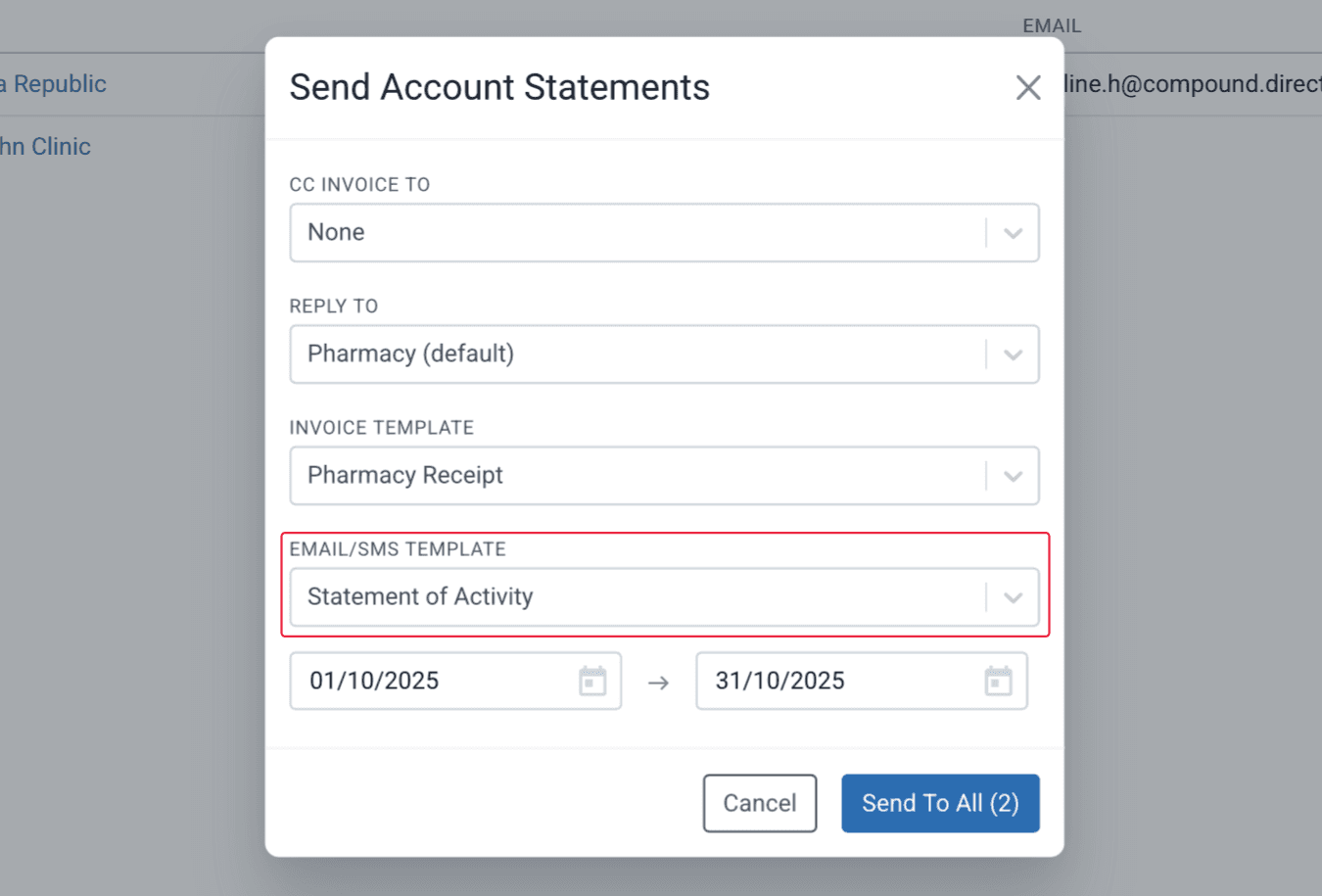
An Account Statement template is used when sending account activity details to an account holder (e.g., a clinic that sends patient prescriptions directly to the pharmacy and is charged for the orders). The account statement includes the account holder’s details and a summary of the items charged to their account.
To send an account statement, go to 'Settings', select 'Accounts', choose the account name(s) to send the statement to, and click ‘Email Statements’. This will open a modal where you can select the Account Statement template before sending.
From the accounts page
Copying an email design
This function allows you to duplicate an email design, including content and format, to a new or existing template.
To copy the email template, select the desired email you want to copy, click 'More Actions' and select 'RAW Email (j.son)', which will open the Email Design modal.
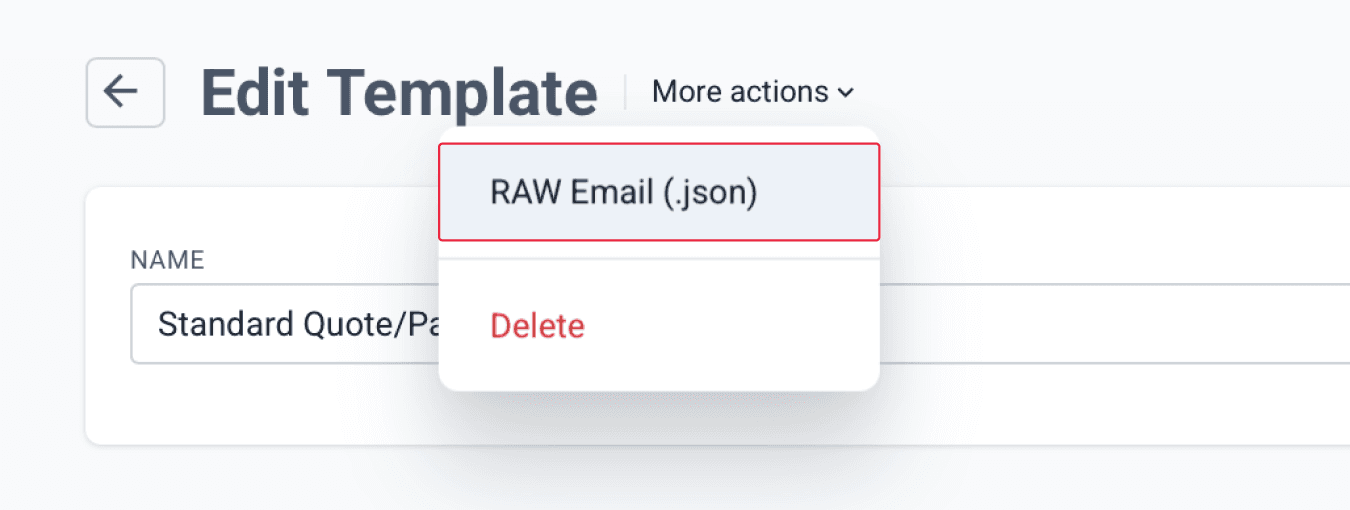
From the email & sms templates page
The Email Design modal displays the Email Design modal that will display the template schema (design JSON) which is a structured format that defines all the components (rows, columns, text blocks, images, dividers, etc.) of an email layout.
Copy the template schema (Ctrl A + Ctrl C).
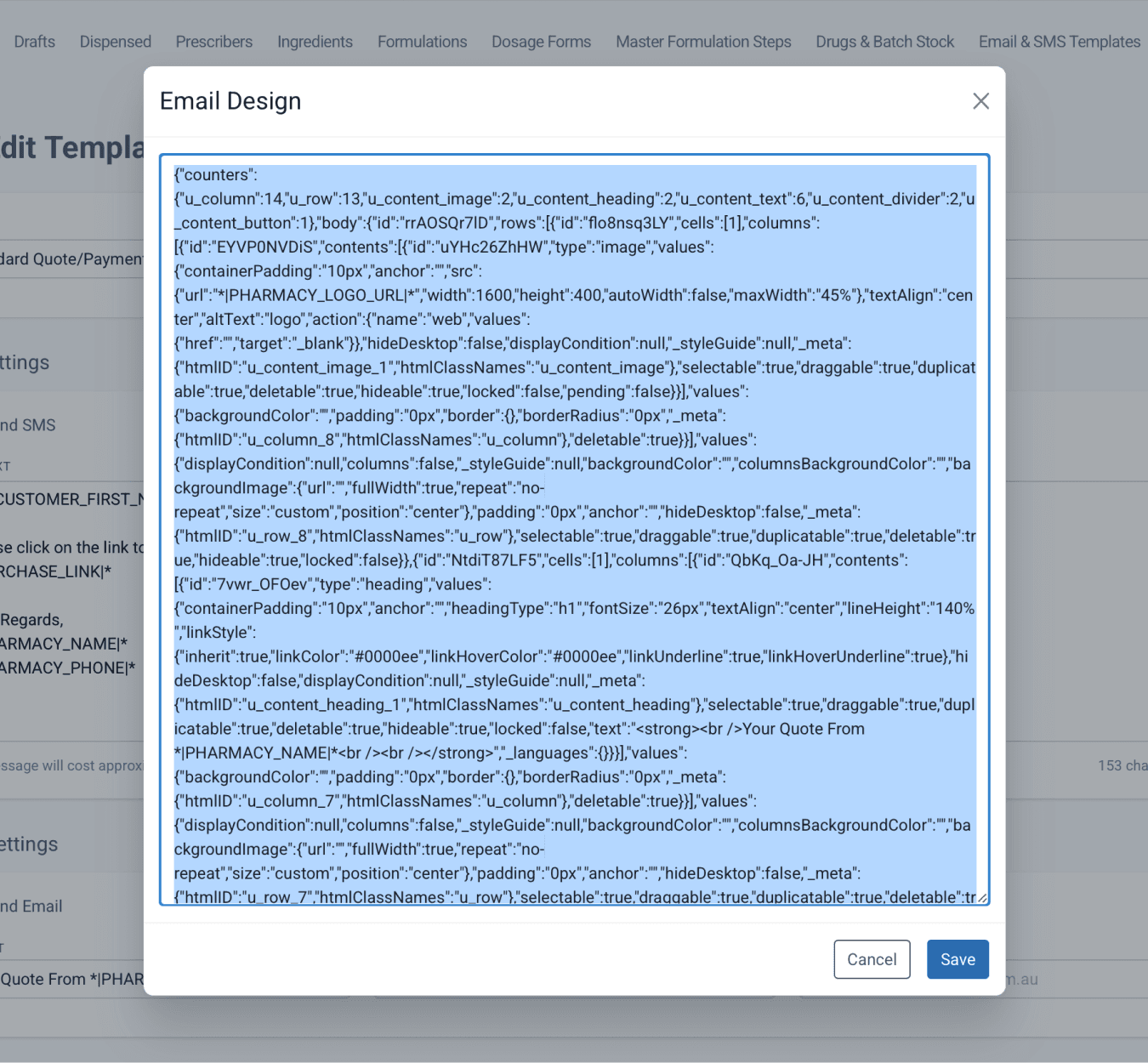
From the email & sms templates page
Create a new template or open an existing template where you want to place the copied email design.
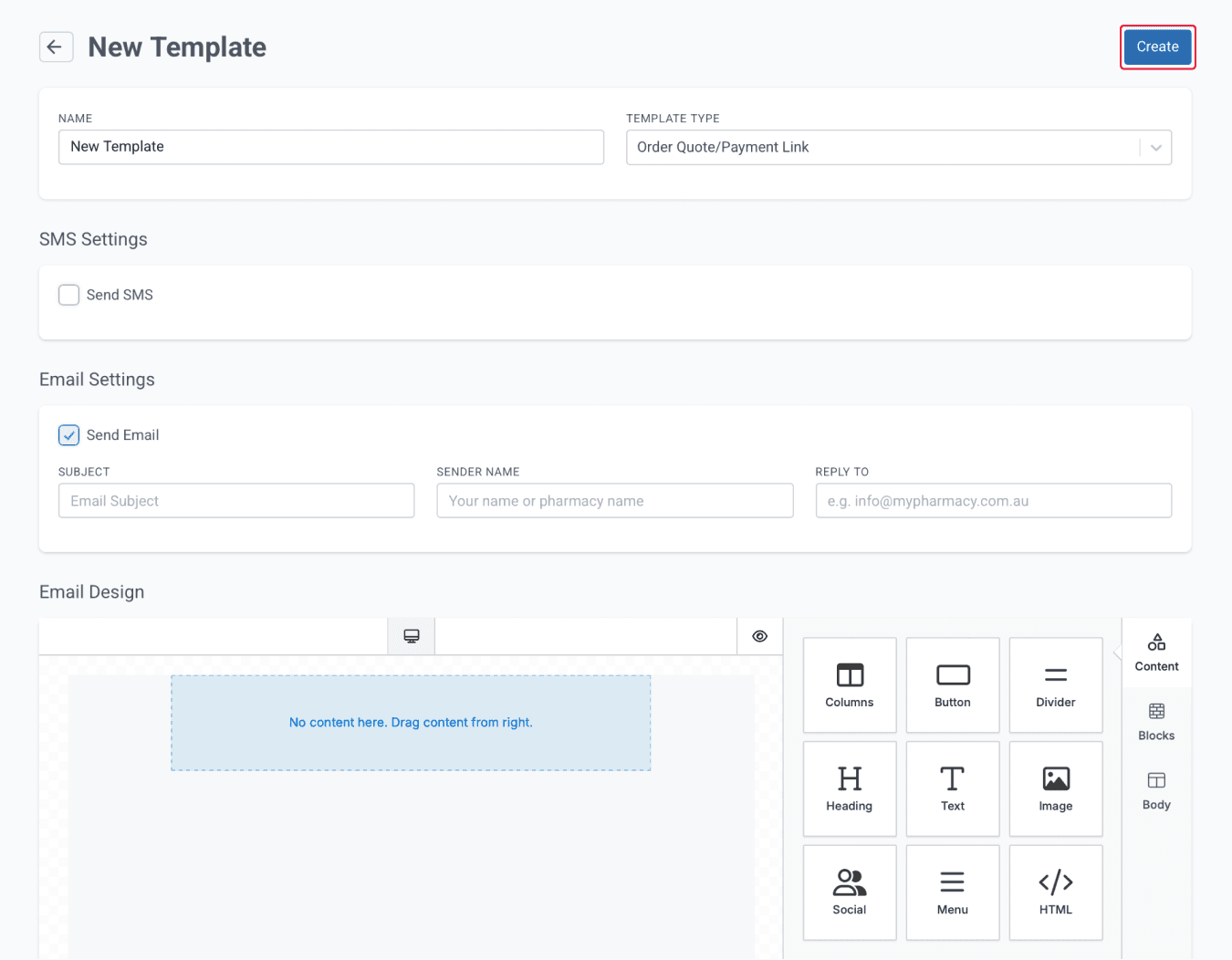
From the email & sms templates page
Once the template is created, click 'More Actions' and select 'RAW Email (.json)' which will open the Email Design modal. In the space, paste the template schema you copied from the previous email template.
Ctrl + V, then click 'Save'.
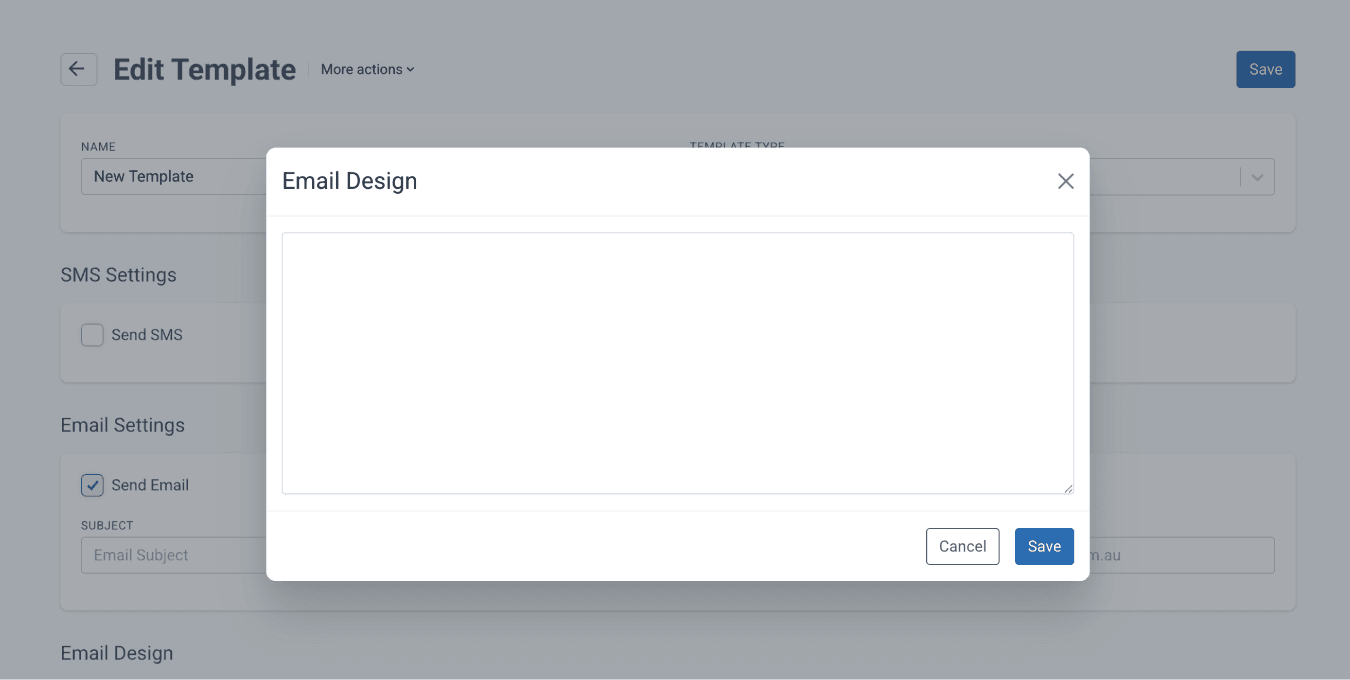
From the email & sms template page
The email template will now show a preview of the email design that has been copied.
Summary
Email and SMS Templates in Compound Direct make communication with patients and clinics faster, easier, and more consistent. By automating messages such as order confirmations, payment links, risk assessment requests, and fulfilment notifications, pharmacies can save time, reduce manual work, and ensure every message is accurate and professional. Templates can be sent via email, SMS, or both, and use placeholders to automatically personalise each message for the recipient.
Pharmacies can also customise the content and design of their templates to match their branding and tone, creating a seamless experience from order to delivery. With flexible tools for editing, design, and delivery, Compound Direct helps you send clear, timely, and reliable messages at every stage of your workflow, improving communication and efficiency across your business.
All names and medical data shown in software screenshots are fictional and for demonstration purposes only. These figures represent fictional persons; any resemblance to real individuals is purely coincidental. Use of existing fictional names is for illustrative purposes and does not imply affiliation or endorsement.