
Building Strong Foundations: Ingredients, dosage forms, and formulations

Introduction
After a few training sessions, you’re ready to start building ingredients and formulations in Compound Direct. This is where the real work begins, but before you jump in, it’s worth taking a moment to think about how your database will be organised.
Getting the structure right from the very beginning makes all the difference. A well-planned database doesn’t just look neat, it saves you from errors, prevents duplicate work, and keeps your formulations accurate and consistent as your library grows. Many of the common frustrations compounders face later, like re-writing formulations or correcting inconsistent ingredient entries, can be avoided with a strong foundation in place.
In this blog, we’ll explore the core areas that matter most when setting up Compound Direct, from defining ingredients and understanding adjustment factors to tailoring dosage forms and building a master formulation database. Taking the time to set these foundations now will give you a system that not only works smoothly today but also scales with your pharmacy in the future.
Ingredients
All formulations are built from ingredients as a mixture of actives, excipients and bases. The accuracy of every formulation depends on having a consistent, well-structured ingredient database.
Taking the time to decide how you will handle actives, excipients and bases from the very beginning will save you from rework and inconsistencies later on.
In Compound Direct we define ingredient roles as:
Actives
An ingredient that will be added at a specified strength, depending on the calculation type, to achieve the prescribed dose. Compound Direct will use the adjustment factor (AF) to ensure the amount added accounts for any inactive components such as salts, loss on drying, potency, or, in the case of commercial medicines, excipients and fillers.
Excipient
An ingredient added at a specified concentration or weight, usually expressed as a percentage, that is not re-calculated based on adjustment factors. Excipients support the formulation, such as wetting agents, antioxidants, pH adjusters, flavours, etc.
Base
Sometimes referred to as the vehicle. When QS’d (filled to sufficient quantity) the base occupies the remaining portion of the formulation, after all the actives and excipients have been added.
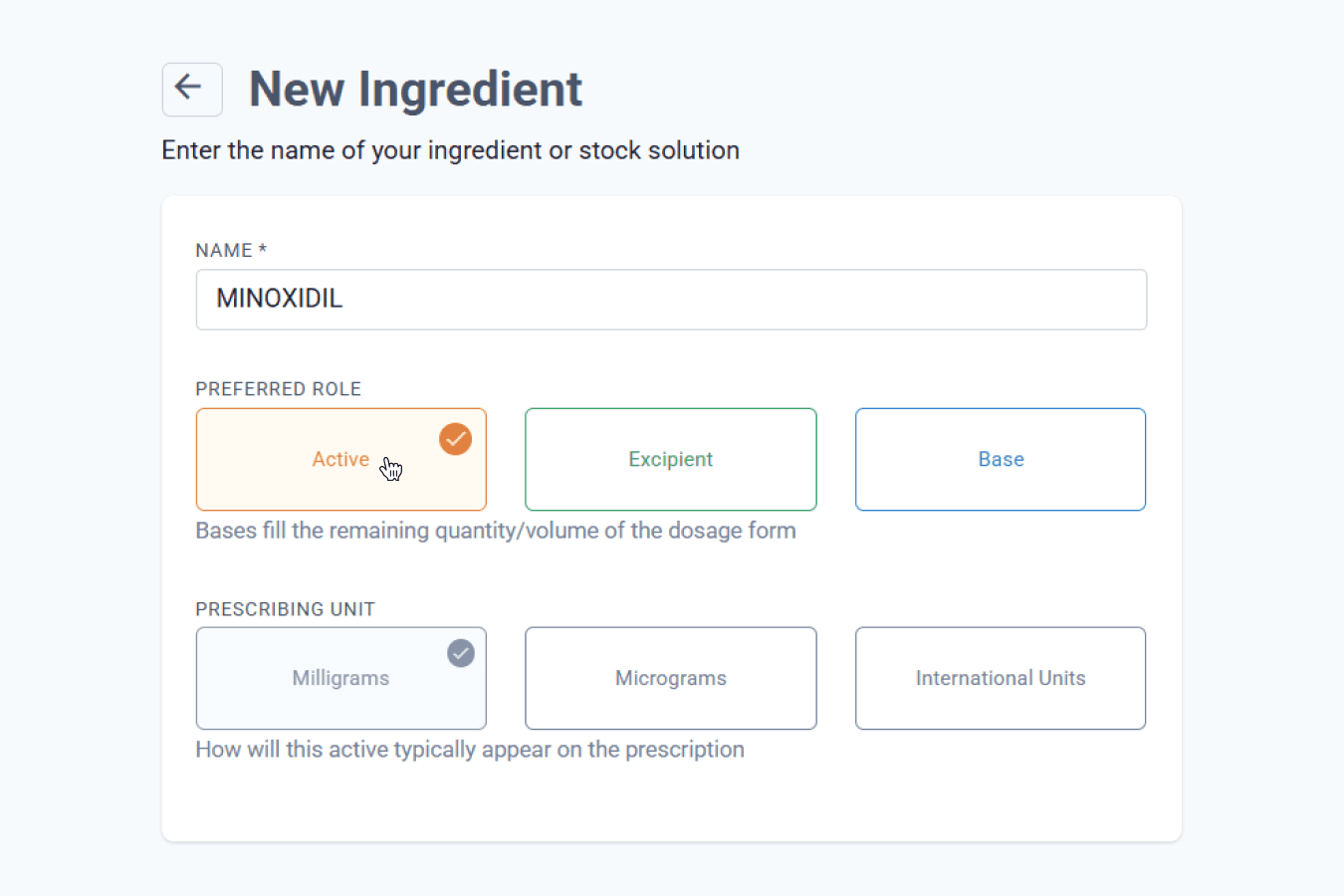
Think about scenarios where an ingredient might be used in different roles. When an ingredient is added to a formulation as an excipient or a base, the adjustment factor is no longer applied. How will this affect your formulations? Setting these roles correctly from the start will reduce the need for formulation re-writes and ingredient adjustments.
When creating an excipient ingredient, we recommend entering all details as completely as possible, including adjustment factors. While roles can be changed later in a formulation, having complete information from the start ensures accuracy and saves time.
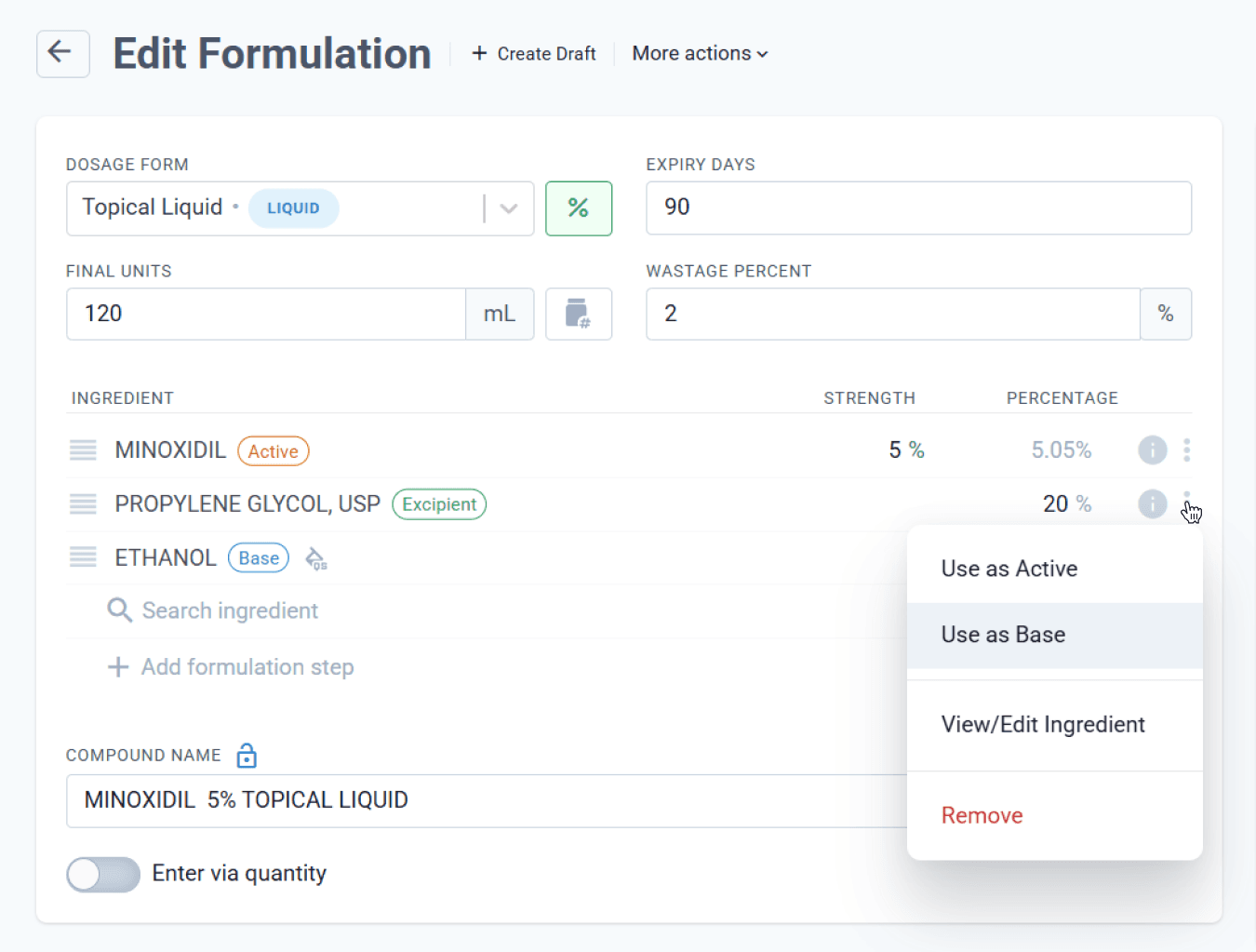
By entering complete ingredient details now, your data will always be ready when you need it. This makes it easier to generate reports in the future, such as seeing which ingredients are preservatives. It also future-proofs ingredients for role-based enhancements.
To learn how each ingredient roles are calculated in formulations, see blog: Behind the formula: What the system calculates for you
Adjust right the first time
Compound Direct offers a significant advantage through its real-time calculation of active ingredient amounts, ensuring accurate final preparations. This adjustment factor (AF) calculation accounts for potency, loss on drying, and optional adjustments like salt-to-base conversions, elemental percentages, and modifications to commercial medications.
Careful planning is key before creating ingredients and formulations. While Compound Direct makes it easy to build innovative formulations, consistency matters most. Entering ingredients thoughtfully and consistently ensures future compatibility and helps prevent errors.
For instance, entering a commercial medication in units for an oral suspension may not be compatible with capsules or suppositories later due to an inability to perform pack-stat calculations or to calculate displacement. Similarly, manually adjusting a formulation to omit a salt-to-base adjustment for one ingredient, while others include it, can lead to errors or confusion.
Correcting ingredients and formulations retrospectively is time-consuming and can introduce inaccuracies. Therefore, developing a comprehensive ingredient and formulation strategy in advance is crucial for efficient and accurate outcomes.
Dosage forms
The dosage form is the foundation for every formulation you create. Compound Direct includes default options, but we recommend tailoring them to your pharmacy’s preferences before you start building formulations. For a detailed overview of dosage forms, see the Dosage Forms User Guide
Take the time to set the correct default base, expiry, final units, and wastage. You can also create *Master formulation steps, which will automatically apply to every formulation created under that dosage form.
One of the most common early pitfalls is not setting molded dosage forms, such as suppositories and troches, with the correct mold size, blank weight, and displacement factor. We recommend giving careful attention to ensure these are accurate.
Create one or two test formulations for each dosage form and review how they appear during the draft, dispense, and formulation phases. If something isn’t quite right, you can adjust and re-test until the setup works as expected.
*Master formulation steps are available with the standard package or higher
One size fits all or tailor for each
When planning your database structure, think about whether you want to set up many dosage forms, each tailored to factors like therapeutic group, patient group, application site, or type of base.
For example, under oral solutions, you might create separate variations such as:
- Oral liquid – Oil based
- Oral liquid – Oral suspend
- Oral liquid – Veterinary
Advantages of creating additional dosage forms
- Creating additional dosage forms offers the advantage of using the same default base and default devices (if available).
- Setting defaults for expiry, base, or units within each dosage form provides consistency when creating new formulations and reduces the risk of carrying over incorrect information.
- Pharmacies gain more control over pricing because specific pricing structures can be applied only to the relevant dosage forms.
- Using clear and precise naming schemes makes it easier to identify therapeutic intent or patient groups.
You may also prefer to create dosage forms only for common routes of administration or types. For example, instead of setting up multiple variations, all of the above could simply be grouped into “Oral Liquid” with changes made within the individual formulations as they are created.
Advantages of reducing the number of dosage forms
- Having fewer dosage forms makes them easier to maintain and manage.
- Changes to master formulation steps can be applied more quickly because there are fewer variations to update.
- Pricing structures can be applied across a broader group of formulations.
- There is less risk of selecting the wrong dosage form when creating a draft or formulation.
While the setup process may seem straightforward, there are key configuration options that are often missed or might seem confusing. The blog Achieving precision in dosage forms walks you through these often overlooked details and explains how each setting contributes to a smoother, smarter workflow.
Master formulation steps
Master Formulation Steps can be helpful, but when to use them depends on your pharmacy’s needs. Think about your ideal workflow and decide when these steps should trigger.
Formulation steps can be set individually for each formulation, but creating them at the dosage form level improves efficiency and consistency, especially for tasks that repeat across many formulations. Common examples include quality checks, capsule counting, device setup, or workspace preparation. You can also reorder these steps to match your workflow, such as Pre-dispense, During compounding per formulation step, or During Compounding per ingredient. Organising steps this way helps ensure nothing is missed and reduces setup time.
Most pharmacies use a mix of formulation-specific steps along with a few steps applied at the dosage form level. Keep in mind that dosage form steps aren’t visible when you’re creating or viewing a formulation, they only show up when the formulation is being prepared.
Master formulation steps are available with the standard package or higher
Formulations
Master formulations records
The term master formulation is often used in training or when highlighting Compound Direct’s advantages over other software, but it’s worth clarifying what it really means for your pharmacy. In Compound Direct, a master formulation is a single formulation, or a small set of formulations, saved as master records. Any necessary patient-specific adjustments are then made at the draft stage, eliminating the need to build new formulations each time.
After learning how to create master formulation records, it’s time to decide how you’ll maintain them in your workspace. You have two options: create a master formulation template or master formulations database.
Option 1: Master formulation template
Compound Direct calculates the required amount of each ingredient in real time, allowing you to adjust formulations as you draft them instead of creating new records for every variation. With this approach, you can rely on a set of adjustable templates, each time you use a master formulation, you simply enter the desired strength. By default, the strength in these templates is set to zero, keeping them flexible for any prescription. They’re designed to be adjusted at the draft stage, giving you full control over the final formulation each time.
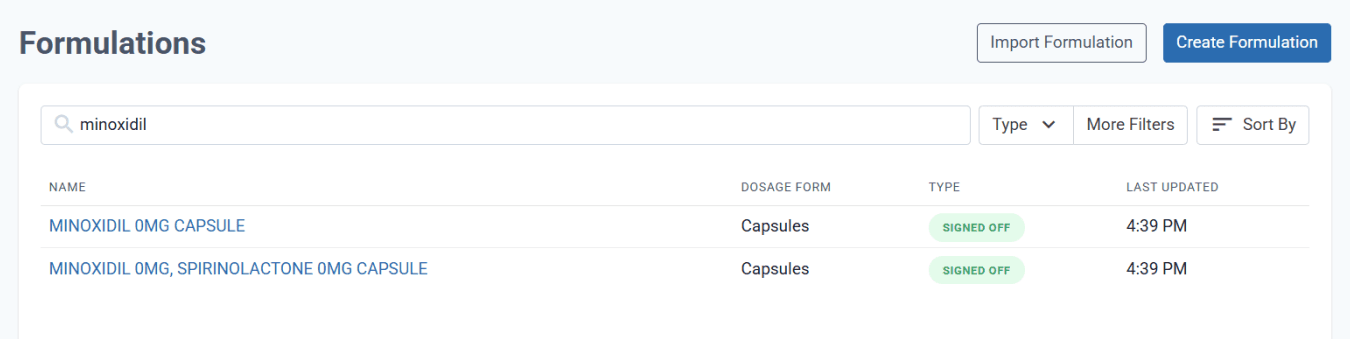
To maintain accurate reports on formulation use and sales, we recommend structuring your master formulation template so that active ingredients are not added to or removed from the Master Formulation Record (MFR) at the draft stage. If changes are made this way, they will be reported as a ‘once-off formulation’ in your usage and sales histories.
Option 2: Master formulations database
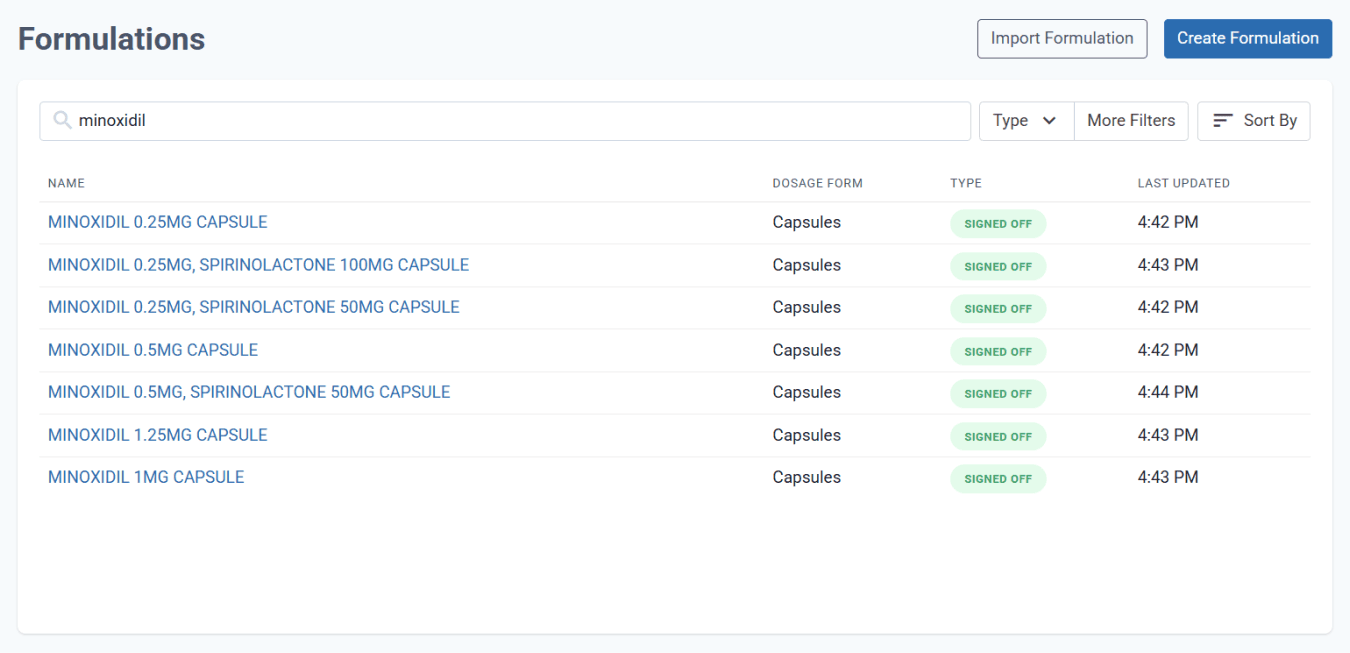
A Master Formulations Database is a collection of master records that takes the opposite approach to templates. Instead of keeping strengths at zero, you can save each record with a defined strength. If you have five different strengths for the same formulation, all five variations are stored in your database as separate master records, ideally ready to use without further adjustments, but you always have the option to modify them during the draft stage if needed.
Pricing with formulations templates
Pharmacies can use pricing structures to calculate and recommend formulation prices, regardless of adjustments made, as Compound Direct provides real-time cost calculations when active ingredient amounts are changed.
In some cases, pharmacies may create dose ranges within master formulations to allow set prices, particularly when active ingredients are expensive or when therapeutic dose ranges are wide.
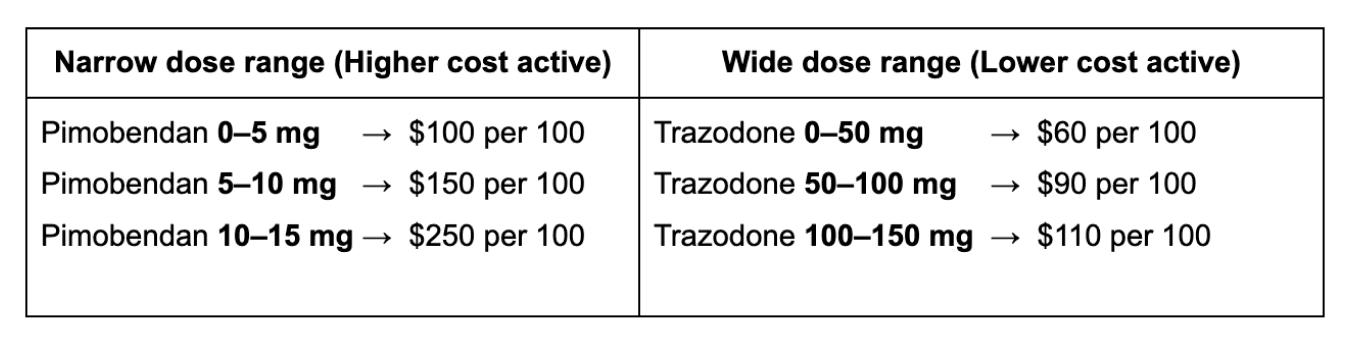
This approach reduces the total number of unique formulations while still giving pharmacists greater control over pricing and profitability. Compound Direct’s sign-off function can also restrict changes to active strengths, ensuring only the preset ranges are used when drafting and dispensing.
Where to next?
Getting used to how prescriptions and orders flow through Compound Direct can take some adjustment. It’s worth taking the time early on to map out how your pharmacy will manage prescriptions, from new scripts through to repeat orders.
For a deeper dive into this, see our article: Workflow and Drafts: Optimizing Compound Direct’s Prescription-to-Product System. We recommend reviewing it about six weeks before your Compound Direct start date. This will give you enough time to refine your workflows, train your team, and set up the resources you need for a smooth and successful launch.
All names and medical data shown in software screenshots are fictional and for demonstration purposes only. These figures represent fictional persons; any resemblance to real individuals is purely coincidental. Use of existing fictional names is for illustrative purposes and does not imply affiliation or endorsement.