
Workflow and Drafts: Optimizing Compound Direct's prescription-to-product system

Introduction
Compound Direct's prescription-to-product workflow may differ from traditional processes. This guide will help you understand and optimise your use of our carefully designed system.
Overview
Prerequisites
The following guide uses some other concepts used in Compound Direct. If you are unfamiliar with the following concepts, we encourage you to read the following guides.
Drafts
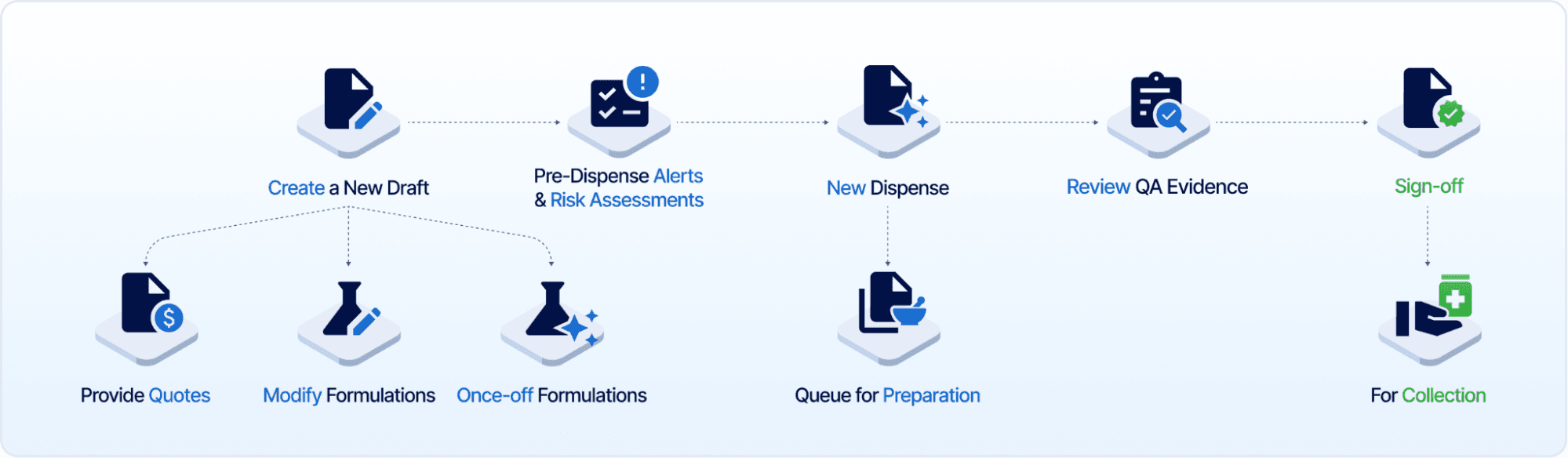
Drafts are the initial step in the preparation of compounds. They allow you to select, modify, or create formulations and provide quotes.
Dispensed
A Dispensed formulation has been drafted, checked and then added to the queue to either be made or to be filled from an existing batch. A compound will move through stages as being New → Completed → Signed off. An explanation of each step is provided below.
The decision to dispense the draft is a critical step. Once dispensed, the composition of the formulation cannot be altered. We recommend that pharmacists or trained staff take extra care to ensure that the formulation is correct and takes into account any formulation changes that are appropriate for the patient.
Workflow
New Draft
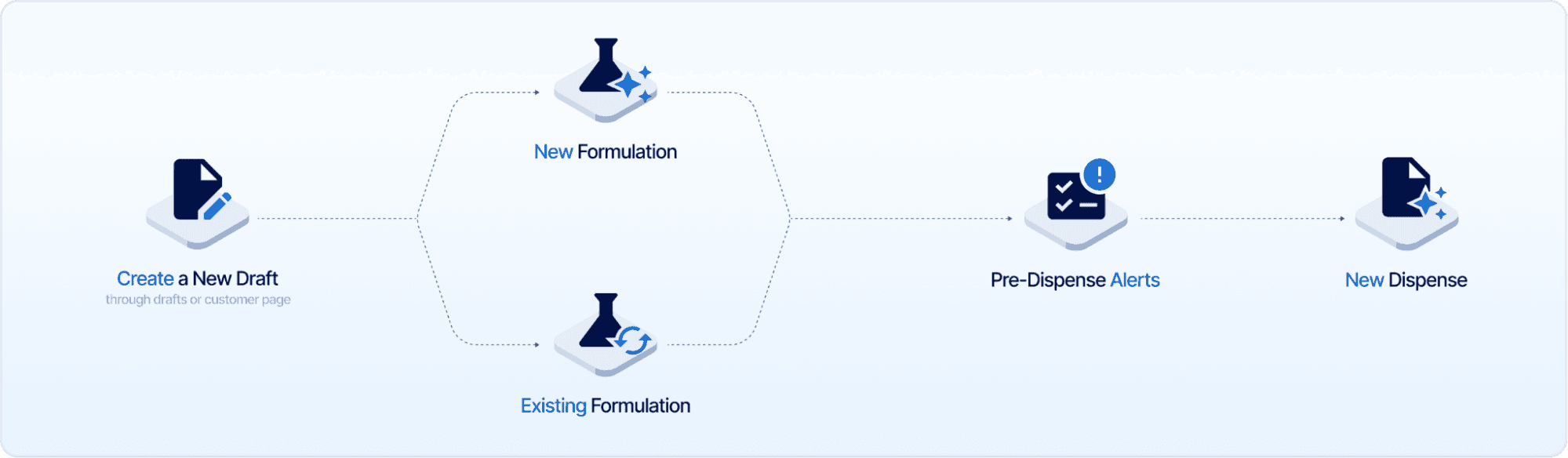
The first step in the process is to create a new draft. You can do this by either selecting or creating a customer and then adding a new draft.
Alternatively, you can create a new draft first and then add customer and/or prescription details afterwards.
Standard package members will be able to add the prescriber, script details, instructions, repeats and other dispense-related details. It also allows entry via a QR code using the ‘Scan’ button. The ‘eRX basic blog’ will guide you through the next steps.
Drafting an existing record
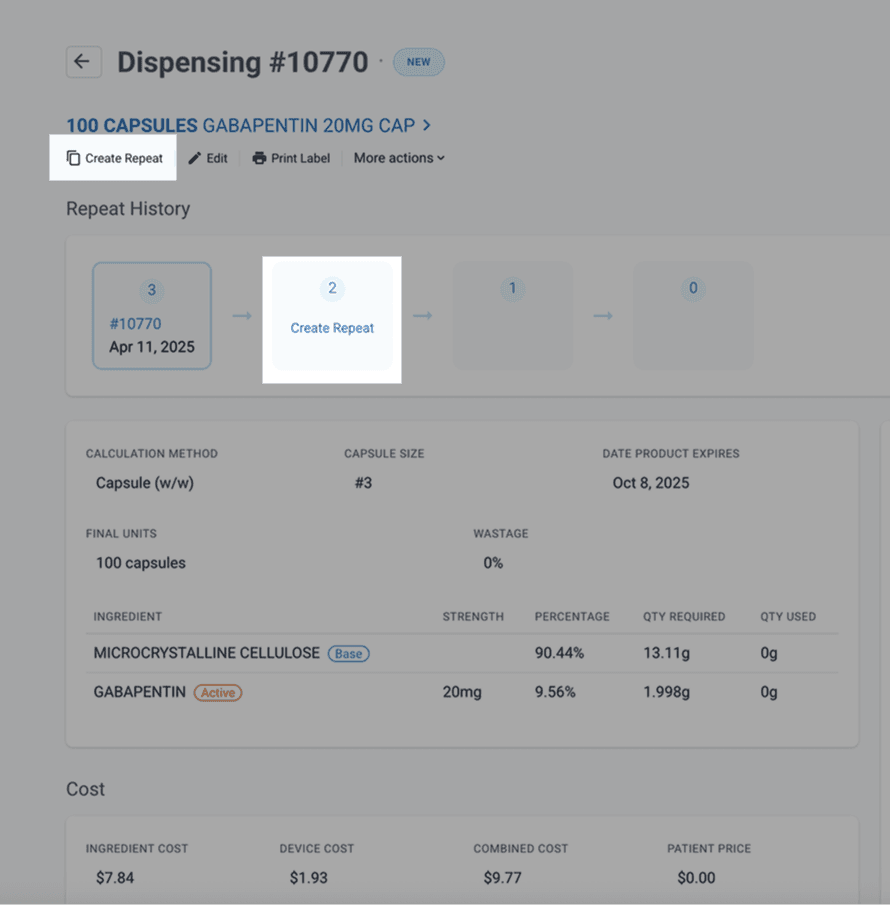
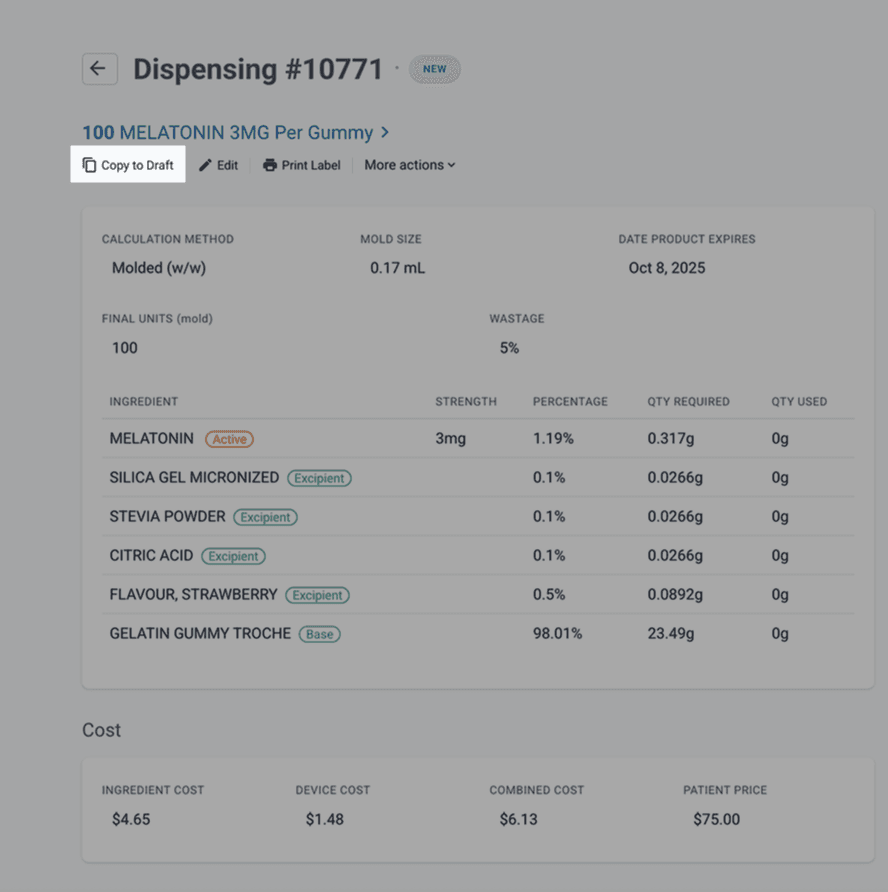
If the patient has had this formulation previously, it can be drafted from within the customer’s dispensing record by either clicking ‘Create repeat’ to create the next draft or by selecting ‘Copy to draft’ if no repeats are available. If you select ‘Copy to draft, the draft will inherit the changes made to the master formulation for this specific patient.
Pre-Dispense
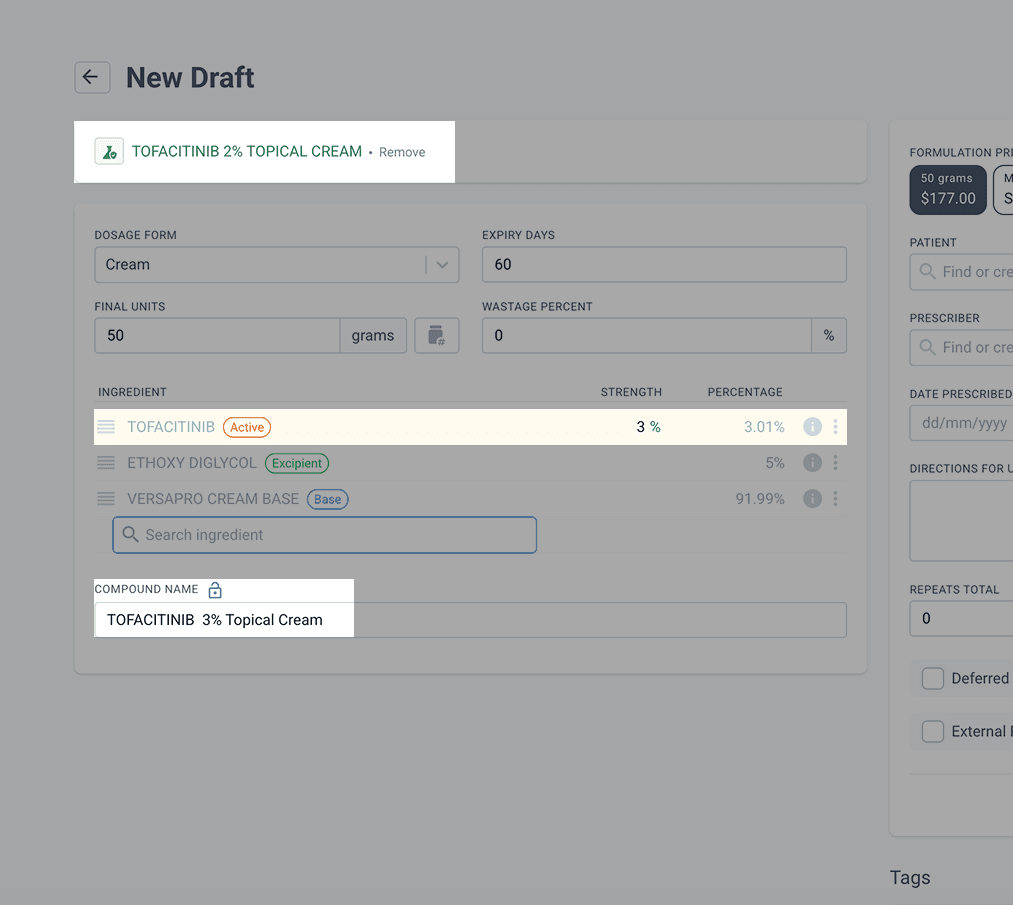
While drafting, you can make changes to the formulations for this specific patient before dispensing. This can be to change the quantity, repeats, ingredients, formulation name, etc. Once you are satisfied with the draft, it can be dispensed. If the strength of an active ingredient is changed, Compound Direct will show you the formulation that was originally selected, highlight the changed active(s) and then rename the compound accordingly. If an excipient or base is modified, the name will not be updated, but you will still see highlighted changes.
Dispensing/Preparing
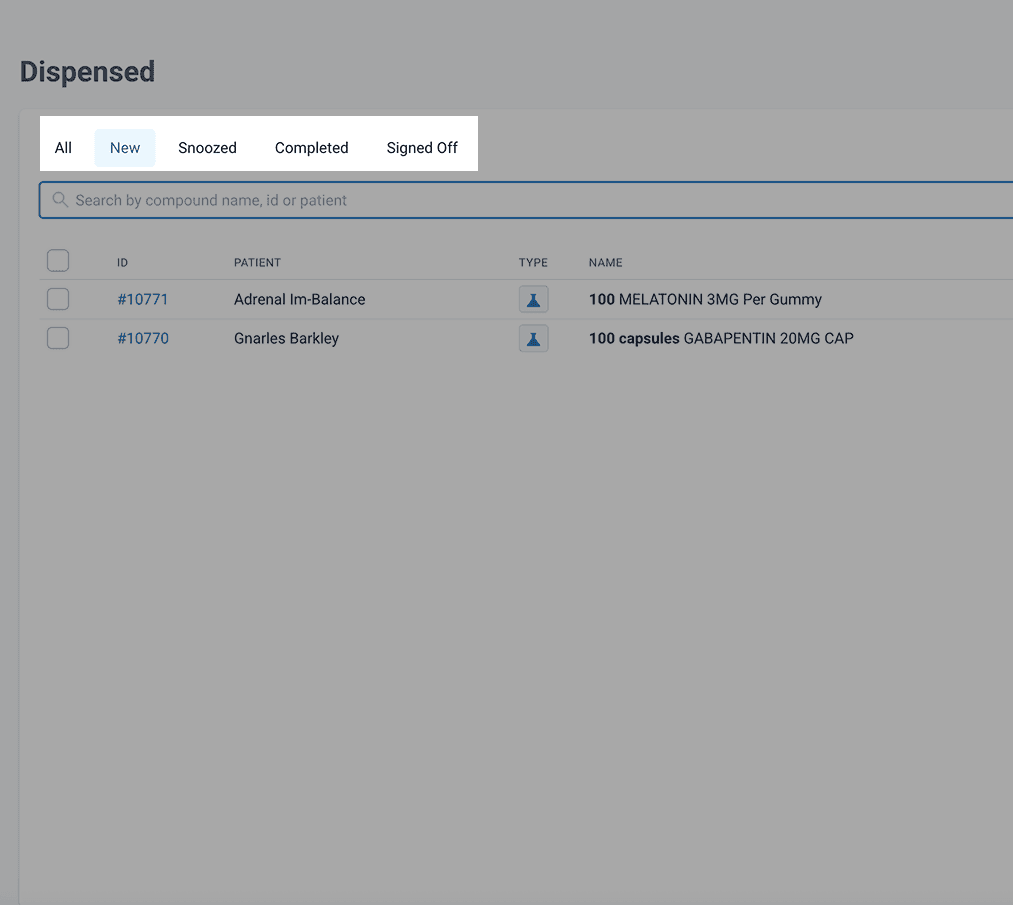
Once you have checked the draft, you can proceed to click ‘Dispense’ and this moves it to the ‘New’ section of the dispensed tabs and is now ready to either be prepared by your compounding team or have batch stock allocated, if possible.
Once a draft has been dispensed, you can edit some fields by selecting ‘Edit’, but you will be unable to modify the formulation or the ingredients in the formulation without deleting and modifying the corresponding draft.
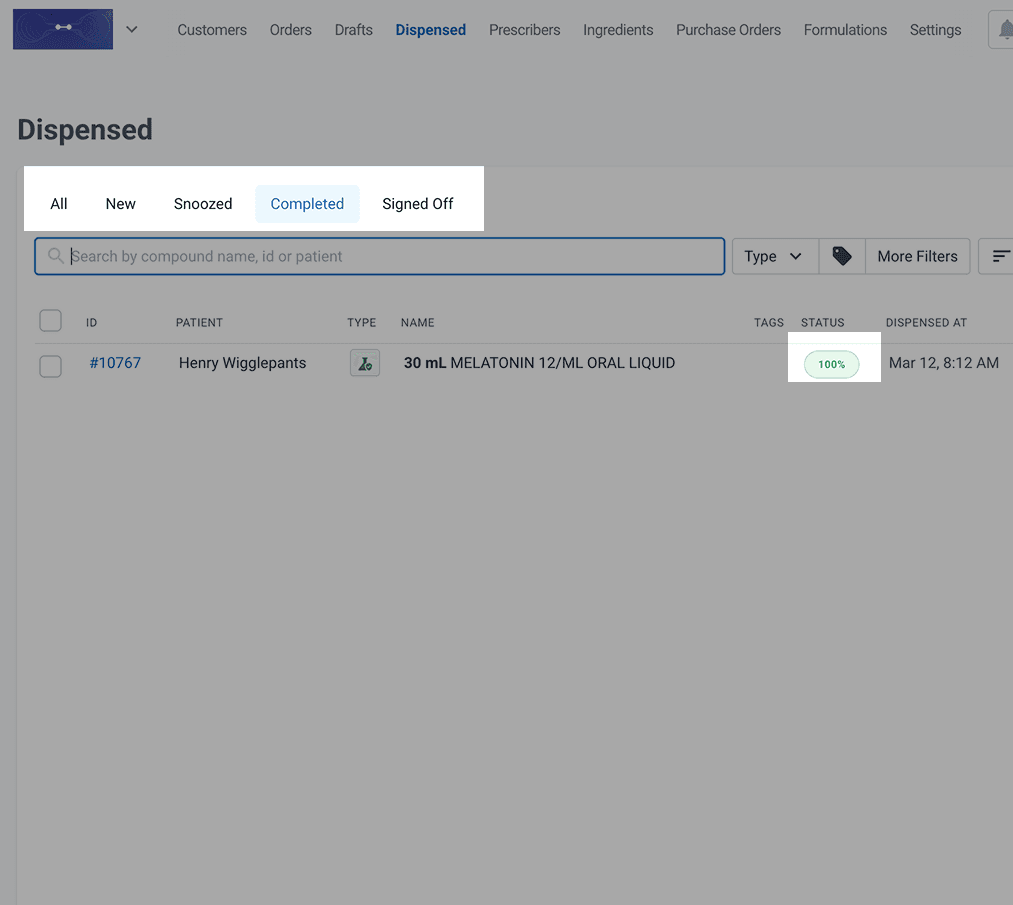
Once made, or stock has been allocated from a prepared batch, the dispense record then moves to ‘Completed’ - now it is ready for the pharmacist to check that it has been made correctly.
If satisfied, the preparation and dispense record can be finalised by selecting ‘Sign off’.
What are the benefits of drafting?
Drafts have many advantages over other software programs that don’t allow for this type of process. The more comfortable you get with utilising drafts day to day, the more you will get out of Compound Direct.
1. Drafting to provide a quote
Providing an accurate quote for a customer or a new business relationship can be time-consuming, especially if you’re needing to quote on a range of products or with many variations to a central formulation. To illustrate how drafts work in your favour, let’s run through a scenario.
A naturopath approaches your pharmacy asking for prices on a range of nutraceutical preparations. There are 10 different capsules, each with multiple ingredients and each at different strengths or combinations.
2. Drafting from a master record
In your pharmacy, there are formulations that you make consistently and some that you may only make once or twice. Most compounding software programs require you to create a unique formulation for each variation. This can make your formulation database lengthy, confusing and difficult to search.
Let's say you work near a local vet surgery, and they have a “go-to” anti-infective ear preparation, but they like to vary this preparation depending on sensitivity tests. The standard formulation is:
- Enrofloxacin 1.5%, Itraconazole 1%, Dexamethasone 0.1% mitte: 50mL
Occasionally, they will ask for a different ingredient to be added or replaced. You could have a database with all the variations:
- Enrofloxacin 1.5%, Ketoconazole 1%, Terbinifine 1.5%, Dexamethasone 0.1%
- Enrofloxacin 1.5%, Nystatin 100,000IU, Itraconazole 1%, Betamethasone 0.1%
- Enrofloxacin 1.5%, Nystatin 100,000IU, Itraconazole, Dexamethasone 0.1%
… and so on. But this will result in a lot of additional entries and make the process of finding the right formulation more time-consuming, especially when changes are subtle.
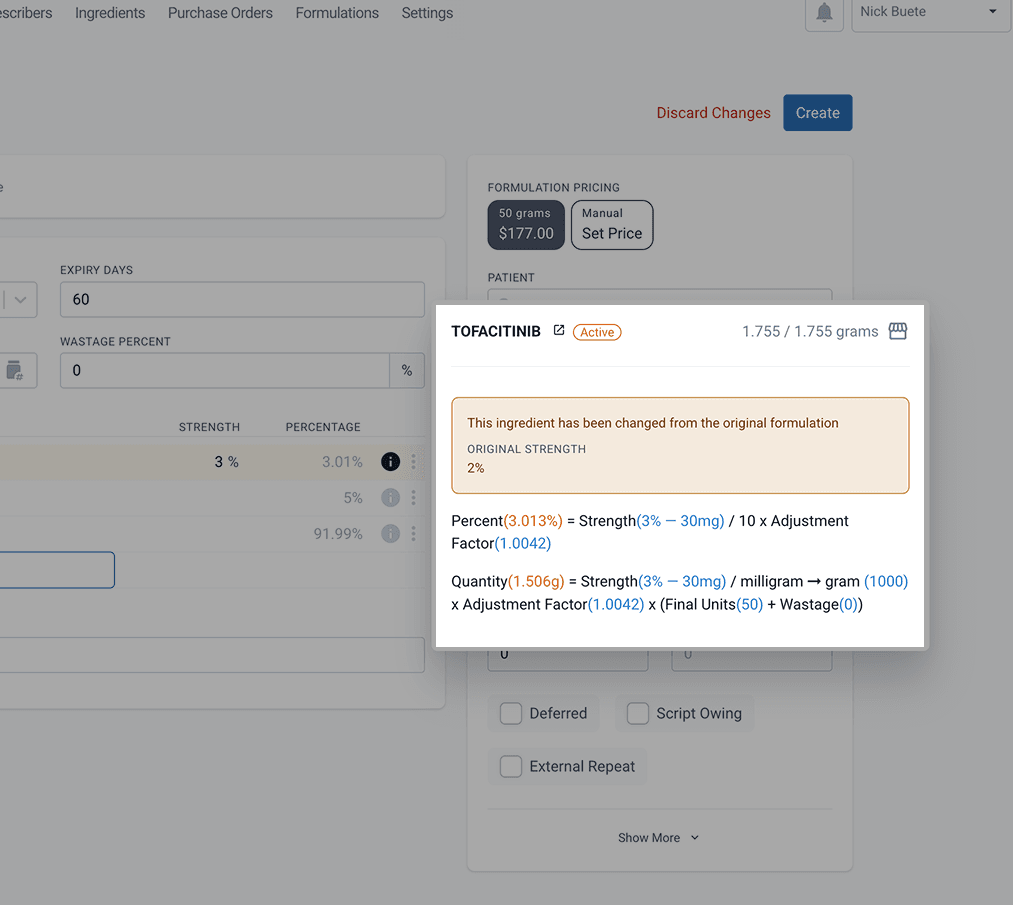
Compound Direct allows you to edit the formulation at the draft phase to add, remove, or change any of the strength of ingredients, keeping your database neat and tidy. As seen above, modified lines will be highlighted in yellow, and an informational box is visible when you hover over the ‘i’ icon.
3. Drafting a patient-specific alteration
Compounding is about providing a personalised solution for a patient based on their individual needs. This means that occasionally, you will need to modify one or more of your standard formulations based on a specific need, such as a flavour change, excipient change or a base change. As Compound Direct allows you to modify an existing formulation, you can make these changes to a formulation just for that patient, and this change will be remembered each time you copy a dispensing to a new draft or create the next repeat.
When the formulation has been signed off, Compound Direct will show you the changes to the master formulation so that you can see what was changed.
4. Checking drafts against an image
If you have a Standard package subscription, you can draft a formulation by uploading or scanning the eRx token, where eRx is linked. This also works for barcodes on physical scripts. This will speed up the importing of patient details and will allow the pharmacist to review the drafted prescription against a digital image of the prescription, giving them the extra peace of mind of being able to refer to the original document and any stage of the compounding process. If the prescription does not have a barcode, the prescription can be added or uploaded to the draft from an image or PDF that has been manually uploaded.
5. Drafts are like elephants
They never forget. Pharmacies can get very busy, and you may need to check with the prescriber, wait for a patient to confirm they want the medication, or you’re waiting for an ingredient price or availability. The draft can be started and saved with progress notes so that everyone in the pharmacy knows what is happening, and there’s no need to fill your top pocket with “remind me to….” notes.
6. Sharing the load
Some pharmacies will allow their non-pharmacist staff to draft medications as they can be checked before being dispensed. This reduces the administrative burden on the pharmacists and allows other team members to help prepare and quote compounds before the pharmacist needs to be involved.
Core process overview
- Compound Direct's workflow begins with drafts, where users can select, modify, or create new formulations and provide quotes
- After drafting, compounds are dispensed and move through stages: New → Completed → Signed off
Key features
- Drafts can be created either by selecting a customer first or by adding customer details later
- Standard package users can scan QR codes and handle eHealth barcodes or tokens for prescriptions
- Previous formulations can be easily accessed and copied from customer dispensing records
Advantages
- The system allows real-time calculations and modifications during the drafting phase, including capsule size adjustments
- Patient-specific modifications can be saved and remembered for future drafts
- Non-pharmacist staff can draft medications for later pharmacist review, improving workflow efficiency
- Being able to check a draft or compound against an image of the script improves safety and confidence
All names and medical data shown in software screenshots are fictional and for demonstration purposes only. These figures represent fictional persons; any resemblance to real individuals is purely coincidental. Use of existing fictional names is for illustrative purposes and does not imply affiliation or endorsement.