
Achieving precision in dosage forms

Precision matters in compounding, and the way you set up your dosage forms can have a lasting impact on both accuracy and efficiency. While the setup process may seem straightforward, there are key configuration options that are often missed or might seem confusing. This blog walks you through these often overlooked details and explains how each setting contributes to a smoother, smarter workflow. Whether you are refining existing dosage forms or creating new ones, these insights will help you make the most of your system.
Prefix & Suffix
Adding a prefix and a suffix helps provide additional context or classification, making each dosage form easier to distinguish and manage. Prefixes appear at the beginning of the compound name, and suffixes at the end.
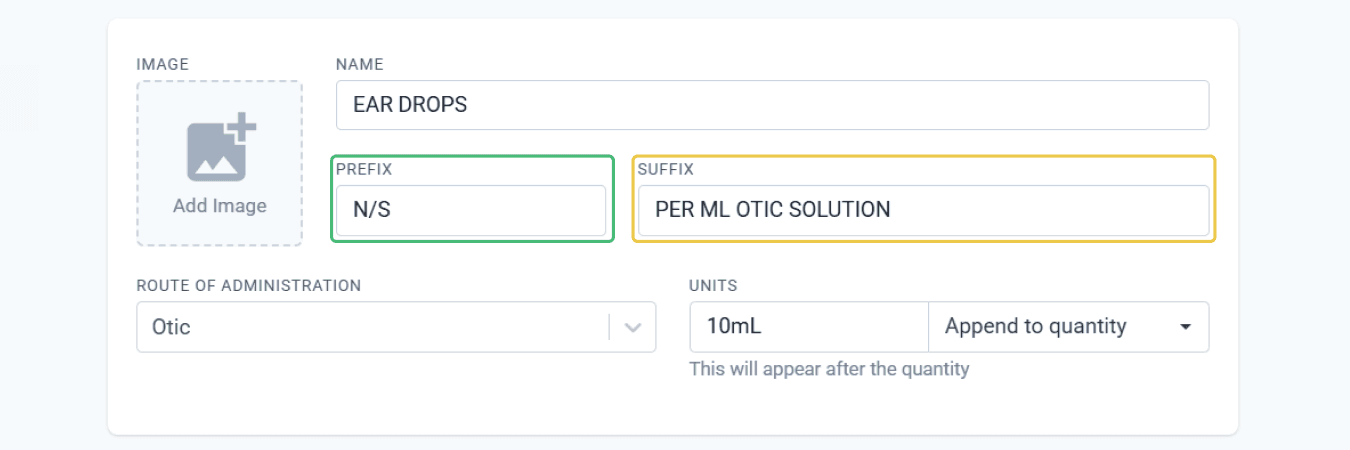
From the dosage forms page
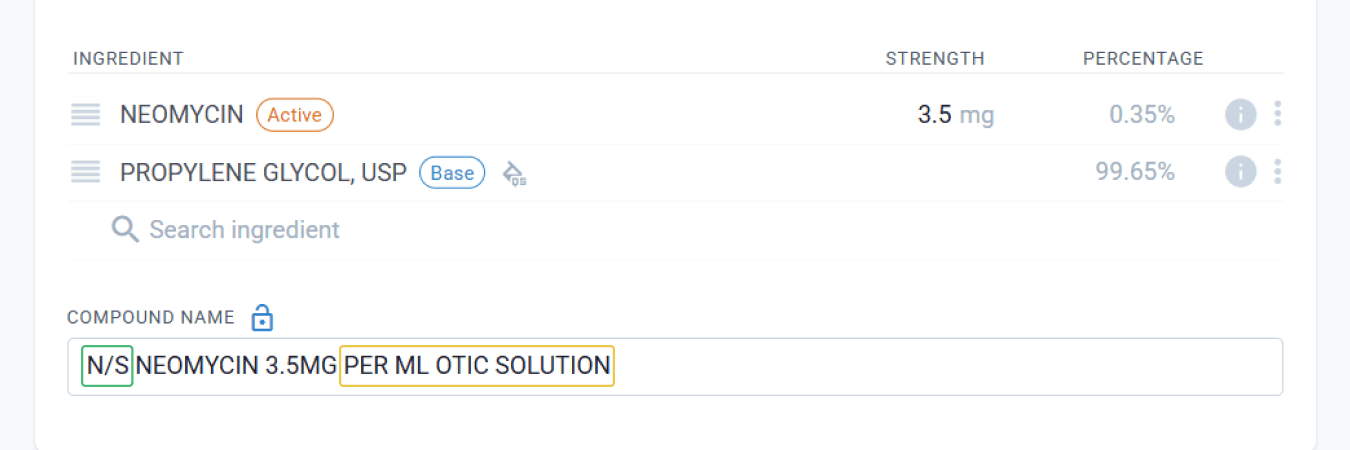
From the formulation page
A prefix can be used to add information to a label that wouldn’t make sense as a suffix or after the strength and units. This prefix may not always be relevant to the patient, but it can help distinguish the product for internal tracking, branding, or special handling.
Examples of prefixes:
- N/S – Indicates a non-sterile preparation (e.g., N/S Neomycin Solution).
- GCP – Your pharmacy initials for cosmetic or signature products (e.g., GCP Emollient Face Scrub).
- Trial – Used to mark a trial-sized or sample version (e.g., Trial Niacinamide Cream 5%).
- VET – Indicates a product intended for veterinary use (e.g., VET Antifungal Shampoo).
A suffix helps clarify the compounded dosage form, route of administration, or release type. It ensures the preparation is used appropriately and is easily identifiable. In some cases, the suffix also specifies the strength per unit (e.g., per mL or per g) to indicate the concentration of the active ingredient.
Examples of suffixes:
- Per mL Otic Solution – For ear preparations (e.g., Neomycin 3.5 mg per mL Otic Solution).
- Per g Topical Cream – For skin-applied products (e.g., Hydrocortisone 10 mg per g Topical Cream).
- Per g Vaginal Gel – For intravaginal use (e.g., Clindamycin 20 mg per g Vaginal Gel).
- Per mL Inhalation Solution – For products intended for inhalation (e.g., Salbutamol 5 mg per mL Inhalation Solution).
Append to quantity vs Exclude from label
When setting up your compound, you can choose how the quantity and dosage form of the product appear on the label.
Selecting Append to quantity will display both the quantity and the dosage form of the product next to the compound name. This is helpful when the dosage form needs to be clearly shown on the label.
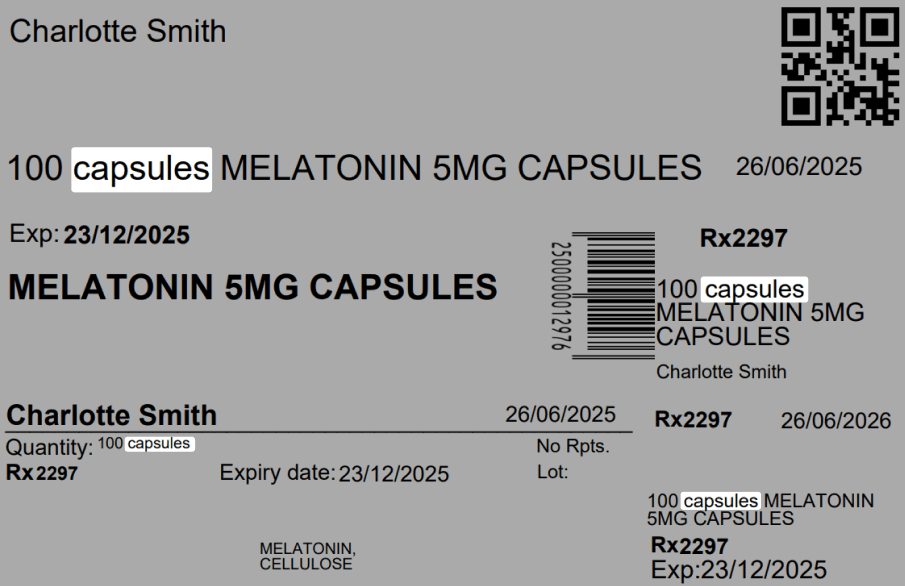
From the print preview of dispensed page
Alternatively, choosing Exclude from the label will display only the quantity and compound name. This is useful when the dosage form is noted elsewhere or is not necessary to show on the label.
Expressing strength as percentage
Some physicians prefer prescriptions to be expressed in percentages rather than volume-based units. When setting up a calculation method, you can choose to define ingredient strengths directly as percentages. This ensures each ingredient’s strength is entered and displayed as a percentage on the formulation page, aligning with how the script was written.
On the formulation page, you can also toggle between percentage and unit-based display by clicking the % button, allowing you to switch views according to your preferred input method. This setting defines how data entry behaves and gives you control over how you want to input ingredient information.
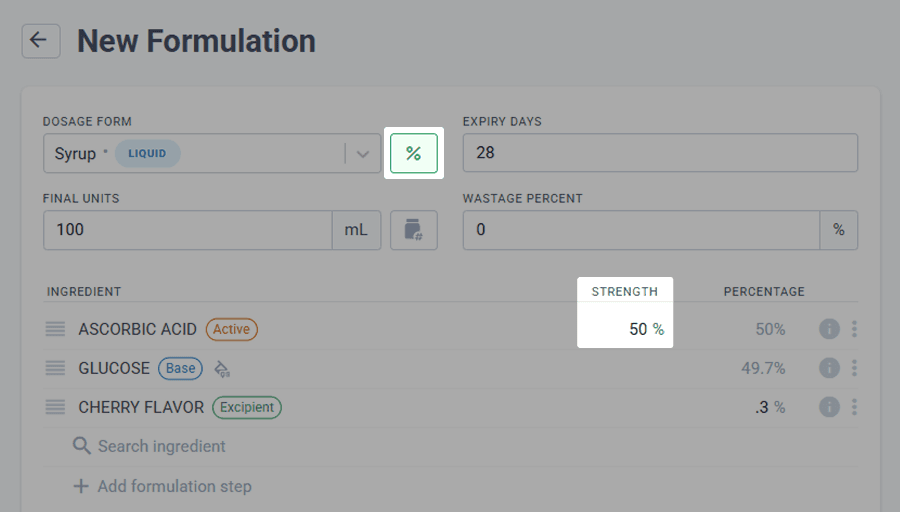
From the formulation page
Base calculations (QS vs not QS)
You can set the base to automatically QS (fill to sufficient quantity) to match the final formulation total. This saves time, reduces errors, and keeps quantities accurate. If ingredient amounts change, the base adjusts automatically. A QS symbol appears next to base ingredients set to auto fill.
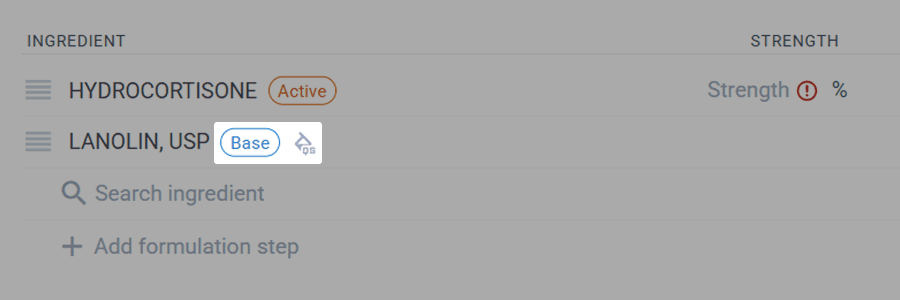
From the formulation page
You can choose not to QS the base and manually enter its exact amount. The base will not auto adjust, which is useful when a fixed amount is clinically required or must stay constant despite changes to active ingredients. These settings allow you to fine tune each one to match your workflow.
Advanced configurations
When the Advanced Configuration toggle is switched on, it provides more detailed control over how calculations are handled at the formulation level. It is useful when you need to fine tune how strengths, quantities, or base behaviours are calculated for specific compounds beyond the default settings. Whether you are adjusting for special dosing needs, ingredient behaviour, or calculation methods, Advanced Configuration gives you the flexibility to tailor the formulation to suit unique compounding requirements.
When Advanced Configuration is switched on, additional options such as formulating as a weight in weight (w/w) formulation and enabling QS for the base will become available on the formulation page.
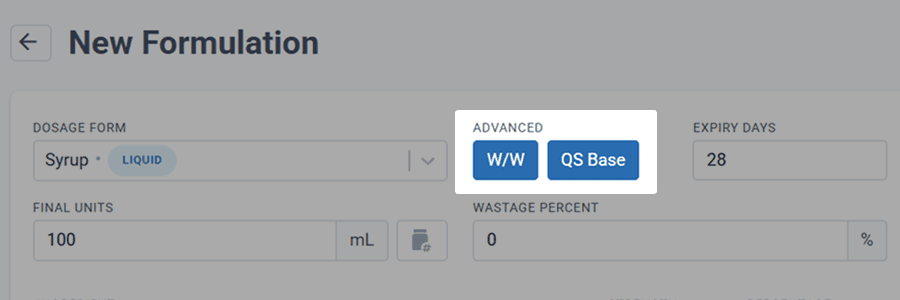
From the formulation page
Disable overflow warnings
When enabled, this will hide warnings related to the total percentage of the dosage form and will not notify you if the combined ingredient quantities exceed the specified total volume. But when disabled, a blue flag will appear to indicate that the total quantity of ingredients exceeds the specified volume. This will be helpful because it alerts you to potential overages in your formulation, allowing you to review and adjust ingredient quantities before proceeding, ensuring accuracy, compliance, and proper dosing.
For example, you might be adding 50 mL of ethanol to a formulation, knowing that it will evaporate during processing. In this case, the total volume may temporarily exceed the intended final volume, but you may choose to enable this setting to suppress the warning. On the other hand, if accuracy is critical and you need to ensure that no volume is unintentionally exceeded, keeping the warning enabled will help you catch such overages early.
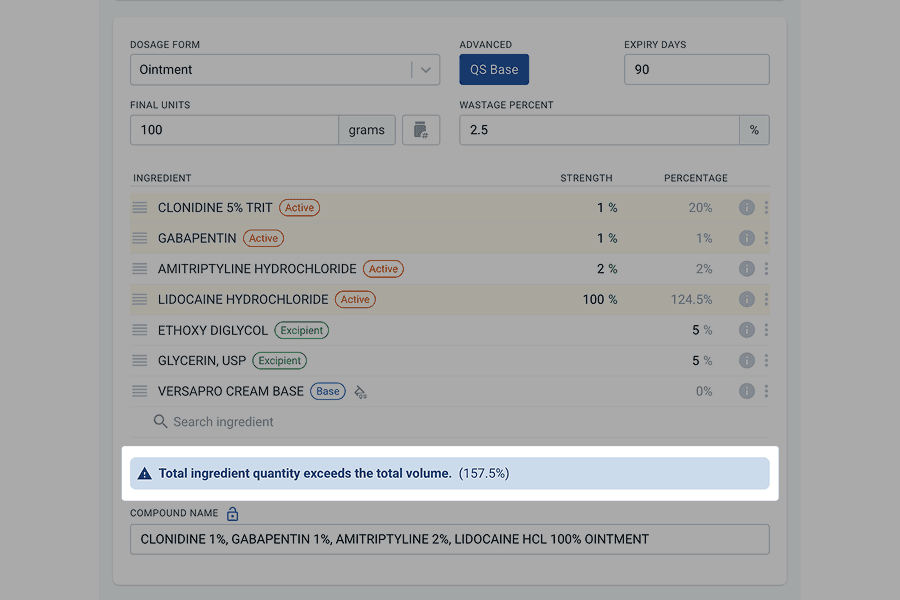
From the formulation page
Average labour duration
Some dosage forms may differ in pricing due to their complexity. In order to set proper prices that reflect how simple or complex a preparation is, you may choose to create two separate dosage forms: one for Simple Creams and another for Complex Creams. Each form should have a different average labour duration to represent the typical time it takes to compound.
For example, the Simple Cream dosage form (for preparations with one or two ingredients) might have an average labour duration of 10 minutes, while the Complex Cream dosage form (for more ingredient-heavy or time-consuming preparations) could be set to 30 minutes. This approach makes quoting faster and ensures that labour time is built into the pricing structure automatically.
Default devices
Setting up devices at the dosage form level streamlines formulation and saves time during compounding. Assigning relevant devices in advance avoids repetitive setup and promotes consistency across formulations. Some devices have an auto select feature that automatically calculates the most appropriate size and quantity based on the total product amount, reducing manual input.
Ideally, devices can be set once and left as is, unless additional devices are needed for specific cases. Configuring these settings early supports a smoother workflow and helps prevent errors during dispensing.
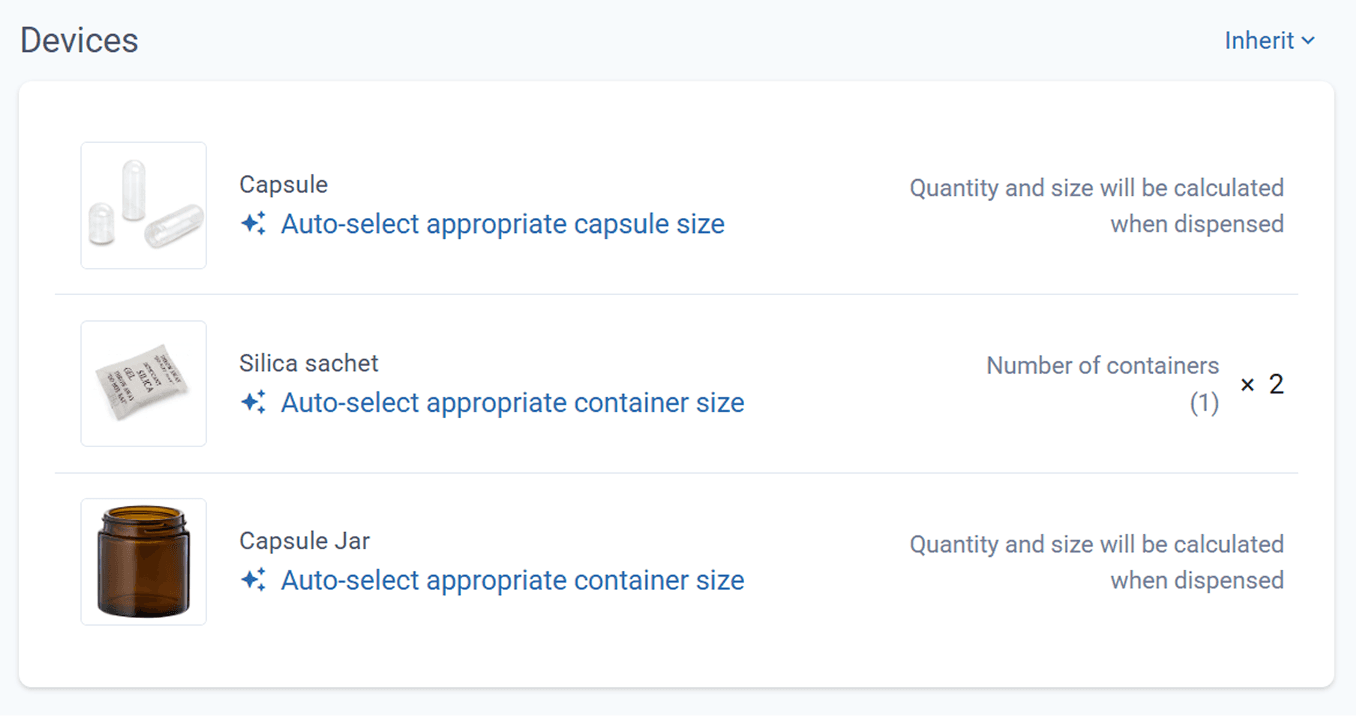
From the formulation page
**Requires standard package or higher**
Default formulation steps
While formulation steps can be defined individually for each formulation, setting them up at the dosage form level can improve efficiency and consistency, especially when certain tasks are repeated across many formulations. Common recurring steps, like quality checks, capsule counting, device setup, or workspace preparation, can be streamlined this way. You can also categorise these steps to match your workflow more clearly:
- Pre-Dispense: Tasks before and after dispensing activities, like verifying prescription details.
- During Compounding: Steps around equipment setup, cleaning, or recording measurements.
- During Compounding - Per Ingredient: Checks before and after weighing and adding each ingredient.
Organizing steps like this helps ensure nothing is overlooked and saves time on setup.
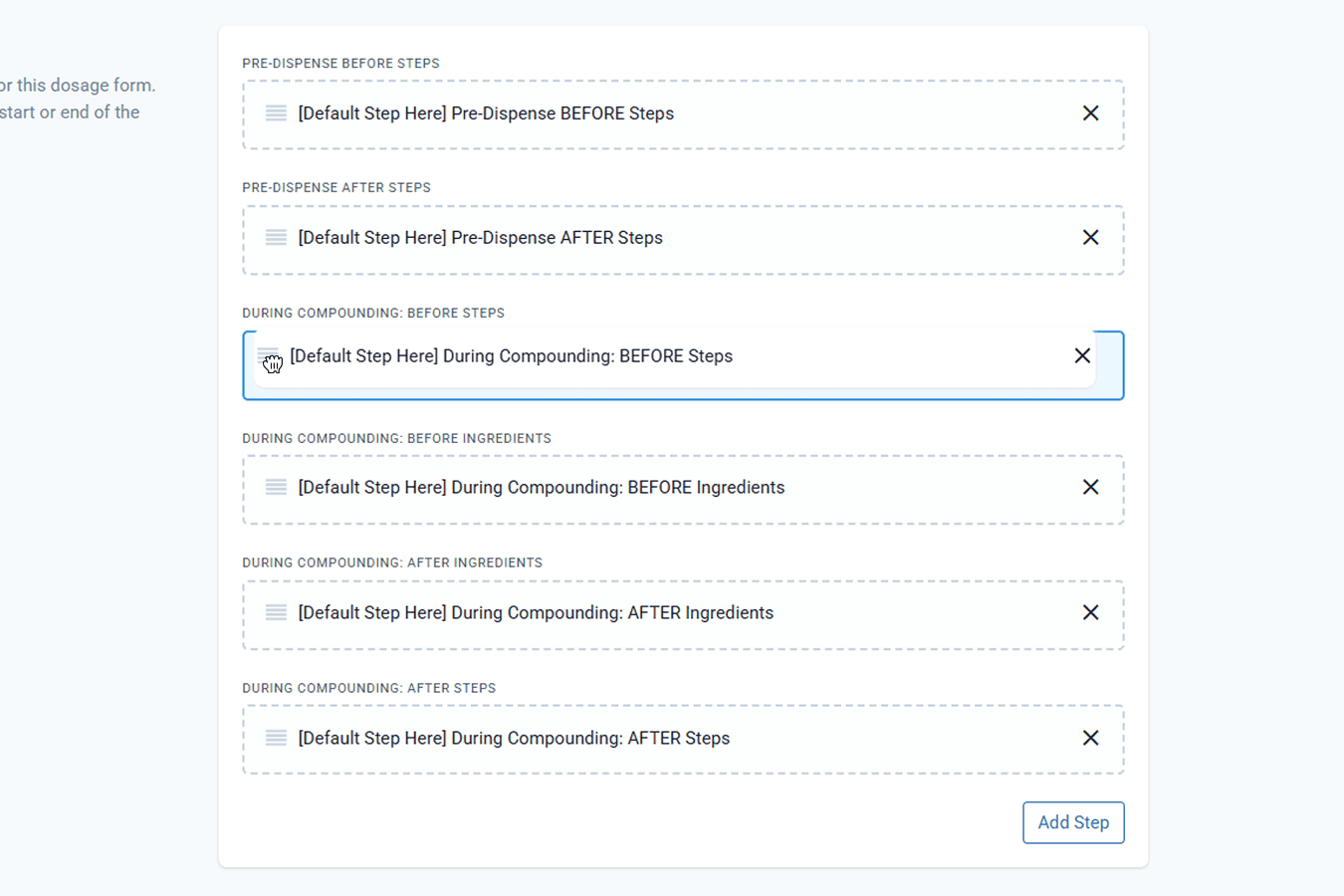
From the dosage form page
**Requires standard package or higher**
The default formulation steps, arranged in the order set on the Dosage Form page, will appear on both the Dispensed Page and the Preparation Page.
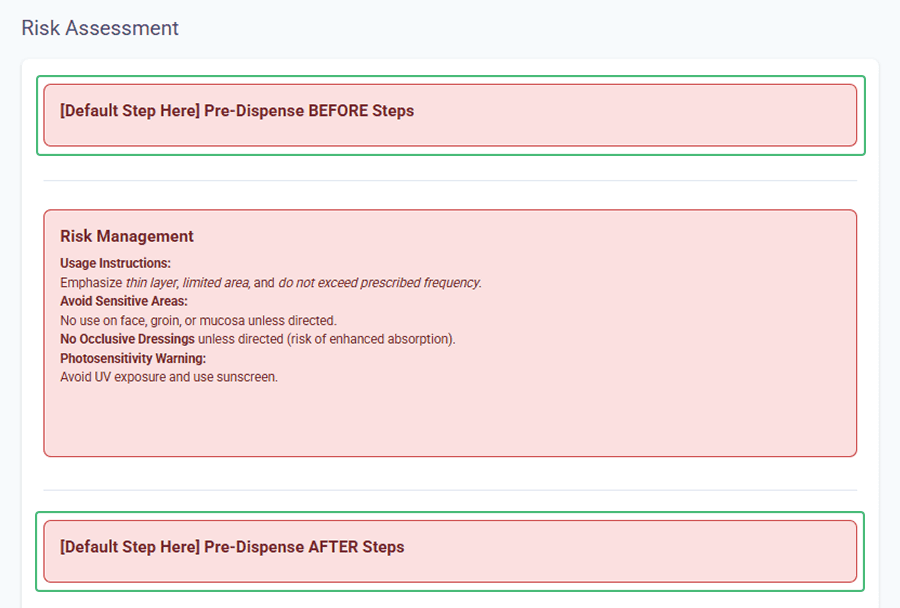
From the dispense page
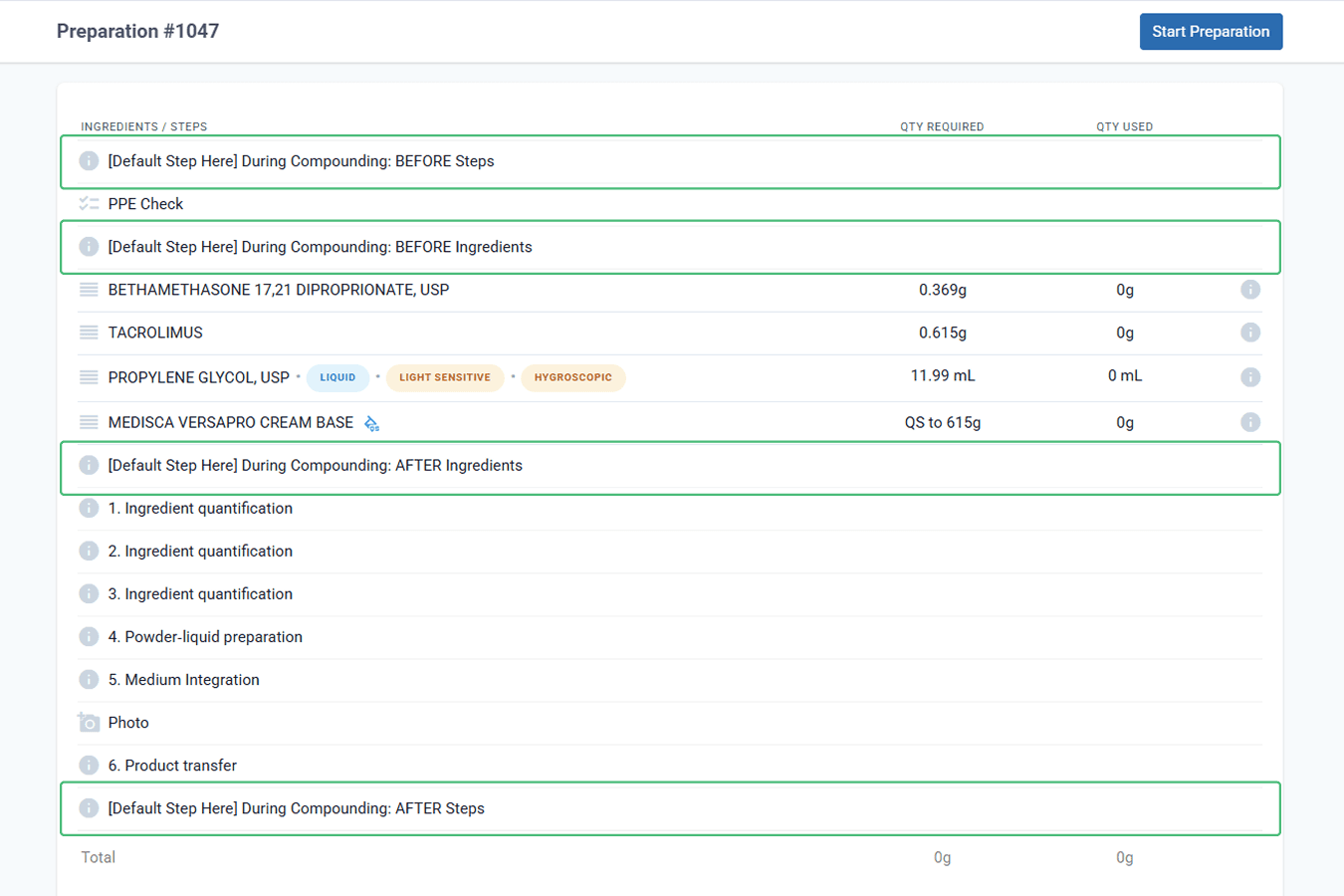
From the preparation page
Molded dosage forms
Compound Direct allows you to create a single molded dosage form and enter a matrix of base types, mold sizes, blank weight and displacement factors. This means that you can substitute a base, or change the mold size of a formulation when drafting and dispensing and still allow Compound Direct to make real-time calculations. Using different bases in a dosage form often requires specific mold sizes, blank base weights, and displacement factors. You can configure multiple bases within a single dosage form and assign the appropriate values for each. This improves accuracy, reduces setup errors, and streamlines the compounding process.
Sorting dosage forms
Organising your list of dosage forms can improve efficiency, especially when frequently used ones are placed at the top and less common ones at the bottom, or arranged in a way that best suits your workflow.
Any changes to the order will be reflected on the formulation page and in other areas where dosage forms can be searched or filtered, making it quicker and easier to select the appropriate option.
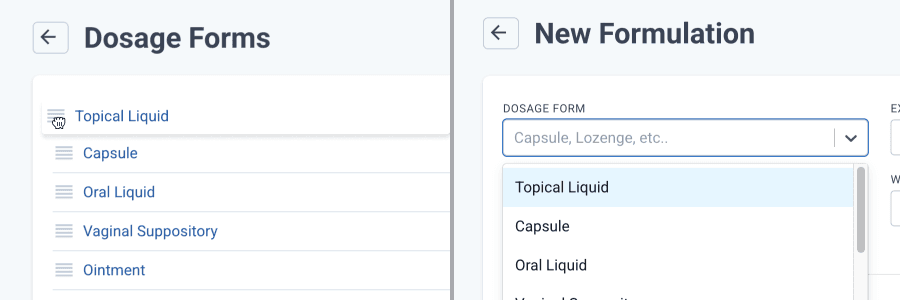
From the dosage forms page and formulation page
Conclusion
These features are often overlooked or initially seem confusing, but understanding them can make a significant difference. Paying attention to these small details result in big improvements, they help streamline your workflow, reduce errors, and save time in the long run. Let this guide support you in getting the most out of your system with clarity and confidence.