
Automate patient medical history by sending risk assessment links

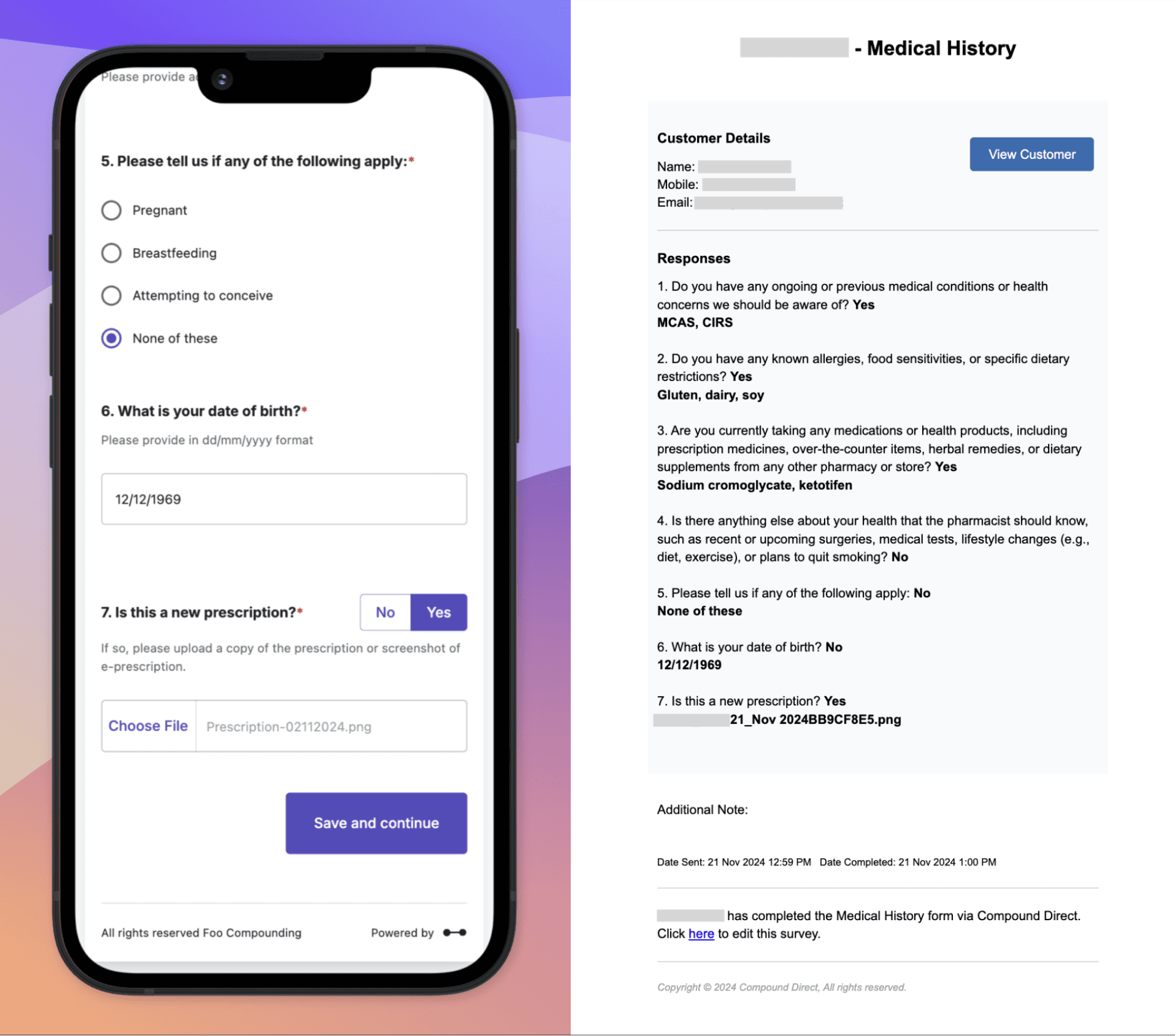
Completing a patient's medical history is essential in compounding pharmacy to ensure safe and effective personalised medications. It helps pharmacists identify potential drug interactions, allergies, and contraindications, allowing for tailored formulations that meet individual needs. Risk assessments have traditionally been completed on paper, making it difficult to streamline the process, this is also problematic when Compounding Staff want to reference back to the answers throughout the entirety of the compounding process.
Compound Direct offers an exciting feature, risk assessments can be sent electronically to customers via SMS, email or both. The customer can complete the medical history survey, which then feeds directly back into the software under the customer profile. This is a groundbreaking add-on for compounding pharmacies, particularly within Australia.
Part 1: Setting up your patient risk assessment
Step 1: Create or select your risk assessment survey
Compound Direct offers a default patient risk assessment but you may want to customise this with your own questions.
Got to Settings and select Risk Assessment Survey
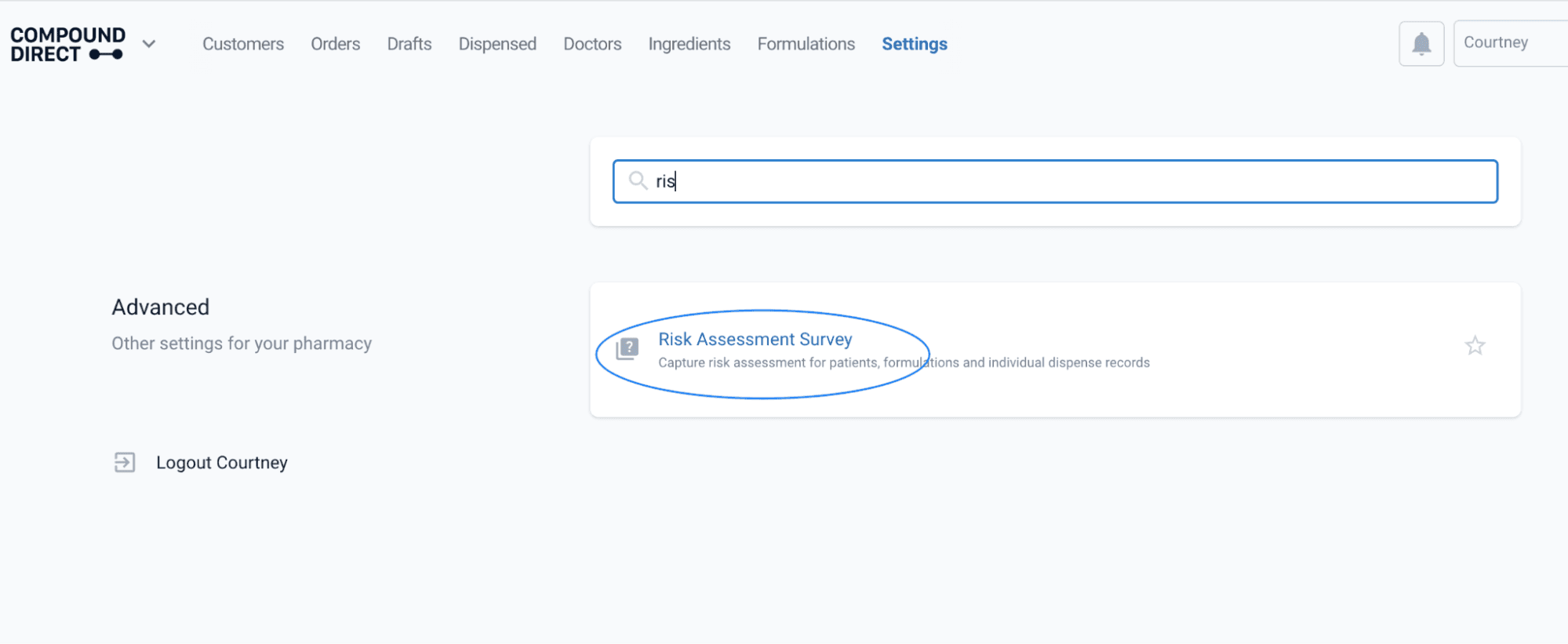
From the settings page
From here you can check the default Medical History survey. Select the Default Medical History survey and you can review the default questions.
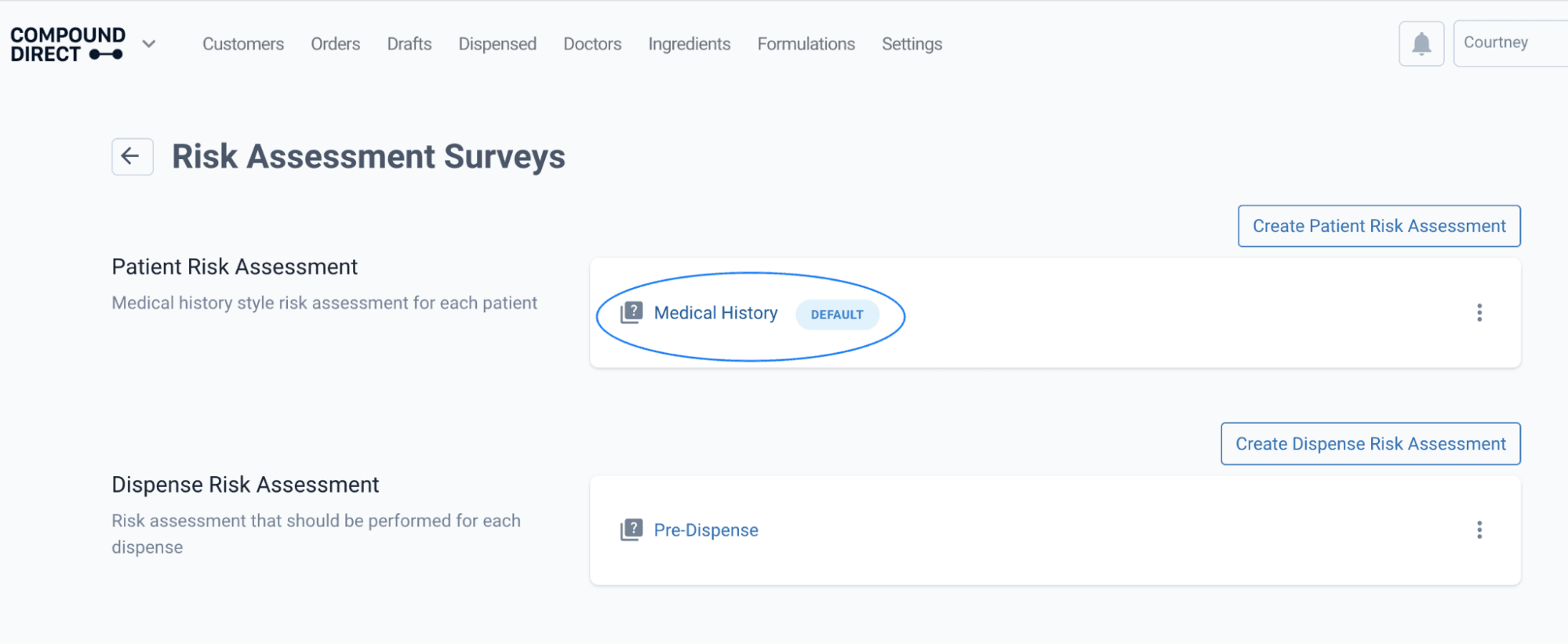
From the risk assessment surveys page
If you want to delete any of the questions you can select Remove on the question. If you would like to add questions to the default survey you can select Add Question at the bottom of the page.
You may wish to create your own patient risk assessment. To do this, select Create Patient Risk Assessment on the Risk Assessment Surveys page.
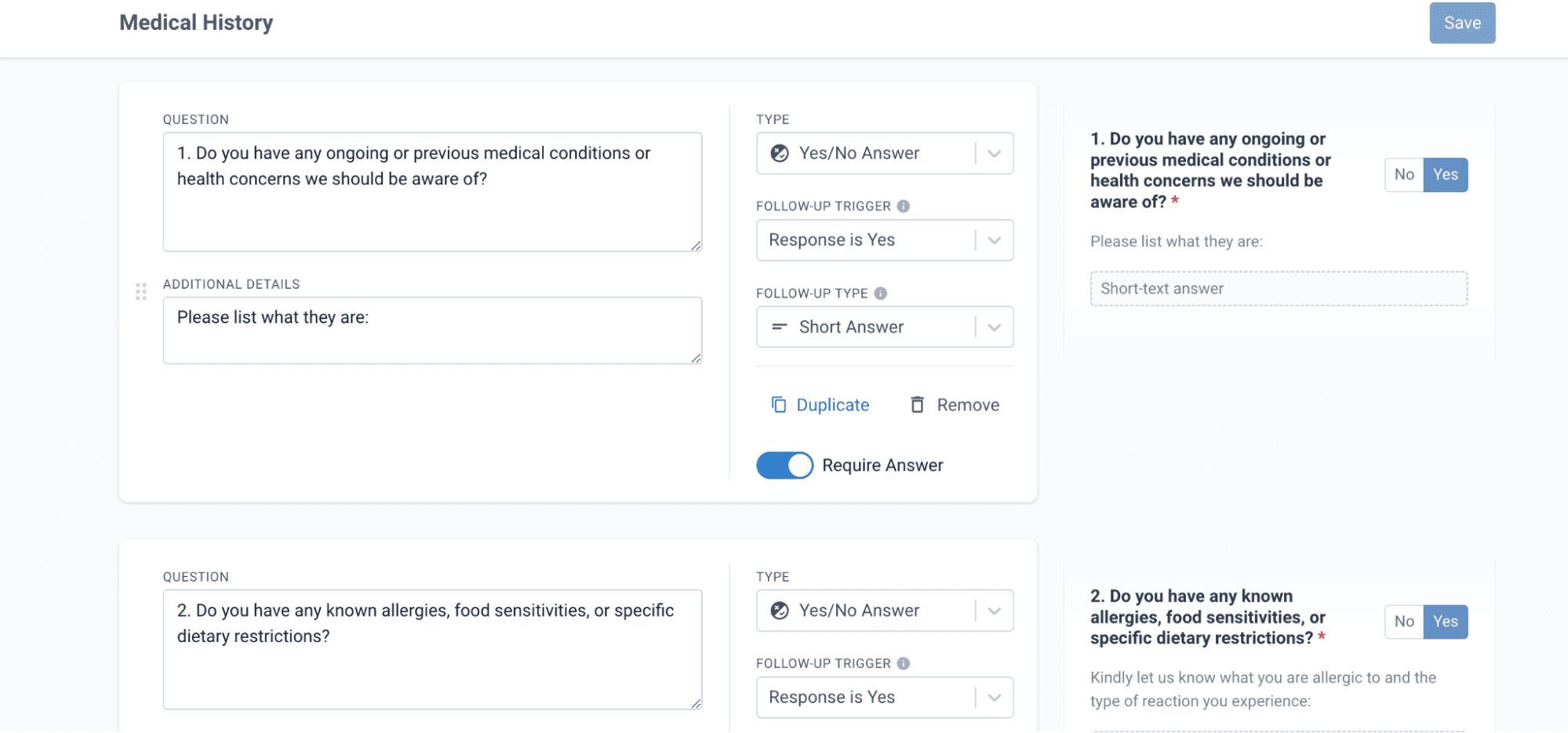
From the risk assessment surveys page
For detailed instructions on how to set up a patient risk assessment refer to our User Guide.
Step 2: Design your templates
To design your templates with customised in-store branding go to Settings and select Email & SMS Templates.
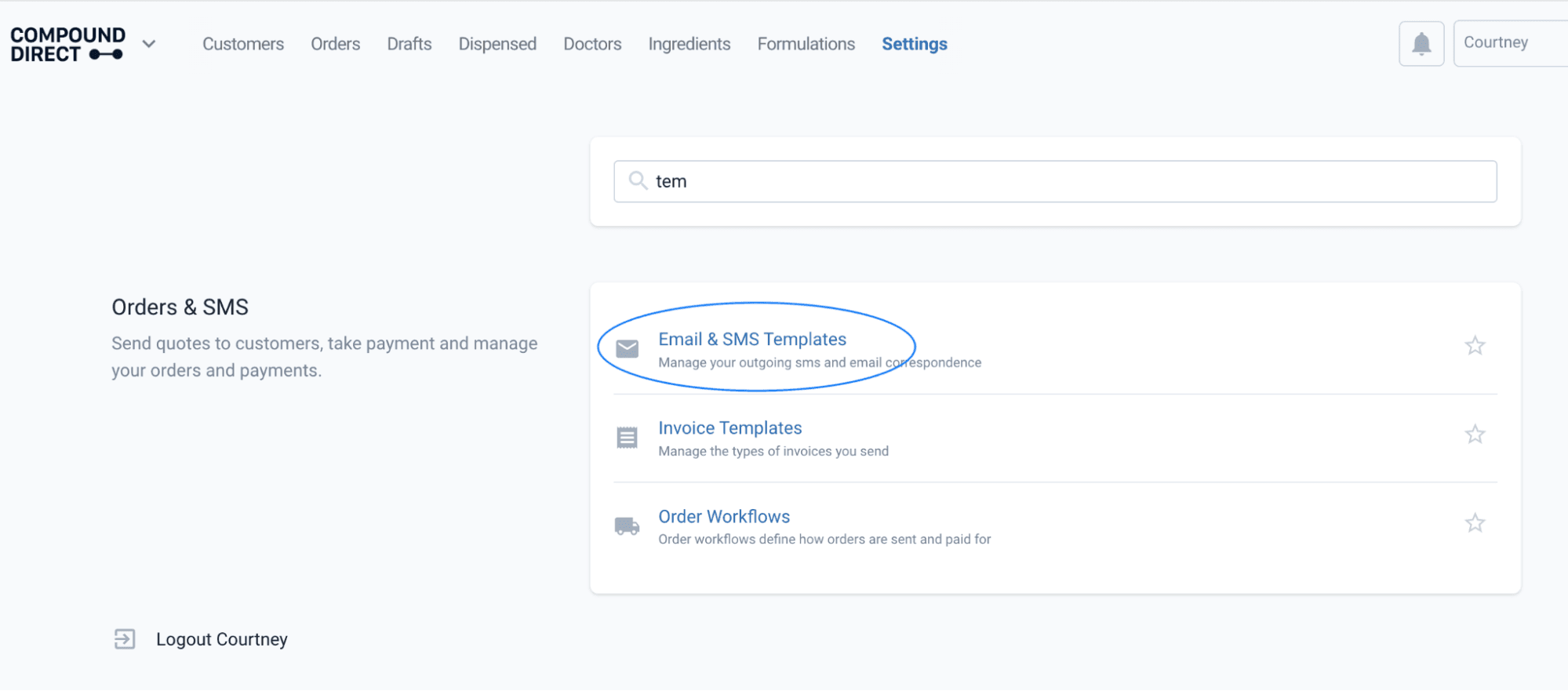
From the settings page
To set up the SMS and Email template that your customer receives, select Risk Assessment Request.
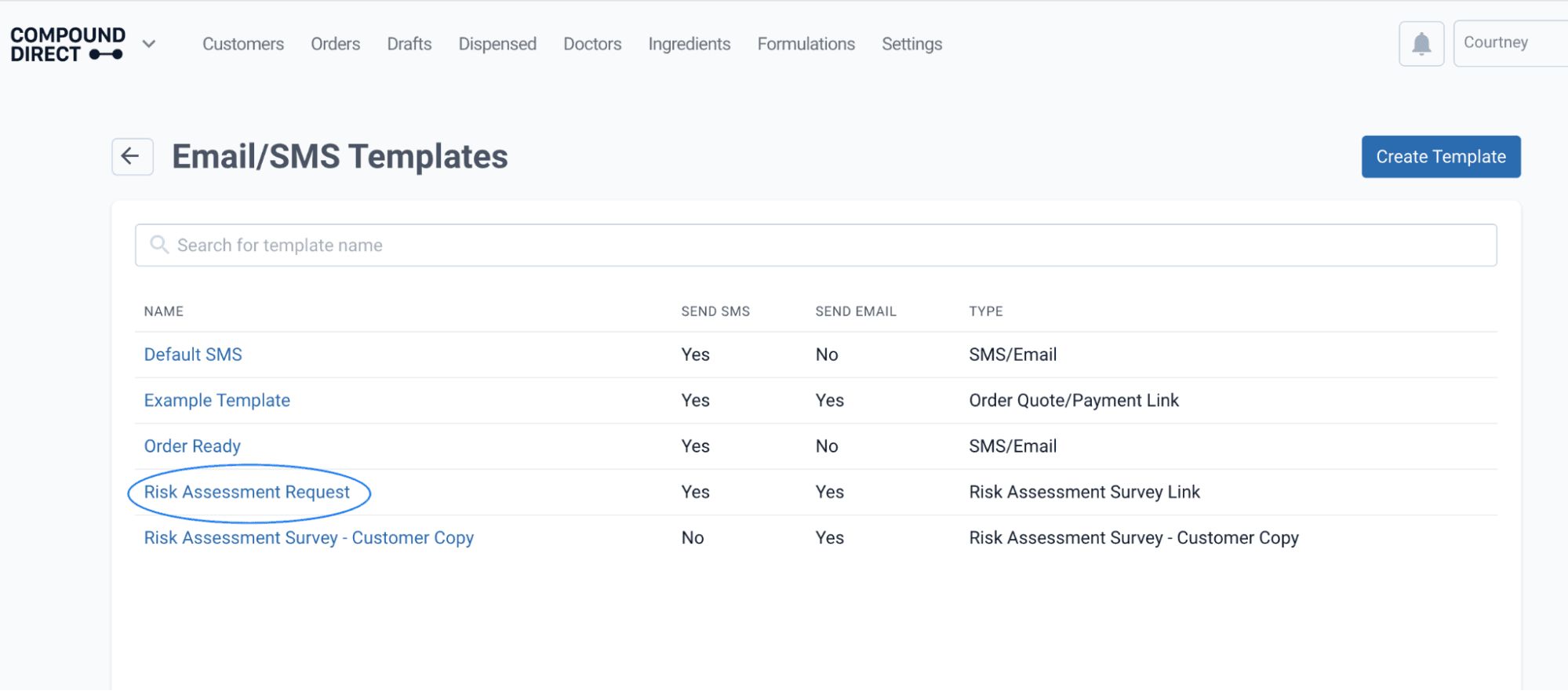
From the email/SMS templates page
You will notice that the default template comes prefilled with set text and placeholders (items that will be automatically populated when sent). For more information on editing and setting up templates please see our User Guide.
If you would like to customise the customer email and SMS with your pharmacy logo, go to Settings and open Your Workspace.
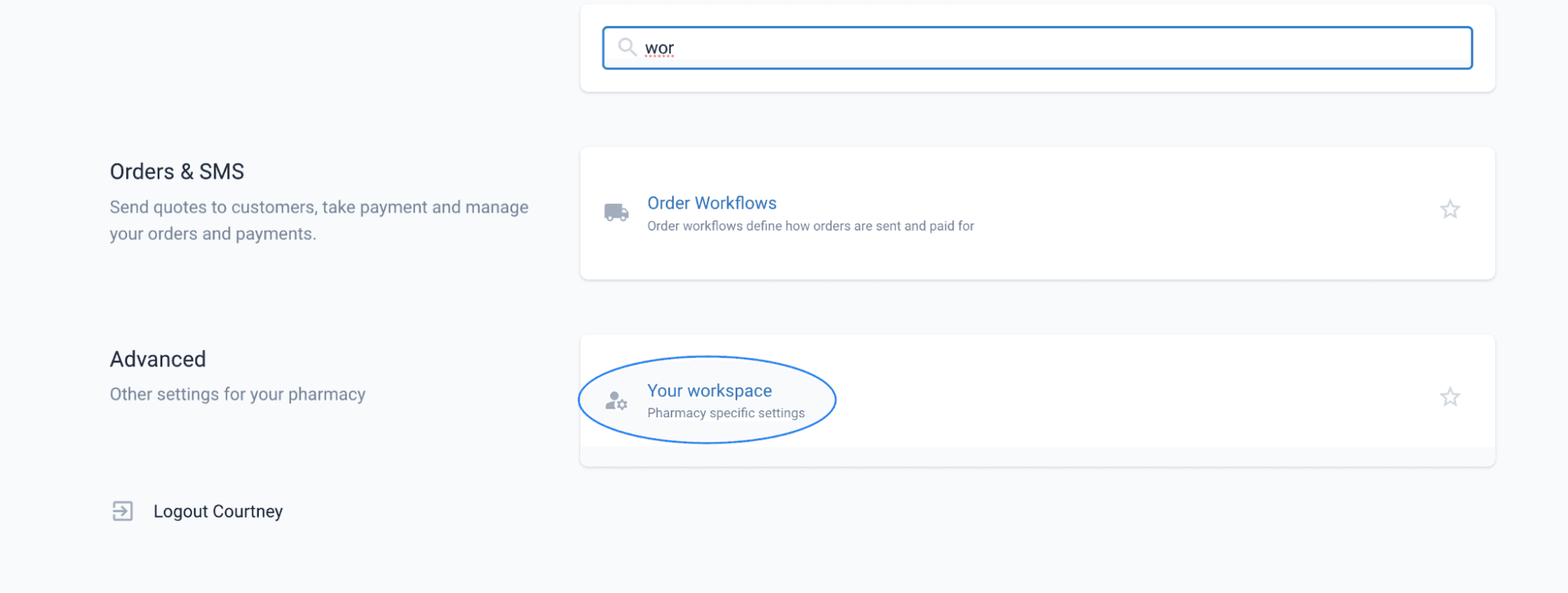
From the settings page
Under the Logo & Graphics section of the page select Provide a logo for your workspace. From there select your Pharmacy logo/branding.

From your workspace page
Step 3: Set Customer Preferences and Notification Settings
While still navigating in Your Workspace select the Risk Assessment Links tab. Toggle on or off the Allow Customer Copy, this will determine if the customer receives a copy of their completed Medical History. Specify which pharmacy email address will receive the Completed Risk Assessment Notification Email.
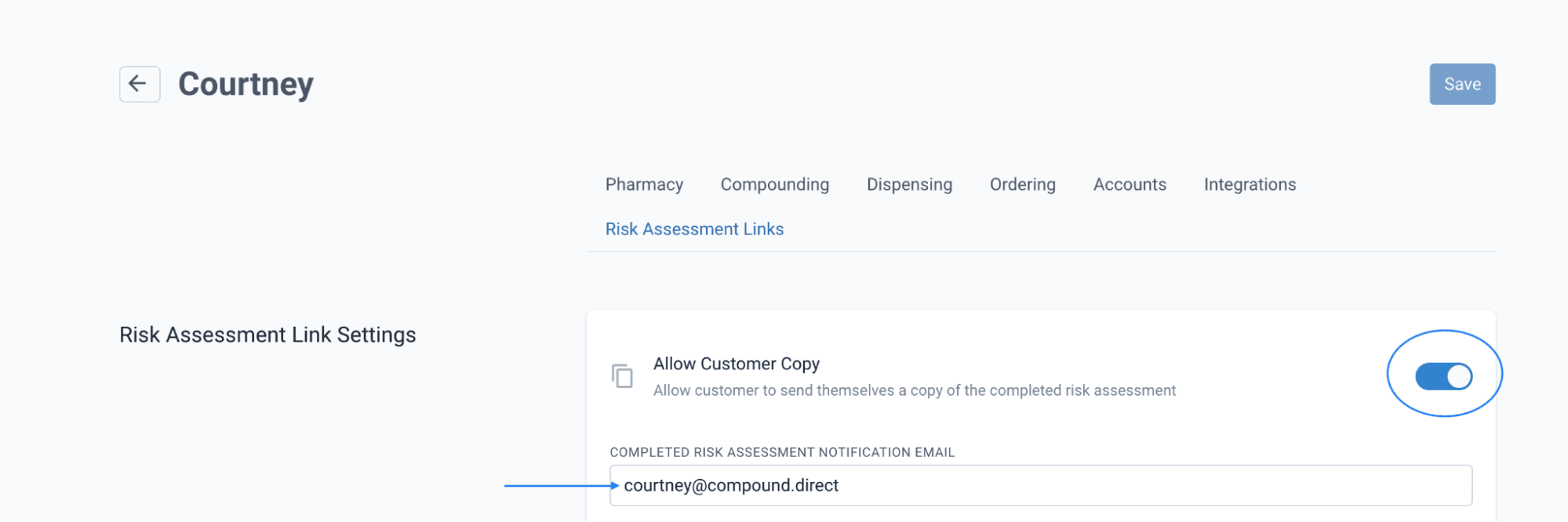
From your workspace page
Part 2: Sending patient risk assessment
Risk assessments can be sent from multiple places within the software, this tutorial will focus on sending them from the Customer Profile and the Draft page.
Option 1: Send from customer profile
On the Customer Profile select Send within the risk assessment section.
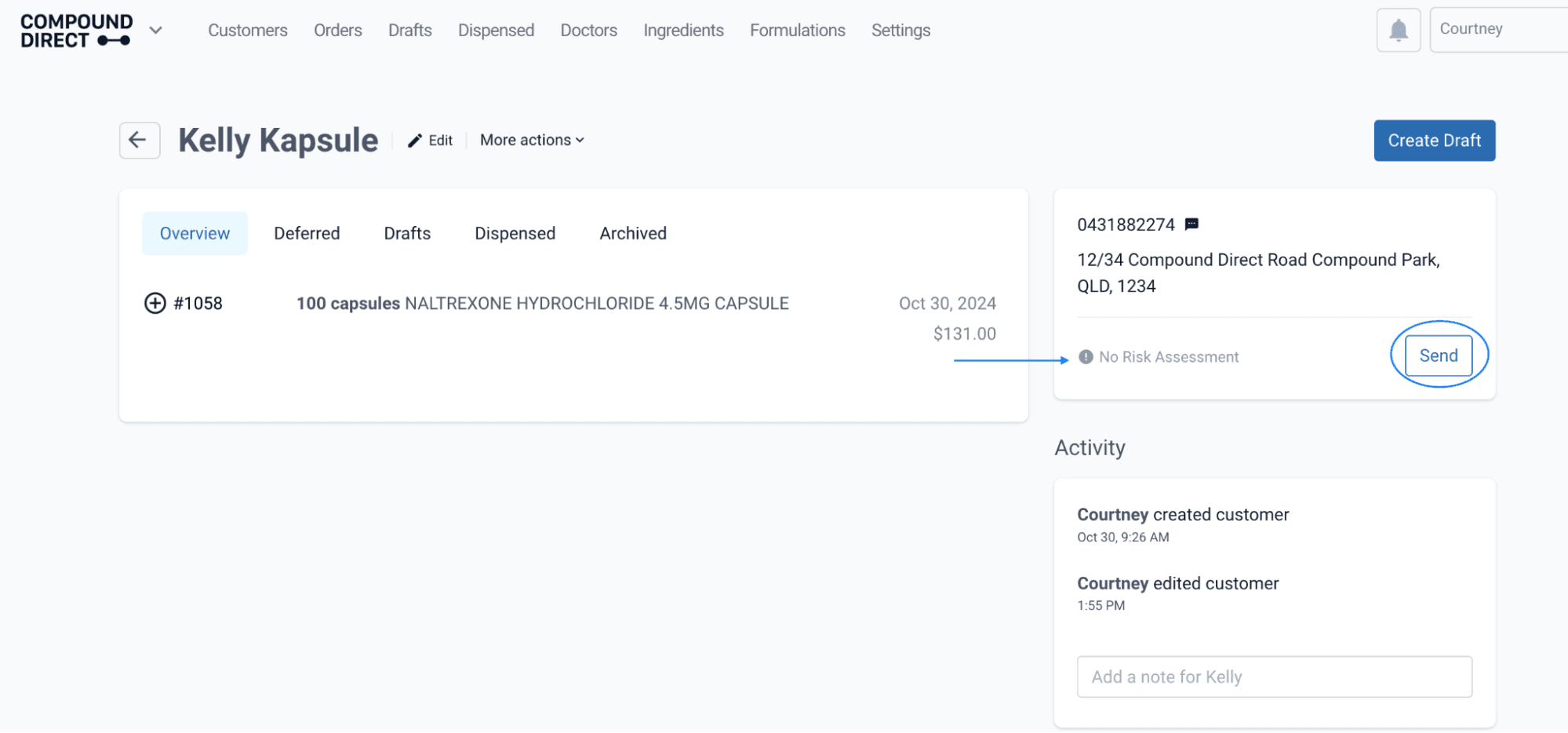
From the customers page
This will open a prompt box, check the particulars in each section are correct and then click Send.
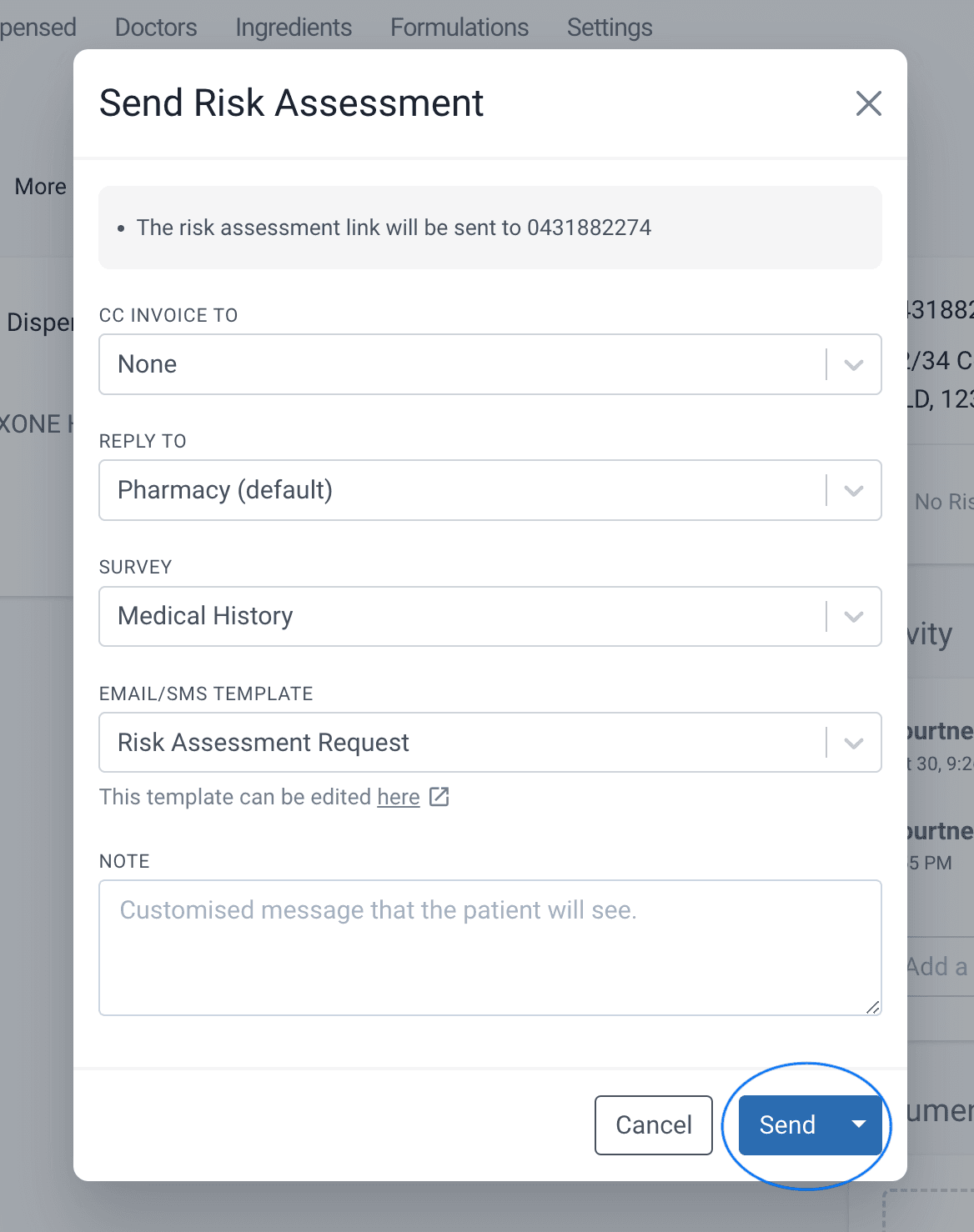
From the customers page
Option 2: Send from a draft
While creating a draft you can send the risk assessment directly to the selected customer. Select the customer in the draft, scroll to the bottom of the and select Send Survey
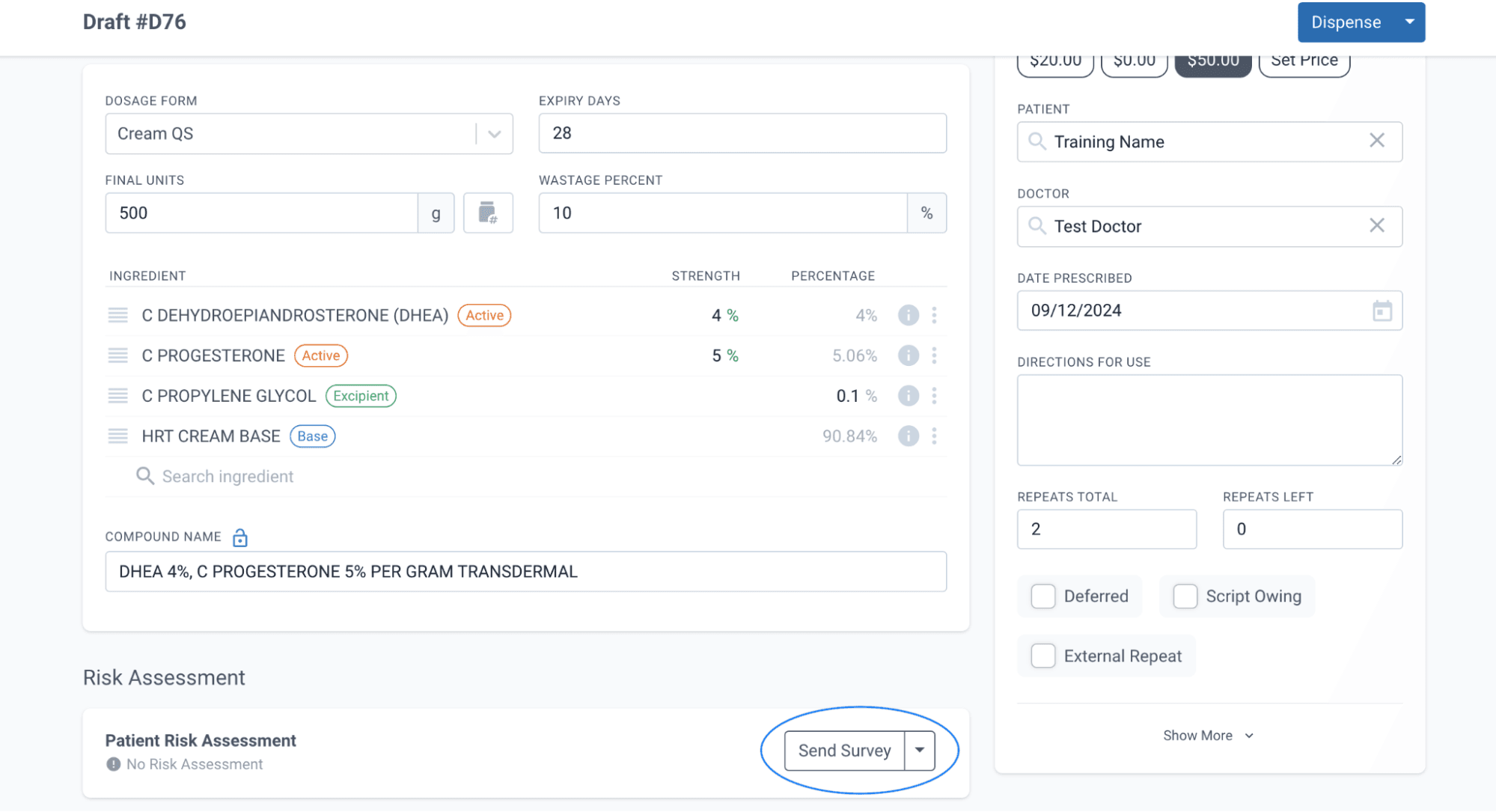
From the drafts page
The prompt box (as shown above) will then pop up, check the particulars in each section are correct and then click Send.
This Medical History survey will then be received by the customer via SMS and Email. The Medical History on the customer profile will now be marked as Sent.
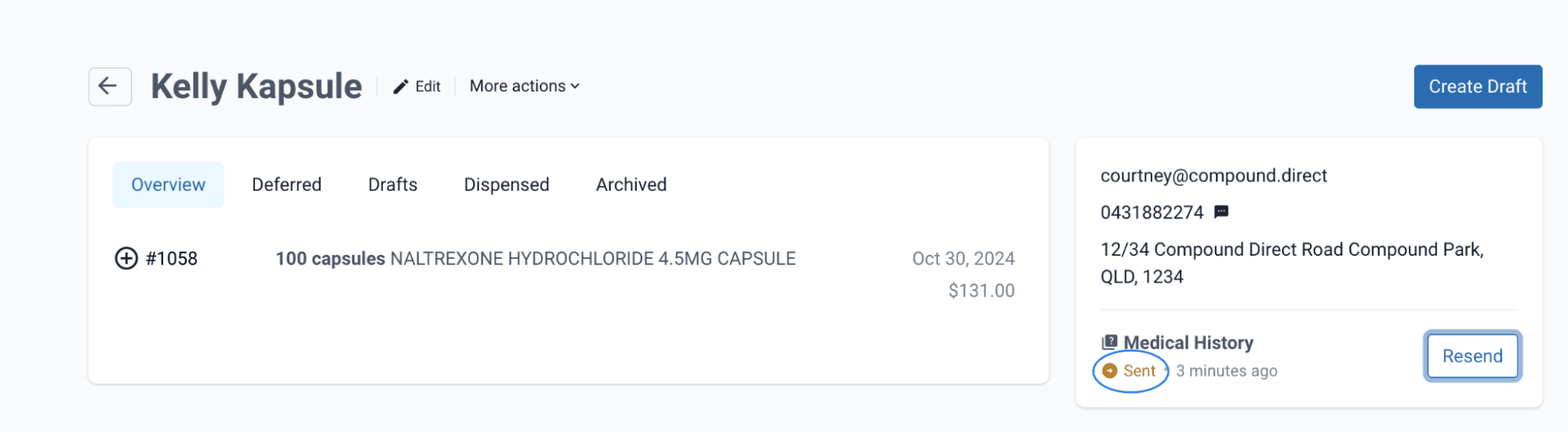
From the customers page
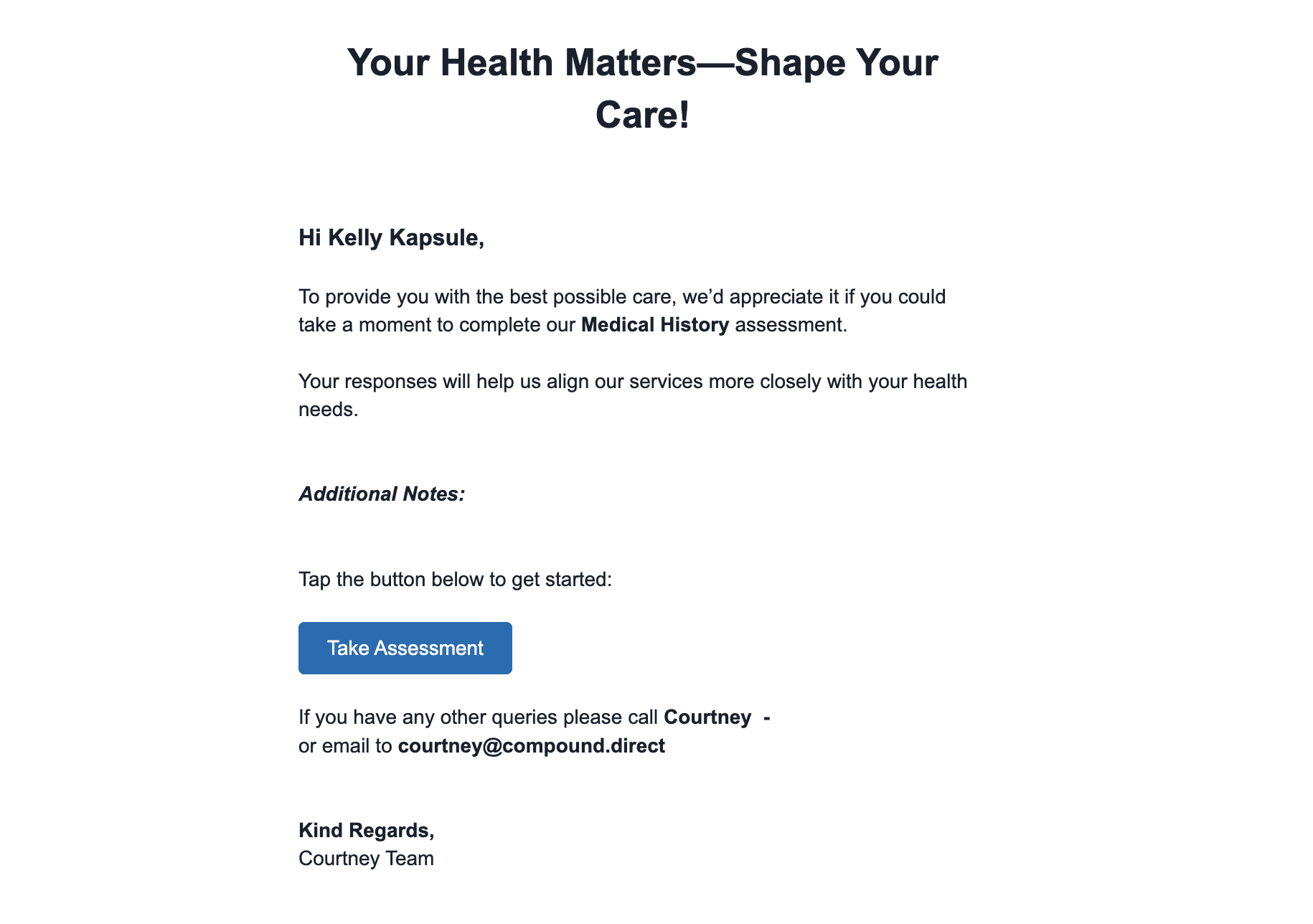
The customer email and SMS will be displayed as follows:
Customer Email:
Customer SMS:
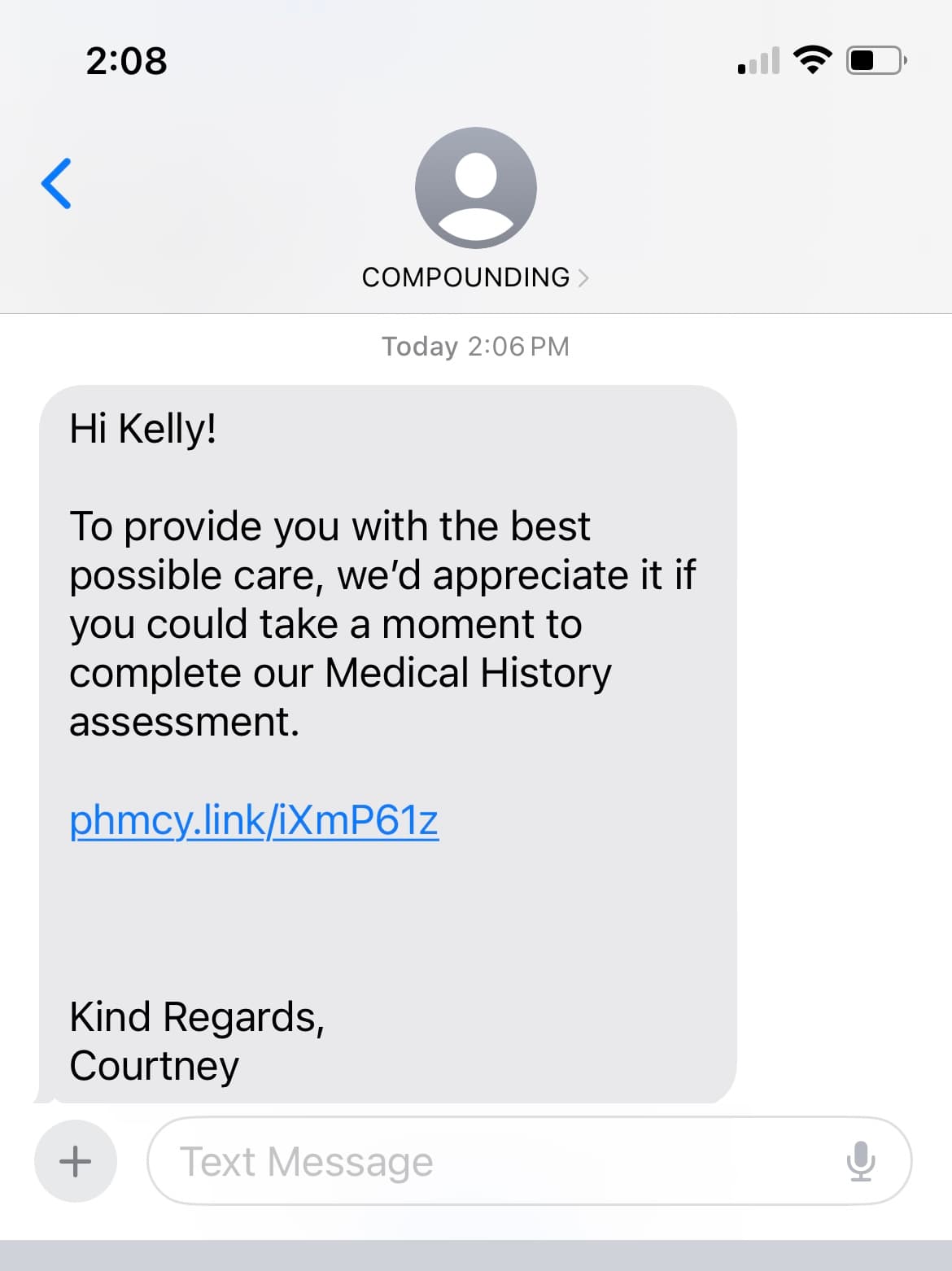
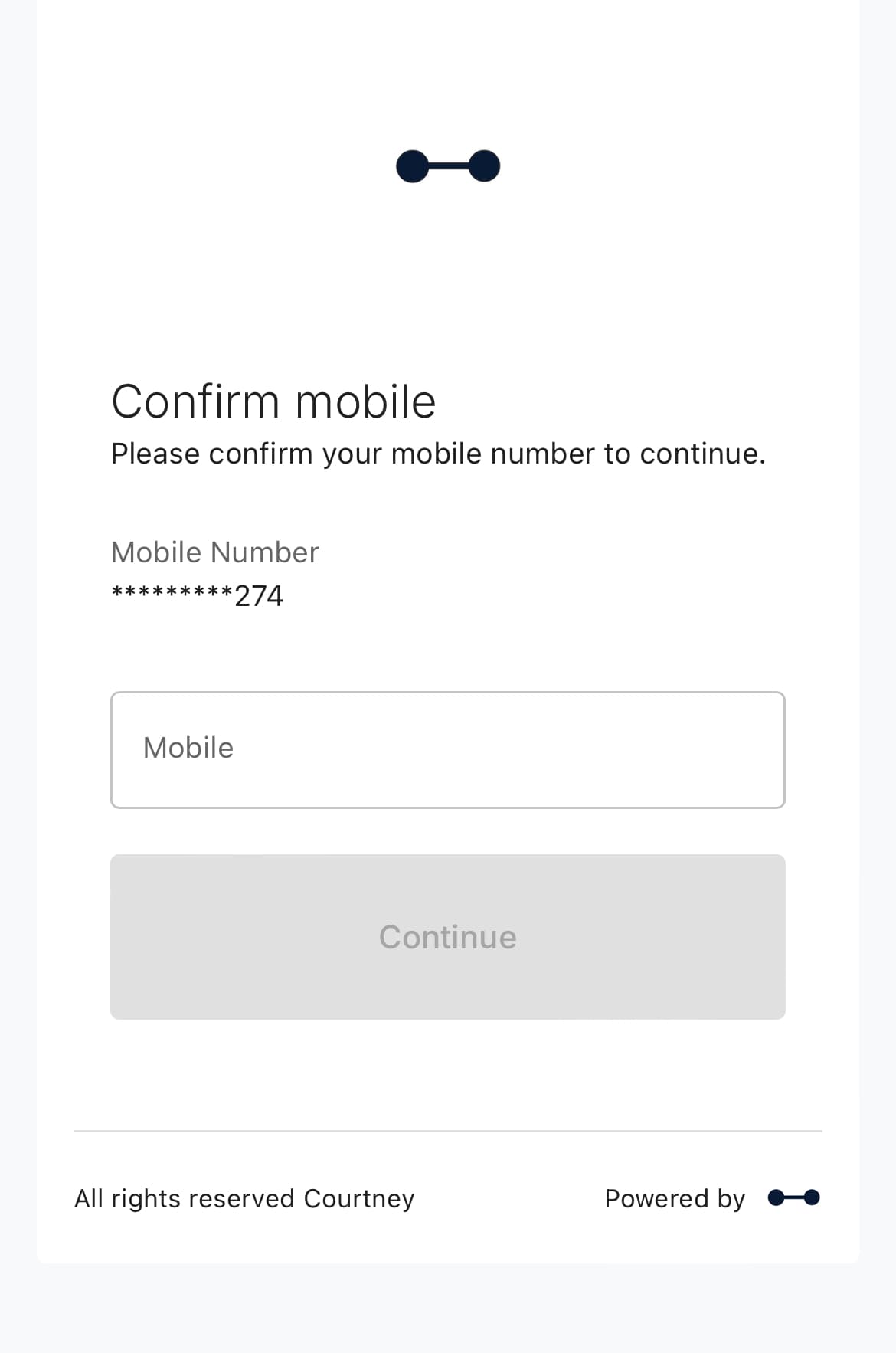
The customer can then click on the link in the email or the SMS to complete the survey. A security check will pop up asking the customer to confirm their mobile phone number If the customer elects to complete the survey via the SMS link.
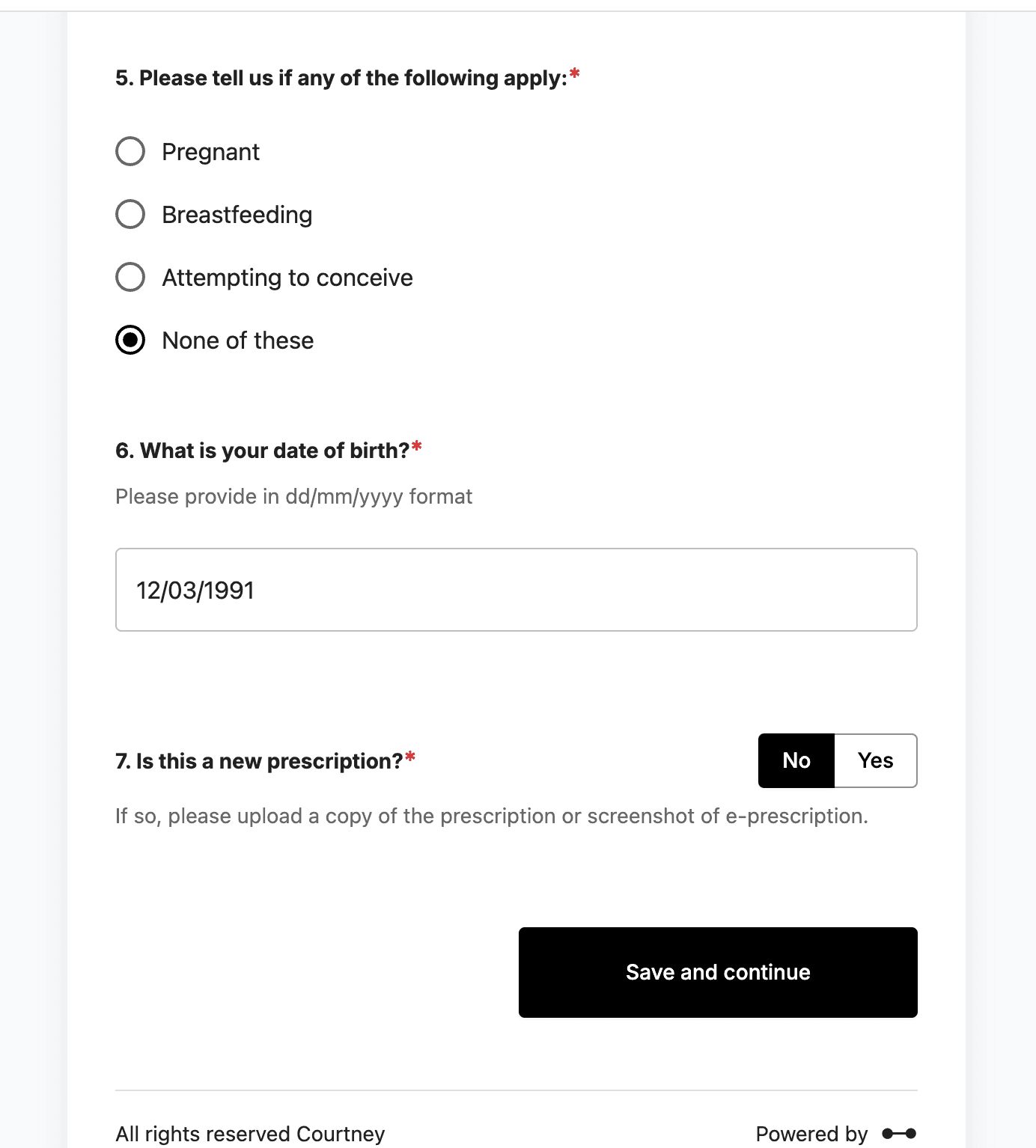
The customer will select Save and Continue after answering the survey questions.
Depending on Your Workspace settings the customer may then be asked if they would like a copy of their survey responses.
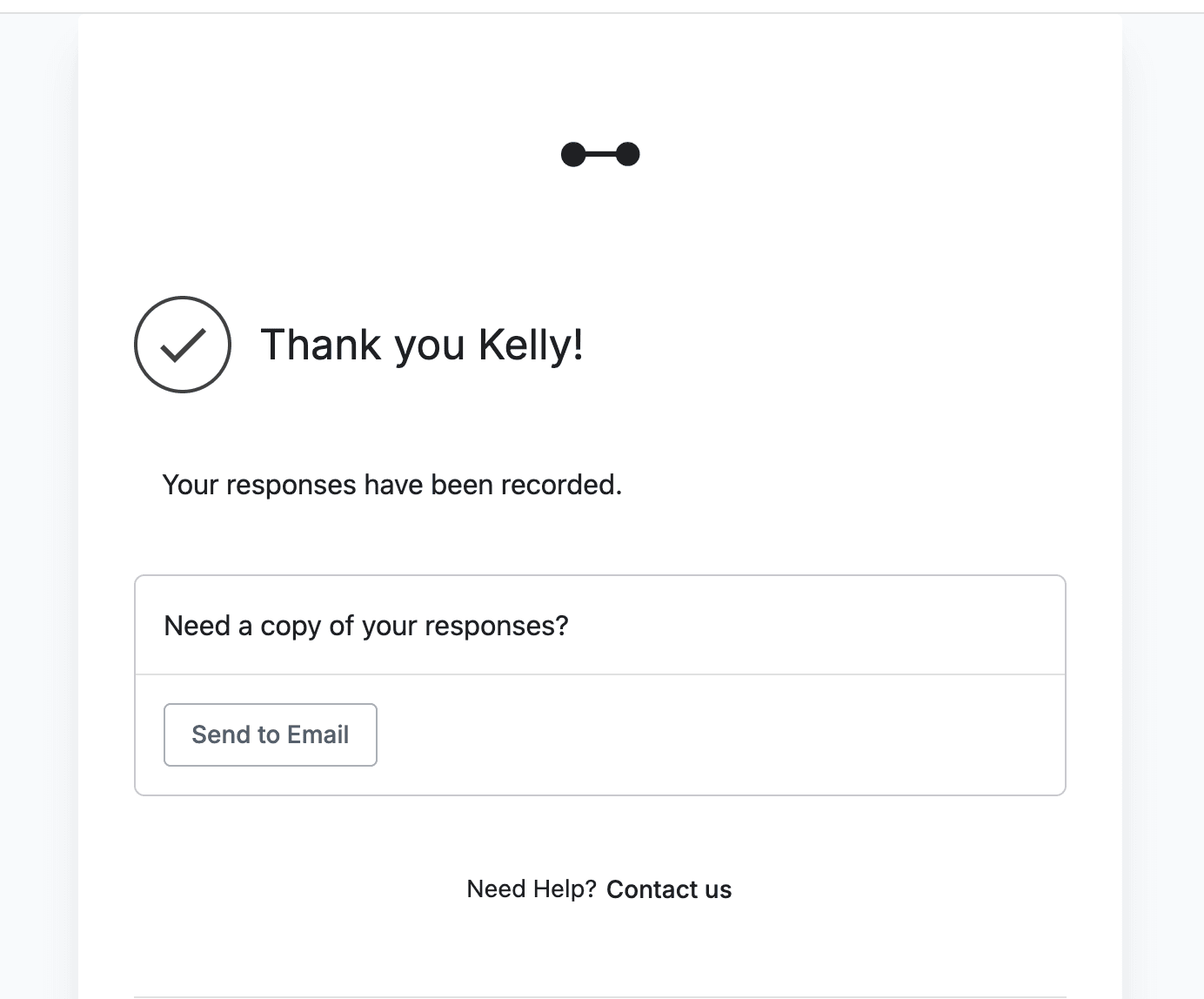
Part 3: Receiving patient risk assessments
The pharmacy will receive an email to notify them once the customer has completed the risk assessment.
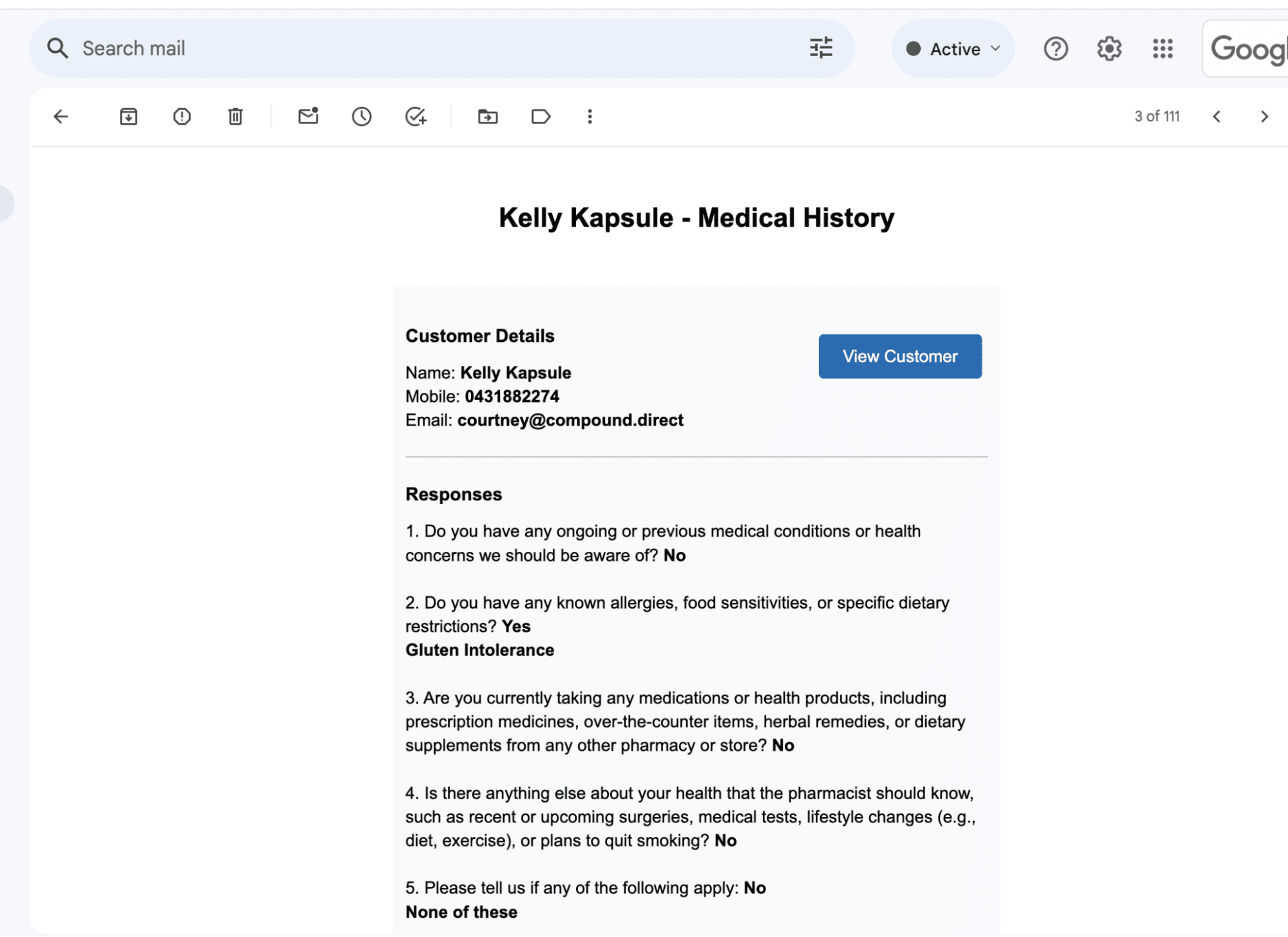
The medical history also feeds directly into the software and will be marked as Completed in the software. To view the completed survey, click on Medical History.
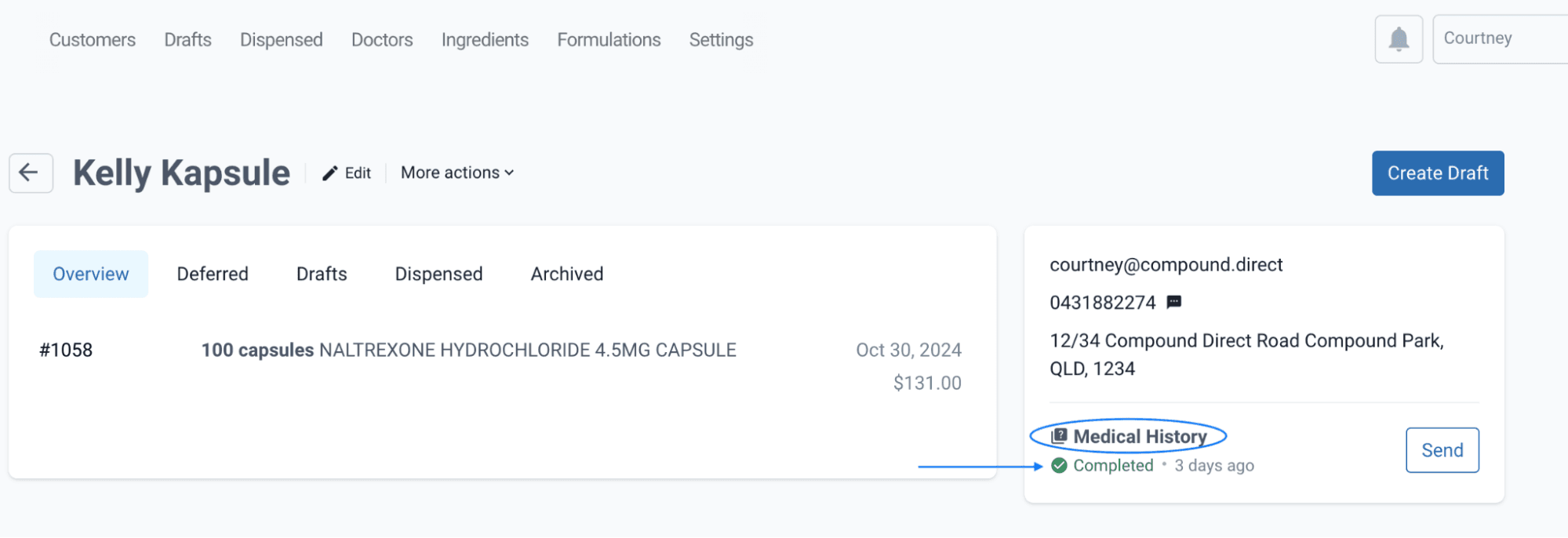
From the customers page
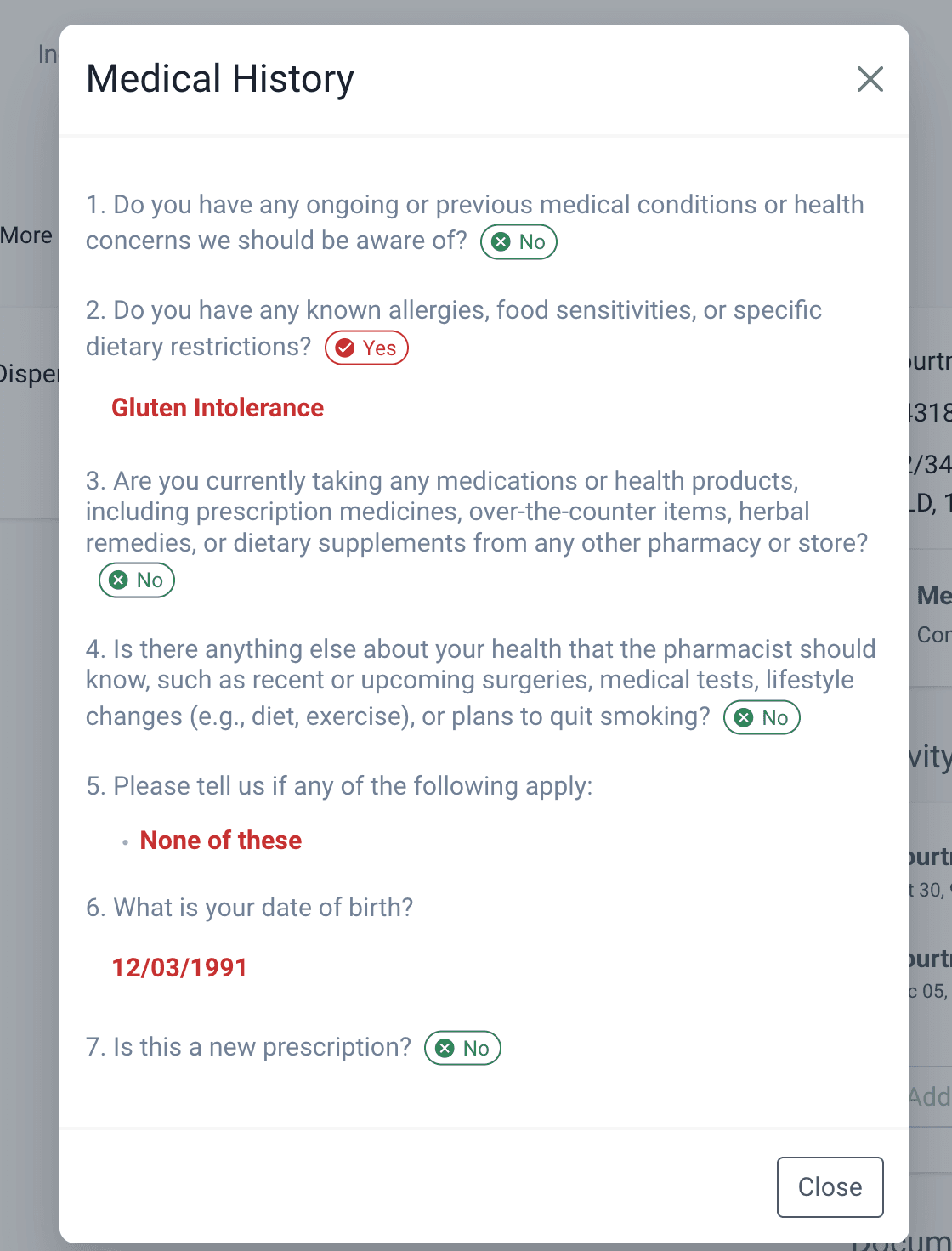
From the customers page
The patient risk assessment will also be shown on the drafting and dispensing pages when the patient is selected. This allows the patient's medical history to be referenced through key compounding stages.
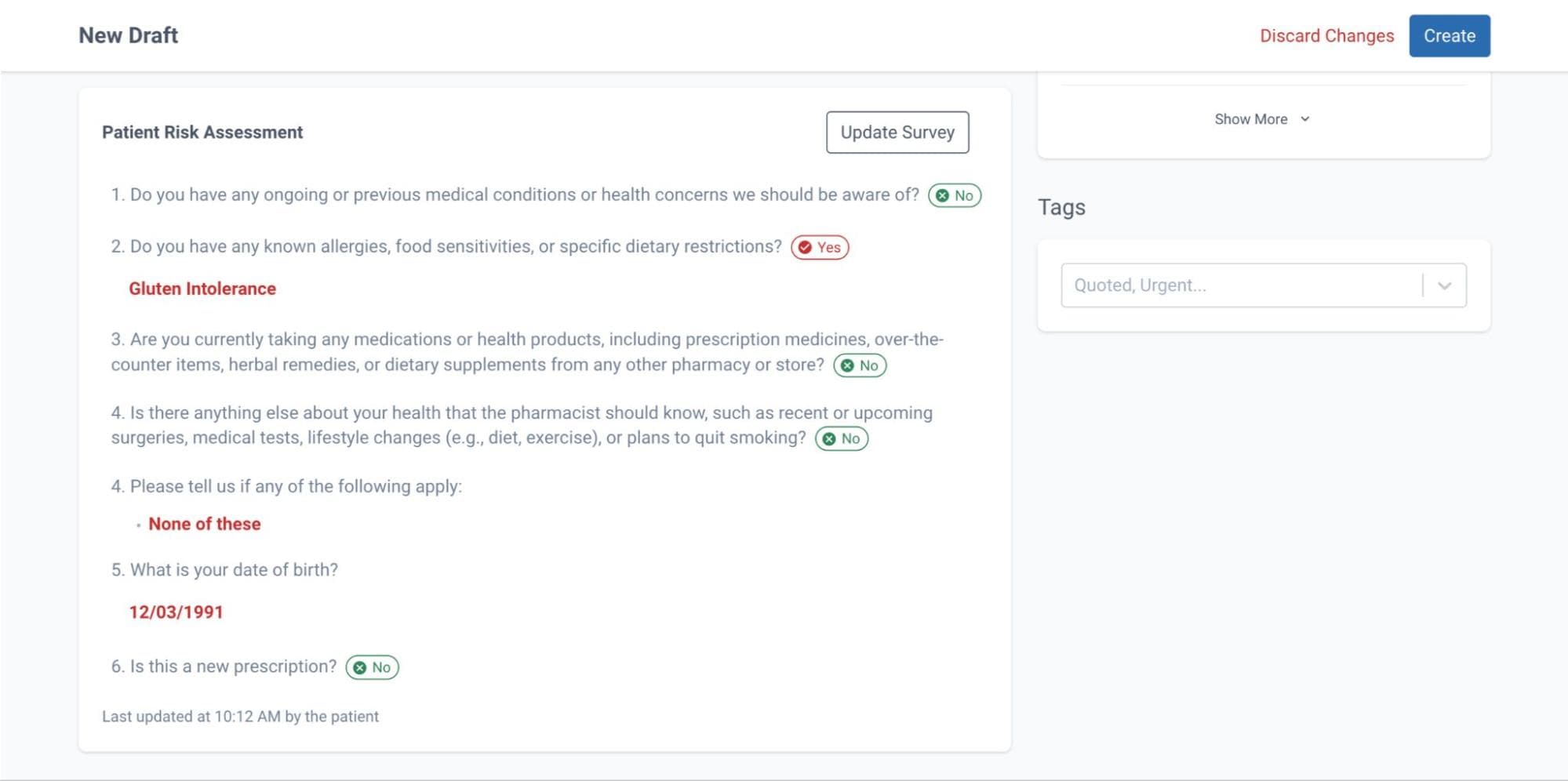
From the drafts page
Summary
Risk assessments are critical in compounding pharmacies to ensure the safe and effective formulation of personalized medications. By gathering detailed medical history, pharmacists can identify potential drug interactions, allergies, and contraindications, ensuring that each medication is tailored to the patient's unique needs. Traditional paper-based assessments, however, pose challenges for both efficient data collection and future reference.
Compound Direct software offers a significant improvement by allowing risk assessments to be sent electronically to patients via SMS or email. The completed surveys are then directly integrated into the patient's profile within the software, eliminating the need for paper forms and streamlining the entire process. This feature benefits compounding pharmacies, by enhancing efficiency, reducing errors, and improving patient safety.
Key Benefits of Electronic Risk Assessments through Compound Direct:
- Efficiency & Accuracy: Electronic delivery and integration of risk assessments save time and minimise human error by automatically updating patient profiles.
- Convenience for Patients: Customers can complete surveys at their convenience via SMS or email, with easy access to the form on their devices.
- Streamlined Workflow: Completed assessments are instantly available in the software, allowing compounding staff to access medical histories throughout the compounding process.
- Customization: Pharmacies can tailor the risk assessment questions to meet their specific needs and include personalized branding in communication.
- Improved Communication: Notifications are sent when a patient completes a risk assessment, ensuring pharmacists can promptly review the data.
In conclusion, using Compound Direct for sending and managing risk assessments ensures greater efficiency, better patient safety, and more accessible medical histories, all while streamlining the compounding workflow.
All names and medical data shown in software screenshots are fictional and for demonstration purposes only. These figures represent fictional persons; any resemblance to real individuals is purely coincidental. Use of existing fictional names is for illustrative purposes and does not imply affiliation or endorsement.