
Getting started with E-prescriptions in Compound Direct

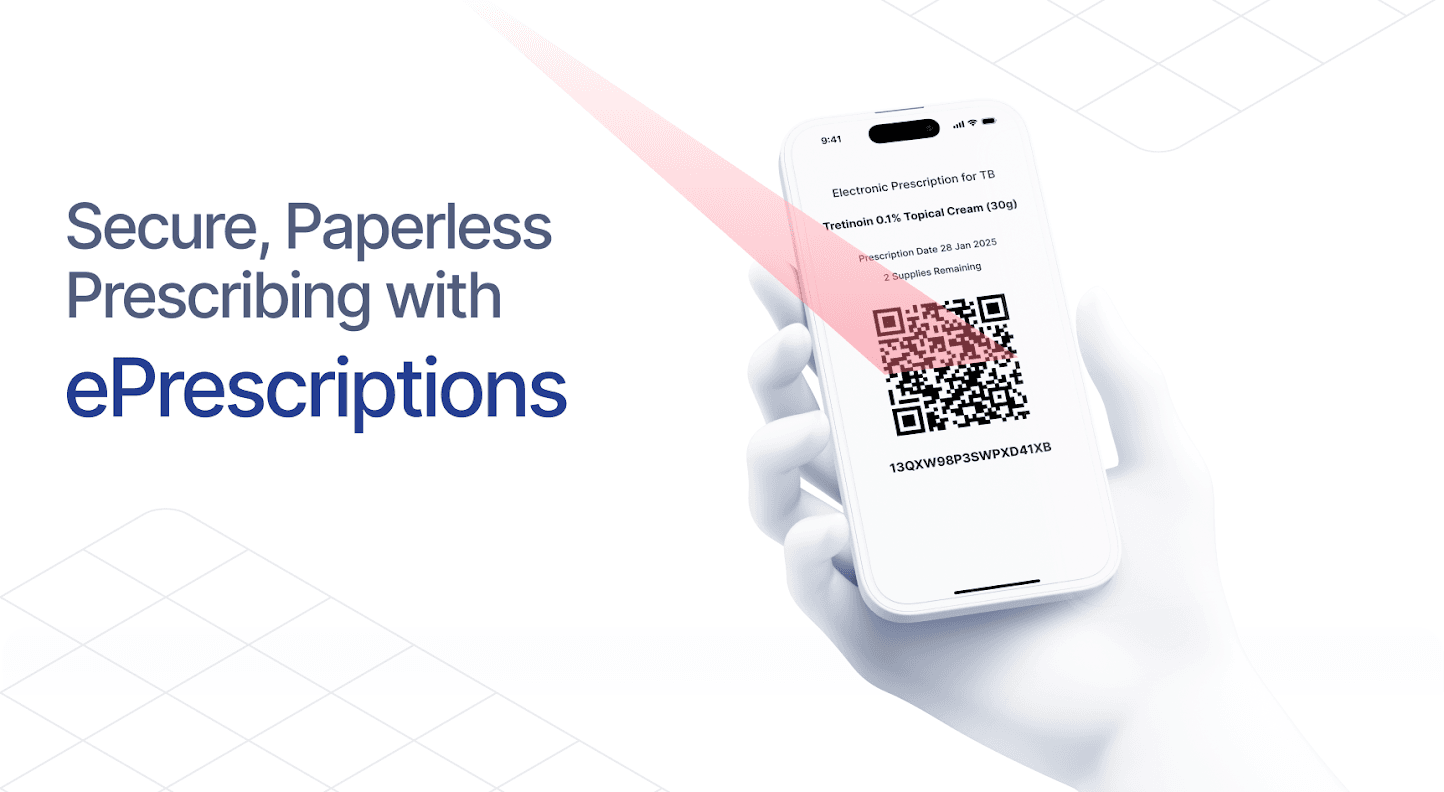
E-Prescriptions in Compound Direct allow pharmacies to process electronic prescriptions, including prescriptions received as eRx tokens and paper prescriptions with attached eRx barcodes. As e-prescription functionality covers several areas of the platform, the documentation has been divided into separate guides.
This blog will help you:
- Configure the integrations required to process electronic prescriptions in Compound Direct.
- Import, review, dispense and manage eRx prescriptions and repeat tokens.
- Understand common workflows and troubleshooting steps for electronic prescribing.
Before processing electronic prescriptions, your workspace must be configured with the required Healthcare Identifiers and user credentials. The following section outlines the setup requirements and how to enable e-prescription functionality in Compound Direct.
Additional e-prescription resources can be found in the E-Prescriptions user guide.
Setting up the integration
Compound Direct supports both QR codes and barcodes for electronic and paper prescriptions with a printed eRx QR code. When processing an electronic prescription, the platform can securely store and automatically send repeat tokens to patients using their preferred contact method. Paper prescriptions with an eRx barcode are treated like a standard paper prescription.
To enable e-prescription functionality, your workspace must be connected to Healthcare Identifiers (HI) and registered with the eRx Script Exchange.
These integrations can be configured by navigating to Settings → Your Workspace → Integrations.
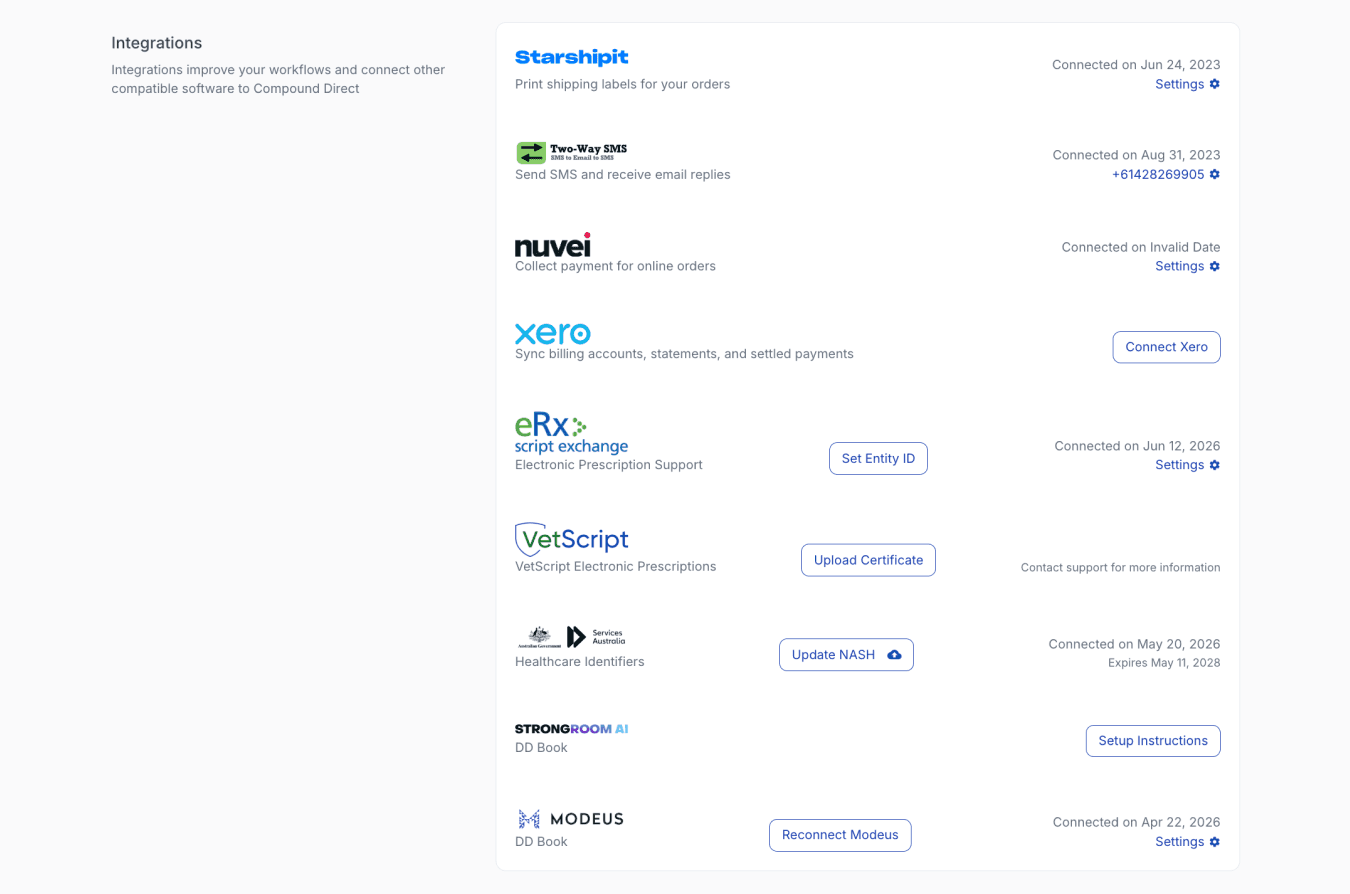
From your workspace page
Once both services are connected you should ensure each pharmacist has their full name, AHPRA registration number, and HPI-I entered and correctly linked within Compound Direct.
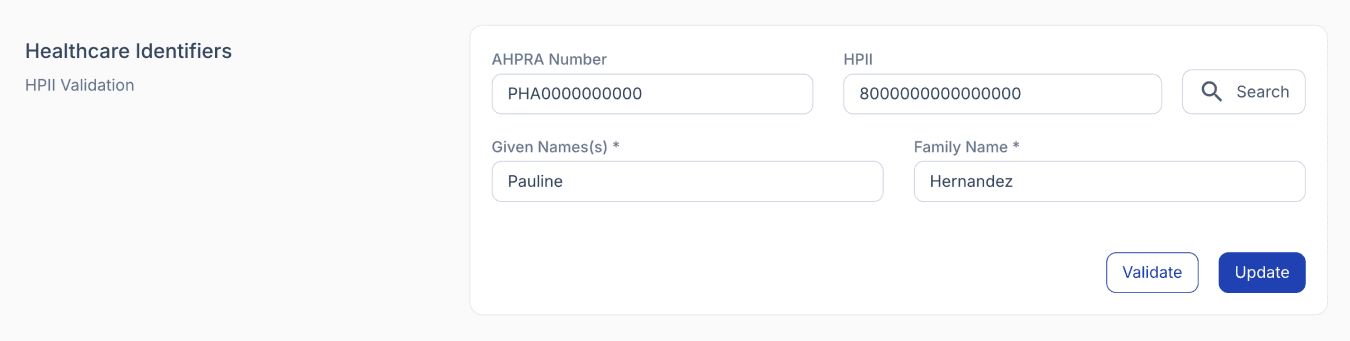
From the users page
E-Prescription Hotkeys
For quicker navigation of the E-Prescriptions page, you may use the following keyboard hotkeys:
To open the Import E-Prescriptions page, use:
/ + E
On the E-Prescription modals:
Ctrl + S or Cmd + S: Save changes, including annotations, enabling or disabling settings, contact details, and preferences.
Importing e-prescriptions
To import an electronic prescription, navigate to the Drafts page and click on the ‘eRx’ button.
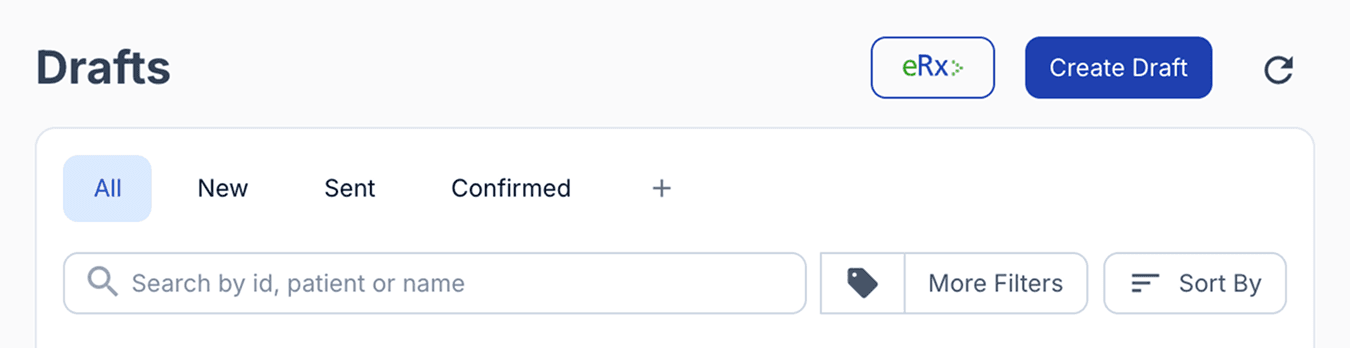
From the drafts page
Once selected, you can import a token by entering it manually, scanning a barcode, uploading a PDF or image file, or using a mobile phone or tablet camera. Depending on your email client, you may also be able to drag and drop an attachment directly into the upload section without downloading it first.
You can scan multiple tokens before continuing to the next step.
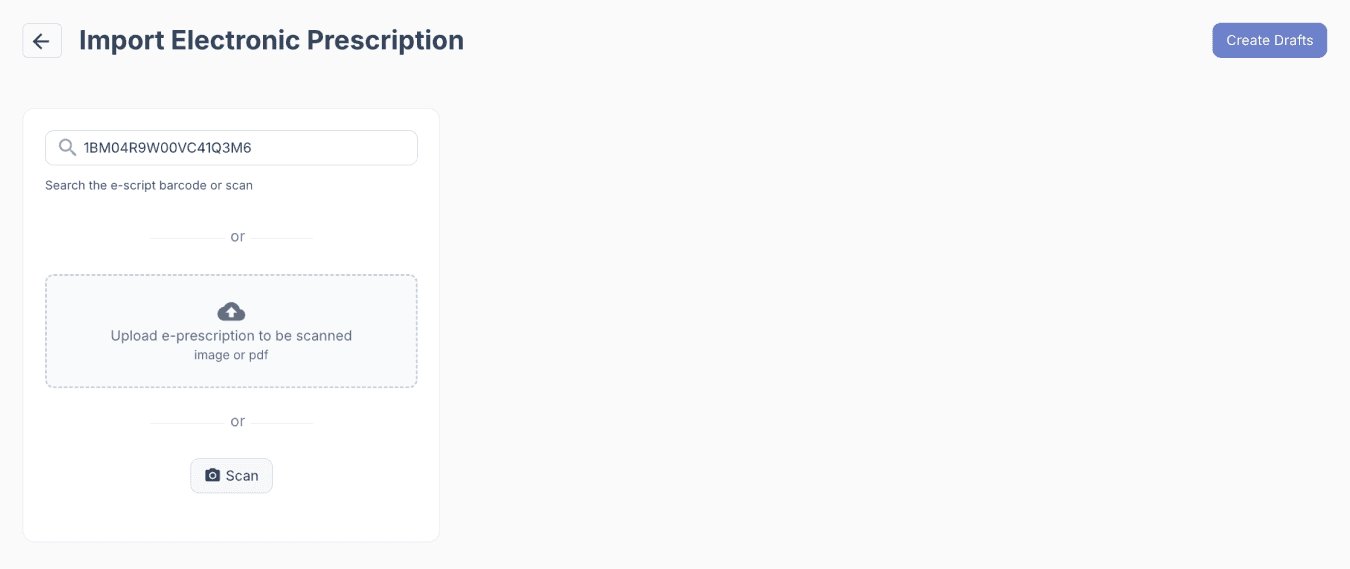
From the import e-prescriptions page
A major advantage of this workflow is that it can reduce the time spent on manual entry by allowing you to:
- Add new patients to the system or update existing patient details
- Add or update prescriber details in your system
- Save a copy of the script against the draft and dispense record
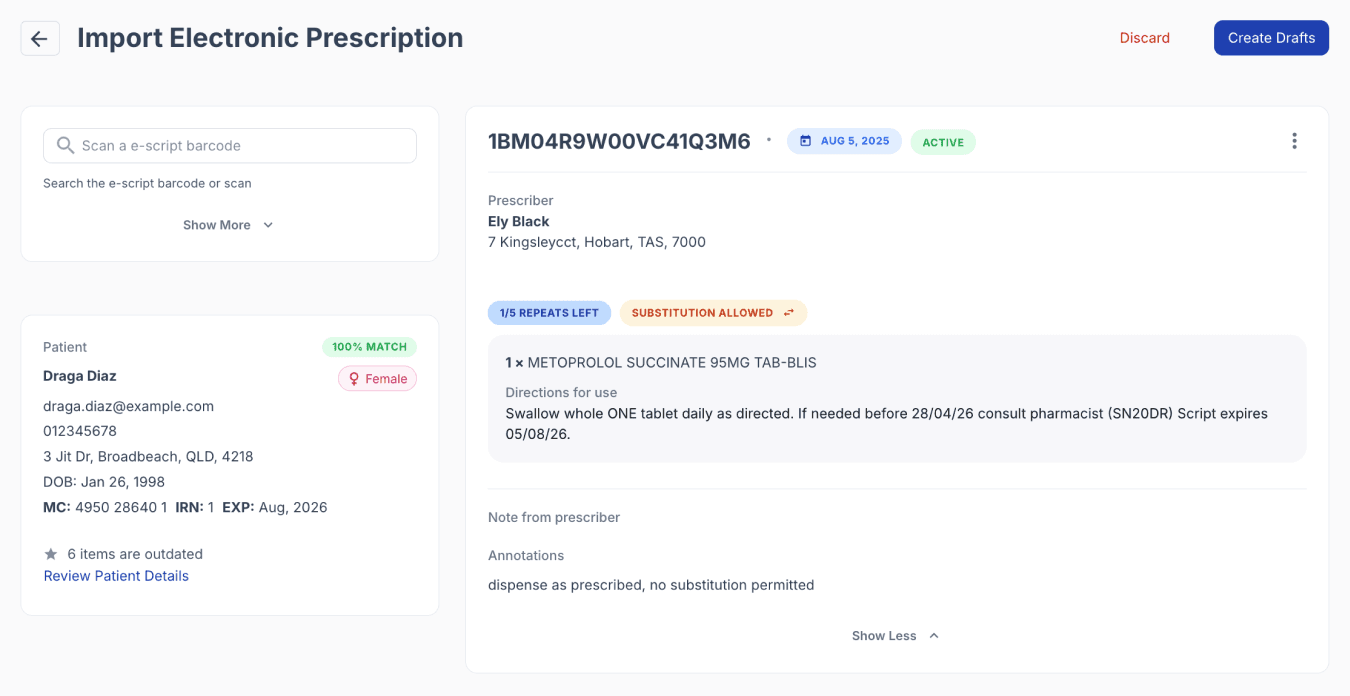
From the import e-prescriptions page
Patient selection
Once the tokens have been added, you can either create a new patient record or select an existing patient from your database.
Compound Direct will suggest possible patient matches based on the scanned patient details. Review the suggested match carefully to confirm whether it is the correct patient.
If the suggested patient is correct, enable the toggle and select ‘Next’. If the suggested patient is not correct, select the record that is ‘NEW’, then select ‘Next’.
The match percentage shows how many patient fields match exactly compared with fields that may need to be reviewed or updated.
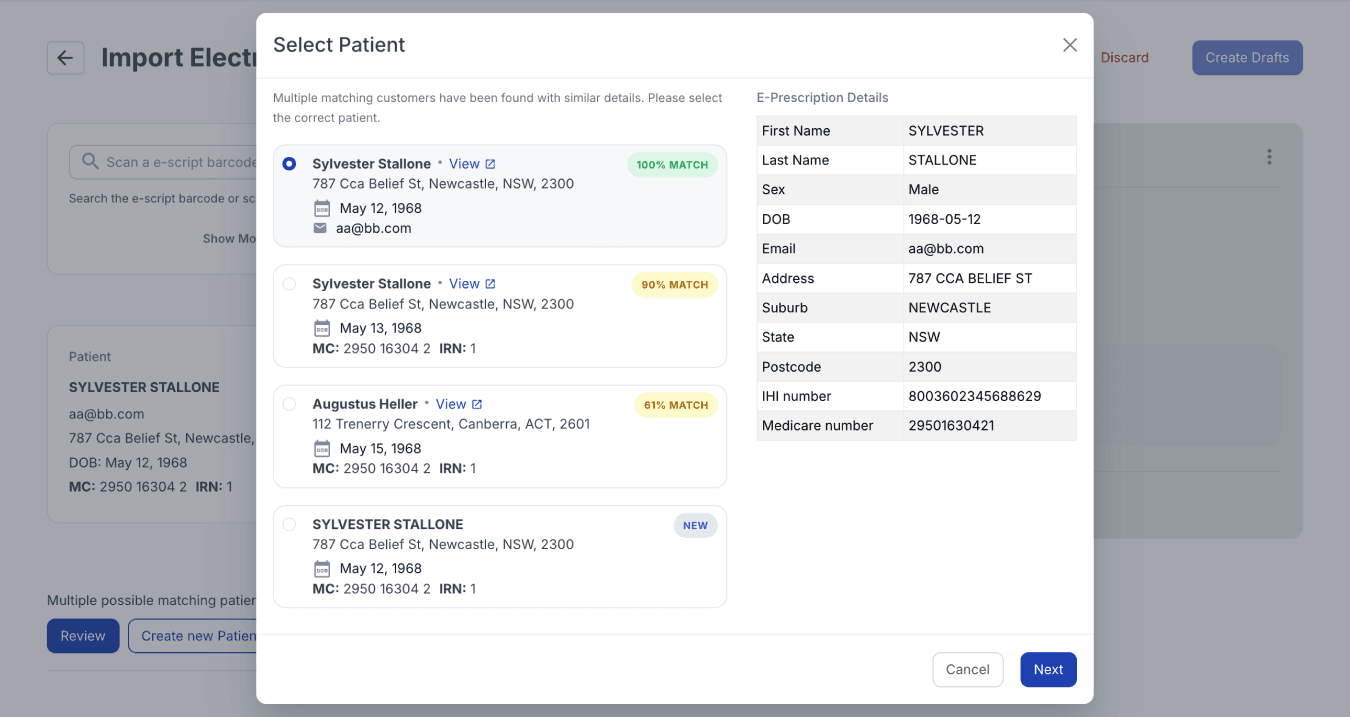
From the import e-prescription page
If you select an existing patient, you can reconcile any differences between the scanned eRx details and the existing patient record.
For each field, select which record contains the correct information, then select ‘Confirm & Save’.
You can also select ‘Show More’ to view the full patient record. Any fields that can be updated from the eRx, but did not previously have information saved in Compound Direct, will be flagged as ‘NEW’.
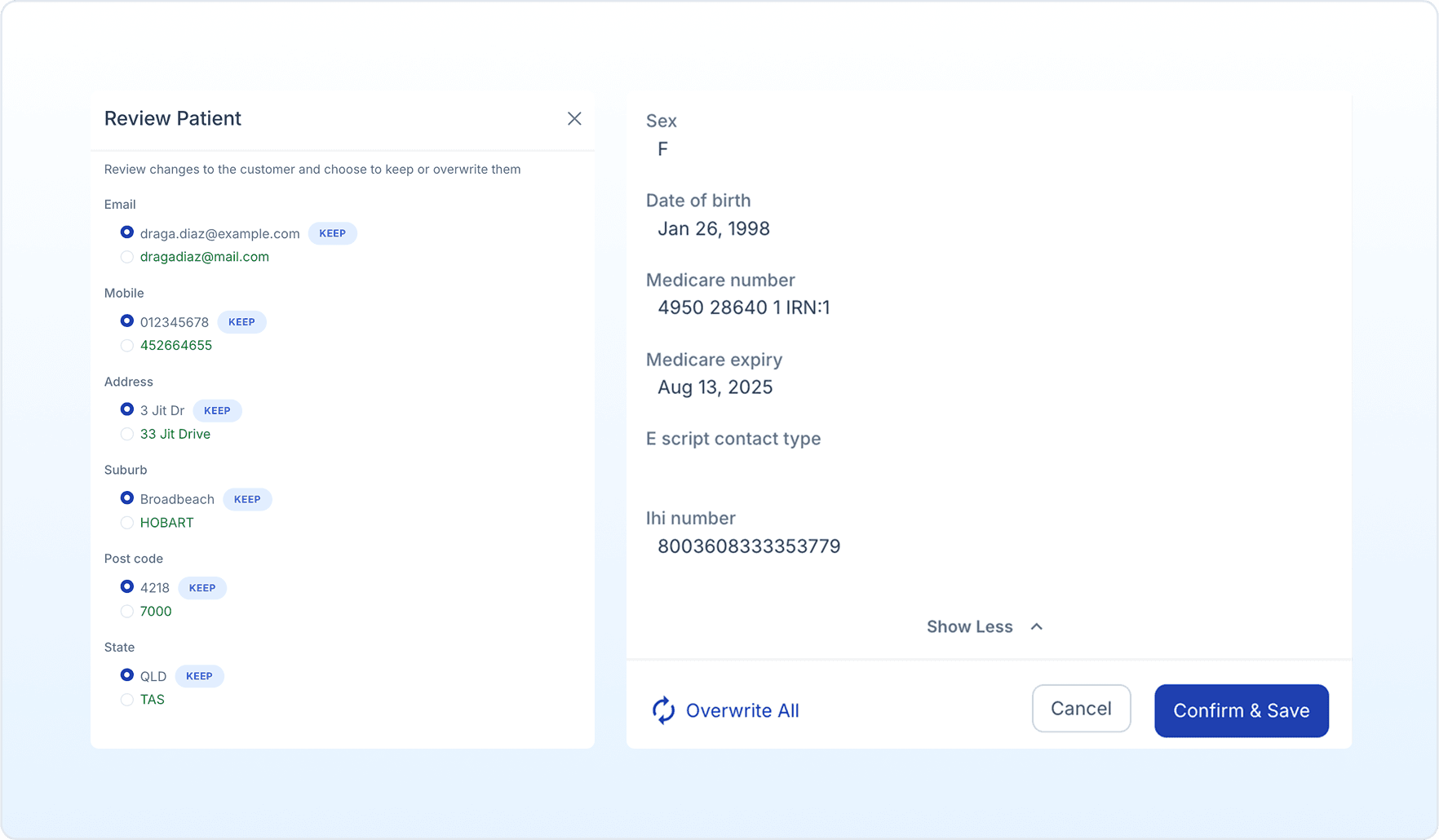
From the import e-prescriptions page
Reviewing the prescription
Once the patient has been confirmed, you can continue drafting the prescription as usual. The patient, prescriber, date, instructions, and repeats should be prefilled in the right-hand pane.
The compound name will initially display the name provided on the imported prescription. This will update once the correct formulation has been drafted or selected. An image of the prescription will be displayed below the drafting window.
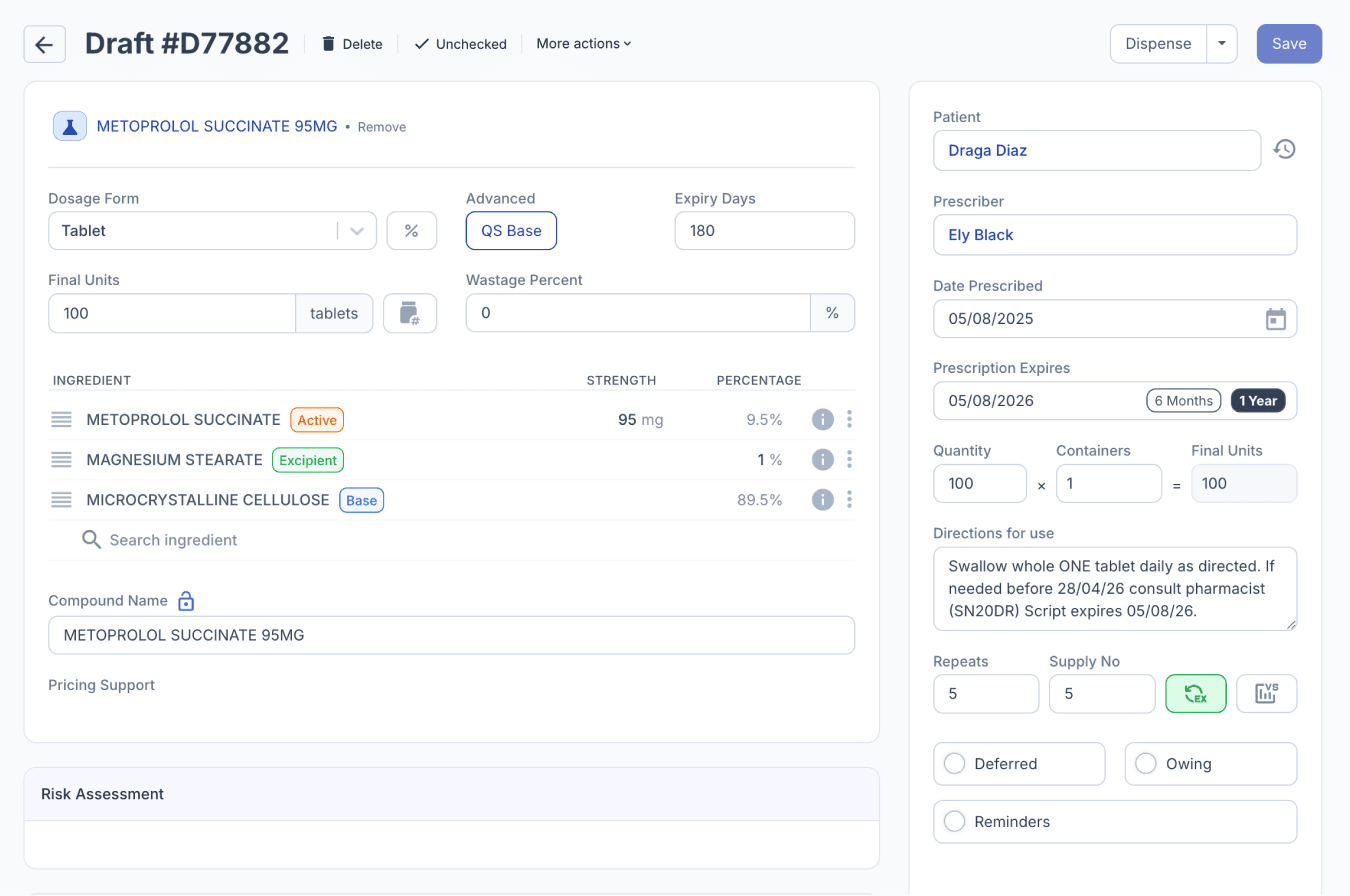
From the drafts page
Previous repeats
If the prescription has been filled elsewhere, the details of the previous repeats will be displayed in two places.
Repeat history
Repeats that have been filled at a different pharmacy will appear slightly differently in the Repeat History panel.
You can hover over the dispensing record to view the previously submitted details.
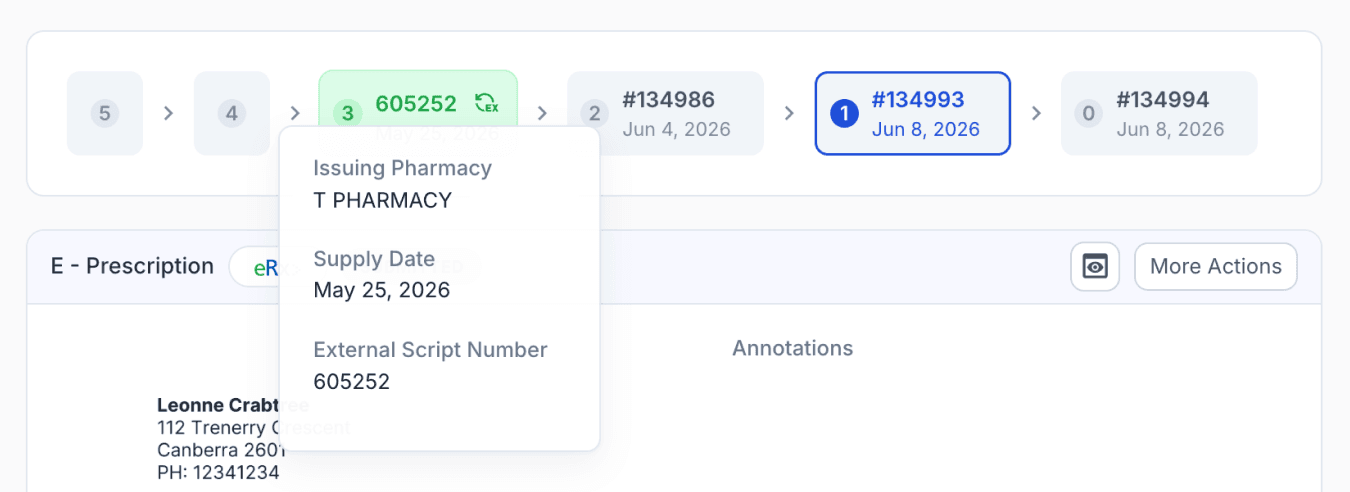
From the dispensed record
Prescription image
For all repeats, the last dispensed item will be displayed next to the image of the original prescription, including prescriptions previously filled at your pharmacy.
Prescription overlay mode
Prescription Overlay Mode has been added to make it easier to compare draft records, dispensed records, or uploaded documents against the original prescription while completing script and dispensing workflows.
The overlay now supports improved priority handling, can be opened without first displaying the image, includes helpful hotkey hints, and remains active as you move between pages.
To enable Overlay Mode, press O on your keyboard. For drafts with uploaded prescriptions, an ‘Overlay Mode’ button will appear in the prescription section.
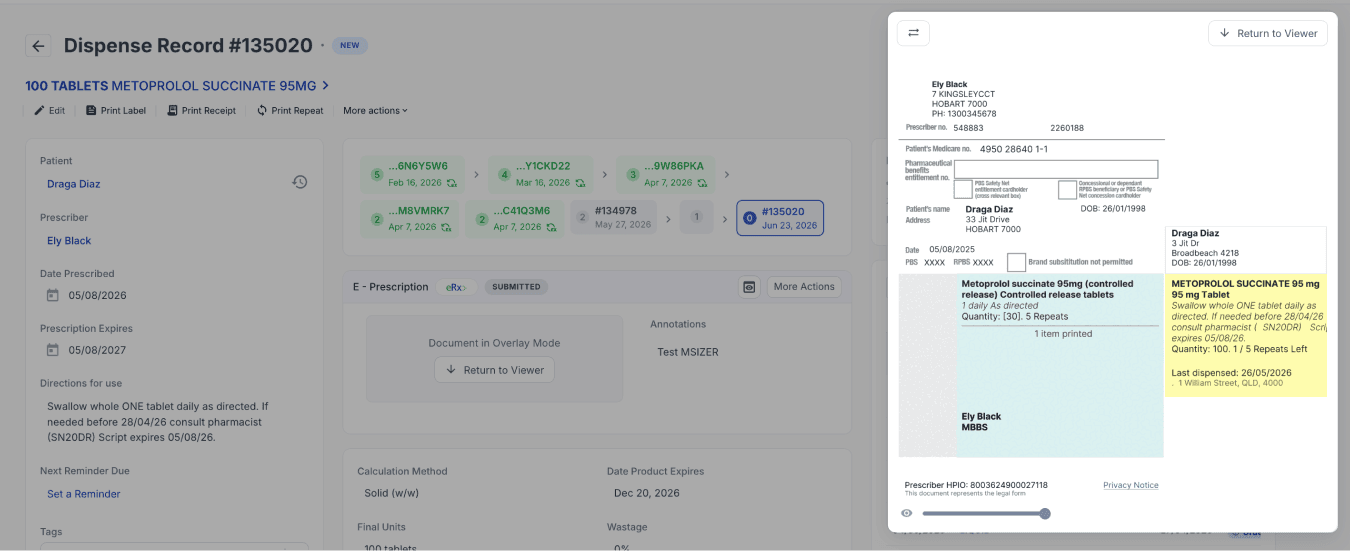
From the dispensed page
Checking the submission
After the prescription has been dispensed, the token will be submitted to eRx. This prevents the same token from being used again. You can check the submission status from the prescription screen.
Select ‘More Actions’ to access additional prescription tools and functions. You can also select the preview icon to show or hide the e-prescription details.
Learn more about e-prescription functionality in our related blog: E-Prescription Tools: Conformance features in Compound Direct
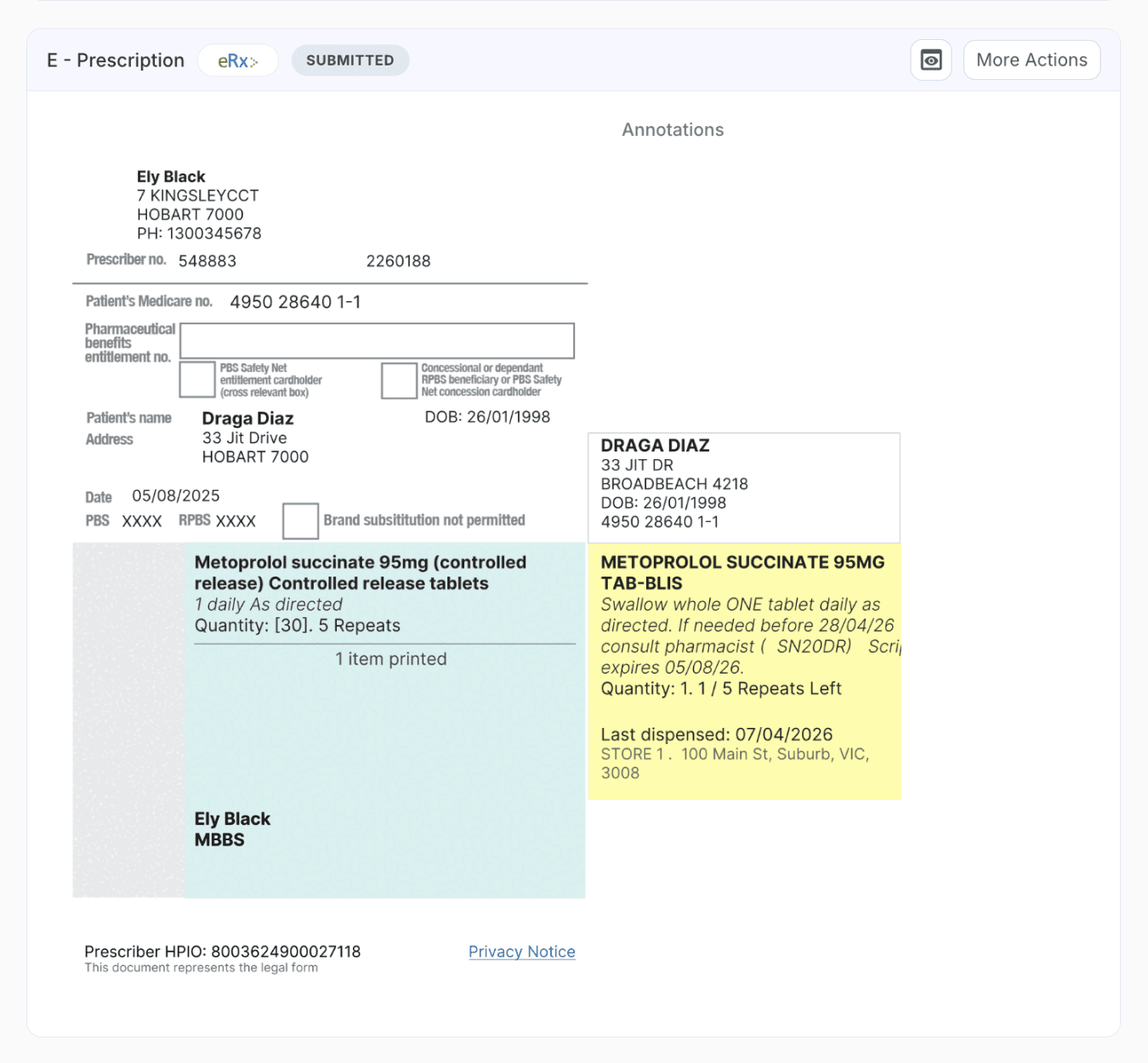
From the dispensed record
Sending repeats
If the prescription has repeats, the repeat token will be sent to the patient’s preferred contact method. This can be checked in the customer record under the Healthcare Identifiers section.
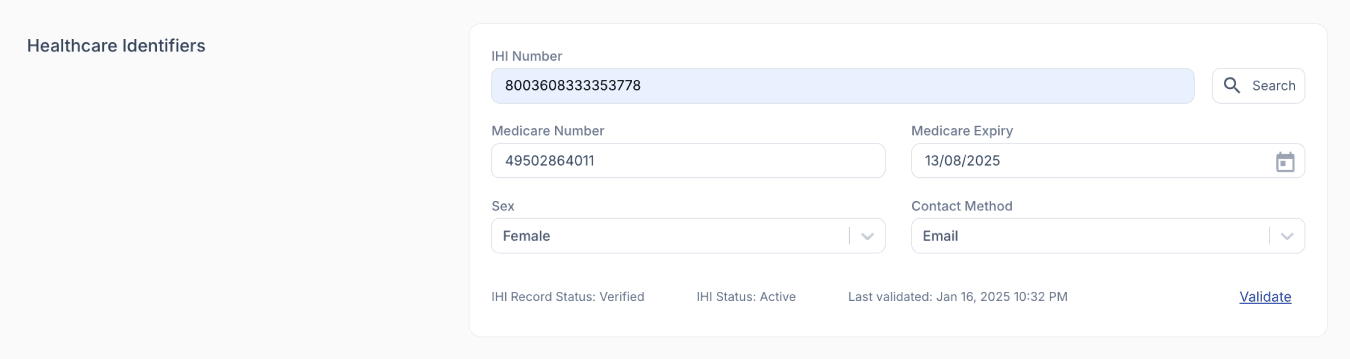
From the edit customer page
If the patient requires the repeat token to be resent, or sent to a different phone number or email address, select the three-dot menu shown above and choose Resend Token.
Select the appropriate contact method, then enter any updated details before resending.
Once the repeat token has already been sent to the patient, you will not be able to update the preferred communication method for that instance.
If you do not want repeats to be sent automatically, this can be adjusted in Your Workspace settings under the eRx integration.
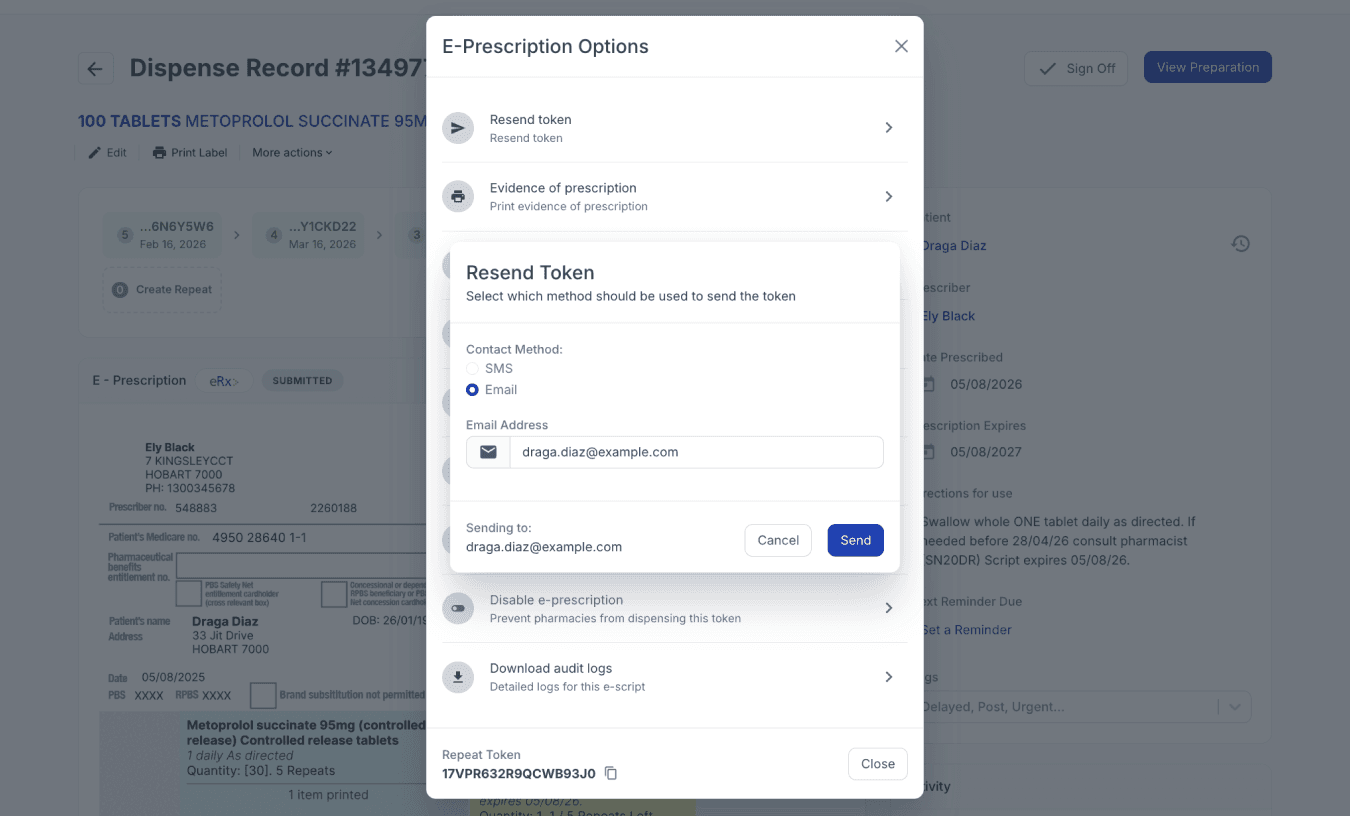
From the dispensed record
Troubleshooting
Unable to retrieve token details
If token details cannot be retrieved, check the following:
- Confirm the token is the most up-to-date version.
- If the token has been dispensed at another pharmacy, or processed through another software program, you may need to obtain the most recent token.
- If the token was processed in another software program, it may need to be deleted from that program before it can be re-dispensed in Compound Direct. Allow up to 15 minutes after deletion for the token to be released.
- Ensure your eHealth credentials are current and up to date.
- Ensure your eRx registration is current.
- Ensure your NASH certificate has been uploaded and is current.
Summary
Compound Direct’s E-Prescription workflow allows pharmacies to import and process eRx tokens or paper prescriptions with eRx barcodes. Before use, the workspace must be connected to HI and eRx, and pharmacist details must be correctly entered. Once imported, Compound Direct helps match or create the patient record, prefill prescription details, and support dispensing. After dispensing, the token is submitted to eRx, and any repeat token is sent to the patient’s preferred contact method.
All names and medical data shown in software screenshots are fictional and for demonstration purposes only. These figures represent fictional persons; any resemblance to real individuals is purely coincidental. Use of existing fictional names is for illustrative purposes and does not imply affiliation or endorsement.