
E-Prescription Tools: Conformance features in Compound Direct

Electronic prescriptions are a core part of modern pharmacy workflows, helping streamline dispensing, improve traceability, and support compliance requirements across the prescribing and dispensing process.
Compound Direct includes a range of ePrescription tools designed to support everyday pharmacy operations, from repeat token management and reconciliation workflows through to patient consent settings and audit logging.
Key areas covered in this article include:
- Managing prescription annotations, repeat tokens, and patient contact preferences
- Reconciling ePrescriptions with existing dispense records and emergency supplies
- Configuring compliance and privacy settings, including MySL consent and Keep at Pharmacy options
Together, these features help support efficient, compliant, and flexible ePrescription workflows within day-to-day pharmacy operations.
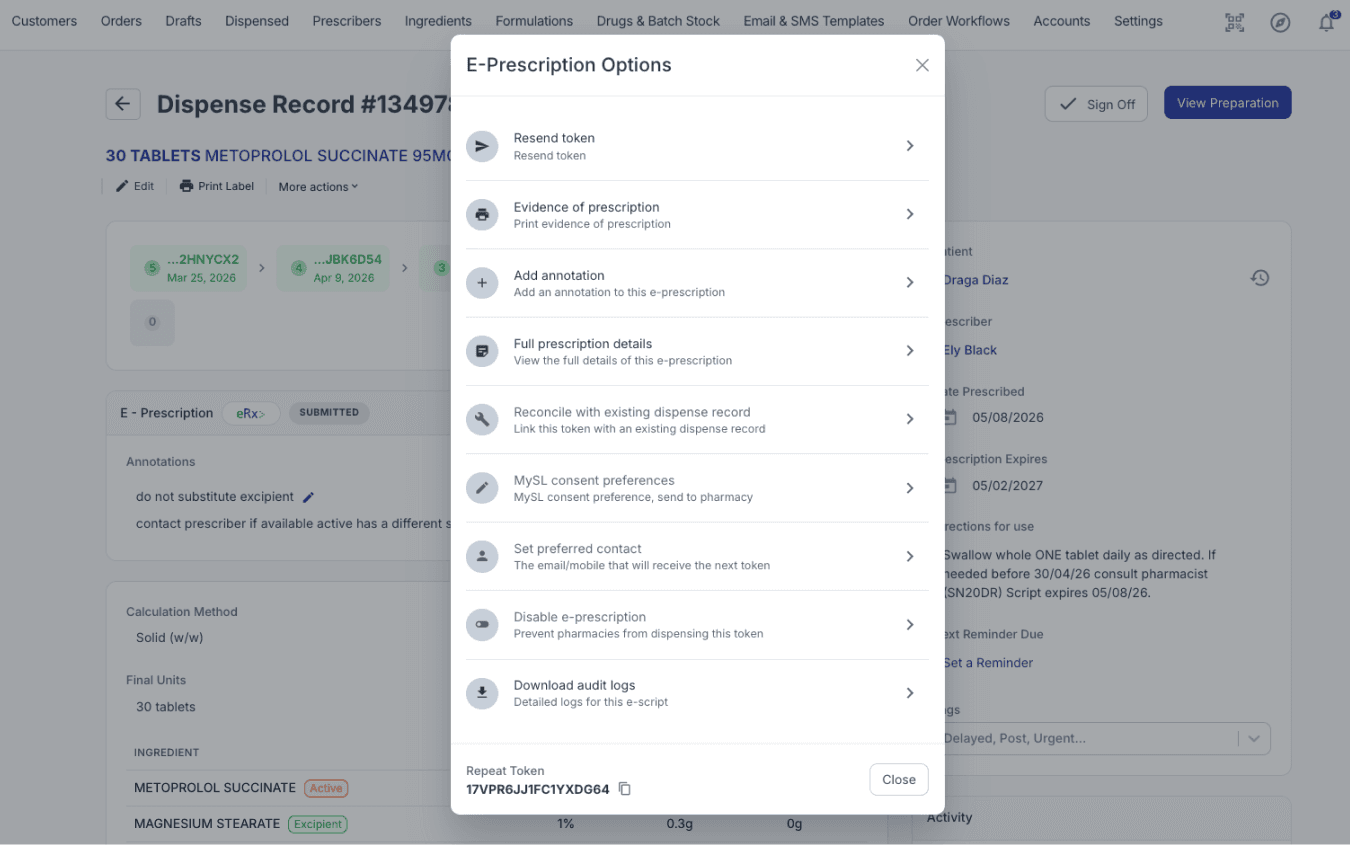
To begin, click on the ‘More Actions’ button on the E-Prescription section.
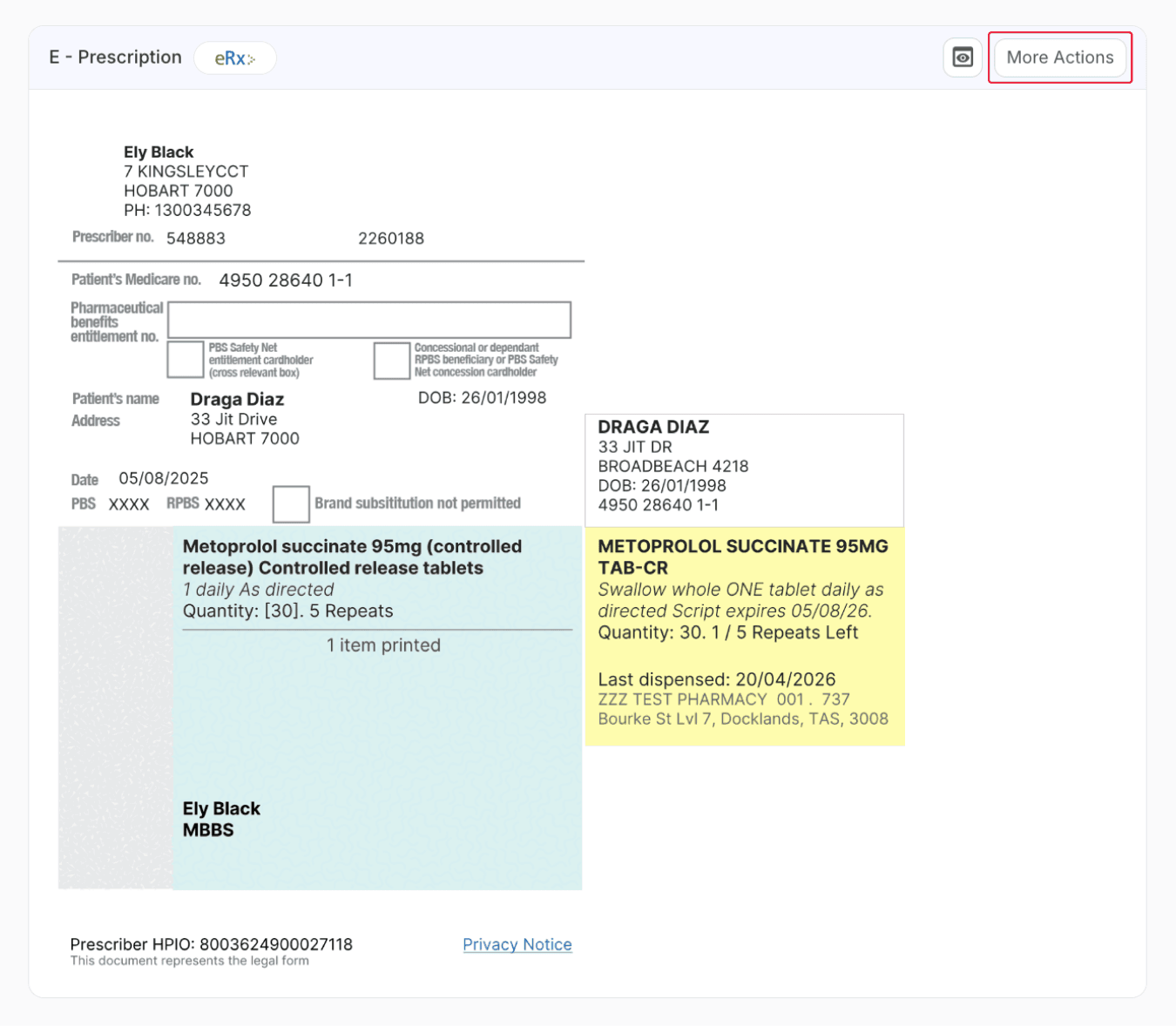
From the drafts page
The following sections provide an overview of the ePrescription tools available within Compound Direct. Understanding how and when to use these options can help ensure efficient, compliant, and flexible management of ePrescriptions within the pharmacy.
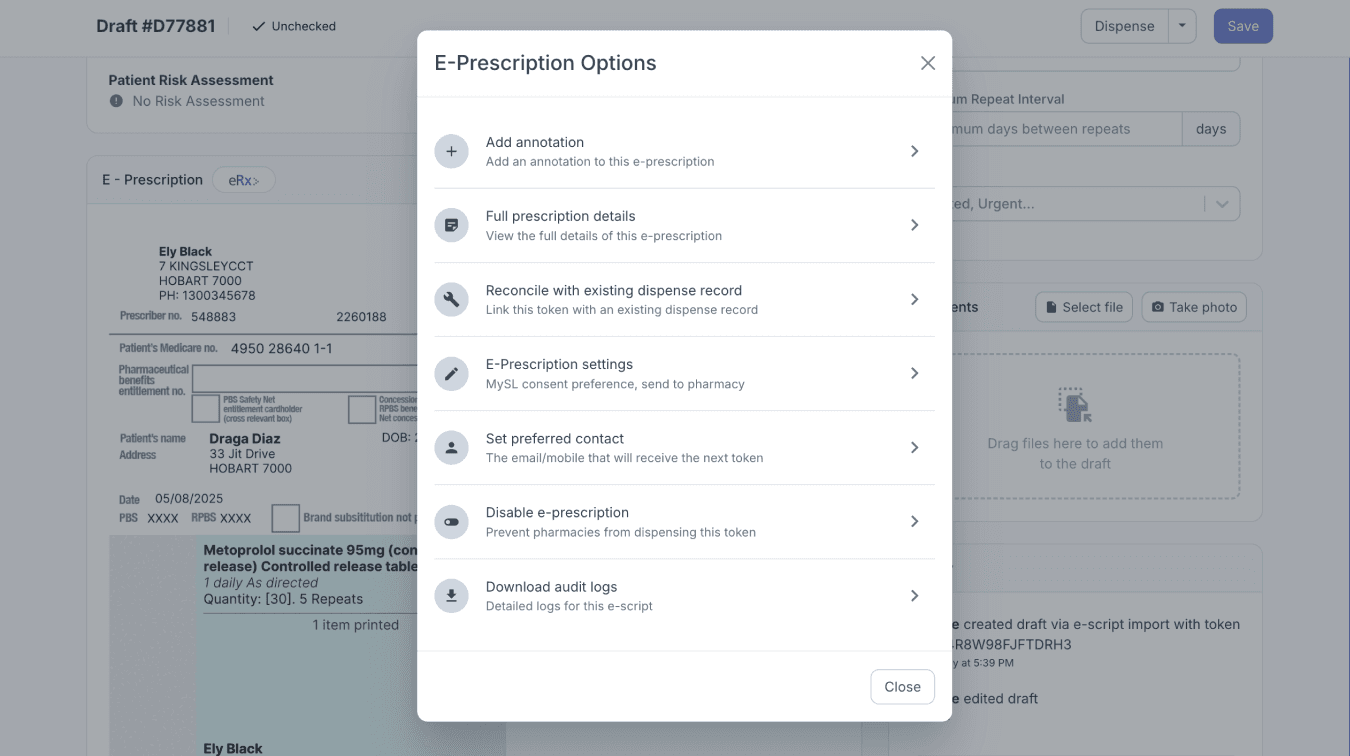
From the drafts page
E-Prescription hotkeys
For quicker navigation of the E-Prescription Options modal, you may use the following keyboard hotkeys:
A: Add annotation
D: View full prescription details
S: Set preferences
C: Set contact details
R: Copy repeat token, when available
Add annotation
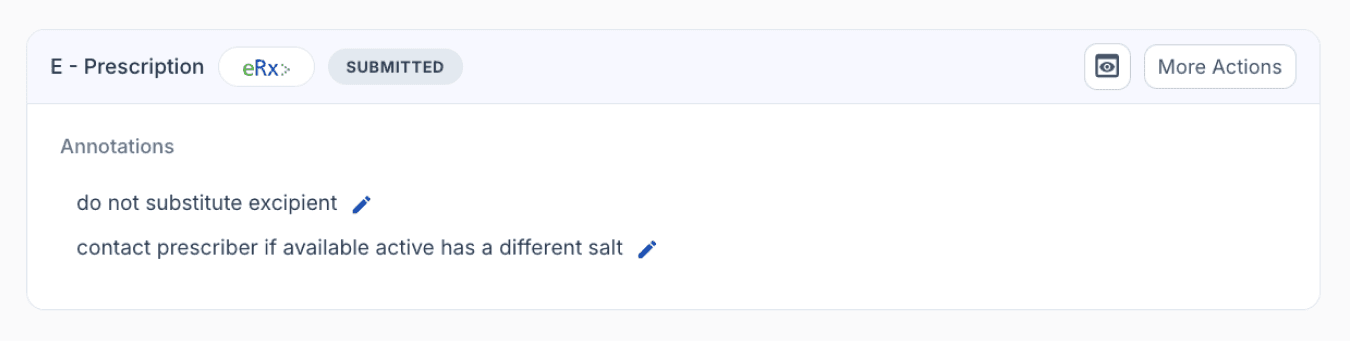
Since there is no physical paper prescription, annotations must be added to the digital copy instead. Adding an annotation attaches it to that specific supply. If the medication is dispensed by another pharmacy, previous annotations from earlier supplies will still be visible. Prescribers can also provide annotations and notes for the dispenser.
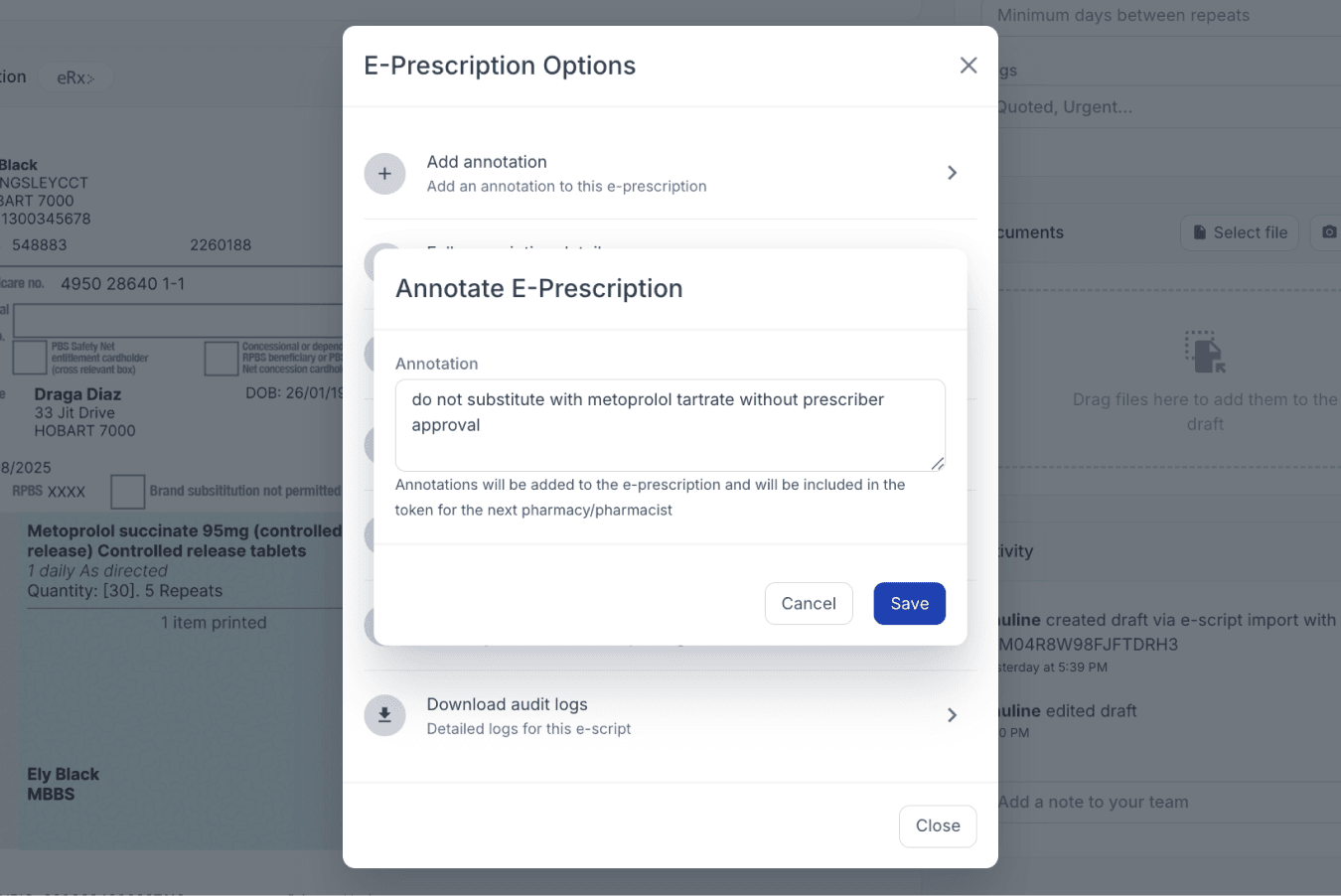
From the drafts page
Annotations added will appear on the upper right corner of the e-prescription.
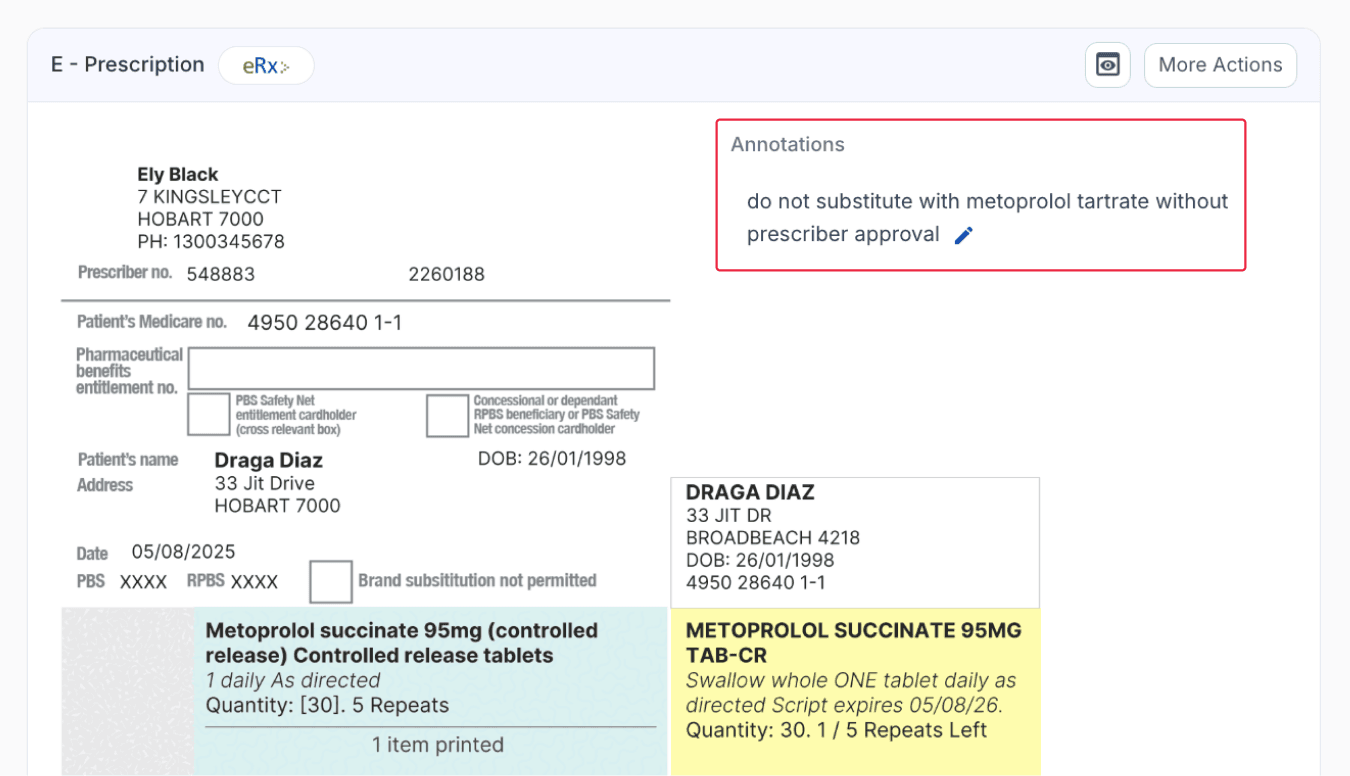
From the drafts page
You may add multiple annotations as needed. Annotations for previous supplies cannot be edited.
Full prescription details
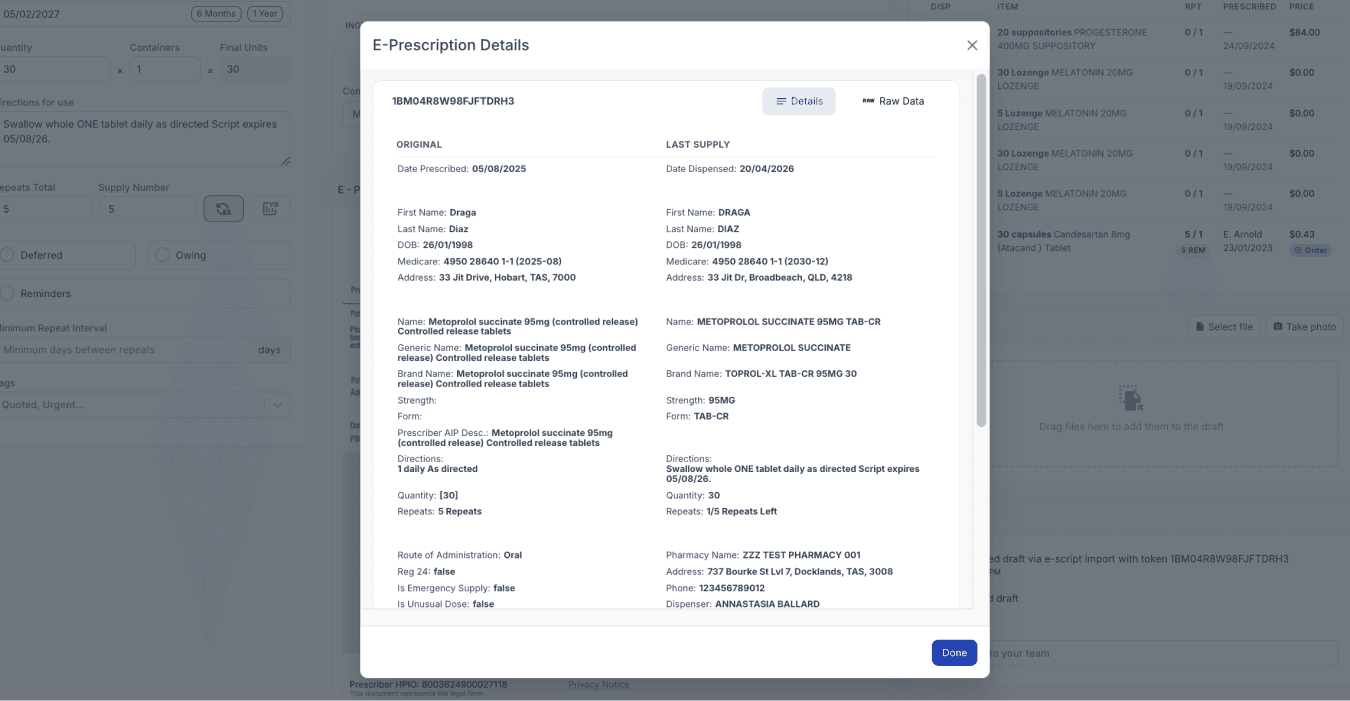
This option provides a full breakdown of the e-prescription details. A full prescription details page is a conformance requirement that displays all prescription data. This page is divided into columns showing both the original prescription and the most recent supply.
A raw data view is also available, though it contains more technical information, which can provide additional context as to what was prescribed.
This is particularly important where the prescriber’s system does not clearly identify the intended medicine in the drug name field, or where the prescription has been entered in a non-standard way and the relevant details are stored elsewhere in the prescription data.
From the drafts page
E-Prescription settings
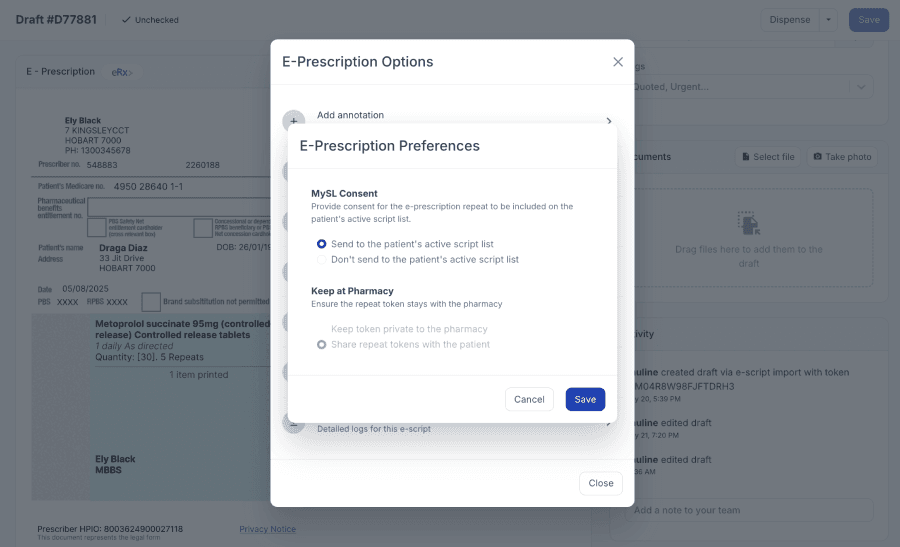
The MySL Consent setting relates to whether an ePrescription is uploaded to the My Script List (MySL). The MySL integration within the customer profile is where consent for prescription sharing is managed. Consent is enabled by default, and prescribers can also set this at the point of prescribing.
Pharmacies can override this setting at any time. If consent is turned off, the prescription will not appear in the patient’s active script list or in MySL. This may be used in situations where a patient prefers not to disclose certain medications within their active script history for privacy reasons.
From the drafts page
The Keep at pharmacy setting is primarily used in specialised settings such as methadone clinics. When enabled, the prescription token is kept private to the pharmacy, and a justification must be provided. Only specific reasons can be selected, such as dosing point (e.g., methadone clinic), staged supply, or repeat on file.
When this setting is enabled, the script is excluded from MySL, and the repeat token is never sent to the patient. This is required for legal and compliance reasons, ensuring the medication remains managed entirely within the dispensing pharmacy.
Important note: This setting is configured by the prescriber and cannot be edited.
Set E-Prescription contact
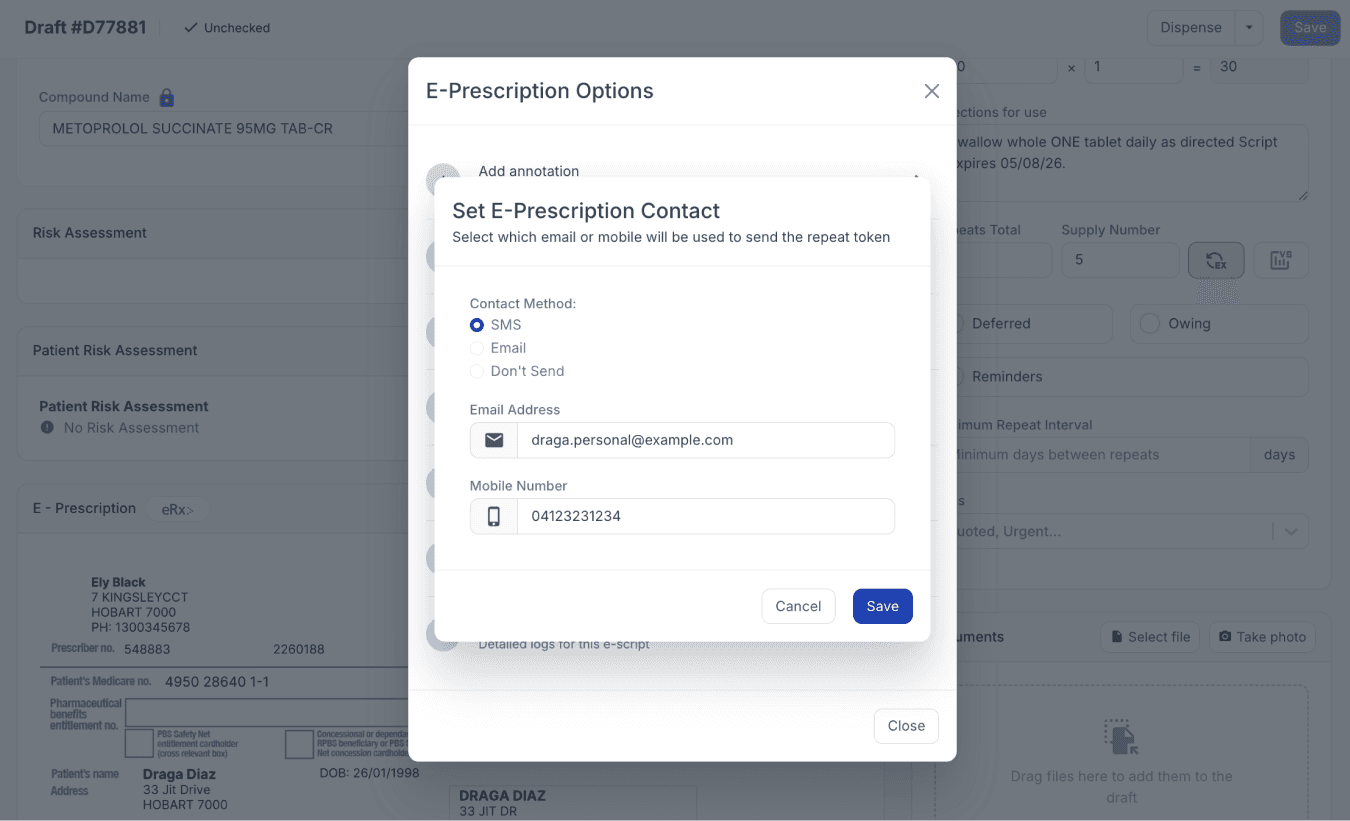
This option allows users to specify exactly where the repeat token should be sent. Rather than relying solely on the patient’s default contact details on file, it provides the flexibility to override these details when needed.
This is particularly useful in situations where the token needs to be delivered to an alternative recipient, such as a carer, family member, or another designated contact. Users can also define the preferred delivery method, ensuring repeat tokens are sent to the right person through the most appropriate communication channel.
From the drafts page
A key part of electronic prescriptions in Australia is providing the repeat token back to the patient so they can access future repeats. The token shown on the original prescription can be identified by the number it starts with.
- Tokens beginning with “2” indicate that the prescription originated from the prescriber.
- Tokens beginning with “1” indicate that the token was generated by the pharmacy after dispensing.
- Tokens beginning with “3” are typically associated with medical charts.
- However, chart prescriptions do not have repeat tokens, and the original tokens are reused until exhausted.
Once the prescription is dispensed, the system generates a new 18-character barcode beginning with “1”. This becomes the repeat token, which is then provided or sent back to the patient for future dispensing.
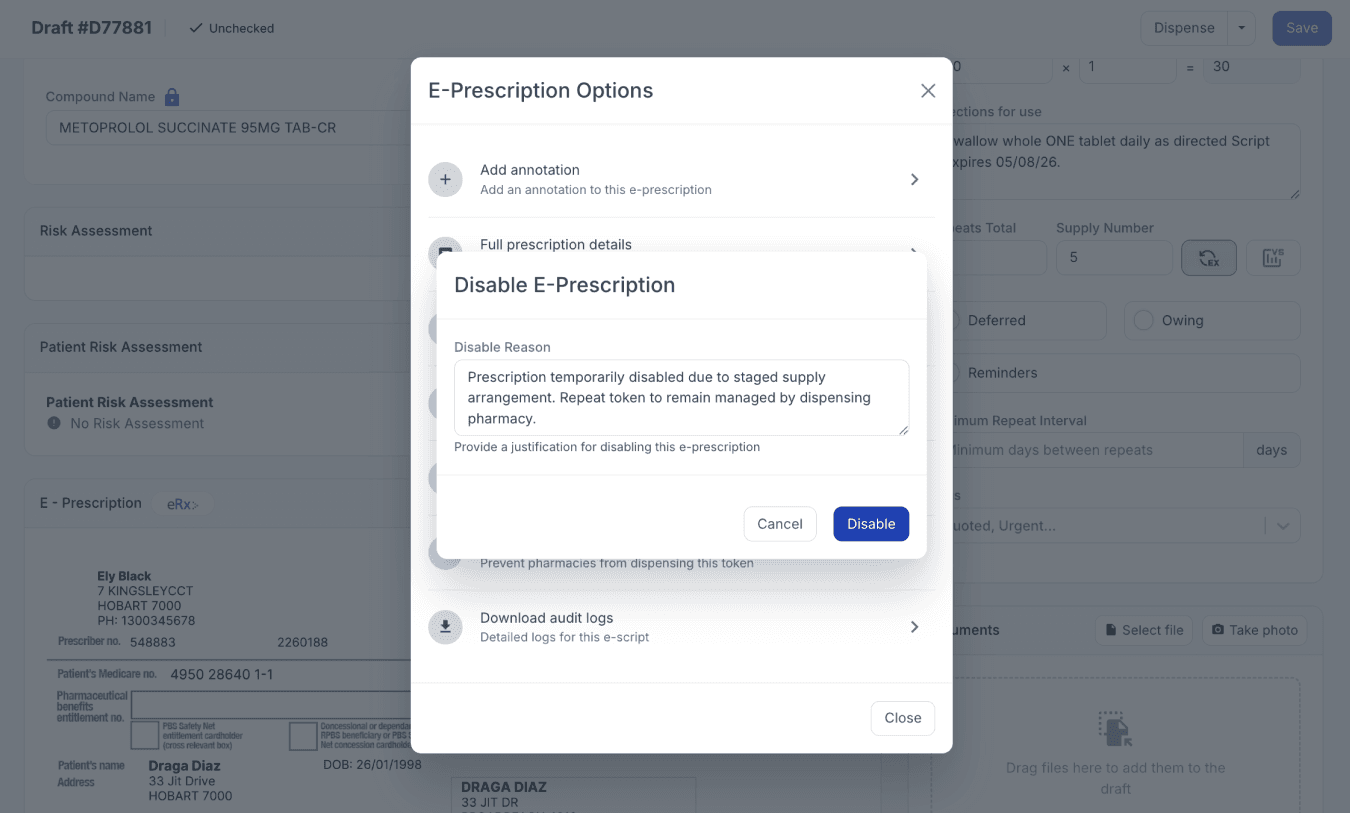
Disable E-Prescription
This option allows you to disable an ePrescription, preventing any other pharmacy from scanning or dispensing it. A prescription can be disabled at any point, and only the pharmacy that originally disabled it can re-enable it later.
When disabling a prescription, an annotation or justification must be provided. Once a prescription has been disabled, the associated draft cannot be deleted, as the draft is required in order to re-enable the prescription in the future. However, the draft can still be archived if needed.
If a disabled ePrescription is scanned, the system will display an error message indicating that the prescription is currently disabled.
From the drafts page
Download audit logs
Audit logs provide a complete history of interactions within the prescription system, such as scanning, dispensing, or submitting prescriptions. There are multiple components involved, along with various commands that need to be sent to the prescription system. Because of this, the audit log contains not only the transmitted data, but also all locally stored information, including details related to the draft, dispense record, patient, and prescriber.
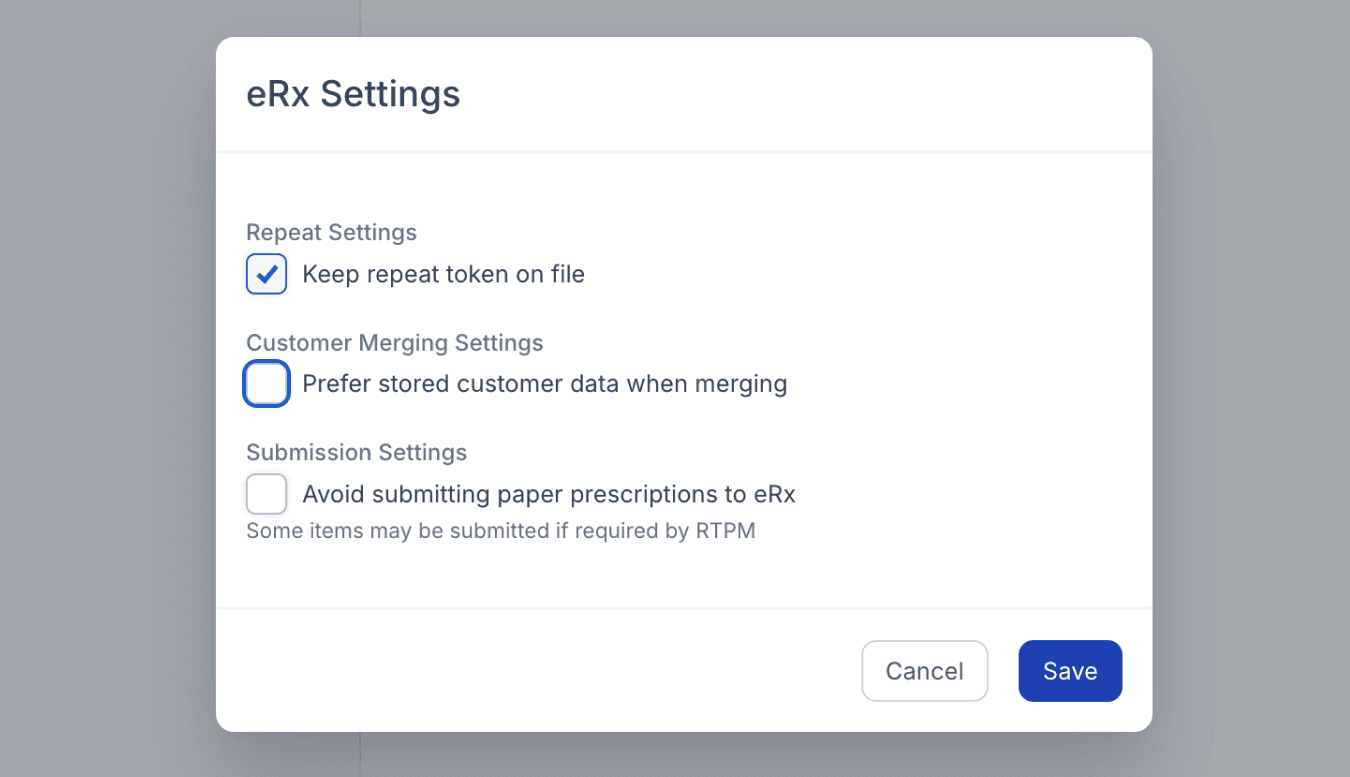
Keep repeat token in file
In the integration settings, there is an option called ‘Keep repeats on file’. When enabled, the repeat token is still generated after dispensing, but it is not automatically sent to the patient. Instead, the repeat remains stored on file within the pharmacy system for later use.
From your workspace settings > eRx settings
This setting is used for a couple of common reasons. Some clinics prefer to retain repeat tokens internally so patients return to the same clinic or pharmacy for subsequent supplies. A more practical and widely applicable reason, however, is to reduce confusion during the compounding workflow.
By default, eRx may automatically send a notification to the patient once a prescription has been dispensed. In some cases, patients may misinterpret this message and assume their compounded medication is ready for immediate collection, even when preparation may still take an additional one to two days.
Enabling “Keep repeats on file” helps prevent this misunderstanding by withholding the repeat token notification until the medication is ready or until the pharmacy chooses to release it.
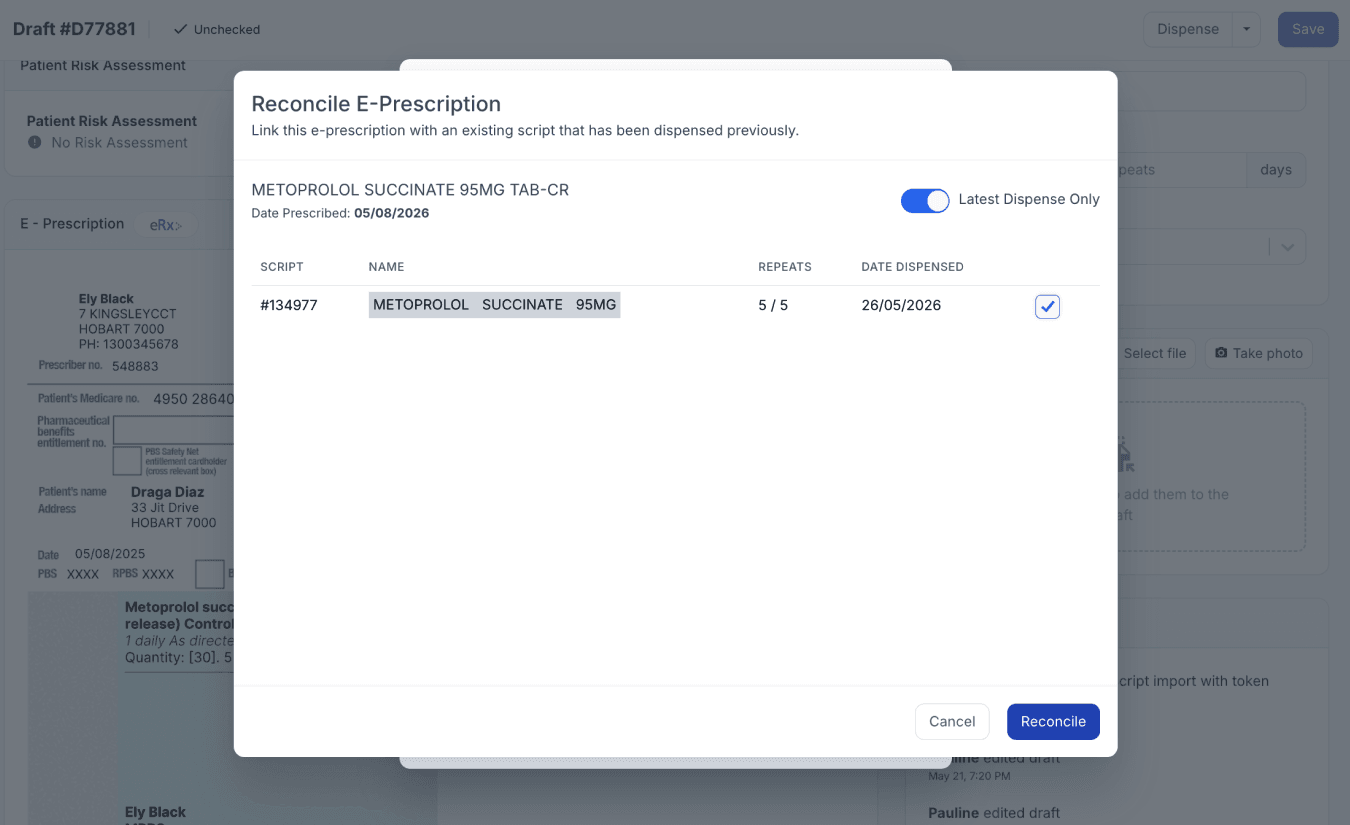
Reconcile with existing dispense record
The reconciliation function is commonly used and is particularly important in situations where a prescription needs to be dispensed without having the ePrescription available at the time. This may occur in cases such as emergency supply requests, verbal confirmation from a prescriber, or technical issues preventing normal prescription retrieval.
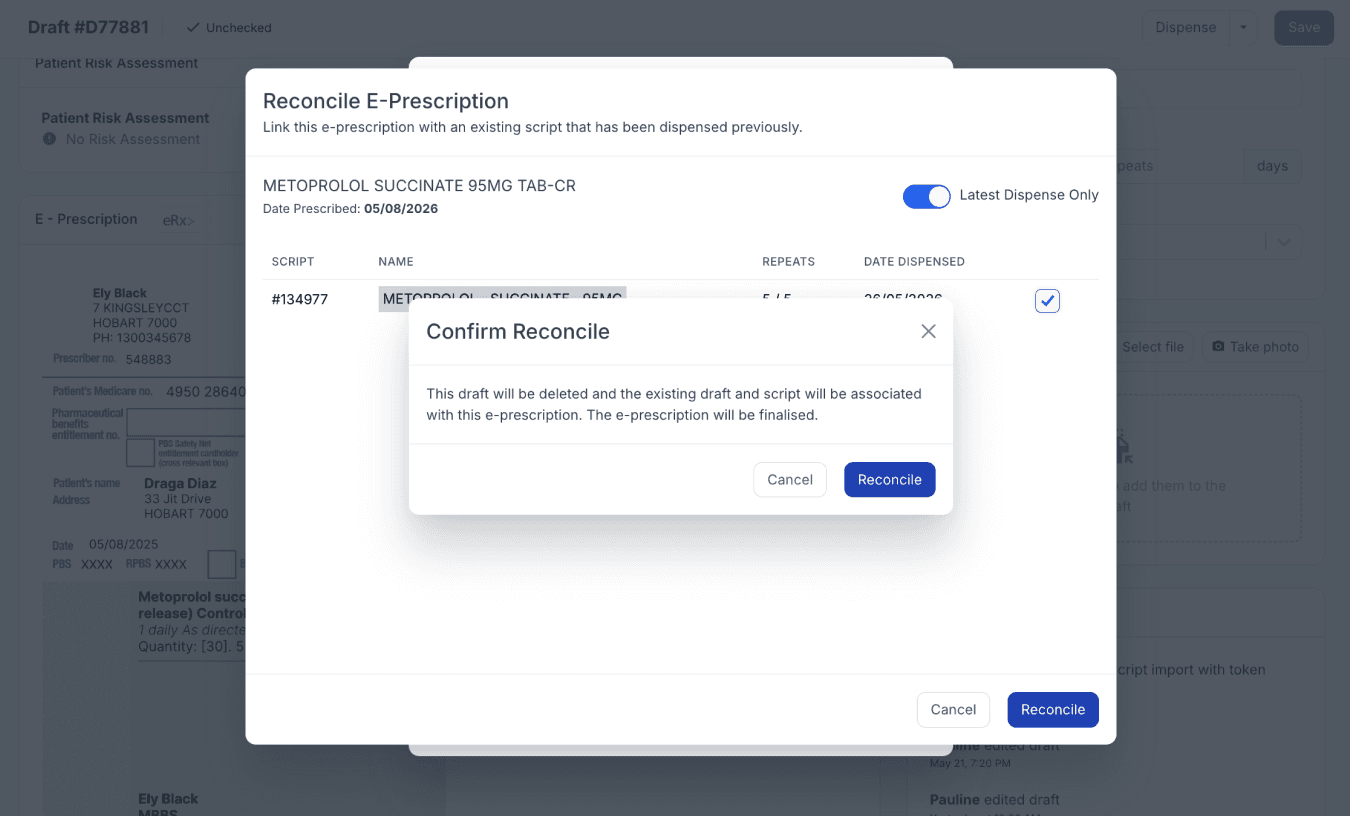
In these scenarios, the medication can be dispensed first, and the ePrescription can then be scanned and reconciled afterwards. Once scanned, the user selects the corresponding previously dispensed item and links it to the ePrescription, effectively aligning the physical dispense with the digital record.
From the drafts page
The system will only display items that match the same prescription date, helping ensure accurate matching. If a prescription has multiple supplies, a toggle may control whether all supplies are shown or only the most recent one. In most cases, reconciliation is performed against the first supply, ensuring the correct linkage across all repeats.
There are also scenarios where a repeat token from a different pharmacy may be reconciled. For example, if a patient presents at a new pharmacy with verbal authority but without the original repeat token, the pharmacy may still dispense and later reconcile the supply once the ePrescription is scanned.
Once reconciliation is completed, the dispensed item and the ePrescription are linked, ensuring the record is consistent and compliant.
From the drafts page
Resend token
The resend token is a repeat token (usually starting with “1”) generated by the pharmacy that allows a prescription to be resent if needed. If it isn’t automatically sent, you can manually enter the contact details at any time, add the SMS information, and send it immediately. This ensures the prescription can still be delivered quickly even if the initial automatic process doesn’t go through.
Alternatively, you can simply copy the repeat token displayed at the bottom of the E-prescription Options modal and manually send the token through your preferred communication method when needed.
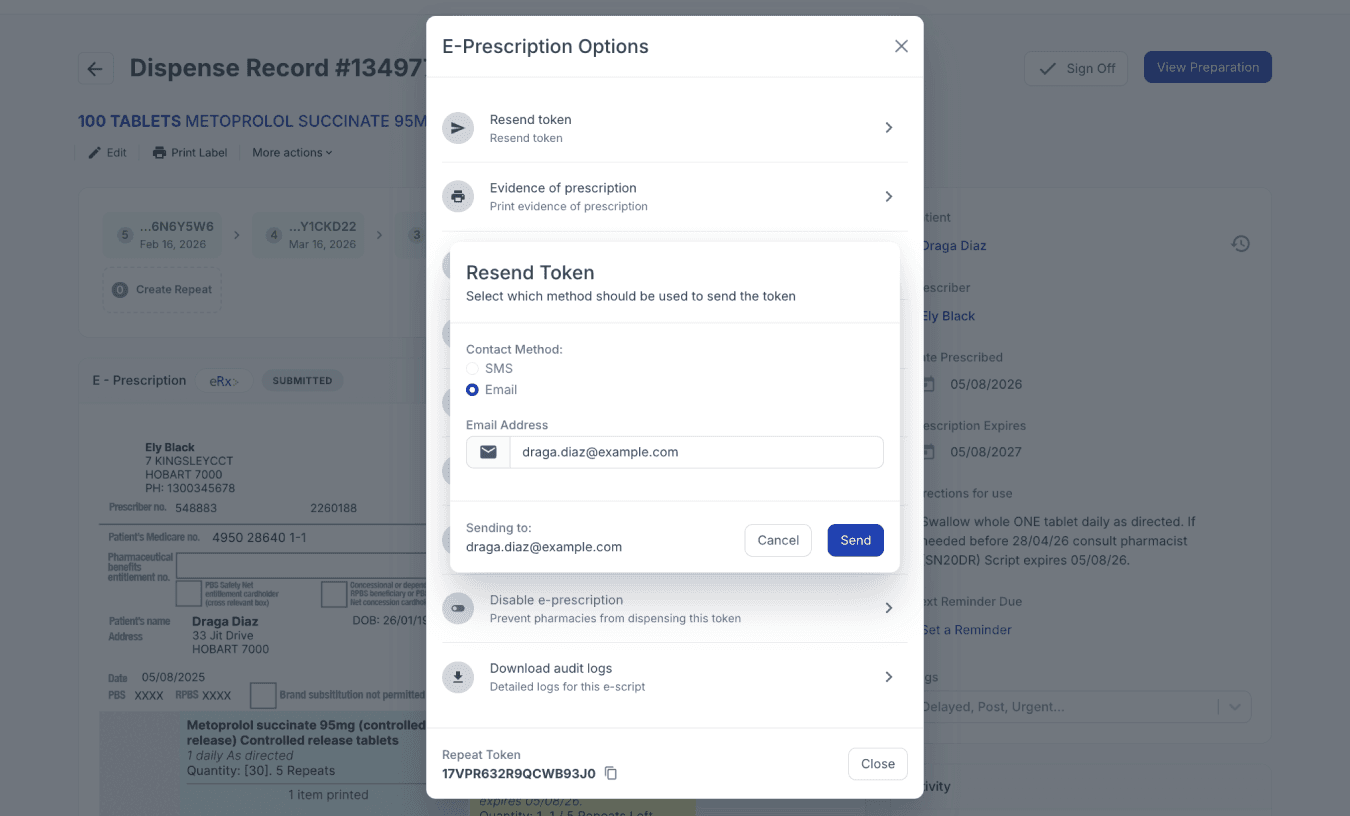
From the drafts page
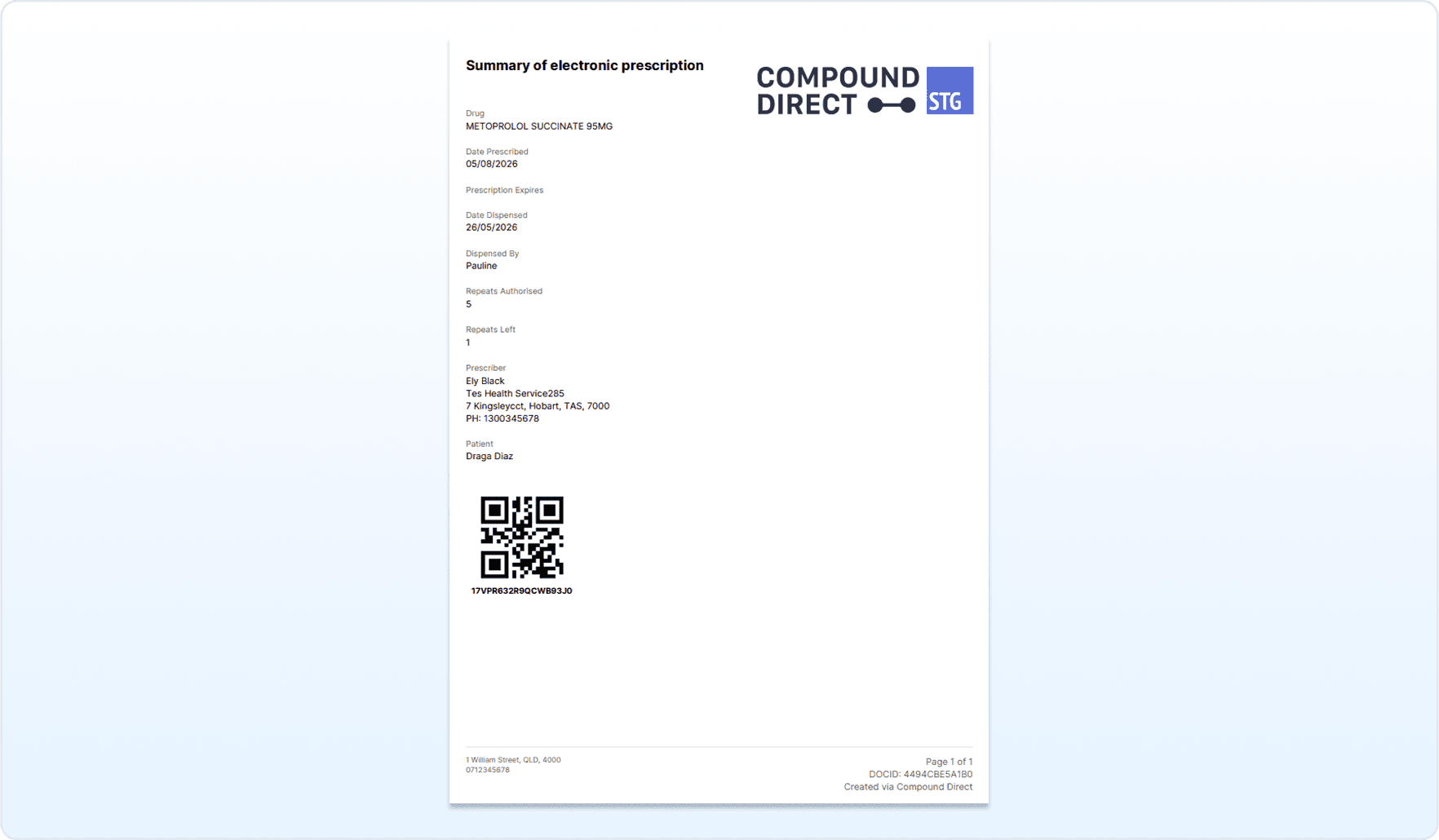
Evidence of prescription
The Evidence of Prescription is a full-page PDF document containing details of the electronic prescription. However, it is not equivalent to a valid electronic prescription.
It includes limited prescription information and intentionally excludes key clinical details such as directions for use. Patient details are also kept minimal. Because of this, the document cannot be used for dispensing, as it does not contain sufficient information for supply.
Its purpose is to provide a record of the electronic prescription that can be downloaded and scanned into a pharmacy dispensing system for reference or workflow support.
Print repeat form
You may also print a repeat token if a physical copy is needed. On the Dispensed Record, click the 'More Actions' button, then select 'Print Repeat'.
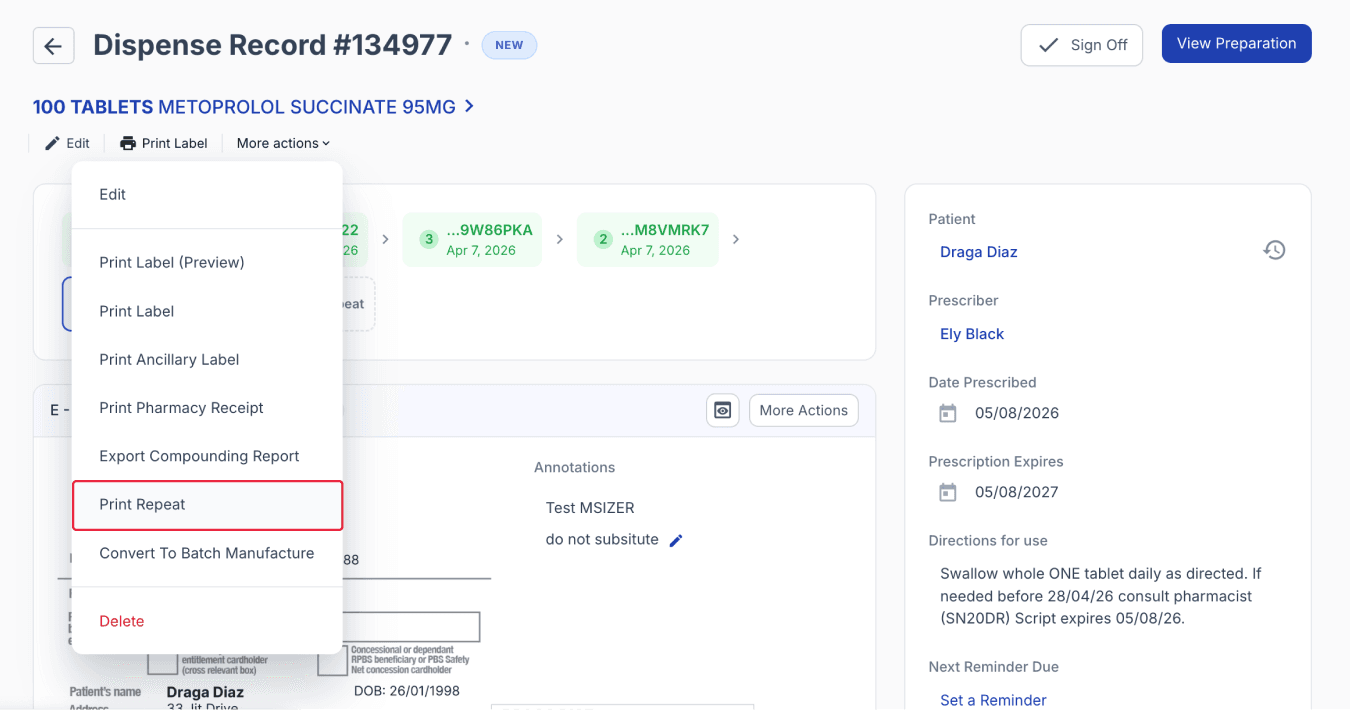
From the dispensed page
The repeat form includes the eRx barcode and associated eRx reference details.
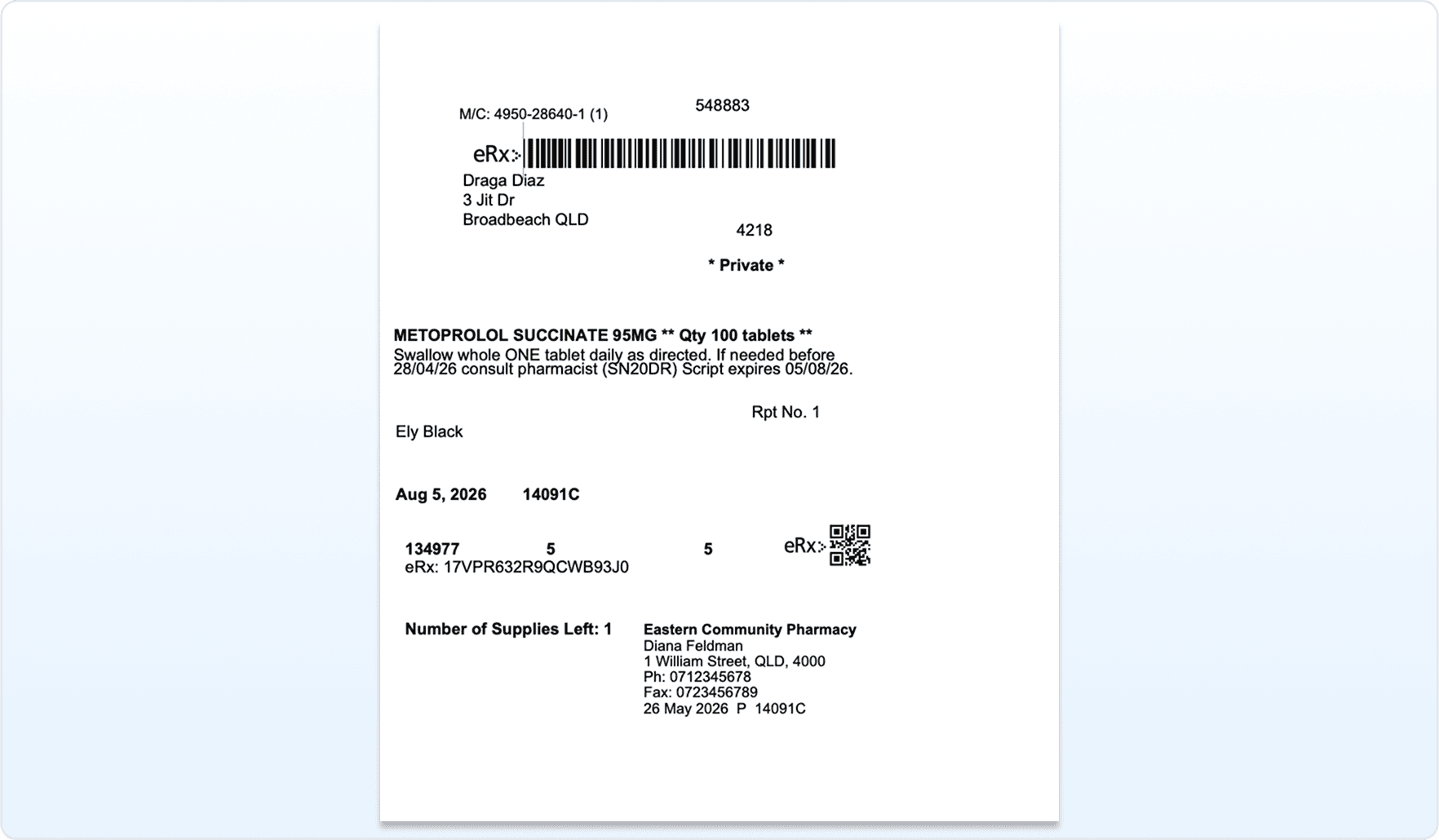
Preview of the repeat form
Once an ePrescription has been dispensed, key prescription functions such as reconciliation, consent changes, and prescription disabling are no longer available to preserve the integrity of the dispensing record and maintain compliance with ePrescription requirements.
From the dispense page
Summary
Compound Direct ePrescription tools support a range of pharmacy workflows designed to improve efficiency, maintain compliance, and provide greater flexibility when managing electronic prescriptions. Features include digital annotations, detailed prescription views, repeat token management, patient contact preferences, MySL consent settings, Keep at Pharmacy controls, audit logs, and reconciliation functions.
The tools help pharmacies manage common scenarios such as emergency supplies, verbal authorities, repeat dispensing, and compounding workflows. They also provide multiple options for delivering, resending, storing, or printing repeat tokens to ensure patients can access future supplies while allowing pharmacies to meet operational requirements.
To maintain the integrity of dispensing records and comply with Australian ePrescription requirements, certain actions become unavailable once an ePrescription has been dispensed, including reconciliation, consent changes, and prescription disabling.
All names and medical data shown in software screenshots are fictional and for demonstration purposes only. These figures represent fictional persons; any resemblance to real individuals is purely coincidental. Use of existing fictional names is for illustrative purposes and does not imply affiliation or endorsement.