
Suppositories: no longer a pain in the bum

A step-by-step guide to making a dosage form
Introduction
Compound Direct simplifies the creation of new dosage forms through real-time calculations, automatic formula naming, and consistent labelling. This guide explains how to create a vaginal suppository dosage form, emphasising the importance of accurate data entry at every step.
Read this before you continue
Here is a comprehensive guide to creating Dosage Forms. Once you're up to speed, this guide will take you through everything you need to know, using suppositories as an example.
Benefits of good data entry
- Automated Naming and Labelling: With information entered accurately, formula names and label instructions are consistently generated.
- Efficient and Error-Free Formulations: Eliminates the need for manual calculations, streamlining formulation creation with less batch rejections.
- Quick, Accurate Pricing: Supports fast and precise quotes by leveraging data from dosage forms.
- Unified QA and Formulation Steps: Allows for consistent application of QA measures across all formulas within a dosage form.
Setting up your suppository
Step 1. Create the dosage form
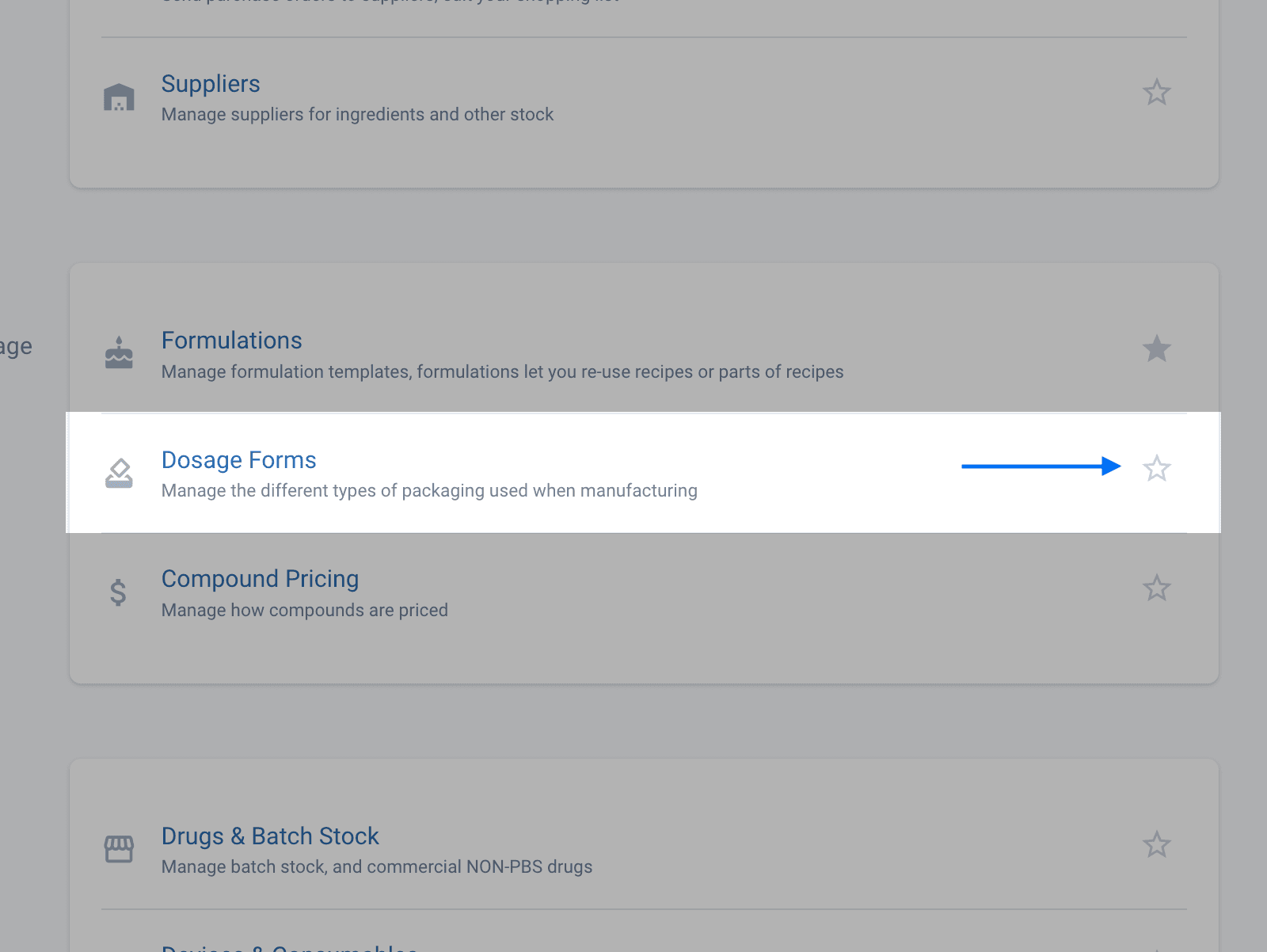
Navigate to the Settings menu at the top of your screen and select Dosage Forms. If you are going to be setting up your workspace for the first time, you can select the star icon to pin this to your quick links
Step 2. Creating consistency with Compound Direct
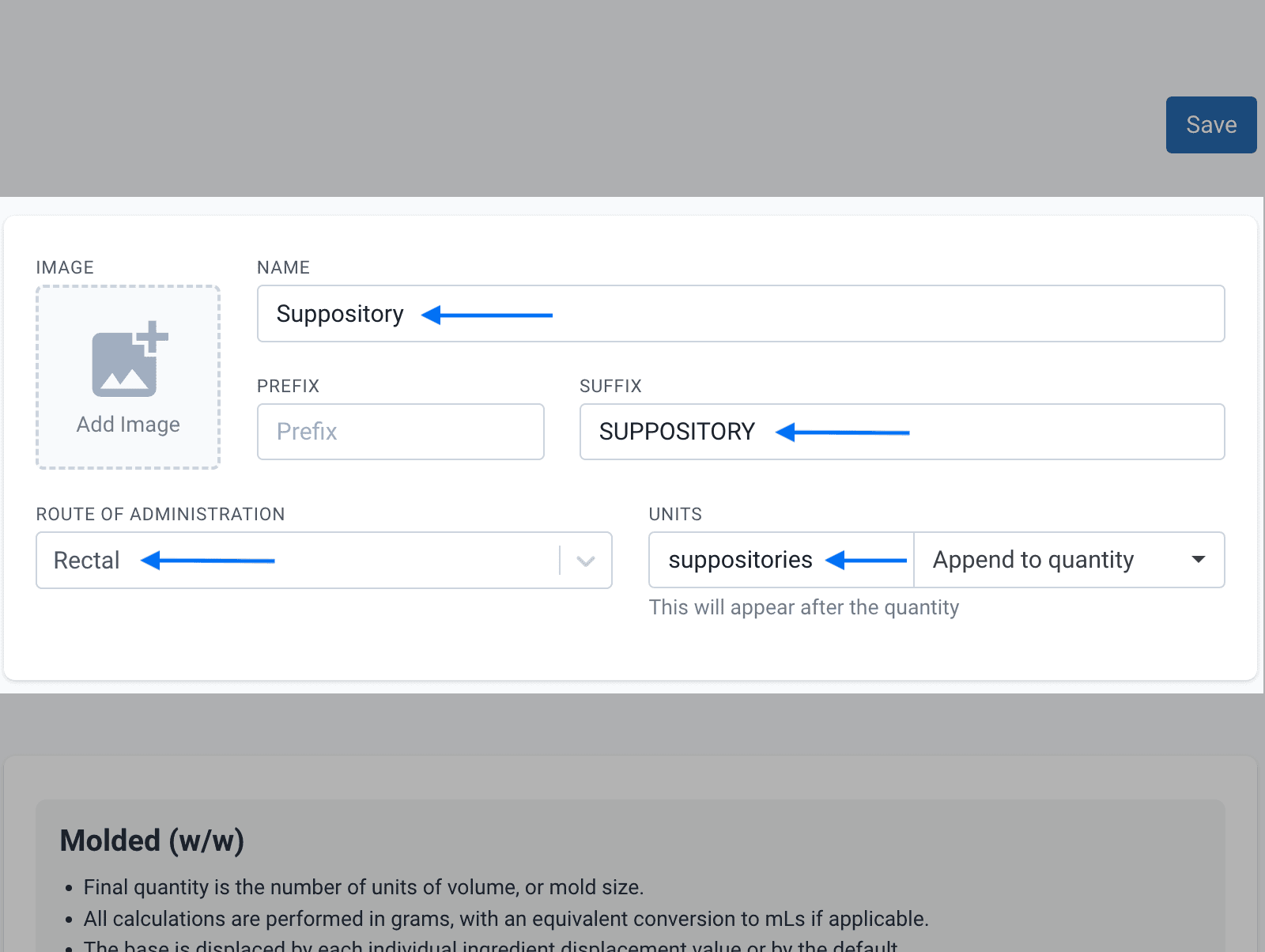
Provide complete details and an image to enhance the professional look of your quotes and to ensure formula and label consistency. Make sure your dosage form name is informative, for example you may want to have several different suppository preparations called “Vag. Suppository”, “Rectal Suppository”, “Suppository Pink Mold” etc.
- Suffixes will appear after the ingredients in the formula name e.g. “Ergotamine 2mg SUPPOSITORY”.
- A prefix will fill before the ingredients. This can be useful for internal references such as NS for non-sterile
- The units will appear on the label after the quantity such as “Ergotamine 2mg SUPPOSITORY 30 suppositories
- Route of administration is for pharmacy reference
Step 3. Setting up the calculations
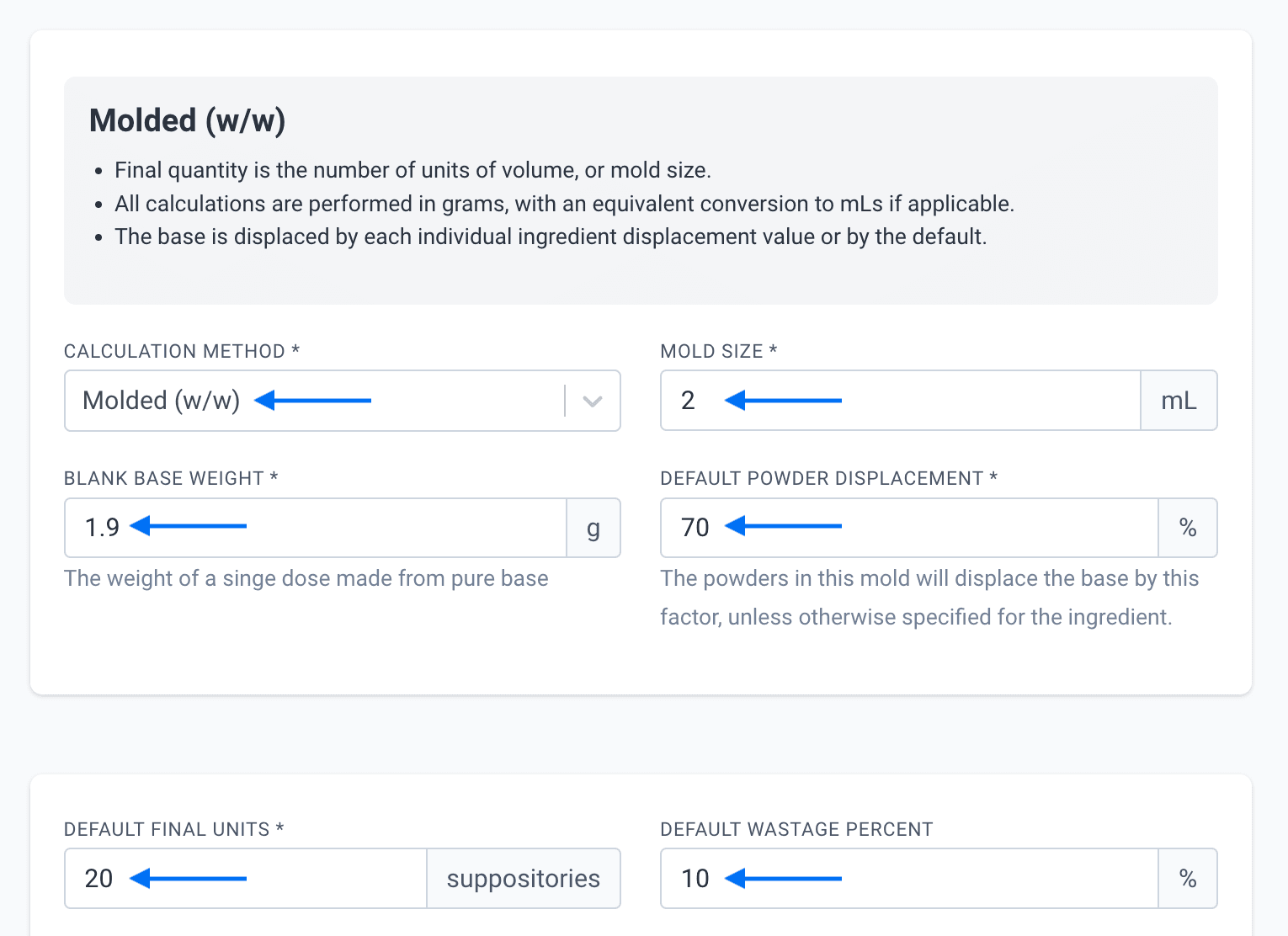
For suppositories, select the “Molded (w/w)” measurement to ensure active ingredients and bases are calculated in grams.
When setting up the dosage form, Compound Direct’s real-time calculation system relies on correctly entered calculation data. Double-check these numbers against in-pharmacy data or the supplier’s data. If your pharmacy uses several different bases or mold sizes for different formulations it may be necessary to have more than one dosage form to account for each of the variations.
The displacement factor for molded dosage forms is by default 70%, you can adjust individual ingredient displacement values if they differ, such as wettable progesterone. The double-casting method can be used to calculate the displacement value in-pharmacy.
The default final units and waste percentage will prefill for formulas when created but can be altered at the draft level before dispensing.
Step 4. Pricing considerations
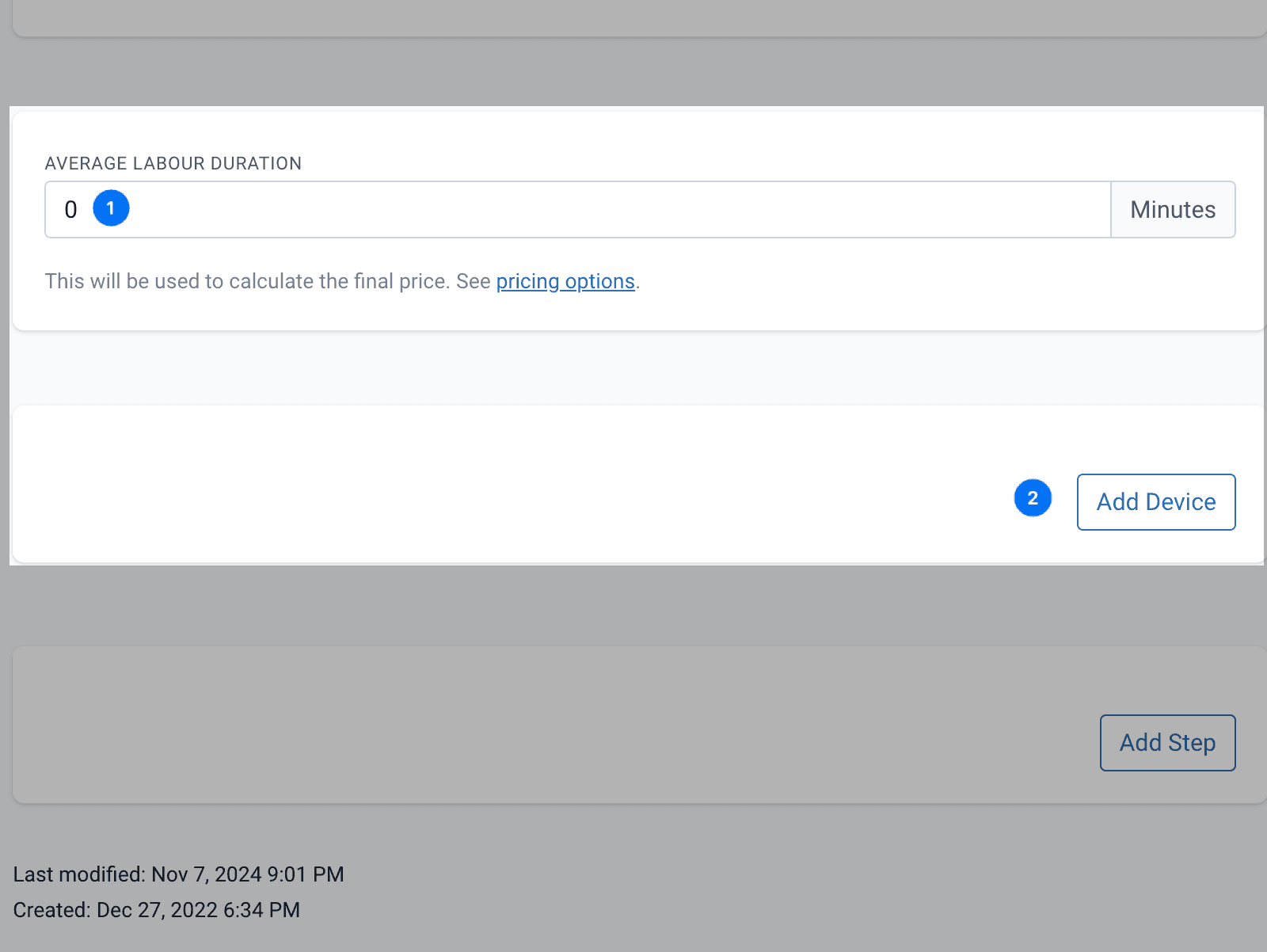
When it comes time to set prices for your formulations you can set schedules that reflect non-ingredient costs such as the time taken to make the formulation as well as the consumables and devices.
- Enter the average labour duration. Consider factors such as dispensing, making, setting, cleaning and QA.
- Add devices required for your formulations. These could include consumables such as mixing jars, syringes and pH sticks. Or packaging like suppository molds, troche molds, jars etc.
If you choose not to enter in all the devices you can account for them in the pricing structures, depending on your pharmacy’s preferences and Compound Direct package.
Step 5. Add important methods
Adding in important formulation steps at the dosage form level will mean any formulas created will inherit these steps. Compound Direct will save you hours of time by reducing duplication of data entry.
Examples include:
- Material and PPE checklists
- Heating, stirring, or filling instructions
- Per-suppository weighing
- Photo validation for QS or visual assessments.
- Photo of dispensing label on finished product.
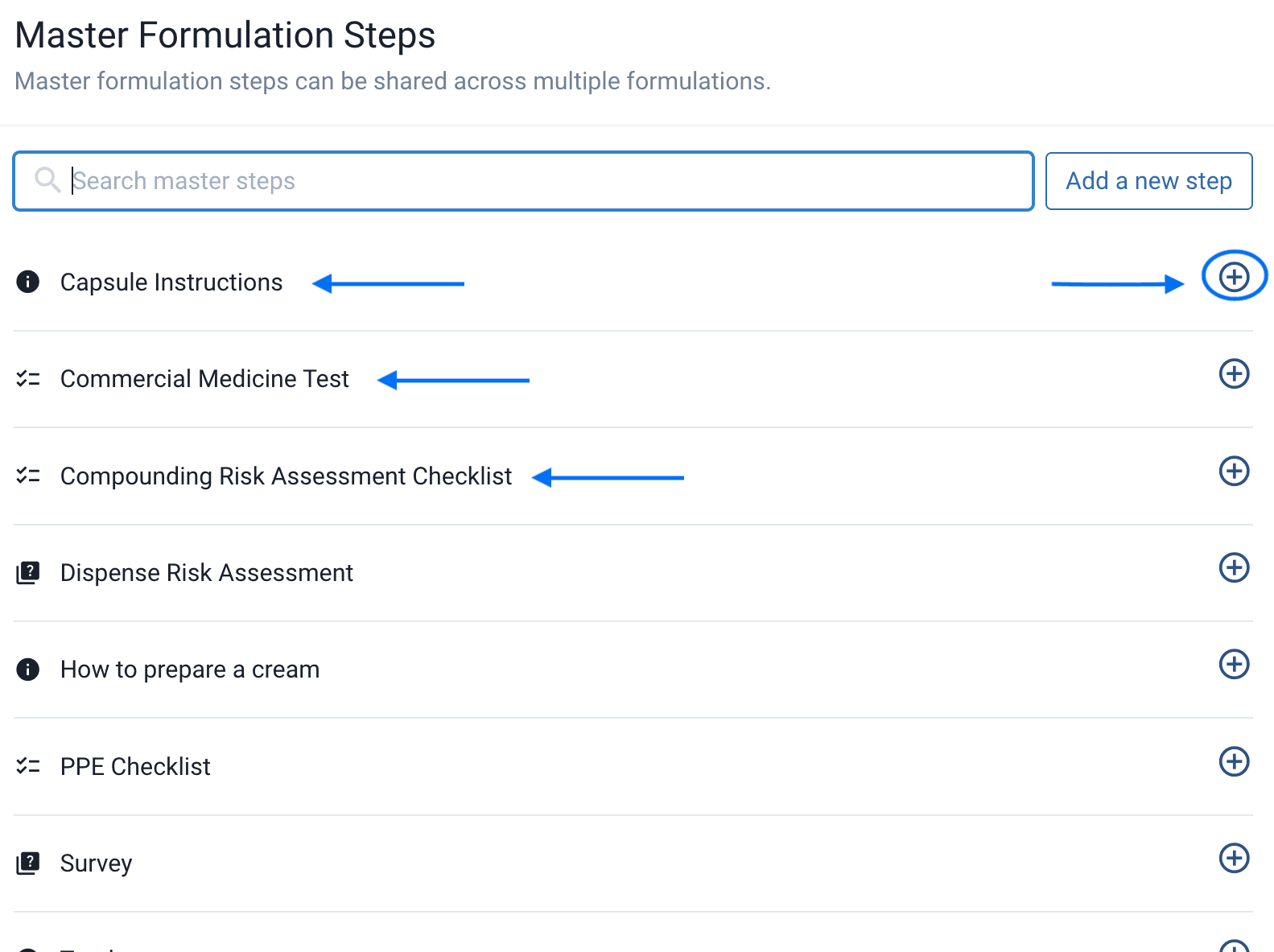
In your dosage form you can select ‘Add step’ and then click the plus next to any steps you would like to add.
Setting up a per-suppository weighing step
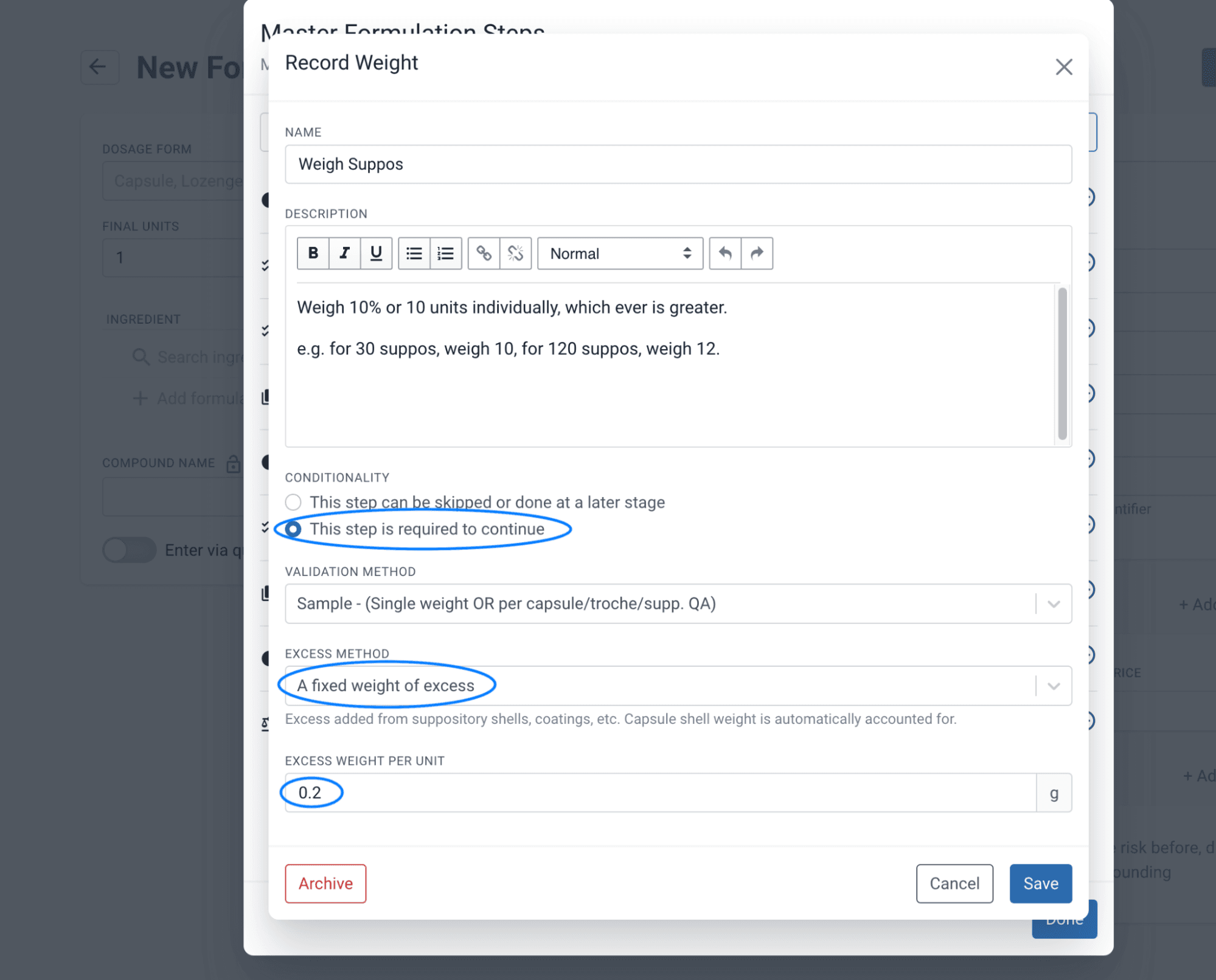
Select Add formulation step and choose Weigh. Add in a title and instructions. If you would like this to be completed before finishing the compound, select ‘This step is required to continue’. If you use a disposable mold you can account for its weight by selecting an excess method as below. Enter the weight of ONE mold as per below.
Positioning
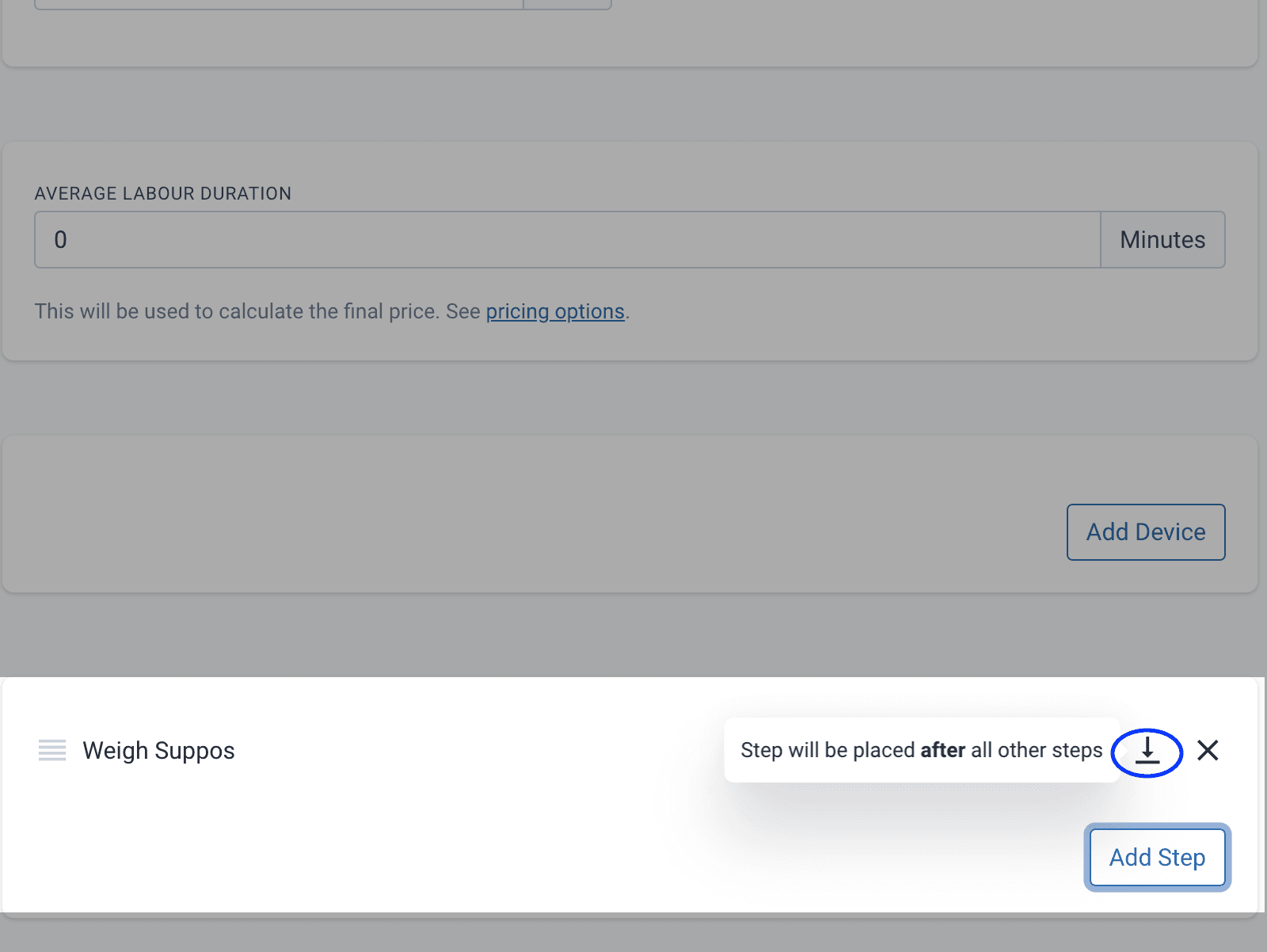
QA steps that are to be performed at the end of the compounding process can be placed at the end of all other steps. This is toggled by clicking the arrow as per below. If there are steps you would like to insert above ingredients you can add them and reverse the arrow to insert above.
Note that these steps only appear in the dispense window as the preparation is being made.
Summary
Compound Direct simplifies dosage form creation. With accurate setup, creating new formulations becomes quicker and more consistent, benefiting both productivity and accuracy as your formulary grows.
Troubleshooting
Steps not appearing when I’m drafting
- The formulation steps are only relevant to the dispensing process that occurs after the draft has been dispensed. This is to reduce the clutter in the draft stage.
My dosage forms aren’t weighing what I expected
- Review your dosage form calculation steps and ensure the mold size, base used and blank base weight are correct. If you’ve changed any of these without adjusting the dosage form then calculations will not be accurate.
- Review the displacement values for the individual ingredients and adjust if needed. You may need to calculate manually or contact your ingredient supplier.
New formulas aren’t pre-filling names or suffixes
- If you are making formulas from scratch, review you have selected the correct dosage form with the information required. You may need to review that dosage form in your settings to confirm the information has been pre-filled and remains unchanged
- If you are duplicating from an existing formula check that the name has not been locked. If it is locked it will not adjust based on any new data entry or changes.