
Quick Scan: From barcode to record in seconds

Quick Scan in Compound Direct makes it easier to find records and start workflows in Compound Direct using a barcode or supported code. Instead of searching through stock, customers, orders, ingredients, or dispense records, simply scan the code to open the relevant screen.
Depending on the features available in your workspace, Quick Scan can be used with supported record labels, product barcodes, batch codes, e-script tokens, and selected integration barcodes. Quick Scan helps you reach the right record faster.
What can you scan?
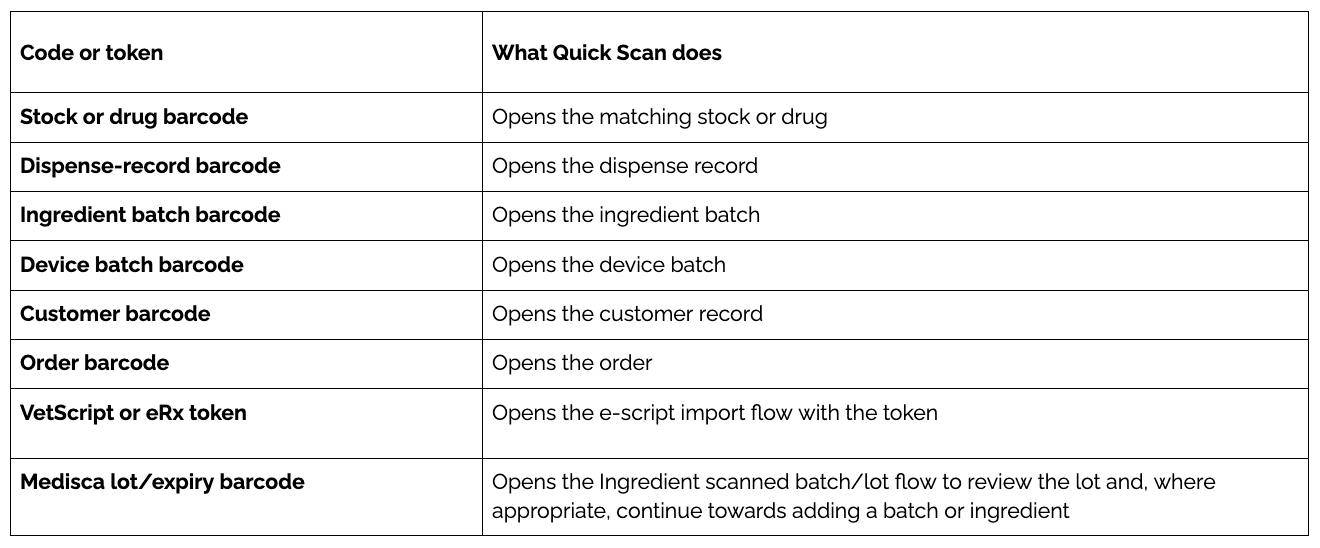
Availability varies by package.
How to start?
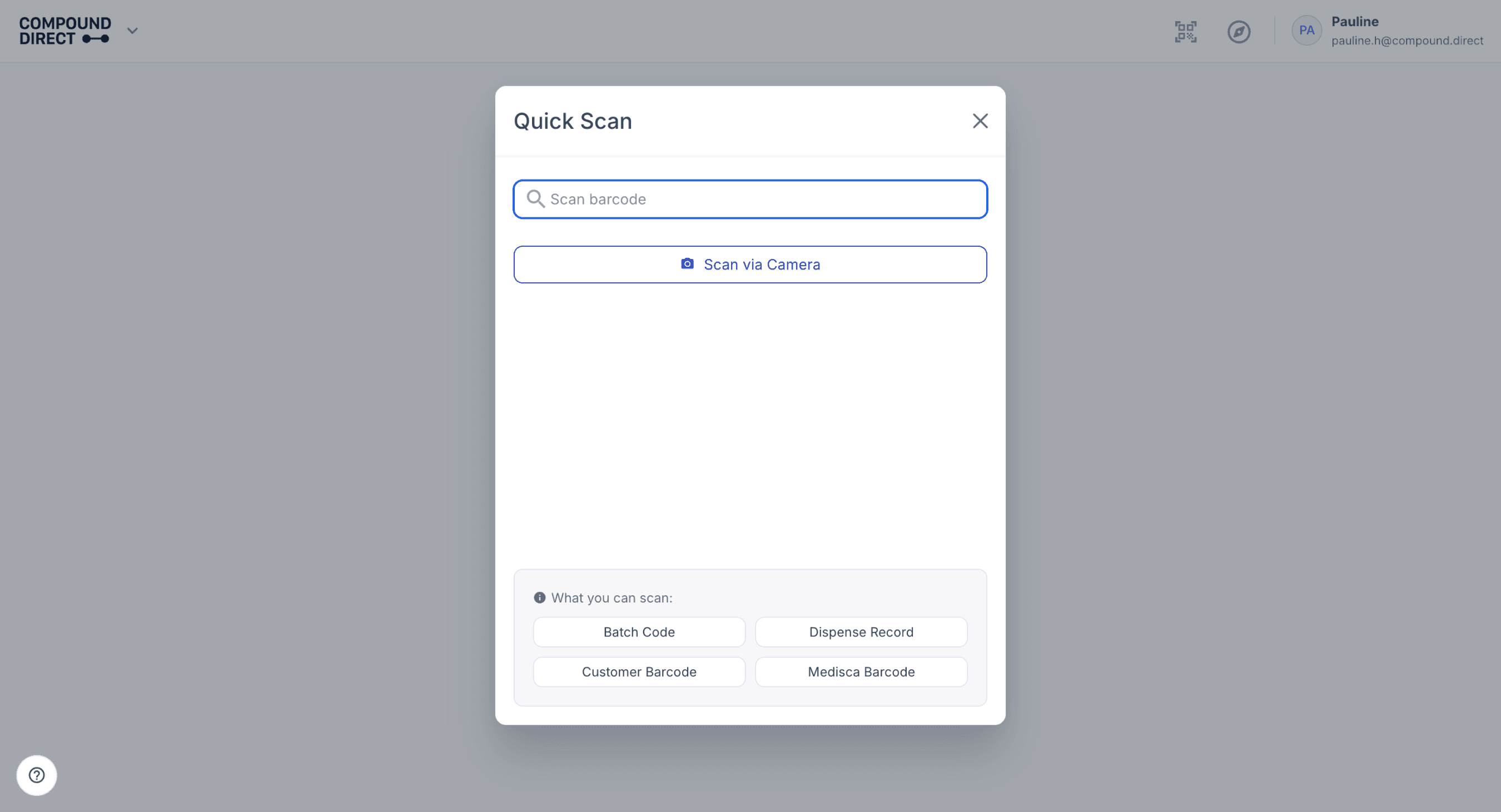
To begin, open ‘Quick Scan’. Click the scanner icon in the navigation bar. You can also press the period key (.) on your keyboard to open Quick Scan when you’re not typing in another field.

Scan the code. On desktop, Quick Scan focuses the scanner input when it opens. You can also enter a code manually and press ‘Enter’.
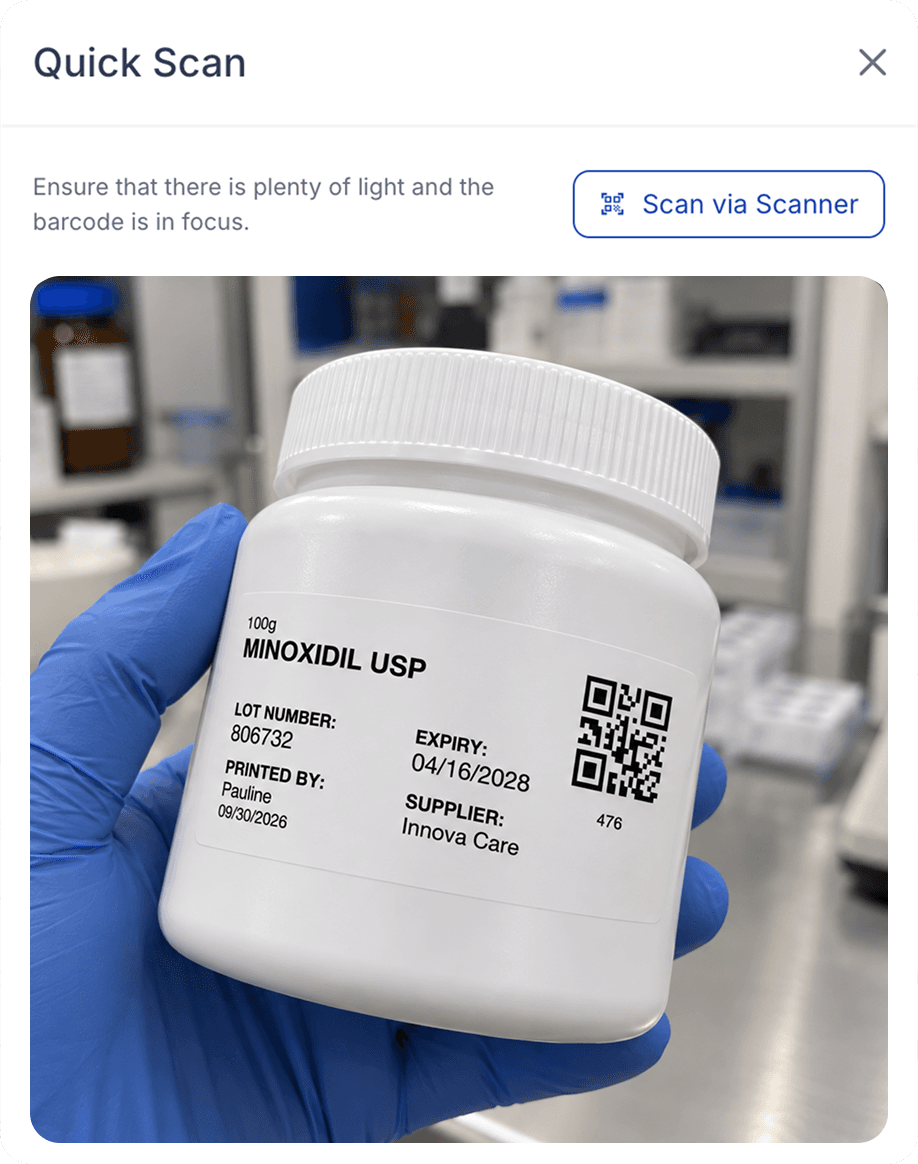
Use the camera if you prefer. Click the ‘Scan via camera’ button and hold the code in view with adequate light and focus. You can switch back to scanner input at any time. Quick Scan remembers your preferred mode for your user on that device.
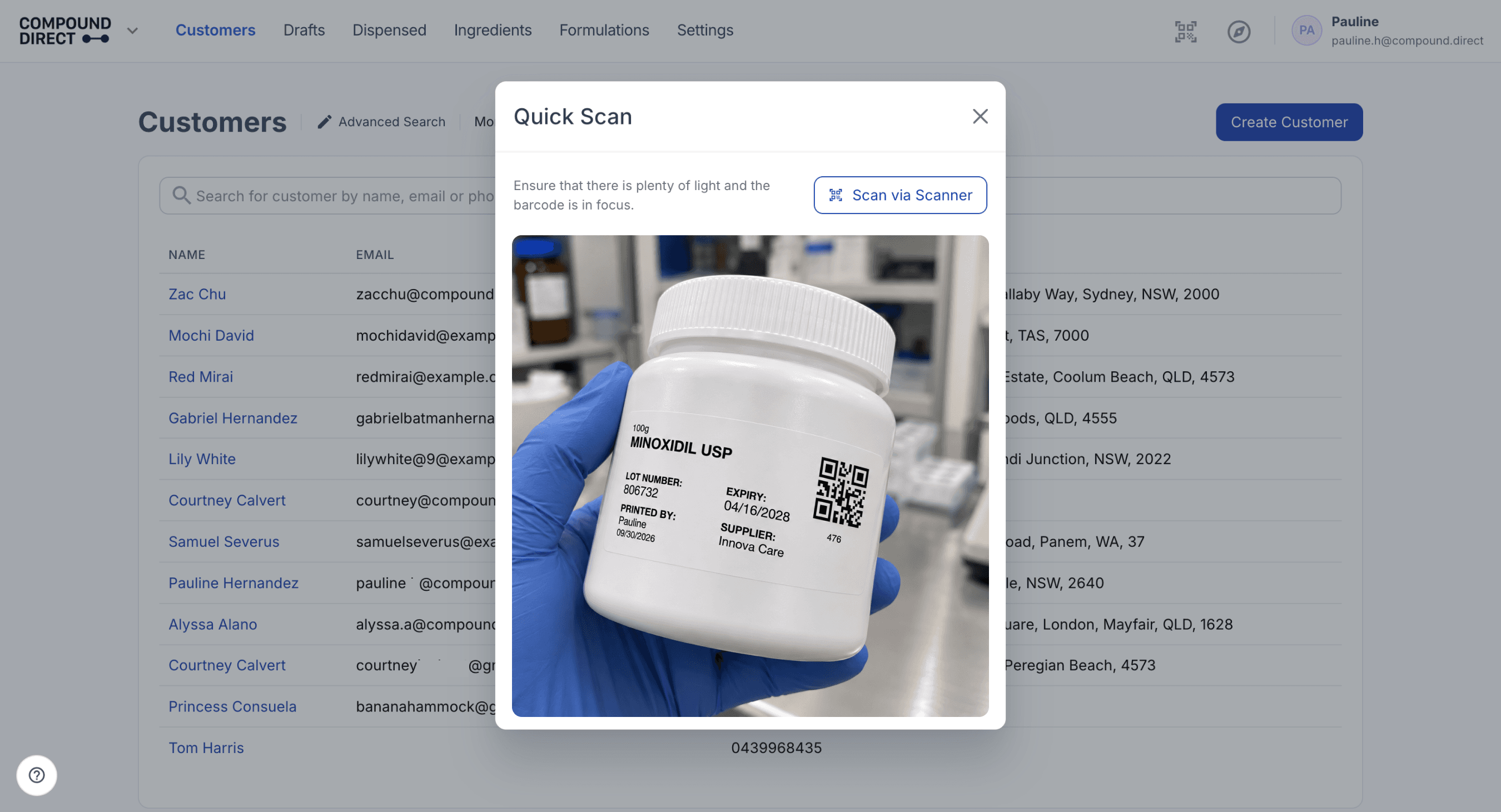
Continue on the screen that opens. A recognised scan opens the matching record or workflow.
An e-script token opens the import screen and immediately retrieves the prescription, this may check out or lock it. Complete any review and subsequent actions in that workflow.
The camera option depends on the workspace's scanning configuration and an available device camera. A dedicated barcode scanner or manual entry provides an alternative way to enter the code.
Where do the barcodes come from?
For customers, orders, dispense records, drugs, ingredient batches or stock batches, you can open the record and under ‘More Actions’ select ‘Print Label’ or ‘Print Label (Preview)’ where available.
Feature highlights
Quick Scan helps connect a physical item or printed label directly to the corresponding record in Compound Direct, reducing the need to search through menus or lists.
This feature supports:
✔ Faster stock and batch access: Scan a product or batch code to open its details directly.
✔ Quicker customer and order lookups: Scan a printed label to open the corresponding customer or order record.
✔ Simpler dispense follow-up: Scan a dispense label to go straight to the related dispense record.
✔ More efficient ingredient review: Scan a recognised Medisca lot barcode to open the relevant lot review workflow.
By reducing manual searches and unnecessary navigation, Quick Scan can help teams move more efficiently between physical items and their corresponding records.
Note: Quick Scan is a navigation and identification aid. It does not replace reviewing the record or following your normal operational checks.
Considerations
Invalid barcode
If Quick Scan could not find a supported match, check that the barcode is saved against the correct product, or that the relevant integration and token format are supported.
Duplicate barcode matches
If multiple products share a barcode, Quick Scan uses the first returned match rather than asking you to choose. Keep product barcodes unique where possible.
Scanning does not complete the next action
Quick Scan does not itself change inventory, verify a prescription, or fulfil an order. Scanning an e-script token does open a workflow that immediately retrieves the prescription and may check it out or lock it. Quick Fulfil under Orders is a separate scanning workflow for fulfilment and printing actions.
See Quick Fulfil blog for more information.
Summary
Quick Scan helps you move quickly from a barcode or supported code to the relevant record or workflow in Compound Direct. It can be used with stock, batch, customer, order, dispense, e-script, and selected integration barcodes, depending on your workspace features. You can scan using a barcode scanner, enter a code manually, or use the device camera where available. Quick Scan reduces manual searching and makes it easier to access the information you need from a physical item or printed label. It is designed as a navigation and identification tool, so normal review and operational checks still apply. For order fulfilment and related printing actions, use the separate Quick Fulfil workflow.