
Compound Groups: How to prepare multiple scripts in one go

Compound Groups let you prepare the same formulation for multiple patients in a single compounding process, reducing physical compounding time and improving overall efficiency within the pharmacy. You can also include snoozed dispense records in a group, prepare a larger quantity when similar prescriptions are not yet entered or dispensed, and make use of available compound groups with stock on hand to fulfil prescriptions.
The Compound Groups feature offers an alternative to the established Batch Manufacturing functionality. While both support allocation to multiple patients, they differ in their workflows and intended use cases.
This tutorial will guide you through setting up a formulation for a group compound, determining when a group compound is available, including snoozed dispense records in group compounds, adjusting quantities for anticipated demand, allocating from available compound groups, and signing off both the compound group and the corresponding dispense records.
Part 1: Ensure that the formulation intended for group compounding is signed off.
On the formulation page, click the ‘Sign Off’ button.
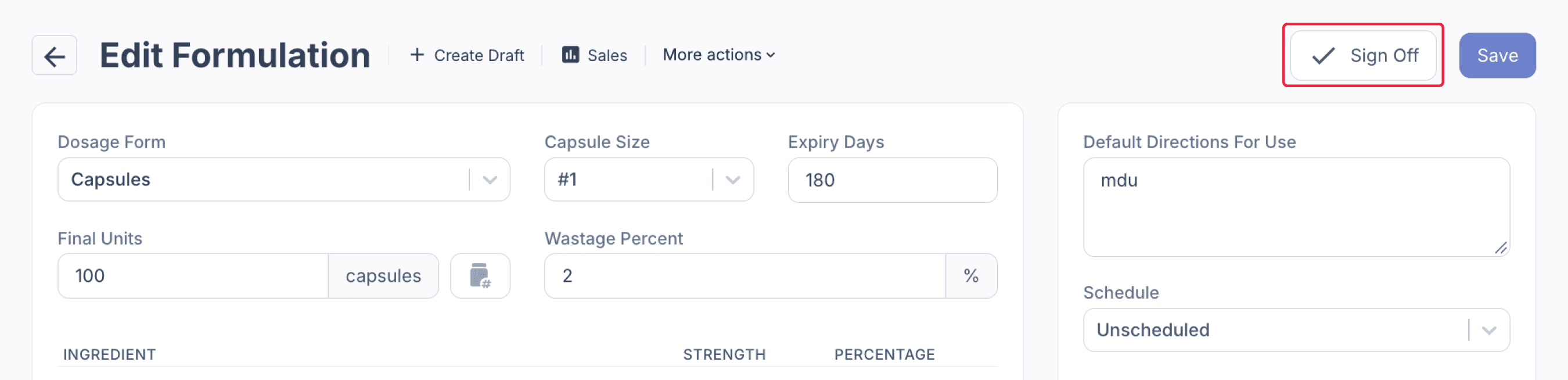
From the formulations page
The Sign Off Formulation modal will appear, click ‘Sign Off’ to proceed.
Once signed off, the formulation is ready to be used for group compounding.
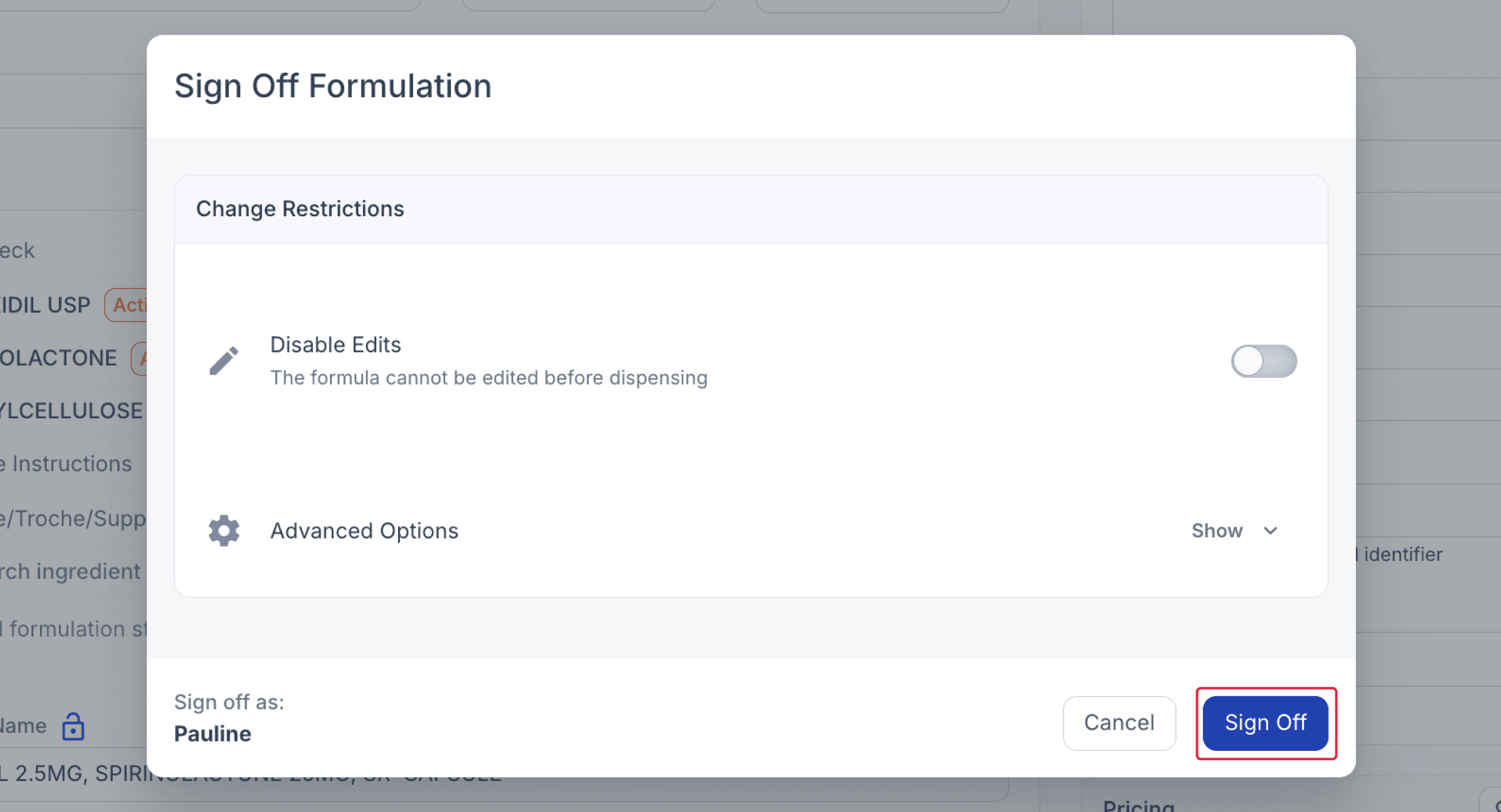
From the formulations page
Part 2: Create and dispense the draft
Create and Dispense Draft.
Check all the relevant fields such as active strength, final units, formulation pricing, reference details (we recommend using the script number), and customer information. Once entered, click ‘Dispense’.
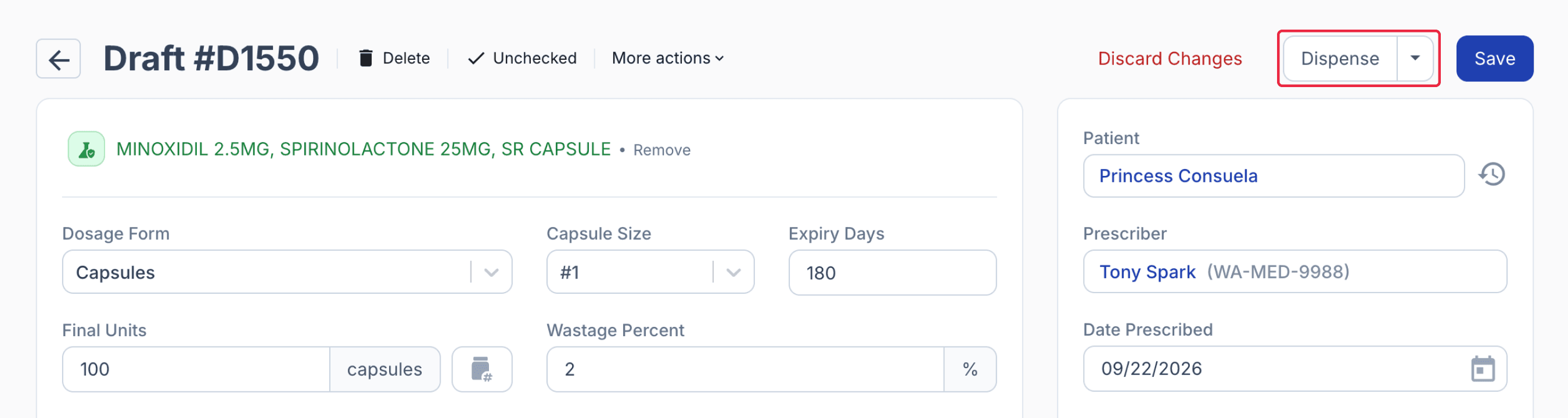
From the drafts page
You may repeat this part to dispense duplicate compounding records.
Part 3: Compound matching dispense records as a group compound
Step 1: On the Dispensed page, select one of the dispense records for which you would like to create a compound group.
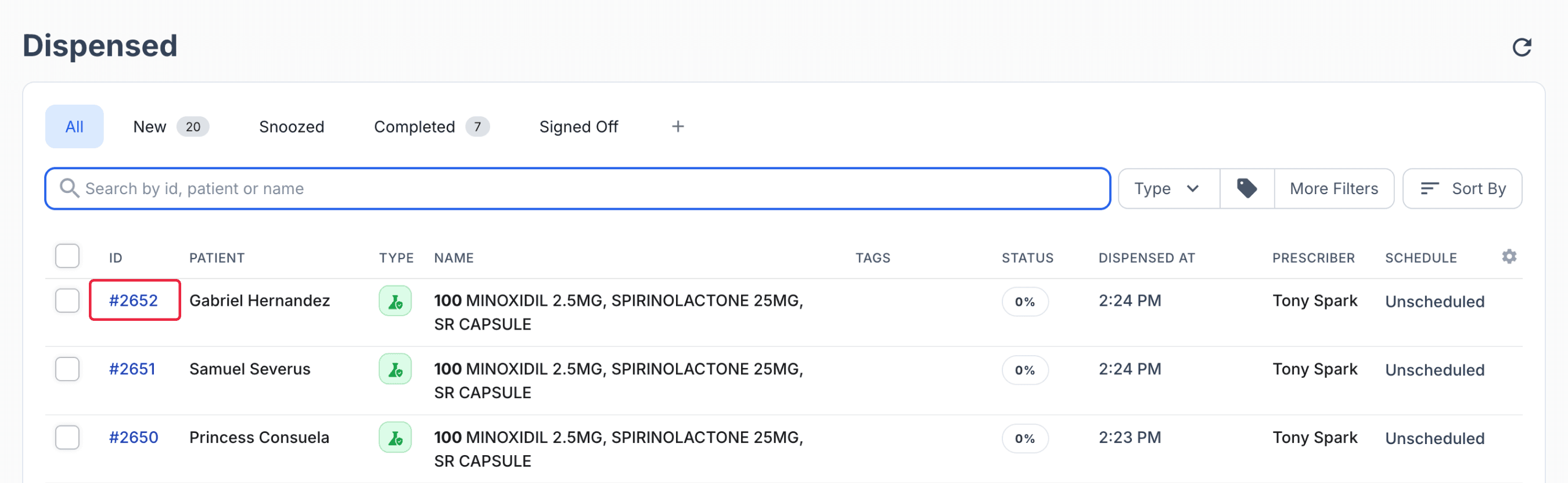
From the dispensed page
Step 2: Click the banner displayed in the top right corner indicating Group Compounding is available.
Note: The Group Compound banner will not be displayed if the selected dispensed record is snoozed.
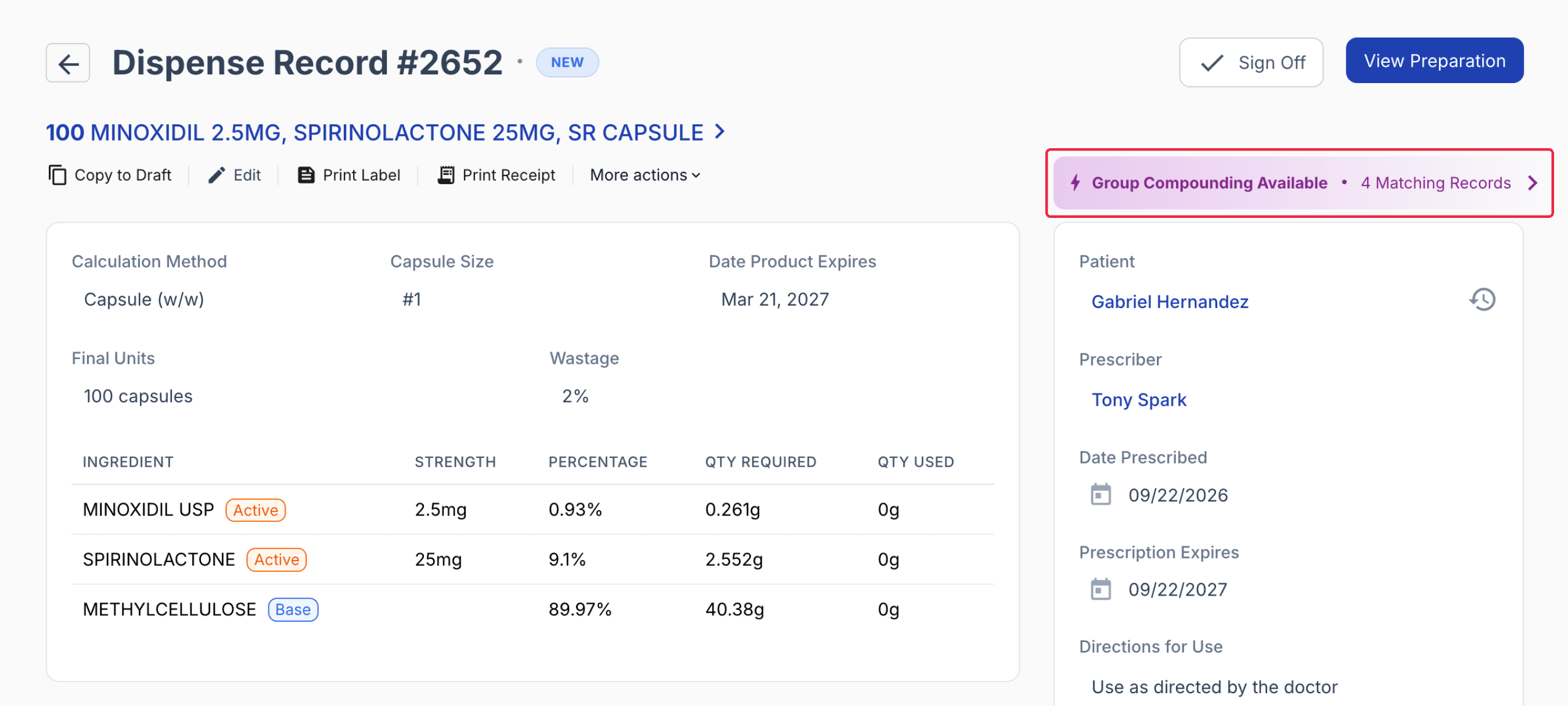
From the dispensed page
Step 3: On the Create Compound Group modal, toggle ‘Include Snoozed’ to display any snoozed dispense records.
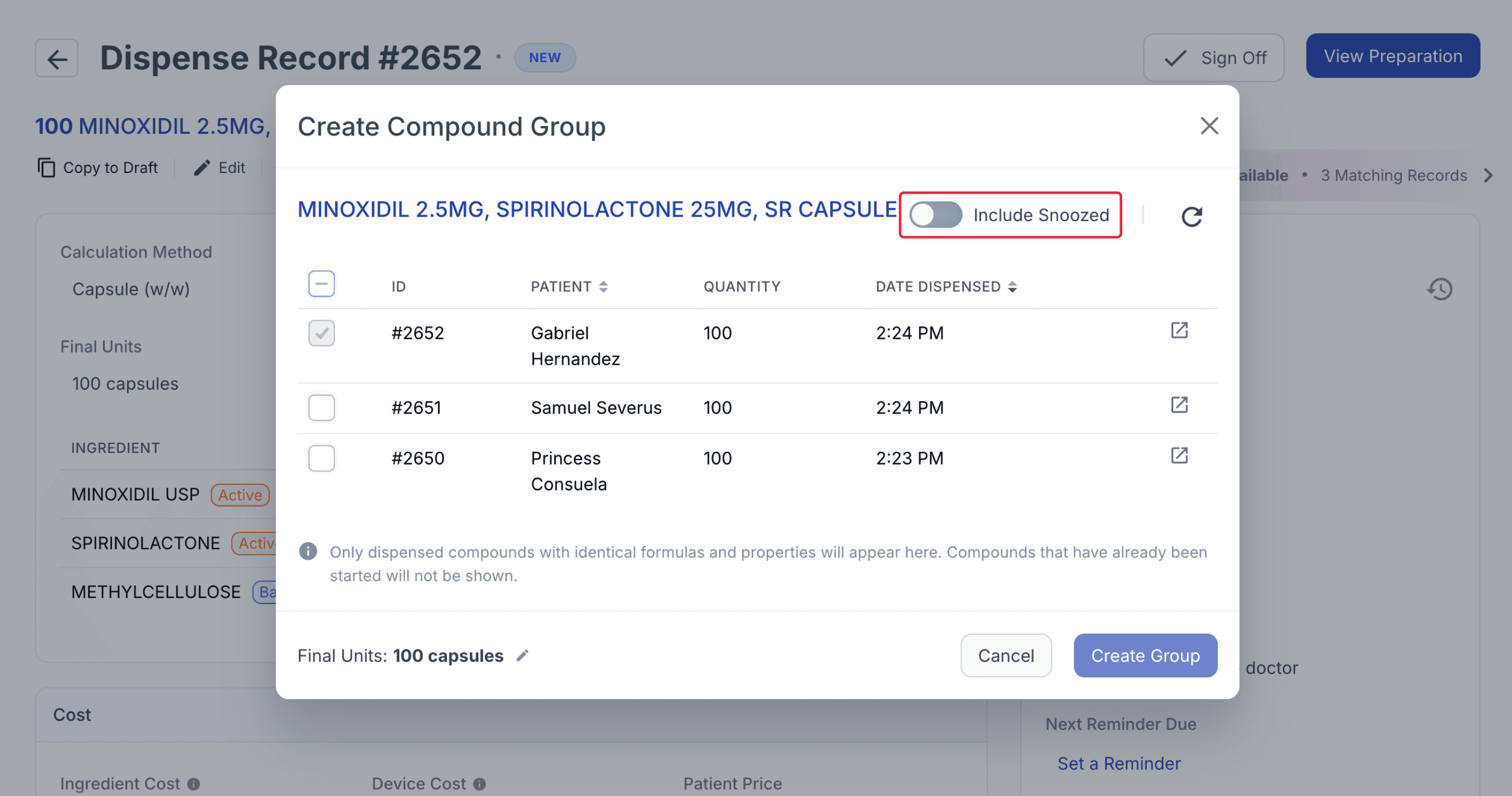
From the dispensed page
**Include snoozed feature requires standard package or higher**
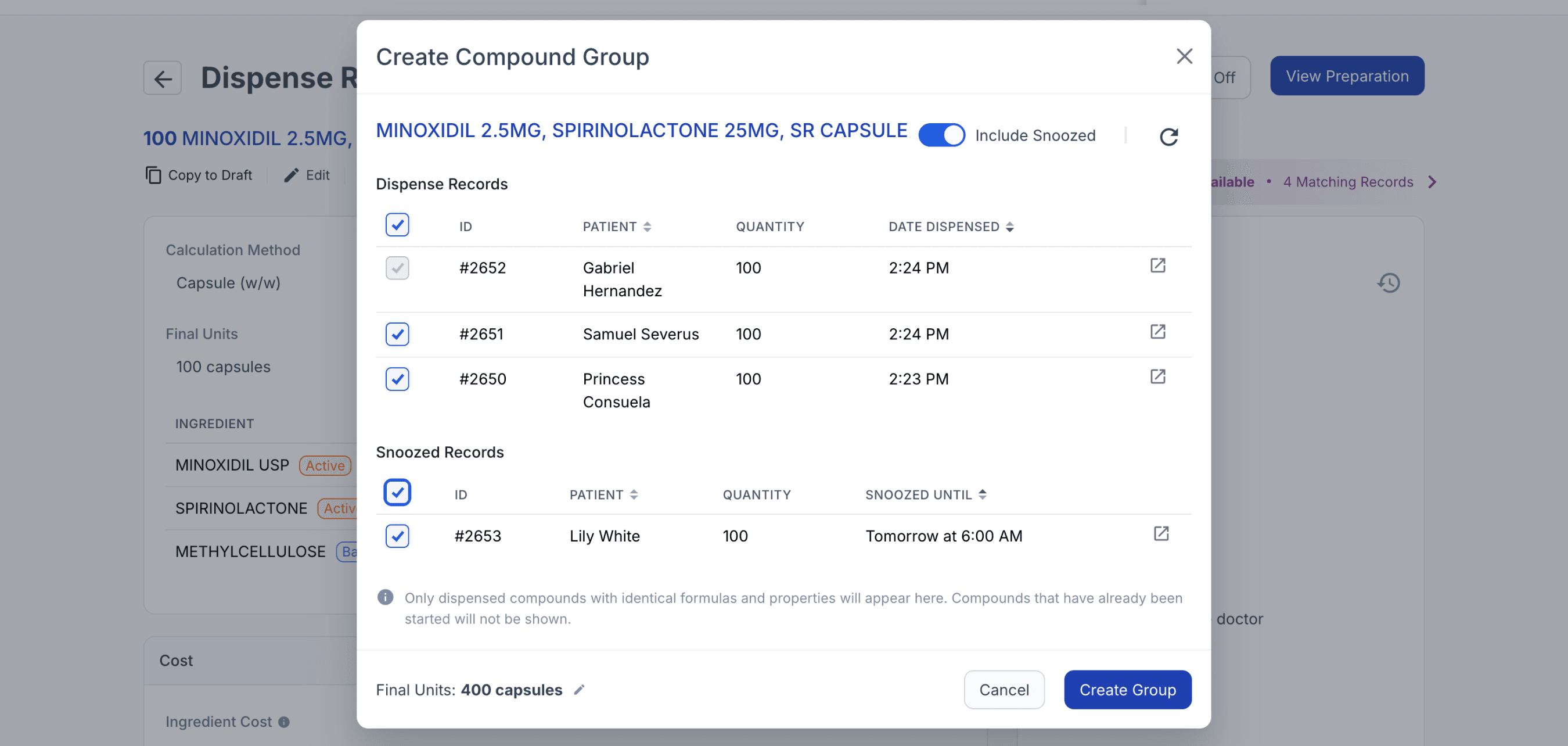
From the dispensed page
**Include snoozed feature requires standard package or higher**
Step 4: Select the dispense records you wish to add to the compound group, your current dispense record will be selected by default.
Step 5: You may change the quantity of the final units to prepare a larger batch. This is useful for preparing a larger quantity when similar prescriptions have not yet been entered or dispensed. Once updated, click 'Confirm'.
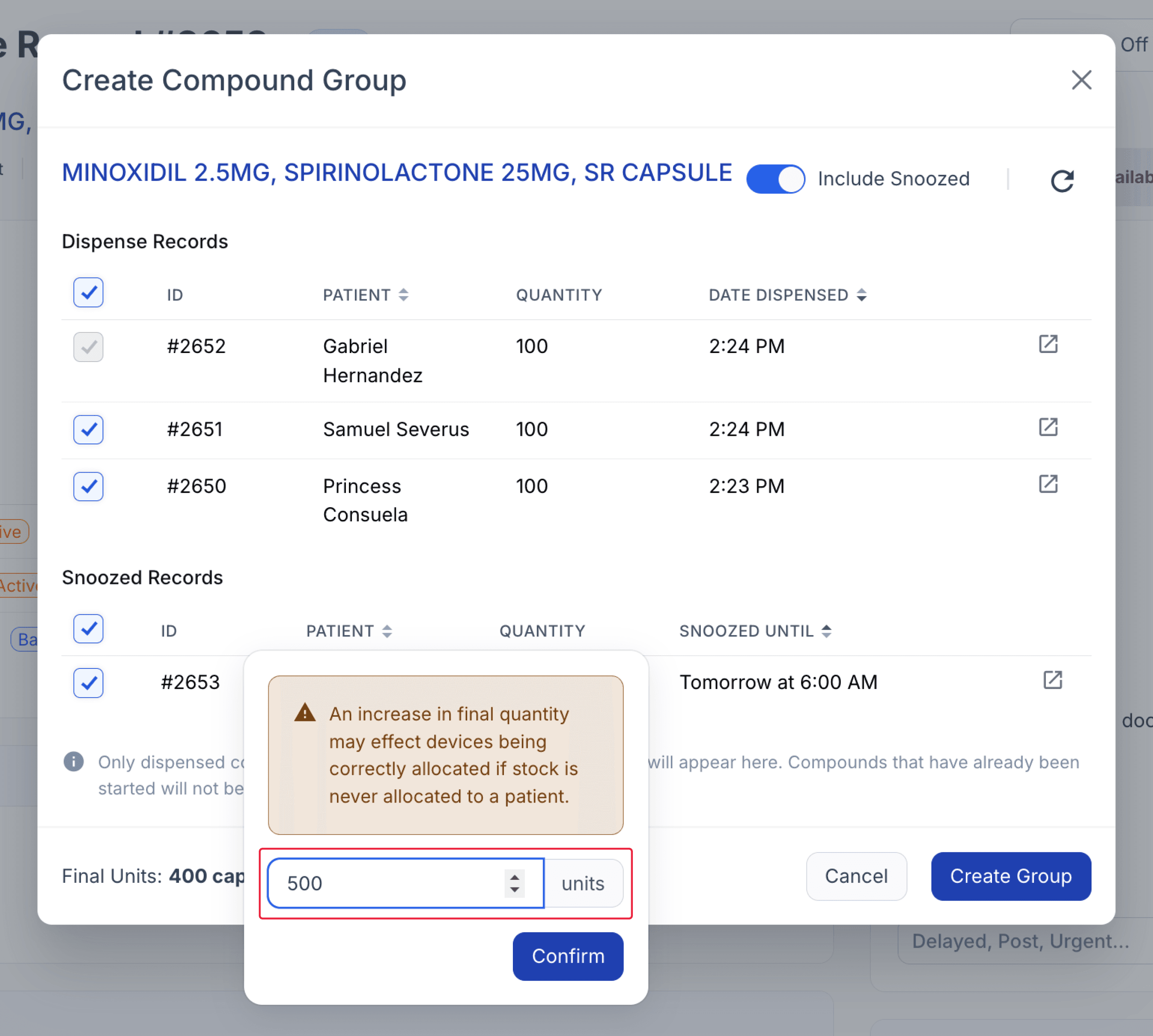
From the dispensed page
Step 6: Click the 'Create Group' button. On the compound group page, you can edit the group details and adjust the final quantity by clicking ‘Edit’ or pressing ‘E’ on your keyboard. Click ‘Save’ to confirm any changes.
Step 7: Prepare the Compound Group
Follow the compounding process in the same manner as individually compounded items.
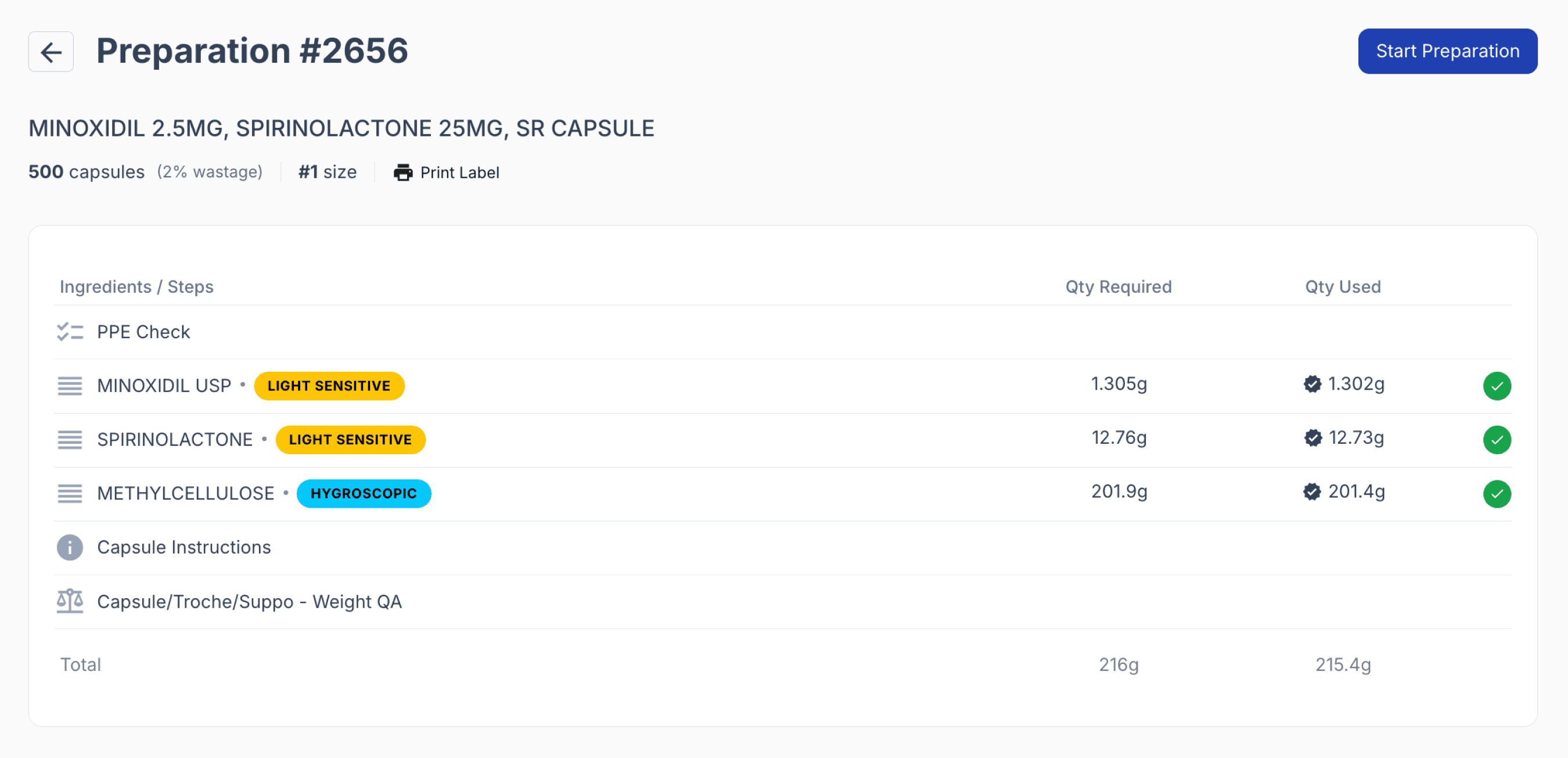
From the preparation page
Step 8: Once all compounding is completed, Click the ‘Sign Off’ button on the Compound Group.
The dispense records that are assigned to the Compound Group are listed at the bottom of the Compound Group page.
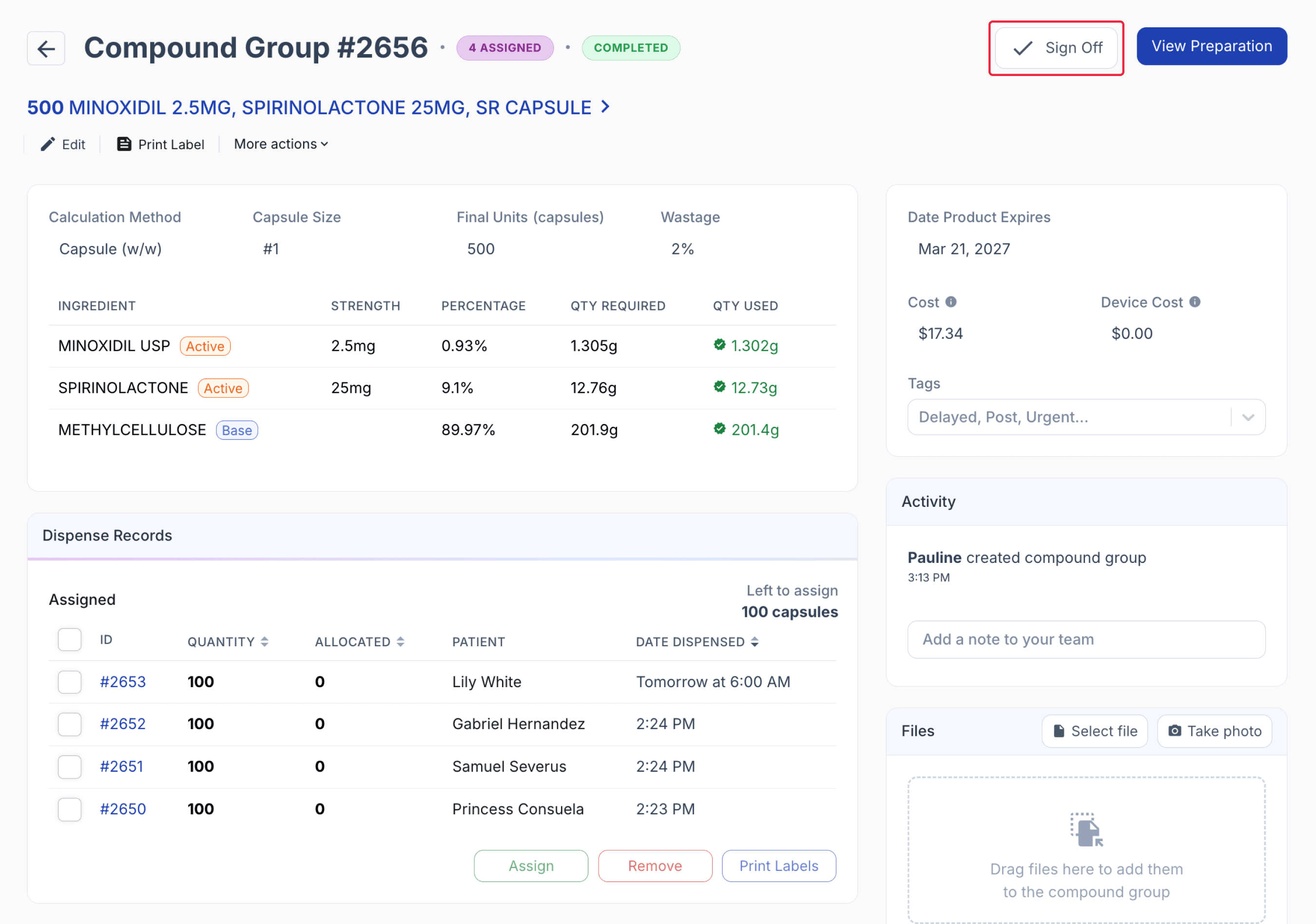
From the compound group page
Step 9: On the Sign Off confirmation modal, click the ‘Sign Off’ button to proceed.
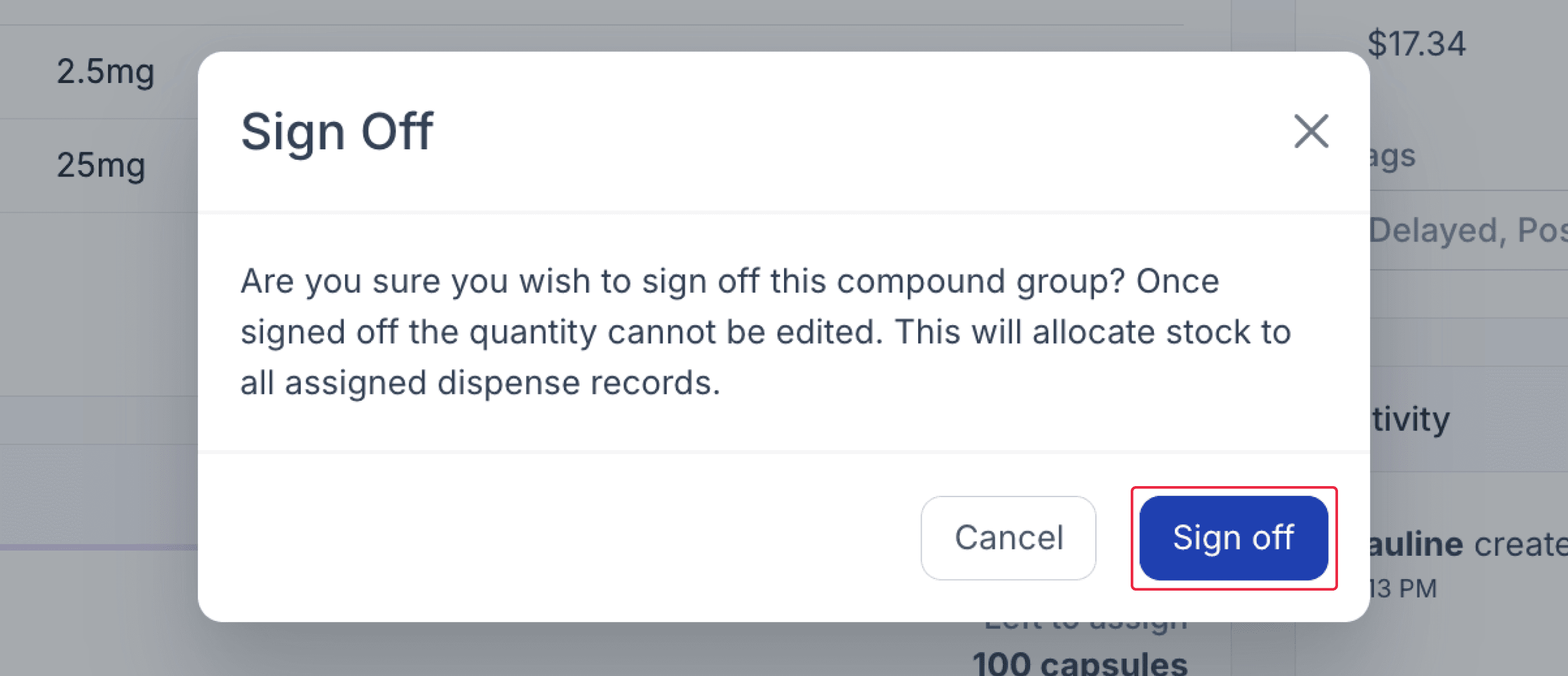
From the compound group page
Once the compound group is signed off, the quantity prepared will be allocated to the assigned dispensed records.
Step 10: On the Compound Group page, scroll down to view the list of assigned dispensed records. Click the Dispense # to view the dispense record.
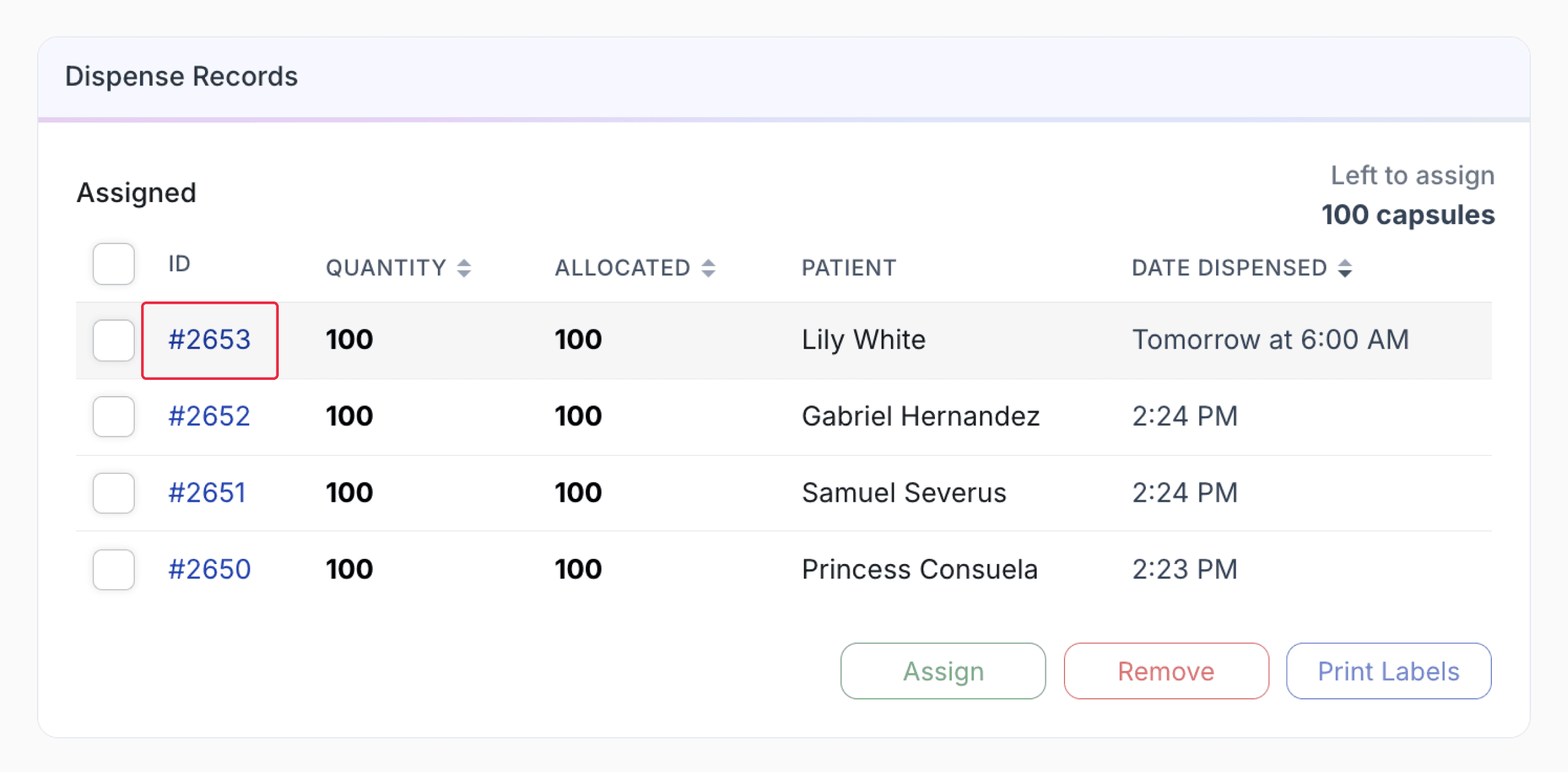
From the compound group page
Step 11: On the dispense page, click the ‘Sign Off’ button.
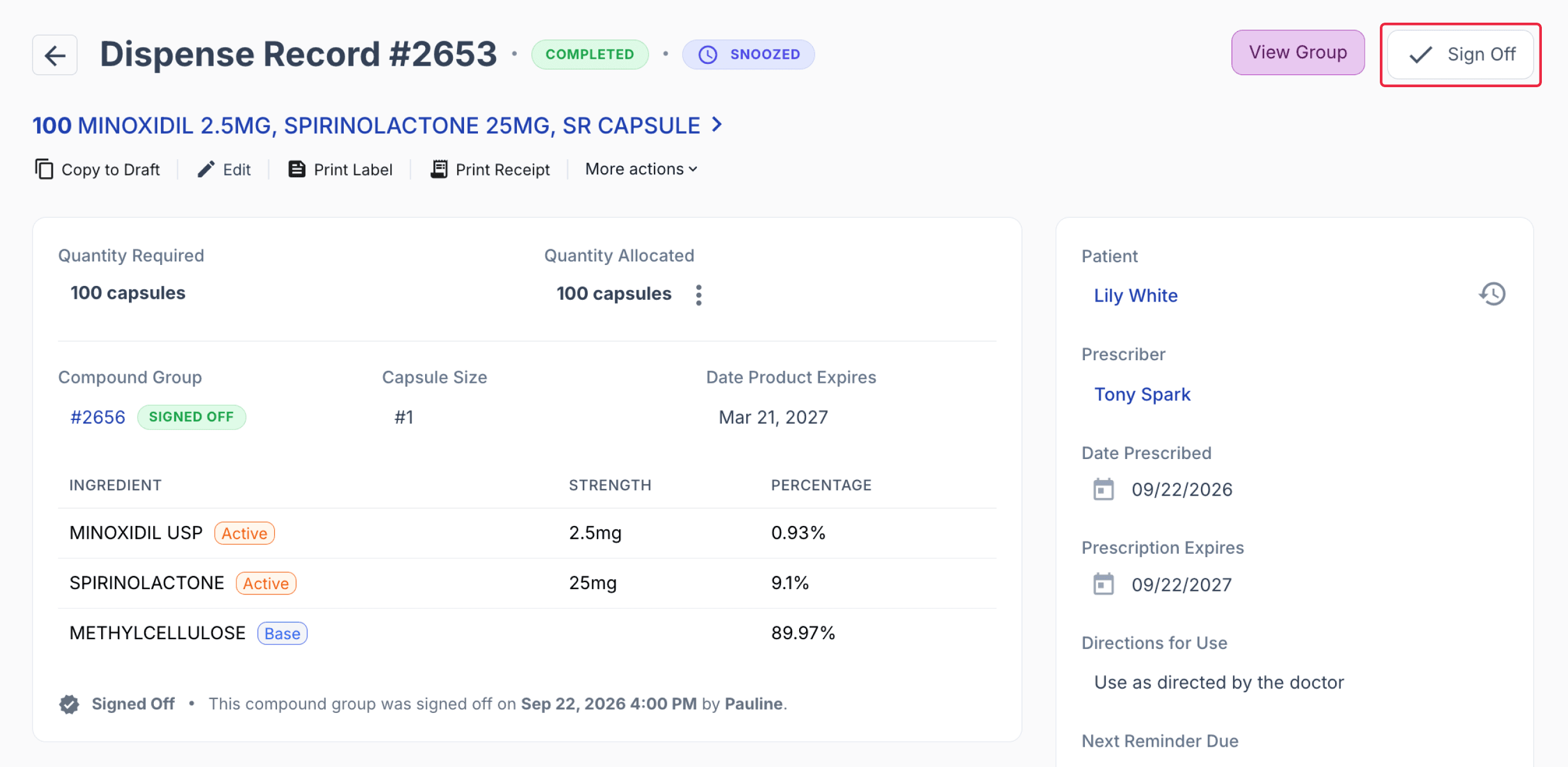
From the dispensed page
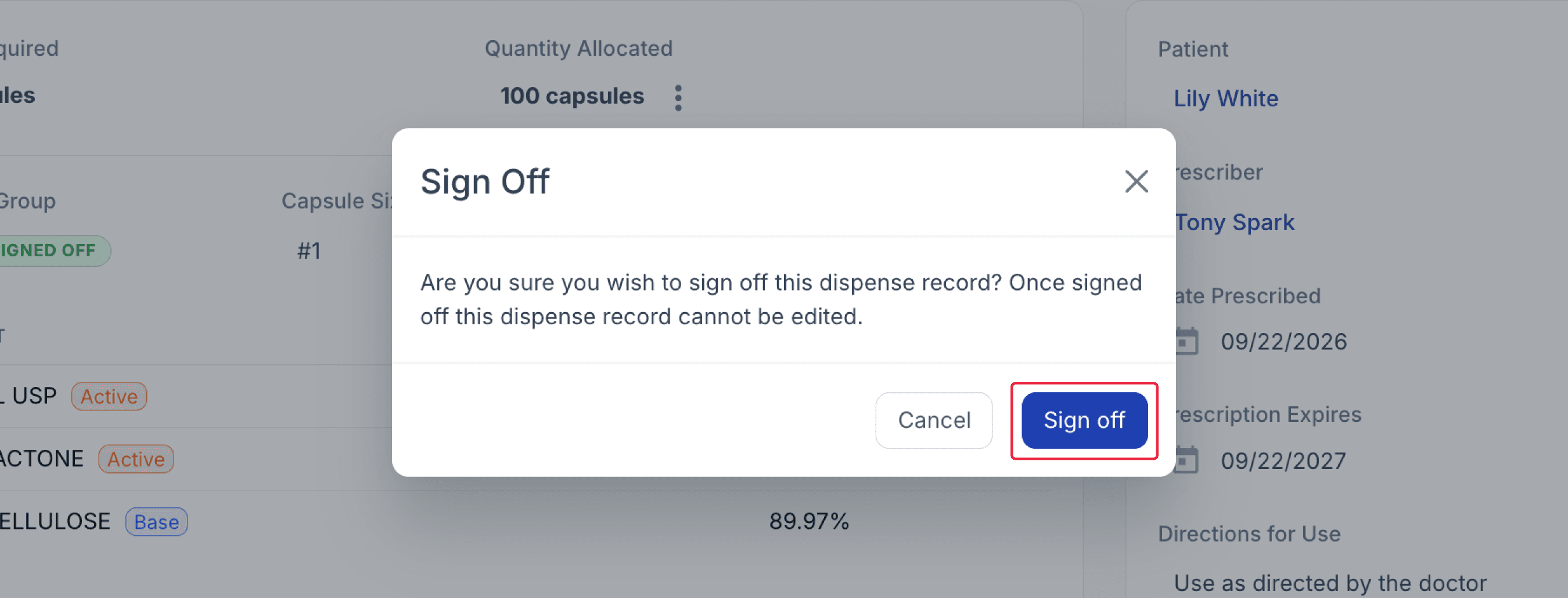
From the dispensed page
Step 12: Click the ‘View Group’ button, to go back to the compound group page.
Repeat steps 10-11 until all dispense records are signed off.
Available group compound
When a group compound has remaining unassigned units, the remaining stock on hand (SOH) may be allocated to dispensed records with a matching formulation.
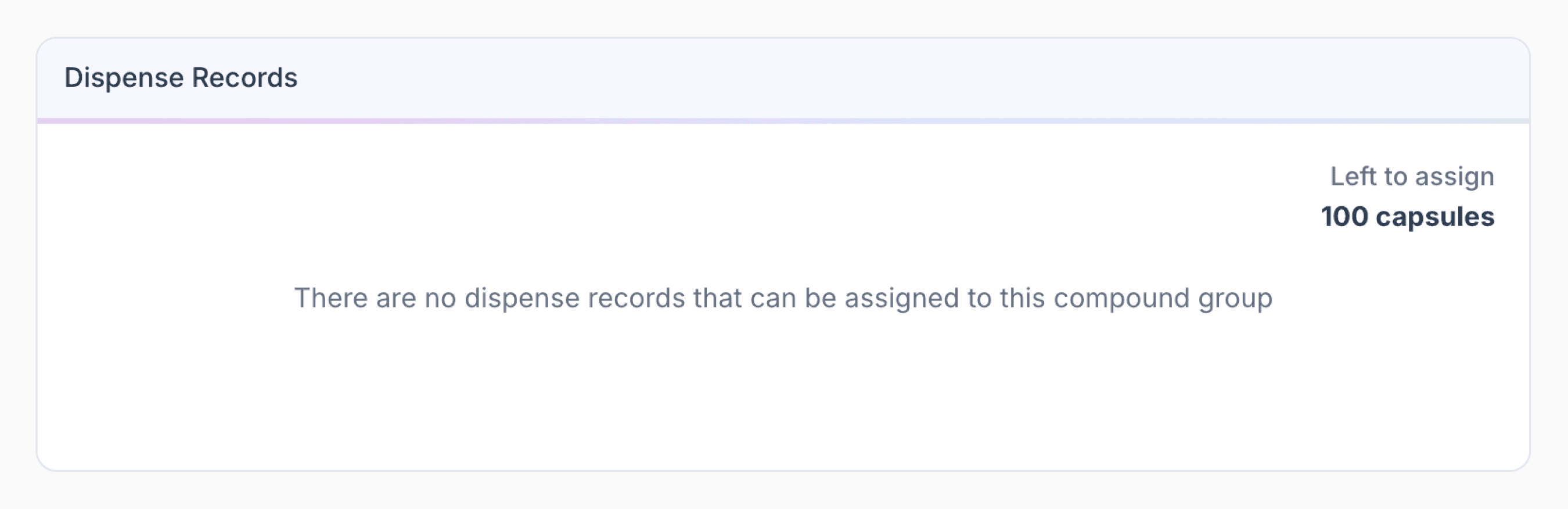
From the compound group page
Scenario A
A new script has been dispensed that has similar properties to an available compound group. In such cases, a banner will appear indicating that a group compound is available.
Step 1: Click the Group Compounding banner displayed in the top-right corner.
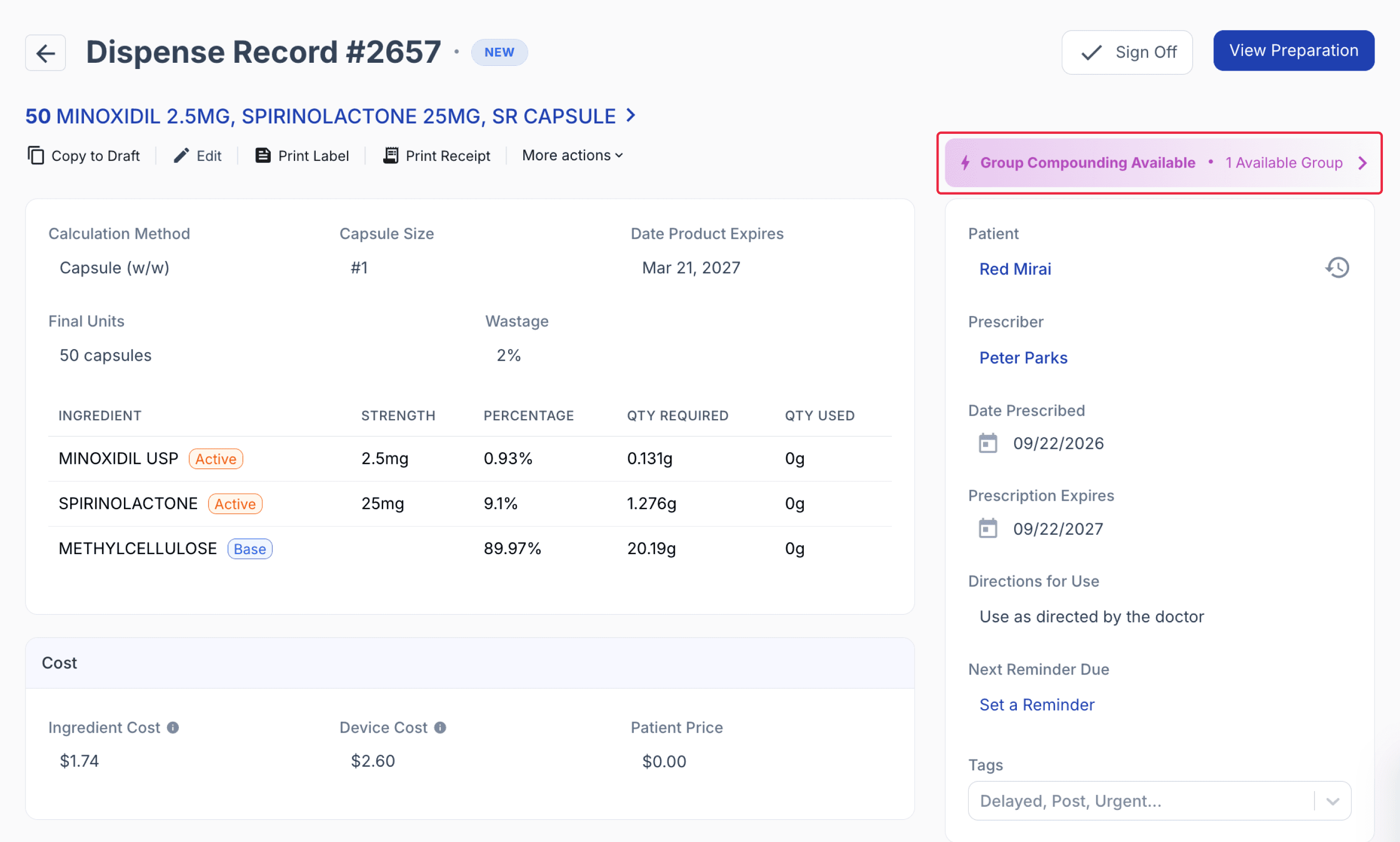
From the dispensed page
Step 2: Select the compound group # and Click the ‘Allocate’ button.
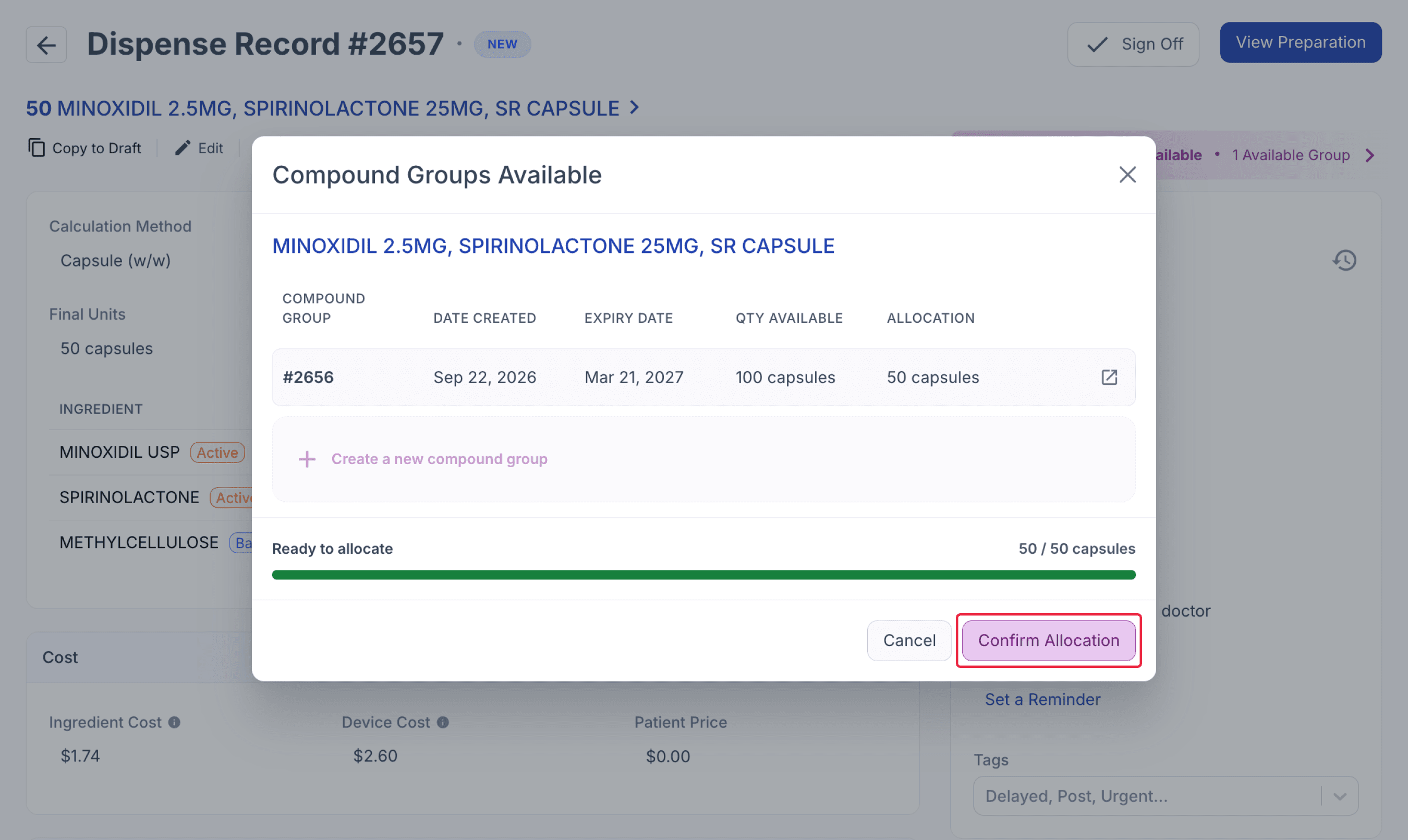
From the dispensed page
Step 3: Click the ‘Assign’ button to assign the available SOH to the dispense record.
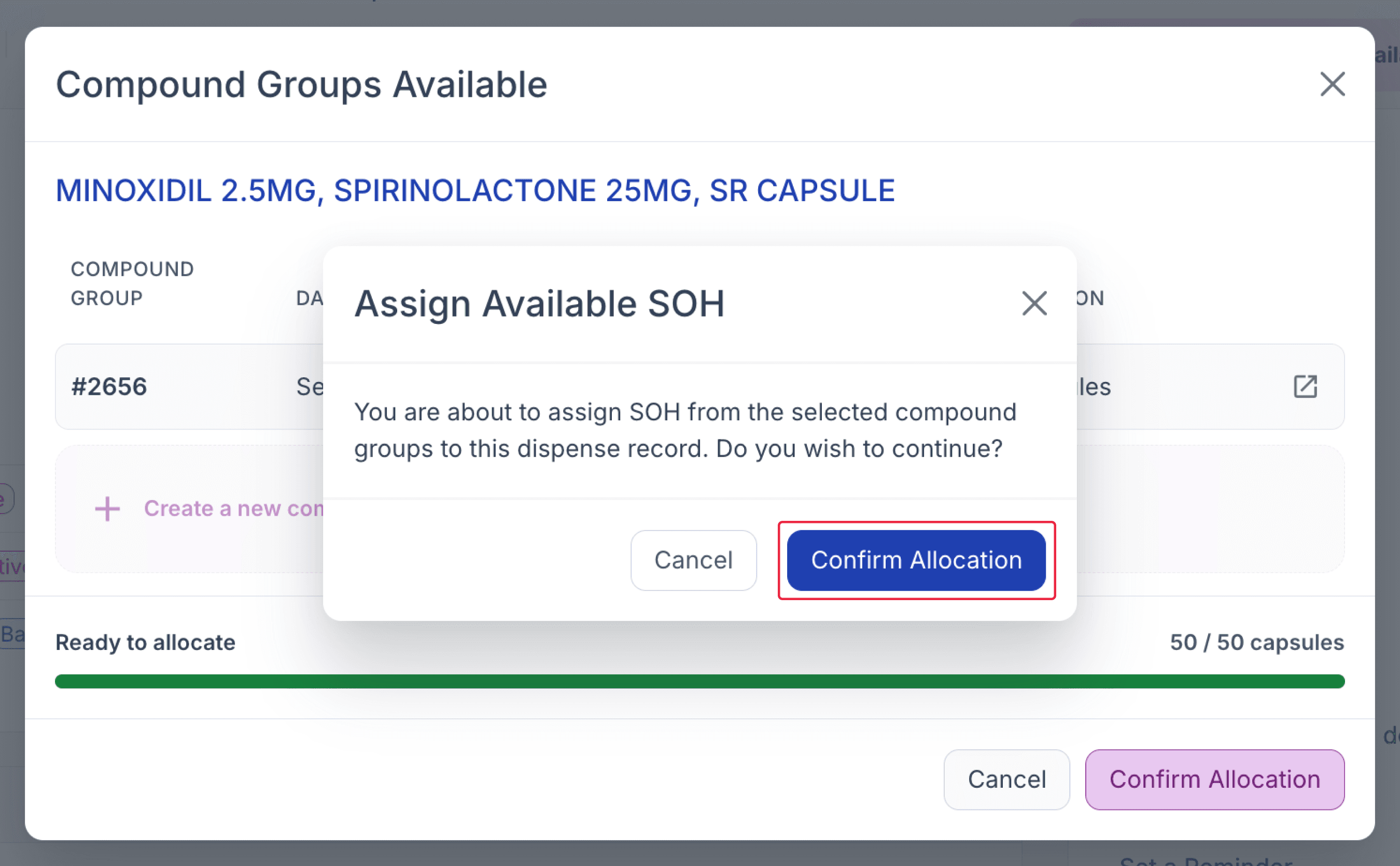
From the dispensed page
Step 4: Click the ‘Sign Off’ button to sign off the dispense record.
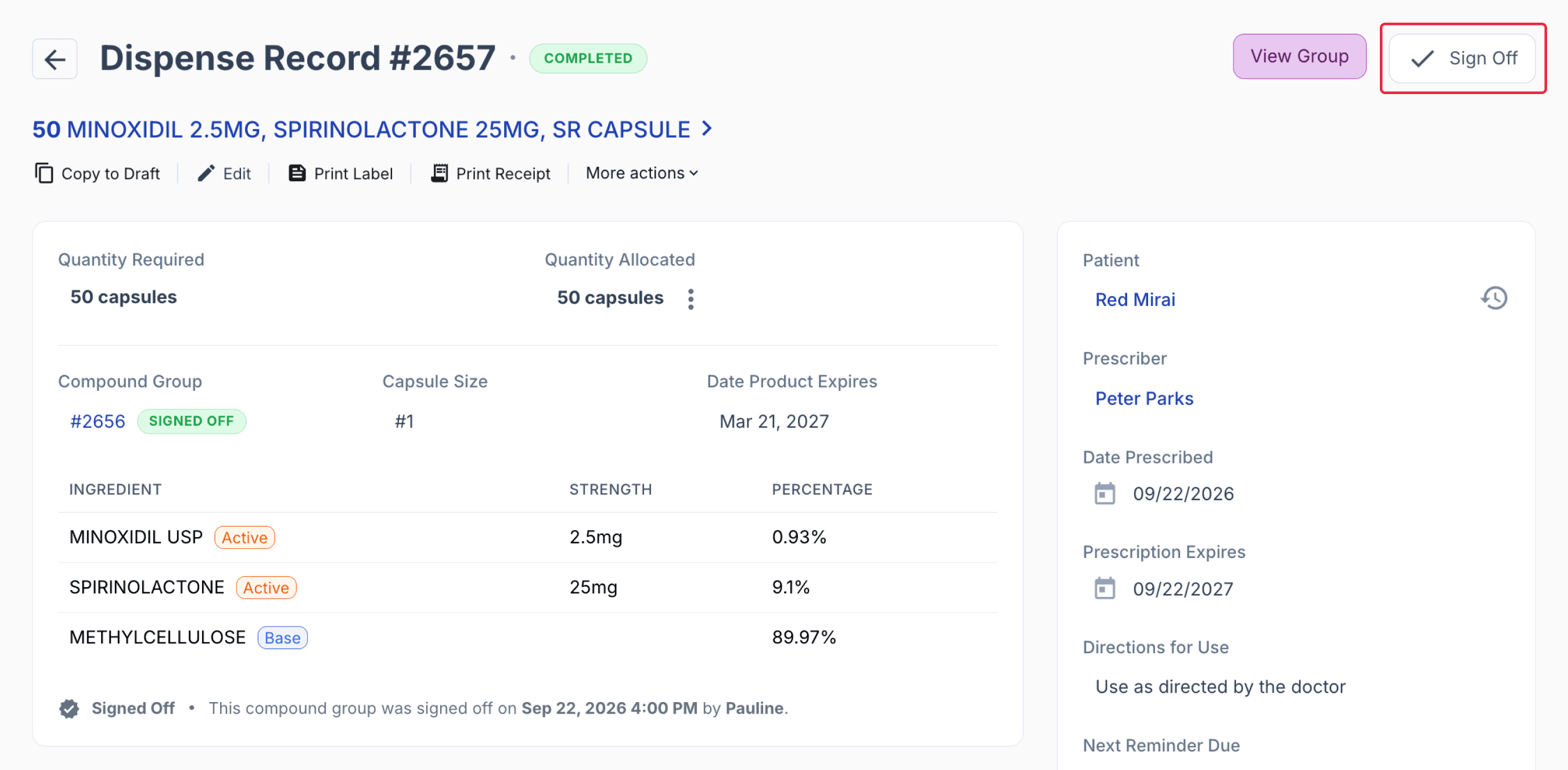
From the dispensed page
Step 5: On the Sign Off confirmation modal, click the ‘Sign Off’ button to proceed.
Step 6: To view the compound group where the dispense record is assigned, click the ‘View Group’ button.
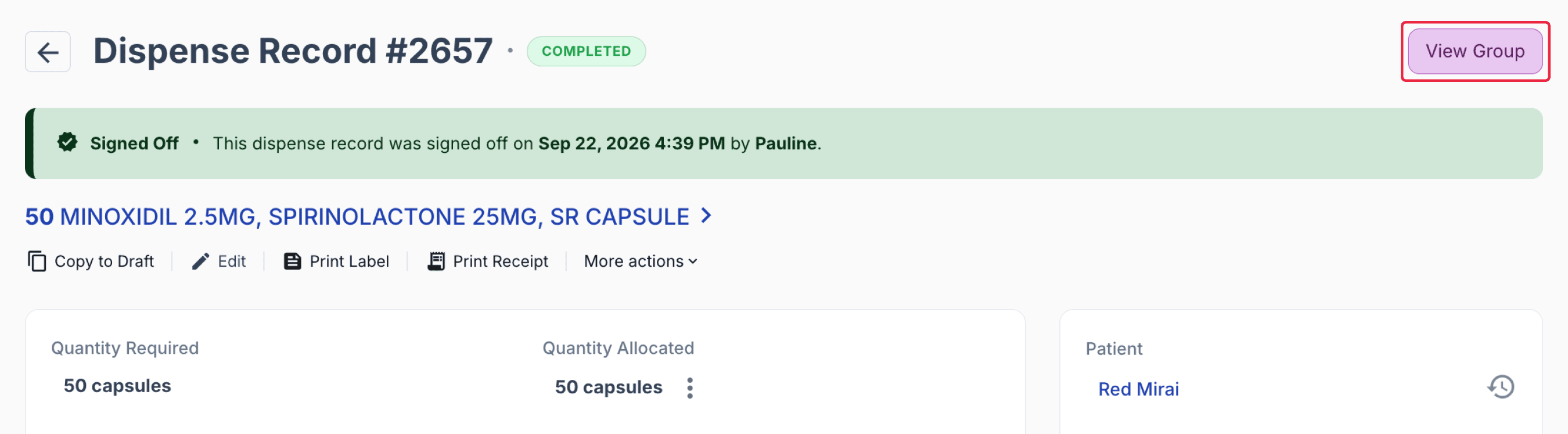
From the dispensed page
On the Compound Group page, the list of signed off formulations assigned to that compound group will be displayed.
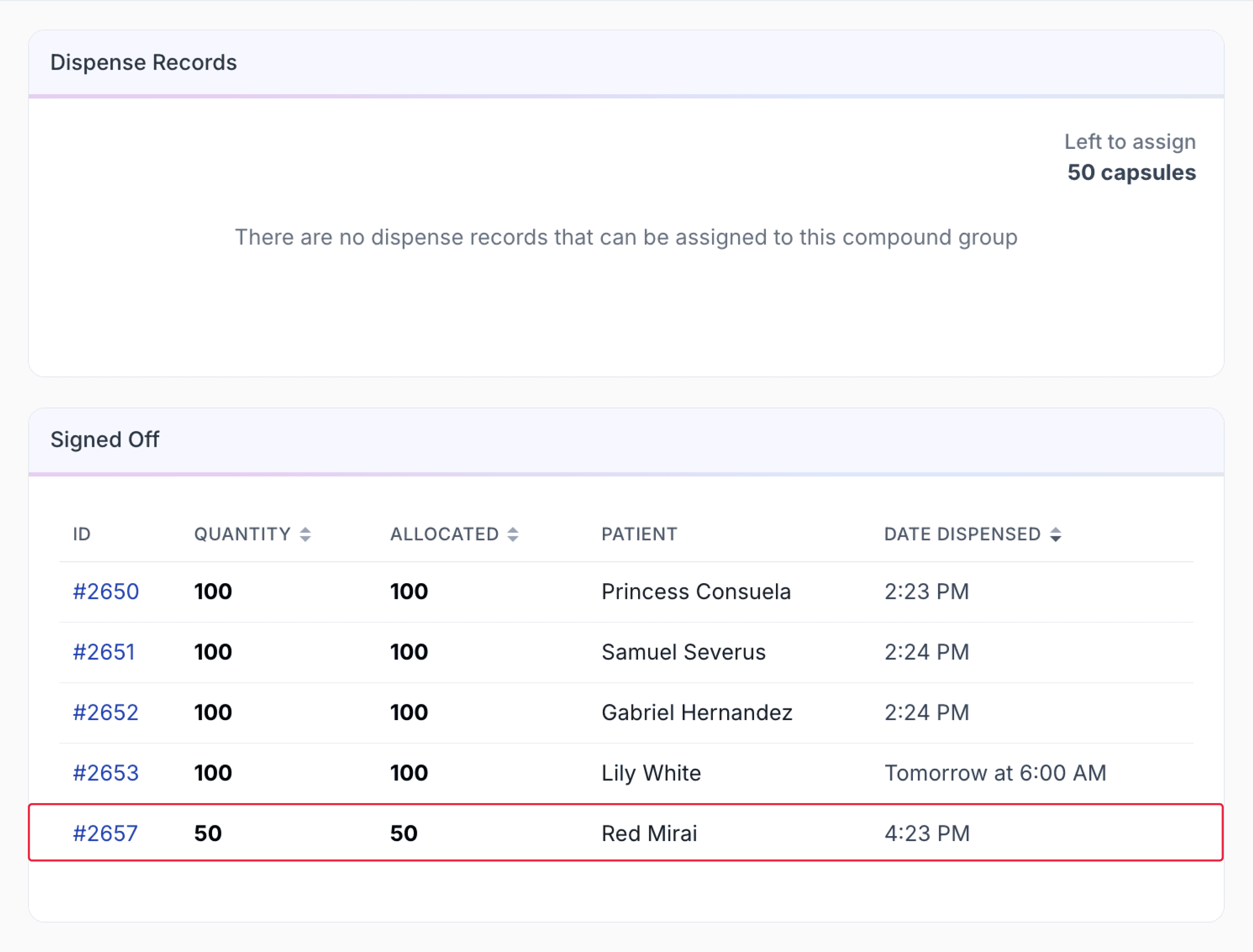
From the compound group page
Scenario B
In this scenario, two new scripts have been dispensed with properties that match compound groups for which SOH is available. When both records are dispensed, the Group Compounding banner appears.
You can then choose to allocate the available SOH to the current dispense record (as in Scenario A) or create a new compound group.
Step 1: Click the Group Compounding banner displayed in the top-right corner.
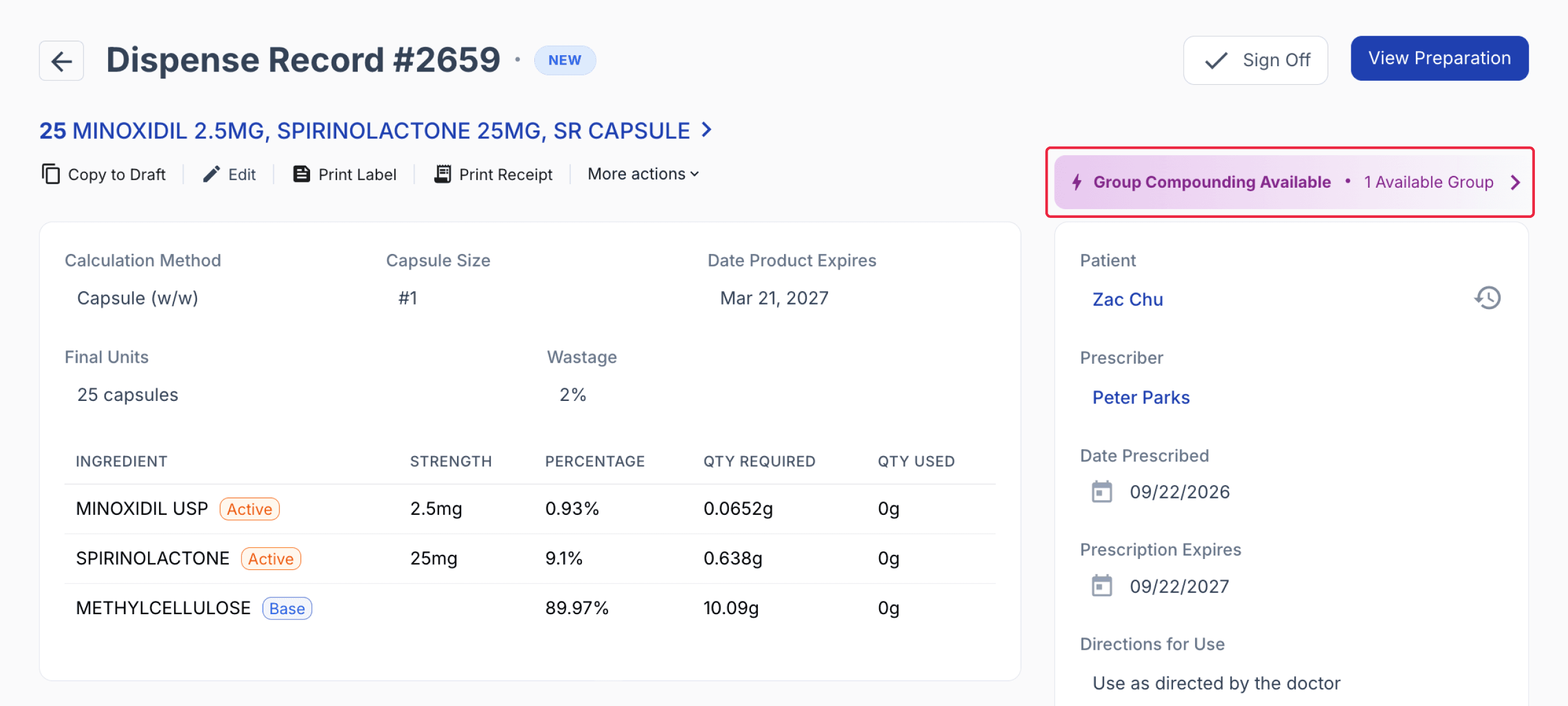
From the dispensed page
Option 1: You can choose to allocate SOH (similar to Scenario 1). Click the ‘Allocate from Group’ option.
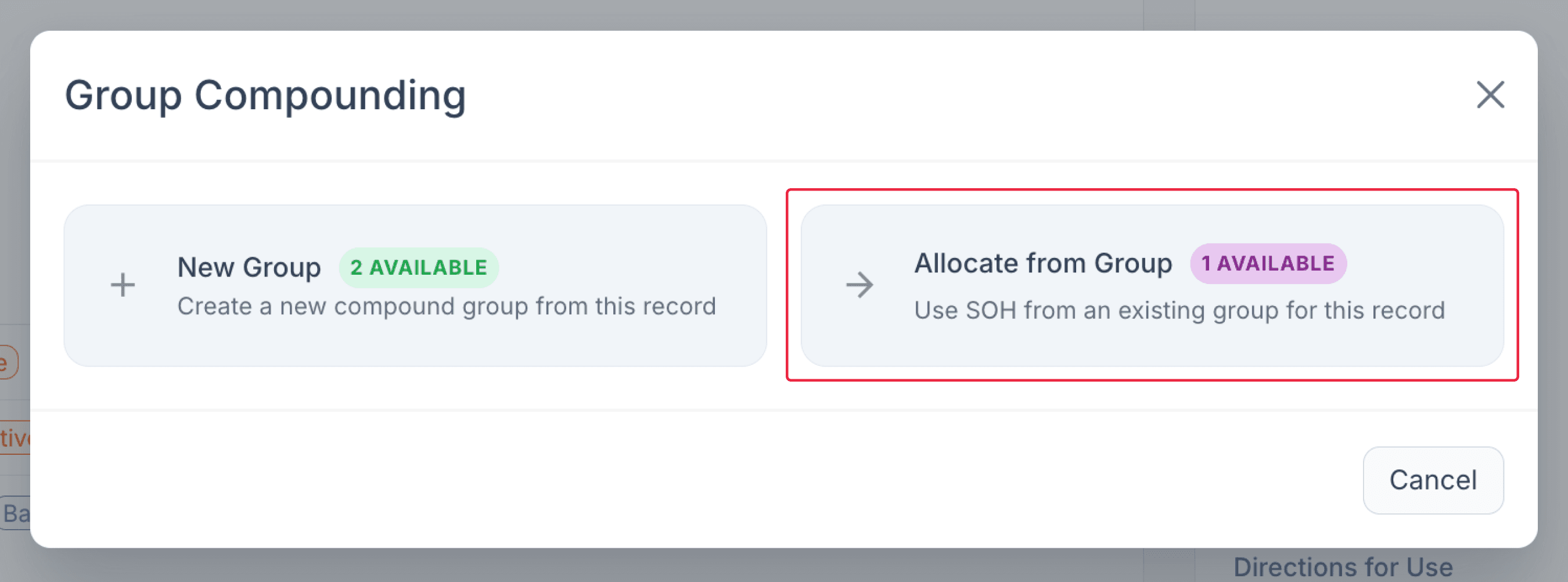
From the dispensed page
Repeat Scenario A: Steps 2-6 to proceed with the allocation.
Option 2: You may choose to create a new group by clicking the ‘New Group’ option.
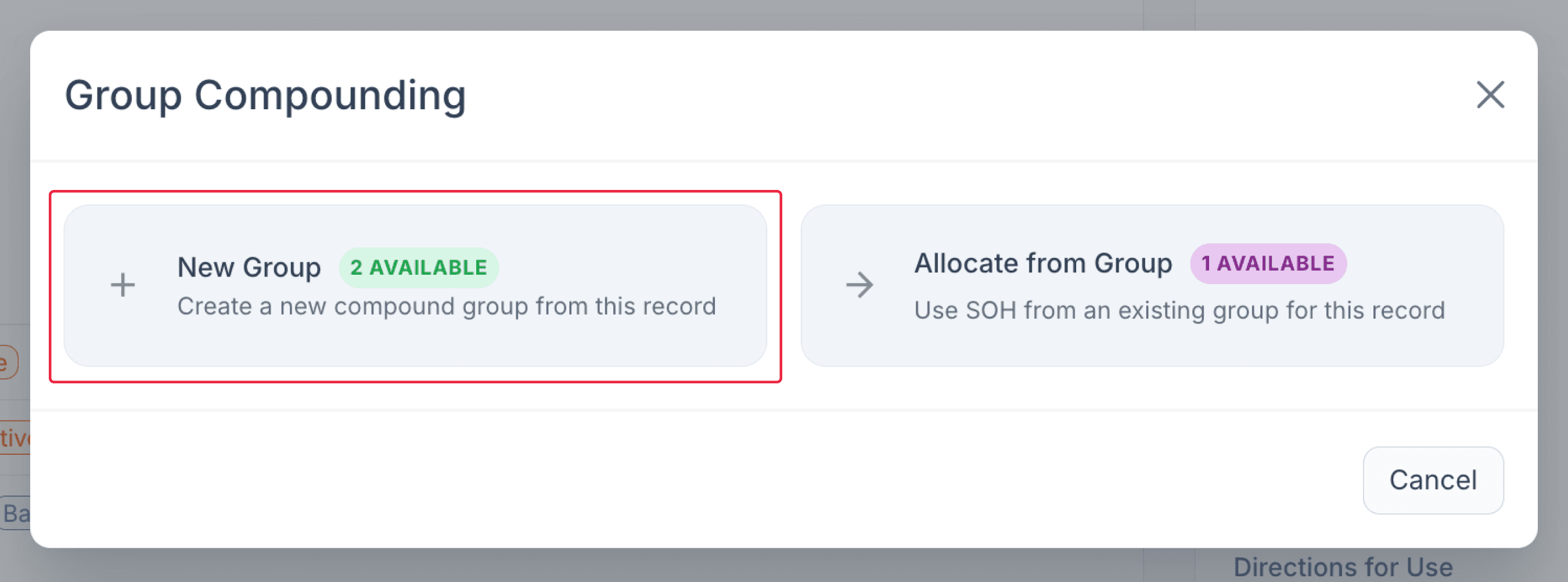
From the dispensed page
Repeat Part 3: Steps 2-11 to proceed with creating a new group.
Partial allocation of compound groups
Partial Allocation allows you to use the remaining stock on hand from a signed-off compound group, even when there is not enough stock to fulfil the entire dispensing quantity.
Any remaining quantity required for the dispense can then be allocated from another available compound group or used to create a new custom compound group.
As with the standard group compounding workflow, the Group Compounding Available banner will appear on the dispense record when an available compound group matches the properties of the dispense record.
Select the ‘Group Compounding Available’ banner to view the available compound group stock.
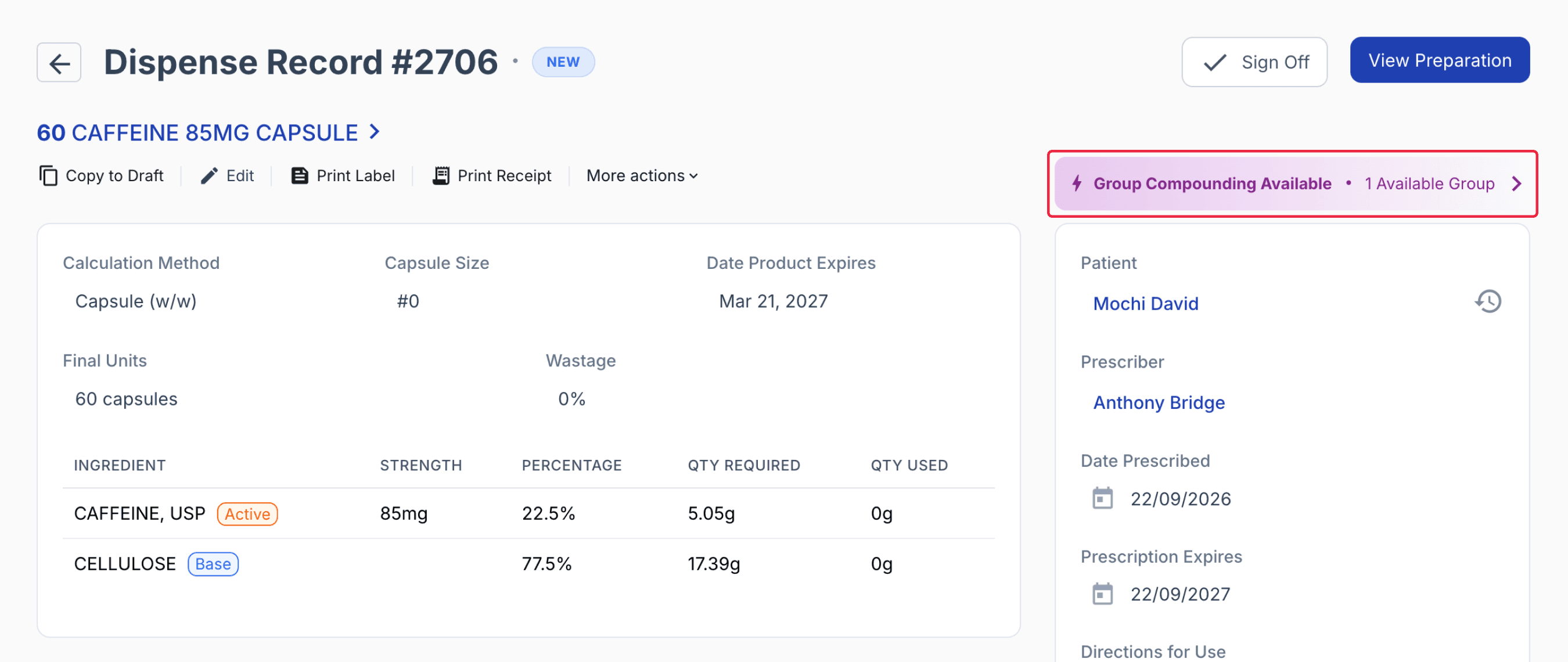
From the dispense record
In the modal, select any available compound group with partial stock on hand (SOH), then click 'Allocate All'.
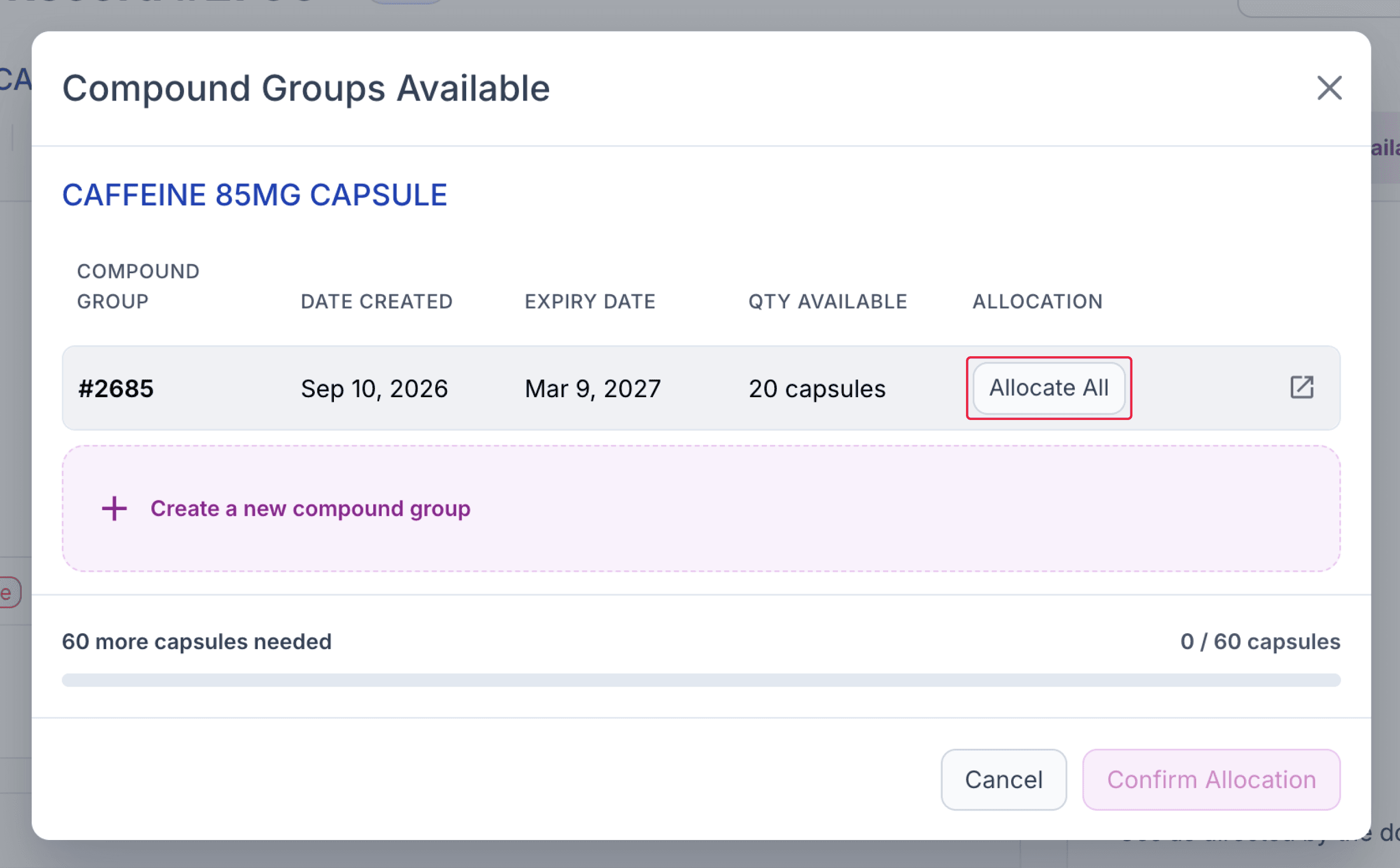
From the dispense record
You can then create a new group for the remaining quantity. The group size is automatically pre-filled with the quantity required to complete the final quantity of the dispensing record.
You can adjust this quantity if needed, for example, if you want to prepare a larger quantity for similar prescriptions that are not yet entered or dispensed.
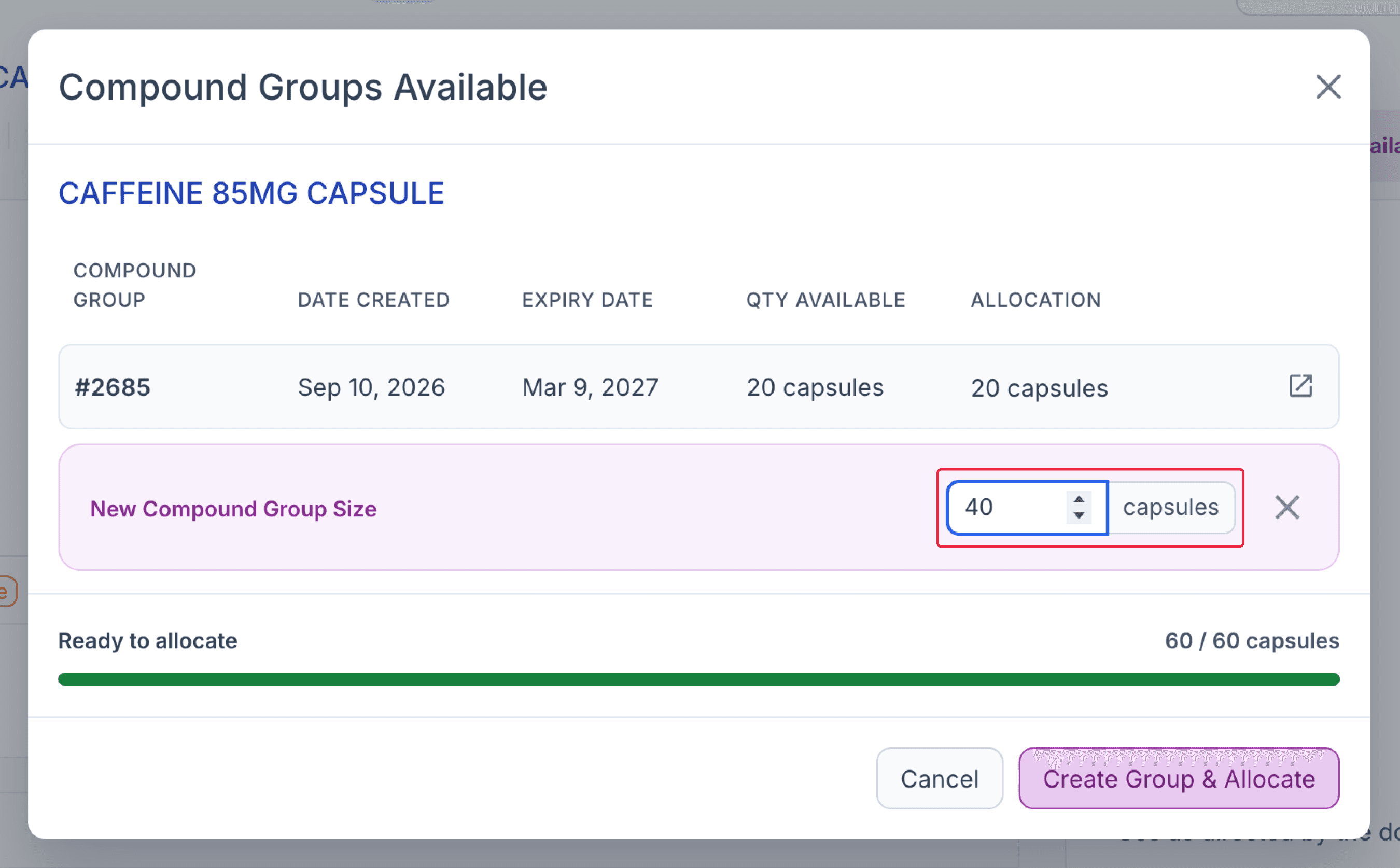
From the dispense record
Once ready, click ‘Allocate & Create Group’.
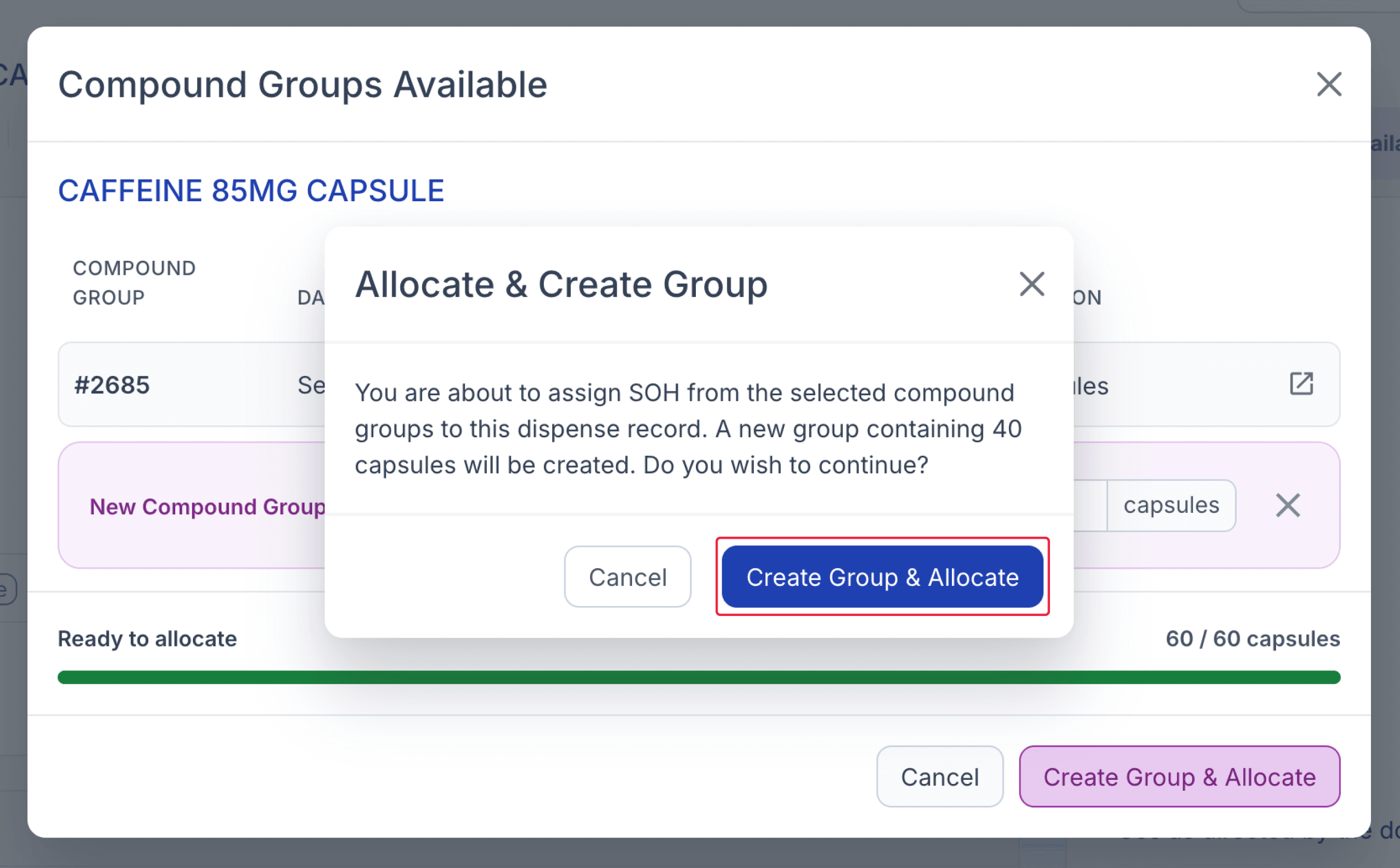
From the dispense record
The compound groups allocated to the dispense will then be displayed on the dispensing record, along with the current status of each group.
Open the newly created compound group to continue with the compounding workflow.
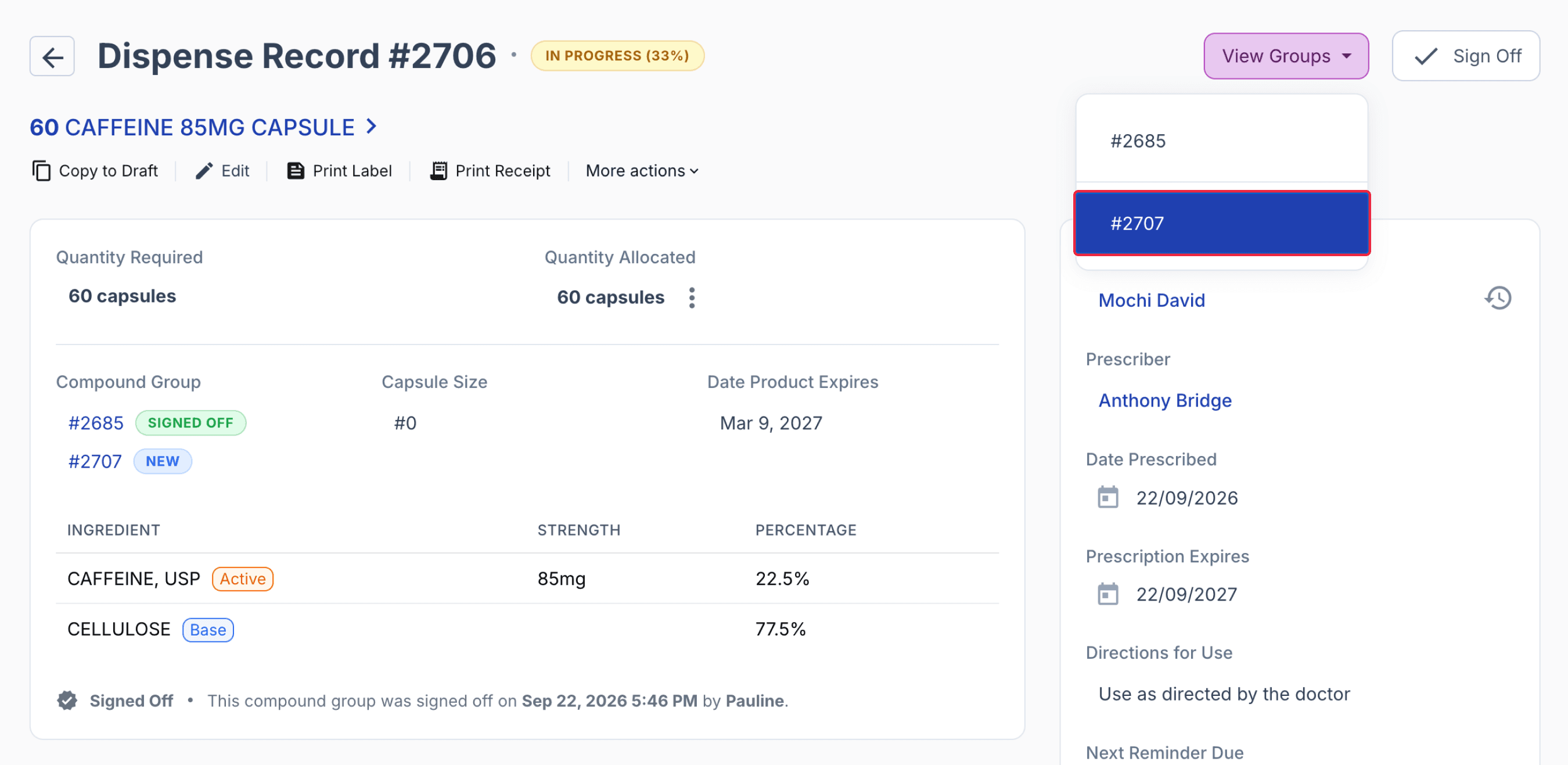
From the dispense record
Prepare the newly created compound group. Once preparation is complete, Sign off the compound group.
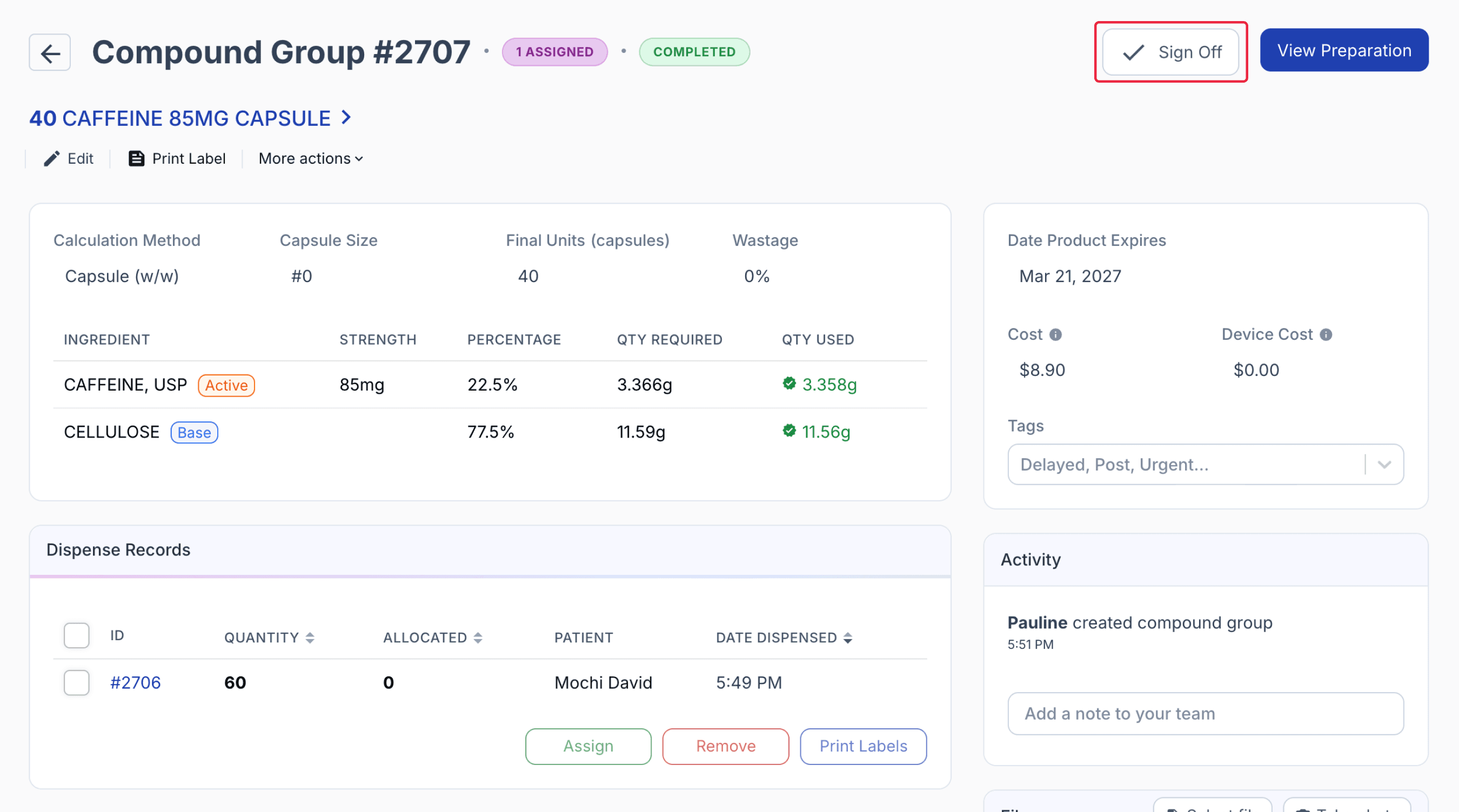
From the compound group page
Once the new compound group has been signed off, you can assign the remaining required quantity to the dispensing record.
Sign off the dispensing record to complete the allocation across both compound groups.
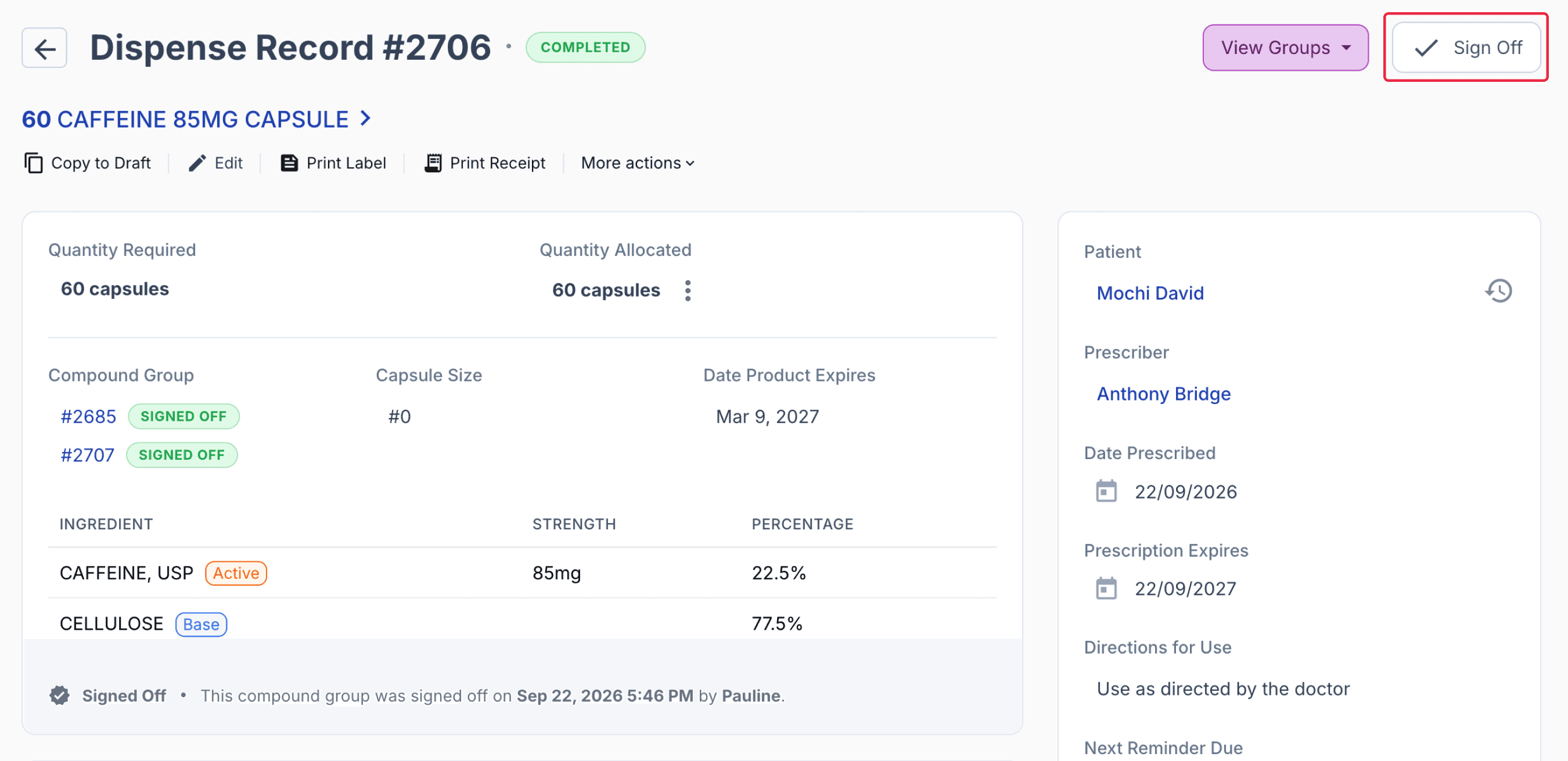
From the dispense record
You can open each compound group from the dispensing record to review how much of the dispensed quantity was allocated from each group.
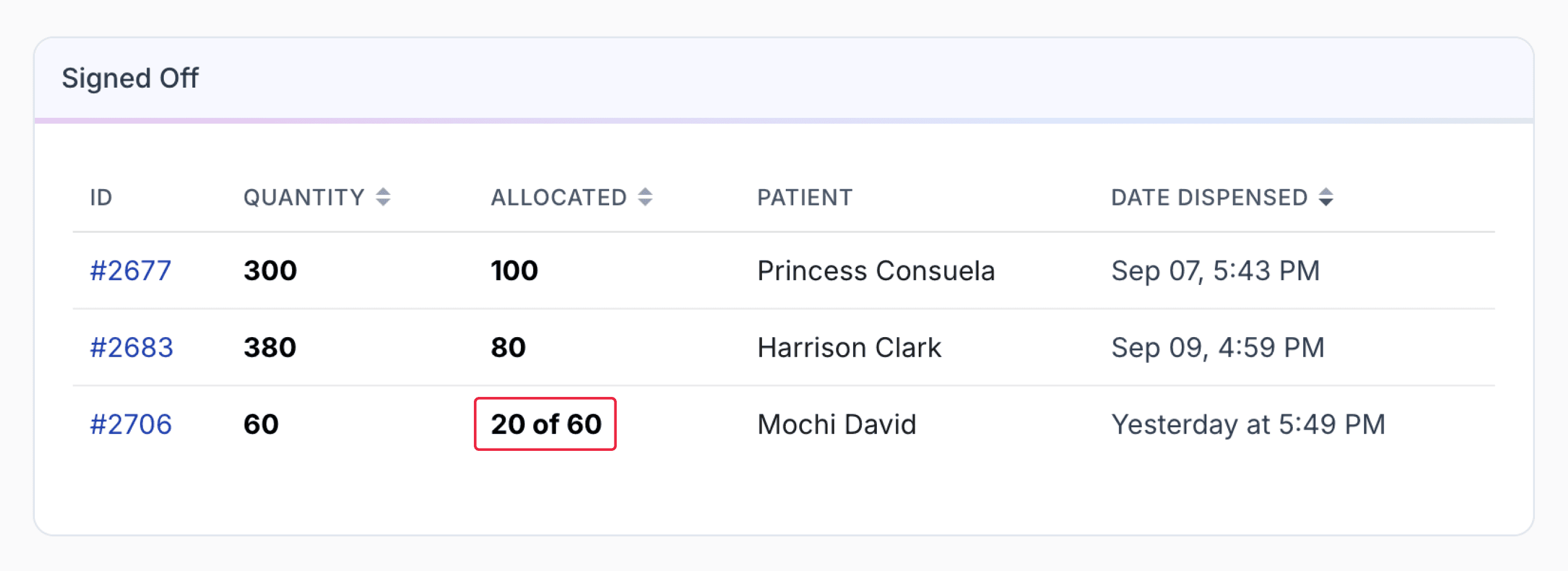
From the compound group page
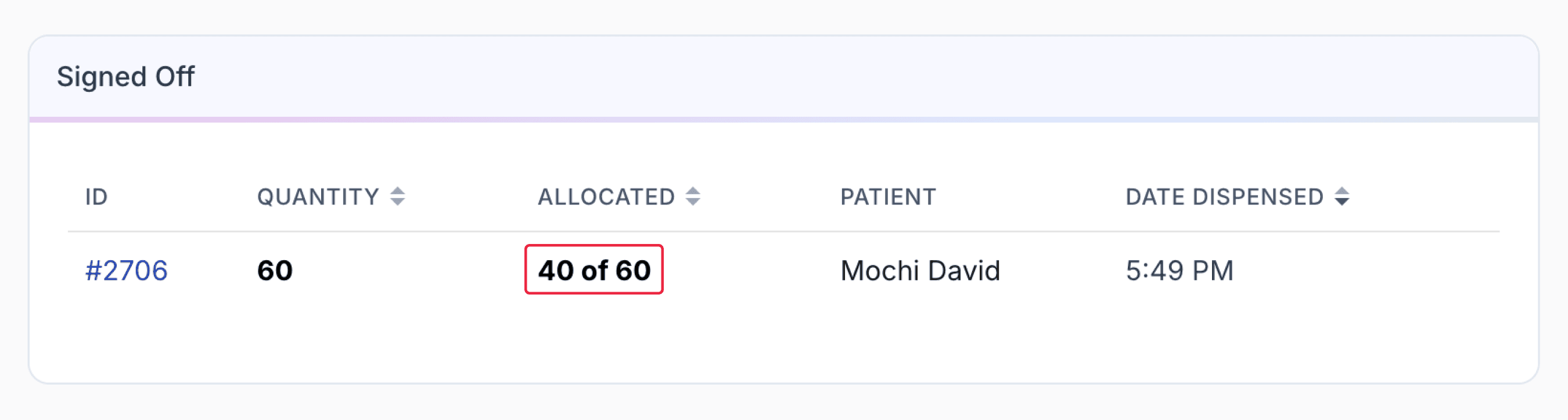
From the compound group page
Deleting a dispensed script from a compound group
You can delete a dispensed script from a compound group, even if it has been signed off.
On the Compound Group page, scroll down to view the list of signed-off dispensed scripts. Click the Dispense # of the script you want to delete.
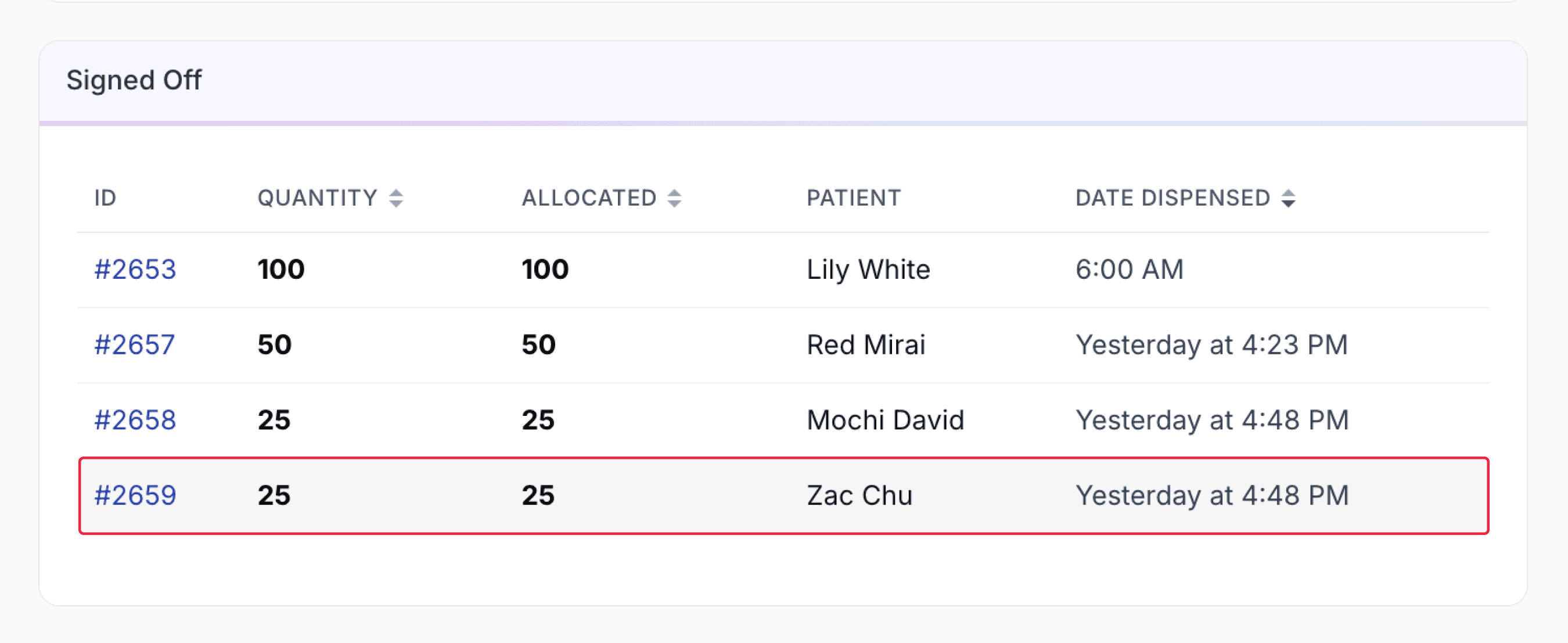
From the compound group page
On the Dispense page, click More Actions. From the drop-down menu, select Delete.
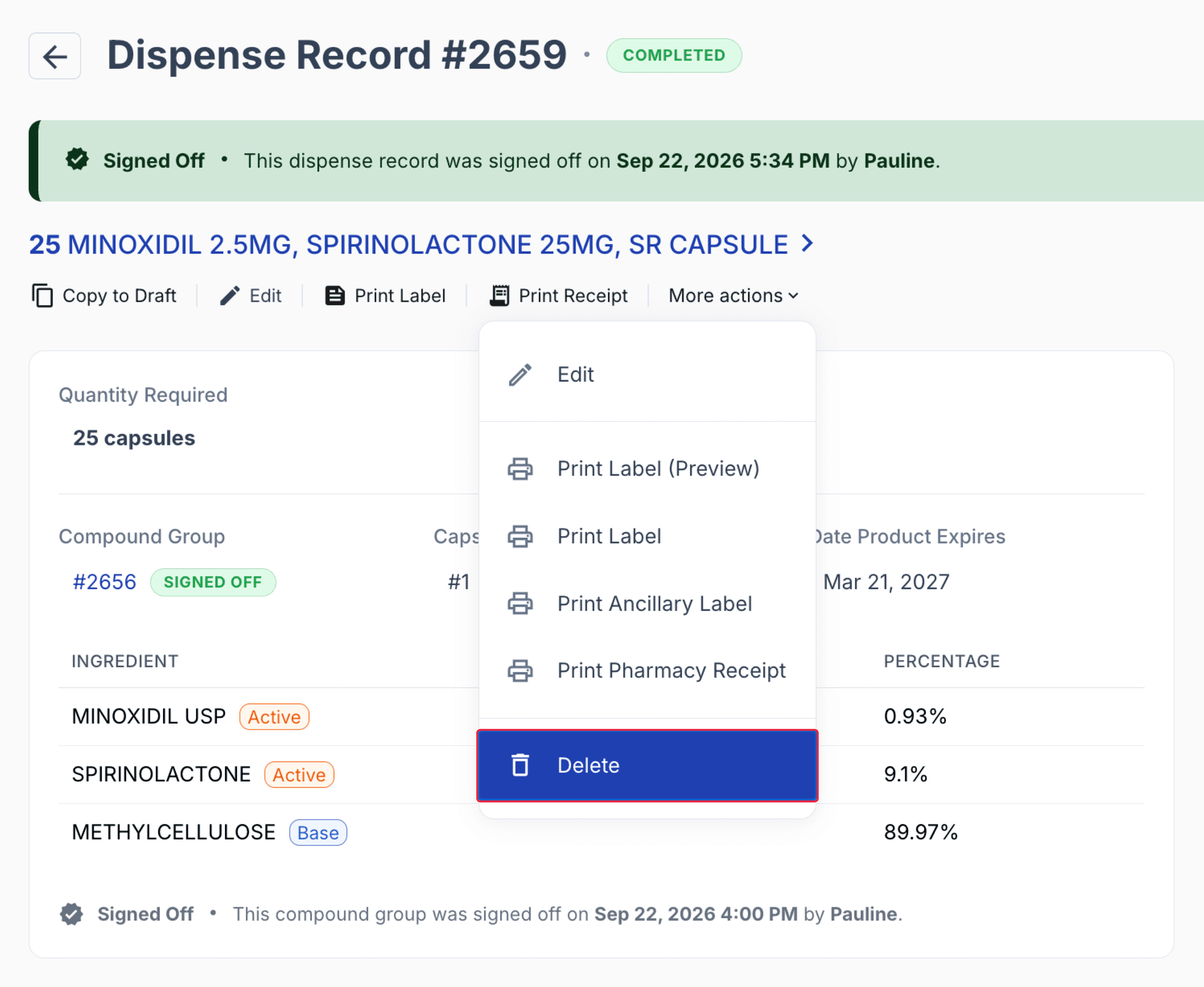
From the dispensed page
A confirmation modal will appear to confirm whether you wish to return or discard the stock.
- To retain the stock for use in other similar scripts, select Return to total stock on hand.
- To discard the stock, select Discard stock used.
You may also select a delete dispense reason from the drop-down menu. Once done, click ‘Delete’.
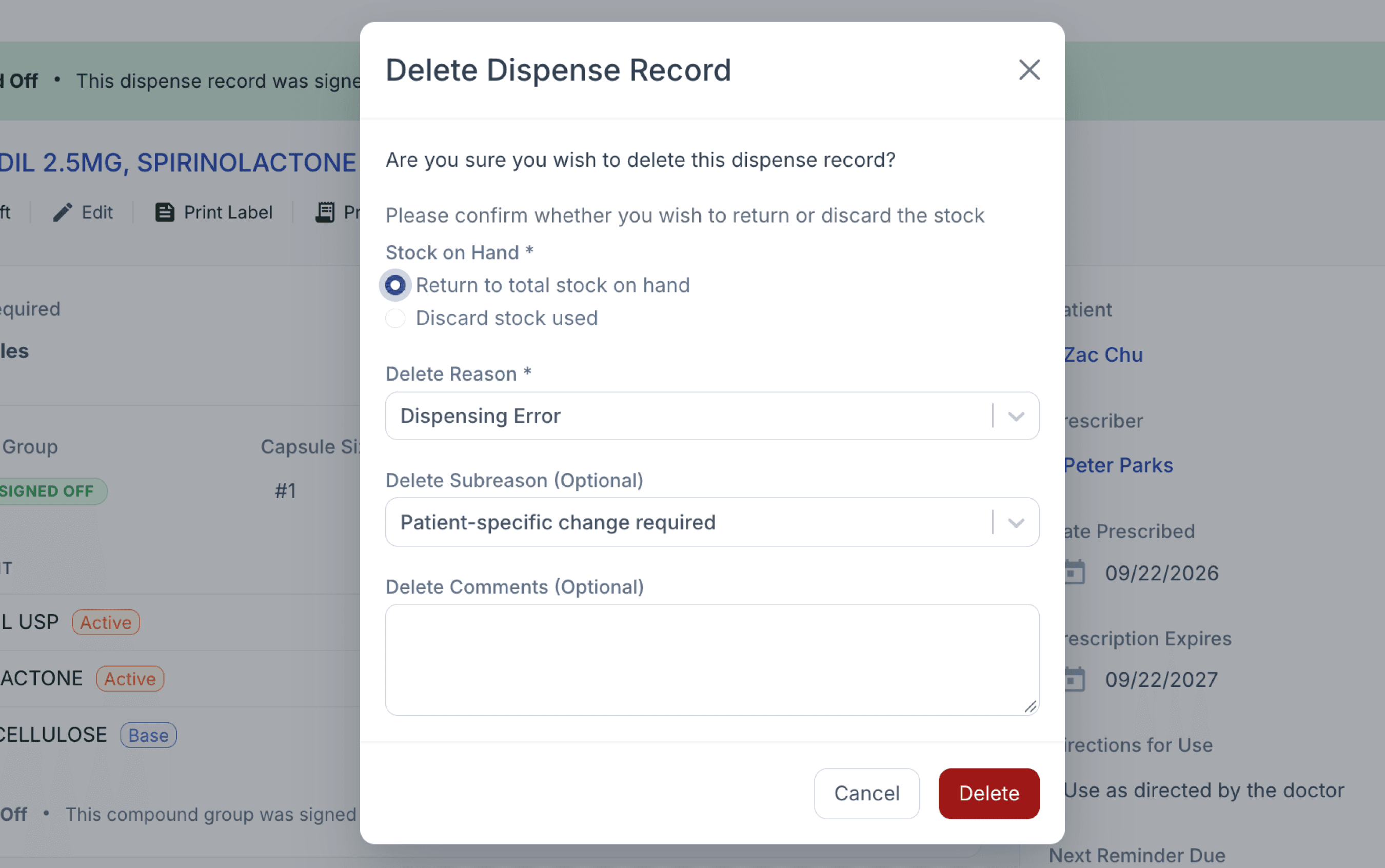
From the dispensed page
If you choose to return stock on hand, the returned quantity will be added to the unassigned quantity on the compound group page.
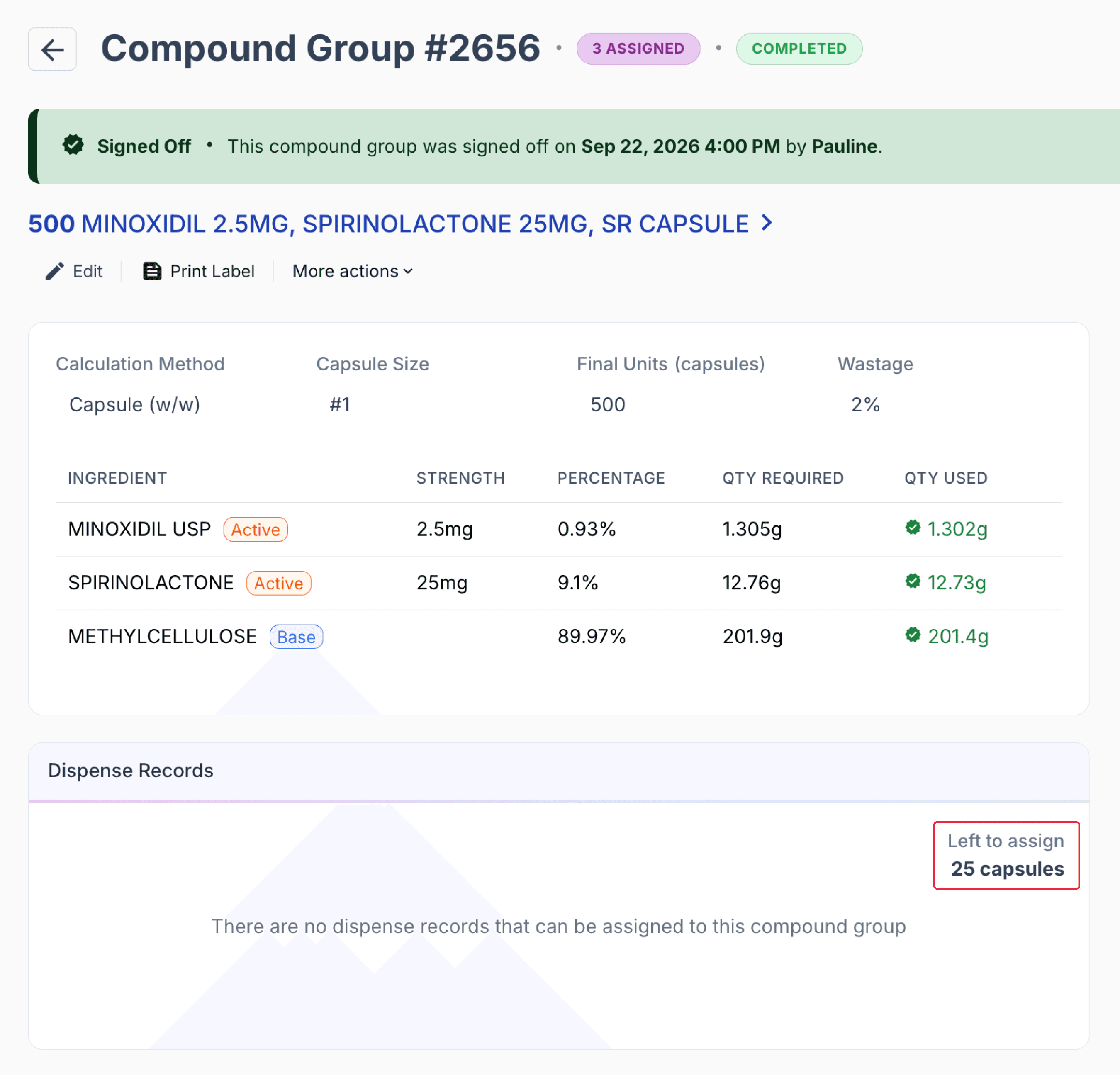
From the compound group page
Considerations
The formula must be an exact match to other records to qualify for group compounding. If changes are made to a signed off formulation, such as changing the dosage form, ingredients, strengths, or percentages, an alert will appear indicating the change.
Essentially, any change to the formulation will trigger an alert, except for adjustments to final units and wastage.
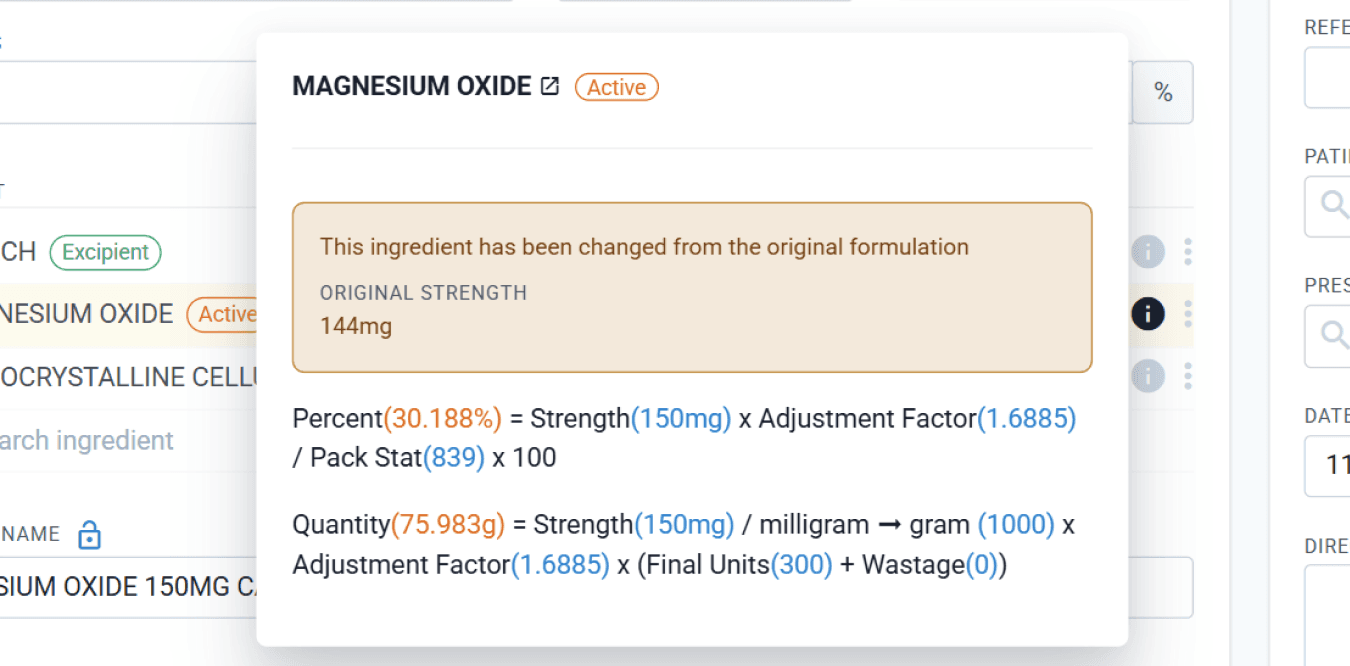
From the drafts page
Summary
Compound Groups enable pharmacies to prepare the same formulation for multiple patients in a single process. By grouping matching dispense records, including snoozed ones, pharmacists can reduce preparation time, streamline workflows, and improve overall efficiency. Quantities can be adjusted to account for anticipated demand, and available groups with stock on hand can be used to fulfil prescriptions quickly.
Designed for lower-volume, day-to-day needs, Compound Groups provide a flexible alternative to Batch Manufacturing. While both features allow allocation to multiple patients, Batch Manufacturing is best suited for high-demand items prepared in advance, whereas Compound Groups focus on real-time compounding needs within the pharmacy.
All names and medical data shown in software screenshots are fictional and for demonstration purposes only. These figures represent fictional persons; any resemblance to real individuals is purely coincidental. Use of existing fictional names is for illustrative purposes and does not imply affiliation or endorsement.