
Automatic Refill Reminder System: Stay ahead of patient refills with Compound Direct

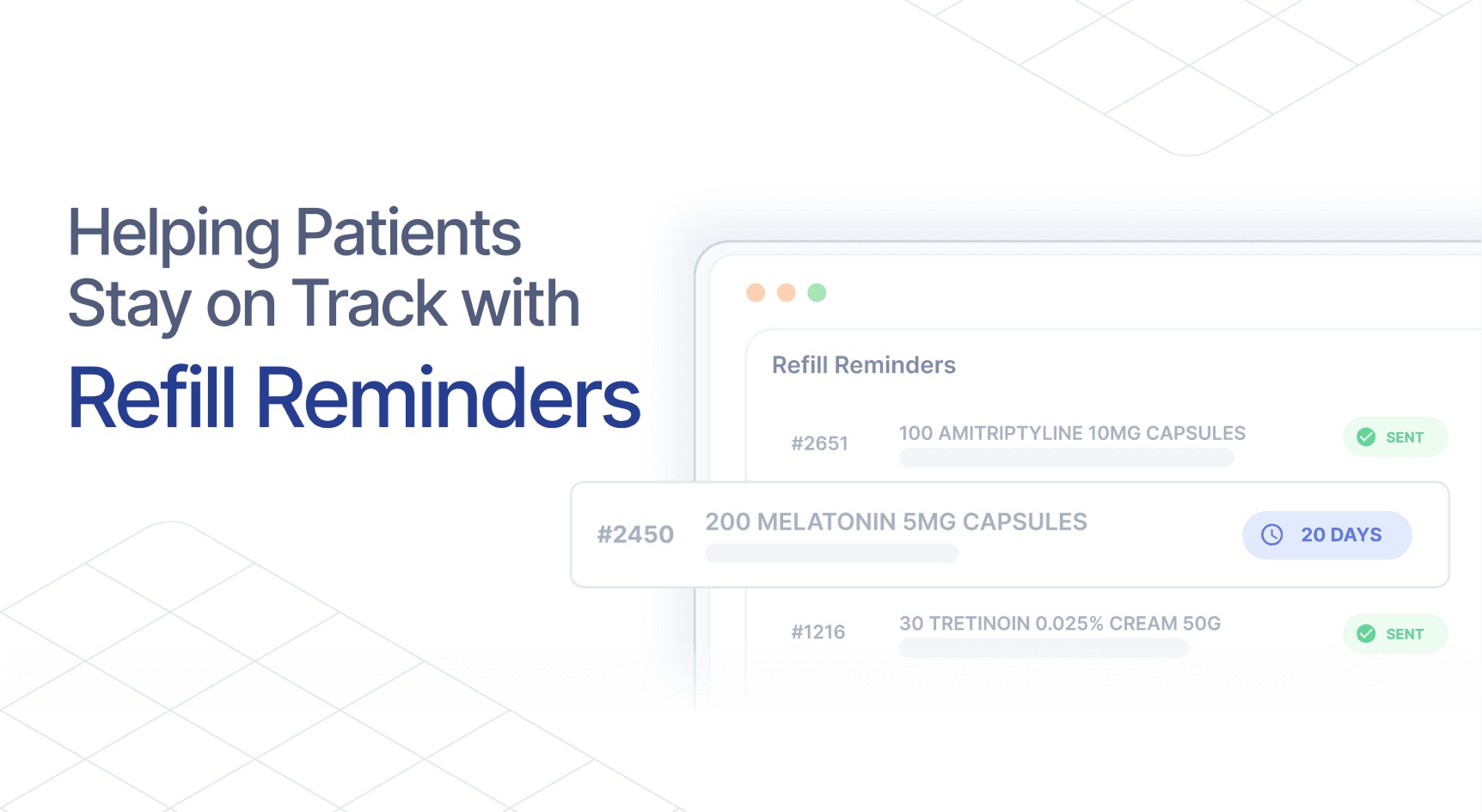
Refill reminders are part of everyday pharmacy work, yet they can quickly become difficult to manage manually. Tracking supply, identifying when patients are due for script refills, and sending timely reminders can easily lead to missed or inconsistent follow-ups. This represents more than just an operational gap. It can lead to delays in therapy, missed doses, and unnecessary back-and-forth with patients. It also directly impacts medication adherence and can result in less predictable revenue due to missed or delayed refills.
Lead time is another critical factor, particularly for compounded medications. Without sufficient notice, pharmacies are forced into urgent, last-minute preparations, creating unnecessary pressure for both staff and patients. With proper lead times in place, workflows become more predictable, orders are less rushed, and patients experience a smoother, more reliable service.
With an automated approach, refill reminders can be calculated, scheduled, and sent based on actual usage, while incorporating lead times, communication preferences, and full visibility across your workspace.
That is exactly what the Compound Direct Refill Reminder System is designed to do.
Feature highlights
✔ No more guesswork on timing
Reminders are automatically calculated based on actual usage, with built-in lead times and the option to set a specific date
✔ Consistent follow-ups that are tailored to each patient
Apply communication preferences, templates, and scheduling rules to ensure reminders are sent the right way, every time
✔ Clear visibility across your workspace
Track scheduled, sent, and repeat reminder history so nothing is missed and follow-ups stay consistent
To get started using the new refill reminder system, this blog will guide you through setting it up and making the most of it in your workflow.
Initial setup
To begin, navigate to Your Workspace settings and select the ‘Refill Reminders’ tab.
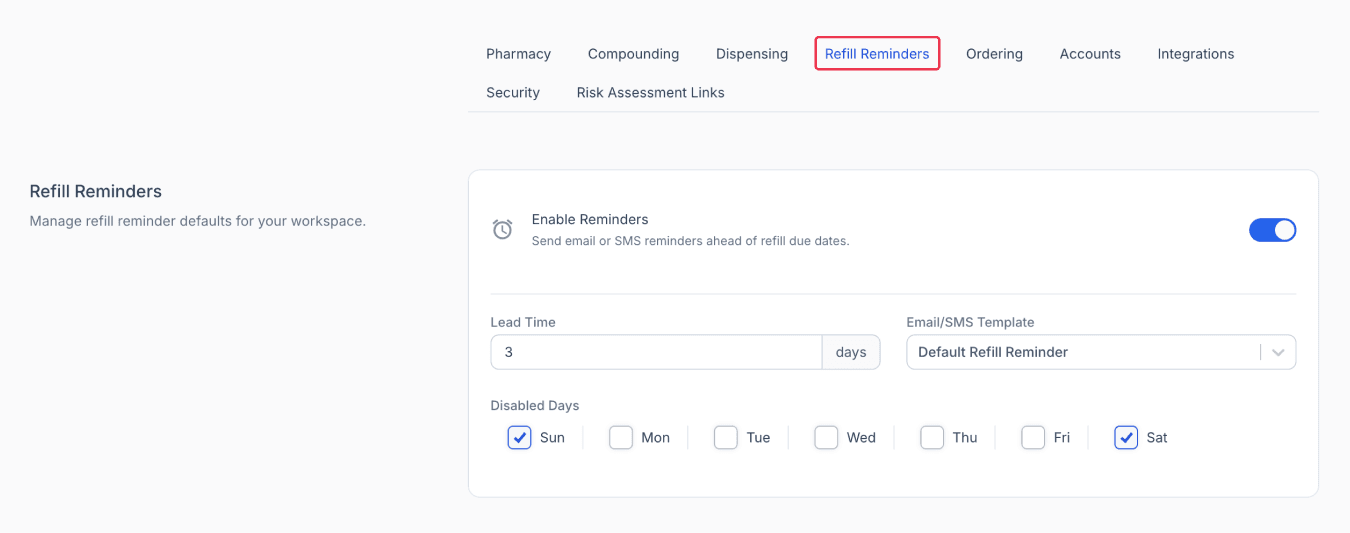
From your workspace page
When reminders are enabled, you can:
- Enable or disable reminders to temporarily pause sending email or SMS notifications (e.g. during holidays or special trading hours).
- Set a pharmacy-specific lead time (e.g., 3 days) to allow time for medication preparation before the patient receives the reminder.
- Choose to turn off reminders on specific days. If a reminder falls on a disabled day, it will be sent on the previous available day (e.g., moving from Sunday back to Friday).
- Select the default email & SMS template, which remains customisable.
Customise Email & SMS template
In the Email & SMS template settings, a ‘Refill Reminder’ type is now available. Users can add default text for SMS and choose whether to send an email. Templates can be customised with logos and specific information.
Multiple templates can be created by selecting the refill reminder type, such as reminders for exhausted supply, expired scripts, or veterinary patients.
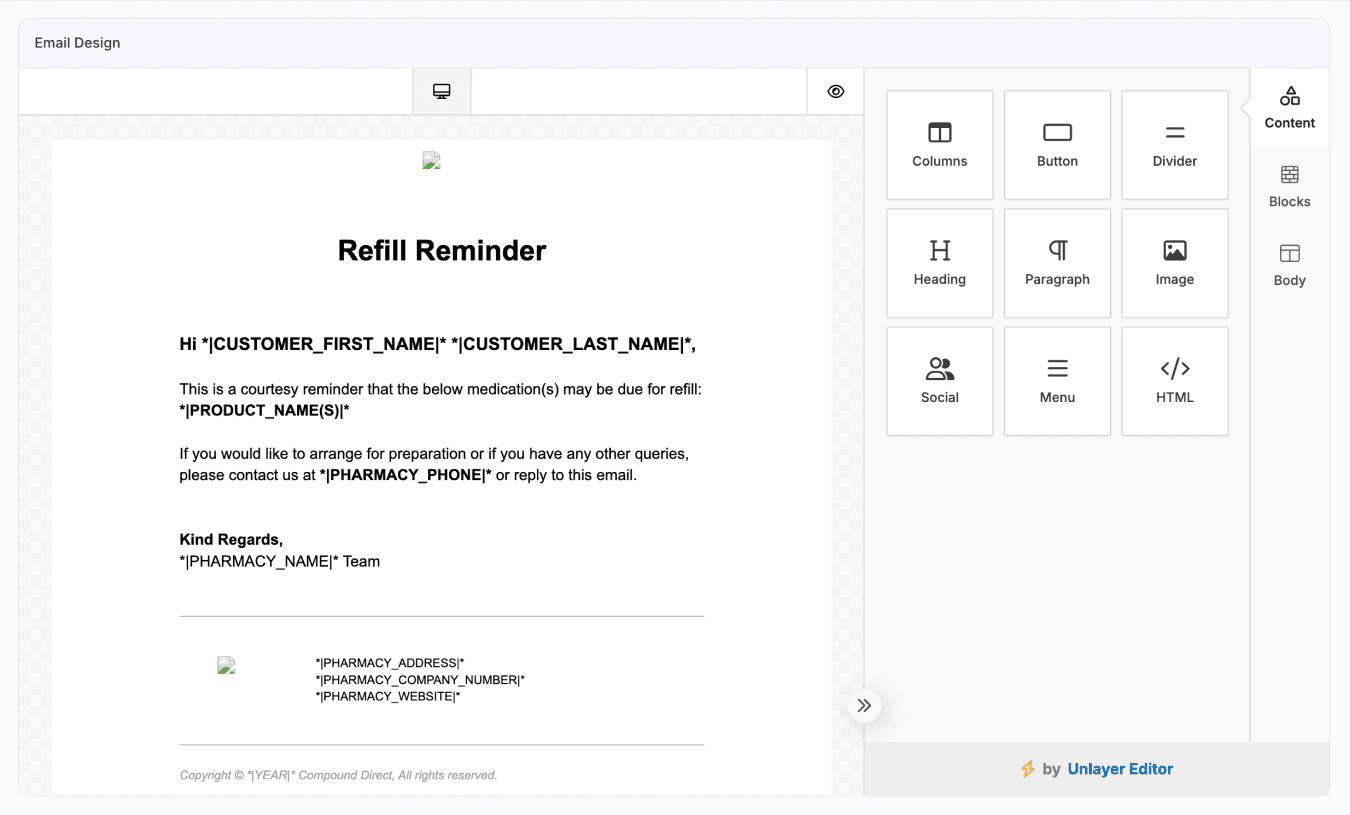
From the email & sms templates page
For more information on how to customise Email & SMS, see our blog: Compound Direct Email & SMS Templates: Standardise pharmacy communication
Configure customer preference
Individual customer profiles include a refill reminder status. Under communication preferences, users can specify whether a customer prefers ‘SMS only’, ‘Email only’, or ‘SMS and Email’.
Customers can have refills enabled or disabled. Disabling reminders prevents any notifications from being sent to that patient and also prevents staff from setting up future reminders.
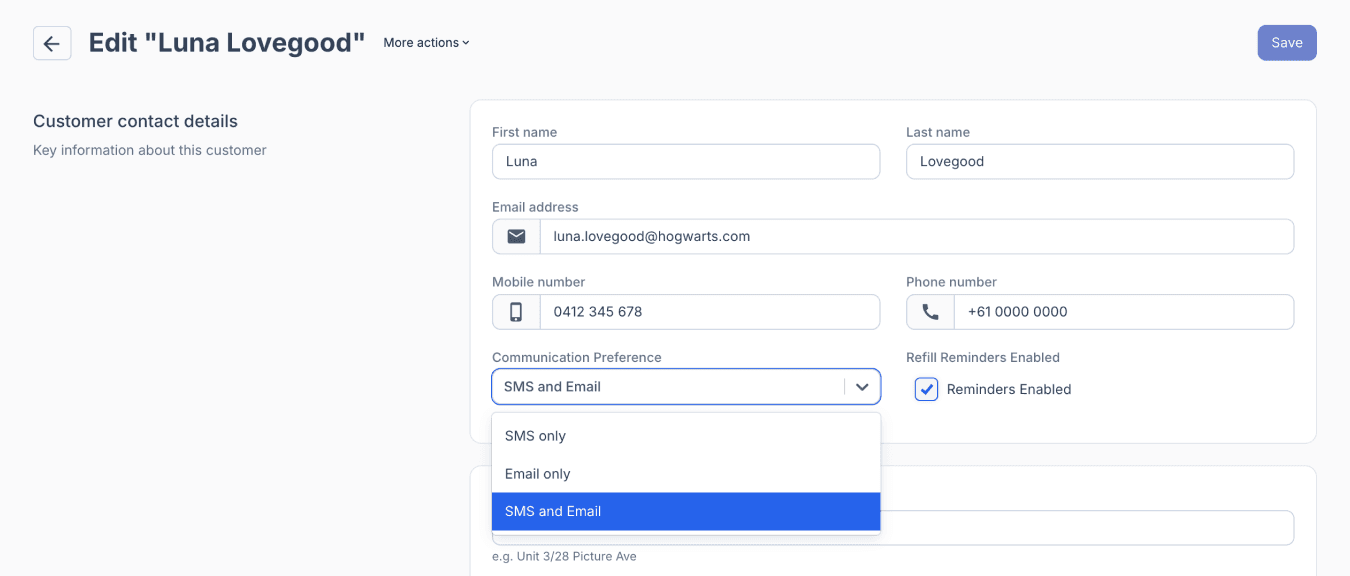
From the customers page
Send a refill reminder
Reminders can be added when creating a Draft or from the Dispensed record.
When creating a Draft, tick the ☑ Reminders checkbox in the Repeats section. This option will only appear once a customer has been added to the draft.
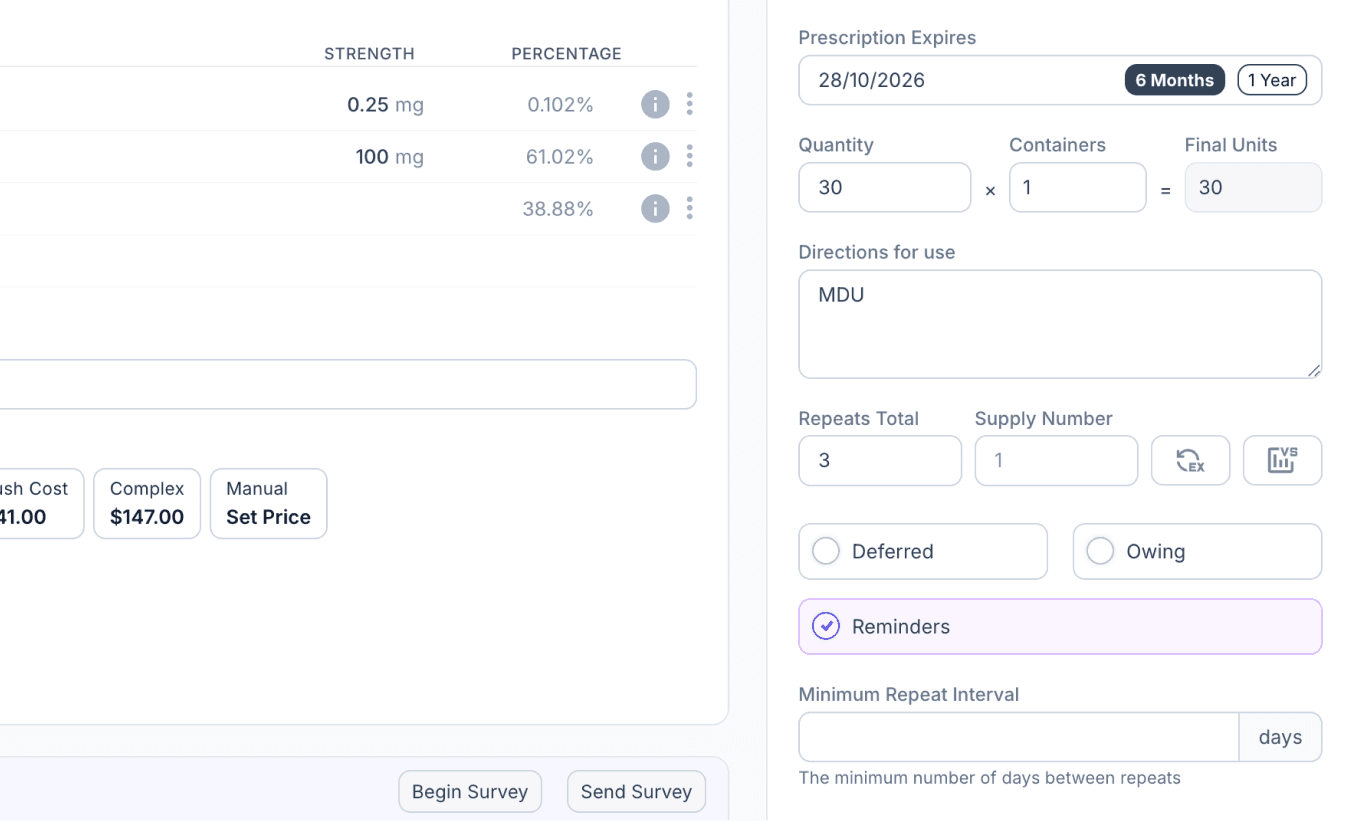
From the drafts page
You may also set and view a reminder from the Dispensed page. If there is no reminder set yet, the ‘Set a Reminder’ button will be displayed. Click the button to proceed.
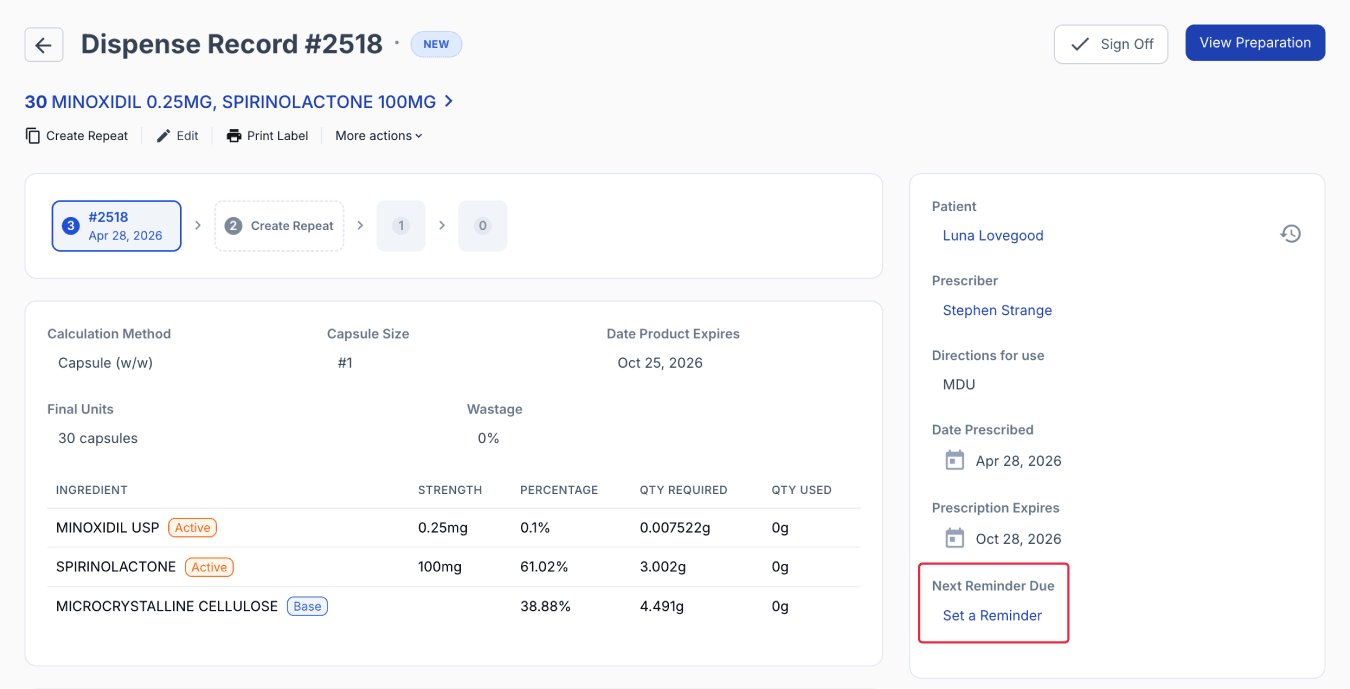
From the dispensed records
Automatic
This is the recommended option, as it calculates the reminder date based on the Days Supply entered. (For example, if you enter a 30-day supply, the system will use this value to determine when the reminder is sent.) It is important to review the directions for use when identifying the Days Supply to ensure the reminder timing is accurate.
The automatic setting calculates the reminder date based on the dispense date. If the automatic reminder date falls on a disabled day, the system will look backwards and select the previous available day.
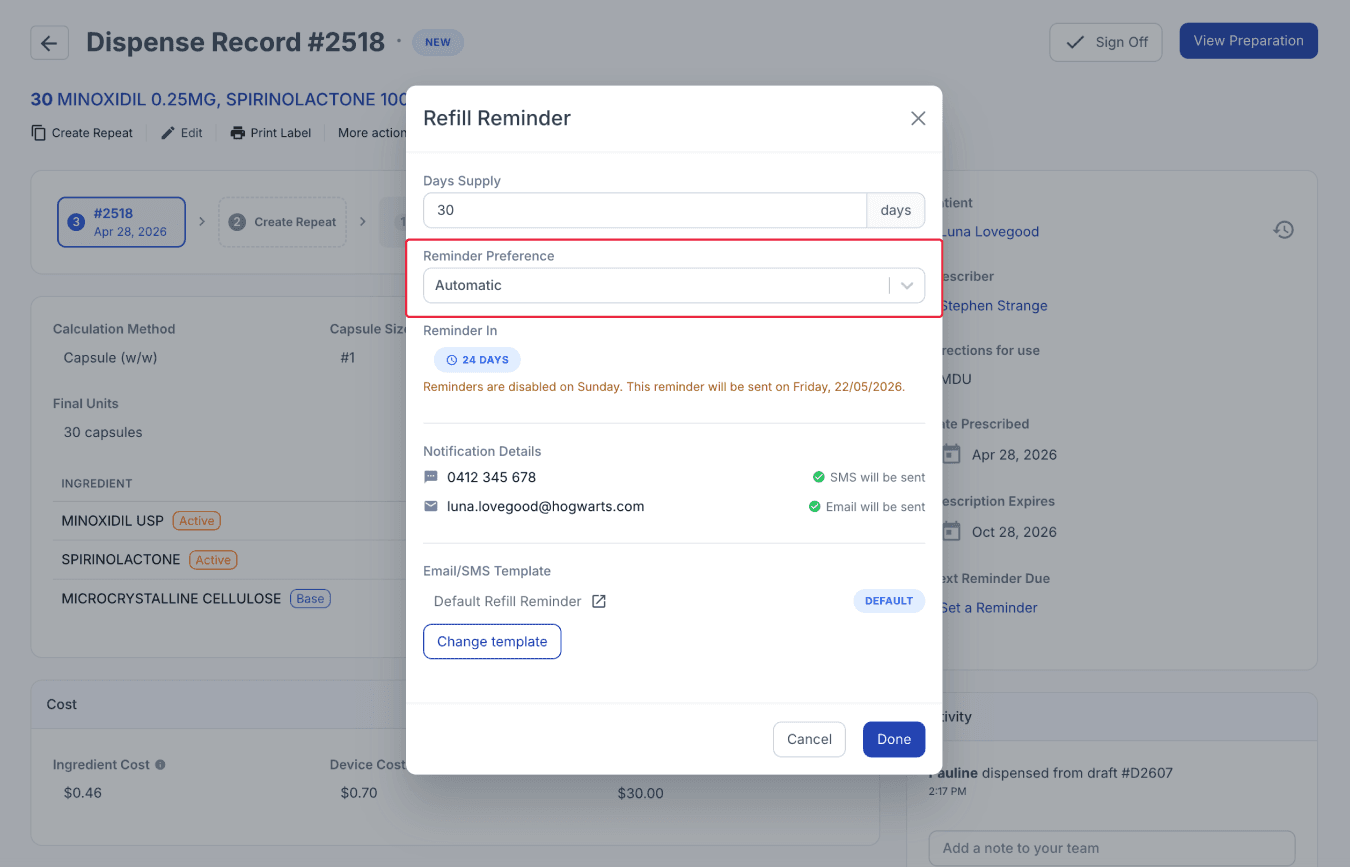
From the dispensed page
Specific date
Users can also choose to set a specific manual date for the reminder. A badge will indicate the number of days before the reminder is sent.
If the specific date entered falls on a disabled date, it will send the reminder on the next available date.
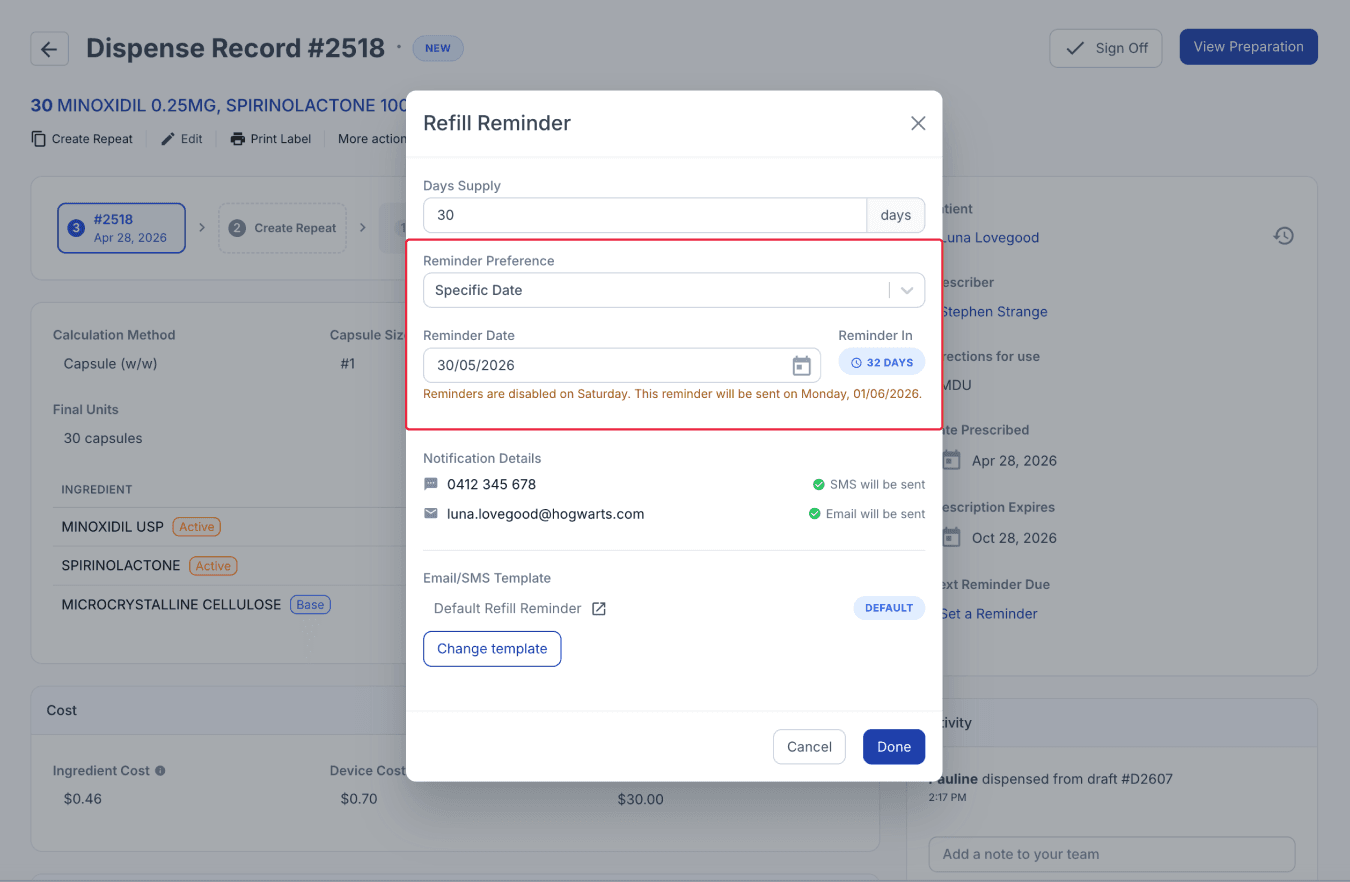
From the dispensed page
Important notes:
- For a typical dispense, the reminder date is calculated based on the dispense date plus the days of supply, minus the lead time. Additional rules, such as disabled days, are then applied to refine the final reminder date.
- The system allows you to configure reminders for scenarios such as exhausted or expired prescriptions. This gives you the flexibility to tailor communication, including using different email or SMS templates where appropriate.
- If multiple fills of the same prescription are dispensed at once, the system adjusts the reminder based on the total theoretical supply across all dispensed quantities.
A reminder will still be sent as scheduled, even if the script has no repeats or quantity remaining, and even if a new prescription is received.
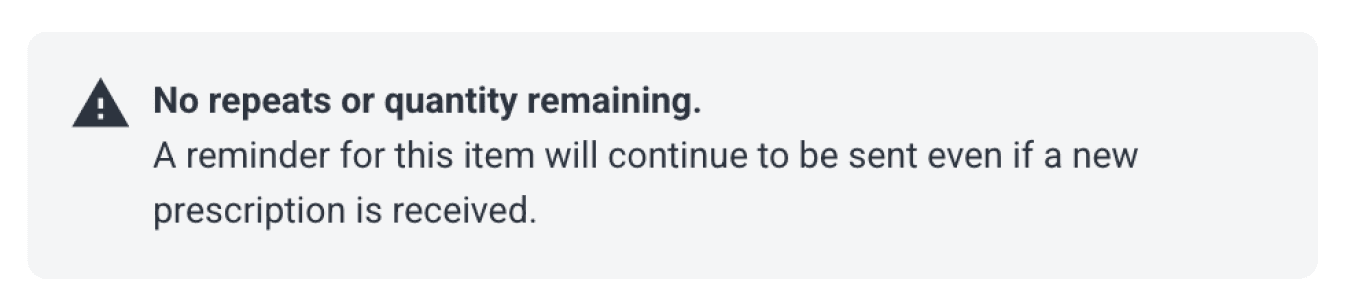
From the dispensed page
Refill reminders history
On the Dispensed page, the next reminder date will be displayed. Click on the reminder date to modify details or to disable the reminder.
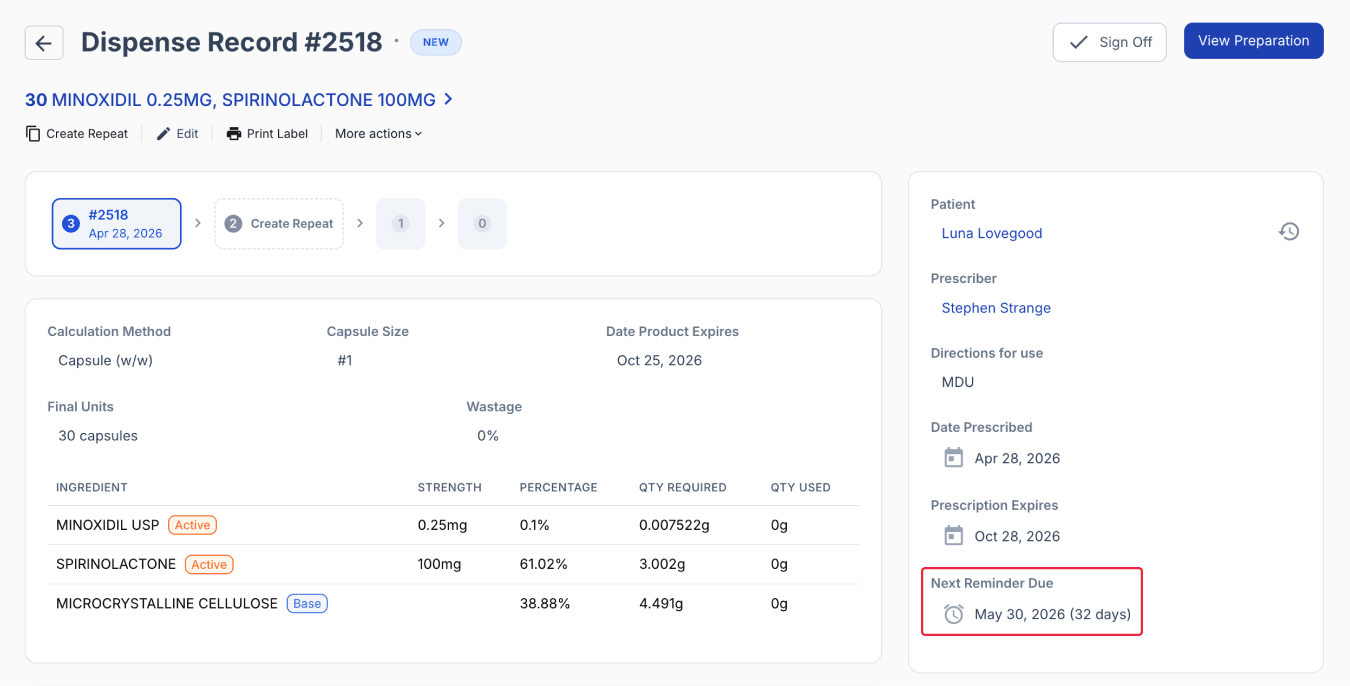
From the dispensed page
On the Customers page, below the contact details, there is an indicator showing whether a reminder is set and how many days remain until the next reminder.
Click the clock icon or press R on your keyboard to view all scripts and their scheduled reminder dates.
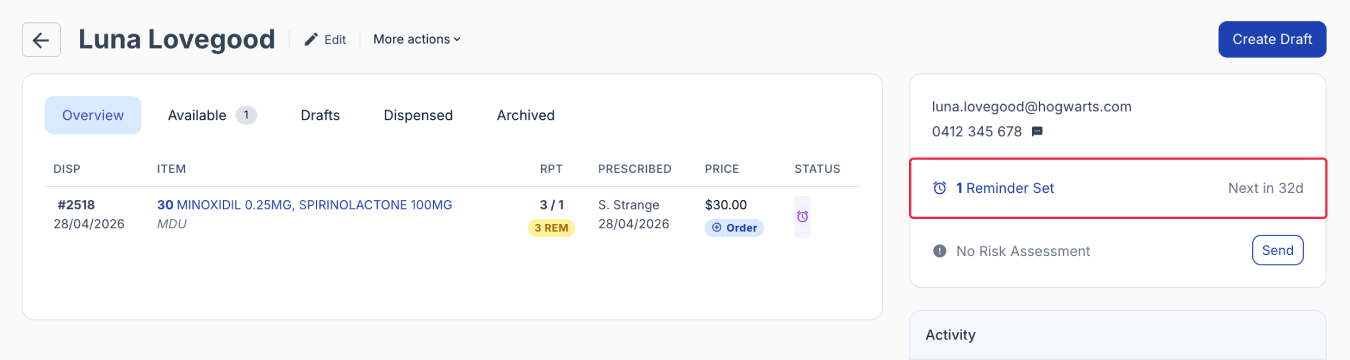
From the customers page
All refill reminders for each customer script can be viewed from the customer page, along with the Quantity, Date Dispensed, Repeats, and Days Supply. The toggle switch indicates whether a reminder is enabled for a script, along with the reminder date and its status (sent or failed).
You can send a reminder from this page by toggling the switch on, entering the reminder details, and clicking the refresh icon to resend available reminders.
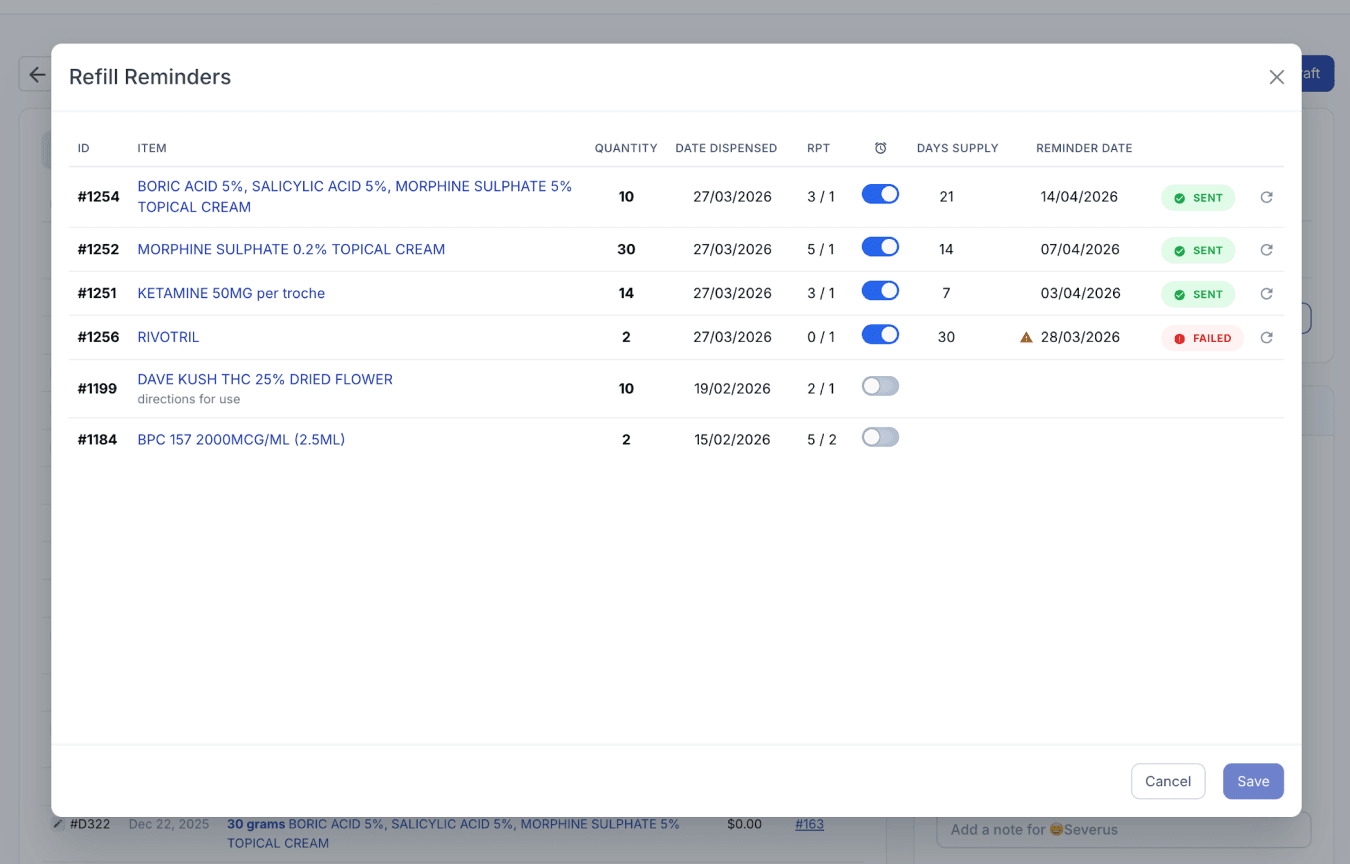
From the customers page
Important notes:
- If multiple reminders for one patient fall on the same day, they are combined into a single itemised communication.
- Failed reminders can be resent after updating customer info, but there is a 2-hour lockout to prevent duplicate messaging from different staff members.
- It is recommended to activate reminders at the point of dispensing rather than enrolling historical patients to avoid confusing customers whose therapy may have changed.
Refill reminders reports
All refill reminders can be viewed from the Reports page. You can narrow down the list by selecting a specific date range or using preset filters (e.g. Last 30 days), as well as filtering by reminder status, such as Scheduled, Sent, or Failed.
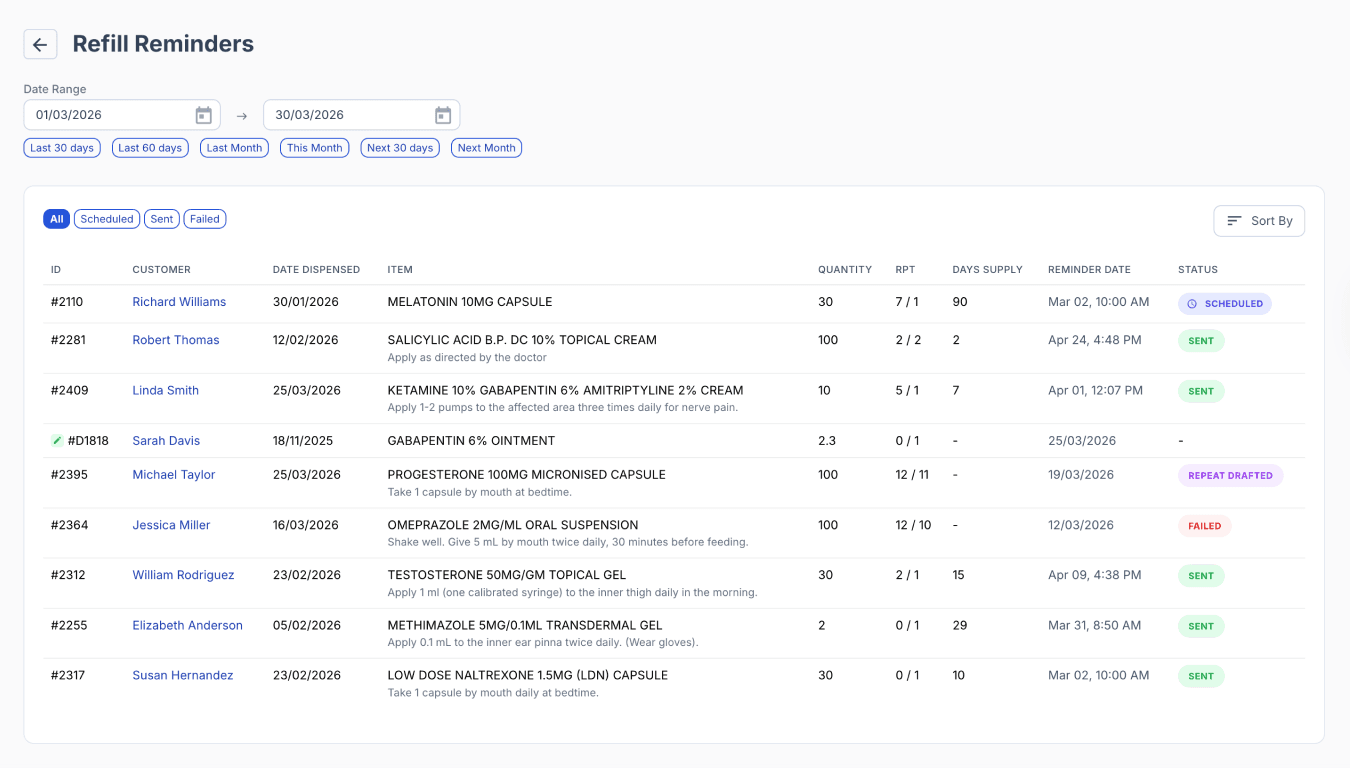
From the reports page
Summary
Compound Direct’s Automatic Refill Reminder System helps streamline patient follow-ups by removing the need for manual tracking and guesswork. Reminders are automatically calculated based on actual usage, ensuring patients are contacted at the right time for their next refill. Built-in lead times allow pharmacies to prepare medications in advance, reducing last-minute pressure and improving workflow efficiency. The system also supports flexible communication preferences, enabling reminders to be sent via SMS, email, or both. With full visibility across reminders, staff can easily track scheduled, sent, and failed notifications to maintain consistency. Overall, this creates a more reliable refill process that supports medication adherence and improves operational efficiency.
All names and medical data shown in software screenshots are fictional and for demonstration purposes only. These figures represent fictional persons; any resemblance to real individuals is purely coincidental. Use of existing fictional names is for illustrative purposes and does not imply affiliation or endorsement.