
Your Inventory, Your Rules: Set up devices and consumables in Compound Direct

When managing the inventory of devices and consumables used in your pharmacy, workflows can vary depending on your preferences. Different pharmacies follow different rules on how devices and consumables, such as bottles and capsules, are used and when they are subtracted from stock on hand (SOH).
Some pharmacies prefer to record usage at the point of dispensing, while others account for devices and consumables earlier during batch manufacturing, or use a combination of both. Because of these differences, having a system that supports flexible workflows is essential to ensure inventory is managed accurately and consistently.
Compound Direct gives you control to:
- Set up devices and consumables with automatic usage tracking
- Auto-select the correct variants and update stock in real time
- Include device and consumable costs in pricing for accurate costing
Compound Direct allows your inventory to reflect how your pharmacy truly operates, without the need for manual adjustments or guesswork.
This guide will walk you through setting up devices and consumables in Compound Direct and exploring three common configuration scenarios based on different pharmacy workflows.
To learn more about devices and consumables, you may also refer to:
Choosing the right setup
Each pharmacy workflow is different, and the most suitable setup depends on how your compounds are prepared and packaged.
It also reflects how your pharmacy operates day-to-day:
- Do you compound per prescription or in batches?
- Do you package during compounding or at dispensing?
- Do you want devices and consumables tracked early or at the final step?
What matters is that once you choose, Compound Direct handles the rest:
- Auto-selecting the right bottle variant and capsule size
- Updating the stock in real time
- Recording a detailed usage history, including the record number, quantity used, patient, user, and timestamps
There is no need to track inventory manually. Compound Direct automatically records what you used, when you used it, and why.
Adding multiple variants for bottles and capsules
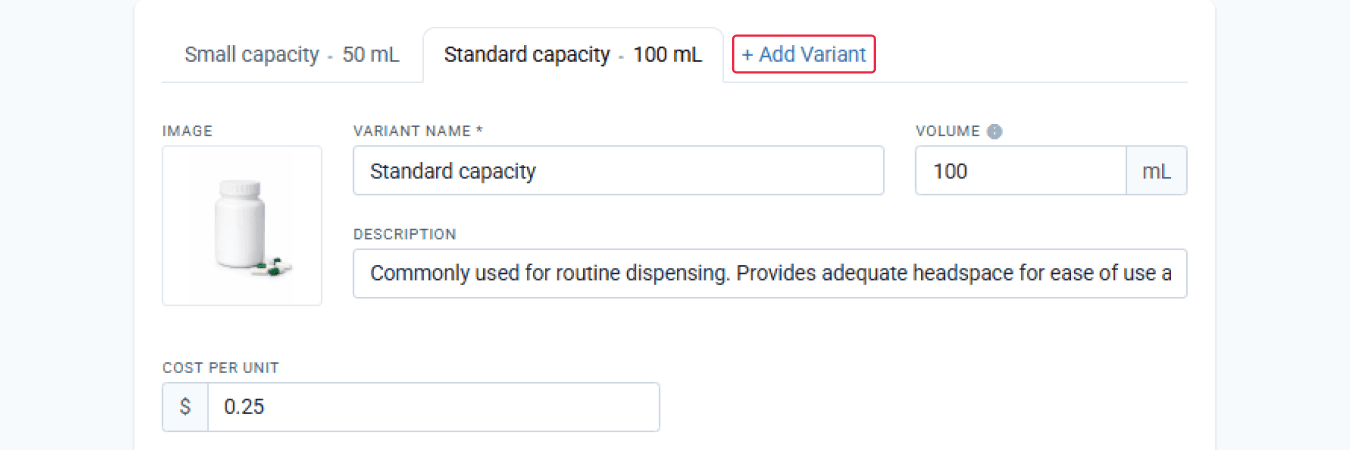
To begin, go to Settings ➝ Devices & Consumables, add a new device record for bottles or select an existing one. You may add variants for a bottle, and enter the volume capacity for each device variant.
From the devices & consumables page
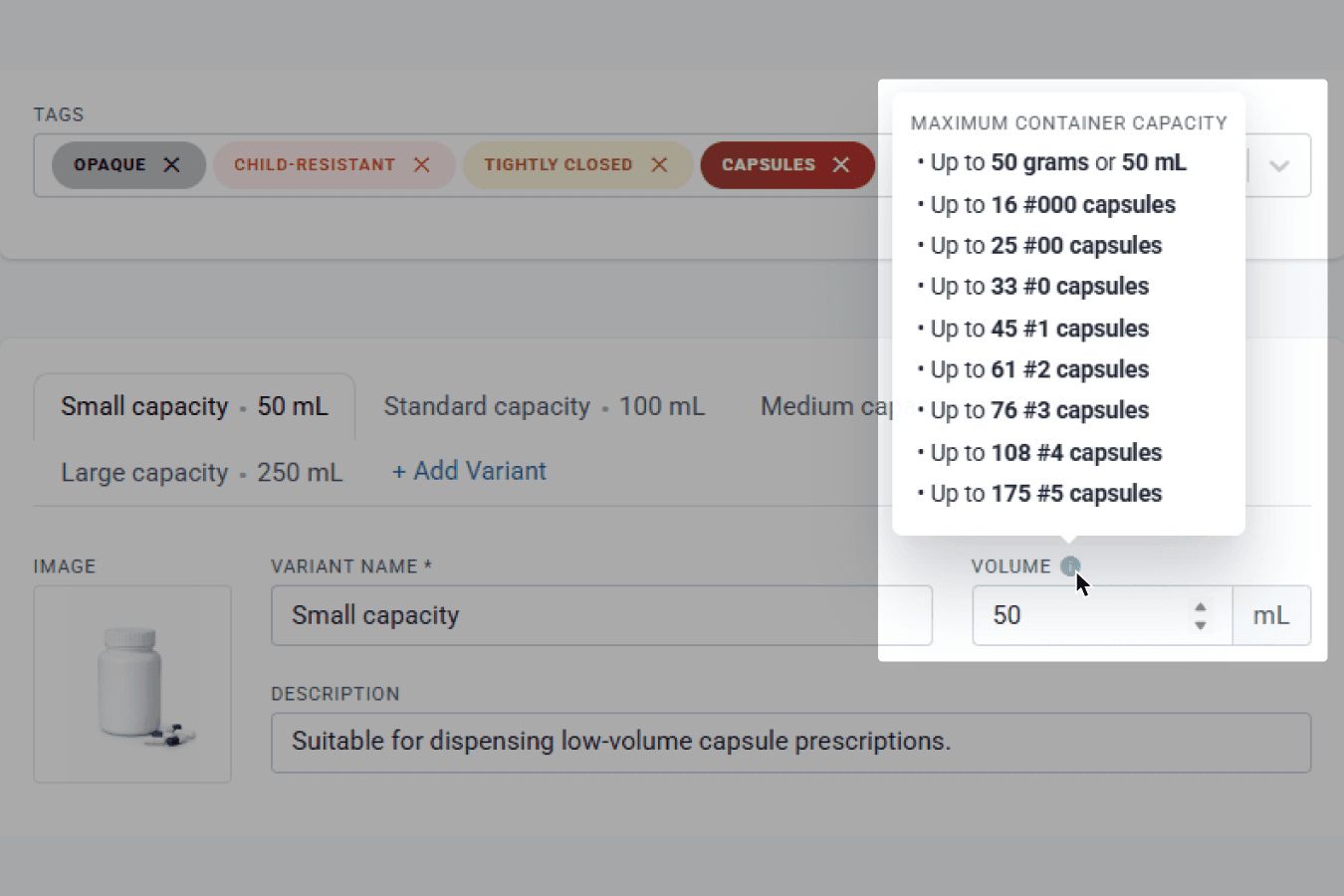
Hover over the info icon to view the maximum container capacity readily available for your reference. This helps Compound Direct choose the best variant for your formulation or batch stock.
From the devices & consumables page
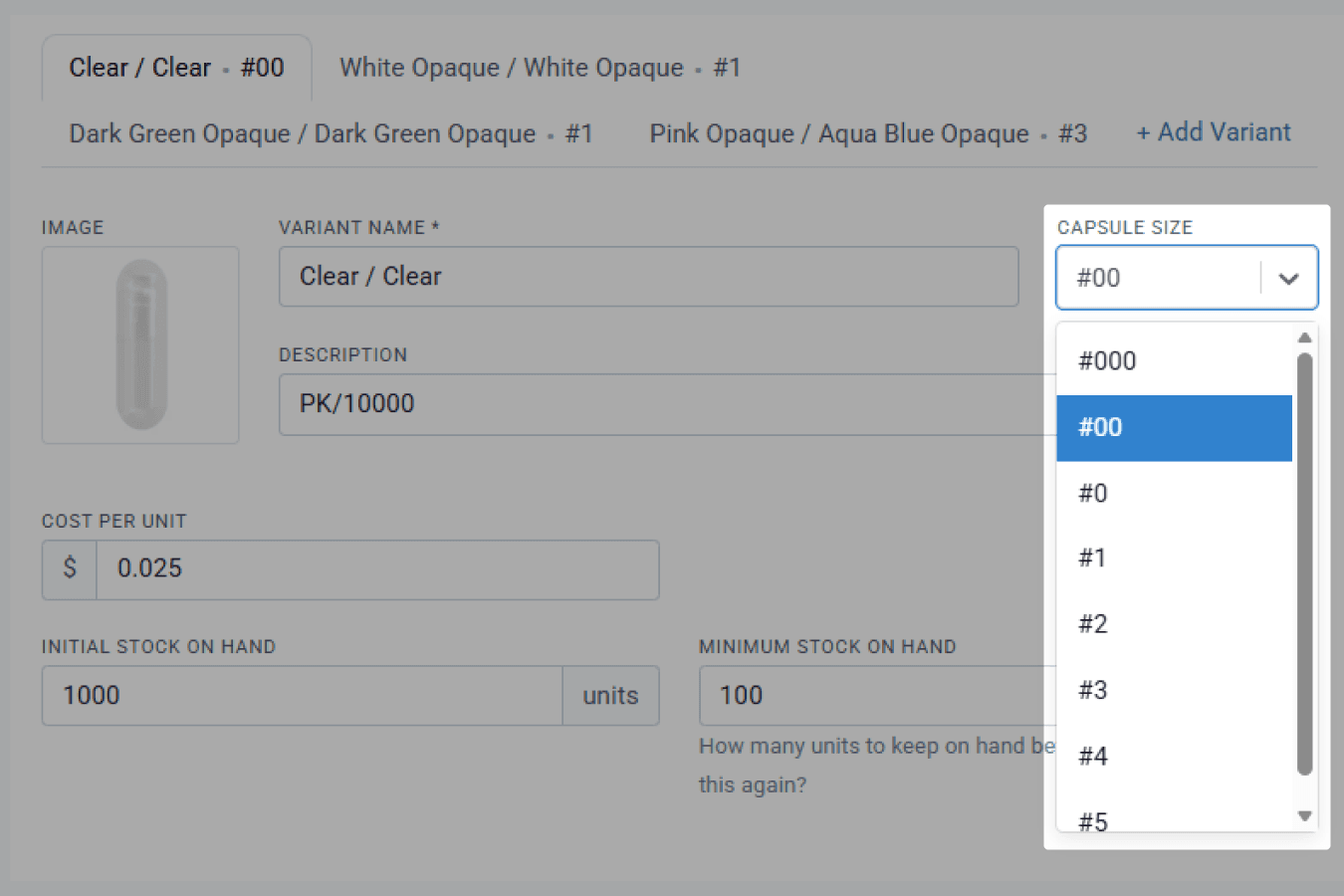
For capsules, you may add the available capsule sizes from your pharmacy as variants. This allows Compound Direct to automatically select the appropriate bottle and capsule size during dispensing or batch manufacturing.
From the devices & consumables page
Three ways you can configure bottles and capsules
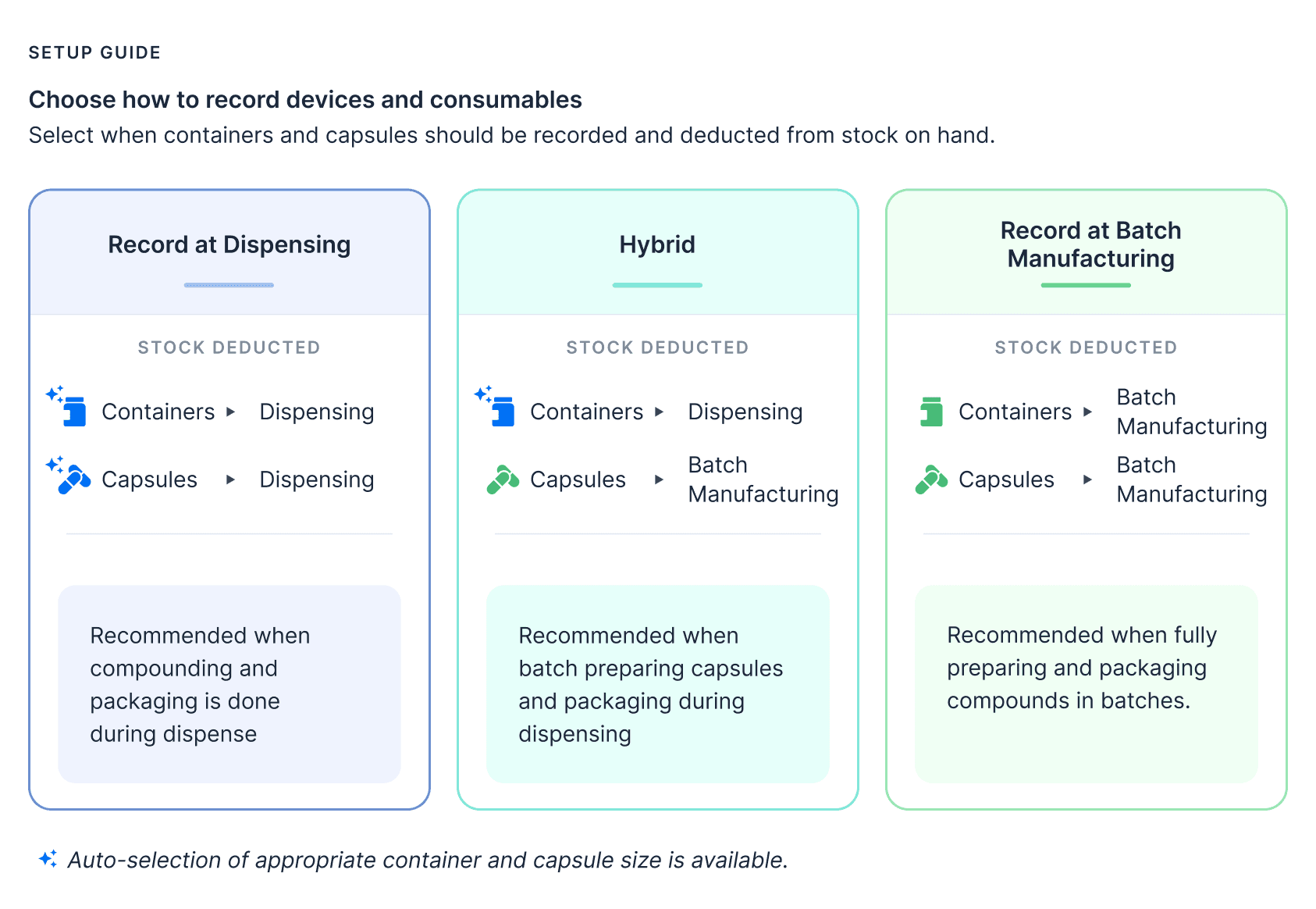
Different pharmacies may configure devices and consumables differently depending on whether packaging occurs during batching or dispensing.
With bottle and capsule sizes now set up, this blog will guide you through the different ways you can configure when they’re recorded and subtracted from your stock on hand (SOH), depending on how your workflow operates.
Below are three common setup approaches followed by other pharmacies in Compound Direct:
Scenario 1: Bottles and capsules are recorded and subtracted from SOH when dispensed, and the system automatically selects the correct bottle and capsule size
In this setup, both bottles and capsules are recorded and subtracted from stock on hand (SOH) when a prescription is dispensed. The system automatically selects the correct bottle and capsule size based on the formulation and quantity being dispensed. This setup works well for pharmacies that prepare medications during dispensing.
Step 1:
On the ‘Formulation’ page, select the ‘Customise for formulation’ from the ‘Inherit’ drop-down menu. This will override the system default for inheriting the devices and consumables attached to a dosage form.
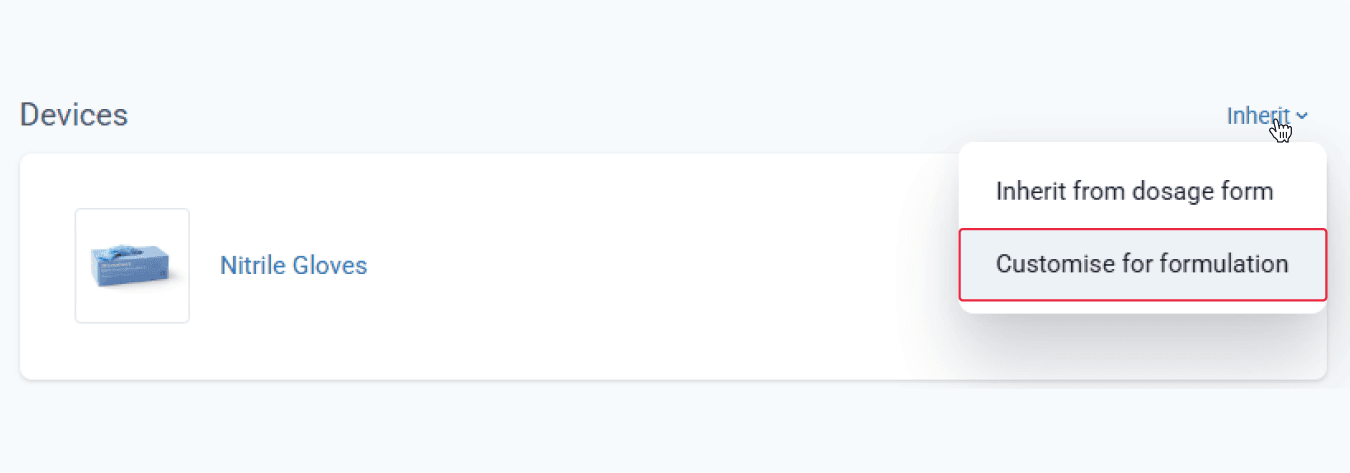
From the formulations page
Click ‘Add Device’, then select the desired bottles and capsules from the modal. Click ‘Done’ once all required devices are selected.
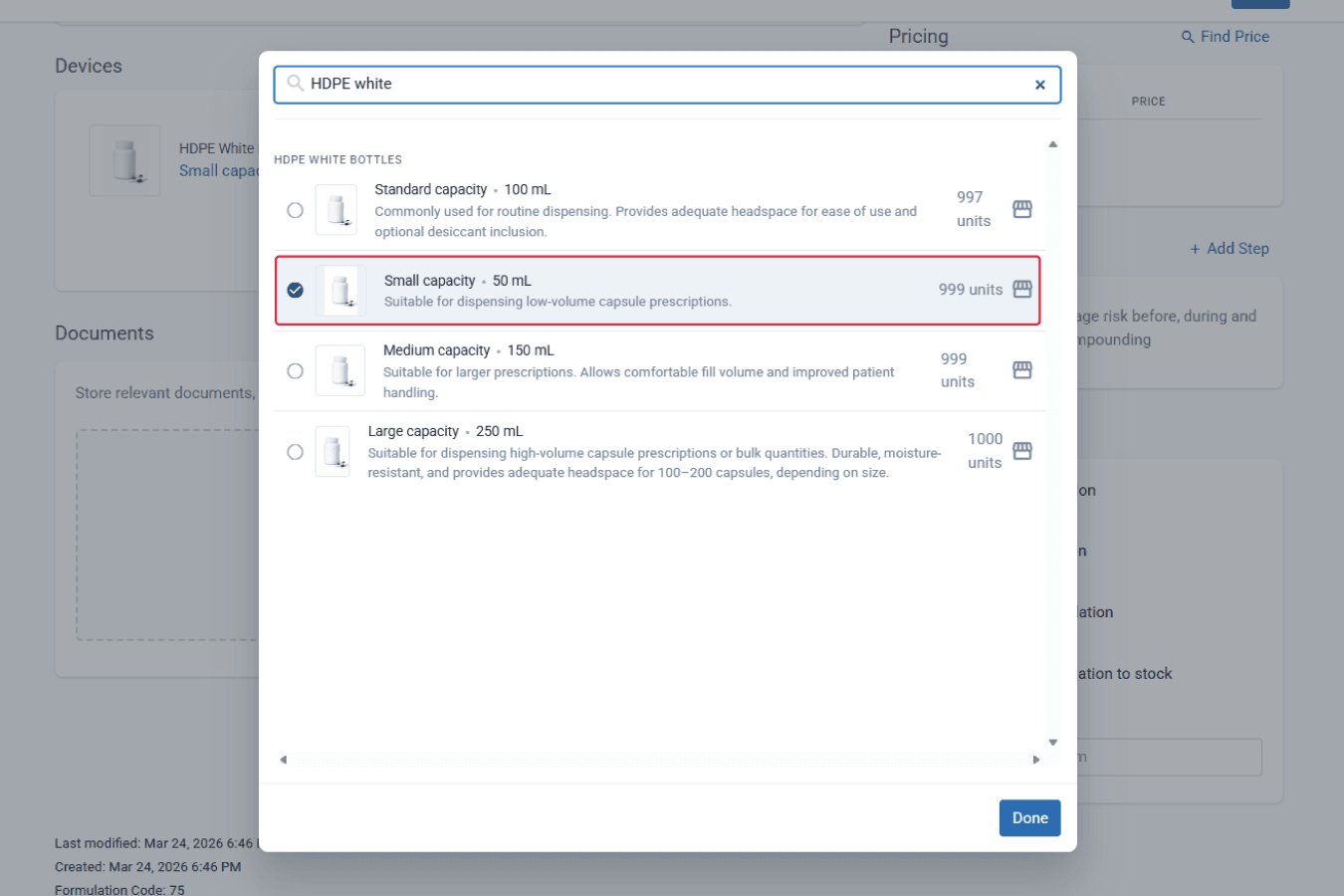
From the formulations page
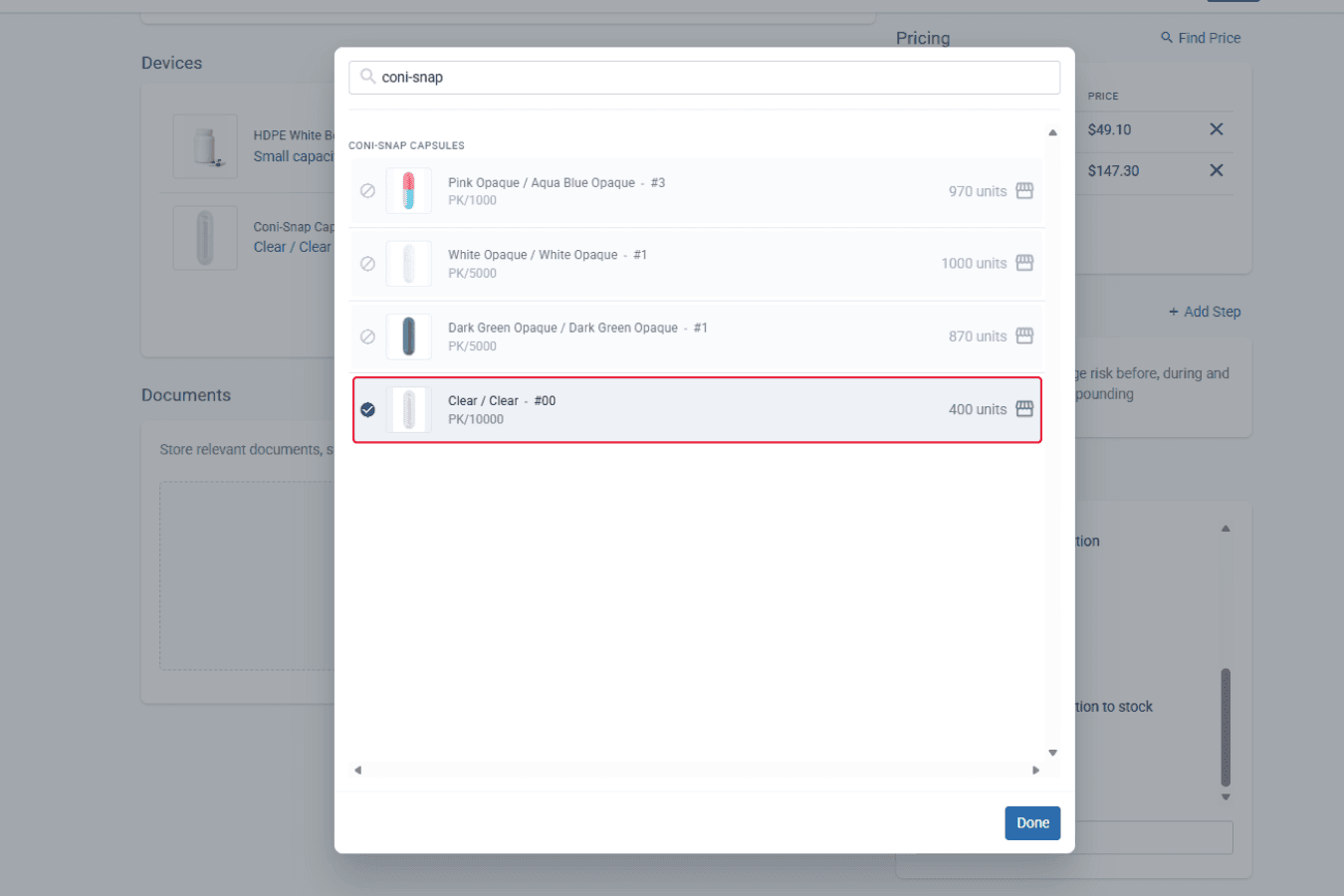
From the formulations page
After adding the devices, click on the three dots icon to select ‘Modify Calculation’ for bottles.
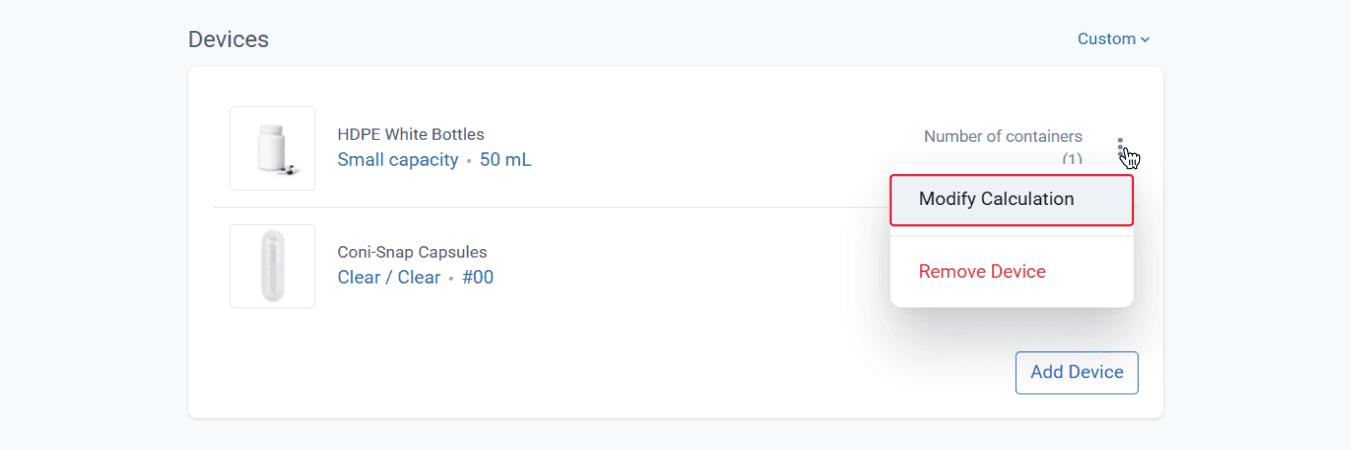
From the formulations page
Select the ‘Use auto-select from group’ option that will instruct the system to automatically select the appropriate variant from the device group when dispensing.
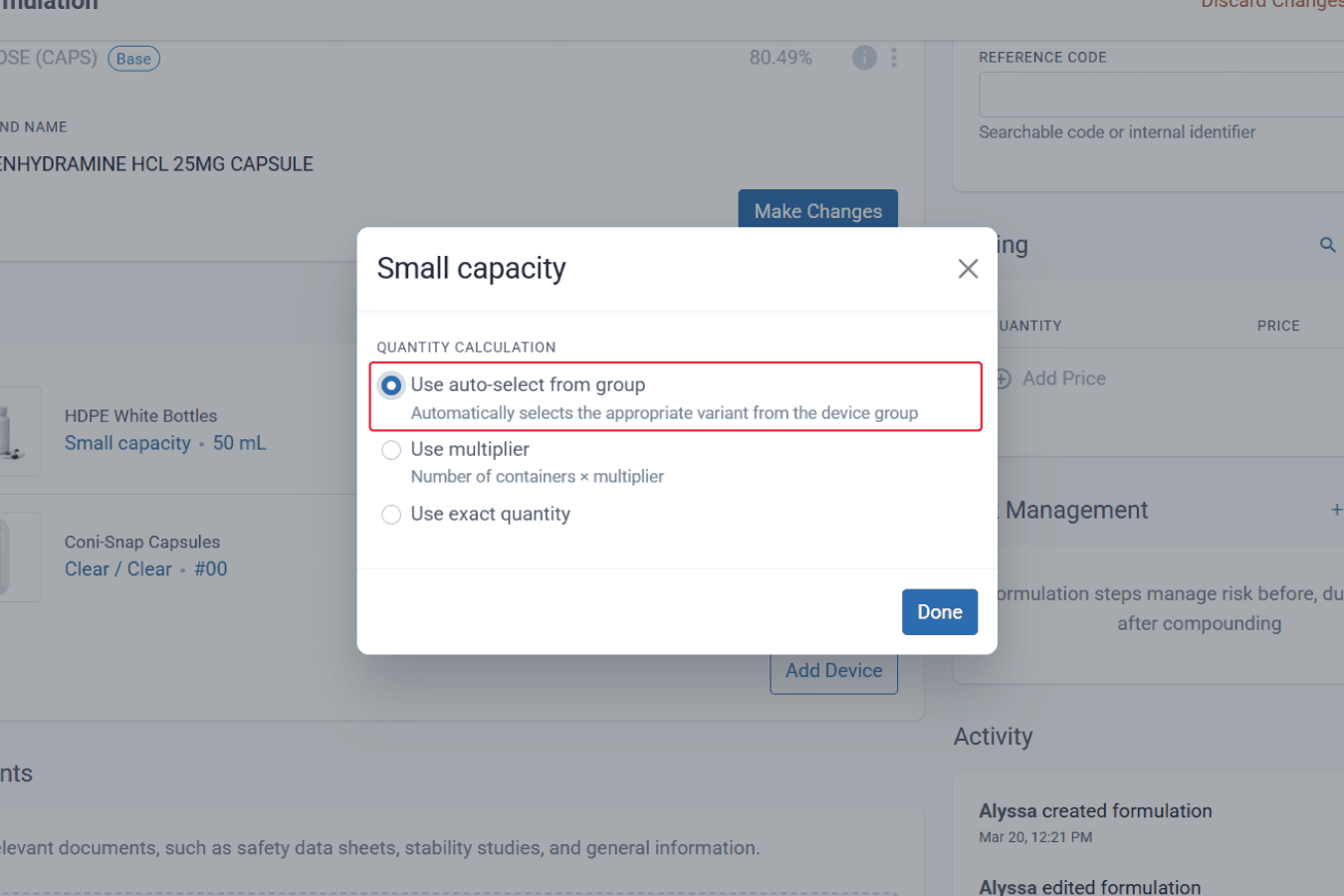
From the formulations page
Repeat the same steps for the capsules. To check, both bottles and capsules must display the Auto-select appropriate container/capsule size text.
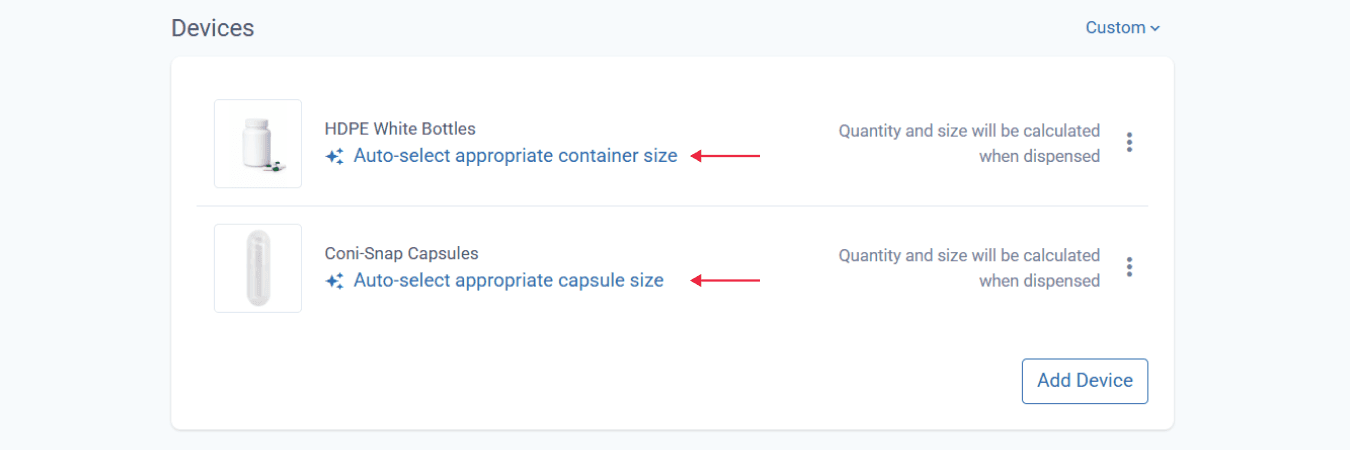
From the formulations page
‘Save’ and ‘Sign off’ on the formulation to complete.
Step 3:
On the same page, click on the ‘Create Draft’.

Hover over the suggested compound pricing in Compound Direct to see the automatically selected bottle and capsule sizes for the formulation. You can also review the device cost to help inform your pricing decisions.
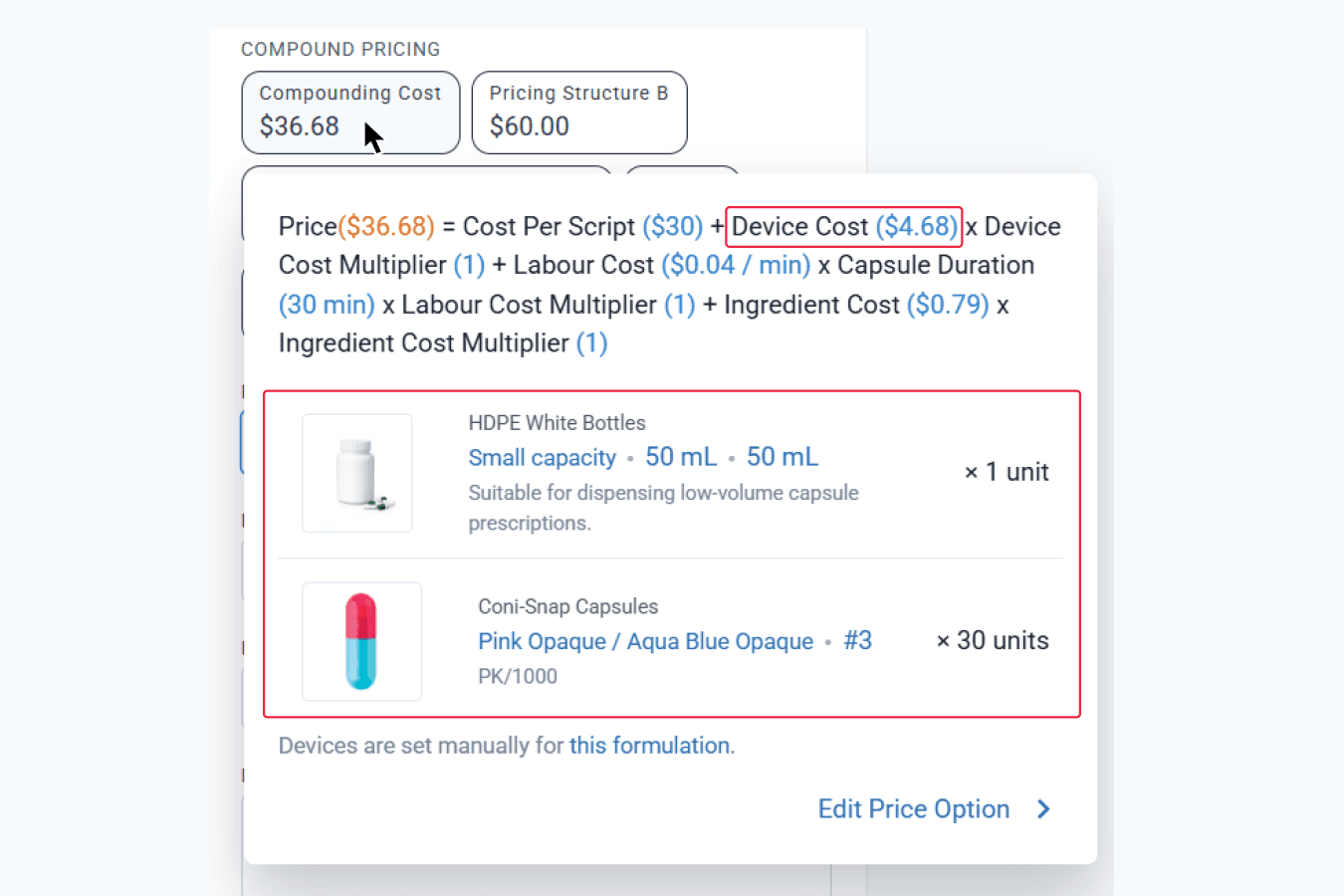
From the drafts page
Step 4:
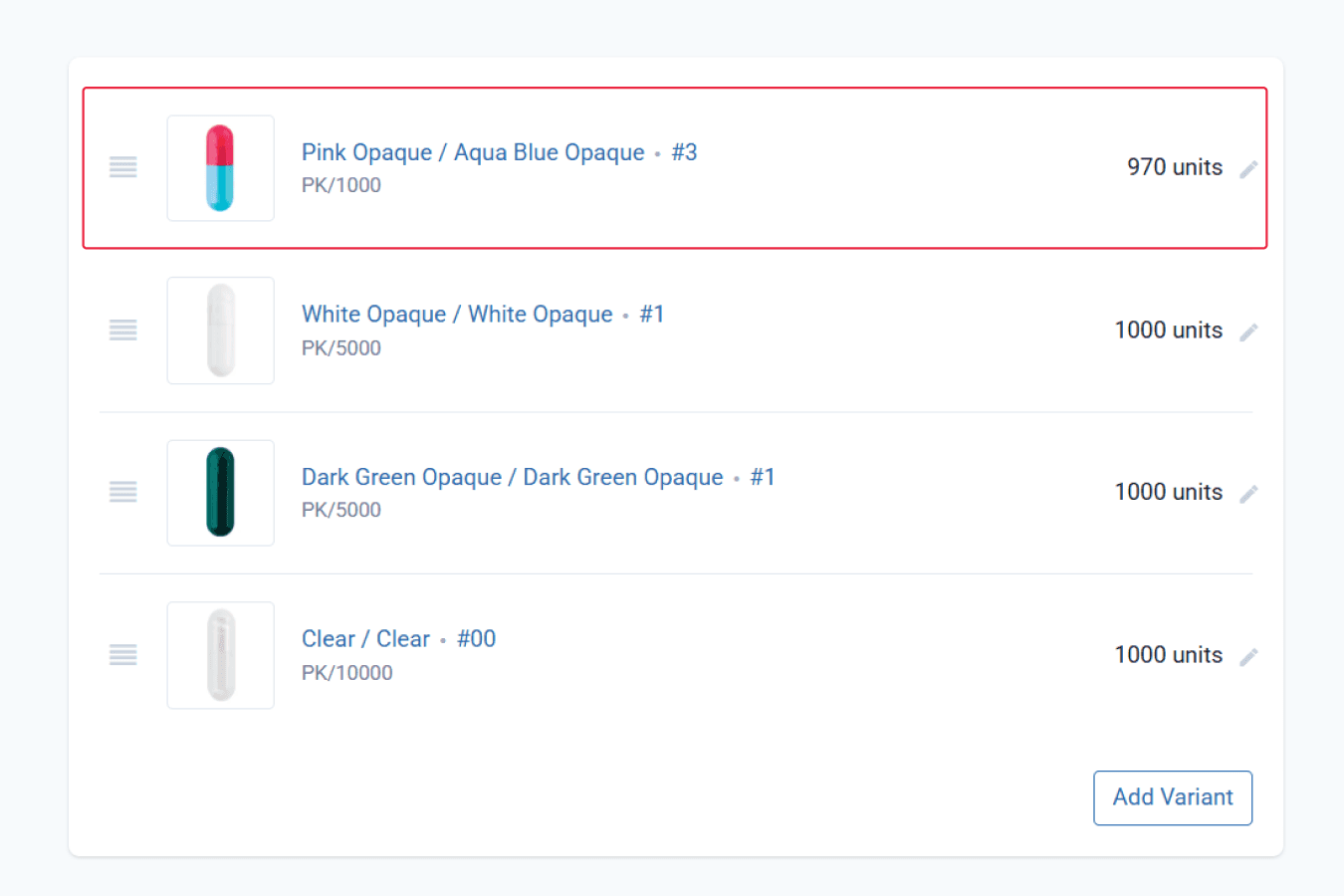
After dispensing the formulation, you can check in Settings ➝ Devices & Consumables ➝ Device Variants to view the updated units from stock on hand (SOH).
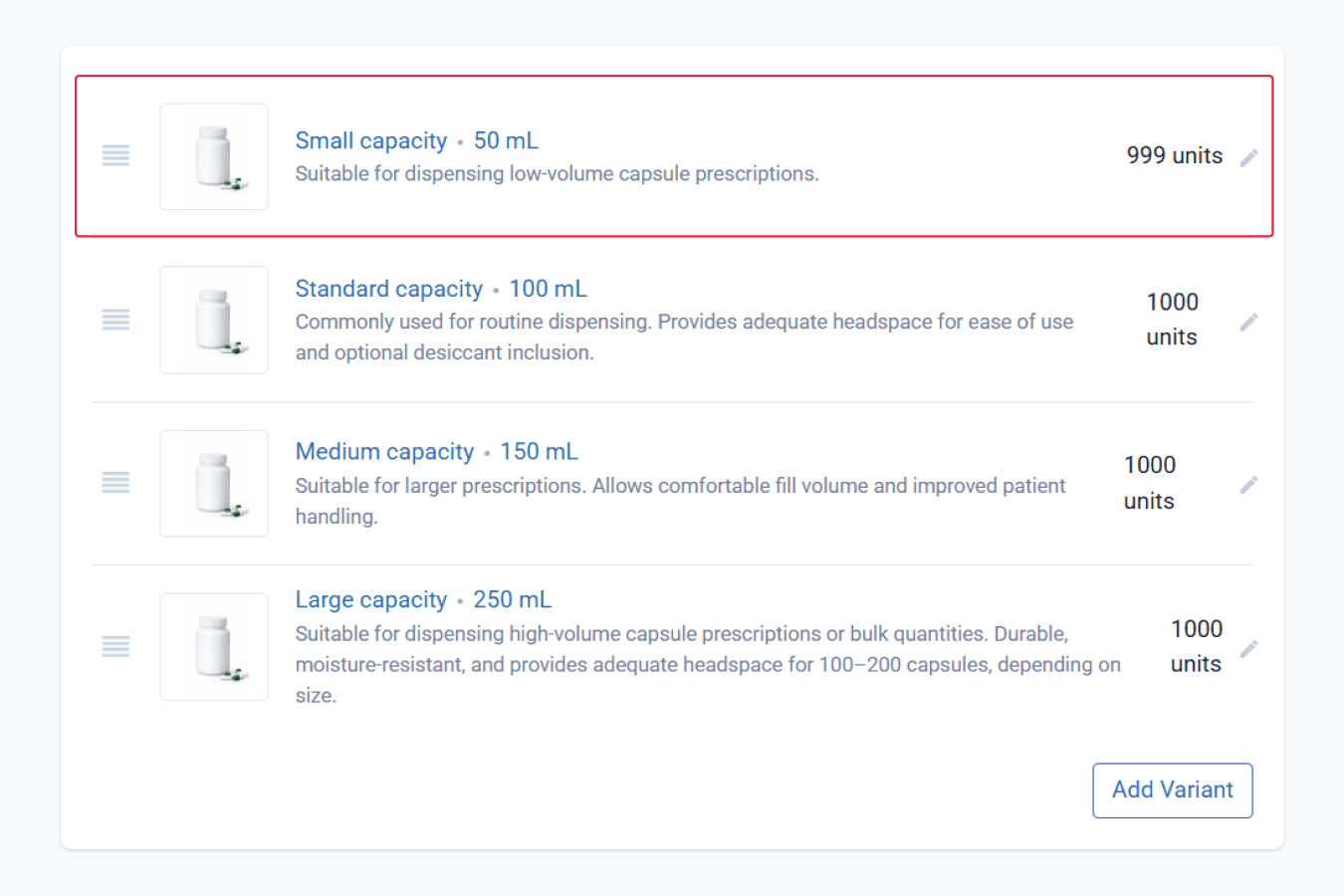
From the devices & consumables page
From the devices & consumables page
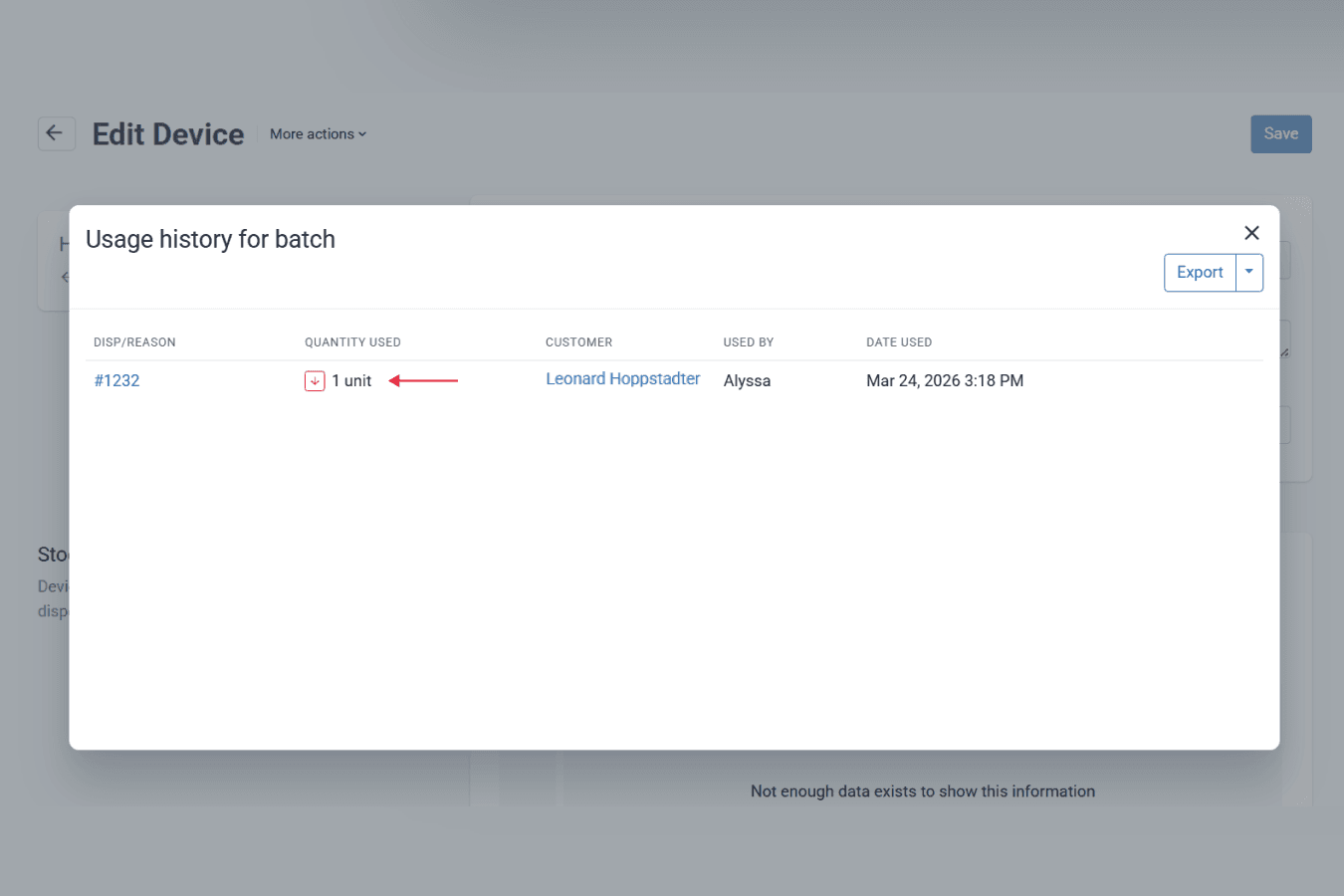
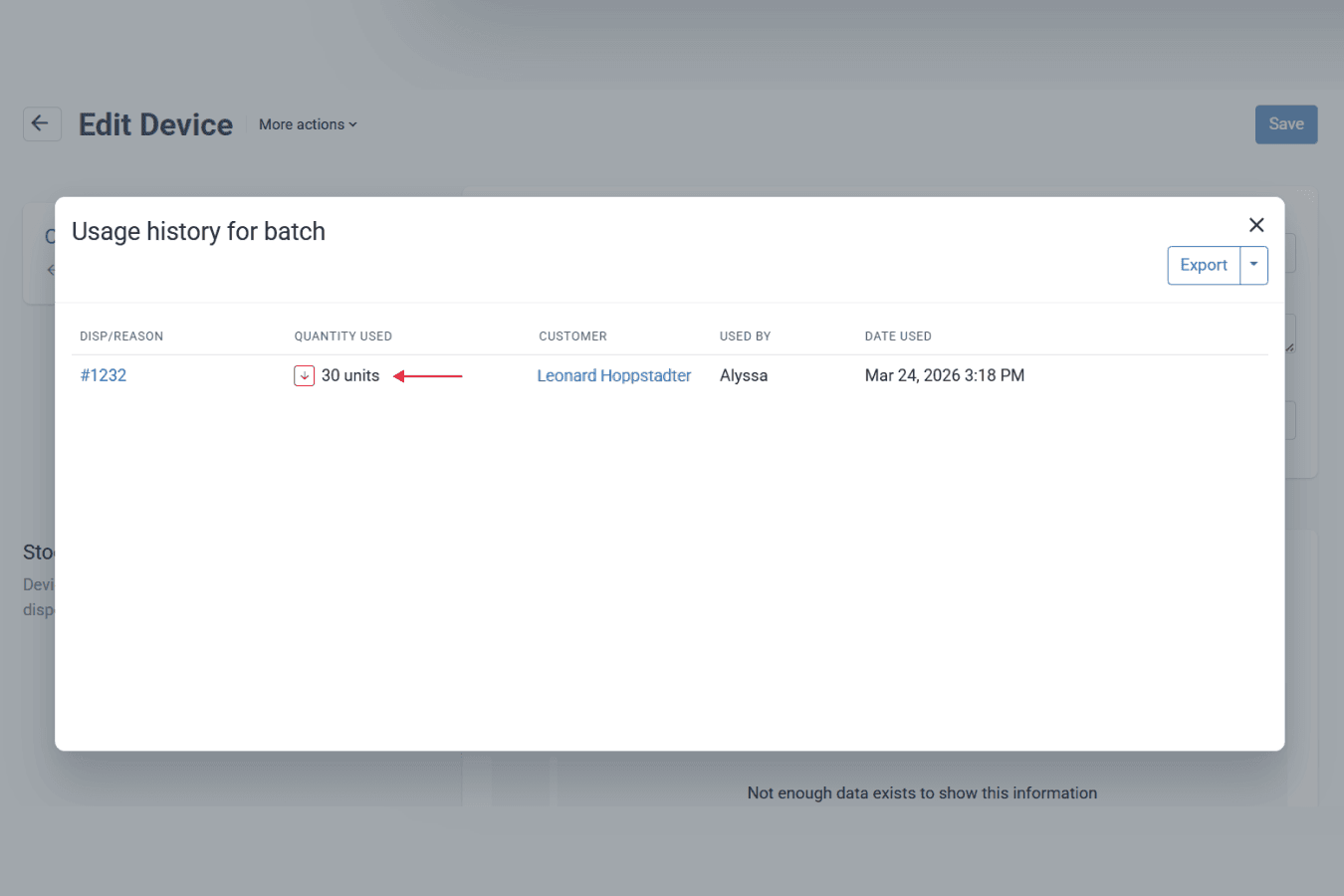
This can also be checked on the variant page by clicking on the ‘Show History’ button to view the real-time audit trail.
Compound Direct records each usage history automatically, helping you maintain accurate and reliable inventory records.
From the devices & consumables page
From the devices & consumables page
To summarise:
- Bottles and capsules are added during the creation of a formulation
- The system auto-selects the correct variants after creating a draft
- Units are subtracted from stock on hand (SOH) after clicking dispense
You may apply this in your workflow if you prefer to compound and package prescriptions during dispensing.
Scenario 2: Bottles are subtracted for each patient during dispensing; capsules are used when preparing the stock
This configuration uses a hybrid workflow and reflects how pharmacies typically work in practice. Capsules are used up front when preparing bulk stock through batch manufacturing, so they are deducted when the batch manufacture record is created. Bottles, however, are not determined until dispensing, since the final pack size depends on the individual patient’s prescription. As a result, bottles are selected and deducted from stock on hand (SOH) at the dispensing stage.
Part A: Bottles are subtracted and recorded when the formulation is dispensed
Step 1:
On the ‘Formulation’ page, select the ‘Customise for formulation’ from the ‘Inherit’ drop-down menu. This will override the system default for inheriting the devices and consumables attached to a dosage form.
From the formulations page
Step 2:
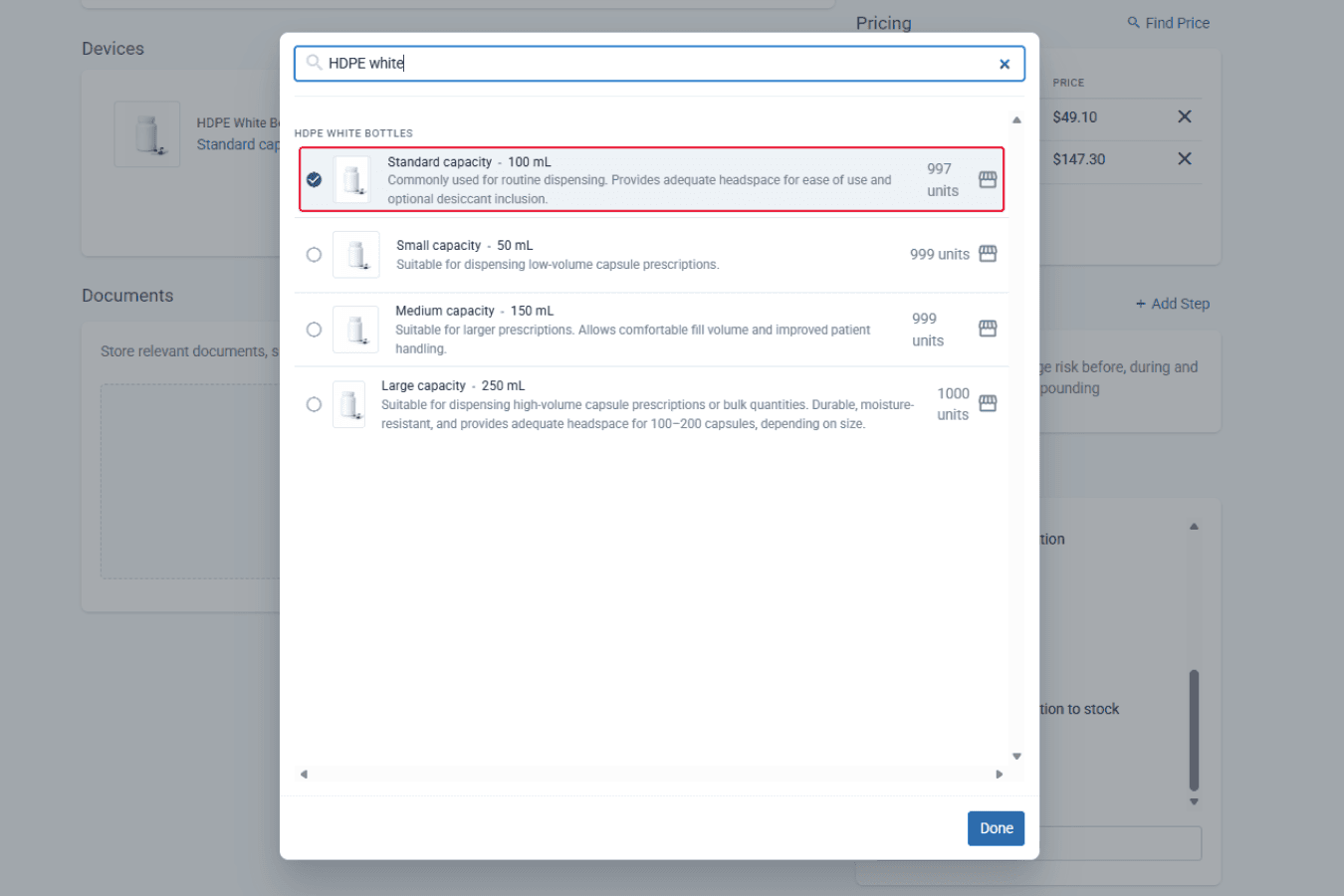
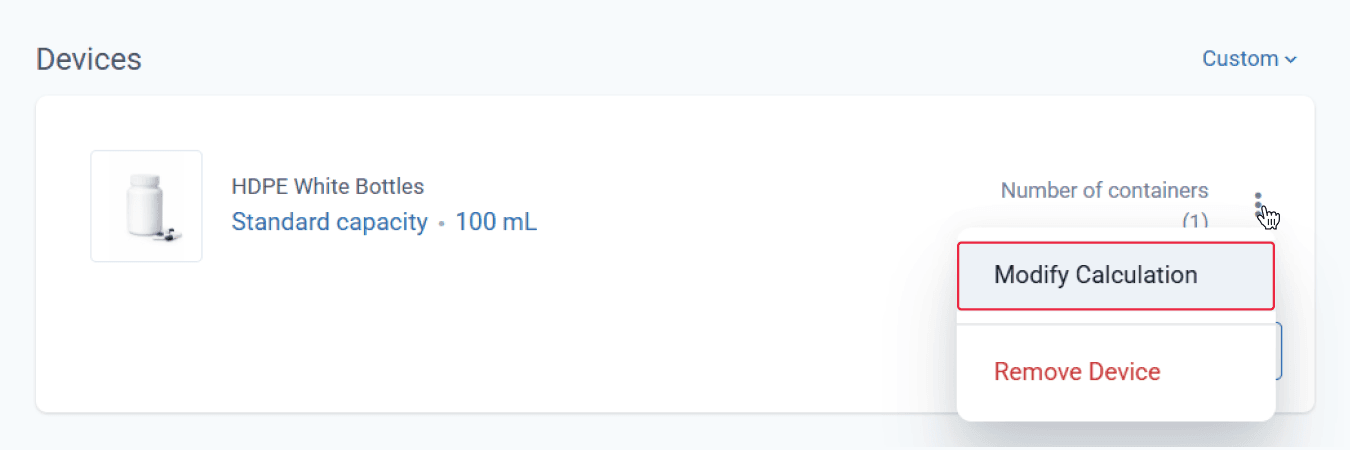
Click ‘Add Device’, and add bottles under ‘Devices’. Click on the three dots icon to select ‘Modify Calculation’ for bottles.
From the formulations page
From the formulations page
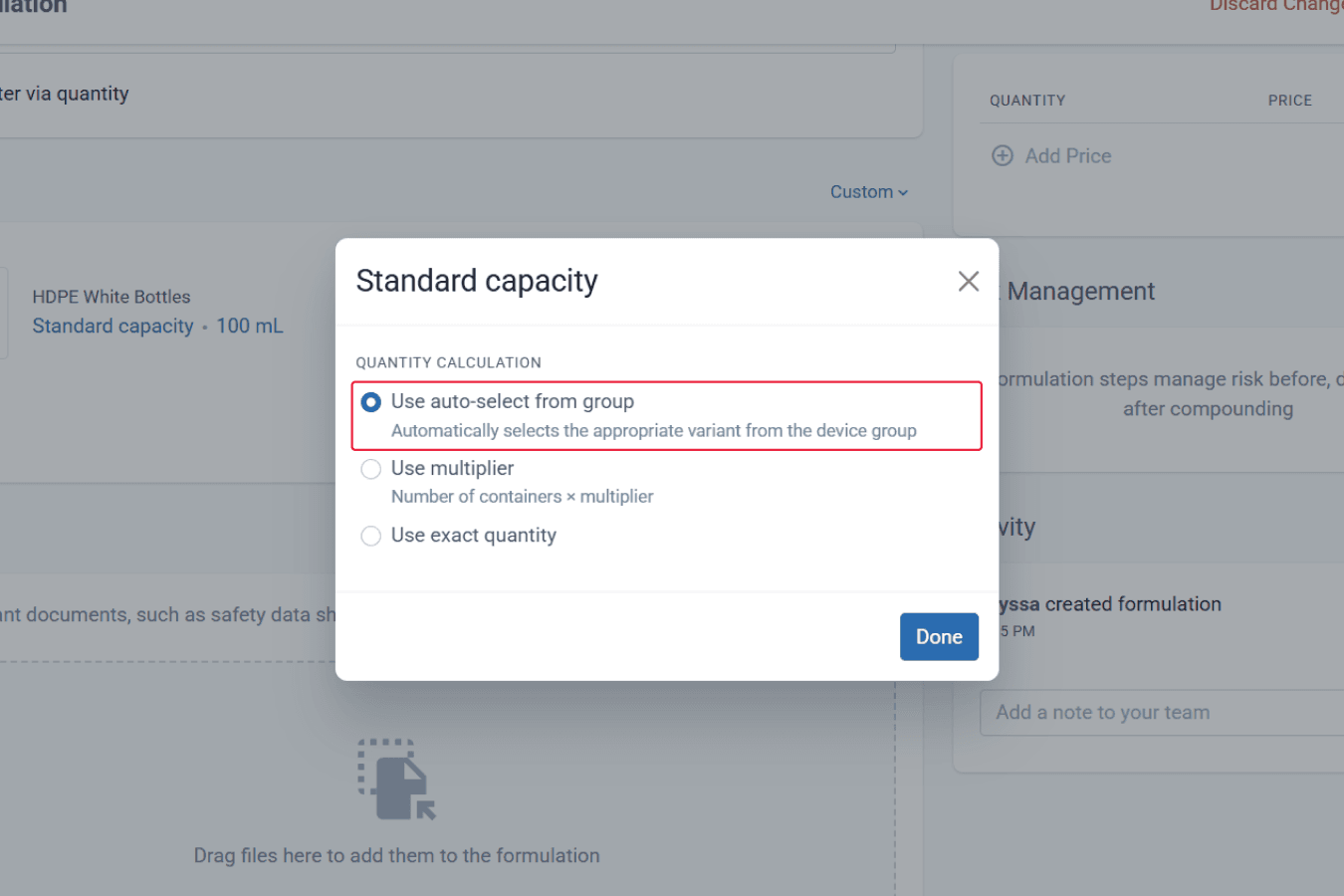
Select the ‘Use auto-select from group’ option to instruct the system to automatically select the appropriate variant from the device group when dispensing.
From the formulations page
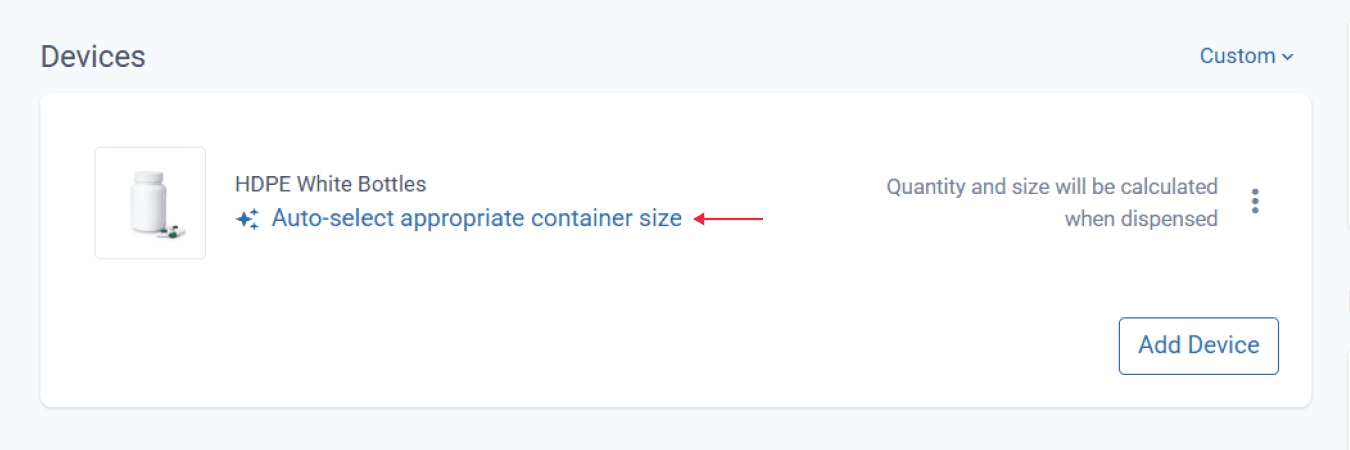
To check, the bottles must display the Auto-select appropriate container size text.
From the formulations page
‘Save’ and ‘Sign off’ on the formulation to complete.
Step 3:
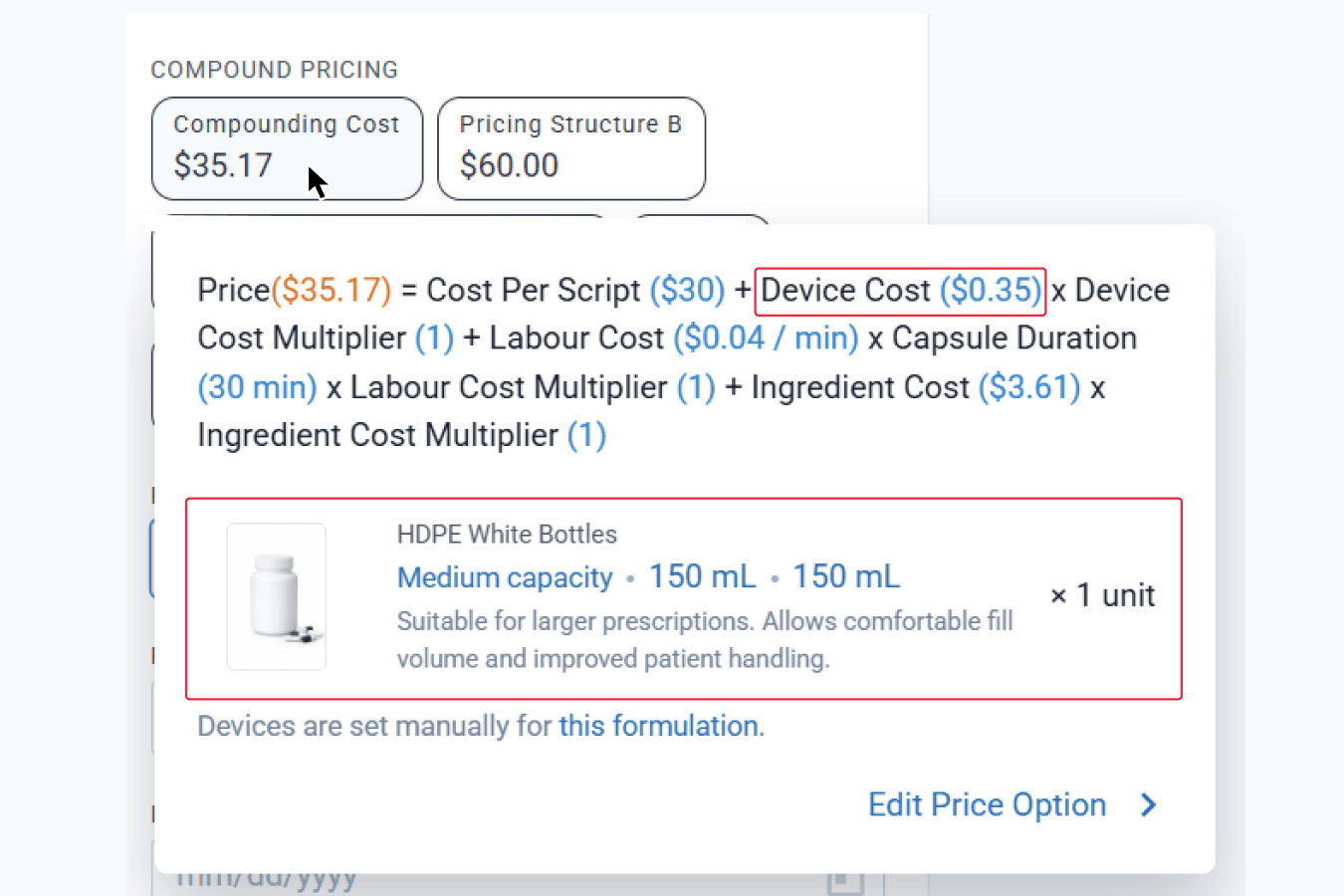
On the same page, click on the ‘Create Draft’. Hover over any compound pricing suggested, based on your setup, by Compound Direct to view the automatically selected appropriate bottle and capsule size added to the formulation. You can also review the price with the device cost to help guide your overall pricing decisions.
From the drafts page
Step 4:
After dispensing the batch stock, you can check in Settings ➝ Devices & Consumables ➝ Device Variants to view updated units from the stock on hand (SOH).
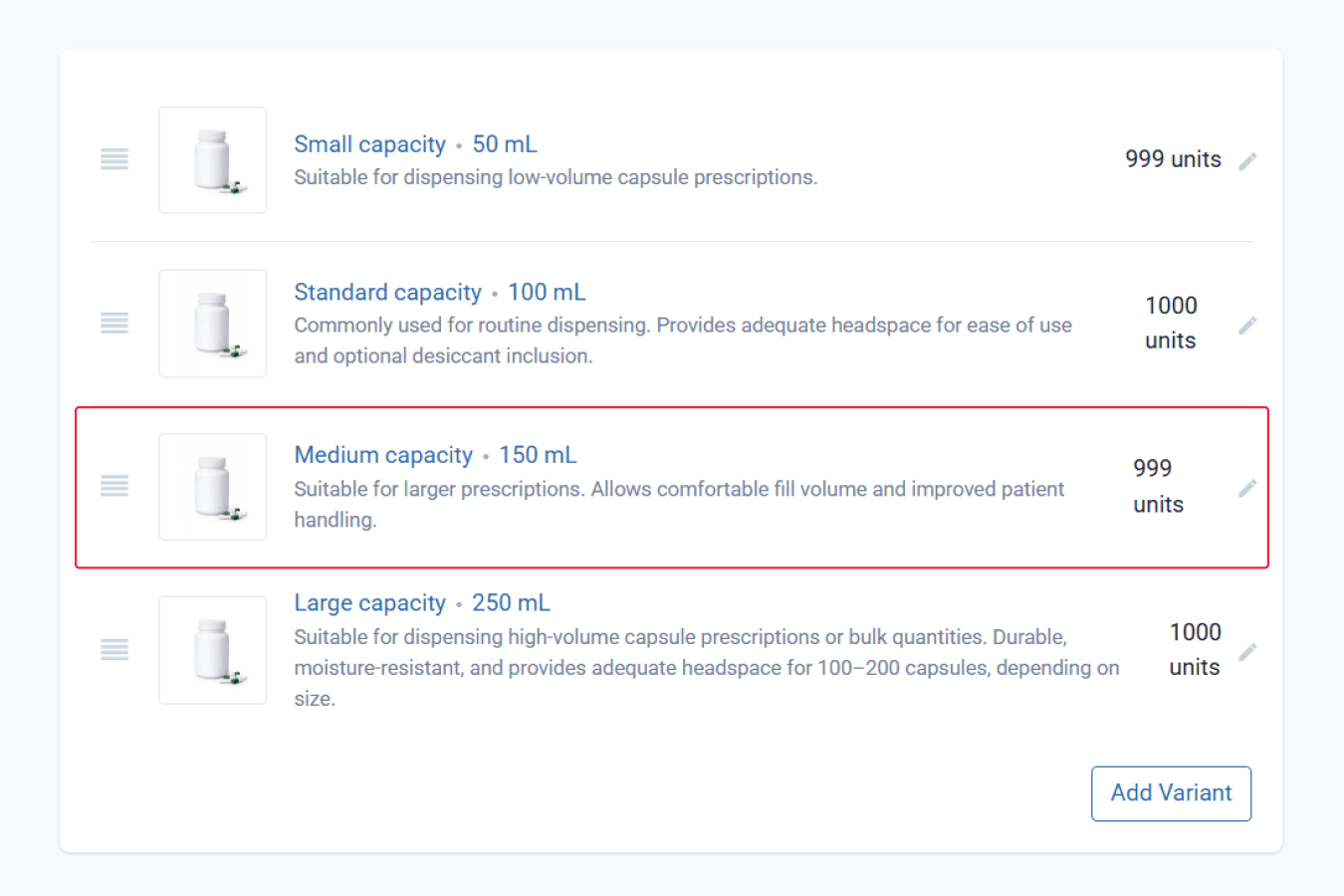
From the devices & consumables page
This can also be checked on the variant level by clicking on the ‘Show History’ button to view the real-time audit trail.
Compound Direct records each usage history automatically, helping you maintain accurate and reliable inventory records.
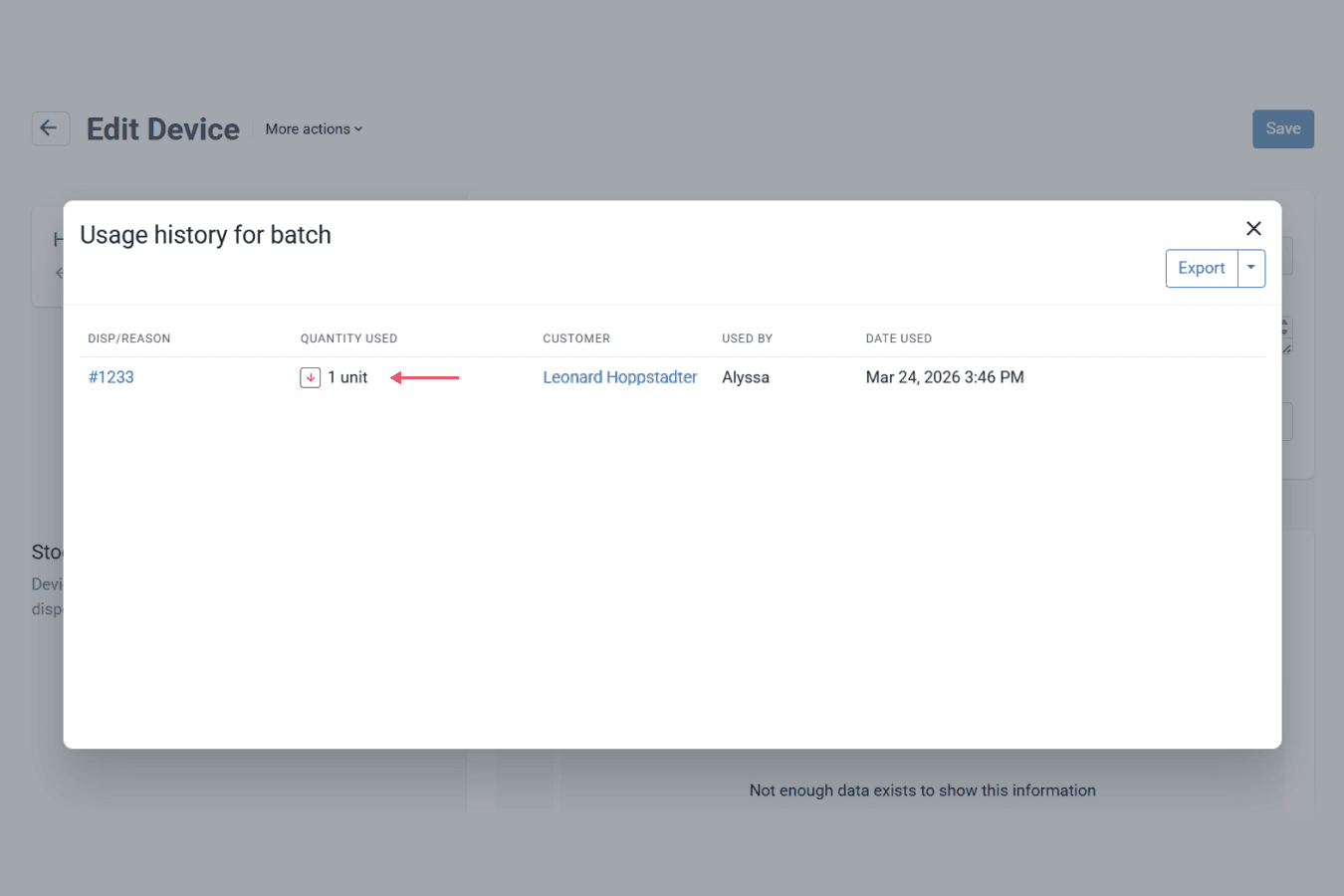
From the devices & consumables page
Part B: Capsules are recorded and subtracted when a batch manufacture record is created
Step 5:
Convert the current formulation to a batch stock by clicking on the ‘More Actions’ dropdown menu and selecting ‘Convert to Batch Stock’.
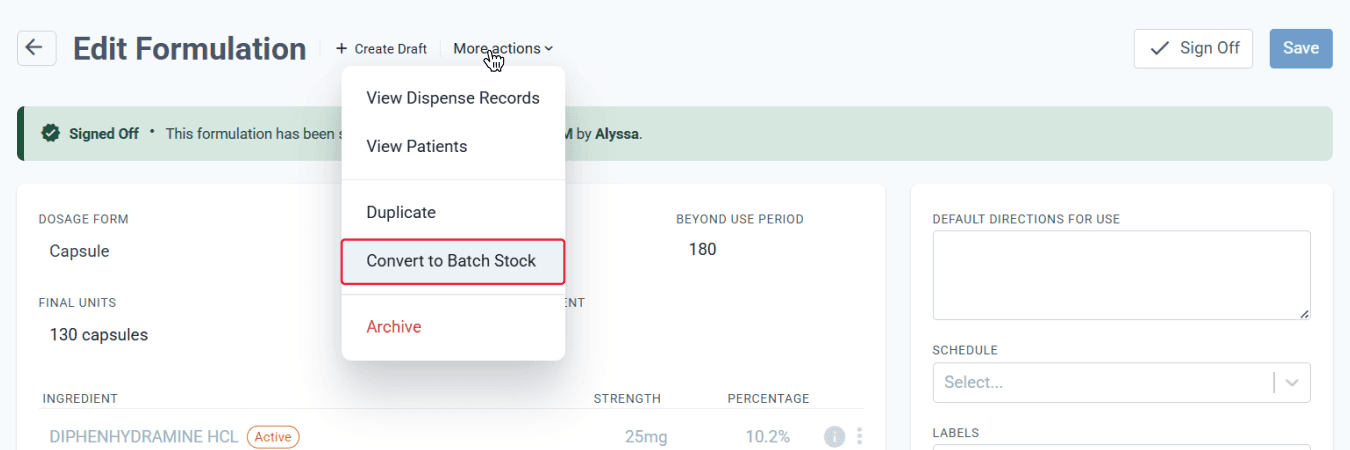
From the formulations page
Step 6:
Click ‘Configure devices’ or ‘Edit Devices’, then select the desired capsules from the modal. Click ‘Done’ once all required devices are selected.
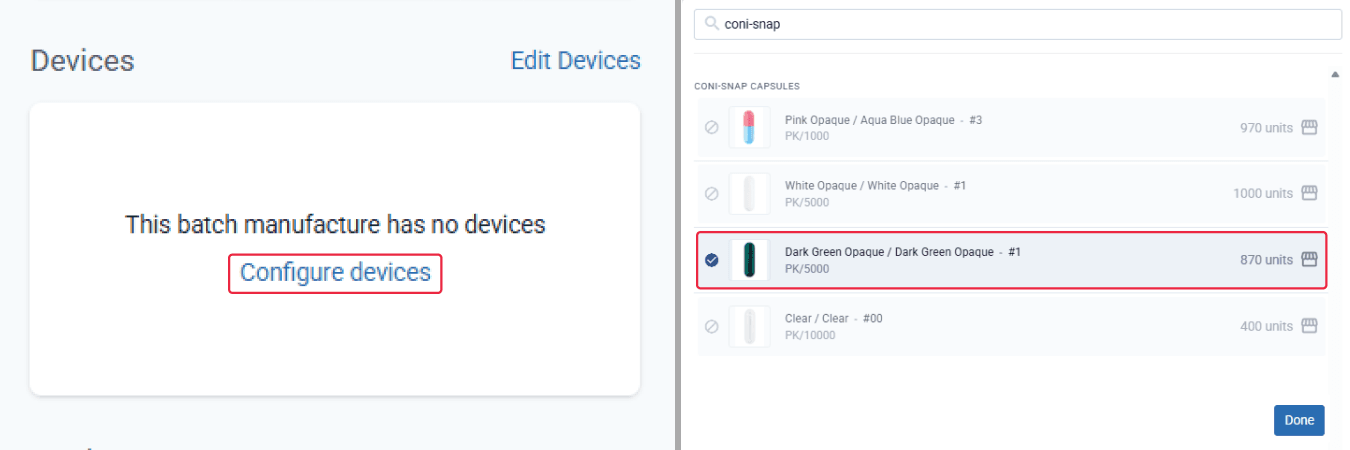
From the batch manufacture page
On the ‘Batch Manufacture’ page, click on the ‘Manufacture Batch’ button, adjust the quantity of the capsules as needed, and then you can ‘Prepare with changes’.
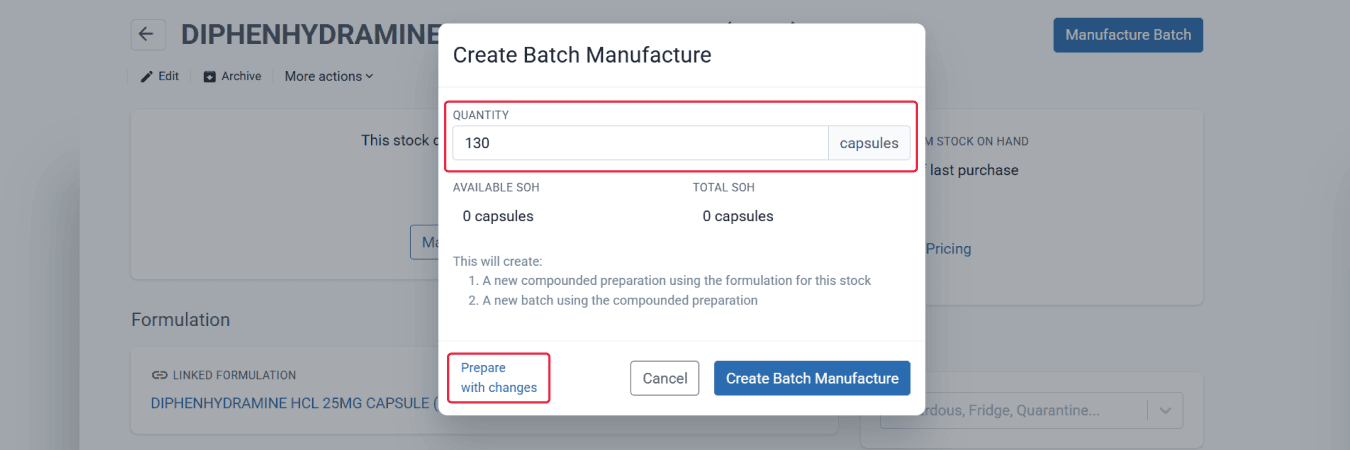
From the batch manufacture page
Update the formulation details, tags, containers, and weighing parts as needed, then ‘Create Batch Manufacture’.
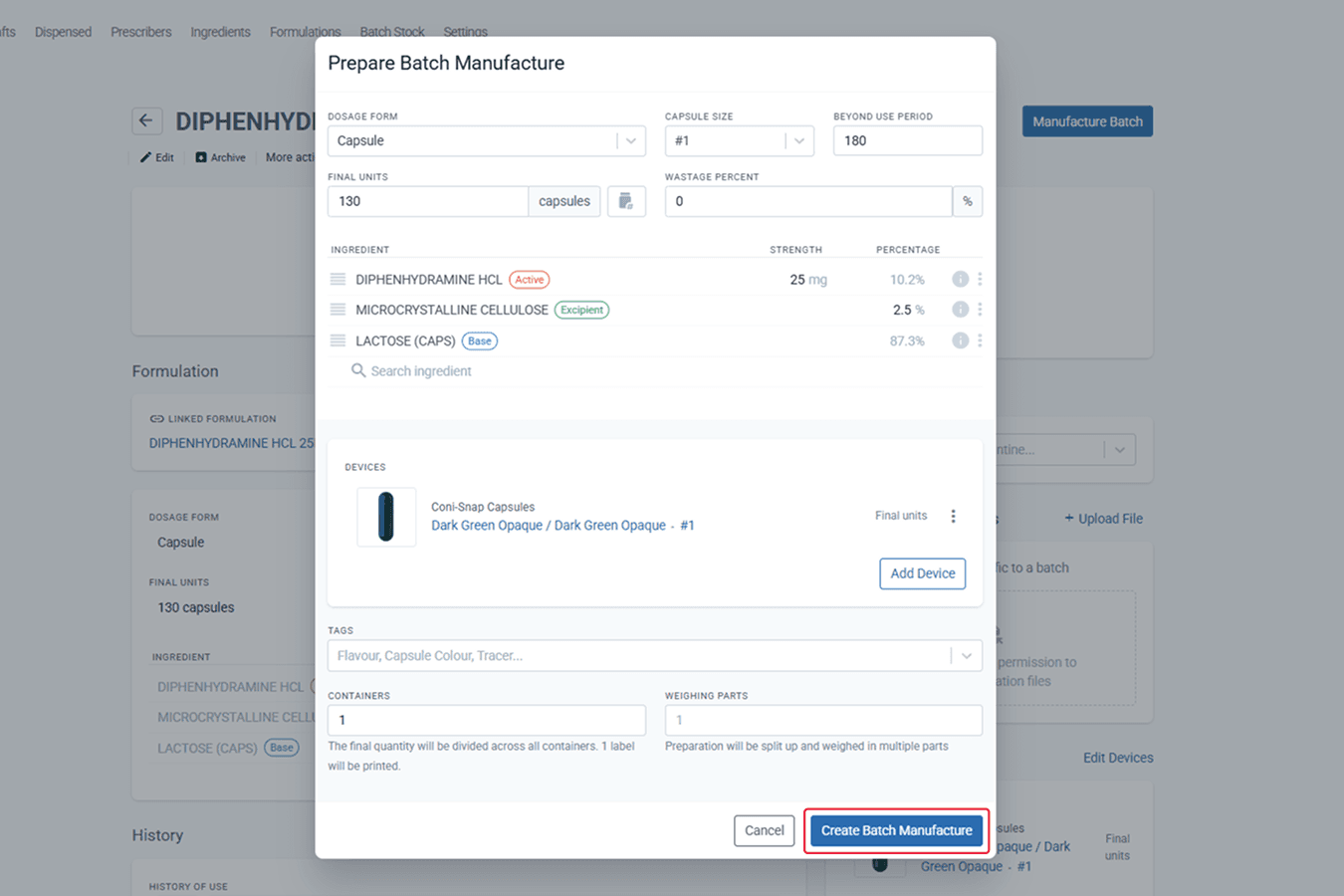
From the batch manufacture page
Step 7:
After creating the batch manufacture record, you can check in Settings ➝ Devices & Consumables ➝ Device Variants to view updated units from the stock on hand (SOH).
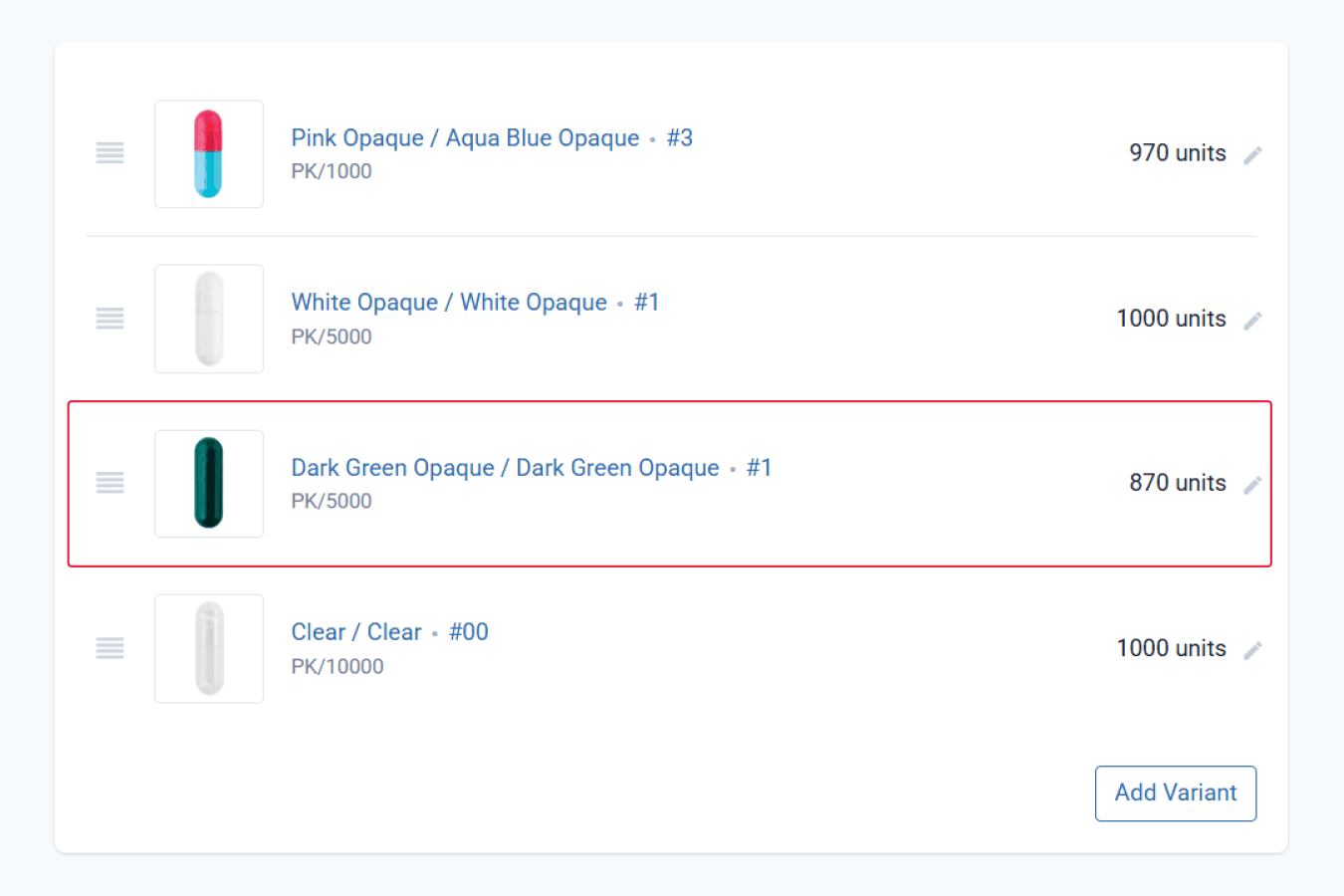
This can also be checked on the variant level by clicking on the ‘Show History’ button to view the real-time audit trail.
Compound Direct records each usage history automatically, helping you maintain accurate and reliable inventory records.
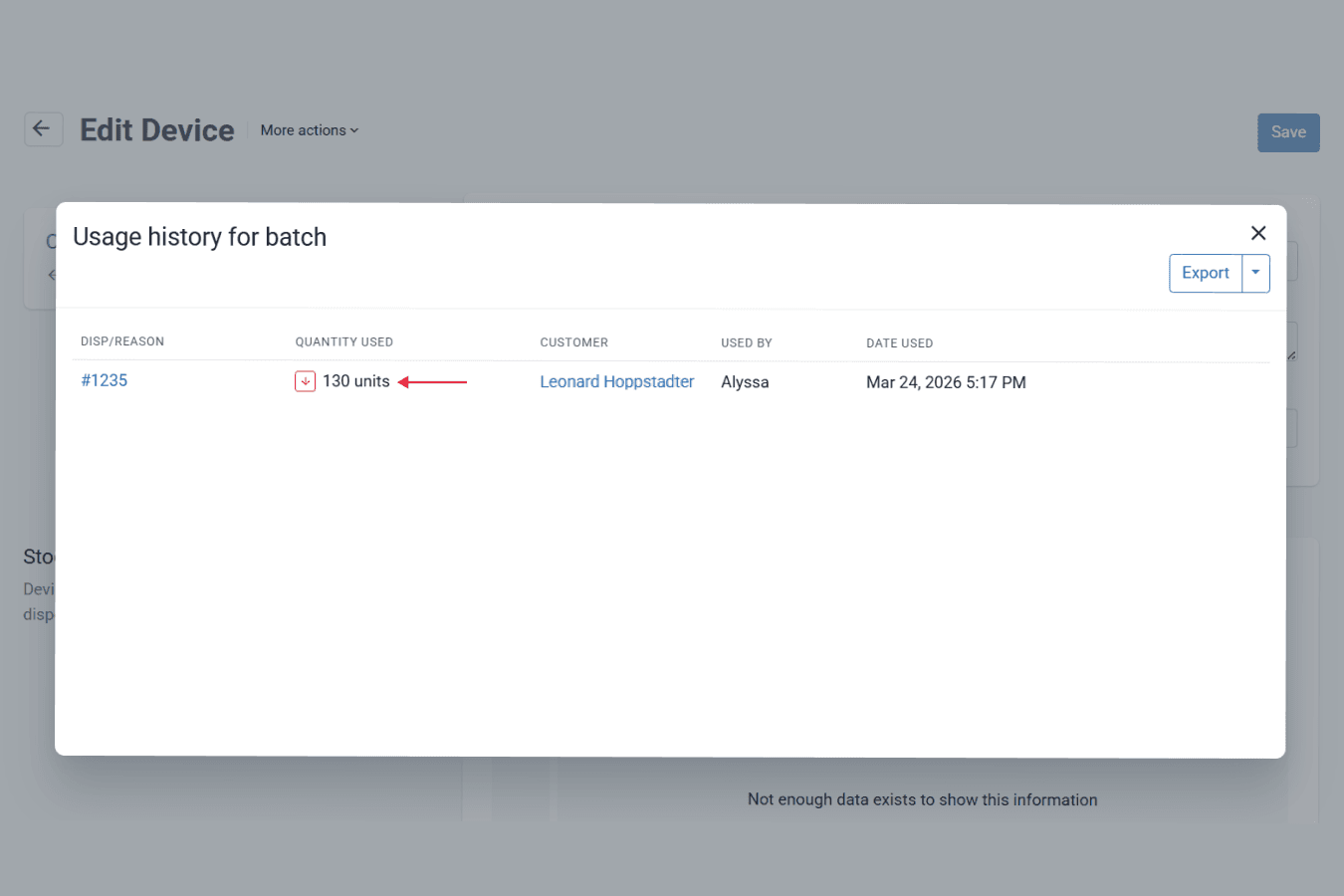
From the devices & consumables page
To summarise:
- Bottles are added when creating a formulation
- The formulation is converted into a batch stock
- Bottles are subtracted when you dispense the batch stock
- Capsules are added and subtracted when manufacturing a batch
You may apply this in your workflow if you prefer to compound in batches and package prescriptions during dispensing.
Scenario 3: Bottles and capsules are recorded and subtracted from SOH when preparing the stock, with no additional devices used when dispensed
In this setup, both bottles and capsules are recorded and subtracted when the batch manufacture record is created. The finished products are fully packaged during batch preparation, meaning dispensing simply involves selecting the prepared batch without additional devices or consumables being used. This approach works well for pharmacies that prepare large quantities of pre-packaged compounds.
Step 1:
On the ‘Formulation’ page, convert the formulation to a batch stock by clicking on the ‘More Actions’ dropdown menu and selecting ‘Convert to Batch Stock’.
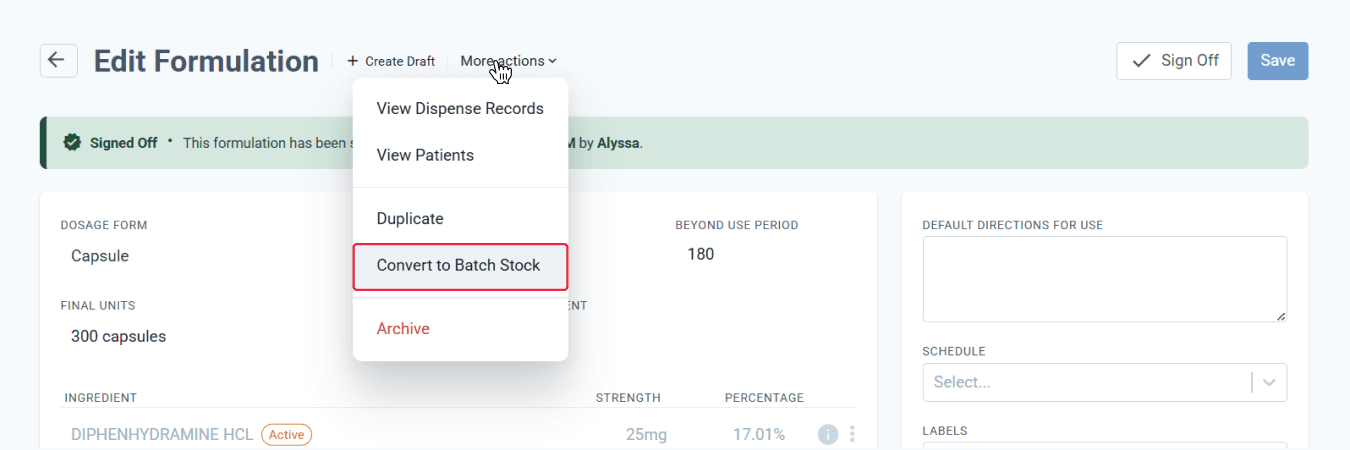
From the formulations page
Step 2:
Click ‘Configure devices’ or ‘Edit Devices’, then select the desired bottles and capsules from the modal. Click ‘Done’ once all required devices are selected.
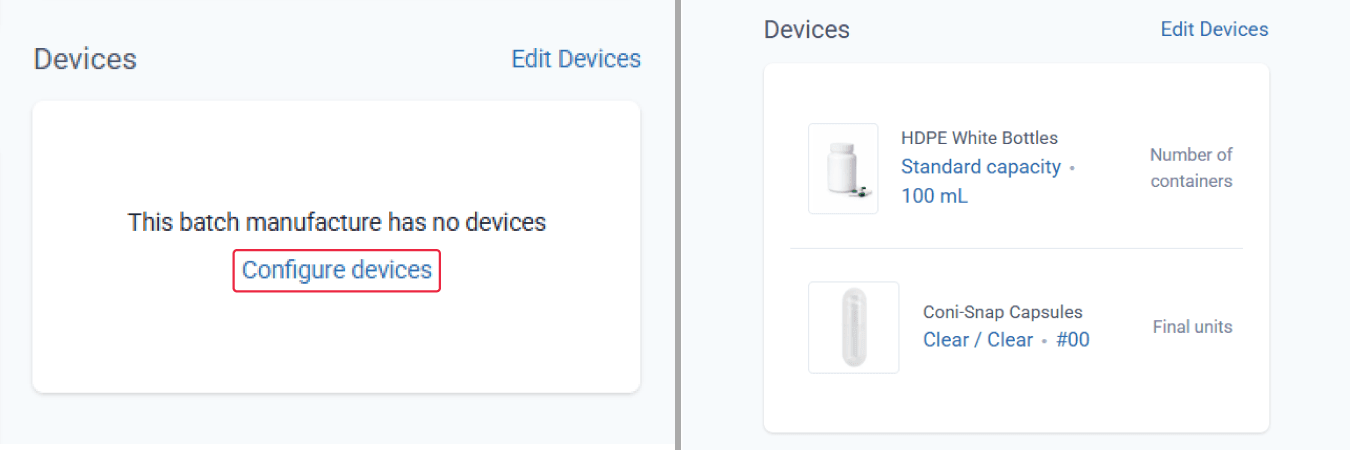
From the batch manufacture page
Step 3:
On the ‘Batch Manufacture’ page, click on the ‘Manufacture Batch’ button, adjust the quantity of the capsules as needed, and then you can ‘Prepare with changes’.
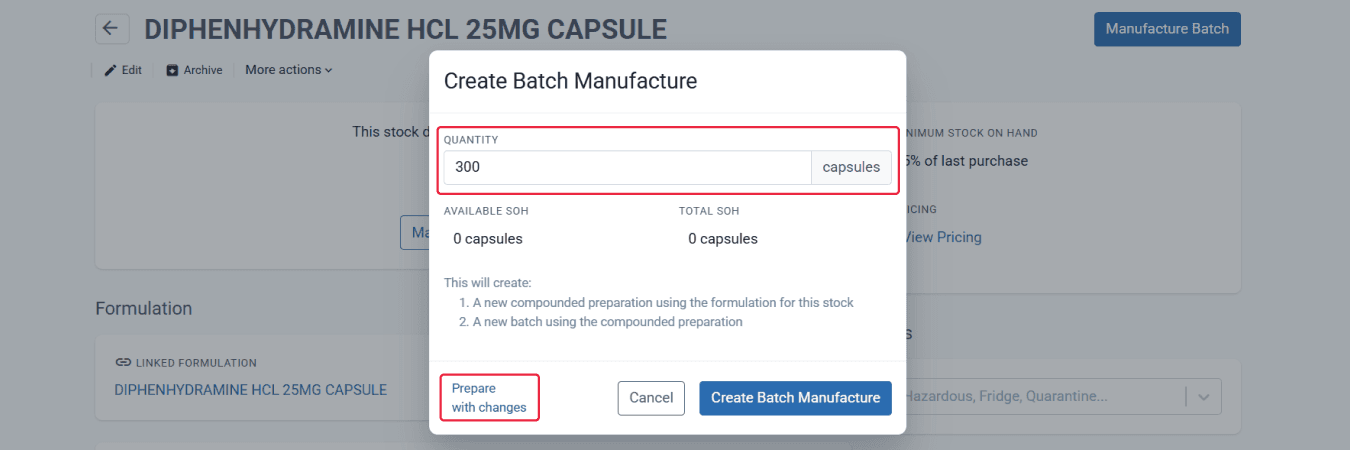
From the batch manufacture page
Update the formulation details, tags, containers, and weighing parts as needed, then ‘Create Batch Manufacture’.
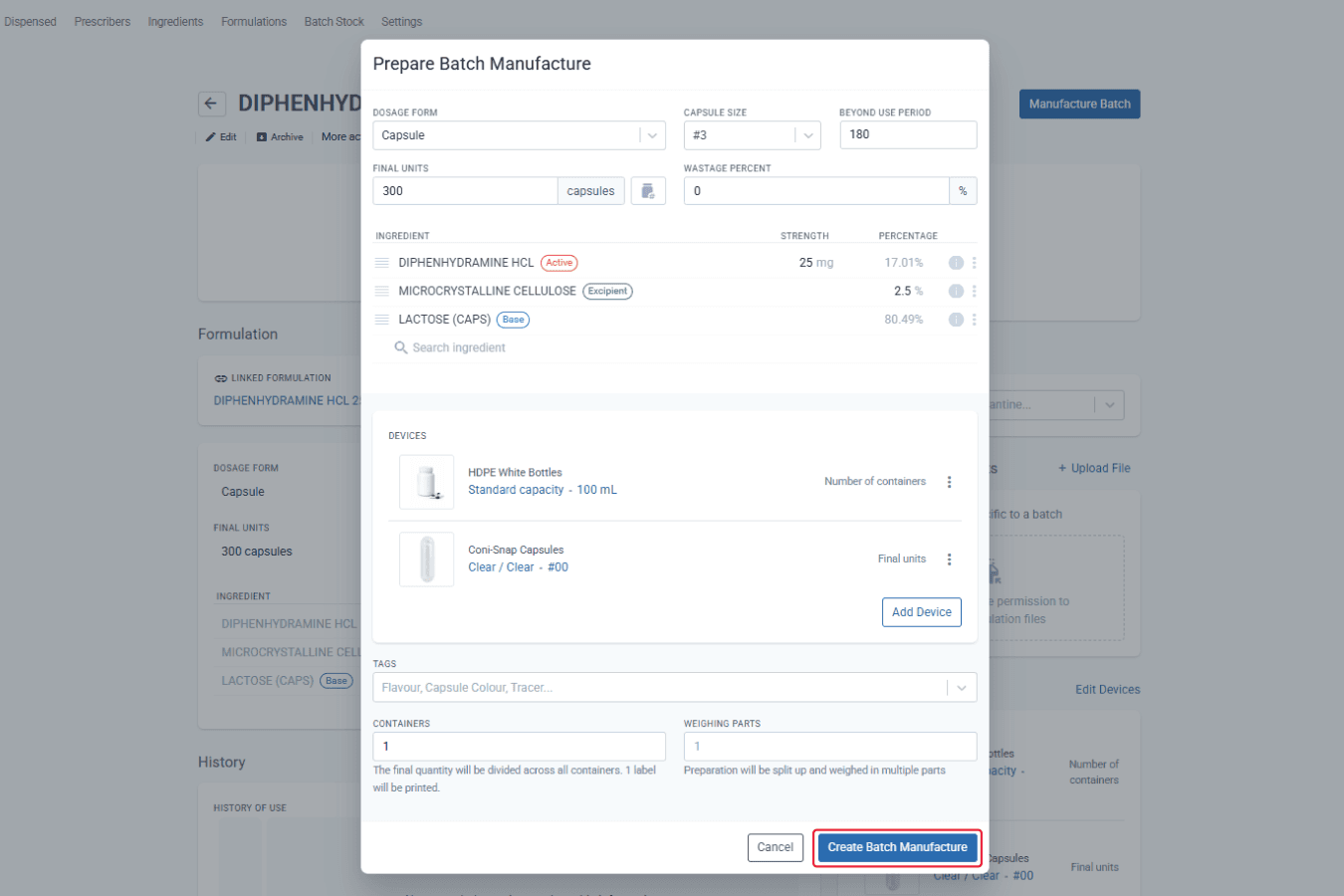
From the batch manufacture page
Step 4:
After creating the batch manufacture record, you can check in Settings ➝ Devices & Consumables ➝ Device Variants to view updated units from the stock on hand (SOH).
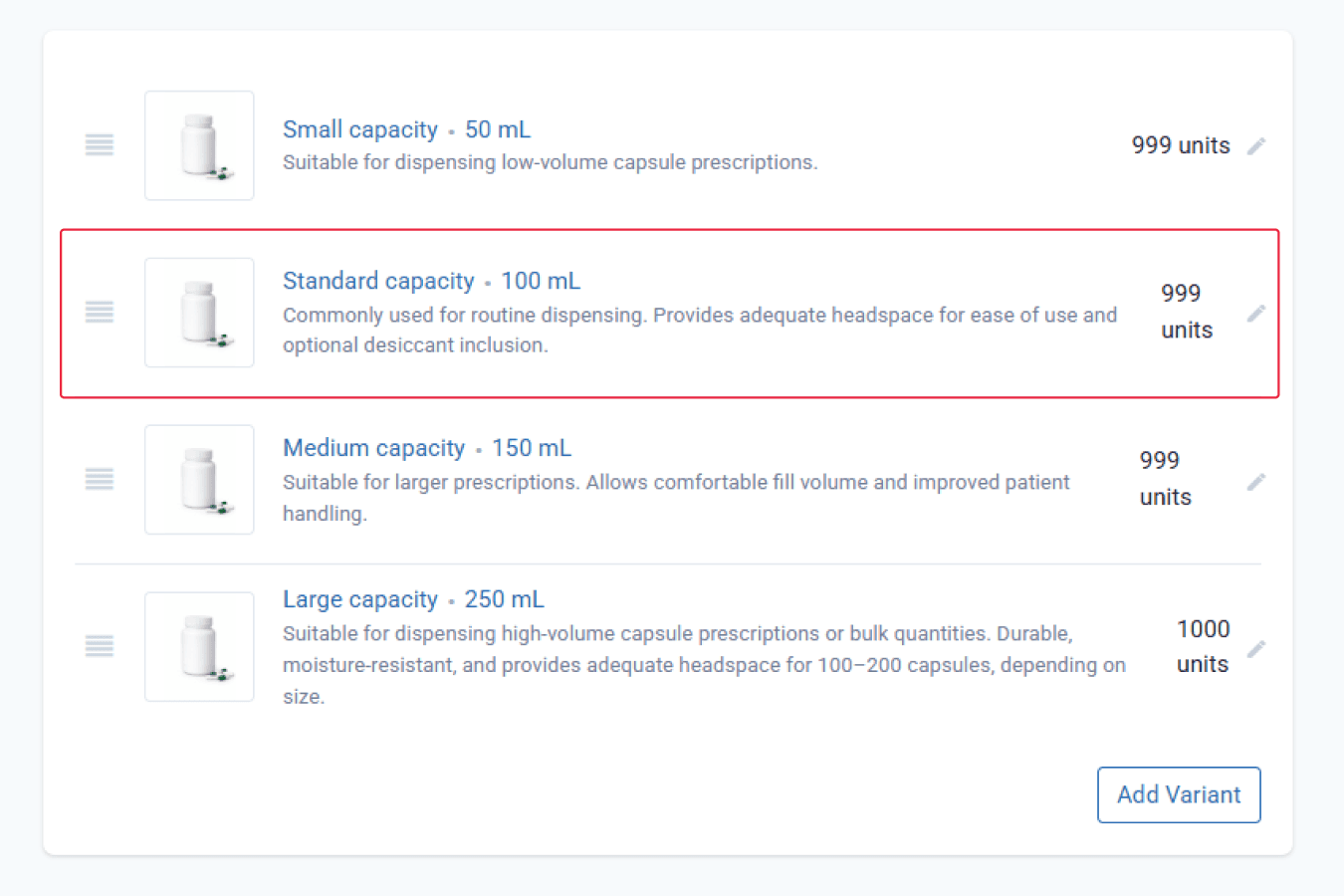
From the devices & consumables page
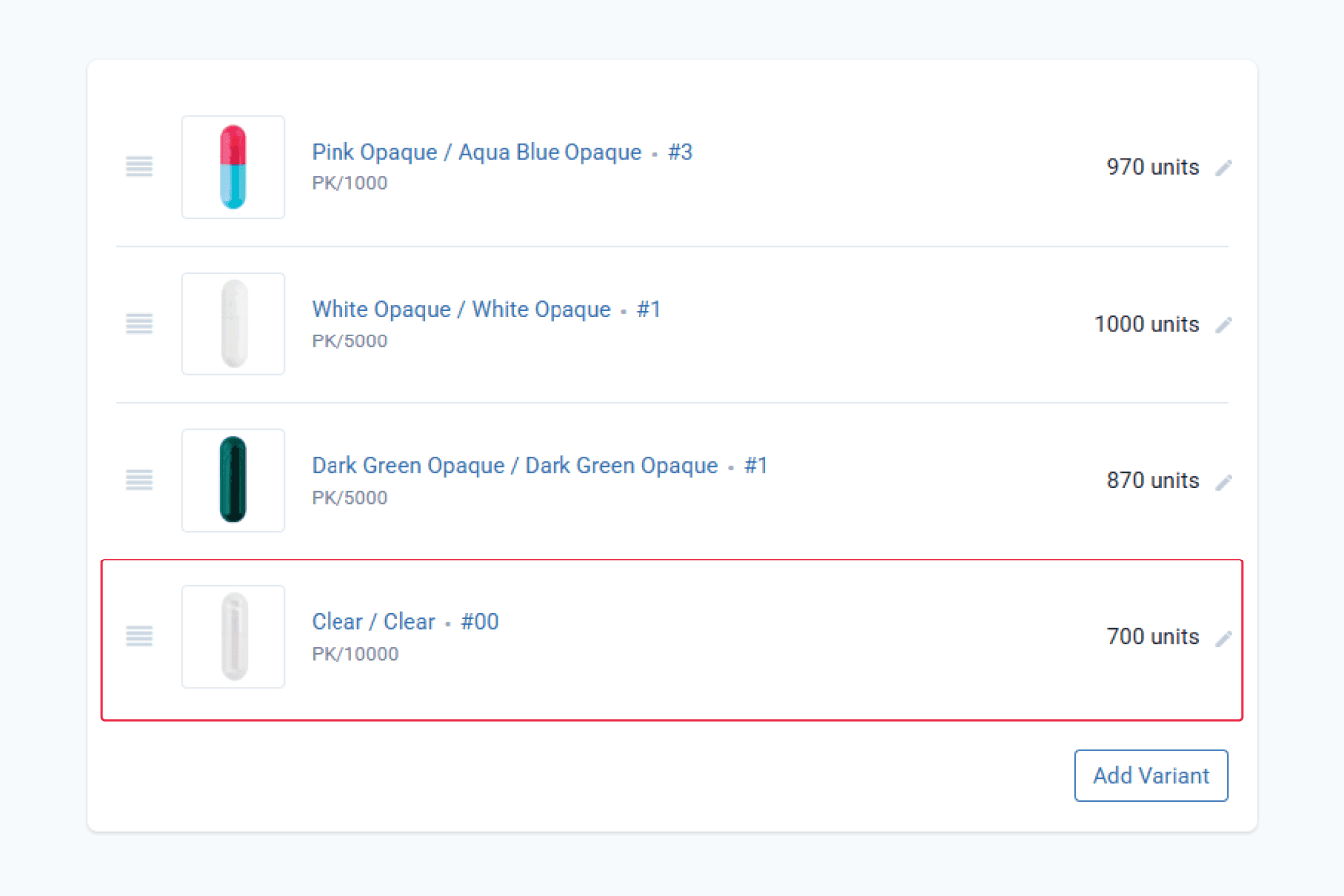
From the devices & consumables page
This can also be checked on the variant level by clicking on the ‘Show History’ button to view the real-time audit trail.
Compound Direct records each usage history automatically, helping you maintain accurate and reliable inventory records.
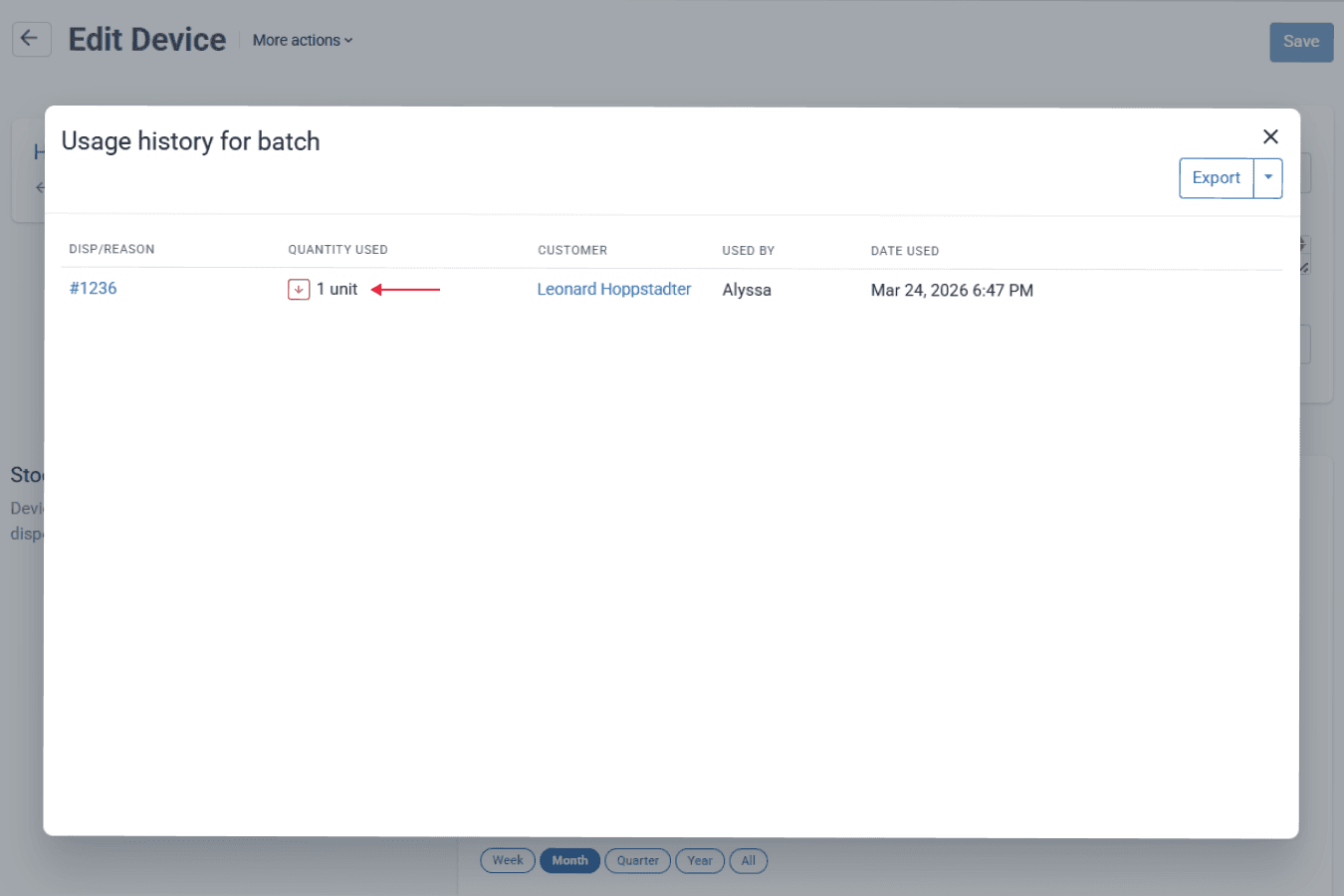
From the devices & consumables page
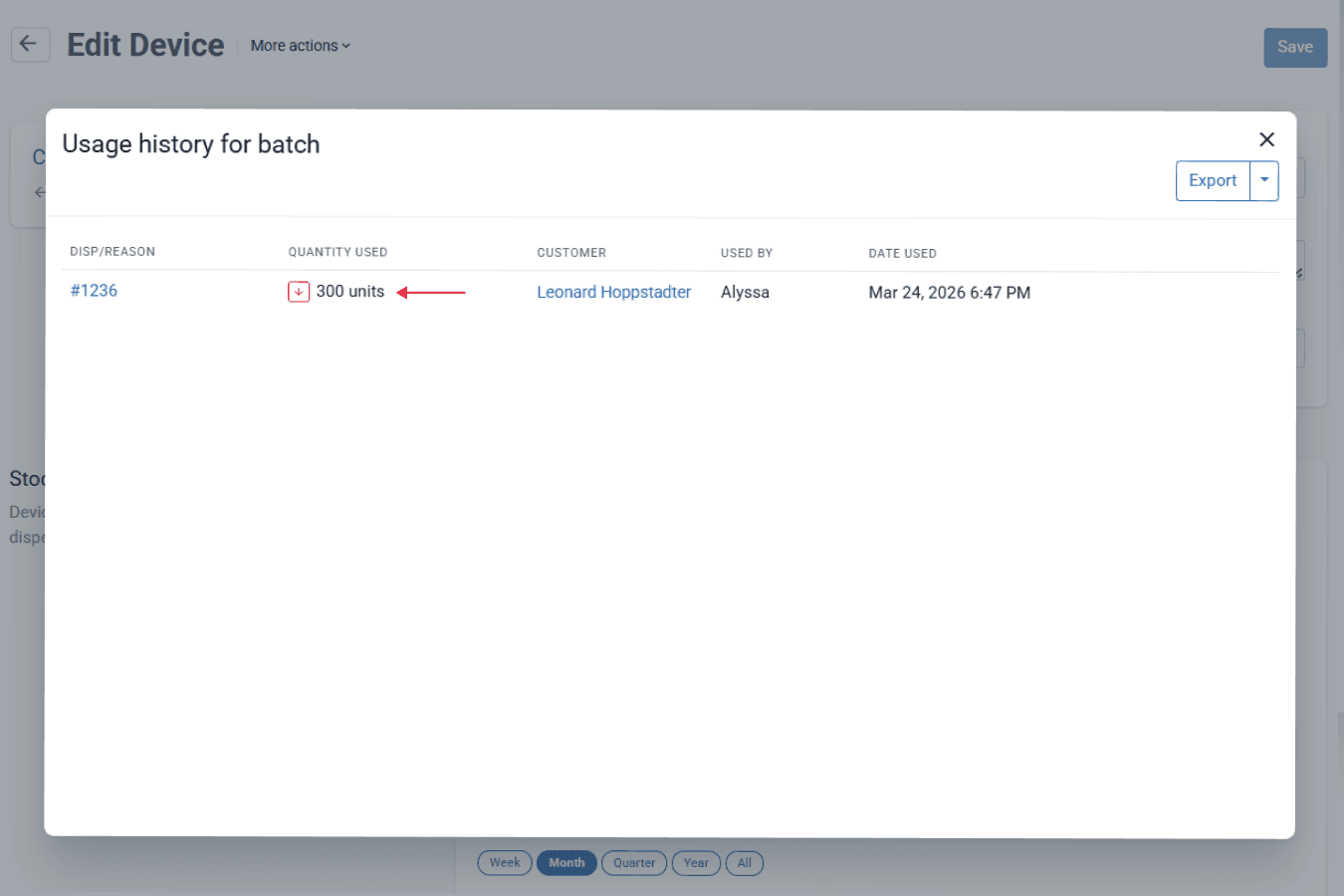
From the devices & consumables page
To summarise:
- Bottles and capsules are added and subtracted when manufacturing a batch
- Dispensing becomes quick and simple
- No additional devices or consumables need to be added during dispensing
You may apply this in your workflow if you prefer to compound and fully package compounds in bulk for later dispensing.
Conclusion
Managing devices and consumables can be simple, flexible, and tailored to the way your pharmacy works best. Every pharmacy operates differently, and your inventory system should adapt to your workflow, not the other way around. Whether you track usage at dispensing, during batch manufacturing, or across both stages, Compound Direct gives you the flexibility to define what works best for your team while maintaining accurate stock levels and consistent costing.
With automatic variant selection, real-time stock updates, and detailed usage tracking happening in the background, you gain full visibility without added complexity. In the end, you can feel confident that your inventory reflects how your pharmacy truly operates, while Compound Direct quietly takes care of the rest so you can stay focused on delivering quality compounding care.
FAQs
Do I need to add devices and consumables every time I dispense?
Not necessarily. When creating a formulation or batch stock, you can add the devices and consumables, and it will automatically copy when you create a draft.
What if my workflow changes over time?
You can reconfigure your setup anytime to match how your pharmacy operates, ensuring flexibility as your processes evolve.
How does real-time inventory tracking work in Compound Direct?
The system automatically updates stock on hand (SOH) whenever devices and consumables are used, even in different setups, ensuring accurate inventory without manual adjustments.
Can I include devices and consumables in my pricing calculations?
Yes. Compound Direct includes device and consumable costs for both formulation and compound pricing to ensure accurate cost tracking.
Why are my devices multiplying when I group compounds?
When devices are attached at the formulation level, Compound Direct assumes each dispensing requires its own set of devices. This causes devices to multiply when multiple prescriptions are grouped.
In many cases, this is expected. For example, you may want one container per compound while devices are multiplied per preparation. However, some items, such as sterile filters, may be used across a total volume (for example, one filter per up to 50 mL). In these cases, device quantities may need to be reviewed and adjusted after dispensing based on the total volume being prepared.
How do I stop multi-use devices (e.g., filters) from being counted multiple times?
Move those devices to batch manufacturing instead of keeping them in the formulation. This ensures they are only deducted once per batch.
Why is the stock still deducted based on the original multiplied value?
If devices are still attached at the formulation level, the system will continue to calculate usage per dispensing, even if you manually adjust quantities during preparation.
Can I use different rules for different devices?
Yes. You can configure:
- Some devices (e.g., filters) at the batch level
- Others (e.g., syringes, bottles) at the dispensing level
What setup is best for sterile compounding with grouped production?
A batch or hybrid workflow is recommended:
- Batch-level for shared devices (filters)
- Dispense-level for per-unit items (syringes)
Can devices and containers from a formulation carry over into batch manufacture?
Currently, devices and containers added to a formulation do not automatically carry over when the formulation is converted into a batch stock.
This is because a formulation is typically designed for an individual preparation, while batch manufacture is intended for producing a larger quantity. Automatically carrying devices and containers across from the formulation could result in incorrect device usage, dispensing quantities, and stock on hand tracking.
To manage this correctly, add the required devices and containers directly to the batch stock’s Devices section. Once added there, they will automatically carry through each time a batch manufacture record is created from that batch stock.
All names and medical data shown in software screenshots are fictional and for demonstration purposes only. These figures represent fictional persons; any resemblance to real individuals is purely coincidental. Use of existing fictional names is for illustrative purposes and does not imply affiliation or endorsement.