
Xero Meets Compound Direct: Syncing invoices and payment workflows

Managing pharmacy billing across multiple systems can quickly become time-consuming, especially when invoices and payments need to be reconciled manually. The Xero integration in Compound Direct helps reduce double handling by connecting your account statements, invoices, and payment tracking workflows.
With the integration enabled, you can push aged account statements into Xero as draft invoices and automatically sync payment information back into Compound Direct. This helps keep your pharmacy workflow and accounting workflow aligned while reducing repetitive administrative tasks.

Before setting up the Xero integration, it is important to understand that Xero operates independently from Compound Direct. While Compound Direct supports the integration workflow, including invoice creation and payment syncing, Xero remains a separate accounting platform managed by your organisation.
Compound Direct can assist with issues directly related to the integration itself, such as connection, invoice syncing, or payment syncing issues. However, broader Xero configuration and ongoing management within Xero remain the responsibility of the user. This integration is designed for users who already have an existing Xero organisation and are familiar with how Xero operates.
This blog will help you set up the Xero integration in Compound Direct and understand how it enables smoother, faster, and more automated account billing management.
Stage 1: Connect Xero to Compound Direct
To connect your Xero organisation:
Go to ‘Your Workspace’ dashboard and open the ‘Integrations’ tab.
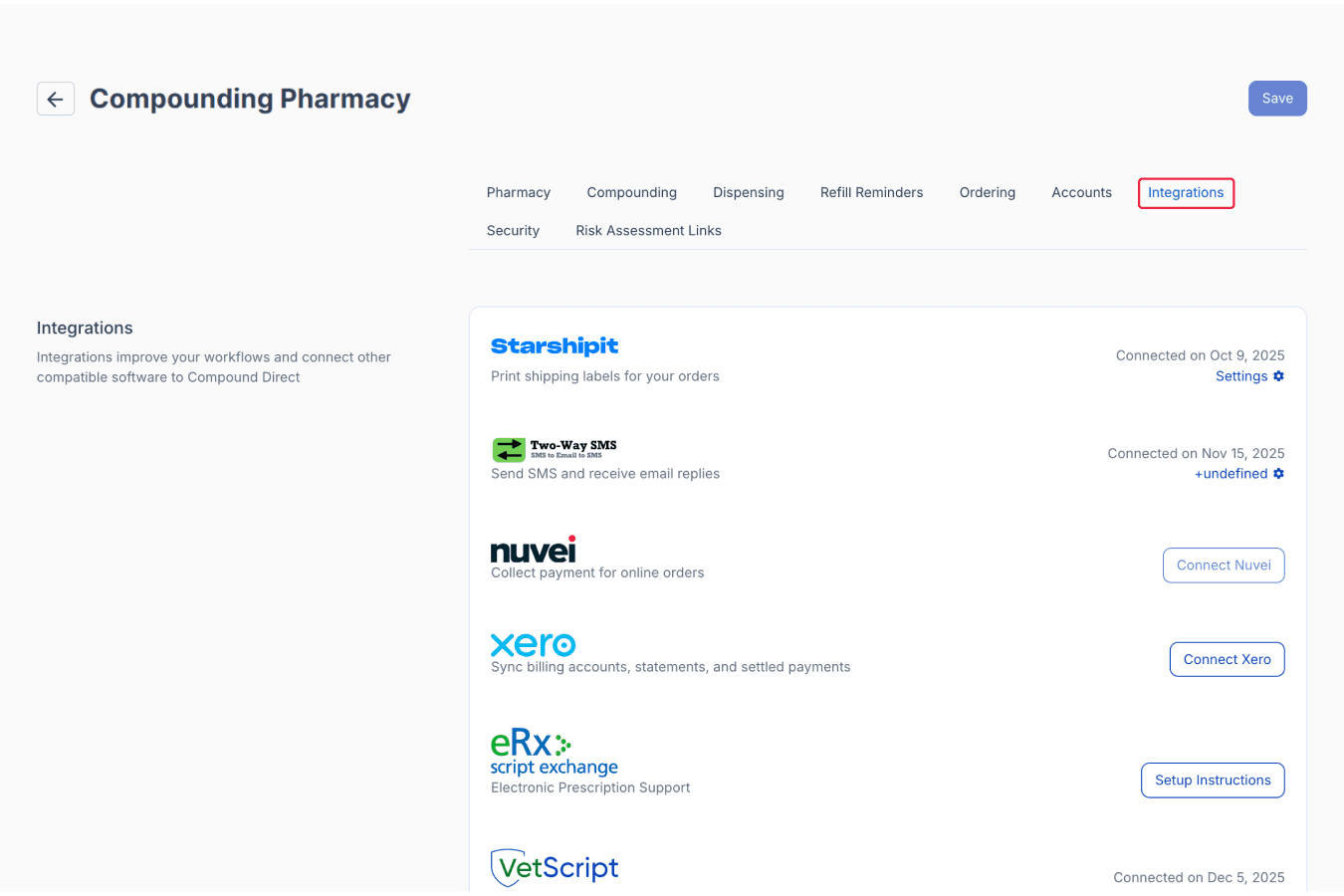
From your workspace page
Find the Xero integration, then click the ‘Connect Xero’ button.
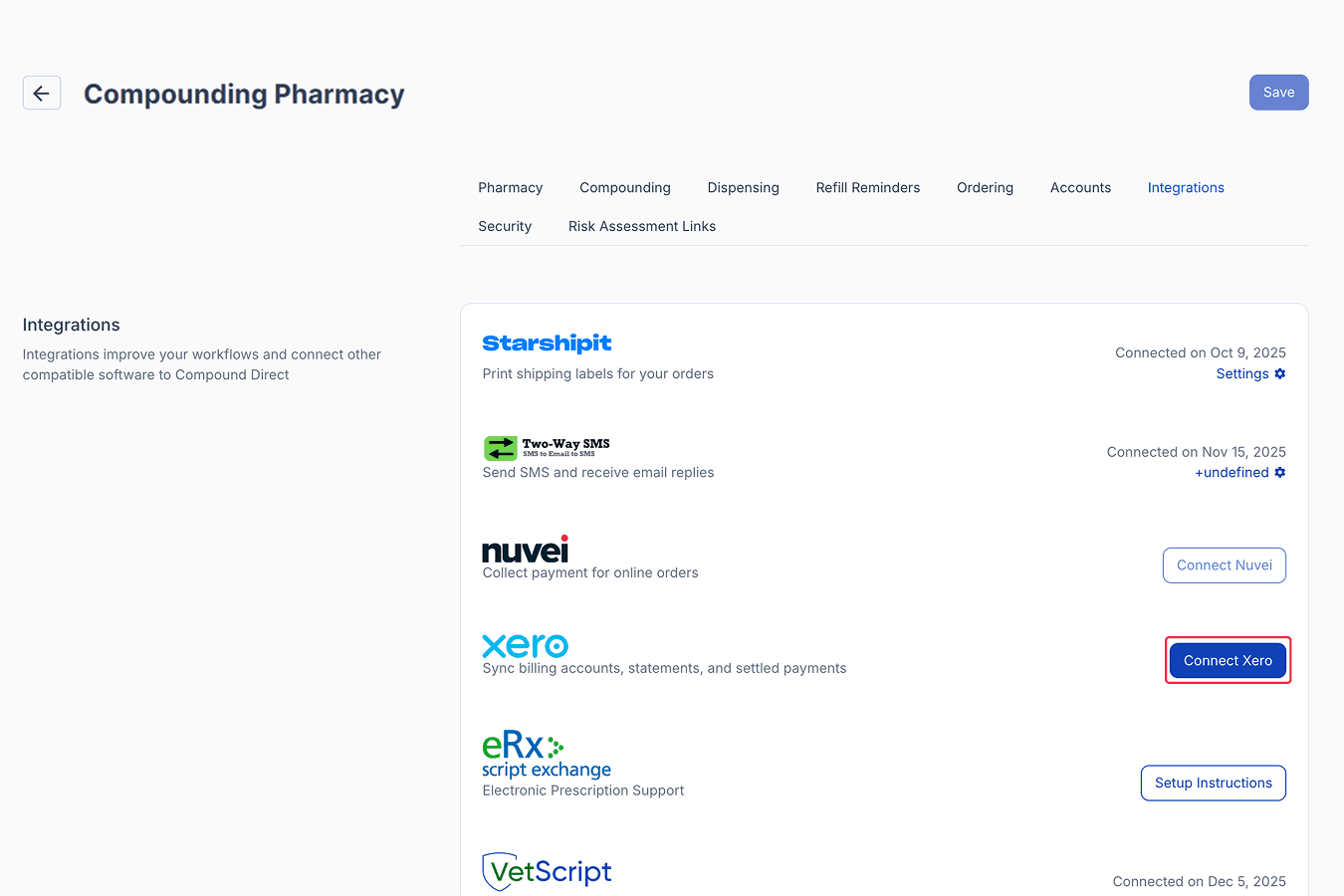
From your workspace dashboard
Click ‘Continue to Xero’ to be redirected to the Xero portal and authorise access.
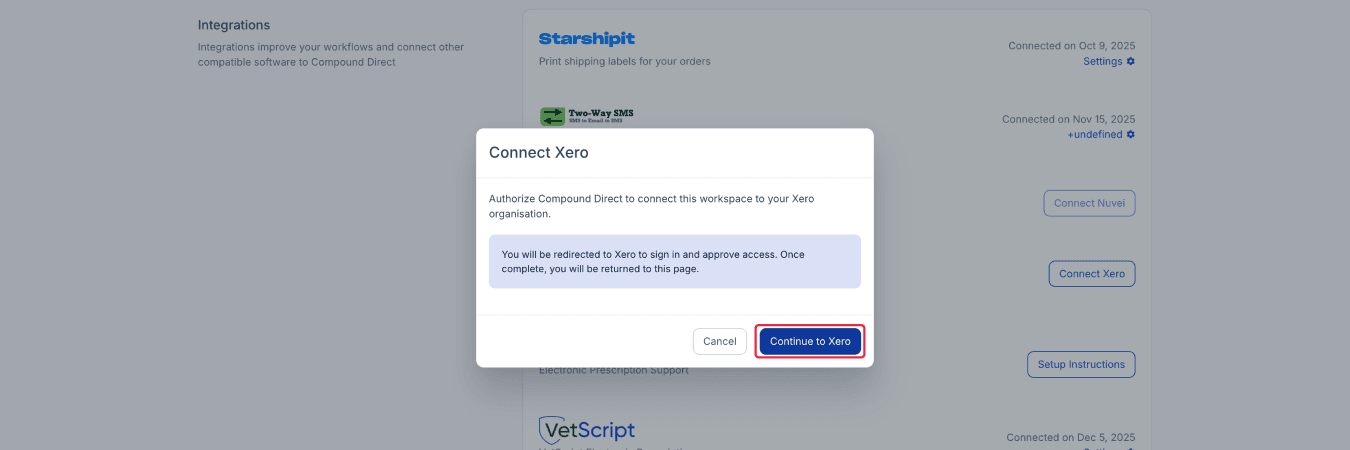
From your workspace dashboard
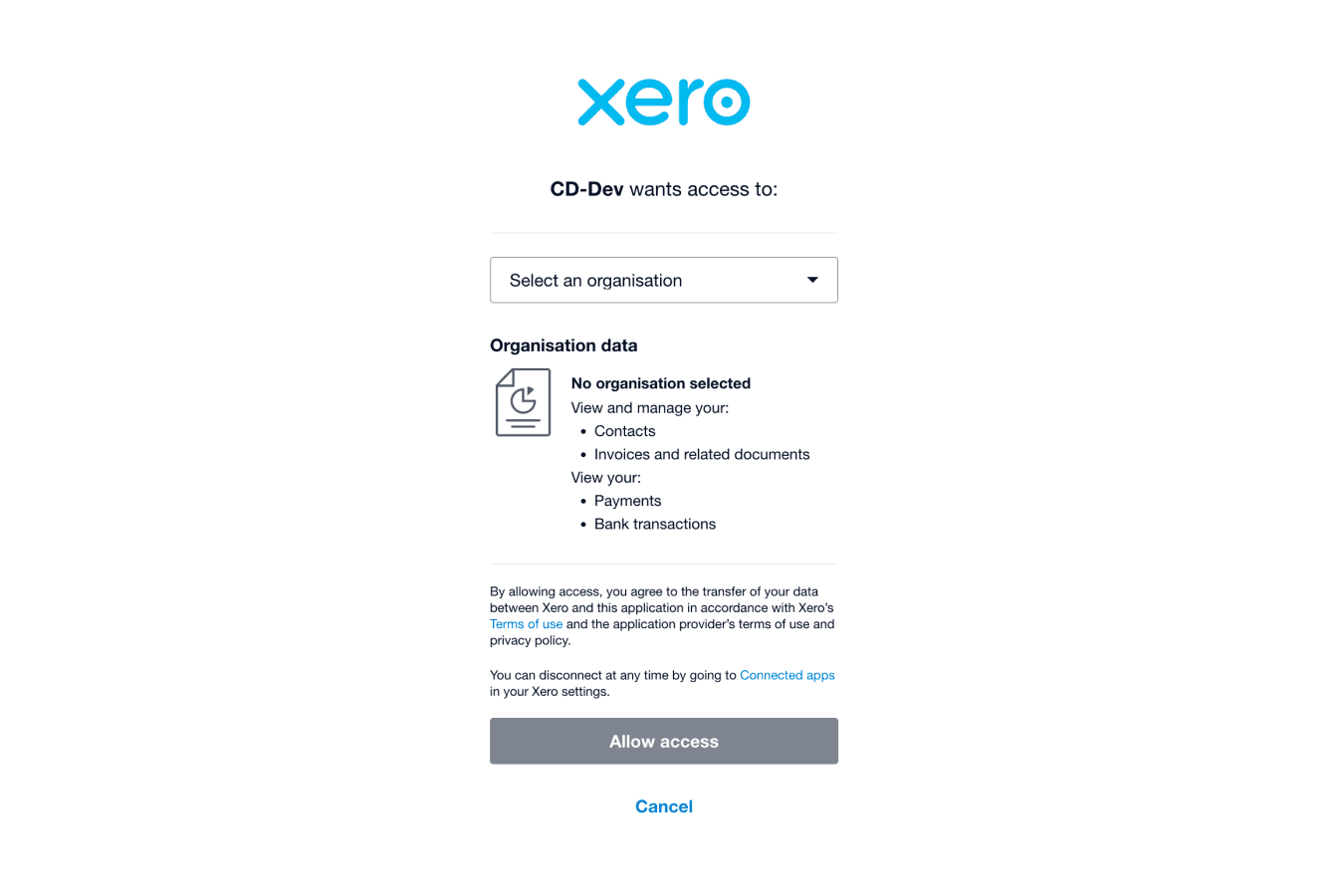
From the Xero website
If your Xero account manages multiple organisations (business accounts), select the organisation you want to connect from the drop-down menu.
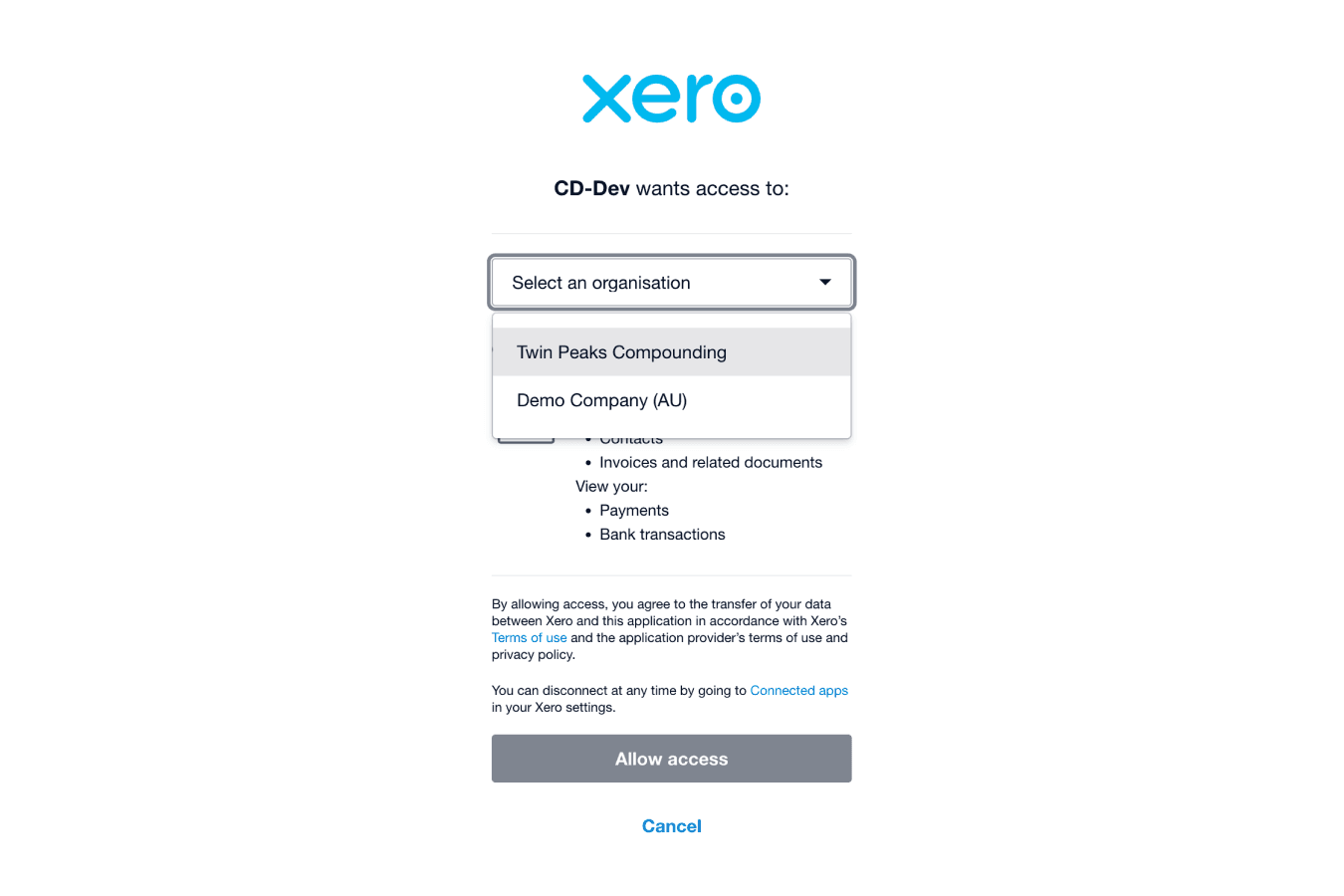
From the Xero website
After selecting your organisation, click on the ‘Allow access’ button. Currently, Compound Direct supports one Xero organisation per workspace.
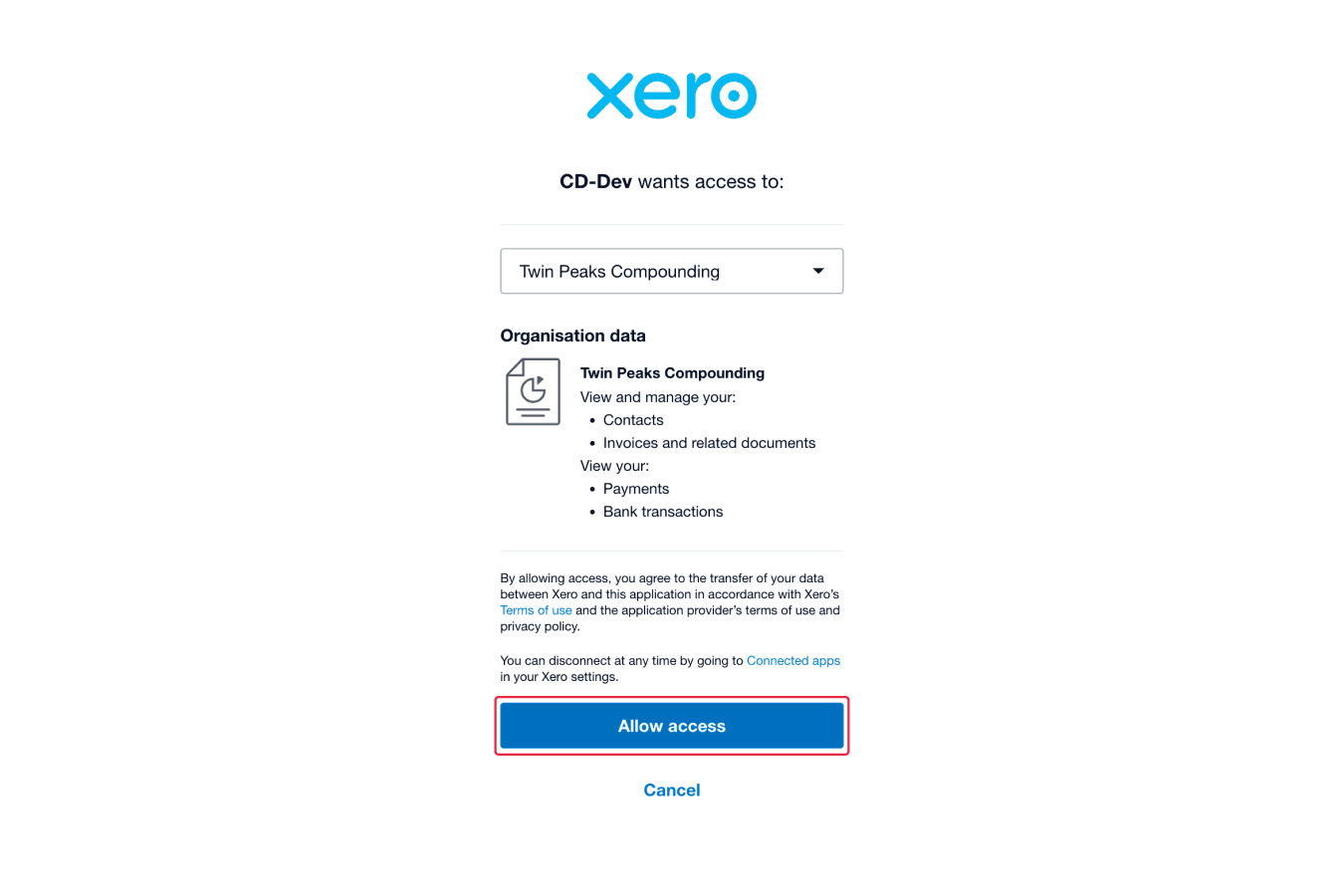
From the Xero website
The account code in Xero is used to categorise financial transactions and is applied to invoice line items created in Xero. One common example is 200 – Sales, which is often used as the default account code number.
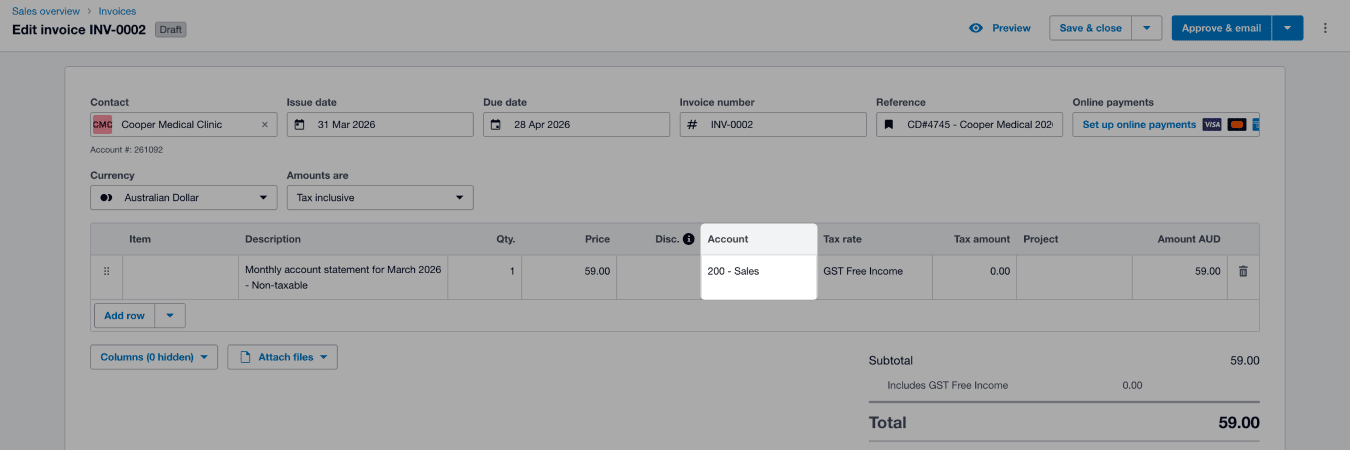
From the Xero website
Once connected, Compound Direct will prompt you to enter your default revenue account code.
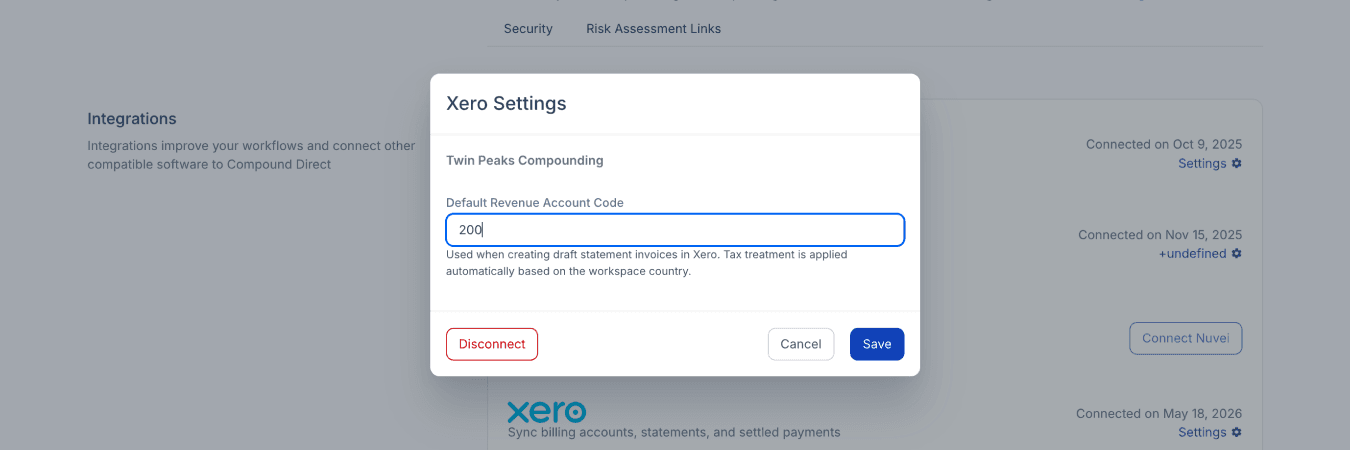
From your workspace dashboard
Stage 2: Improve matching accuracy with account numbers
The most reliable way to match accounts between systems is by using account numbers.
Both Compound Direct and Xero include an editable account number field. If the account numbers match, Compound Direct can automatically identify the correct Xero contact.
To improve matching accuracy:
From the Xero software, copy the account number of the desired Xero contact.
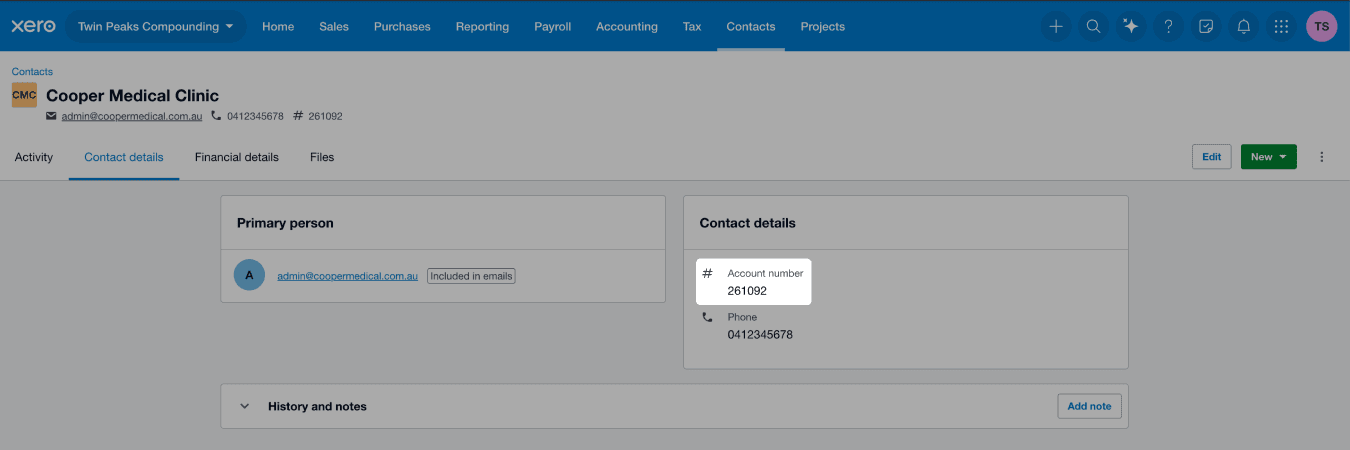
From the Xero website
Go to the desired ‘Accounts’ page, click on the ‘Edit’ button.
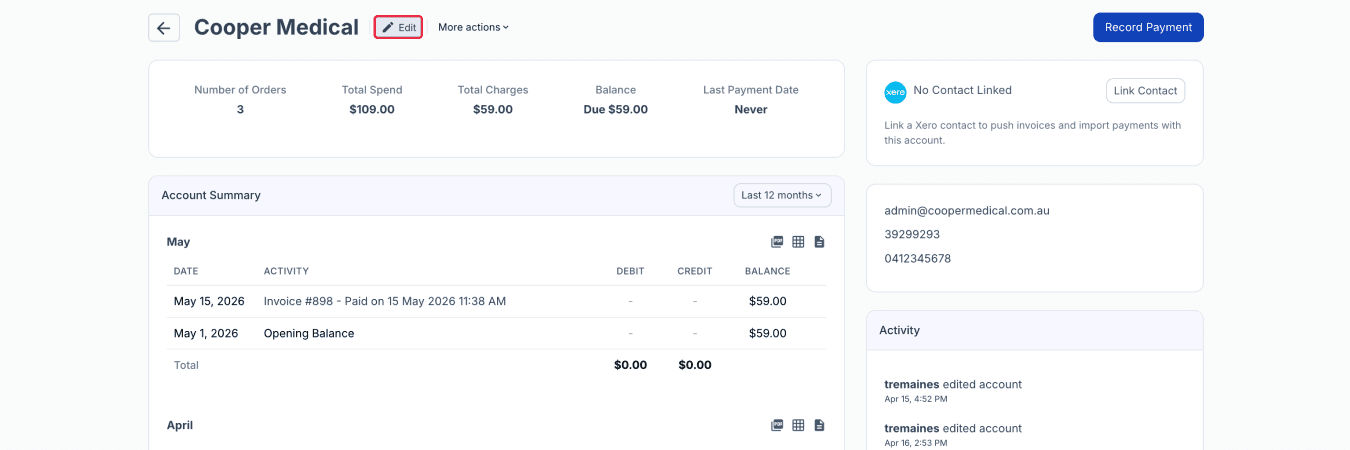
From the accounts page
Paste the matching account number and click ‘Save’.
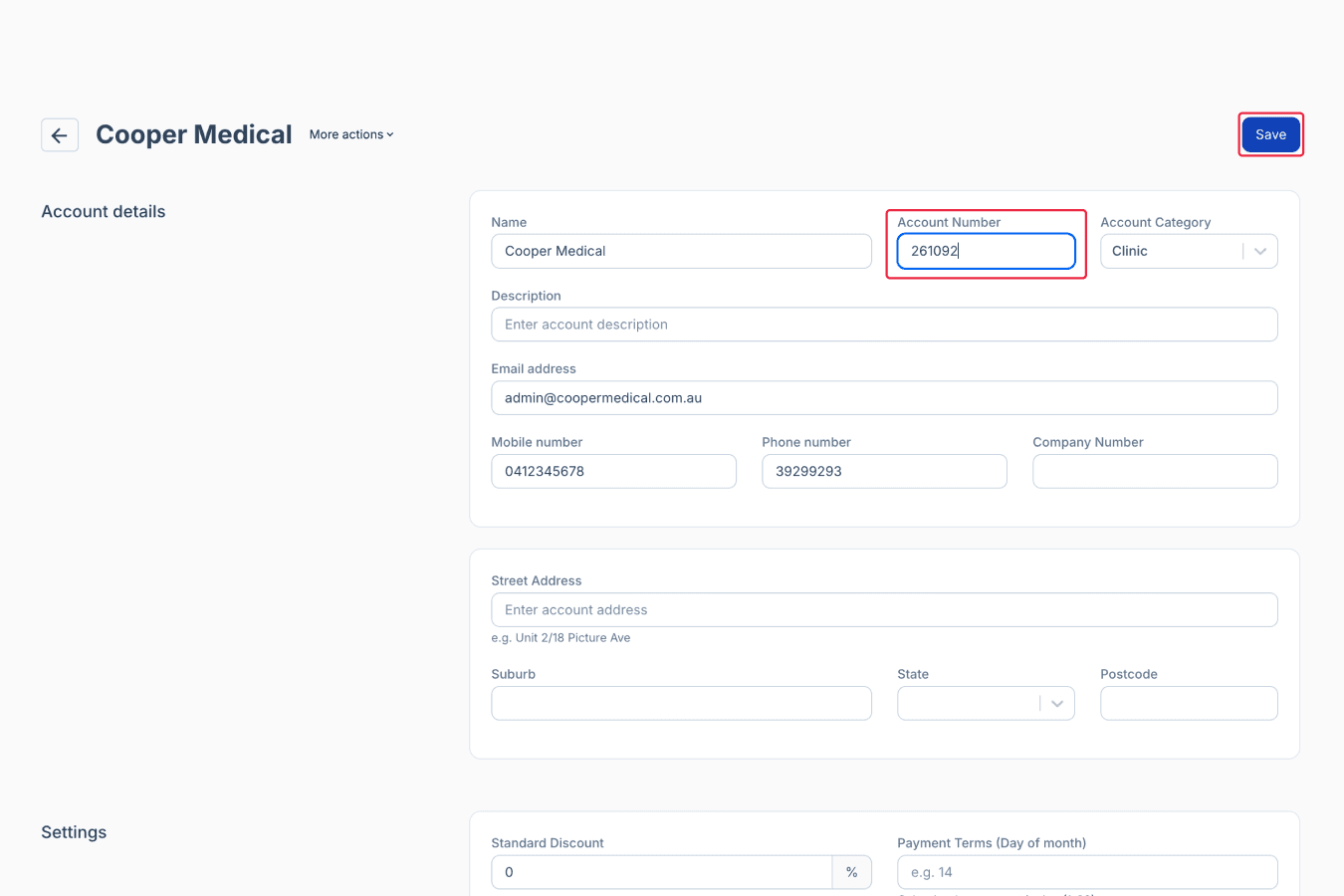
From the edit accounts page
If no matching account number exists, Compound Direct performs a name-based search instead. Keeping account names or account numbers consistent across both systems helps minimise matching issues.
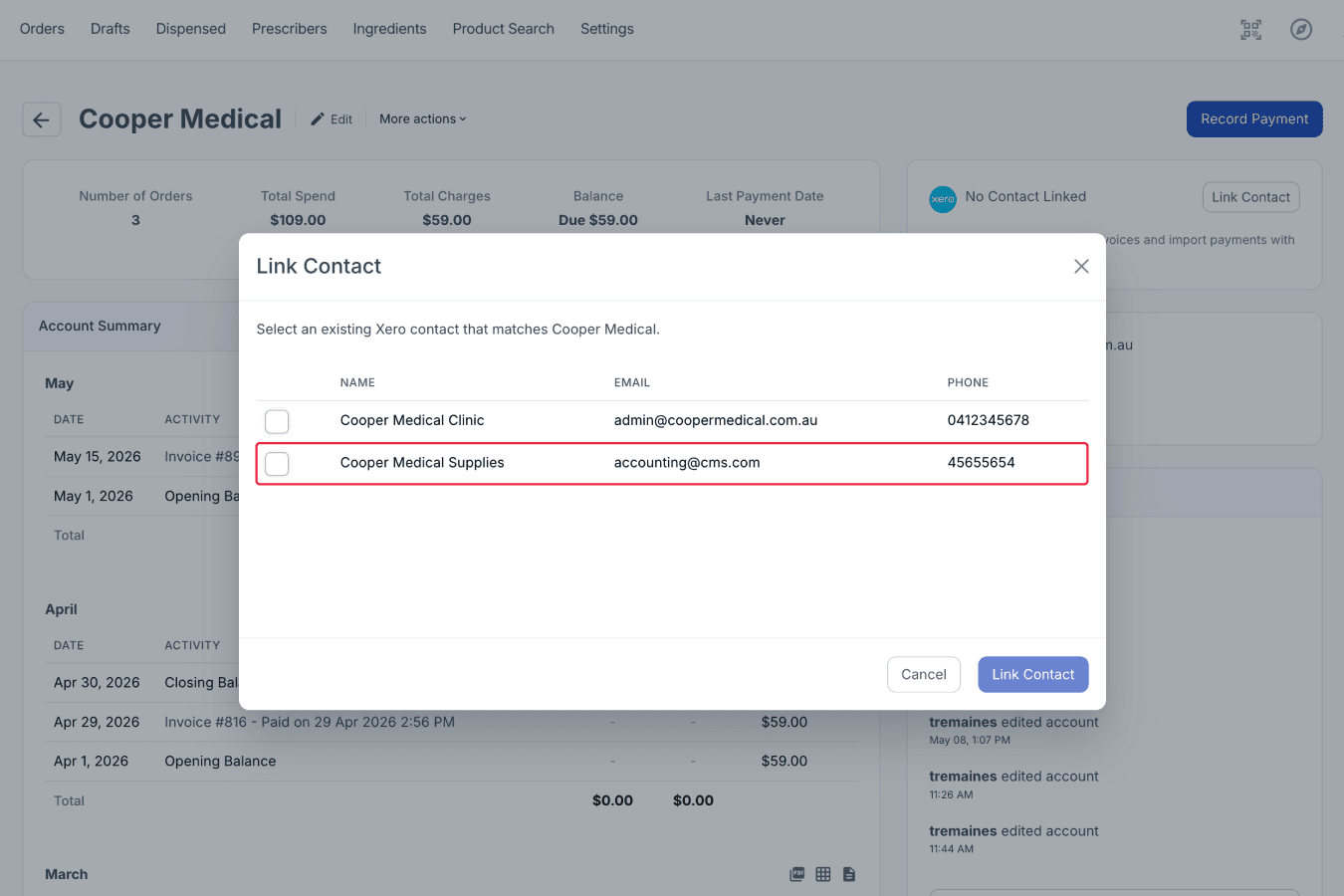
From the accounts page
Stage 3: Link Xero contact to Compound Direct account
Before invoices can be pushed successfully, your Compound Direct accounts need to be linked to their matching Xero contacts.
In Xero, customer records are referred to as contacts. While in Compound Direct, these are called accounts.
To link an Xero contact to a Compound Direct account:
Go to the desired ‘Accounts’ page, where you want to link the Xero contact to. Click the ‘Link Contact’ button.
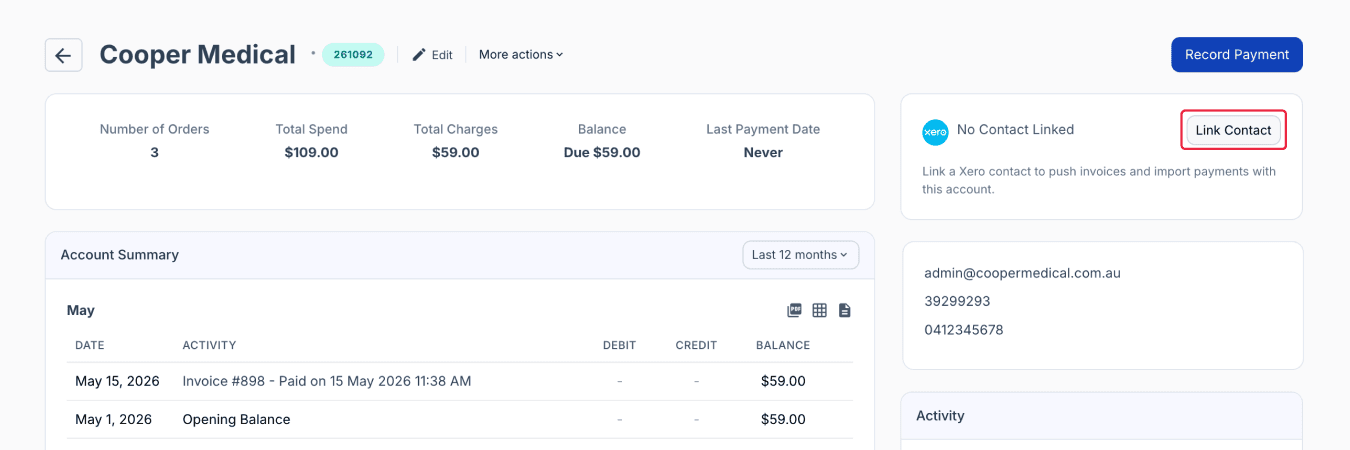
From the accounts page
On the ‘Link Contact’ modal, select the matching Xero contact from the list for the account. Click ‘Link Contact’ to finalise.
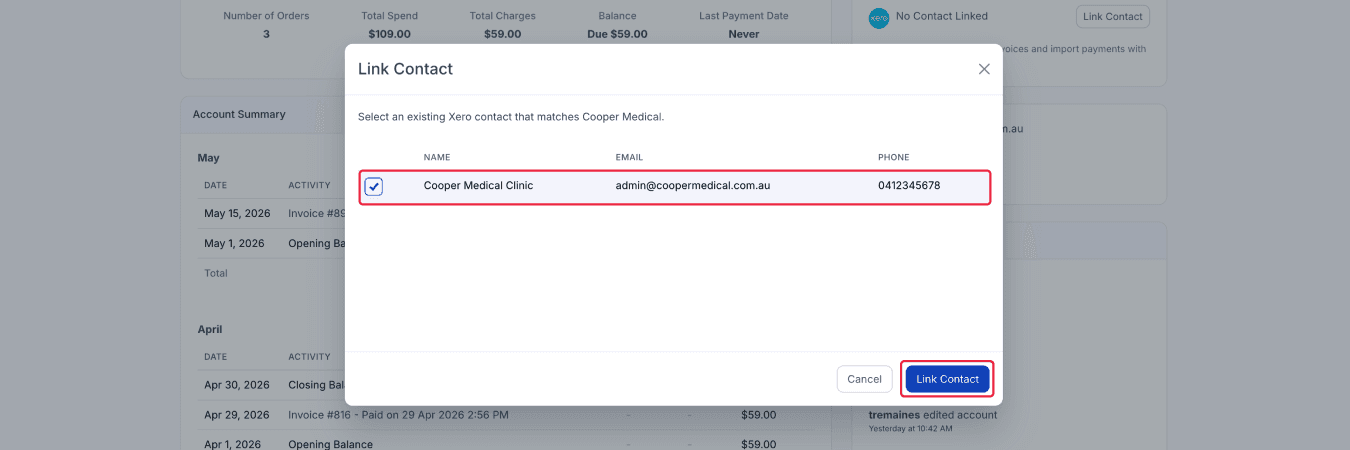
From the accounts page
If contact information, such as name, email address, or phone number, differs between Compound Direct and Xero, a warning message will appear before linking. This helps identify possible mismatches without blocking the workflow.
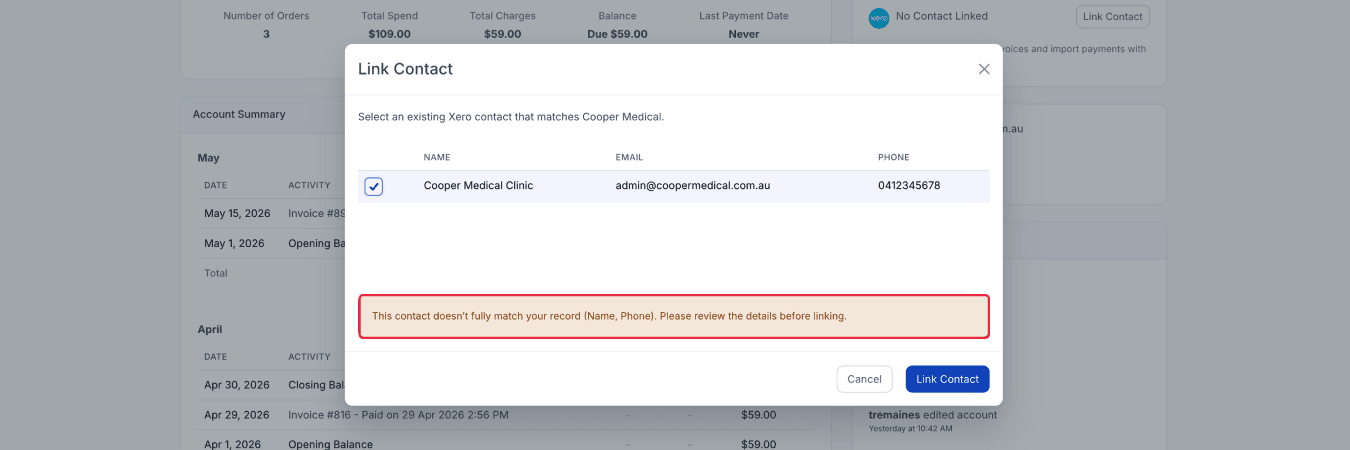
From the accounts page
Stage 4: Push invoices into Xero
Compound Direct can automatically generate Xero invoices directly from aged account statements, helping reduce manual reconciliation and double handling between systems.
Although invoices can be pushed manually when needed, this process normally happens automatically during account aging. This means your team does not need to manually create invoices each month unless they choose to. Only statements that are finalised and have a non-zero balance can be pushed to Xero.
To manually push invoices to Xero:
Go to the desired ‘Accounts’ page, click on the ‘Push Invoices’ button.
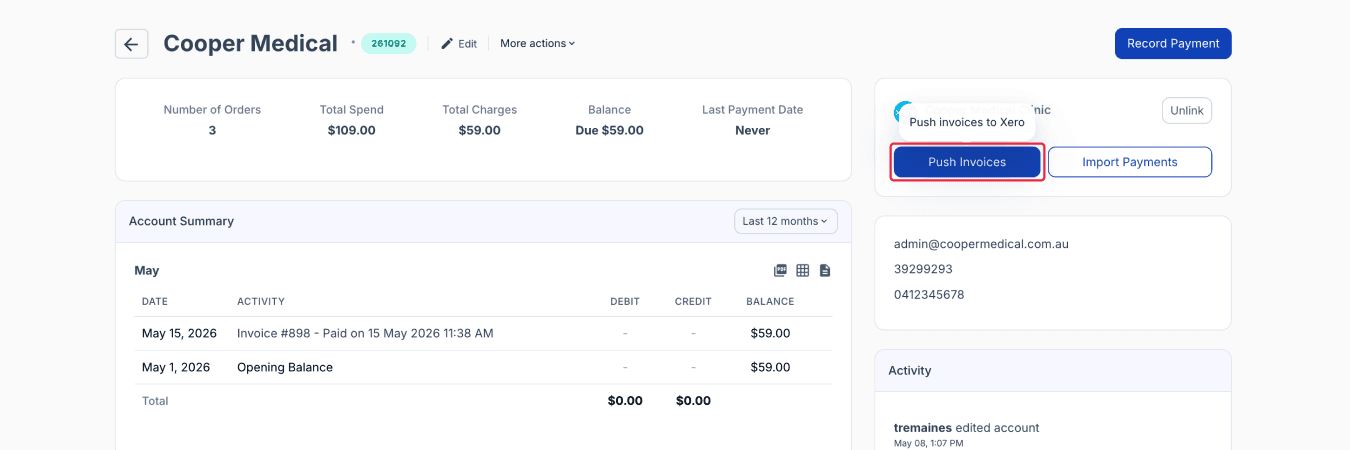
From the accounts page
If the original invoice could not be found, this could mean that the Xero invoice has been deleted, voided, or is otherwise unavailable. But Compound Direct allows the statement to be pushed again.
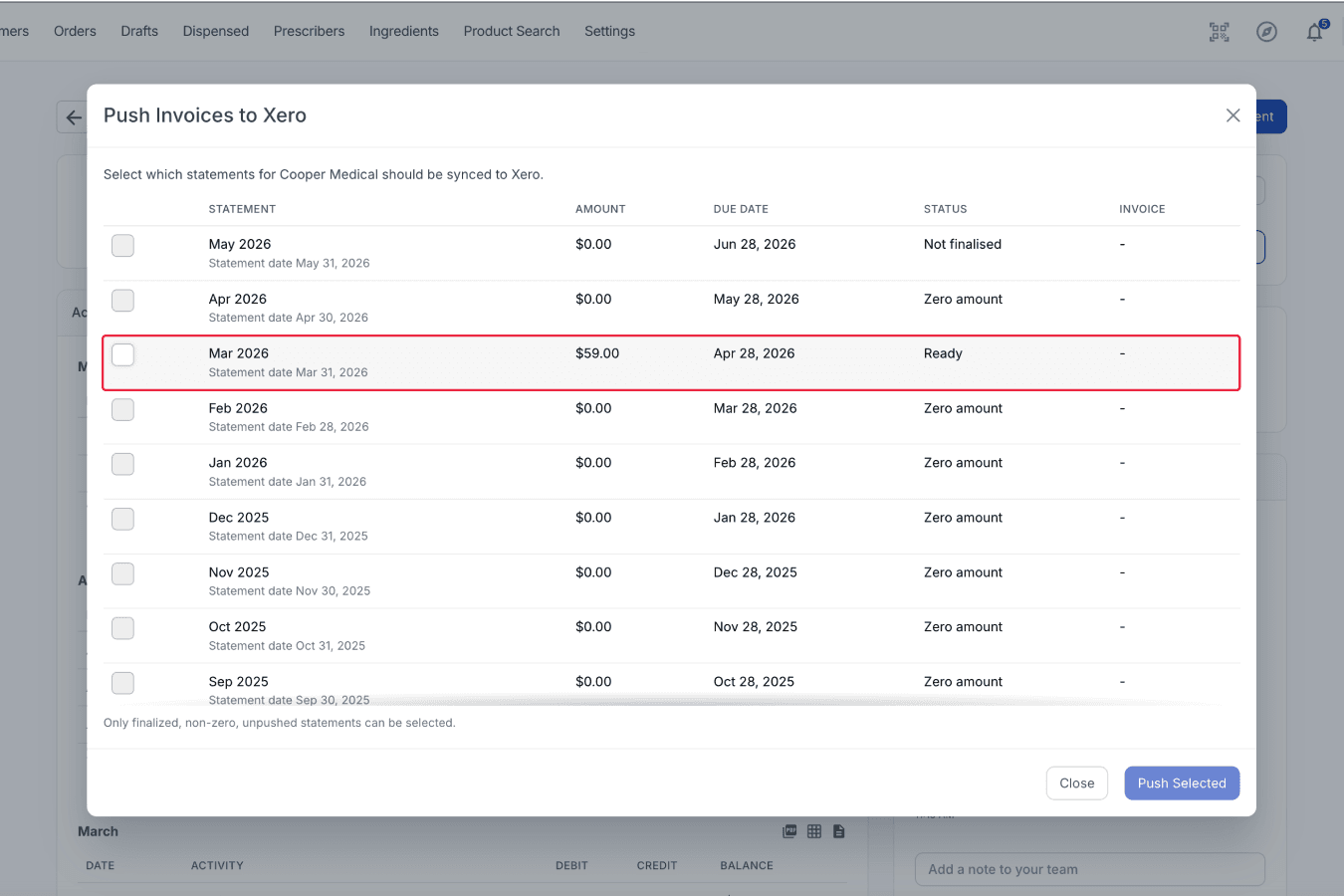
From the accounts page
Select the statements you wish to push to Xero, and click ‘Push Selected’.
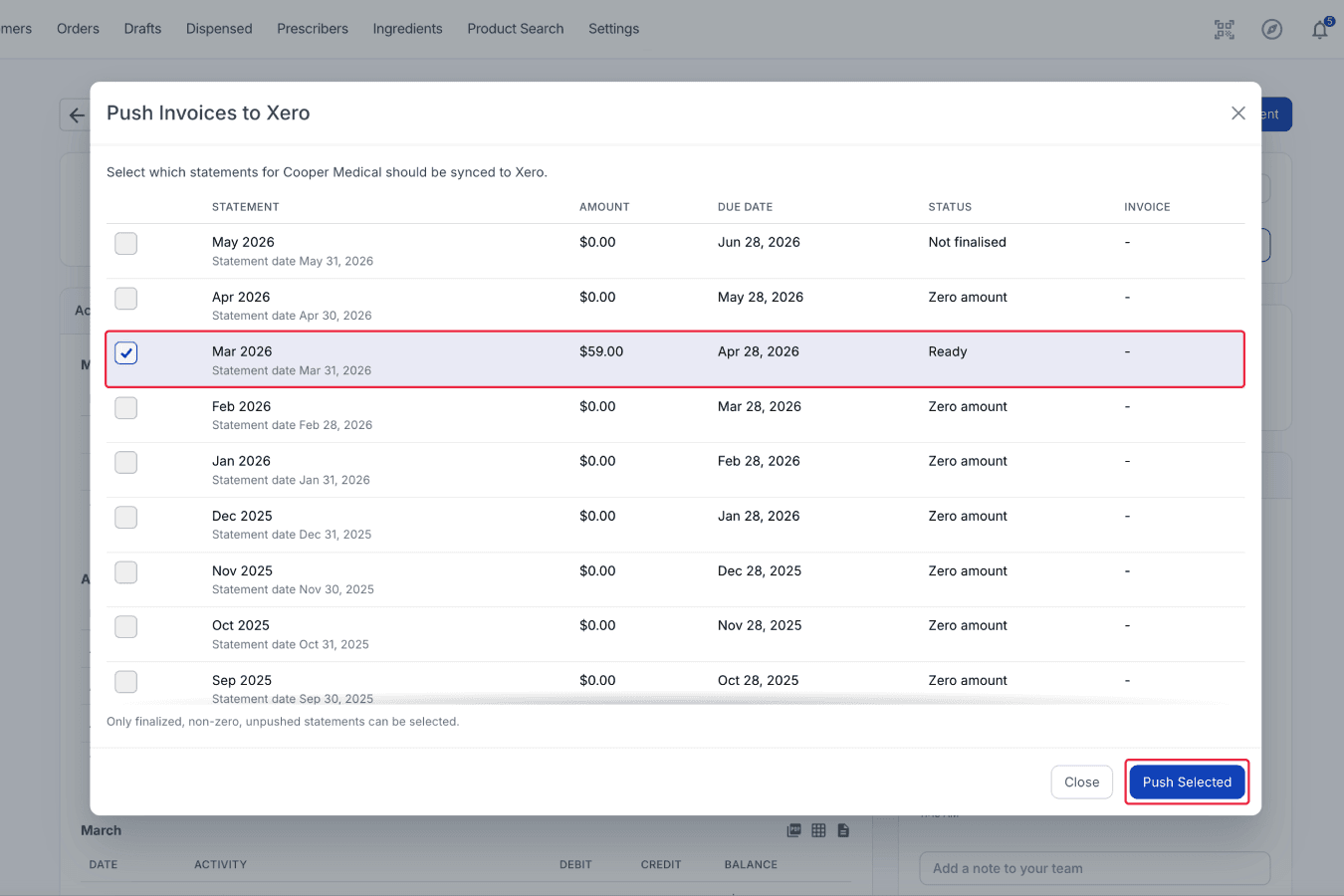
From the accounts page
After pushing the invoices to Xero, a summary will appear at the top of the modal, and the invoice number will be provided in the invoice column.
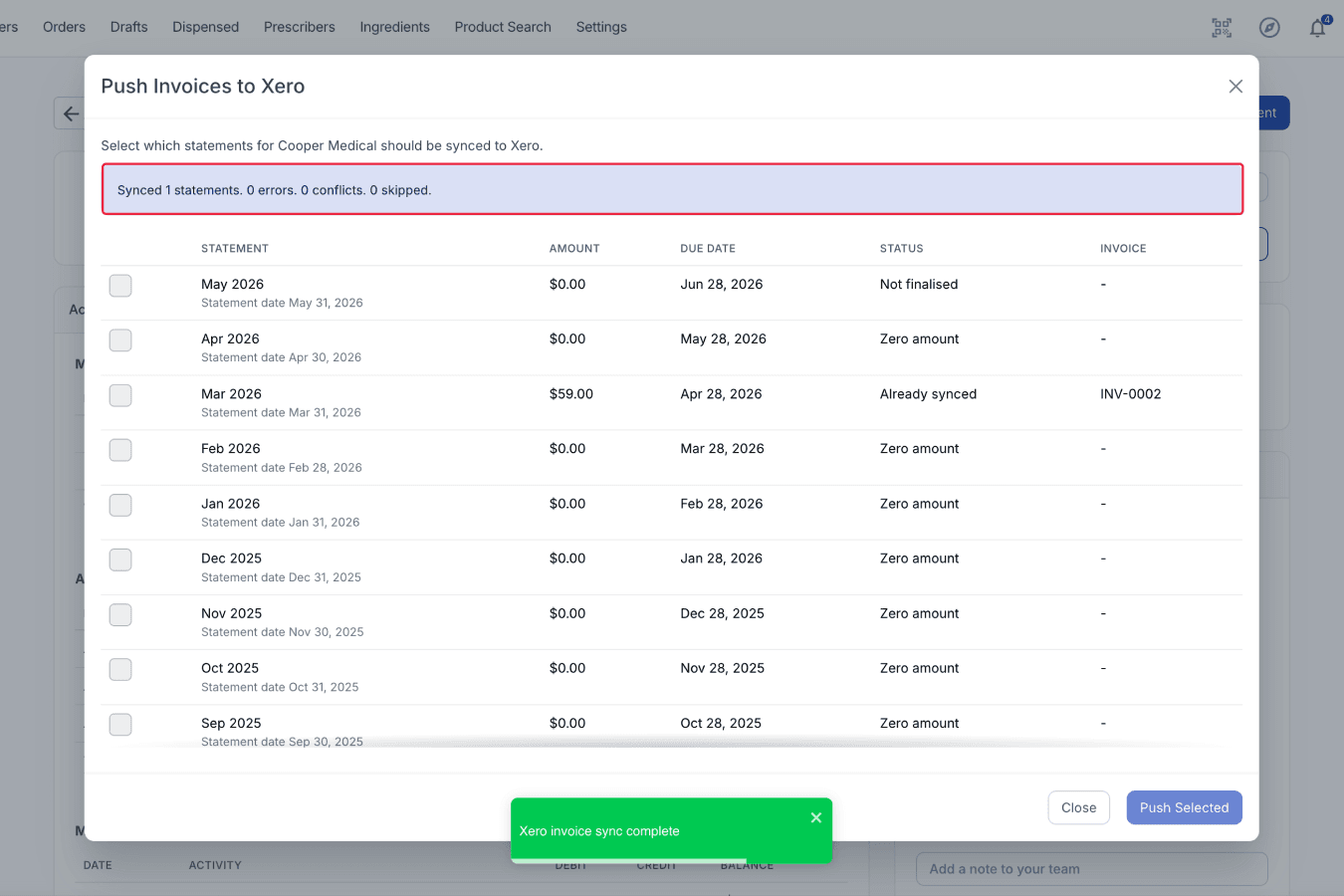
From the accounts page
Confirm the pushed invoice(s) on the Xero software. Invoices are pushed into Xero as draft invoices rather than approved invoices.
This allows your team to:
- Review invoice details,
- Confirm tax handling,
- Make edits if required, and
- Manage customer communication directly inside Xero.
Once an invoice has been created, all ongoing invoice management happens in Xero.
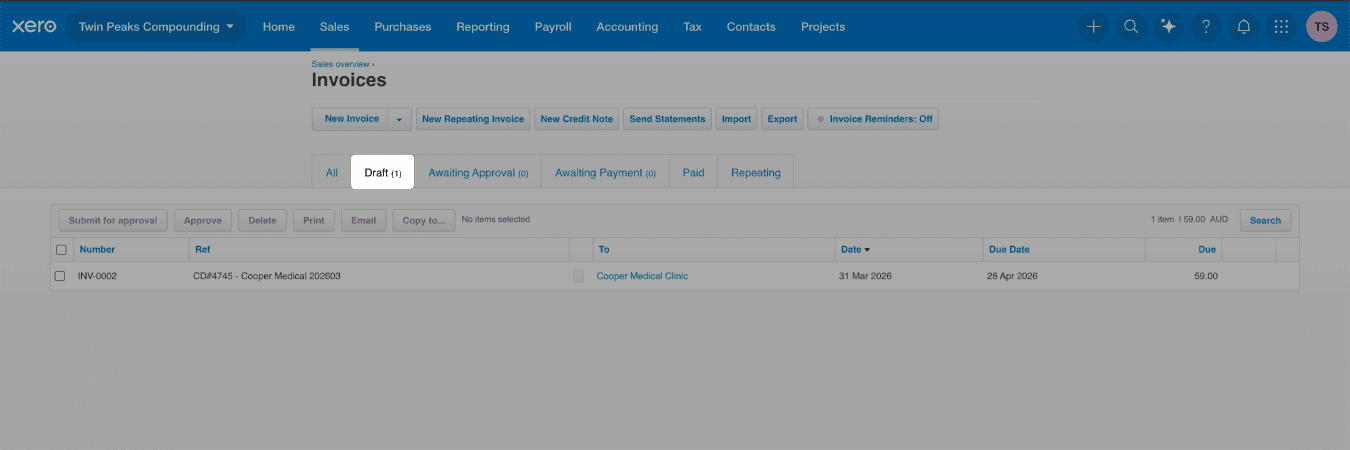
From the Xero website
The invoice will contain at most two lines: one line for the total of taxable items and one line for the total of non-taxable items. Compound Direct automatically applies the correct tax rates regardless of the default tax settings assigned to the selected Xero revenue account.
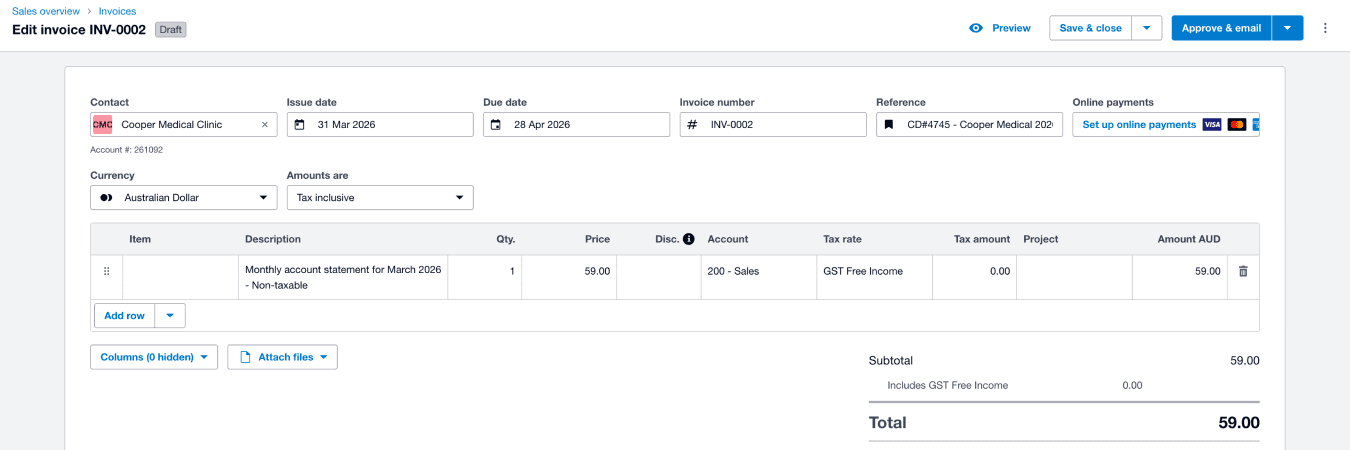
From the Xero website
Compound Direct only manages invoice creation and payment syncing.
Compound Direct statements can include previous outstanding balances alongside current statement charges within the same reporting period. Xero, however, treats each invoice as a separate financial record.
Because of this difference, statement or invoice totals may not always match exactly between the two systems, even though the overall outcome remains correct.
Example
An account holder pays $80, leaving a remaining $20 balance on their Month 1 statement.
When Month 2 is aged:
- Compound Direct carries over the remaining $20 balance, and
- Adds any new charges incurred during Month 2.
If the account holder incurs another $30 in charges, the Compound Direct statement will show a total of $50 owing.
The corresponding Xero invoice for Month 2, however, will only show the new $30 charge because Xero applies the previous balance to the original Month 1 invoice instead.
Stage 5: Import payments from Xero
Once payments are recorded against invoices in Xero, Compound Direct can automatically import those payments back into the linked account. Payment syncing runs every hour between 7:00 am and 7:00 pm. You can also manually trigger a payment import from the account page at any time.
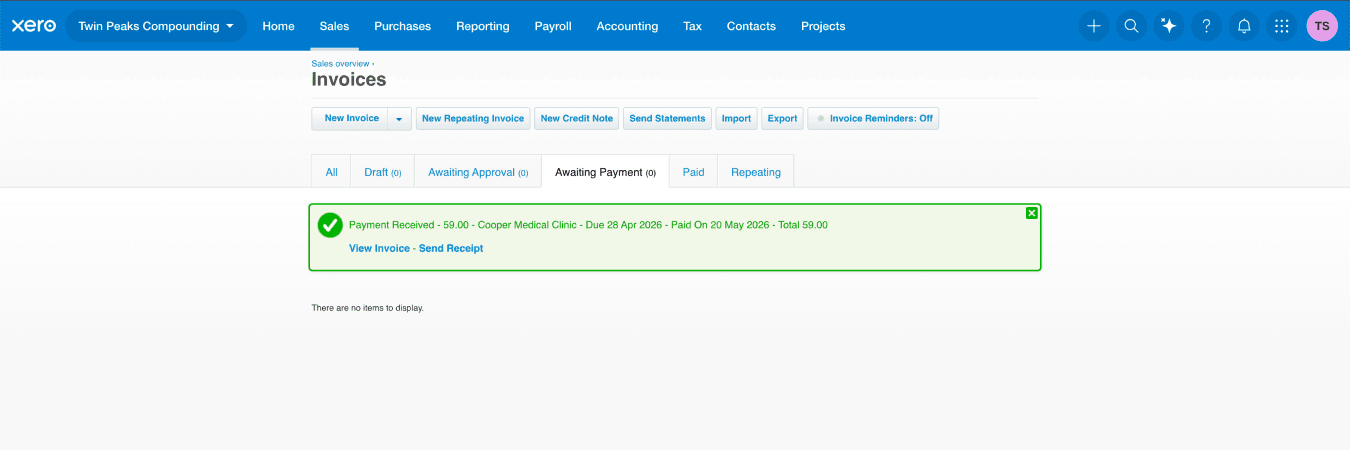
From the Xero website
To manually import payments:
Go to the desired ‘Accounts’ page, click the ‘Import Payments’ button.
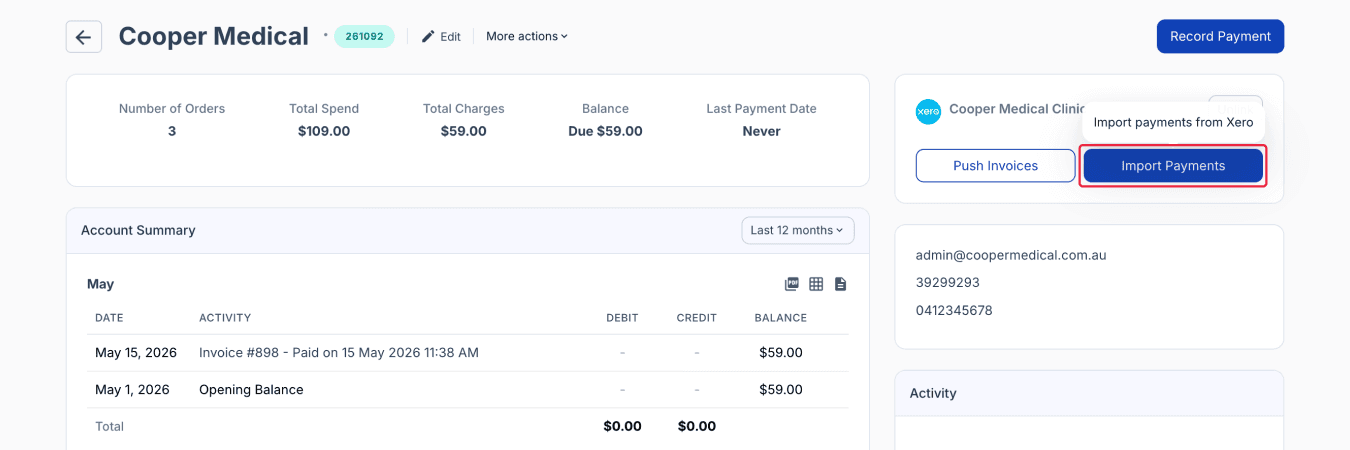
From the accounts page
Click the ‘Import Payments’ button.
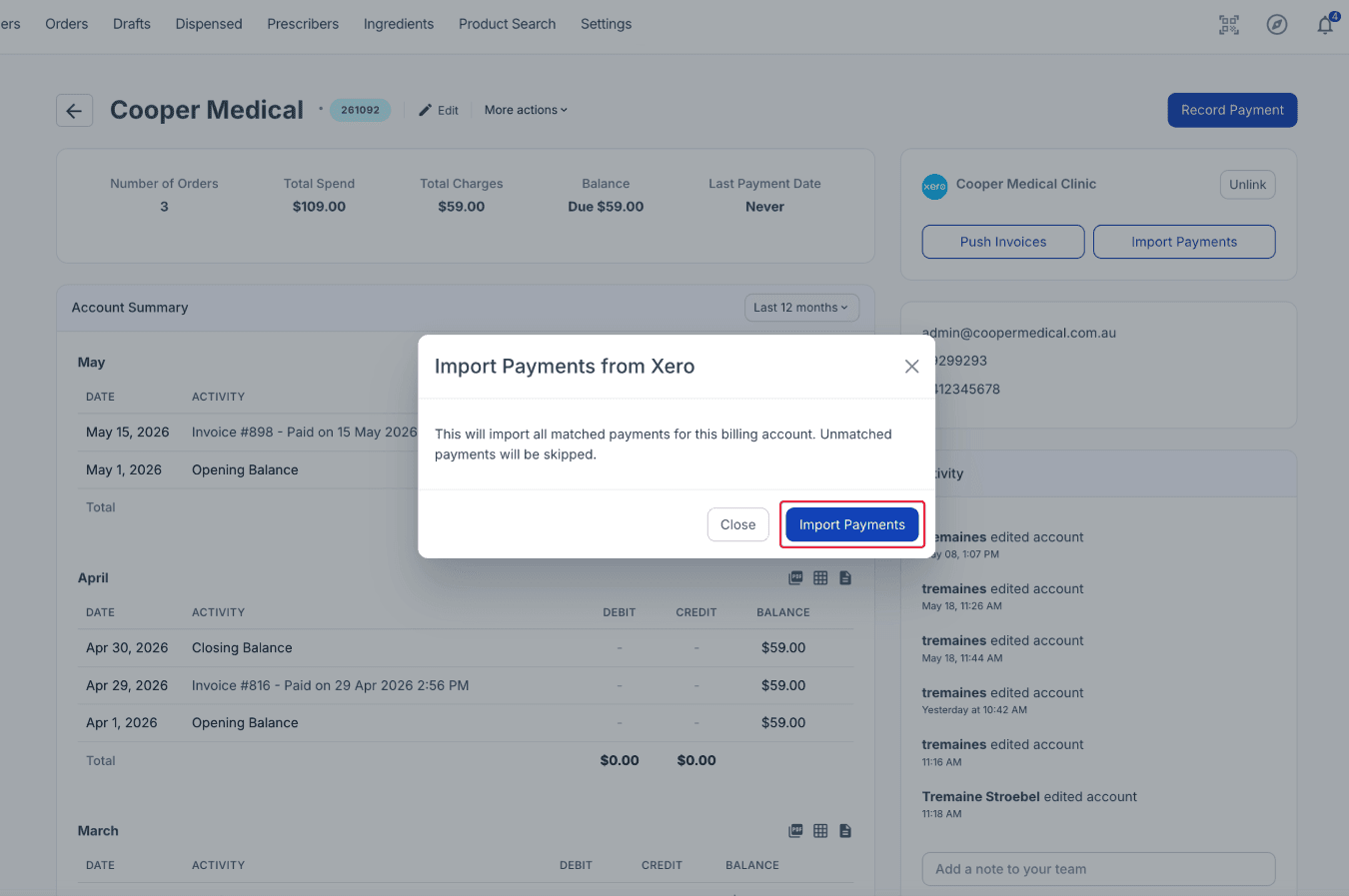
From the accounts page
Review the imported payment results. If there are any changes in Xero, click ‘Import Payments’ again to refresh the results.
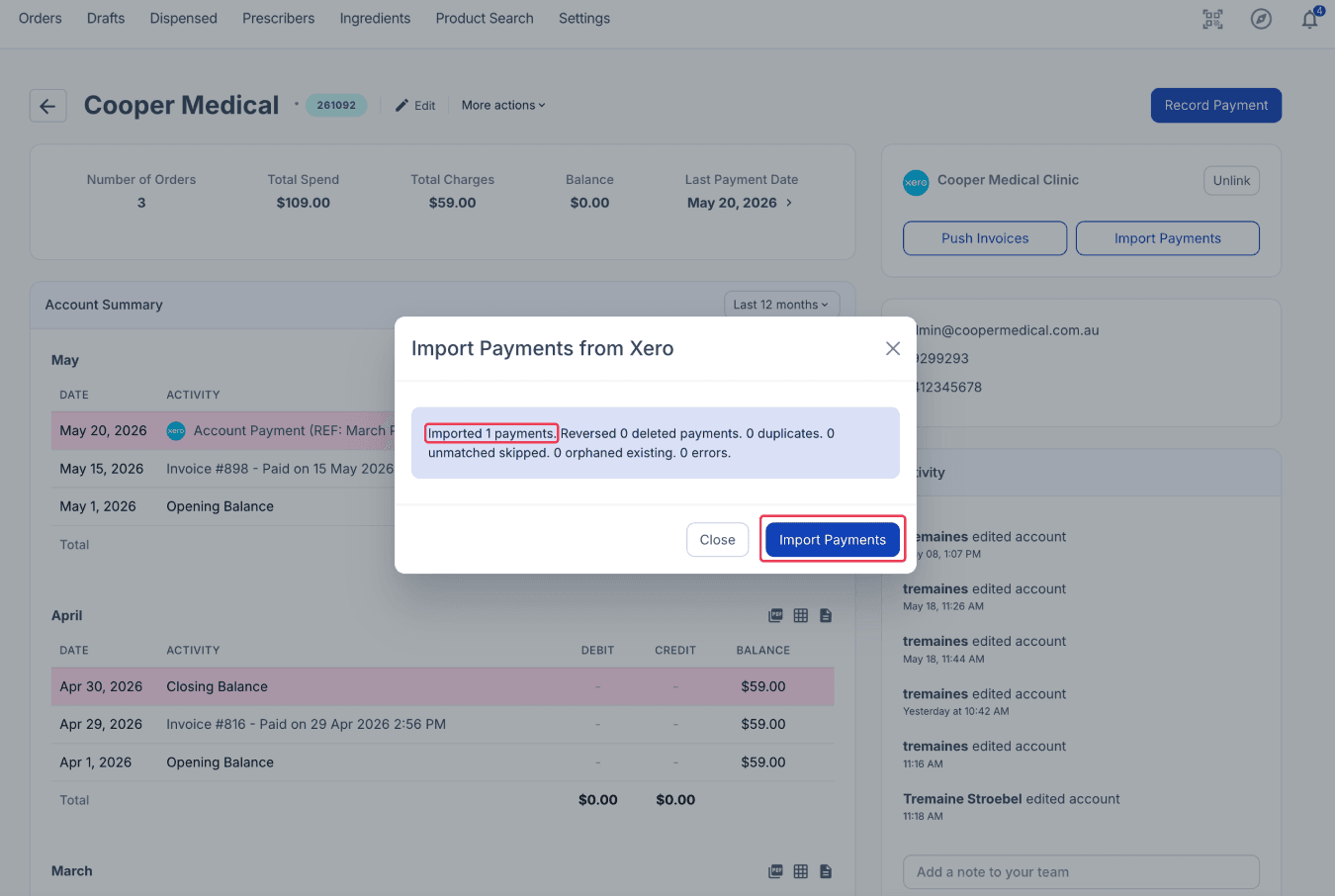
From the accounts page
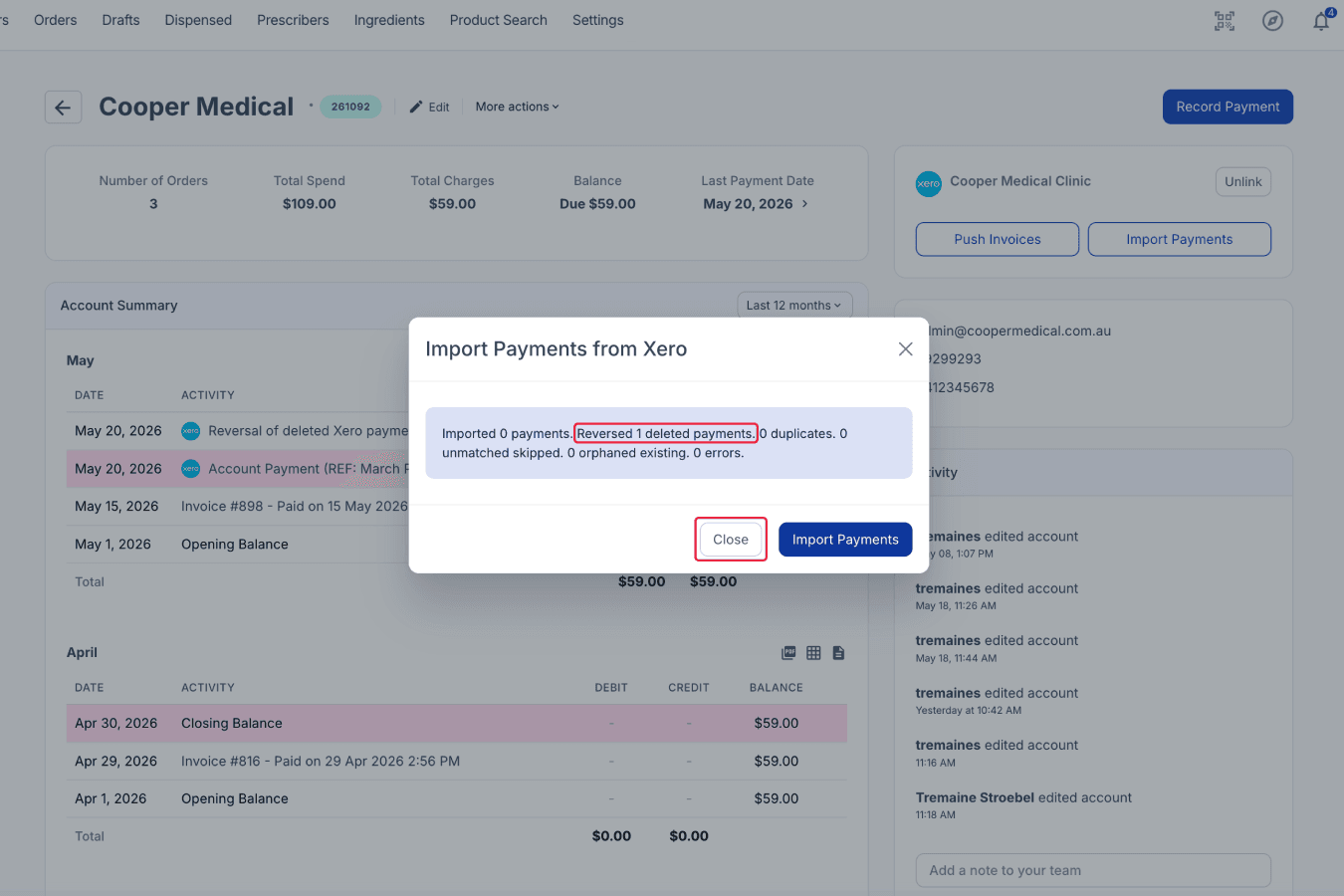
Review the reversed deleted payment results, then click ‘Close’.
From the accounts page
Imported payments are then recorded in the ‘Account Summary’ section.
If a payment is deleted or reversed in Xero, Compound Direct automatically detects the change during the next sync cycle. The corresponding payment record inside Compound Direct will also be reversed automatically.
This helps keep both systems aligned without requiring manual reconciliation adjustments.
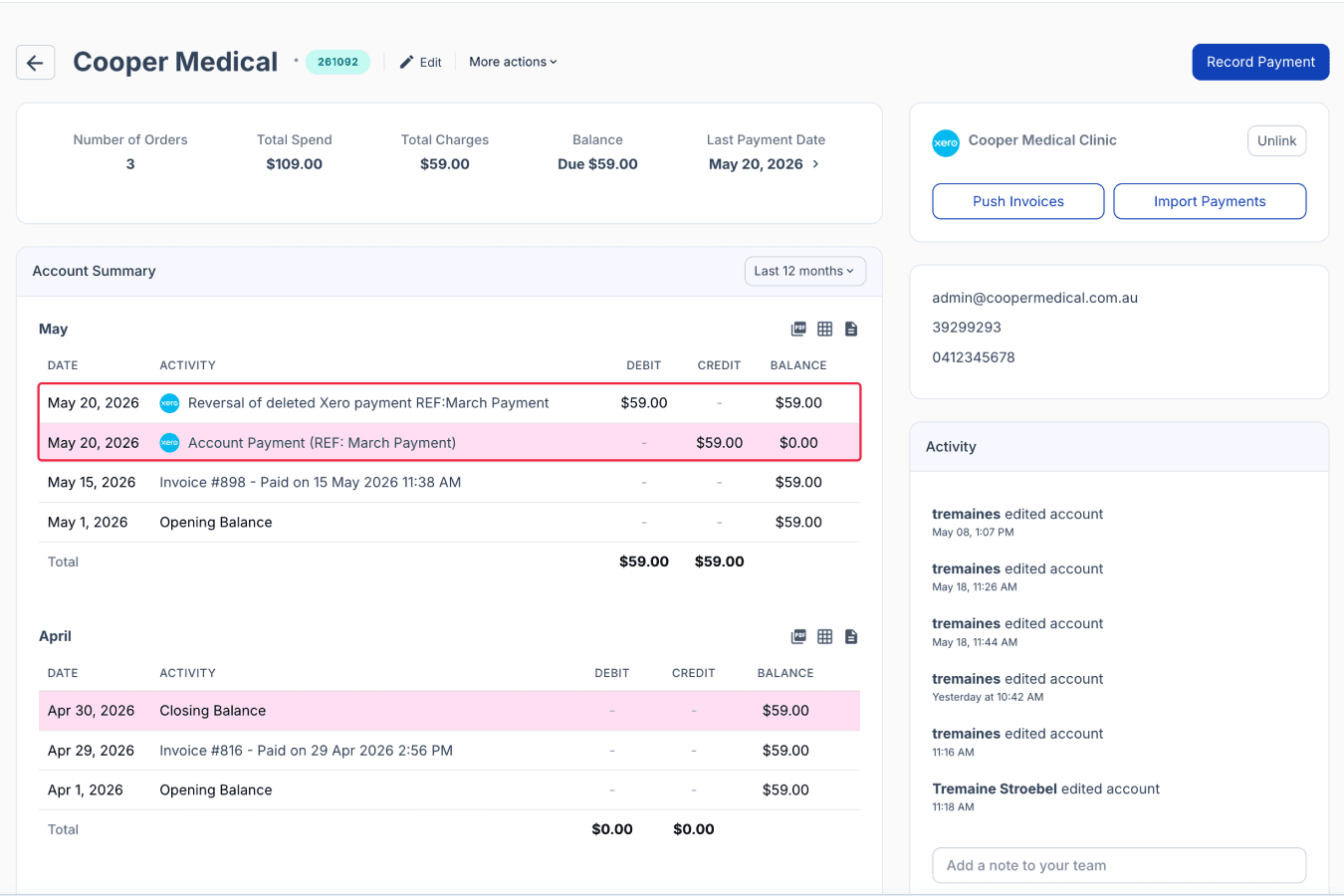
From the accounts page
Keep invoice and payment workflows connected
Xero integration in Compound Direct helps reduce repetitive reconciliation work by keeping your invoice and payment workflows connected across both systems. With automated invoice creation and payment syncing, your team can spend less time managing duplicate processes and more time focusing on day-to-day pharmacy operations.
By combining Compound Direct’s pharmacy workflow management with Xero’s accounting tools, the integration helps create a smoother and more efficient billing workflow from statement generation through to payment reconciliation.
As the integration continues to evolve, additional automation and workflow improvements will continue to be introduced.
All names and medical data shown in software screenshots are fictional and for demonstration purposes only. These figures represent fictional persons; any resemblance to real individuals is purely coincidental. Use of existing fictional names is for illustrative purposes and does not imply affiliation or endorsement.