
Signing Off! The final check in Compound Direct

Signing off on a formulation isn’t just a checkbox, it’s a vital part of ensuring accuracy, safety, and traceability in your compounding workflow. In this guide, we’ll walk you through what signing off means in Compound Direct, how it works, and why it plays such a critical role in maintaining the integrity of your master formulations.

What is signing off?
In Compound Direct, there are two main opportunities to sign off:
- First, at the dispensing stage, where you confirm that the compounded medication has been made correctly.
- Second, and the focus of this guide, is during the formulation stage, where you review and approve the ingredients, strengths, and structure of the formulation itself.
Signing off at this stage confirms that the formulation is ready to be used and provides a foundation for traceability and consistency moving forward.
How to sign off a formulation
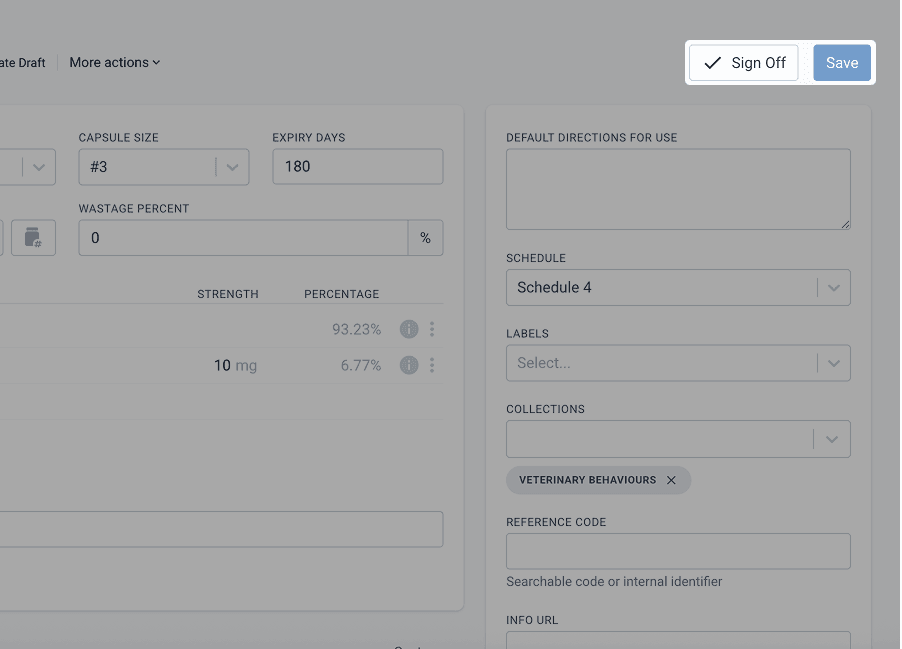
To sign off, simply open the formulation you wish to approve and click the “Sign Off” button located at the top of the window. Once completed, the system will lock in the current configuration of the formulation as the approved version.
Identifying a signed-off formulation
A formulation that has been signed off is identified in a few different ways:
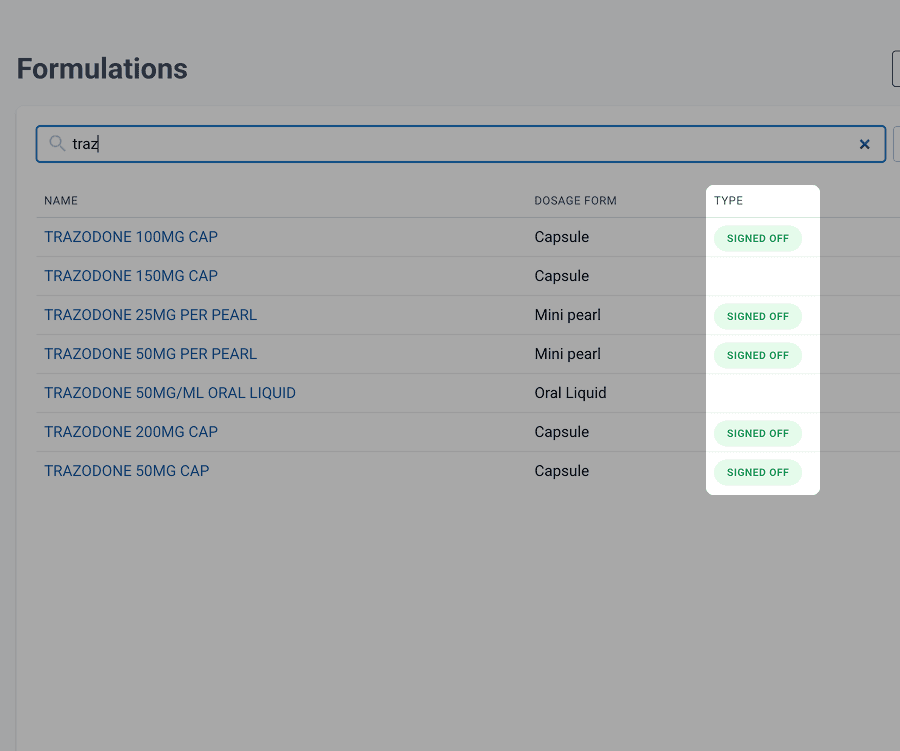
- The “sign off” flag next to the formulation in the formulations page
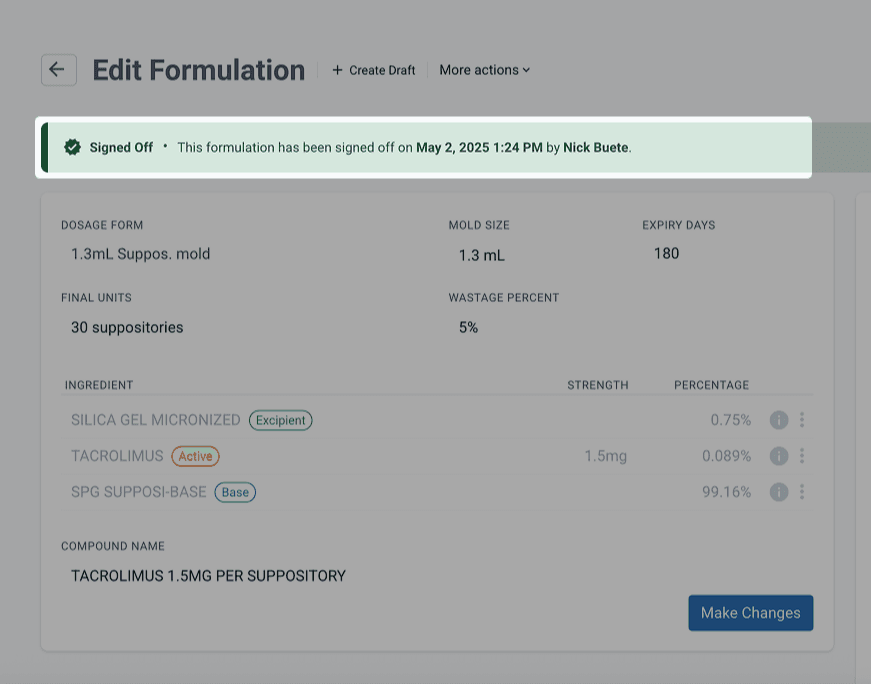
- The formulation has a green banner with the last signed off details displayed.
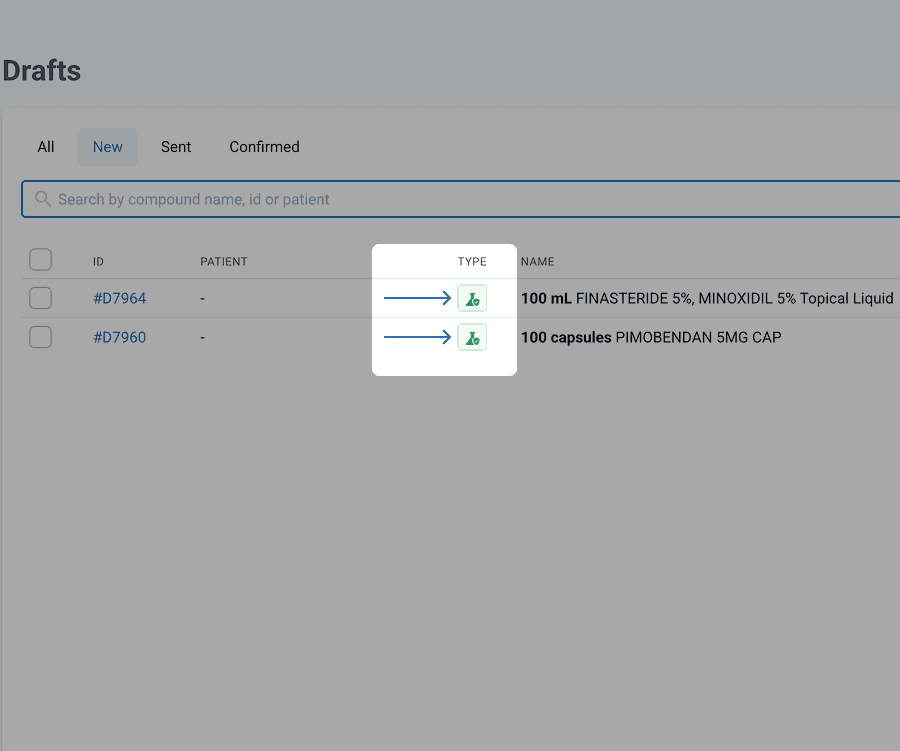
- The icon next to the formulation is green with a tick
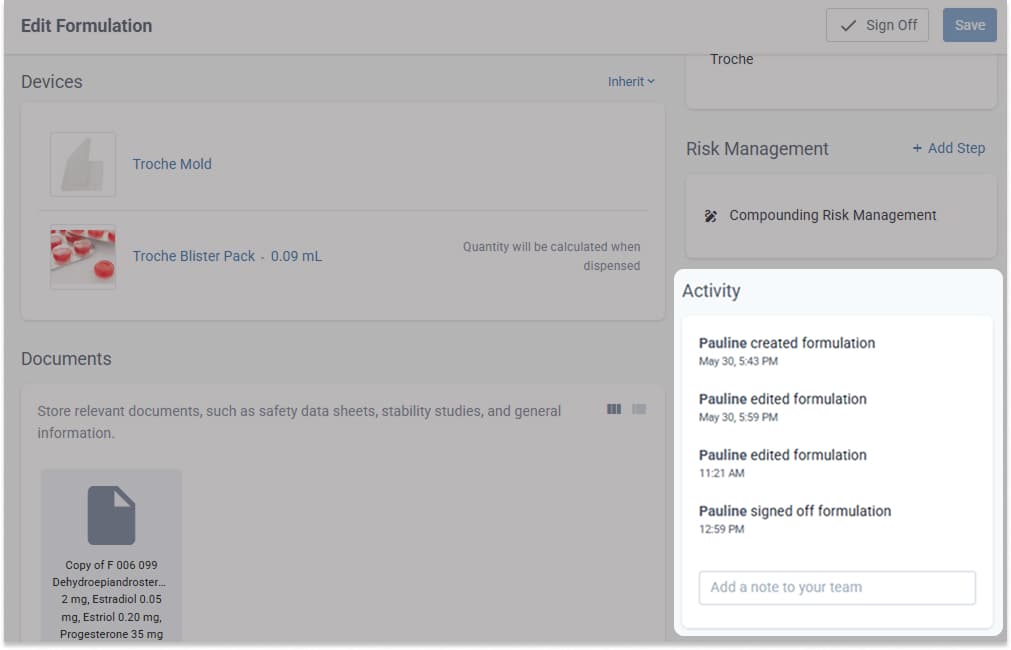
Under the ‘Activity’ section on the bottom right of the Edit Formulation page, a timestamp and the name of the person who signed off the formulation will be displayed. This will be updated if a formulation is signed off again.
Tracking changes and accountability
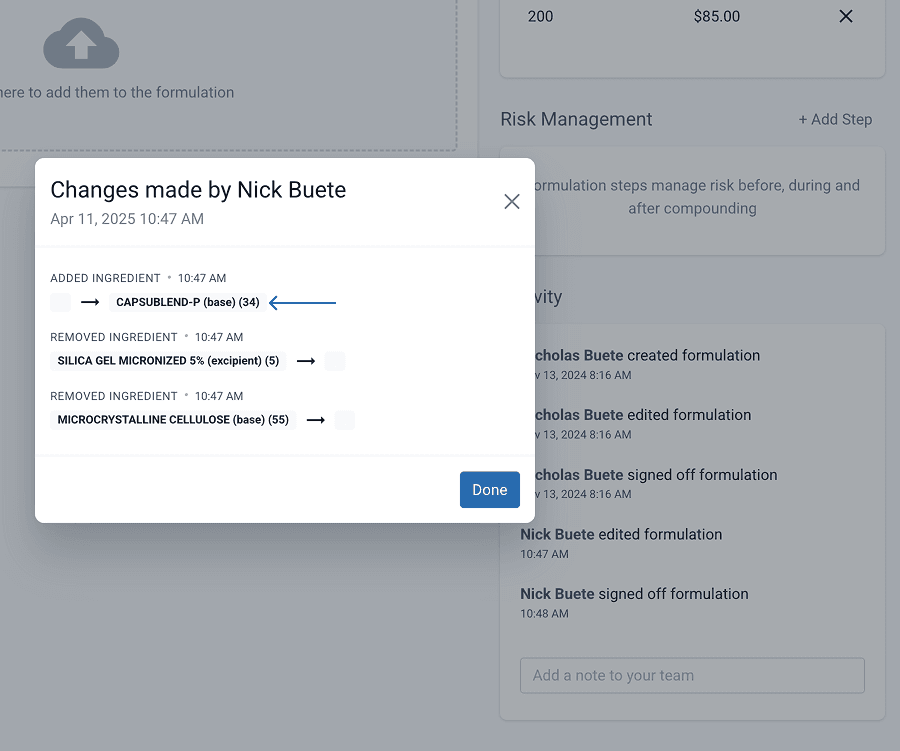
One of Compound Direct’s strengths lies in its full version tracking. At any time, users can see:
- When a formulation was signed off
- Who performed the sign-off
- What changes have been made since, including who made them and when
This transparent audit trail is invaluable for maintaining high standards in quality assurance and regulatory compliance.
Controlling who can sign off
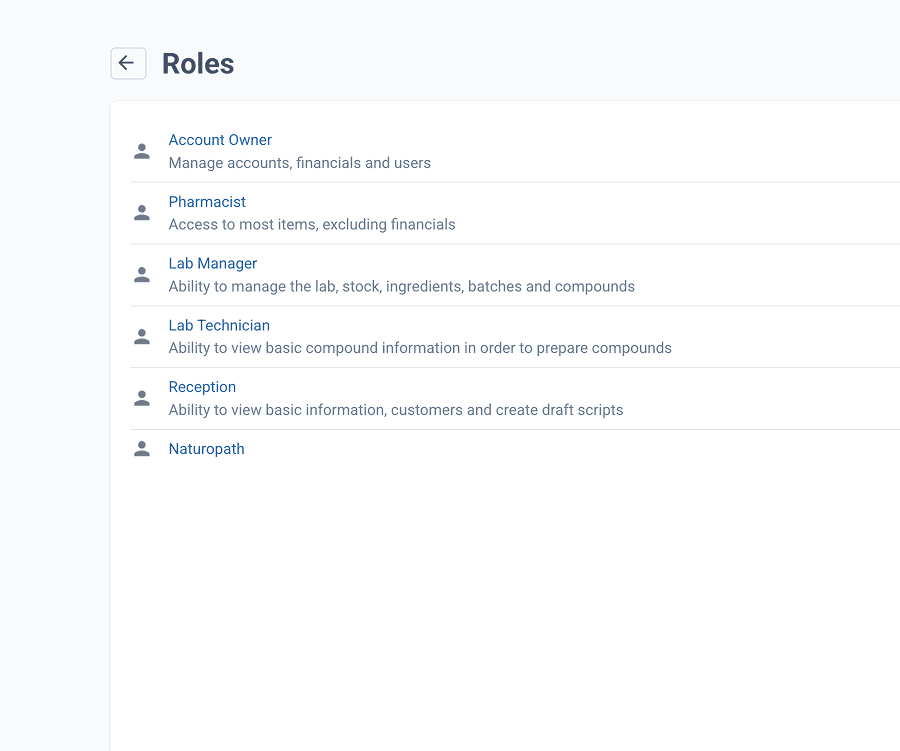
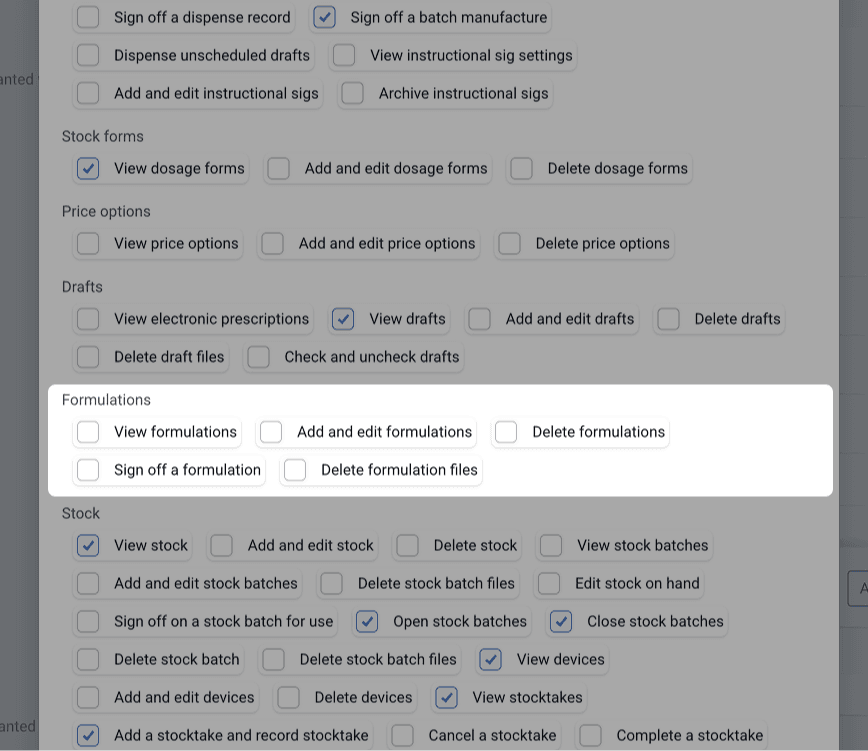
Because signing off confirms the clinical and operational validity of a formulation, it’s important to control who has permission to do so. In Compound Direct, you can configure permissions either by user role or for specific individuals, giving you complete control over who is authorised to finalise a formulation.
New features that strengthen sign-off workflow
For long-time users, the sign-off process has recently undergone several enhancements. These updates expand its utility and introduce a stronger set of tools for maintaining formulary integrity.
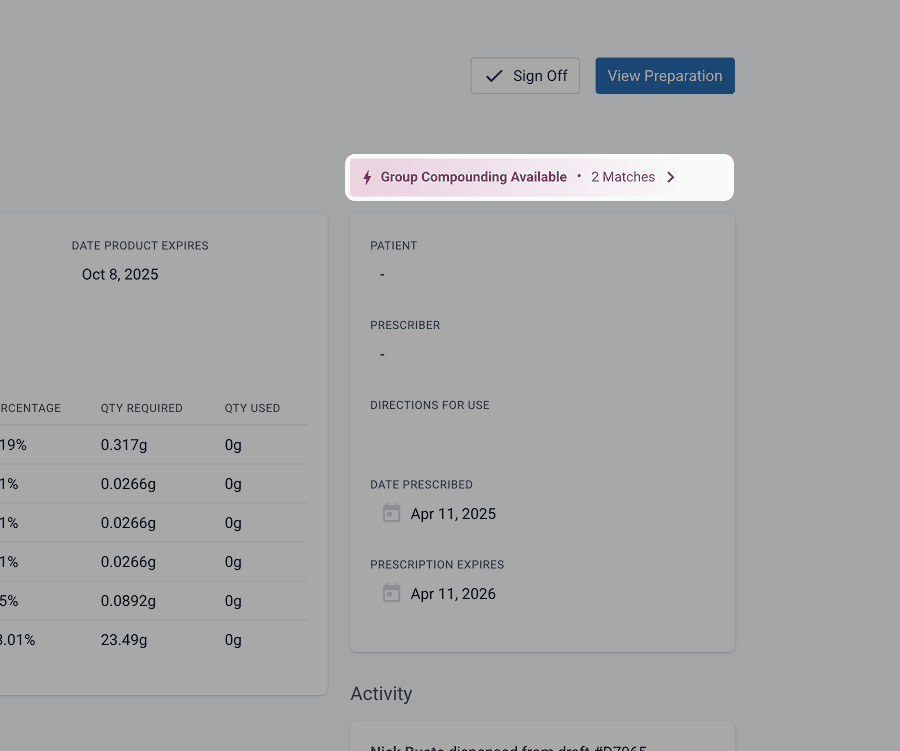
Grouping formulations
Grouping allows identical formulations to be compounded together in a single batch. While grouping isn’t dependent on signing off after the updates, a formulation must be signed off before it becomes eligible for grouping. This improves compounding efficiency while maintaining consistency.
Keeping control of master formulations
Compound Direct supports centralised management of Master Formulation Records (MFRs). During the drafting process, pharmacists or technicians may propose changes, but several controls are now available to restrict what can be edited, particularly once a formulation has been signed off.
You can apply:
- Global edit restrictions: preventing any changes to the formulation once approved.
- Ingredient-specific locks: to stop the removal or modification of essential components (e.g. antioxidants or specific bases).
- Active strength ranges: where minimum and maximum limits ensure dosing remains within a safe or standardised range.
- Restrictions on added ingredients: to prevent unintended additions that may affect expiry, stability, or quality control, particularly relevant for high powder-load creams or molded dosage forms like suppositories.
These controls can be tailored to each formulation depending on clinical need, workflow, or safety considerations.
There are many use cases for each of the controls, and you may use a combination of them on your formulations on a case-by-case basis.
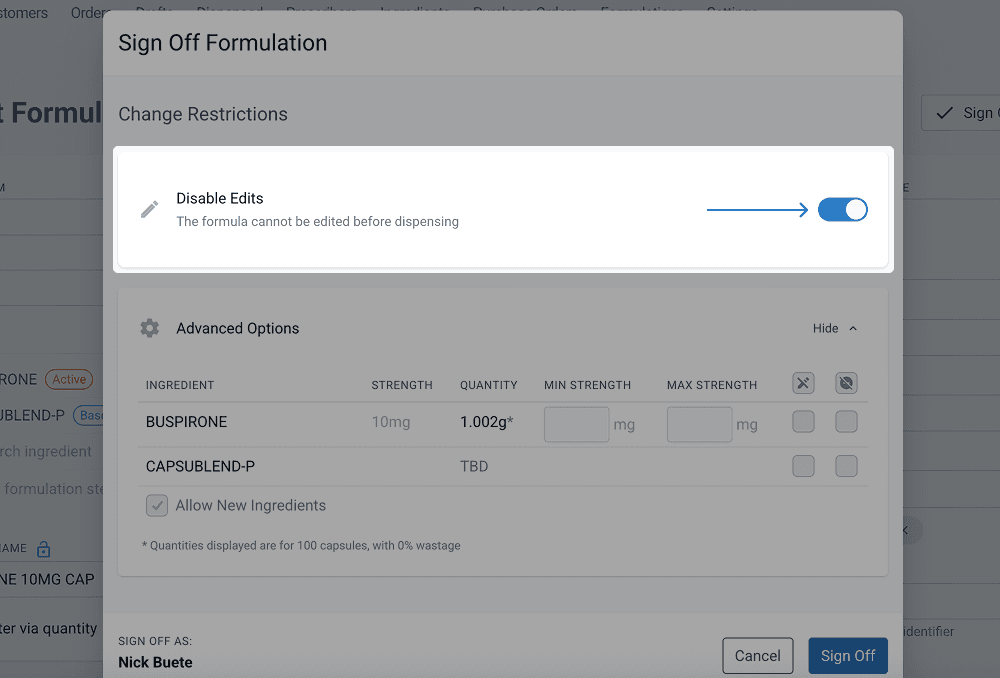
Disable global edits
Some formulations are made to be exactly correct and may not work if there are any changes, for example if you have a reference formulation for a suppository and you have added each ingredient exactly as the reference instructs, you may want to disallow any edits to ensure the formulation can only be made exactly as it was signed off.
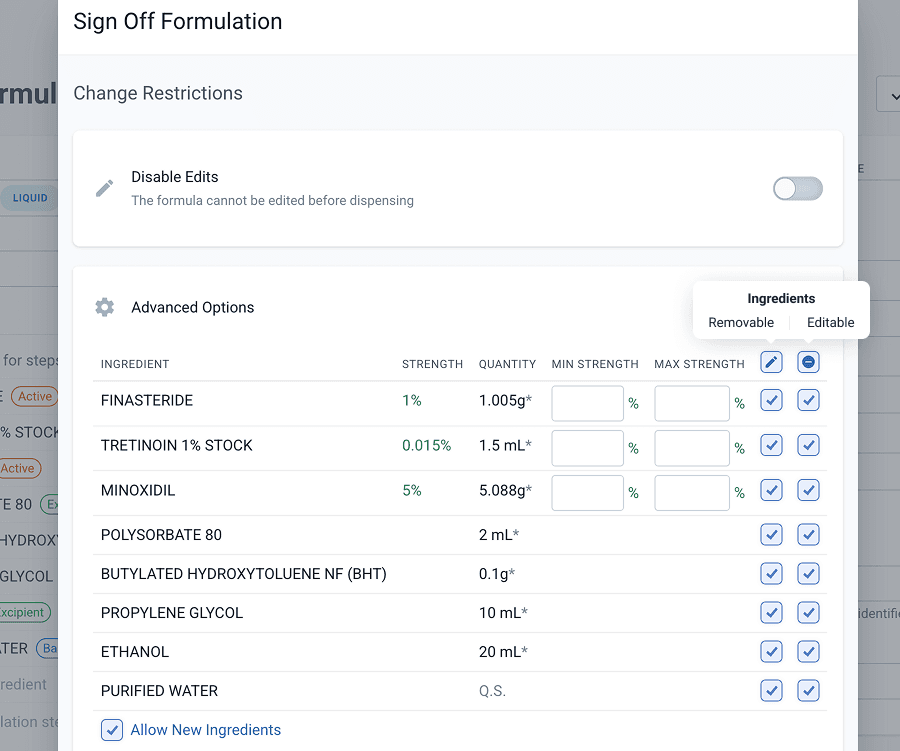
Disable ingredient edits
Some ingredients might be essential to the formulation. For example, the removal of an anti-oxidant might affect the stability of the final product or the formulation may only be stable in a certain base. Disabling the removal or editing of certain ingredients ensures signed off formulations aren’t edited incorrectly.
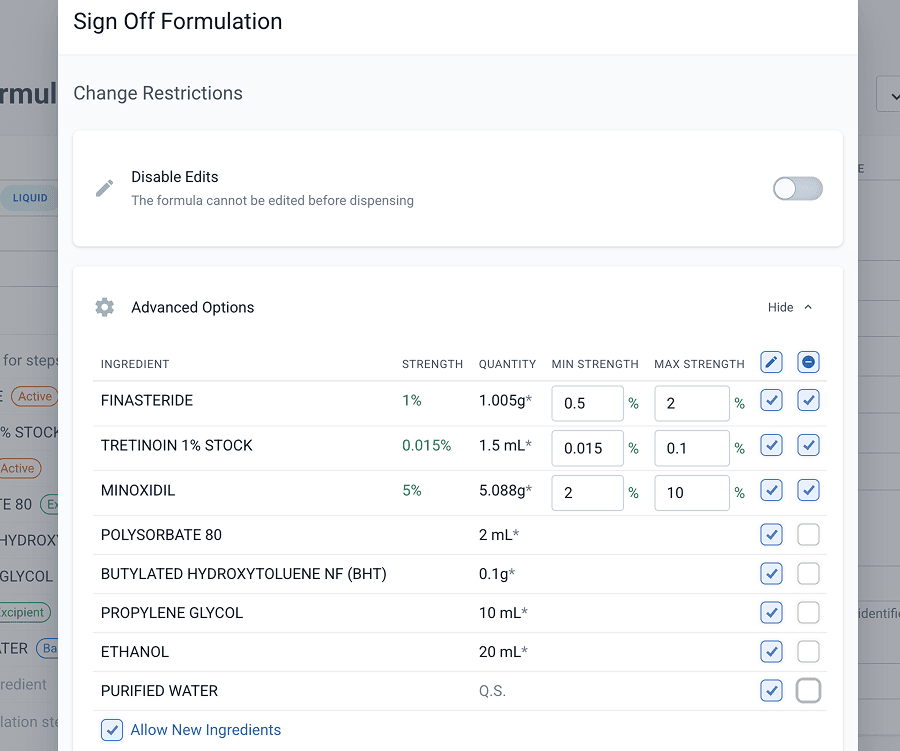
Restricting active dose ranges
Active dose range restrictions can be useful for a number of reasons. You may want to set min-max levels to ensure that the dose cannot be changed to an unsafe level accidentally. For example, setting a topical nystatin dose to a minimum of 100,000IU and maximum of 150,000IU may avoid an accidental 10,000IU or 1,000,000IU misread of an order. It is also useful to protect formulations from an active falling under the minimum weighable amount. A tacrolimus ointment may be made without using a triturate if the concentration is above 0.05%, but not if it is below. Setting the minimum dose may alert the pharmacist to use the triturate-containing formulation instead.
Another practical case for dose ranges may be for pricing. You may wish to create standard formulations that cover a specific range of doses and allow set prices within those ranges. For example, you may have Trazodone 50mg, 100mg, 150mg & 200mg formulations. Each can have a minimum and maximum dose that covers the formulation to the next lowest and next highest record.
Restricting additions
Restricting additional ingredients can be used to protect formulations that may not allow for additional actives or excipients due to expiry, stability or QA assurance.
For example, a high powder-load cream may not allow for the addition of more active or excipients as it may become unstable. Some formulations, particularly molded dosage forms like suppositories, may behave unexpectedly if additional ingredients are added. BUD studied formations may have their expiry reduced if additional ingredients are included.
Dispensing requirements
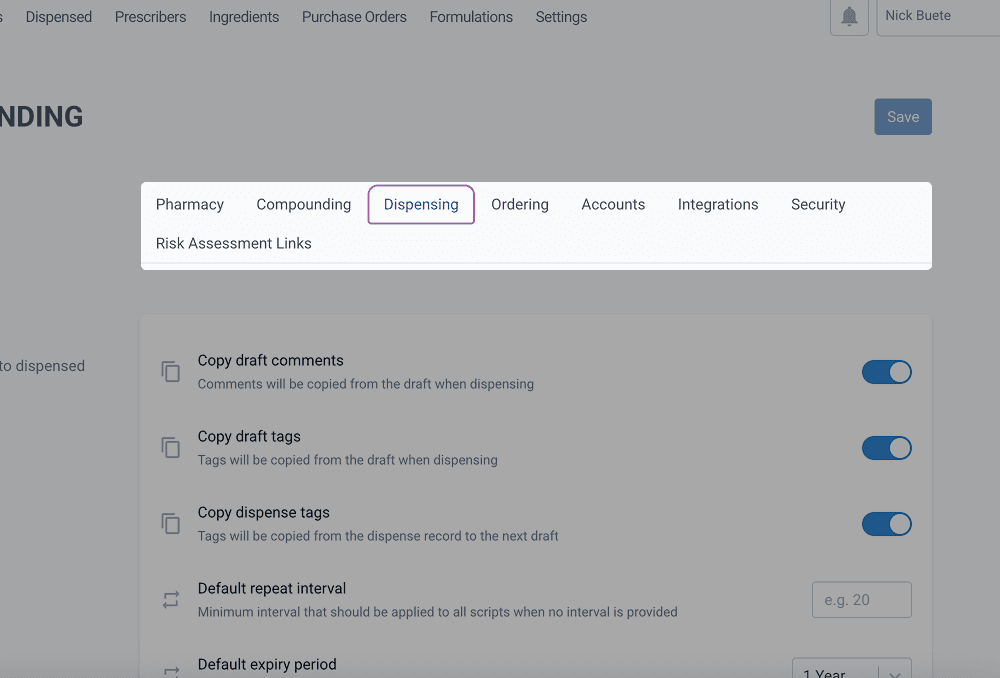
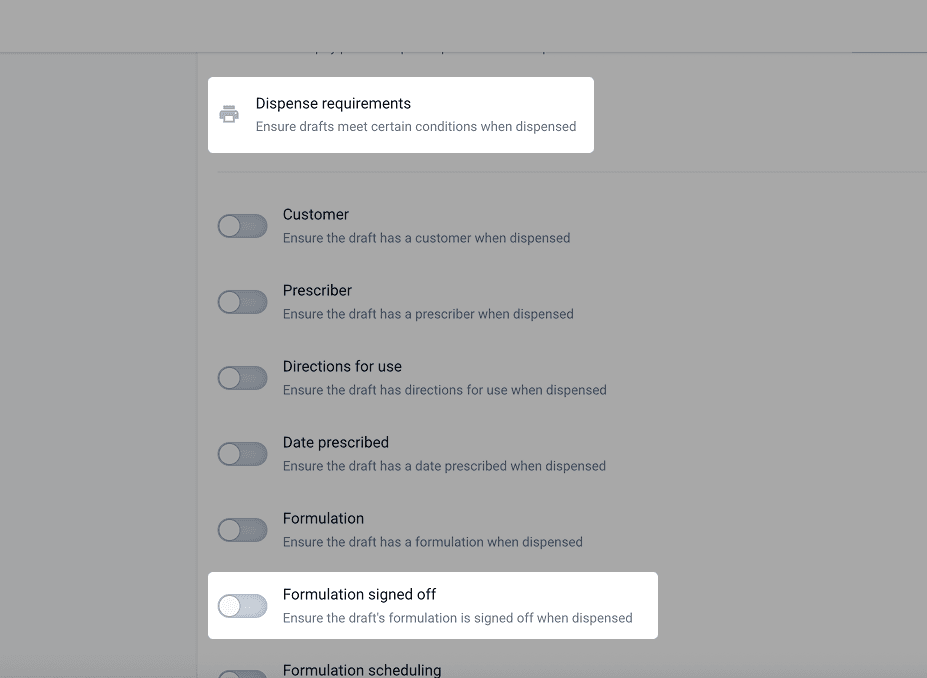
You can set minimum requirements that must be satisfied before dispensing a draft. These settings are found in the ‘Dispensing’ of your ‘Your Workspace’ found on the ‘Settings’ page.
You can select many different requirements. One of which only allows signed-off formulations to be dispensed.
Sign-off alerts
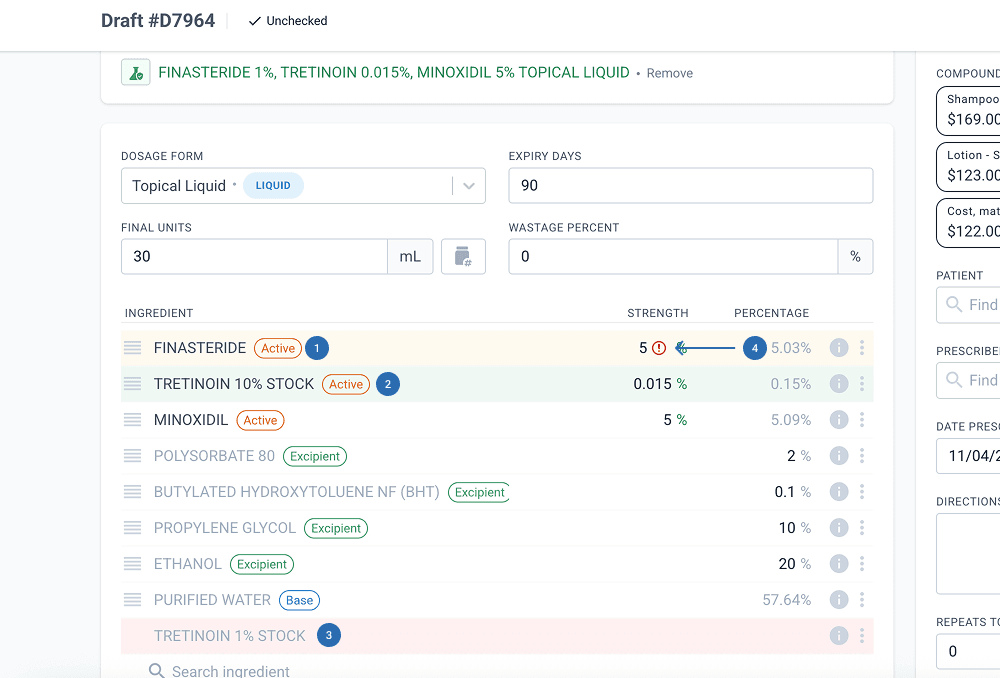
When you are drafting a signed-off formulation there are several flags that show if a change has been made to the MFR. Ingredients will be highlighted if they differ from the MFR and anything modified outside of the min-max strength will show an alert.
- Yellow shows an ingredient that has had its strength or concentration changed
- Green shows any new ingredient added to the formulation
- Red shows any ingredients that have been removed from the formulation
- Am ‘!’ alert shows next to any ingredient modified outside of its min-max
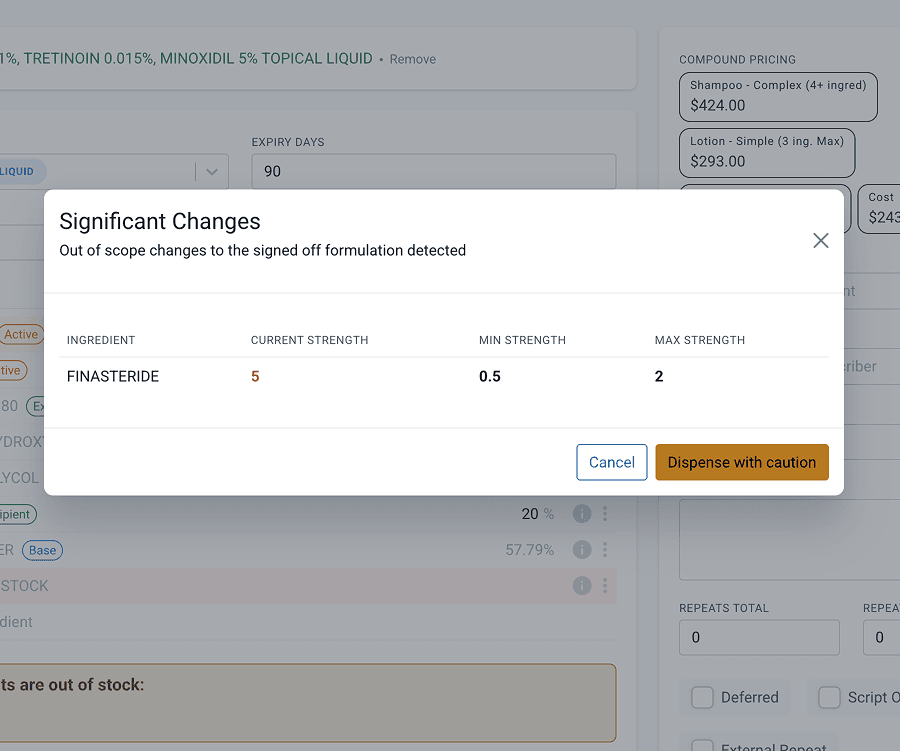
If ignored, there is an alert that appears when the medication is dispensed. It requires the user to acknowledge and either return to the draft to correct, or proceed with caution if it is deemed safe to do so.
Lock in the adjustment factor
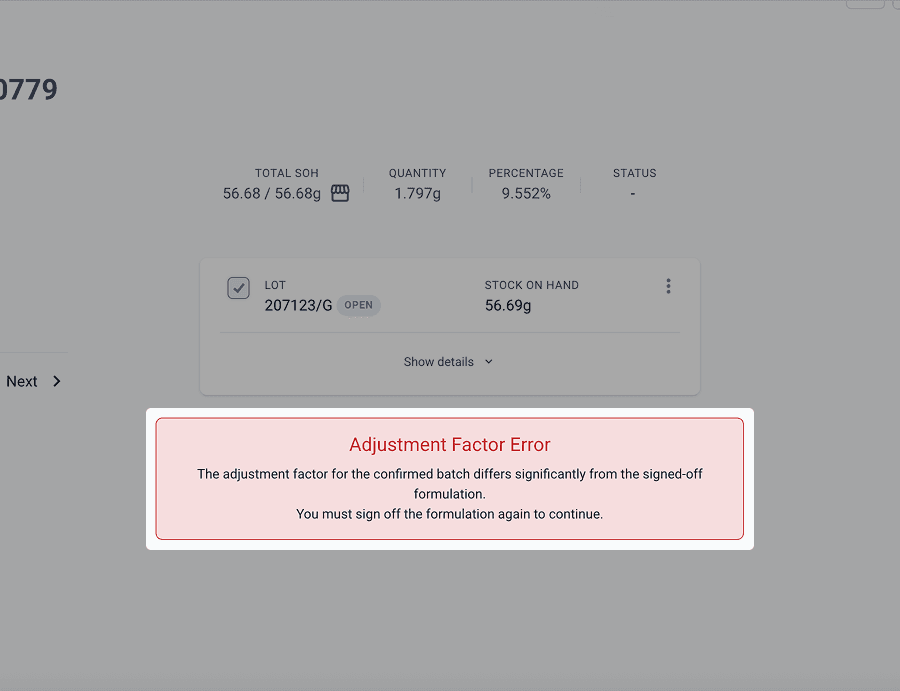
When you sign off on a formulation, you’re also adding another layer of protection to shifts in the adjustment factor. Compound Direct will alert you when you make a change to an ingredient where the adjustment factor changes by more than 50%. Additionally, when you dispense the medication, it will show previous adjustment factors for confirmation.
On top of this, when you have signed off on the formulation, there is a flag that appears in the dispensing section of the record warning you of the change.
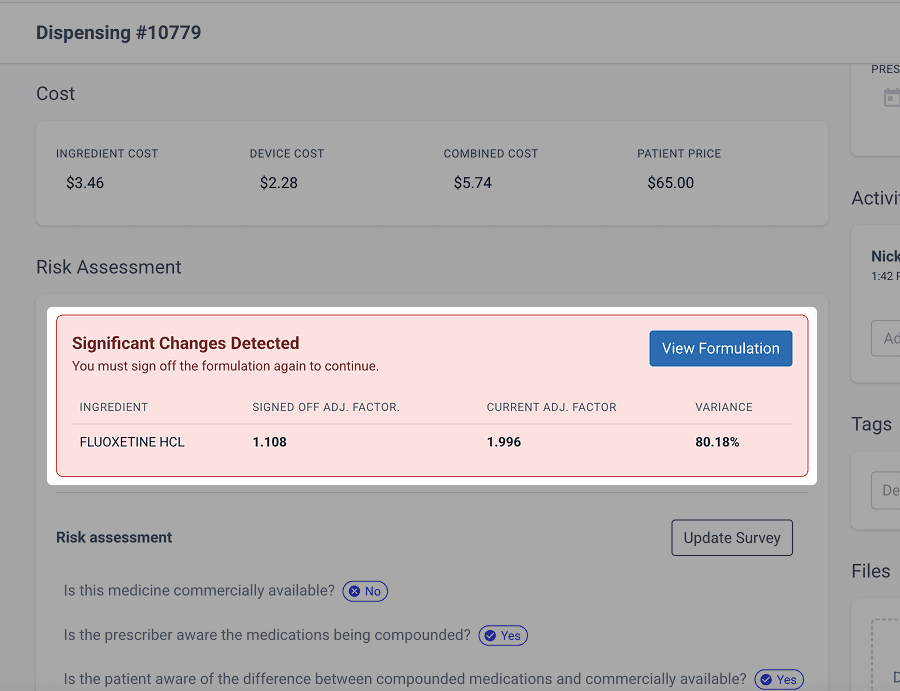
If this is missed, Compound Direct will prevent the weighing out of the ingredient until the formulation has been signed off again.
Summary
Signing off in Compound Direct is more than just an administrative function. It creates a clear, traceable checkpoint in the lifecycle of a formulation. With the improved tools and safeguards now available, pharmacies can uphold safety, maintain clinical standards, and ensure every medication is made exactly as intended.
All names and medical data shown in software screenshots are fictional and for demonstration purposes only. These figures represent fictional persons; any resemblance to real individuals is purely coincidental. Use of existing fictional names is for illustrative purposes and does not imply affiliation or endorsement.