
Navigating the customer page

Introduction
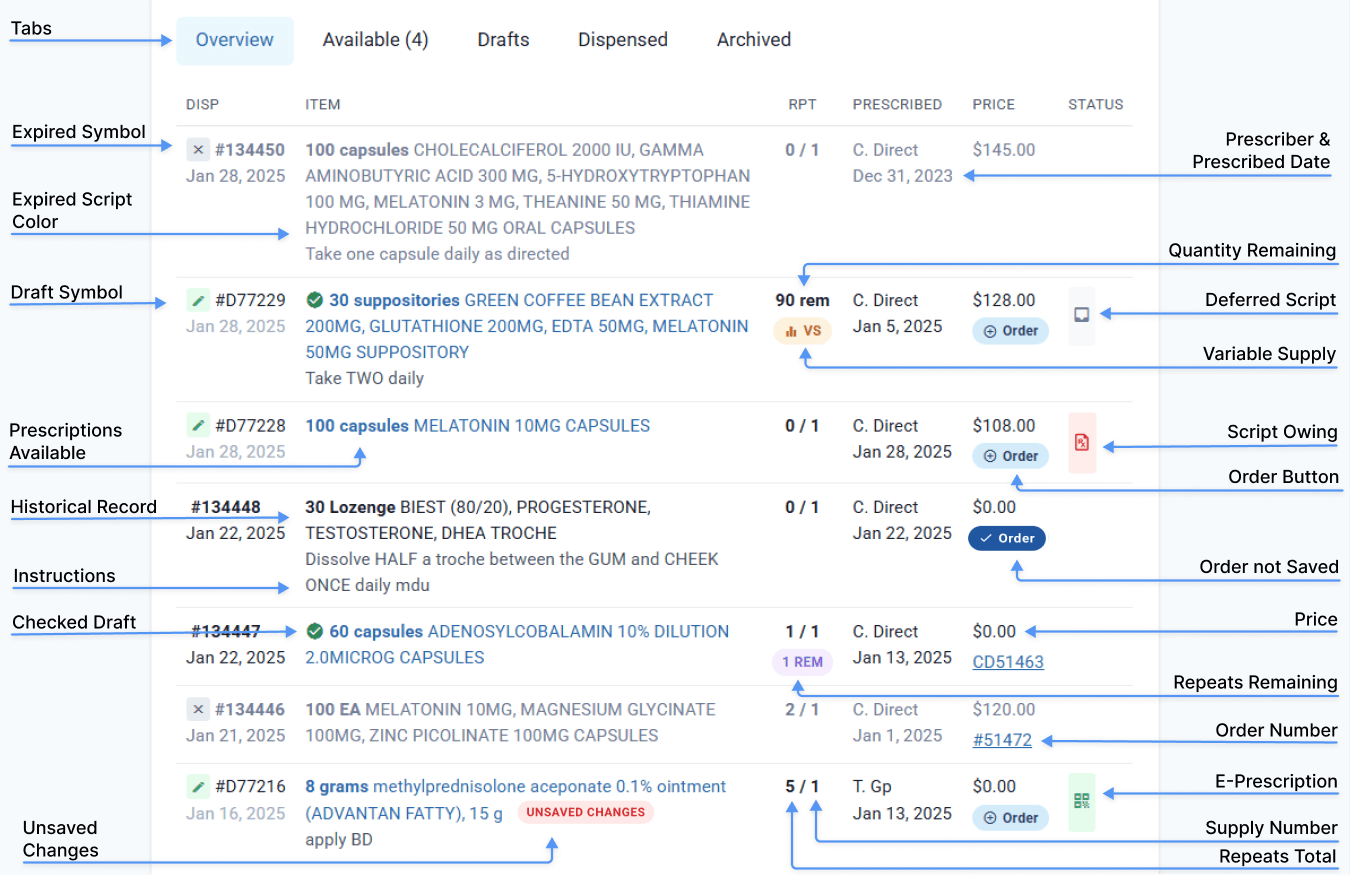
The Customer page on Compound Direct offers an extensive overview of the customer. Understanding this page will allow you to get a full view of the status of current, previous and future customer records.
The Customer page incorporates the entirety of all customer information. This article will outline the details of the five tabs which relate directly to customer records and how the repeats are grouped by prescription.
Part 1: Select the relevant customer
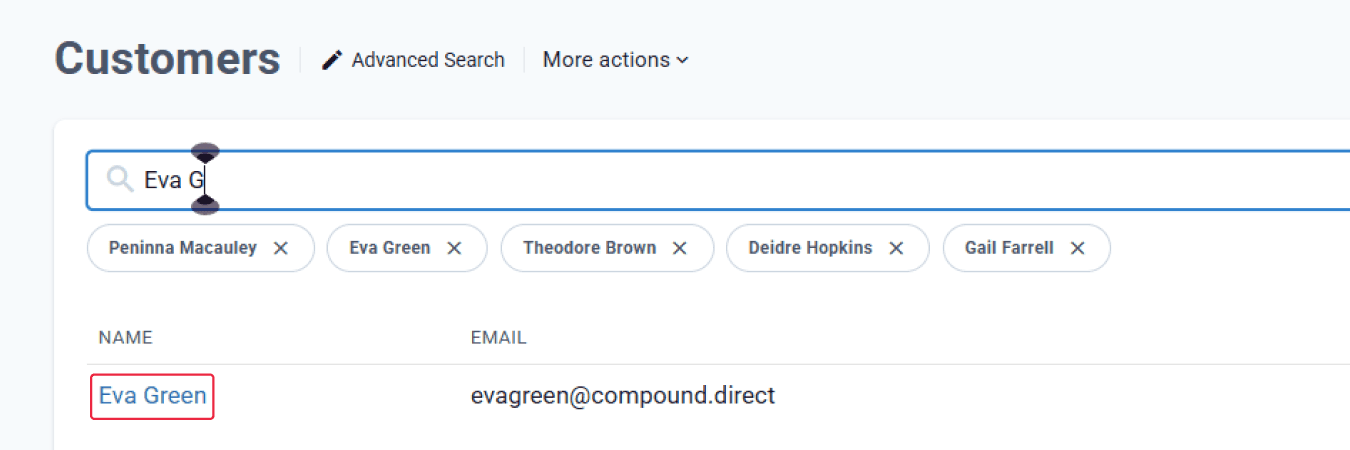
Navigate to the Customers tab and search for the relevant customer. Select the desired customer.
Column 1: DISP (Dispensing)
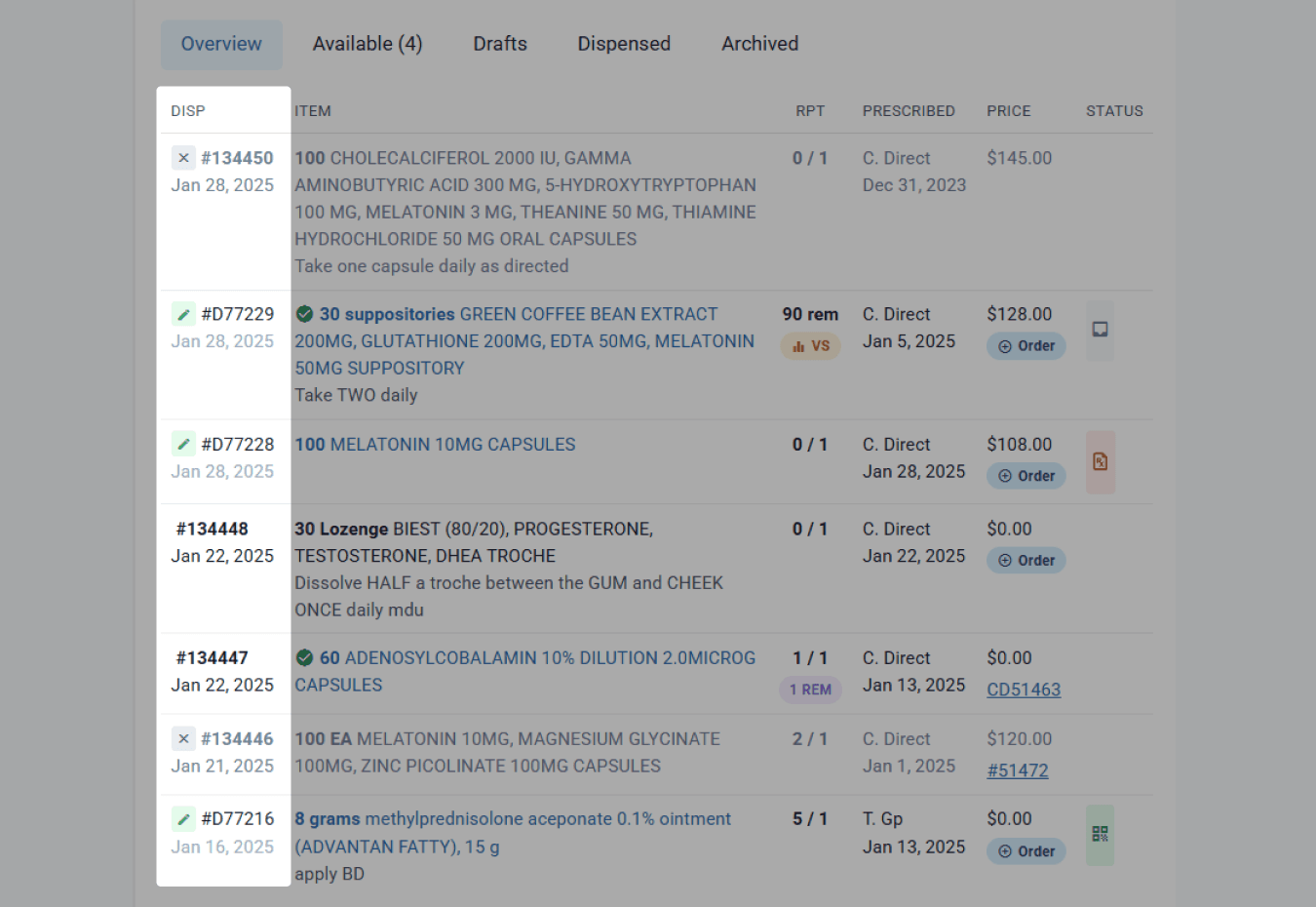
The Dispensing column provides some key guidance on the status of the medication record.
Dispensed Column Specifics:
A green symbol with a pen represents a record that is still in draft status. The record number will also start with #D.

A grey symbol with an X signifies the prescription is expired.

A singular #, followed by a number indicates the record has been dispensed and the script number.

The date displayed under the dispensing item reflects the draft date creation or dispensed date, once dispensed.

Column 2: ITEM
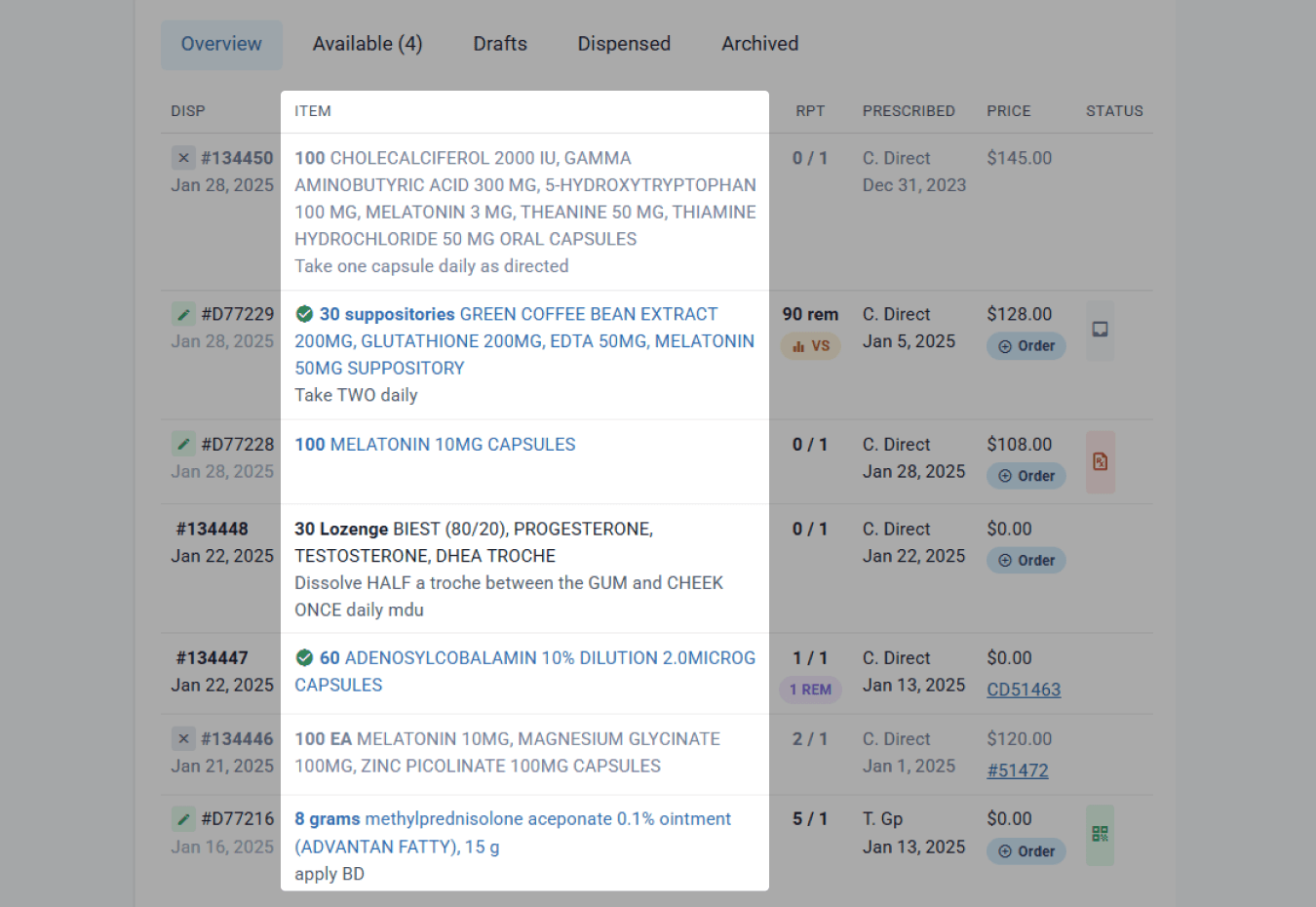
The Item column provides drug name(s) specifics and directions for use.
Item Column Specifics:
A green tick before the item (Premium Package and higher) name indicates the draft was marked as “checked” by an approving pharmacist.

The item name is reflective of the compound name, drug or over-the-counter item being dispensed for the customer.
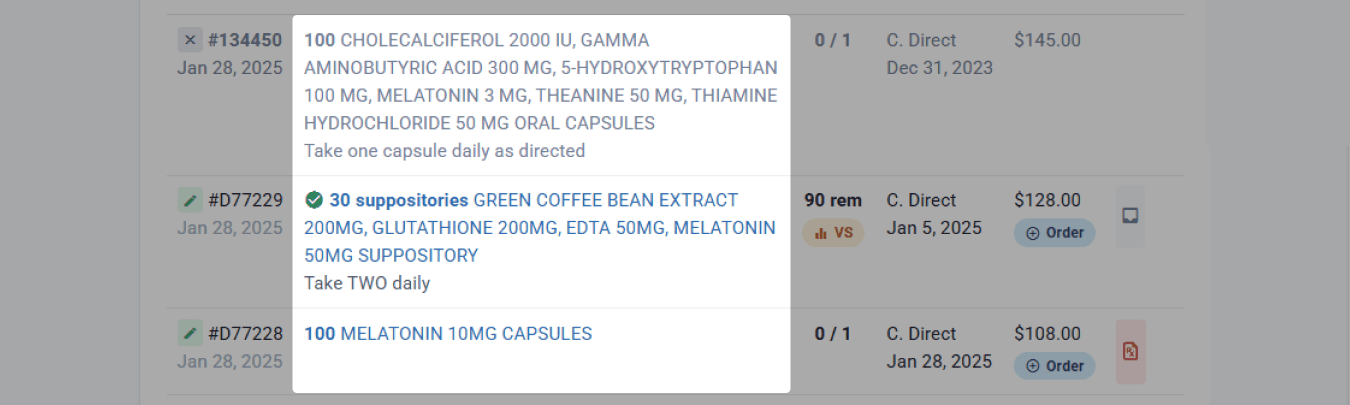
Item text in black indicates the dispensing record is historical, no repeats are remaining.

Item text in blue indicates the item is available. This could indicate drafted and ready to be dispensed, or dispensed with repeats available. The prescription must not be expired.

Item text in grey indicates the prescription is expired.

If a draft has unsaved changes this will be identified with an Unsaved Changes symbol. This will only appear on your device and will disappear after saving the draft.

Directions for use are displayed under the item name in small grey text. This will aid in comparing dosages between supplies.

Column 3: RPT (Repeats)
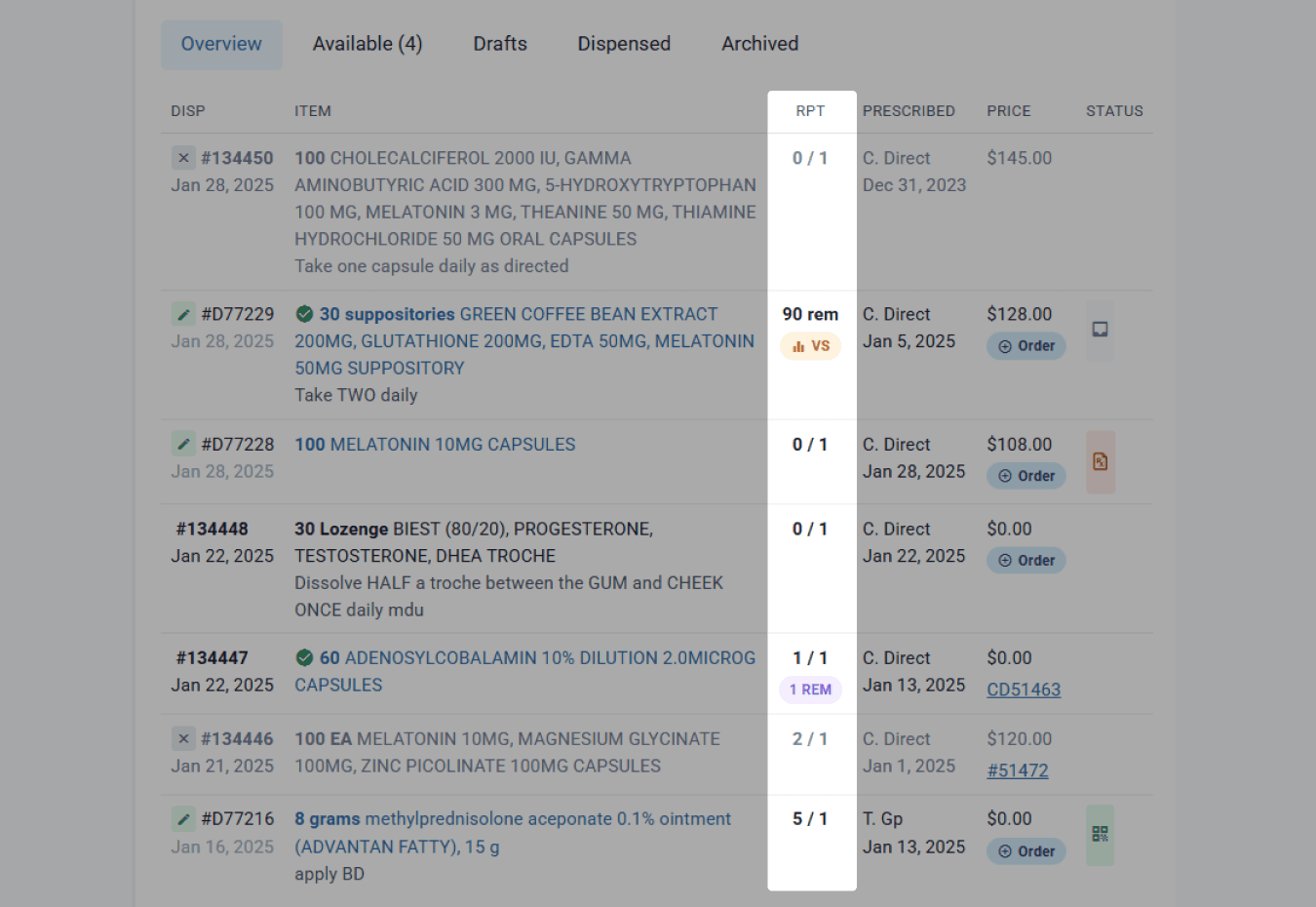
The Repeat column allows a quick overview of the total repeats prescribed, supply number, and total repeats remaining. It also displays whether there is a variable supply for the script, along with the total quantity remaining to be dispensed. This allows the staff member to quickly understand how many times a script has been prepared and what prescriptions are still available to the customer.
Repeat Column Specifics:
Repeats are displayed in numerical value. Separated by a ‘/’, the first number represents the total number of repeats and the second figure represents the supply number or the number of times the prescription has been prepared.

For quick reference, the software will summarise how many repeats are available for the customer. Note: This badge will not be displayed if it's a draft or if there are no repeats remaining.

If a prescription has a variable supply this is marked by an orange VS badge.

The total quantity remaining to be dispensed is displayed above the VS badge.

Column 4: PRESCRIBED
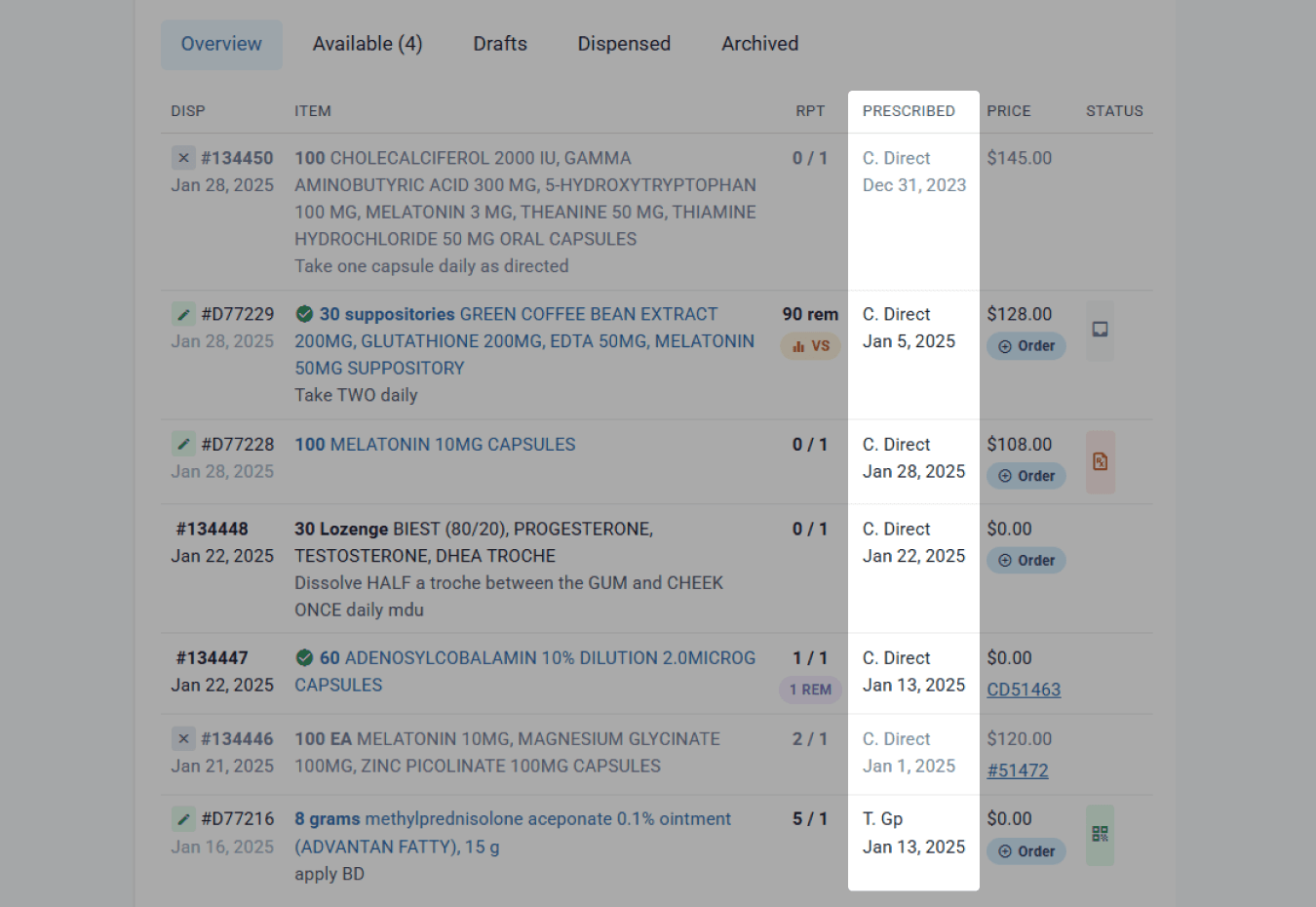
The prescribed column allows you to see at a glance which prescribers a customer is engaging with and when the prescription was originally written. This will help identify what is their most recent prescription and if they may have received a new dose from a alternative prescriber.
Prescribed Column Specifics:
The prescriber will be displayed via the first initial and the surname.

Date prescribed is listed directly under the prescriber name.

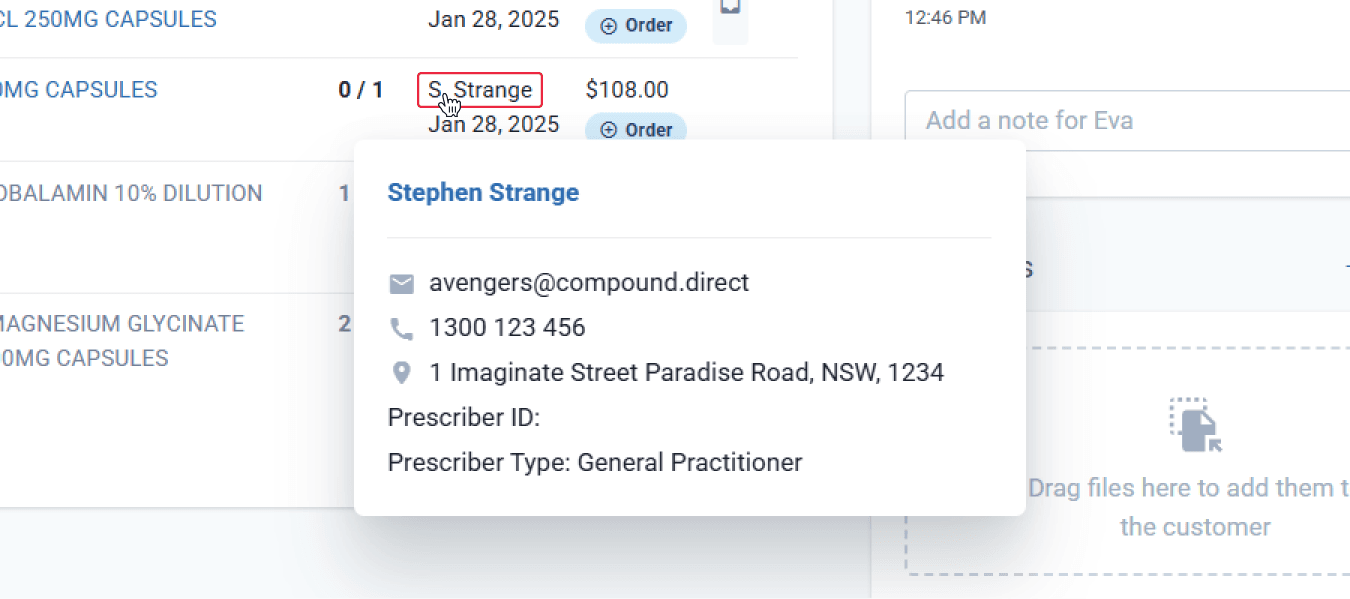
To view a summary of the prescriber details, hover over the prescriber name.
Column 5: PRICE
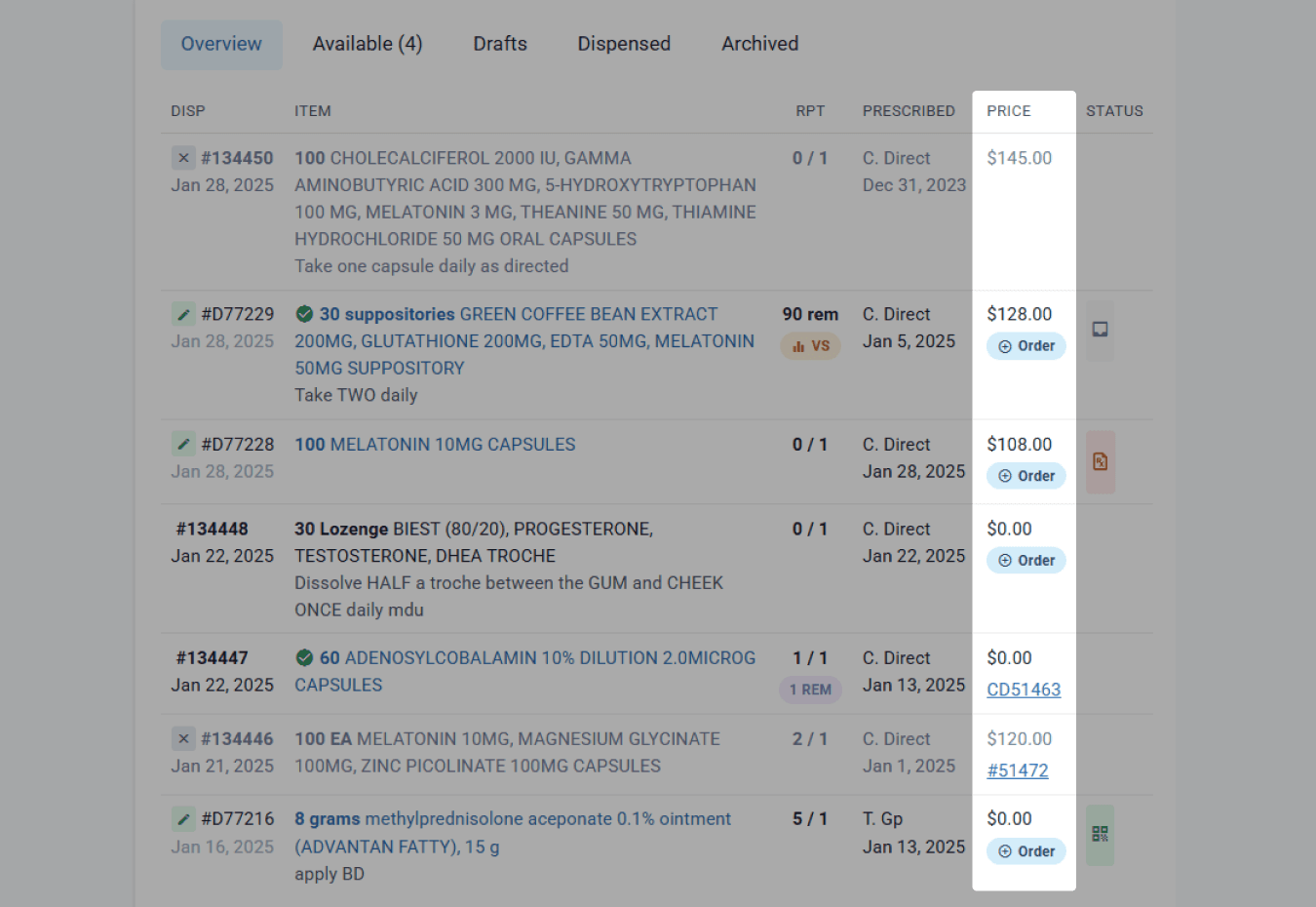
Having quick access to pricing information can allow for easy quoting, checking if prices have been set and providing fast responses to customer enquiries. The price column on the customer page shows whether an order has been added, and you can also add to an order directly from here.
Price Column Specifics:
If a price has been set for the item it is listed in this column. Items can be added to an order by selecting the ‘+ order’ symbol. **

The ‘tick order’ symbol indicates the item has been added to an order but the order has not been saved. In this scenario, a banner will be at the bottom of the page allowing the user to select ‘view order’, following the usual process of saving the order. **

If there is a link available under the price, this is a saved order. You can click on the link to view the order particulars. **

**Requires premium package or higher
Column 6: STATUS
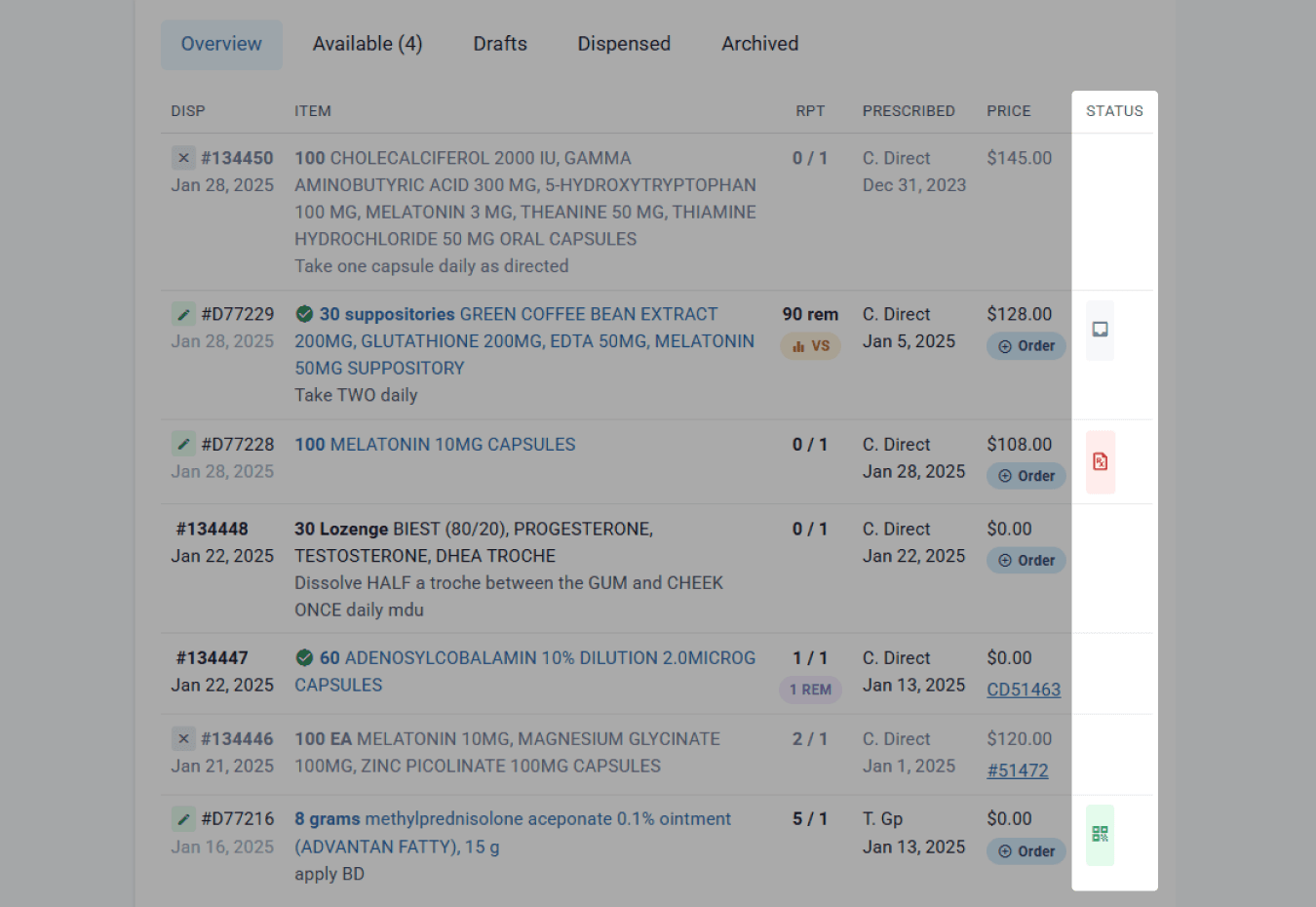
The final column, status, can provide some important, background information into the prescription.
Status Column Specifics:
The grey symbol indicates the script has been deferred.

The green symbol reflects the item came as an e-prescription.

The red symbol represents an owing prescription.

To view what each symbol represents, hover over the symbol and a description will appear.

Part 3: Available tab
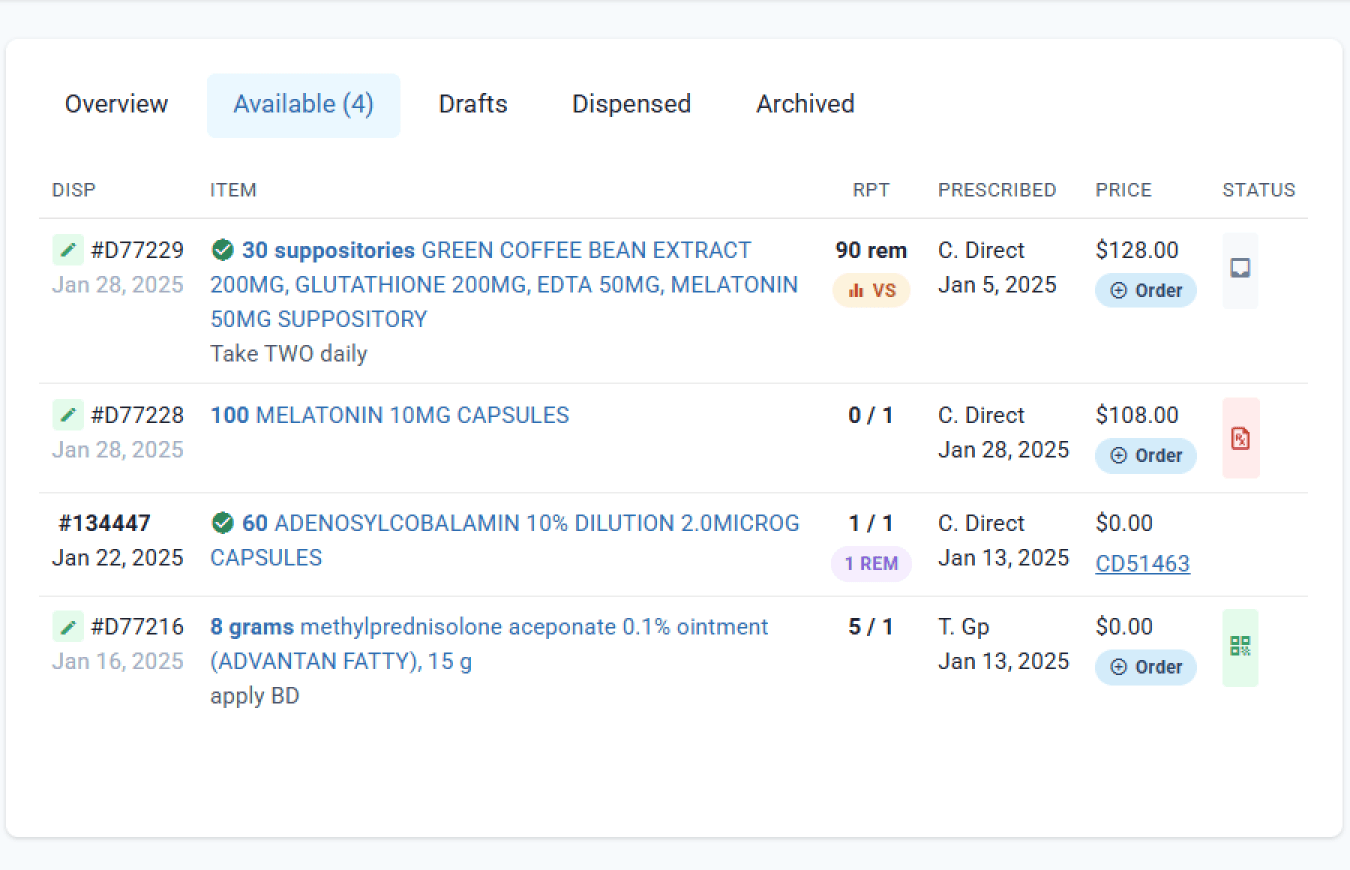
The Available tab will only display current drafts and dispense records, with repeats available and where the prescription has not expired. This is a useful tab to see all available items for the selected customer. The number of available records is summarised in brackets in the tab.

Part 4: Drafts tab
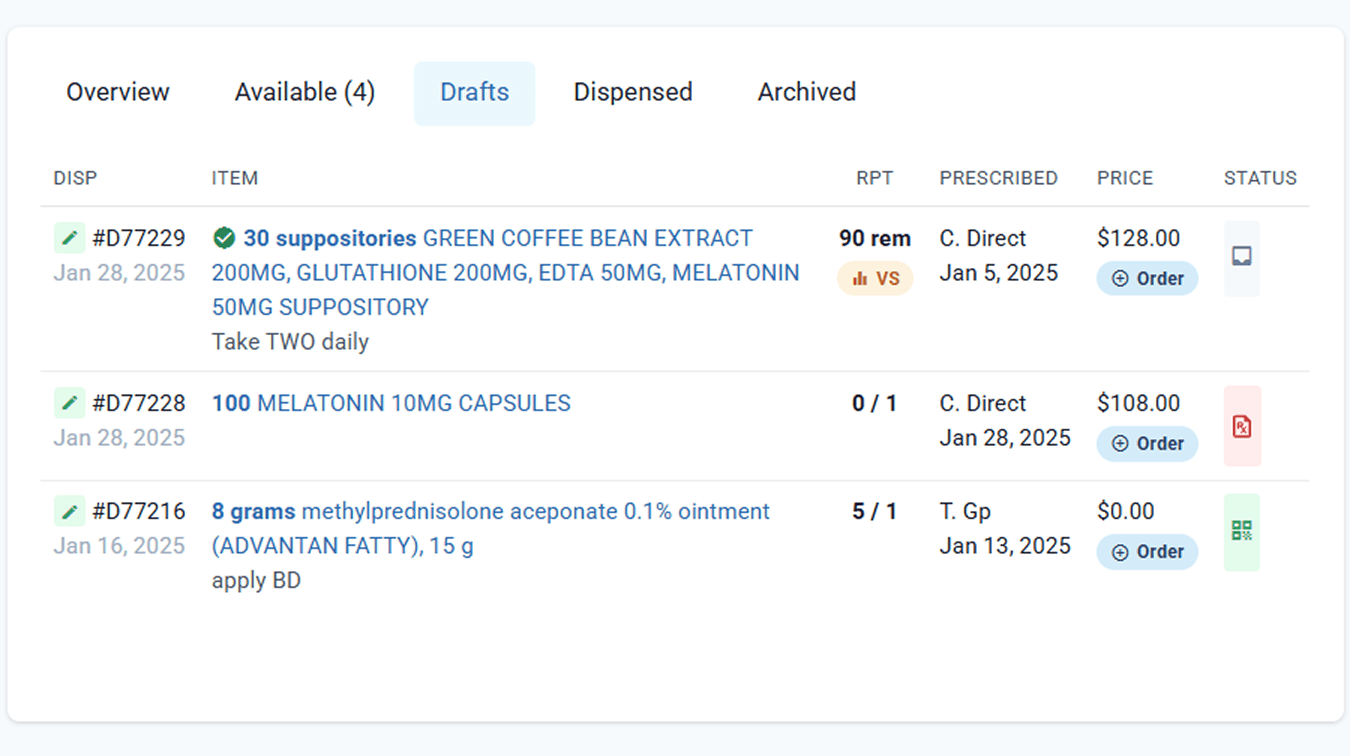
The Drafts tab provides a list of all drafts, which have not yet been dispensed. This may include expired items. This is useful for the compounding staff member tasked with dispensing and/or checking items. By navigating directly to the Drafts tab, the staff member can focus directly on what is actionable.
Part 5: Dispensed tab
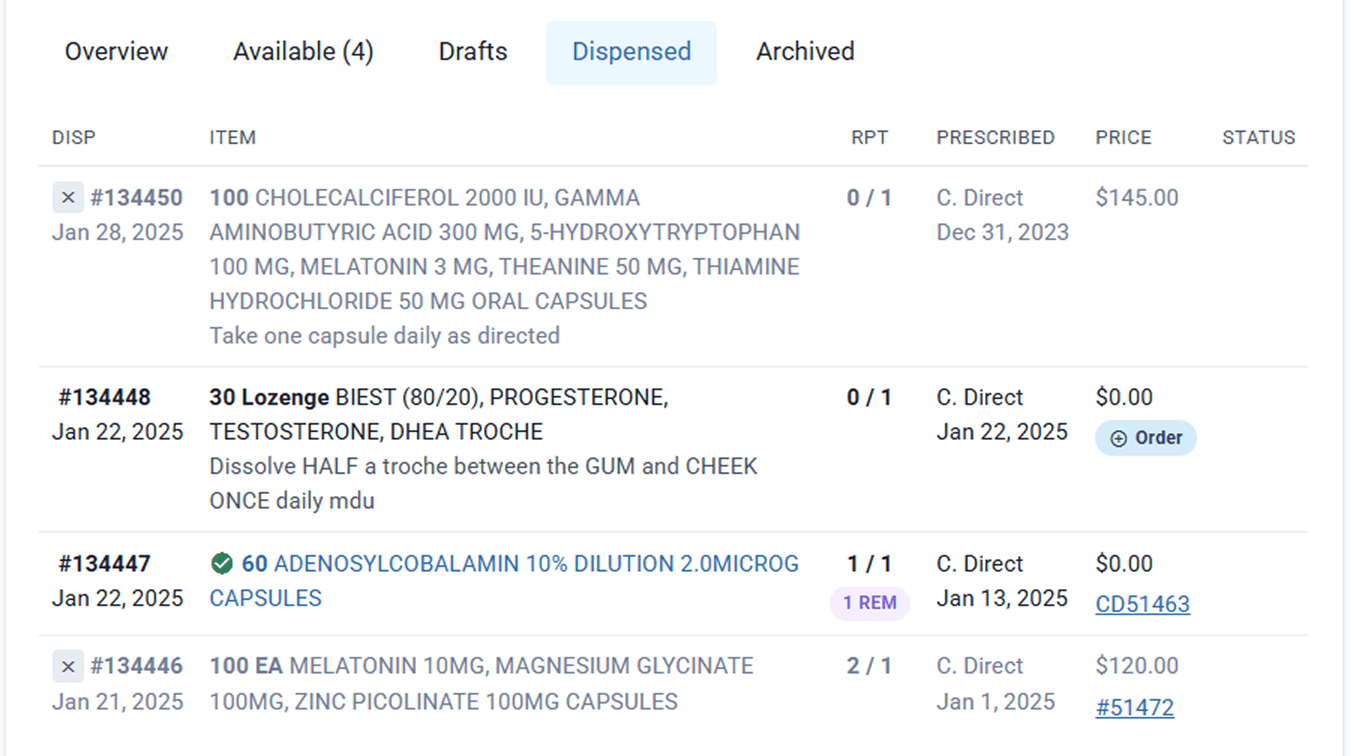
The Dispensed tab displays all dispense records for the customer. Dispense records can be in varying stages; new compounding records, dispense records part-way through the compounding process, items awaiting final sign-off, and finalised signed-off records. They may also be a commercial drug, retail product, batch stock or compounding record.
Part 6: Archived tab
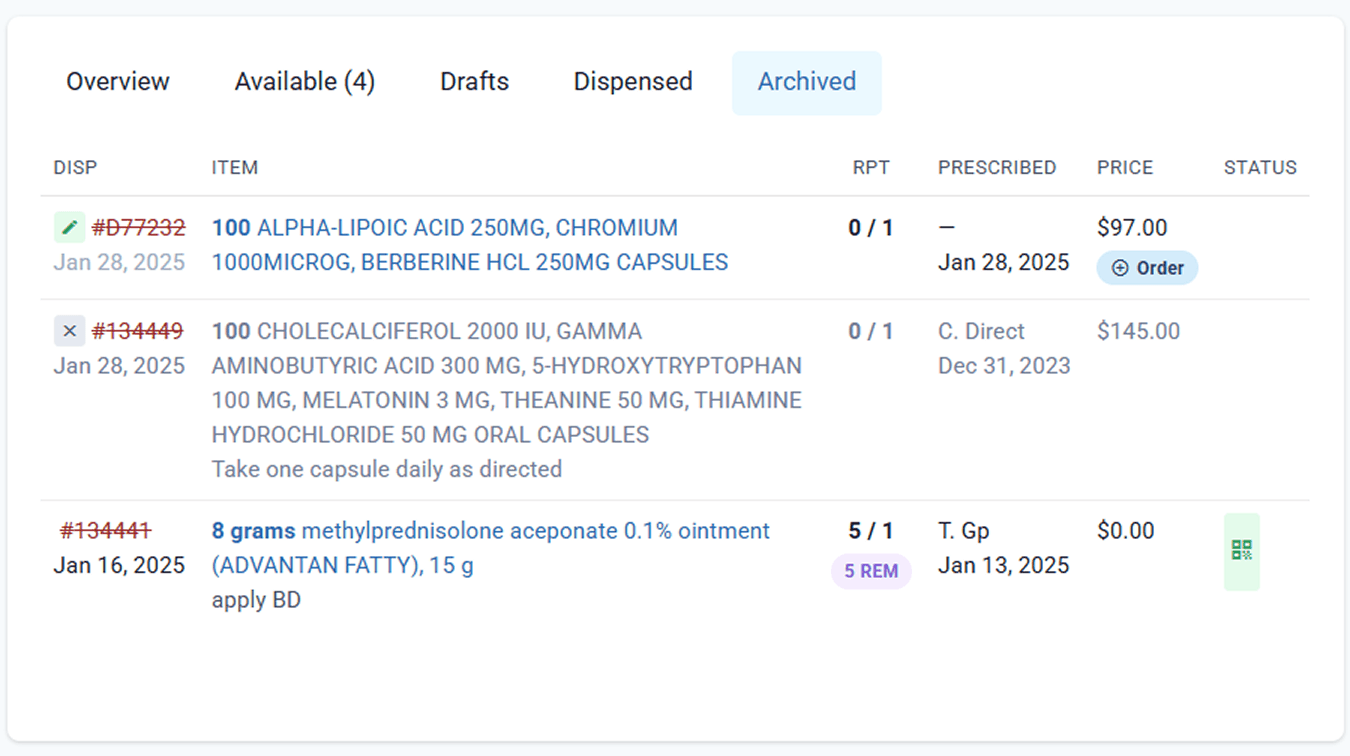
The Archived tab displays all drafts that have been archived and all dispense records that have been deleted. Deleted Drafts will not appear in this list. Items in the archived tab are not displayed in any other tab on the customer page.
Part 7: Grouping by prescription
A key advantage of the customer page is the ability to group dispense records by prescription. The overview tab will only display the most recent record of the prescription.
Scenario 1: Two dispensed prescriptions with two repeats remaining.
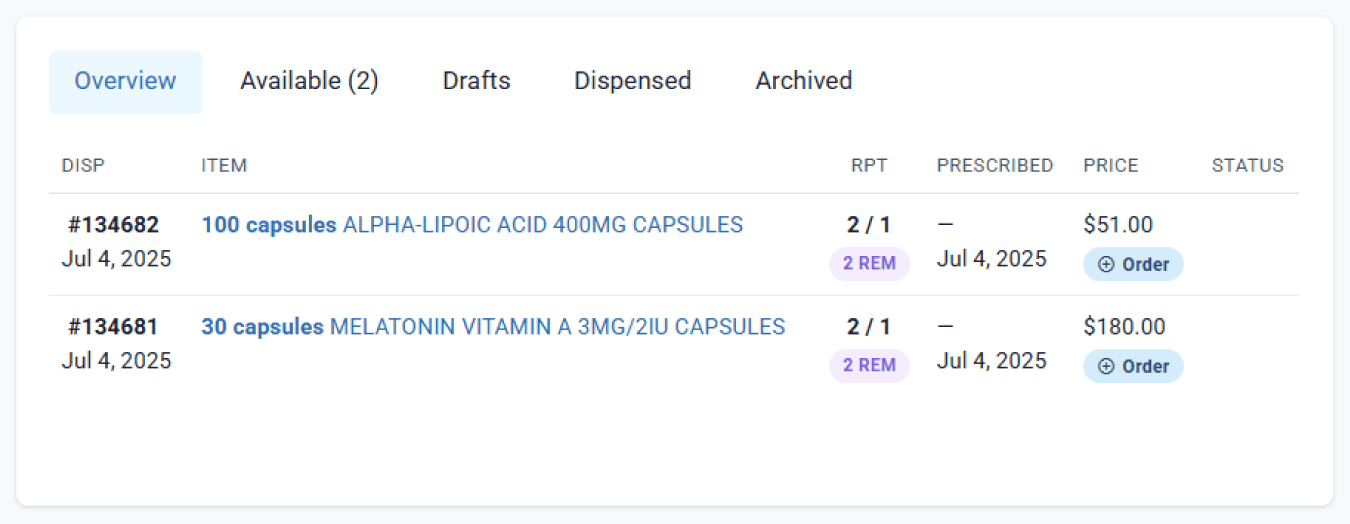
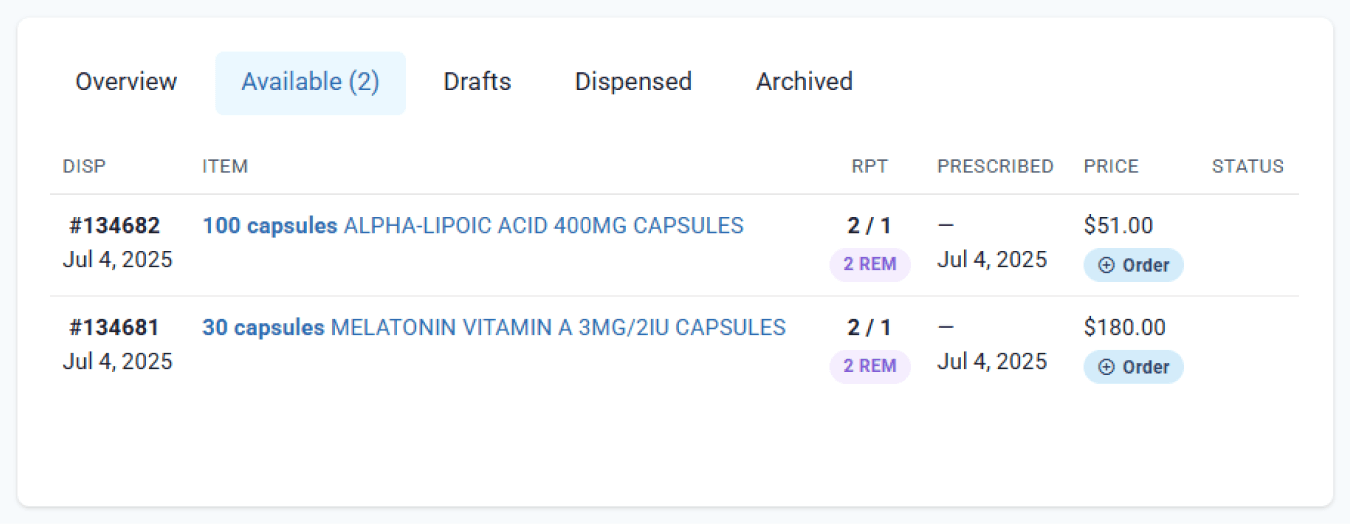
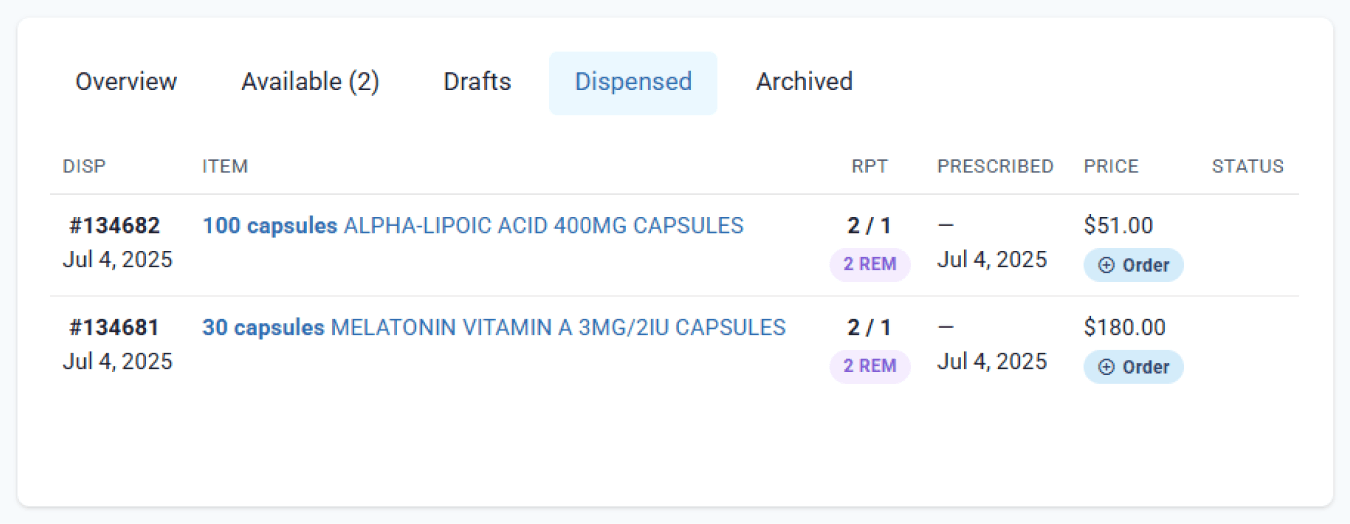
In the above scenario, two prescriptions (both with two repeats) have been dispensed. The same information is displayed on the Overview, Available and Dispensed Tab.
Scenario 2: Creating repeats for prescriptions. The first prescription was left as draft, and the second one was dispensed.
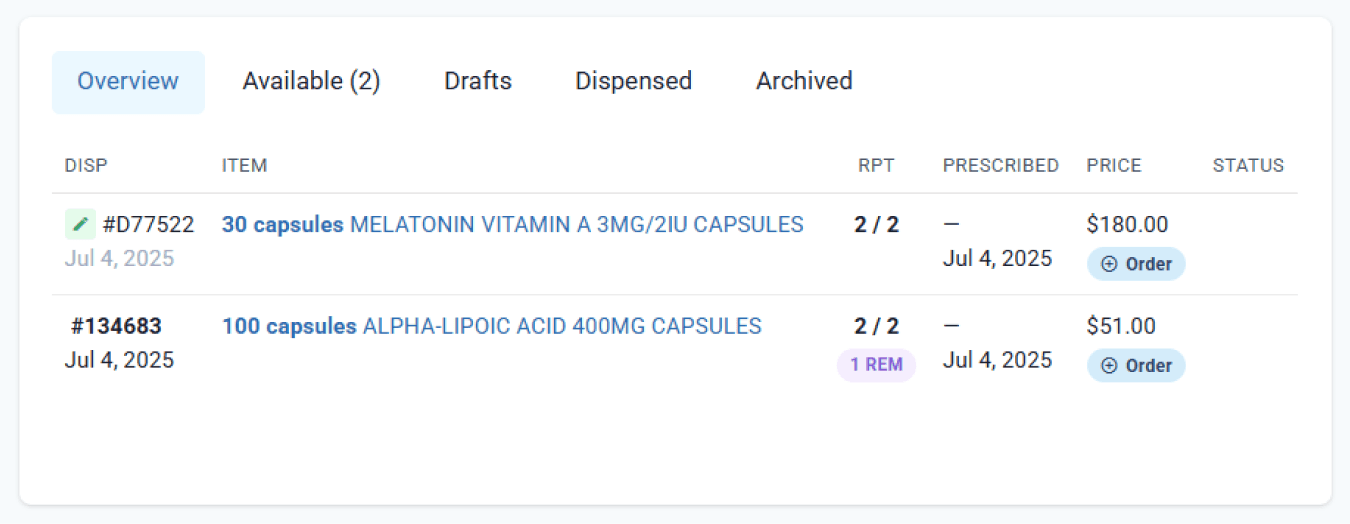
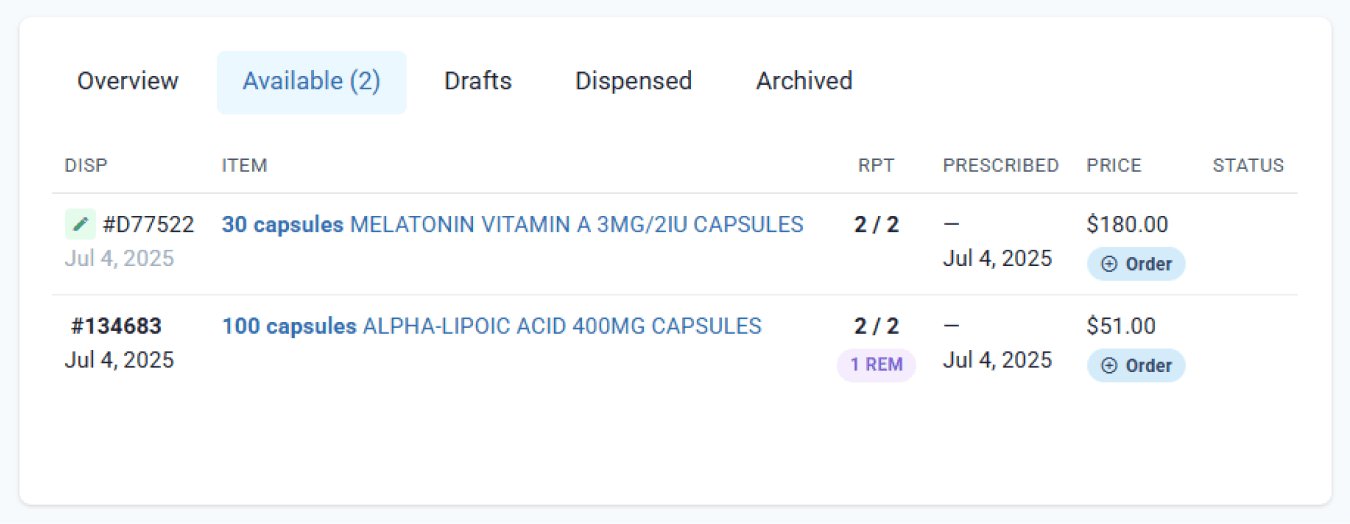
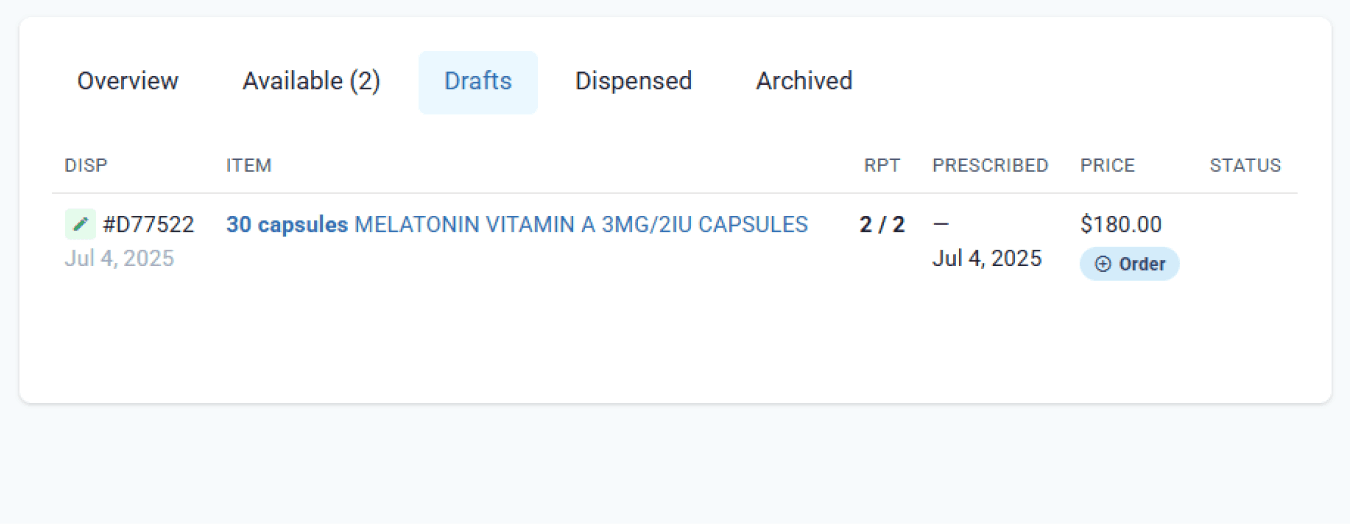
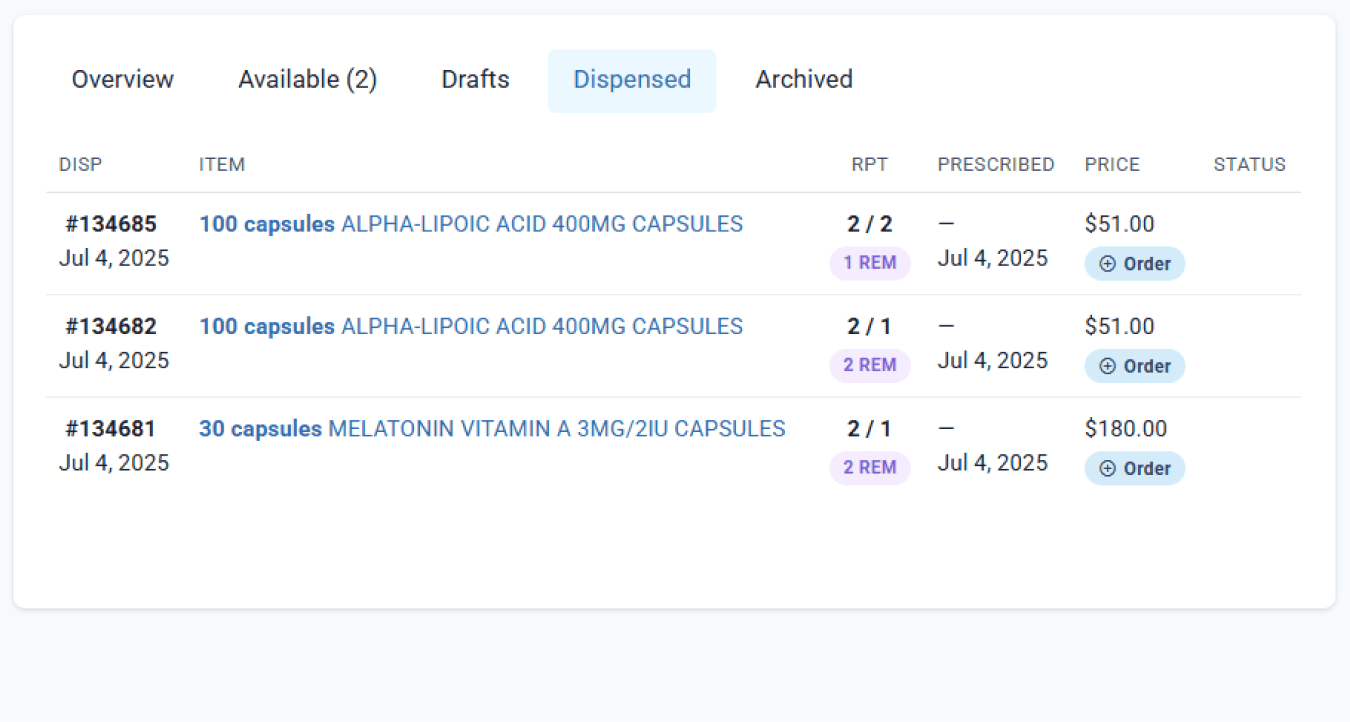
In the above scenario, the overview, available and draft tabs display the draft, while the dispensed tab only reflects the dispensed record. Once the prescription has been dispensed, it will be displayed under the Dispensed tab.
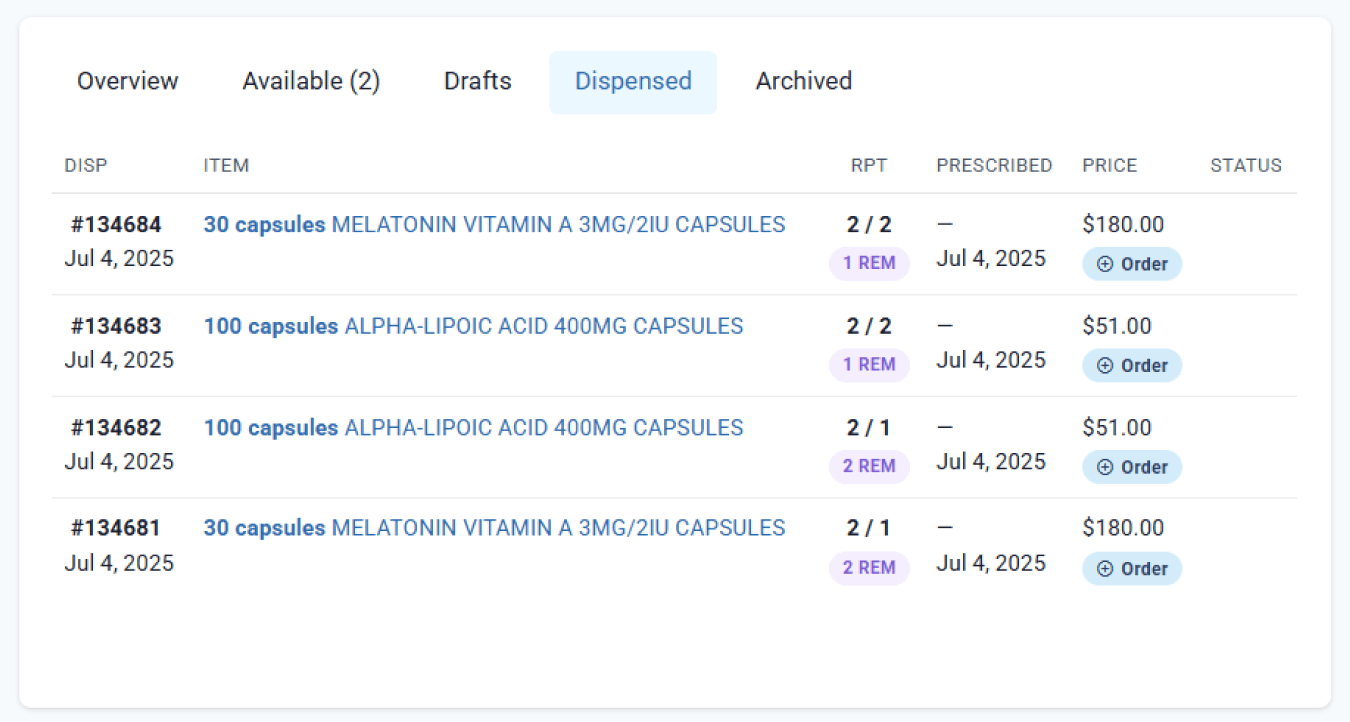
The Overview and Available tabs display the most recent dispense record, while the Dispensed tab lists both dispensing records linked to the same prescription. When a repeat is created but not dispensed, it will be displayed under all tabs as Drafts and will not appear in the Dispensed tab.
With the help of grouping, related dispensing records under the same prescription are consolidated, making it easier to identify previous medications. This eliminates the need to search through the full dispensing history to locate a specific supply when responding to patient queries.
Summary
Being able to see an overview on a singular page creates a whole view picture of the customer, whilst being able to see the items, repeats and orders. Understanding the customer page can provide a thorough understanding of the selected customer, and the status of customer items and identify actionable items.
Grouping repeats allows the overview to more accurately display the prescriptions available to a patient. In some circumstances, utilising the dispensed tab will allow a clear record of every repeat dispensed to the customer and the ability to add dispense records to an order that may be hidden due to grouping on the overview tab (premium package and above).
All names and medical data shown in software screenshots are fictional and for demonstration purposes only. These figures represent fictional persons; any resemblance to real individuals is purely coincidental. Use of existing fictional names is for illustrative purposes and does not imply affiliation or endorsement.