
Manual Bulk Allocation: Control batch allocations efficiently across multiple scripts

Manual Bulk Allocation in Compound Direct allows your pharmacy to allocate internal or external batch stock to multiple scripts after the stock is available for use. This means the internal batch manufacture record must be signed off before bulk confirmation and allocation. In contrast, the external batch stock can be confirmed and allocated once the supplied batch record is approved and opened.
This blog focuses on bulk allocating an internal and external batch stock. It covers the difference between the two types of batch stock, when these workflows are useful, and how to bulk-allocate multiple scripts to a single internal batch manufacture record in Compound Direct.
Feature highlights
✔ Controlled post-preparation allocation
Allocate internal batch stock only after the batch has been prepared, checked, signed off, and approved for use. For external batch stock, allocate only after the externally supplied batch details have been received, checked, recorded, and approved for use.
✔ Efficient batch stock allocation
Assign internally prepared or externally supplied batch stock to multiple scripts while maintaining clear lot and batch tracking.
✔ Clearer traceability across scripts
Maintain batch-level links between scripts, patients, and stock records to support recalls, investigations, and final checks.
The TGA requires compounded medicines to be prepared in response to a prescription for an identified patient. As a result, Australian pharmacies cannot routinely manufacture and hold surplus compounded stock without risking non-compliance through anticipatory compounding.
Compound Direct is designed to support pharmacies operating within these requirements. By maintaining prescription-level traceability throughout the dispensing and batch allocation process, the platform enables efficient workflow management while helping pharmacies meet their regulatory obligations with confidence.
Setting up internal batch stock bulk allocation
Internal batch stock refers to compounds prepared within your pharmacy. Scripts can be bulk allocated after the batch has been compounded, signed off, and approved for use.
This workflow is commonly used by pharmacies that prefer to complete preparation and pharmacist verification before assigning stock to patients and printing labels.
Note: For this walkthrough, we will use a formulation that has already been converted into batch stock. The purpose of this walkthrough is to demonstrate how batch stock can be allocated using the Bulk Allocation feature.
A single batch manufacture record will be created to fulfil these prescriptions, allowing your team to prepare a batch, sign off the batch, bulk allocate scripts and bulk print labels while maintaining full traceability to each patient script.
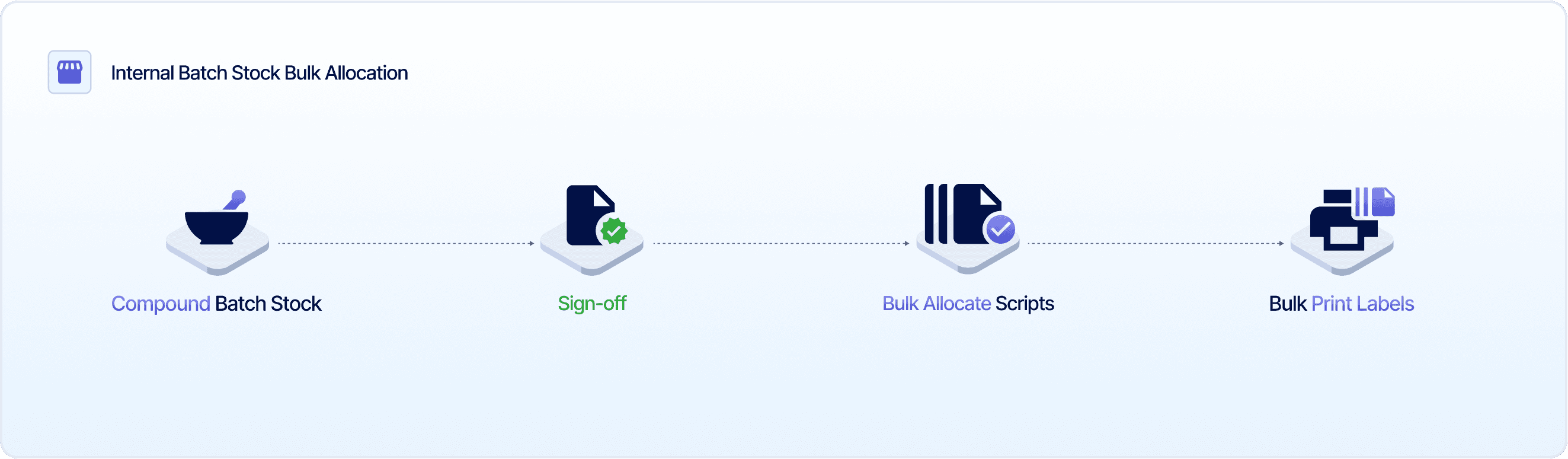
In this scenario, your pharmacy has received five identical prescriptions for 150 mL of Mupirocin 1% Nasal Spray, which have been drafted and dispensed but not yet allocated. This allows you to bulk allocate the available stock before finalising the dispensed prescriptions.
Step 1: Create an internal batch manufacture record
On the Dispensed Record page, click ‘View Stock’ to open the stock record where you can create a batch manufacture.
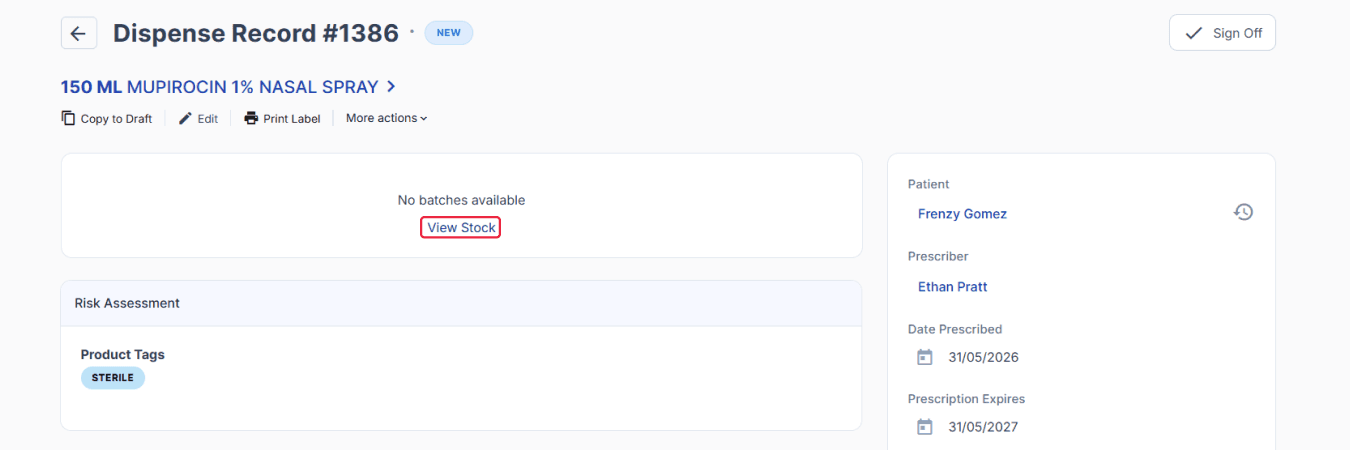
From the dispensed record page
On the Batch Stock page, click ‘Manufacture Batch’.
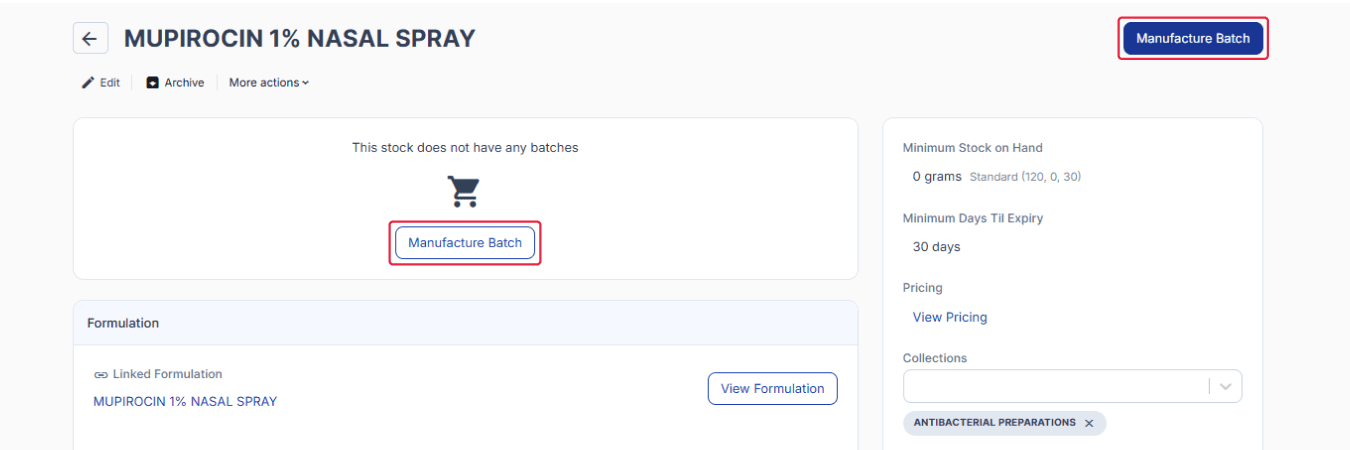
From the internal batch stock page
Enter the required quantity and click ‘Create Batch Manufacture’.
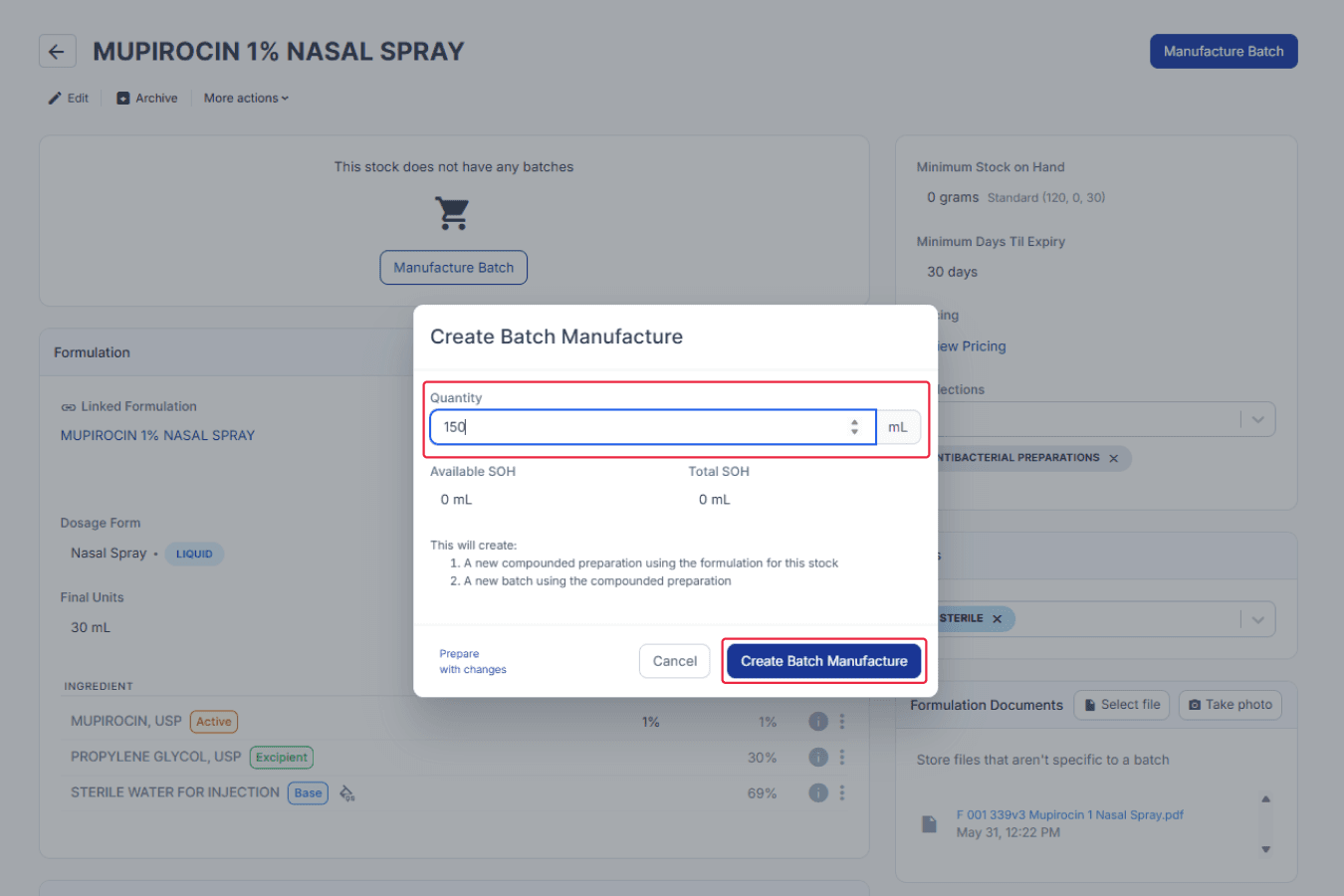
From the internal batch stock page
You will be redirected to the Batch Manufacture page, where you can view and start the preparation.
Step 2: Complete preparation and approval
On the Batch Manufacture page, click ‘View Preparation’.
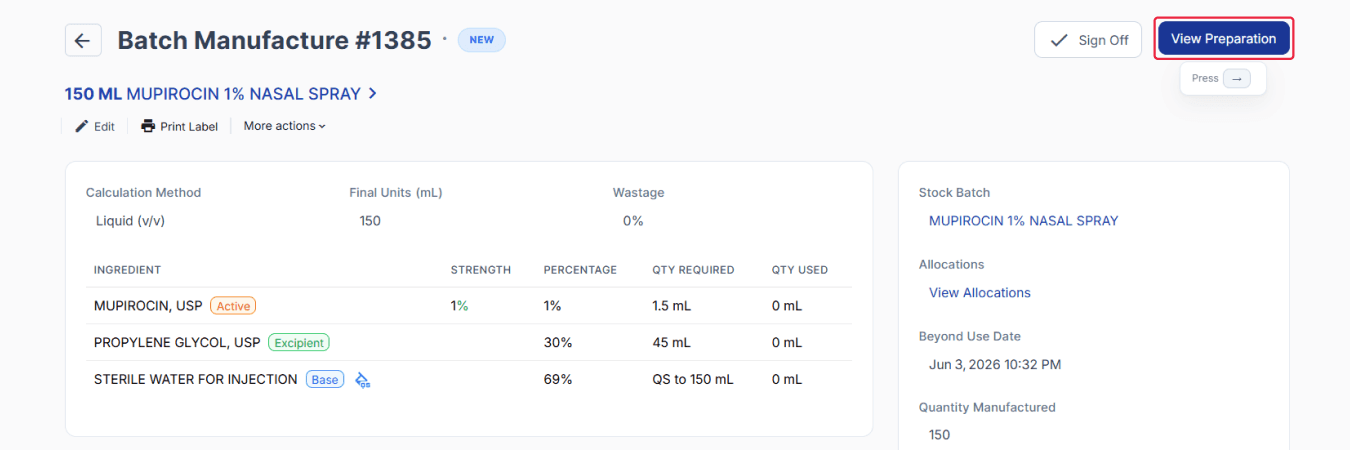
From the batch manufacture page
Click ‘Start Preparation’ and follow the formulation steps until preparation is complete.
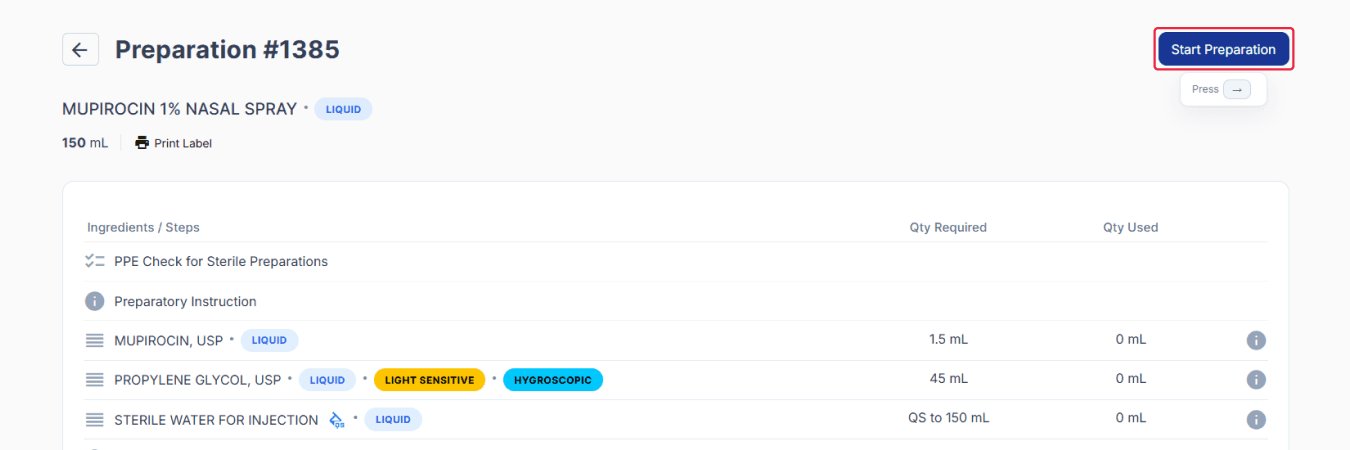
From the preparation page
After preparation is complete, click ‘✔ Sign Off’ to confirm the batch manufacture record has been checked and finalised.
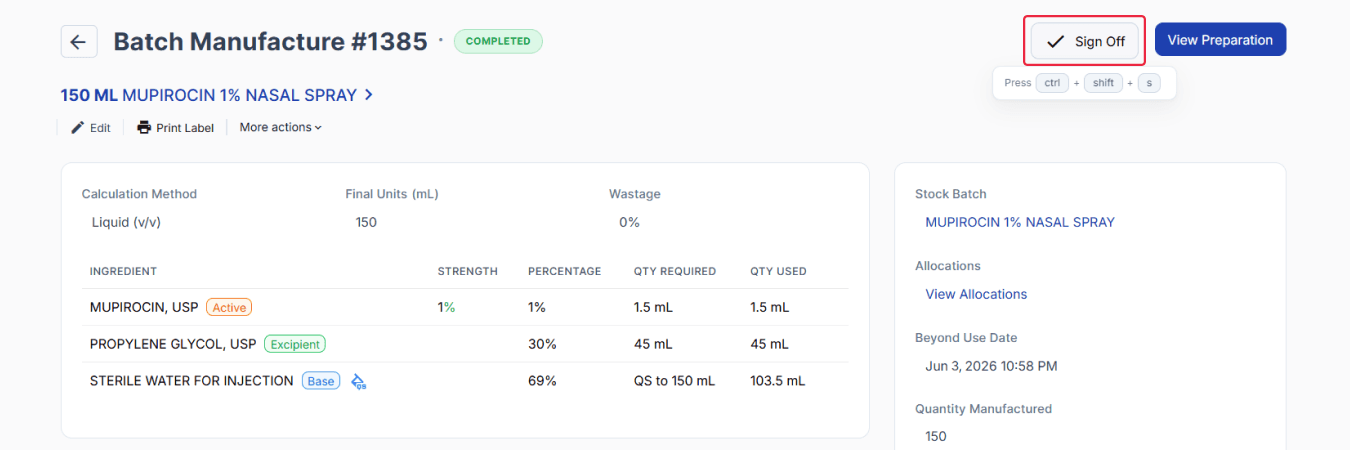
From the batch manufacture page
Then click ‘Approve & Open Batch’ to enable allocation to scripts.
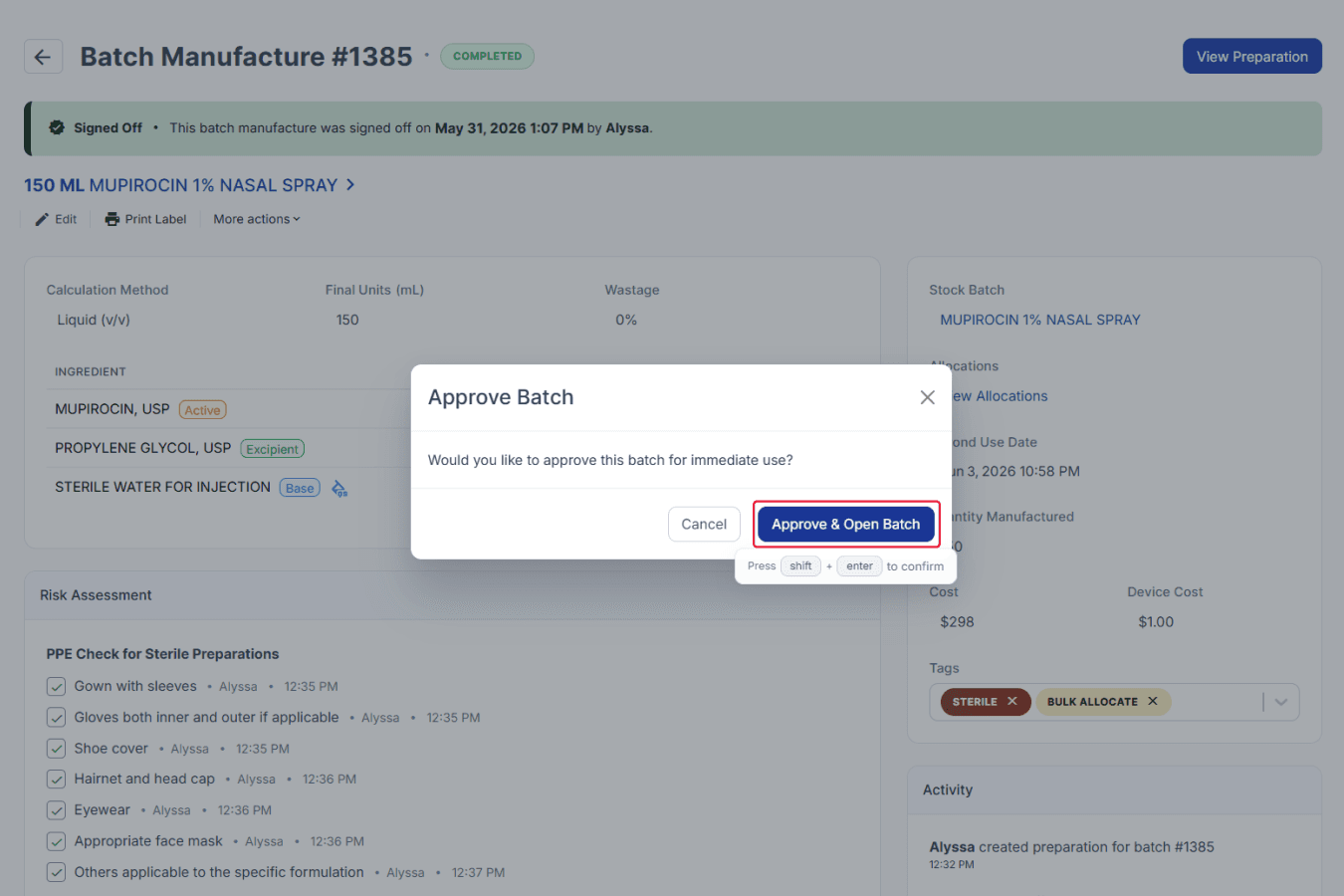
From the batch manufacture page
Step 3: Bulk allocate scripts and print labels
On the Edit Stock Batch page, click ‘View Allocations’ to see all unallocated scripts.
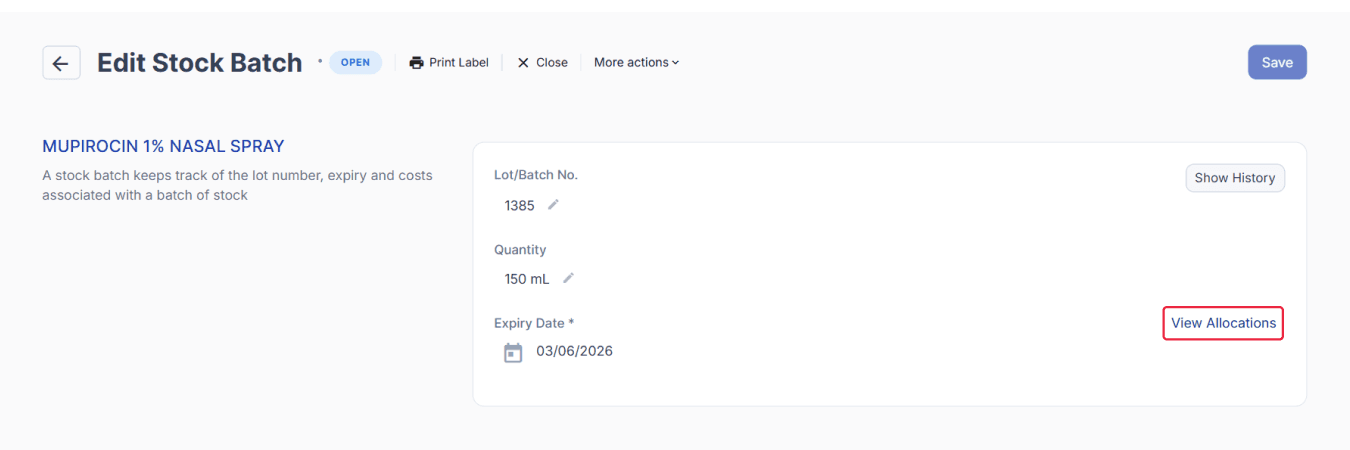
From the edit stock batch page
On the Stock Batch page, tick the uppermost checkbox to select all unallocated scripts, then click ‘Assign’ to bulk allocate the prepared batch manufacture record.
Once all stock on hand (SOH) has been allocated, additional scripts cannot be assigned to a batch.
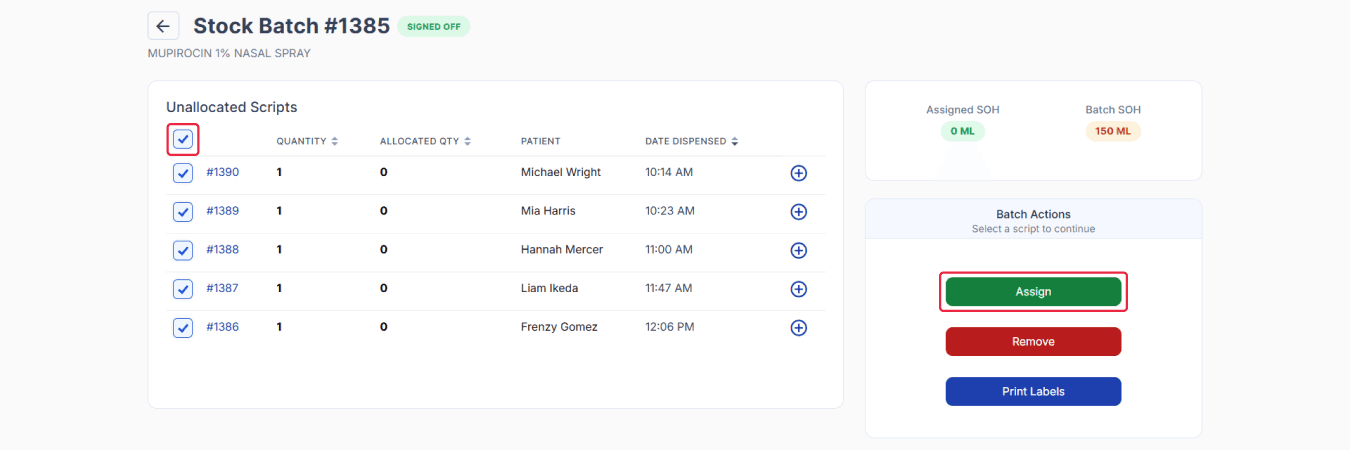
From the stock batch page
If you do not wish to select all, click the plus button on each desired dispensed script to be assigned.
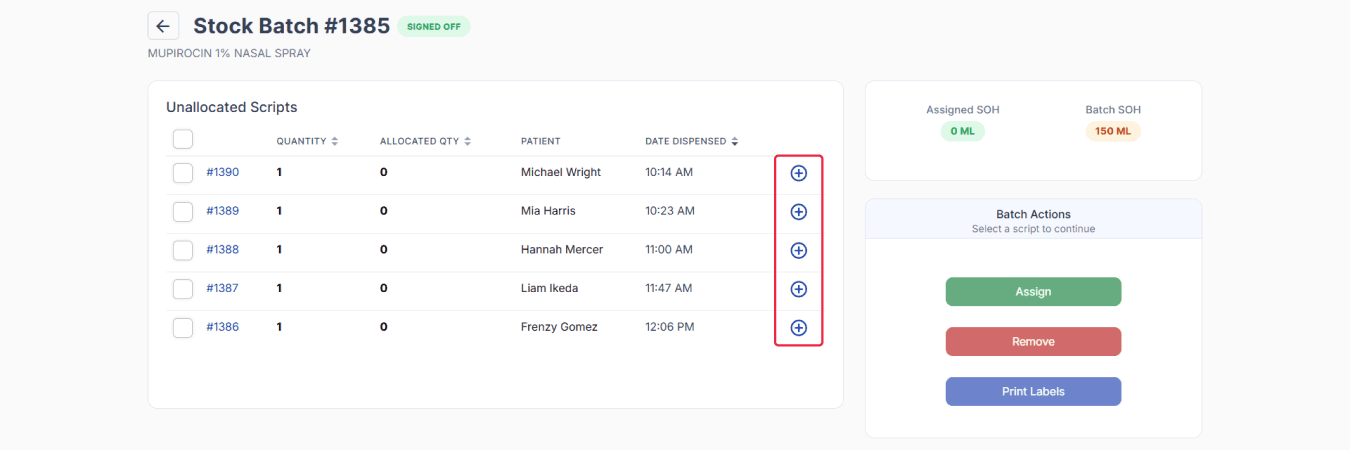
From the stock batch page
Leave the uppermost checkbox ticked, then click ‘Print Labels’ to bulk print the labels.
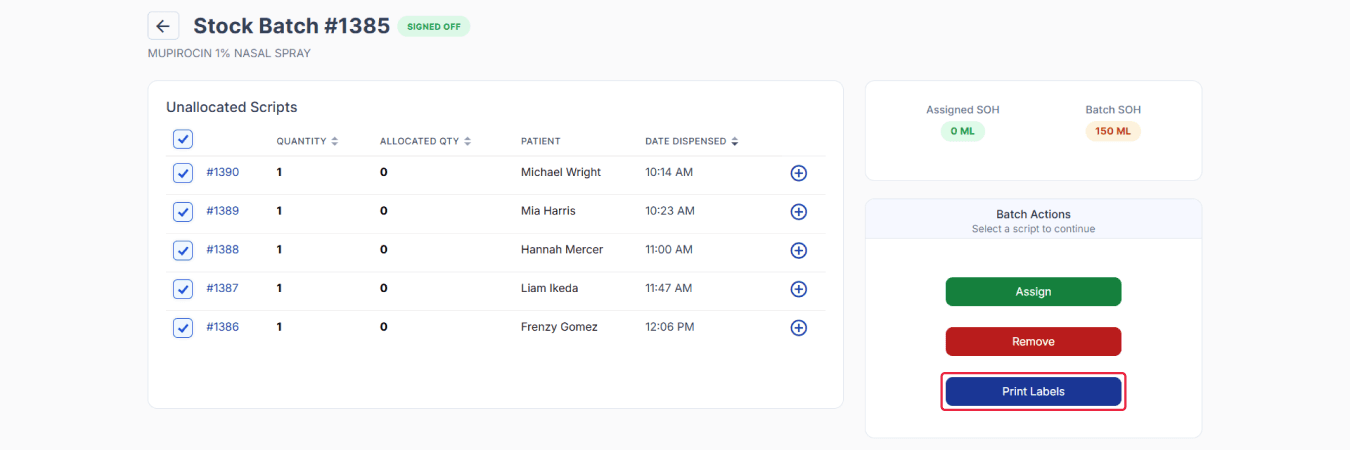
From the stock batch page
Select the required label variant, printer, and paper type settings from the drop-down menus. If needed, tick the checkbox to save the printer as the default device, then click ‘Print’.
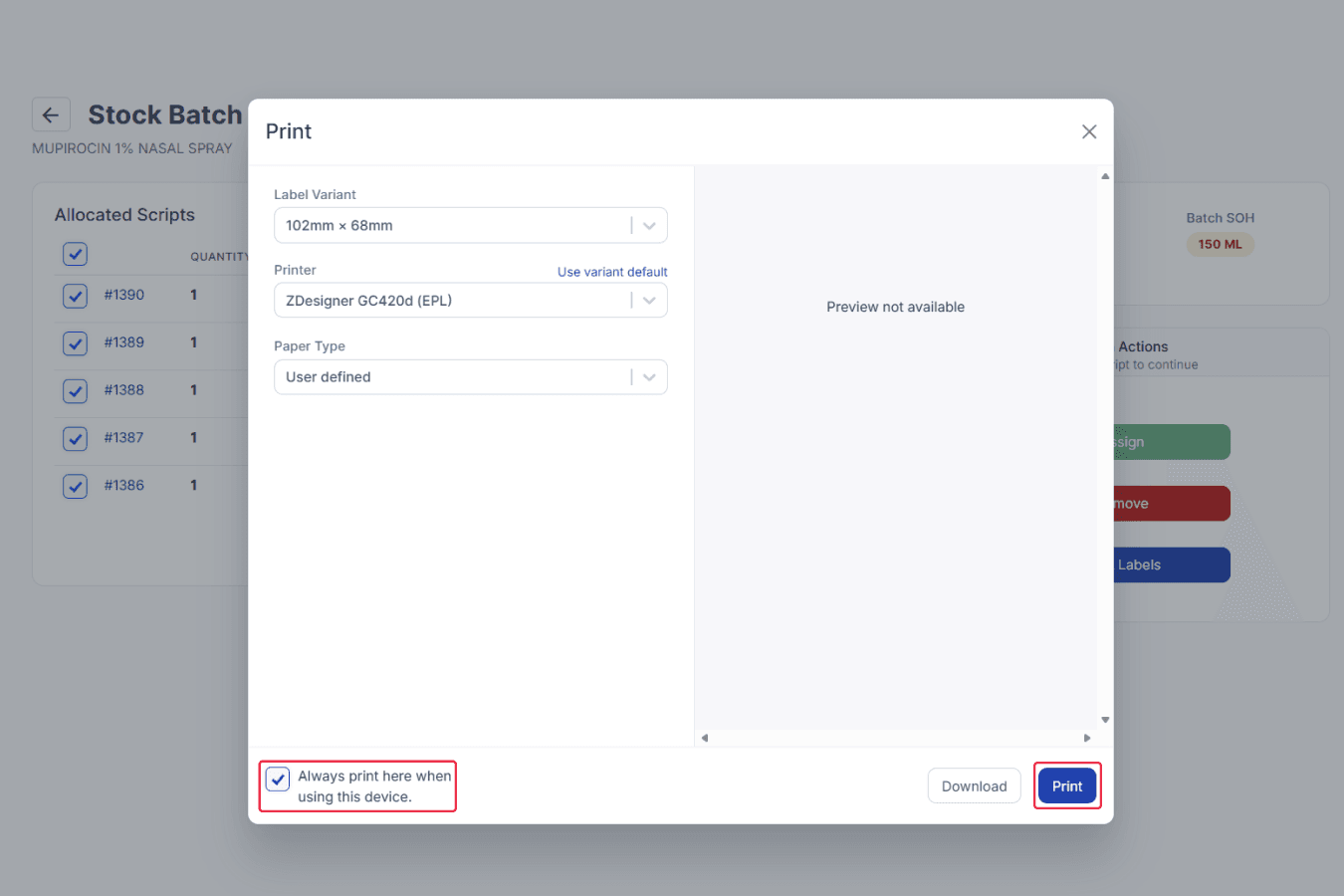
From the stock batch page
You may proceed to confirm the allocation of scripts by signing off individual dispense records.
Click on the Dispensed Record ID to open one of the allocated scripts.
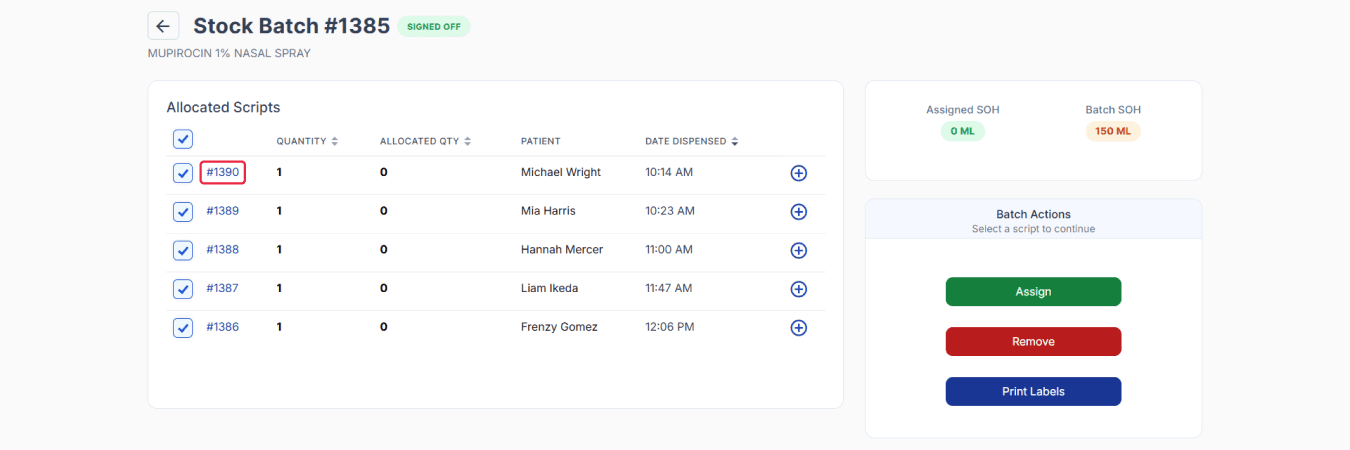
From the stock batch page
You will be redirected to the Dispensed Record page.
Step 4: Finalise dispensed records
Important note: Signing off the dispense record is the final confirmation step in the allocation process. It is important to carefully review all details before signing off, as this action confirms that the allocation is complete and accurate. Once the dispensed record has been signed off, the batch cannot be unassigned.
On the Dispensed Record page, the lot/batch no. and quantity are already confirmed, allocated, and ready for final checking.
Once checked, click ‘✔️ Sign Off’ to finalise the dispensed record.
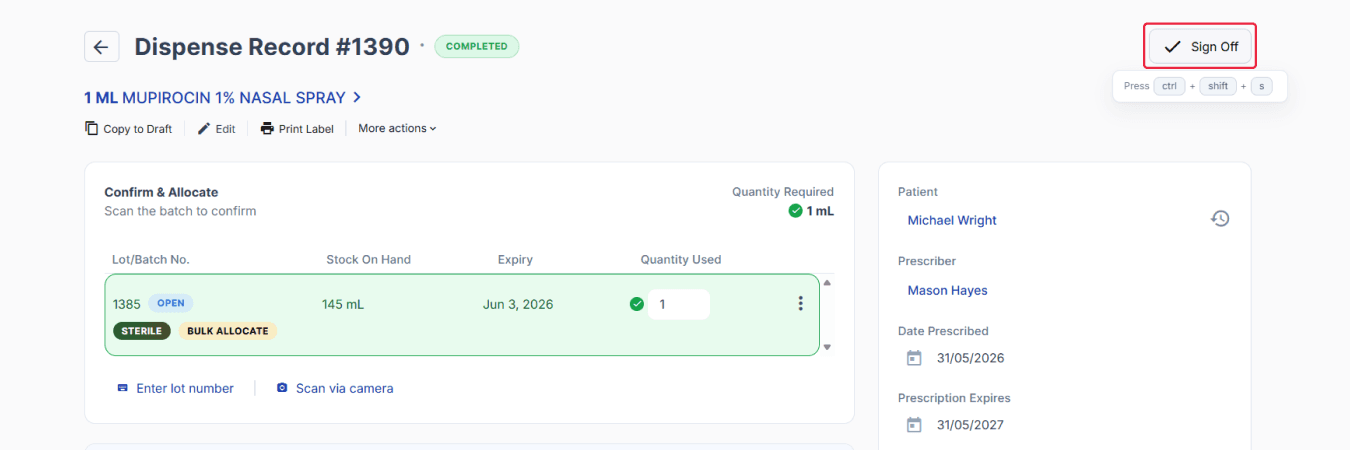
From the dispensed record page
Click the back arrow to return to the Stock Batch page and repeat the same process for the remaining allocated scripts.
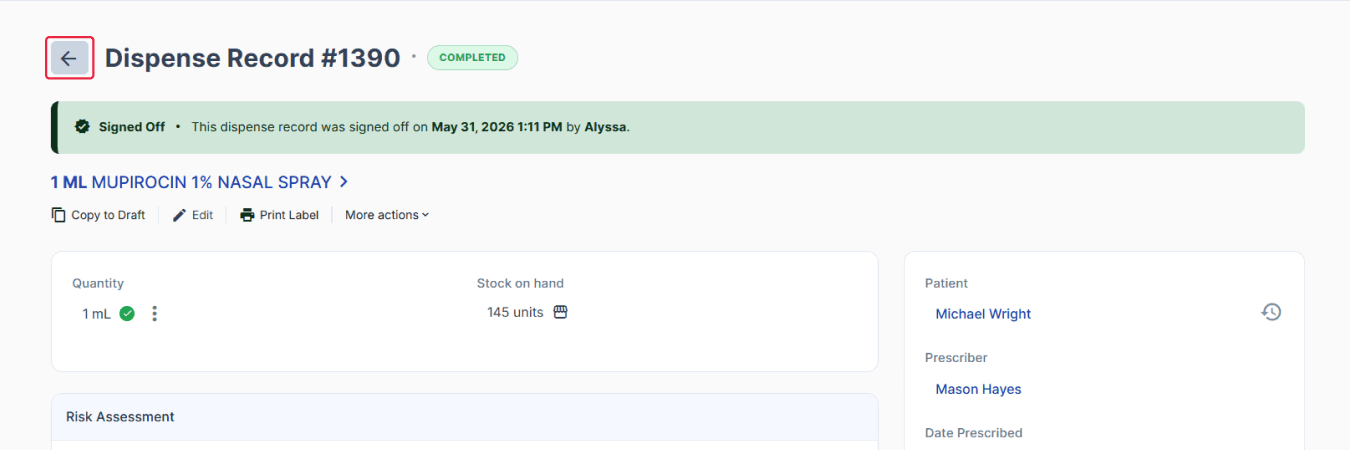
From the dispensed record page
Once all allocated scripts have been signed off on the Stock Batch page, they will move from Allocated Script to Signed Off.
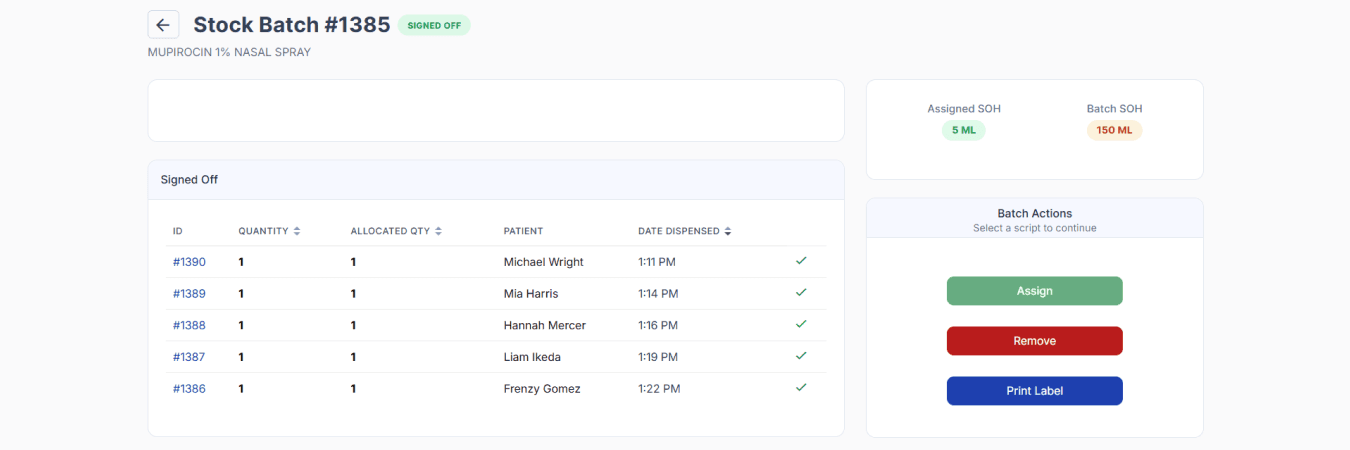
From the stock batch page
This workflow helps ensure that stock is only assigned after the compounded batch has been fully prepared and verified. For pharmacies that prefer stricter post-compounding allocation processes, this can provide an additional layer of verification before dispensing occurs. This also eradicates the need to manually confirm and allocate the internal batch stock to each dispensed record.
Setting up external batch stock bulk allocation
External batch stock refers to products supplied by an external manufacturer or supplier. It is commonly used when a product cannot be compounded in-house due to equipment, expertise, regulatory, or supply limitations.
Note: For this walkthrough, we will use a pre-existing external batch stock record with available stock on hand that has already been approved and opened to demonstrate how to allocate stock using the Bulk Allocation feature.
Because the product has already been manufactured and supplied, your pharmacy can review the batch record, bulk allocate scripts, and bulk print labels while maintaining full traceability between the batch allocation and the individual patient prescription.
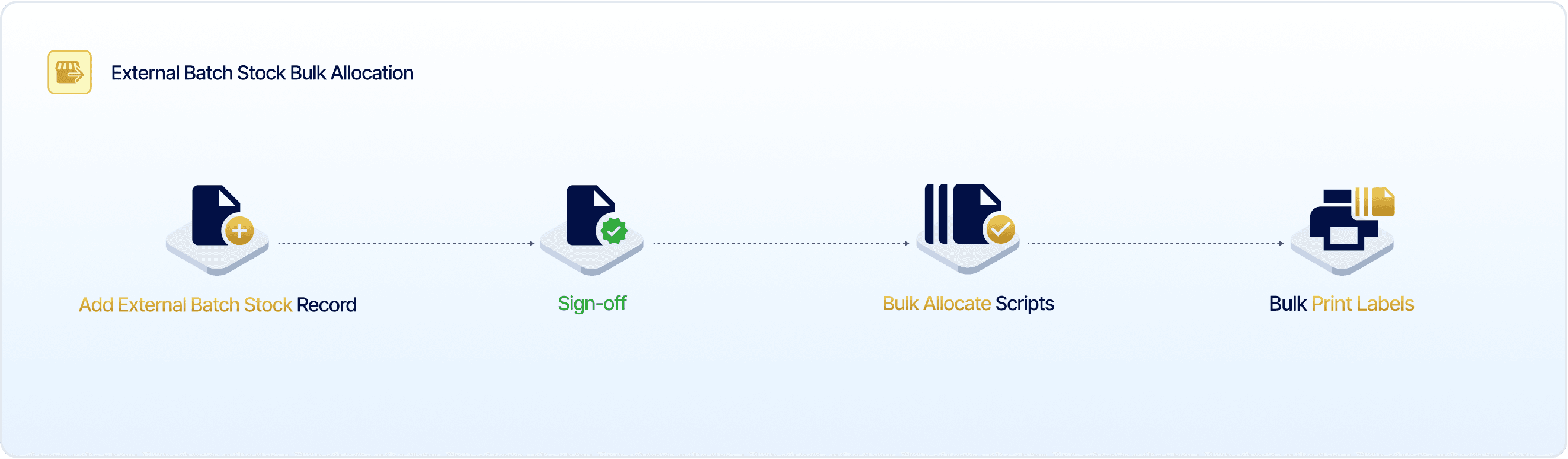
In this scenario, your pharmacy has received five identical prescriptions for Lidocaine 5% Topical Cream, which have been drafted and dispensed but not yet signed off. This allows you to bulk allocate the available stock before finalising the dispensed prescriptions.
Step 1: Review external batch stock record
It is important to ensure that the external batch stock has sufficient stock on hand before dispensing and allocation.
To learn more about how to manage external batch stock records, please refer to the External Batch Stock User Guide.
Go to ‘Settings’ and select ‘Drugs & Batch Stock’ from the menu. Click ‘More Filters’ to narrow down the list.
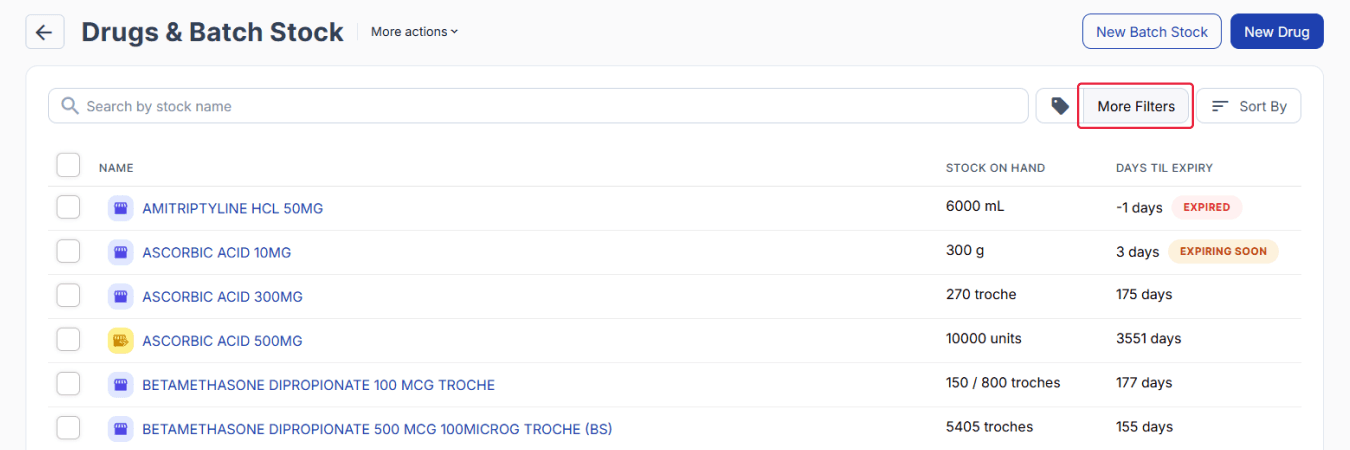
From the drugs & batch stock page
Select ‘External Batch Stock’ from the ‘Stock Type’ drop-down menu and select the ‘External Batch Stock’ for the scripts dispensed earlier.
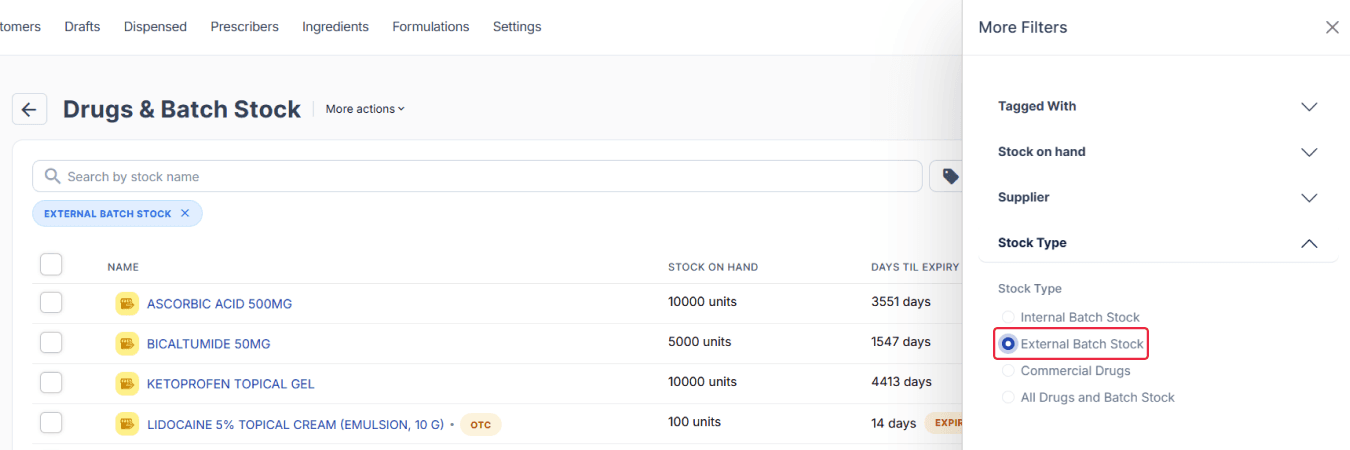
From the drugs & batch stock
Click on the ‘Lot/Batch No.’ to view an external batch stock record.
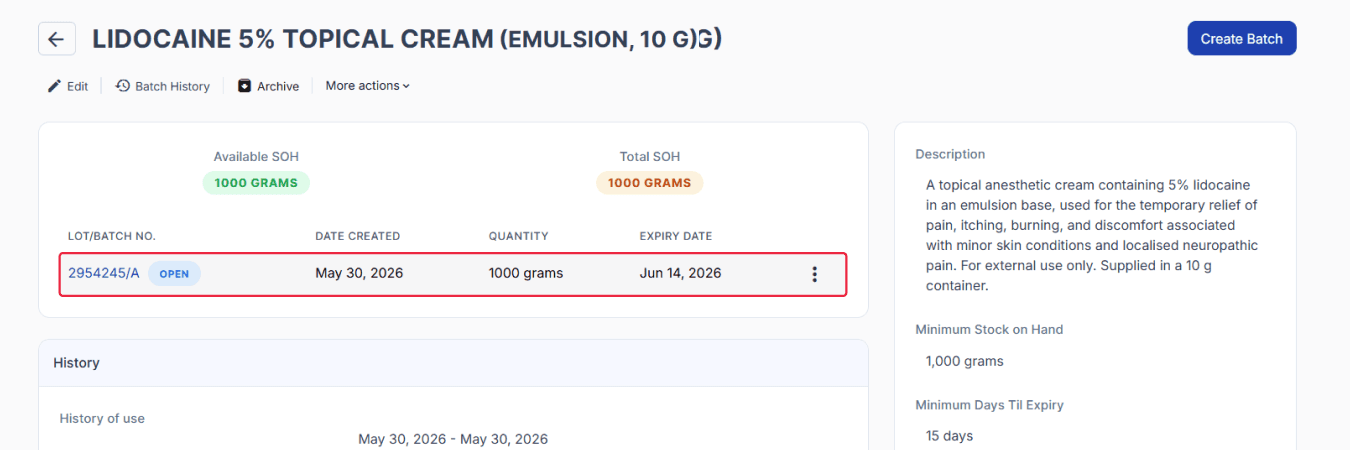
From the external batch stock page
To get started on bulk allocating the stock for the five identical scripts and printing labels, click ‘View Allocations’.
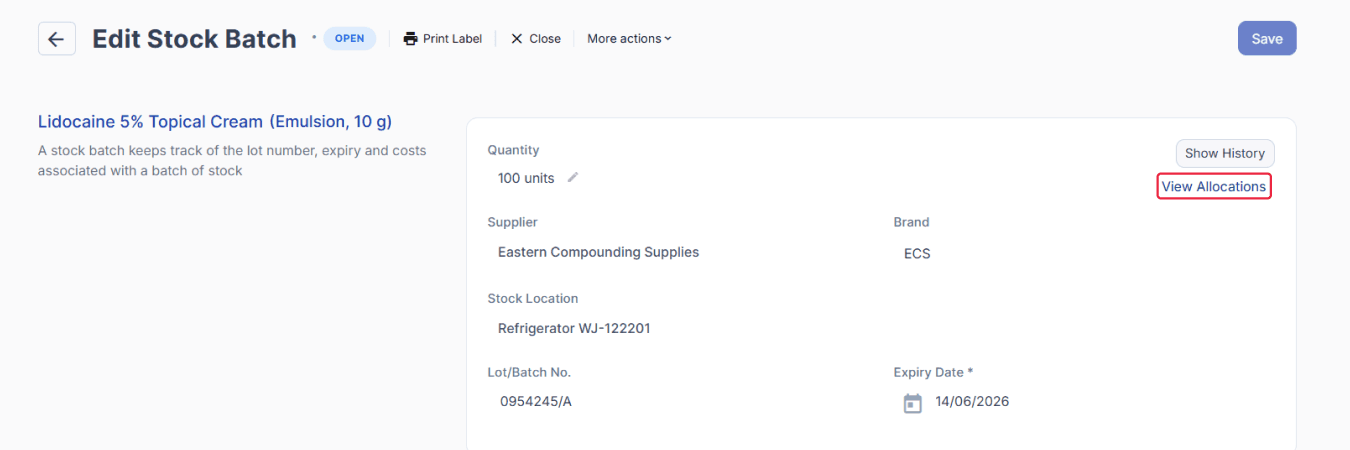
From the edit stock batch page
You will be redirected to the Stock Batch page, where you can bulk allocate and print labels.
Step 2: Bulk allocate an external batch stock
On the Stock Batch page, tick the uppermost checkbox to select all unallocated scripts, then click ‘Assign’ to bulk allocate the external stock batch.
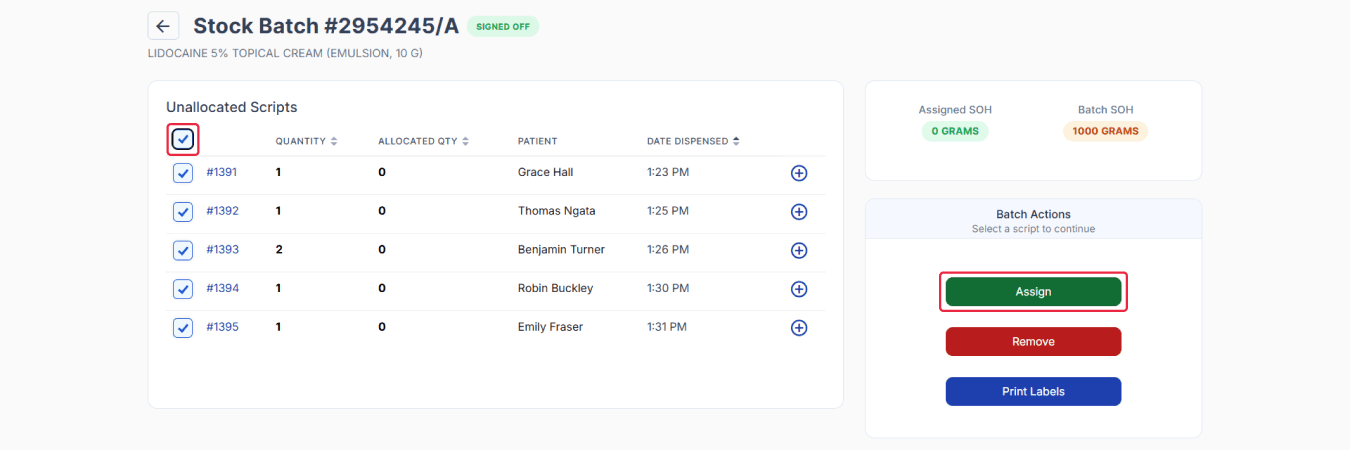
From the stock batch page
If you do not wish to select all, click the plus button on each desired dispensed script to be assigned.
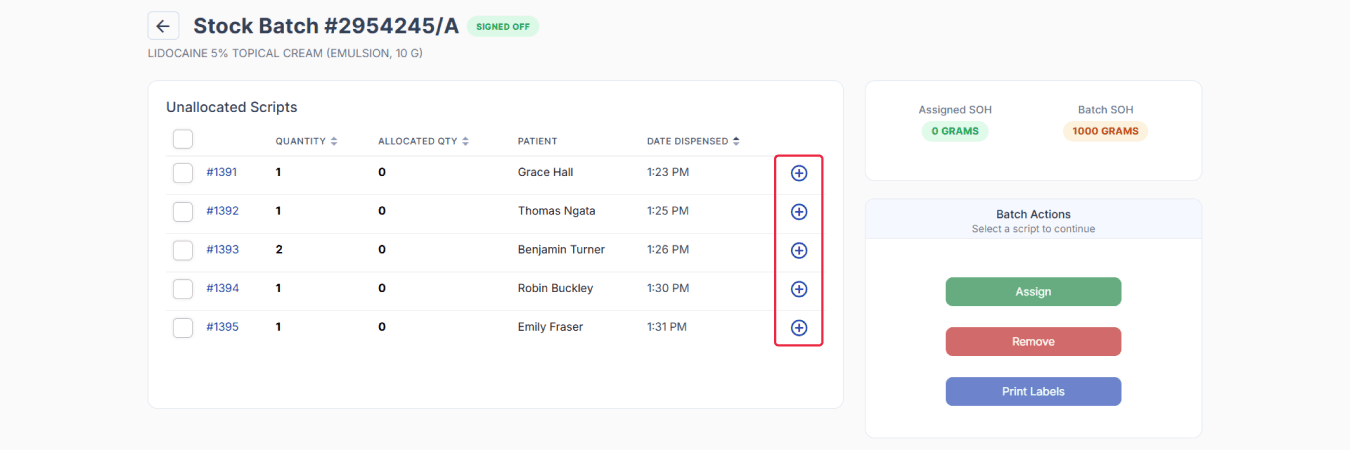
From the stock batch page
Note: No additional scripts may be assigned to a batch once its stock on hand (SOH) has been fully allocated.
Confirm the external batch stock using either: scan via scanner/camera or manually enter a lot number option.
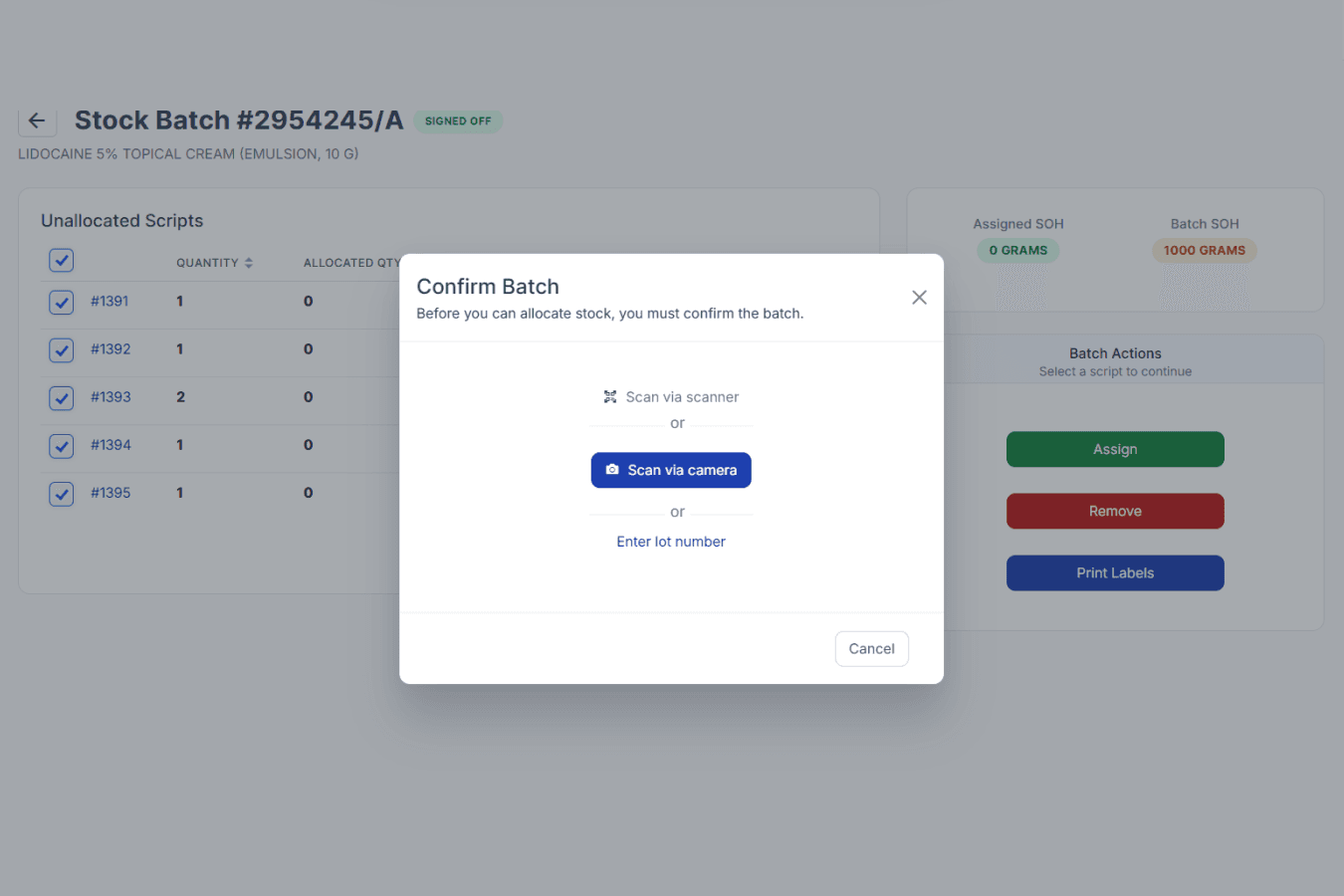
From the stock batch page
Any device with a camera can be used as a scanner in your workspace.
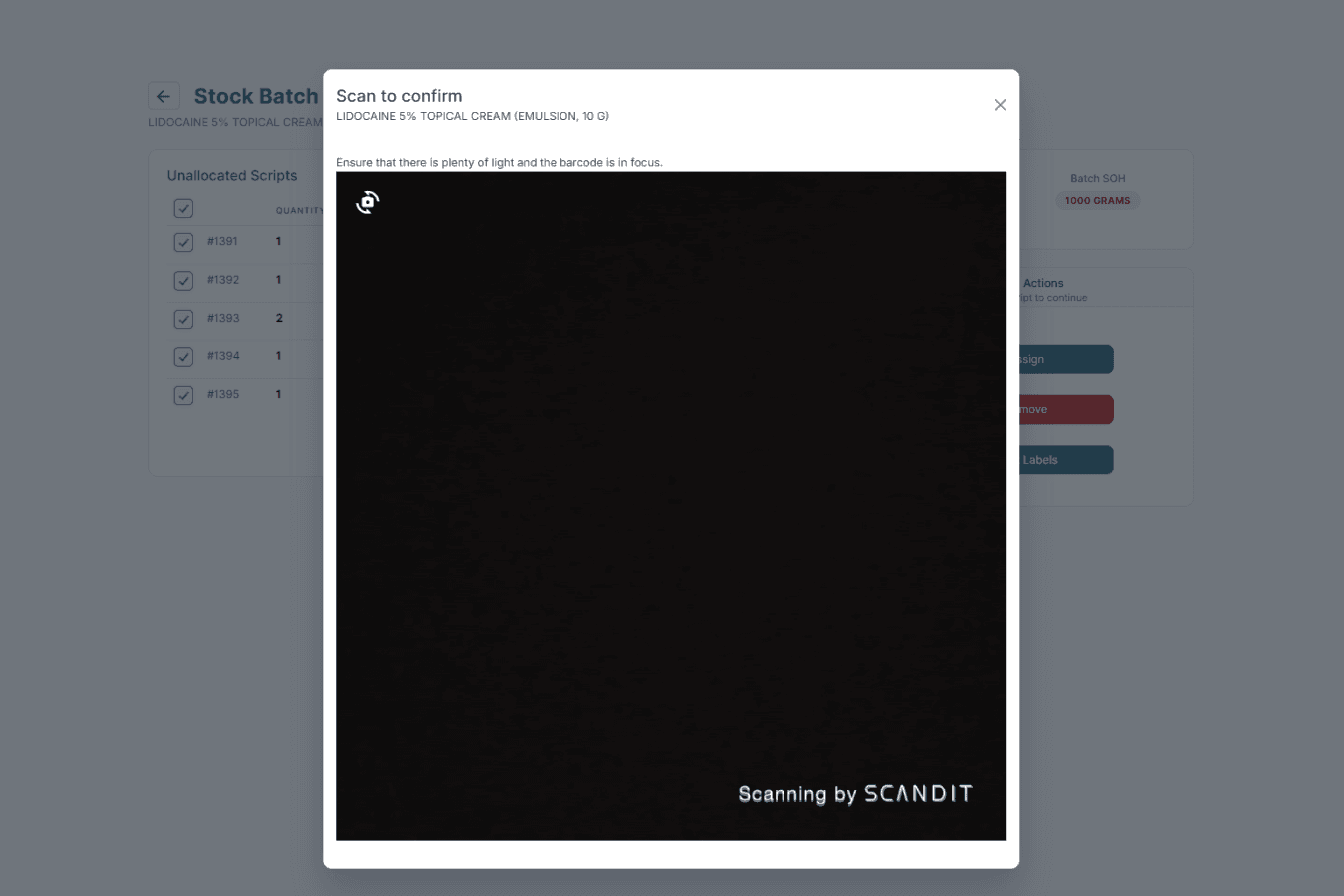
From the stock batch page
If entering the lot number manually, type the lot number into the field.
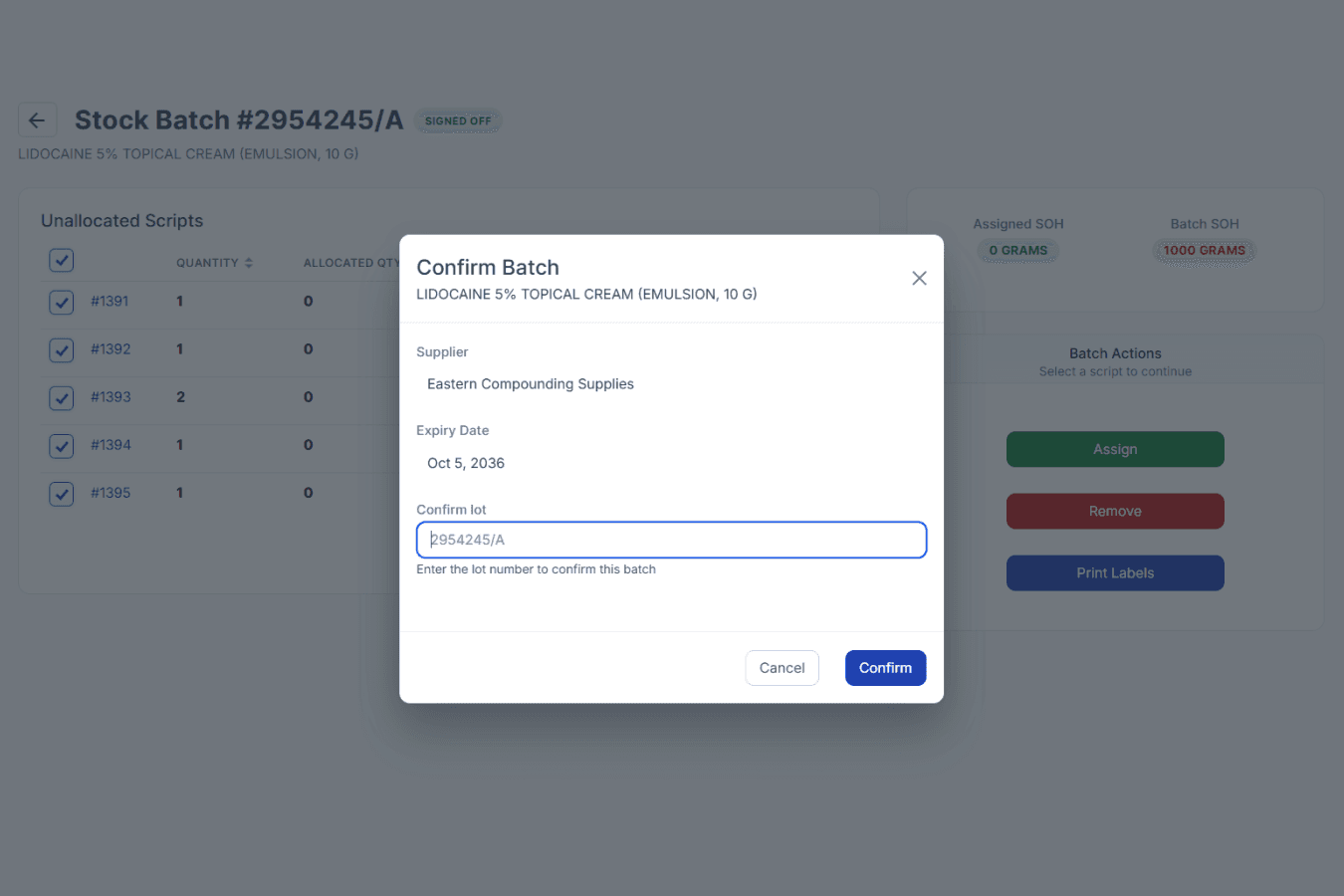
From the stock batch page
The system will automatically confirm the batch once it is scanned or manually entered. This serves as an additional check to ensure the correct product is being dispensed.
Step 3: Print labels and review scripts
On the Stock Batch page, leave the uppermost checkbox ticked, then click ‘Print Labels’ to bulk print the labels.
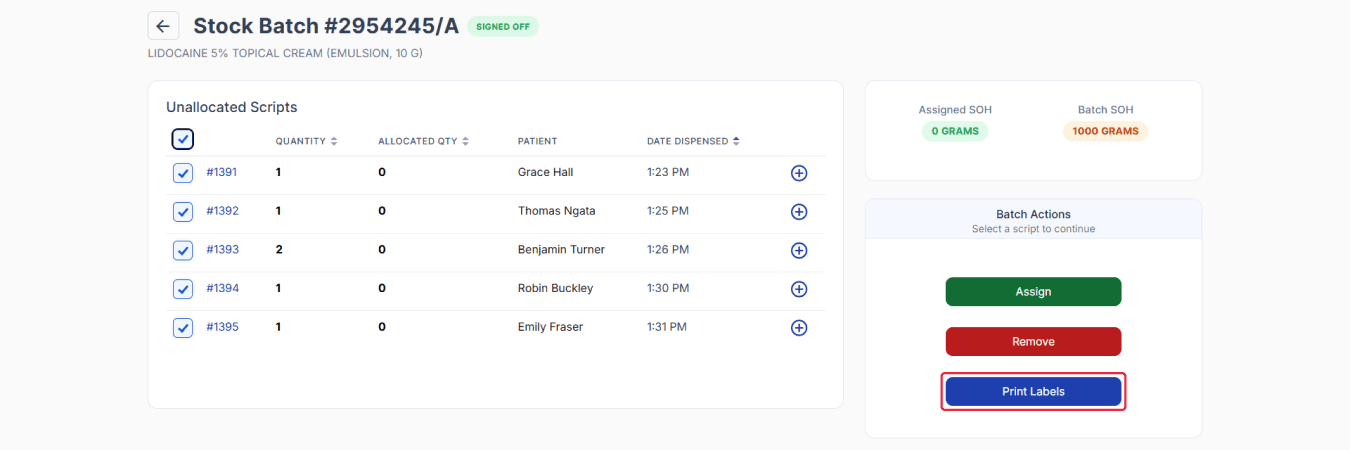
From the stock batch page
Select the required label variant, printer, and paper type settings from the drop-down menus. If needed, tick the checkbox to save the printer as the default device, then click ‘Print’.
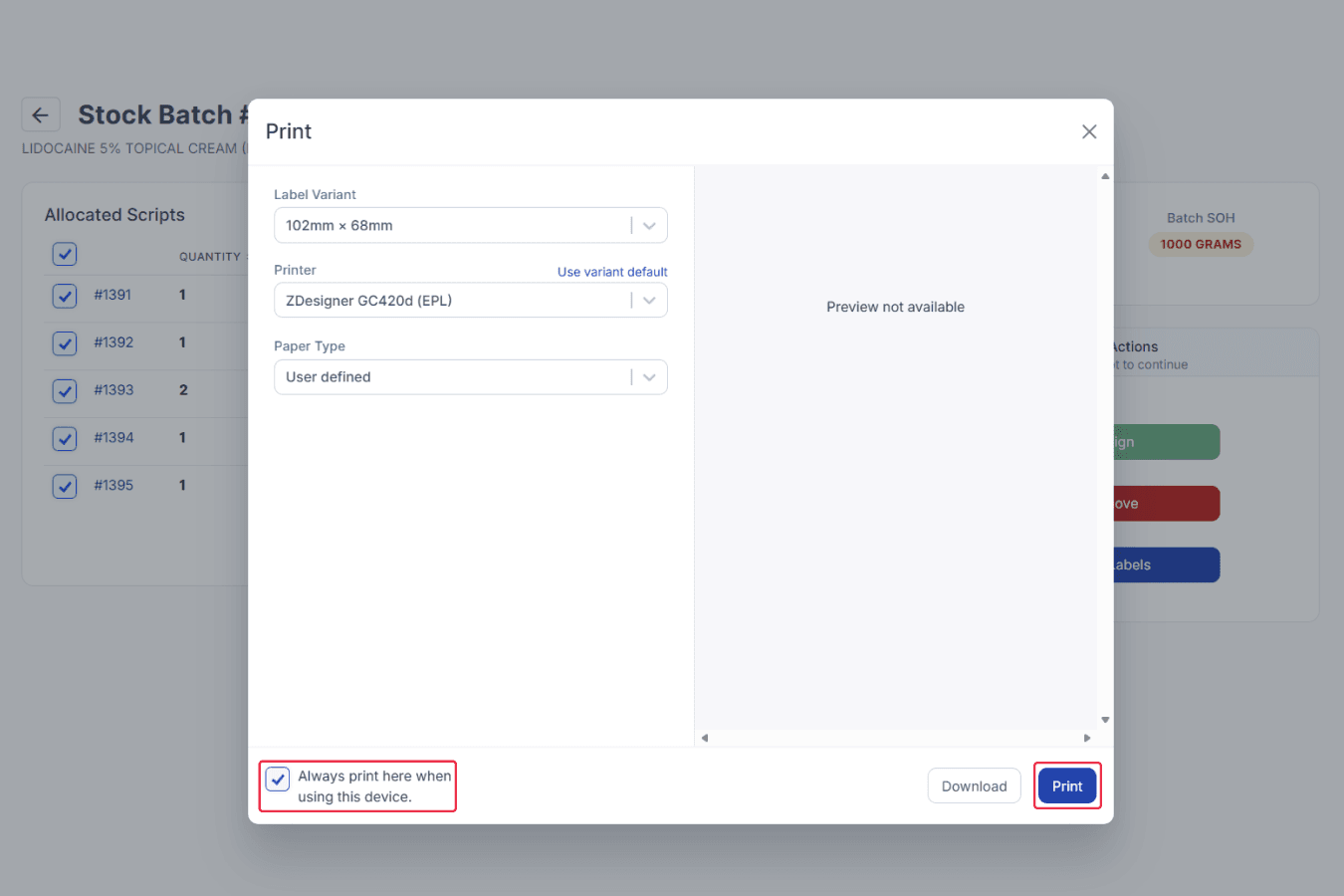
From the stock batch page
You may proceed to confirm the allocation of scripts by signing off individual dispense records.
Click ‘Dispensed Record ID’ to open one of the allocated scripts.
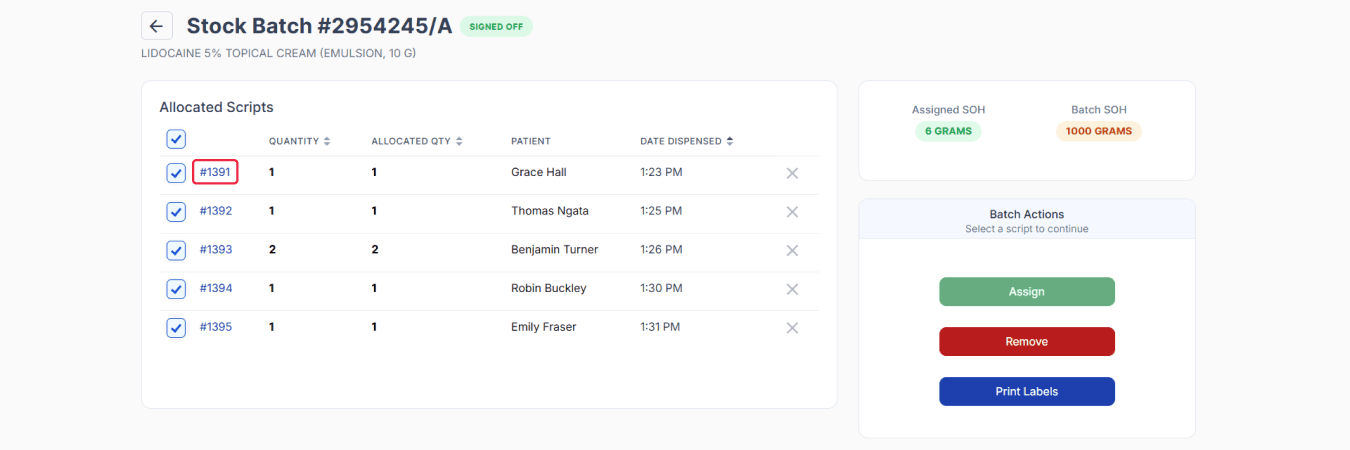
From the stock batch page
You will be redirected to the Dispensed Record page.
Step 4: Finalise the dispensed records
Important note: Signing off the dispense record is the final confirmation step in the allocation process. It is important to carefully review all details before signing off, as this action confirms that the allocation is complete and accurate. Once the dispensed record has been signed off, the batch cannot be unassigned.
On the Dispensed Record page, the lot/batch no. and quantity are already confirmed, allocated, and ready for final checking.
Once checked, click ‘✔️ Sign Off’ to finalise the dispensed record.
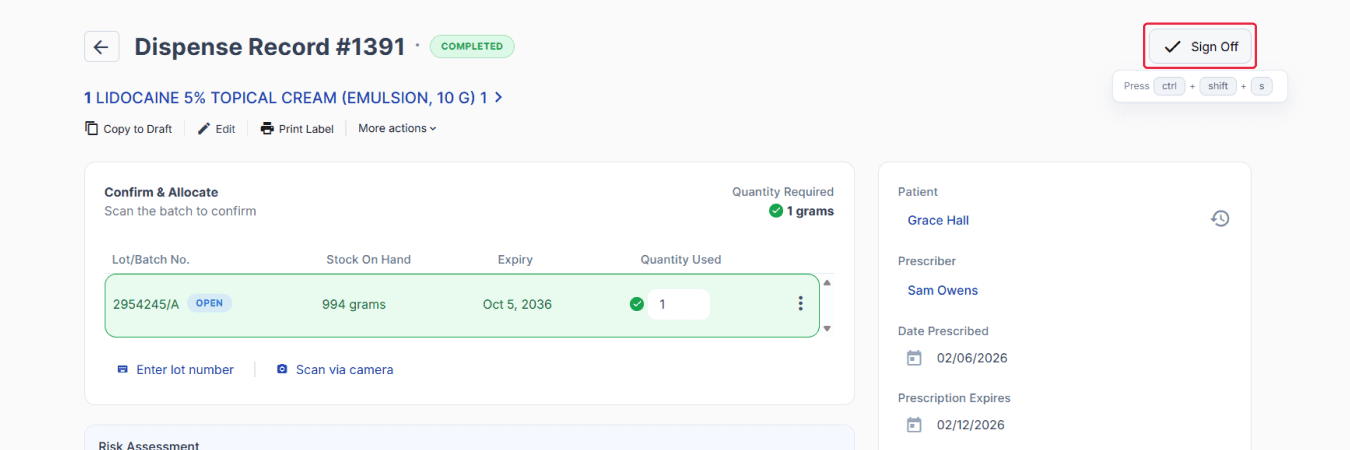
From the dispensed record page
Click the back arrow to return to the Stock Batch page and repeat the same process for the remaining allocated scripts.
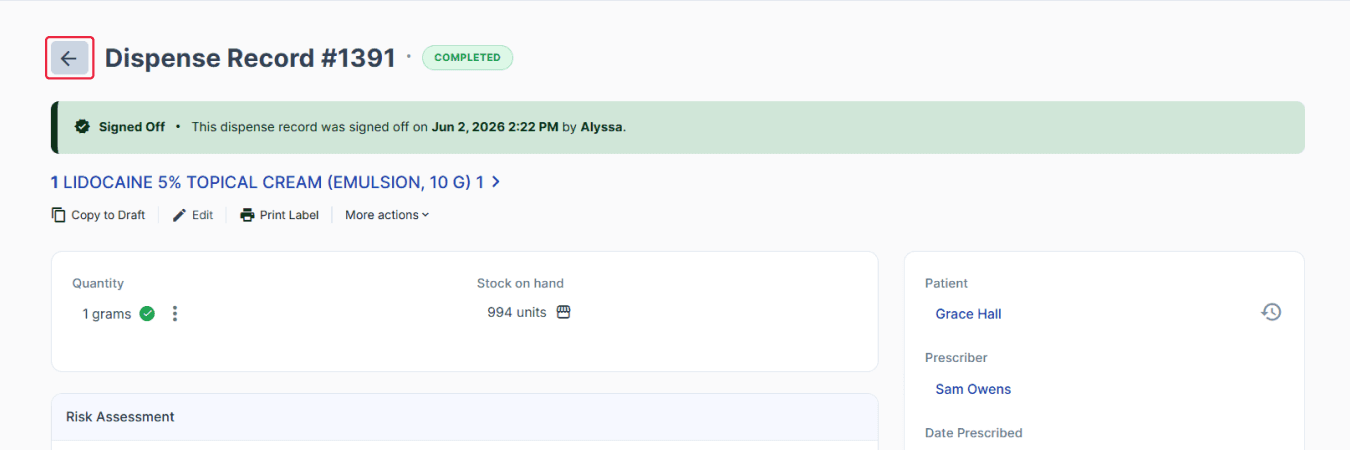
From the dispensed record page
Once all allocated scripts have been signed off on the Stock Batch page, they will move from Allocated Scripts to Signed Off.
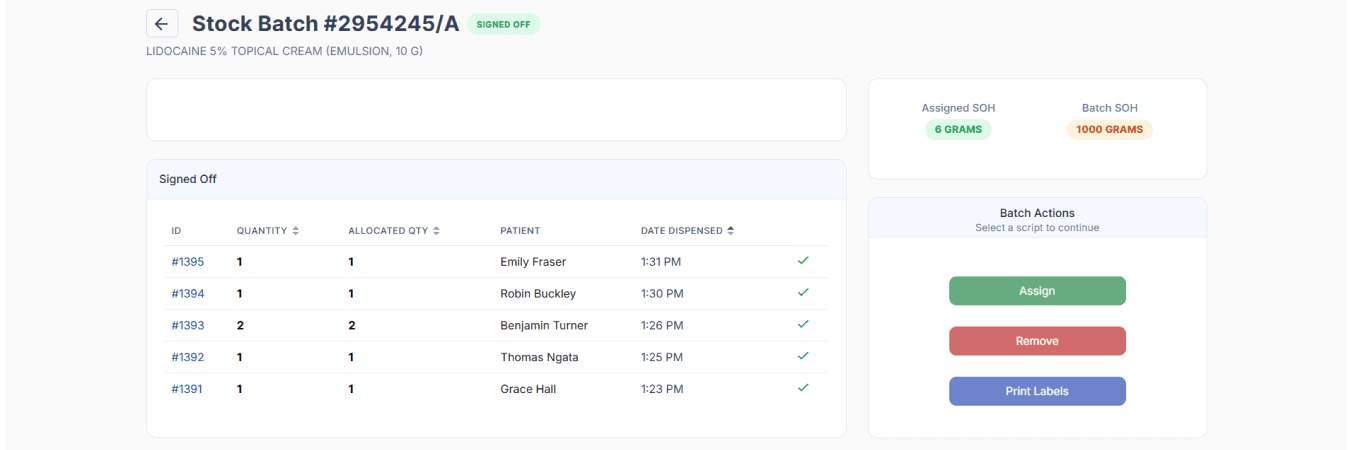
From the stock batch page
Bulk allocation for external batch stock helps pharmacies manage supplier-provided stock more efficiently while maintaining clear traceability across multiple scripts.
Because stock on hand is already available before dispensing, pharmacies can bulk allocate and confirm stock quickly without individually compounding batches or assigning external batch stock to each dispensed record.
Conclusion
Compound Direct’s Bulk Allocation helps pharmacies manage internal and external batch stock more efficiently while supporting clear stock control and traceability.
For internal batch stock, the workflow ensures scripts are allocated only after preparation and sign-off. For external batch stock, it allows supplier-provided batches to be assigned across multiple scripts while maintaining consistent lot tracking.
By reducing repetitive allocation steps and improving visibility between batches and patients, Compound Direct helps your pharmacy maintain a more controlled and scalable dispensing workflow.
FAQs
Will bulk allocation affect stock availability?
Yes. Once stock is allocated, the available quantity for that batch is reduced accordingly so inventory records remain up to date.
Can I allocate part of a batch instead of the full amount?
Yes. A partial quantity can be allocated provided enough stock is available.
What happens if there is not enough stock available?
If there is insufficient stock in the selected batch, only the available quantity can be allocated. The remaining quantity must be allocated later or from another batch.
Why can’t I allocate an internal batch before sign-off?
When conditional allocation is turned off, internal batch stock must be compounded, signed off, and approved before it can be allocated to scripts.
Does bulk allocation help with traceability?
Yes. Because stock is allocated by batch, the system maintains clearer inventory tracking and stronger batch traceability.
Can allocated stock be changed later?
This depends on the allocation status and your workflow. Allocated scripts can still be edited or unallocated, while signed-off scripts cannot.
Why am I unable to allocate a batch?
Common reasons include:
- There is no available stock in the batch
- The requested quantity exceeds the available amount
- The scripts have already been signed off
- The internal batch has not yet been approved for allocation
How do I know which batch to allocate?
Select the batch that matches the required item and contains sufficient available stock. Your internal process may also guide batch selection based on operational or traceability requirements.
Is bulk allocation the same as reserving stock?
Not always. Allocation usually means stock has been assigned to a specific script or requirement. A reservation may refer to holding stock before final allocation, depending on your workflow.
All names and medical data shown in software screenshots are fictional and for demonstration purposes only. These figures represent fictional persons; any resemblance to real individuals is purely coincidental. Use of existing fictional names is for illustrative purposes and does not imply affiliation or endorsement.