
Finalising formulation data after import

When transferring from another Compounding Software company we offer a data migration process. The way each software product uses data is unique and therefore there is a process to convert the data in order for it to be used accurately within formulation calculations in Compound Direct.
Compound Direct is a strength first system, meaning the software deals directly with the strength required for therapeutically accurate prescriptions. Most other compounding software programs use weight or quantity first approaches. Numerous changes need to be made to formulations post the migration to ensure accurate data conversion.
Converting formulations
Step 1: Select the relevant formulation and click “begin import".
Step 2: If required, select the appropriate Dosage Form from the dropdown menu.
Step 3: If required, determine and enter desired Wastage Percent. This would be derived by contrasting the therapeutic strength within the formula name to the weight required. You can also cross reference this with the total sum of all ingredients and the typical wastage expected for this dosage form.
Step 4: If required, select the Ingredient Role for each ingredient in the formulation. This is prompted by within the “Issues” section at the bottom of the page.
Step 5: If required (capsules only), enter the Packing Statistics. The packing statistics will be applied to ALL historical and current batches.
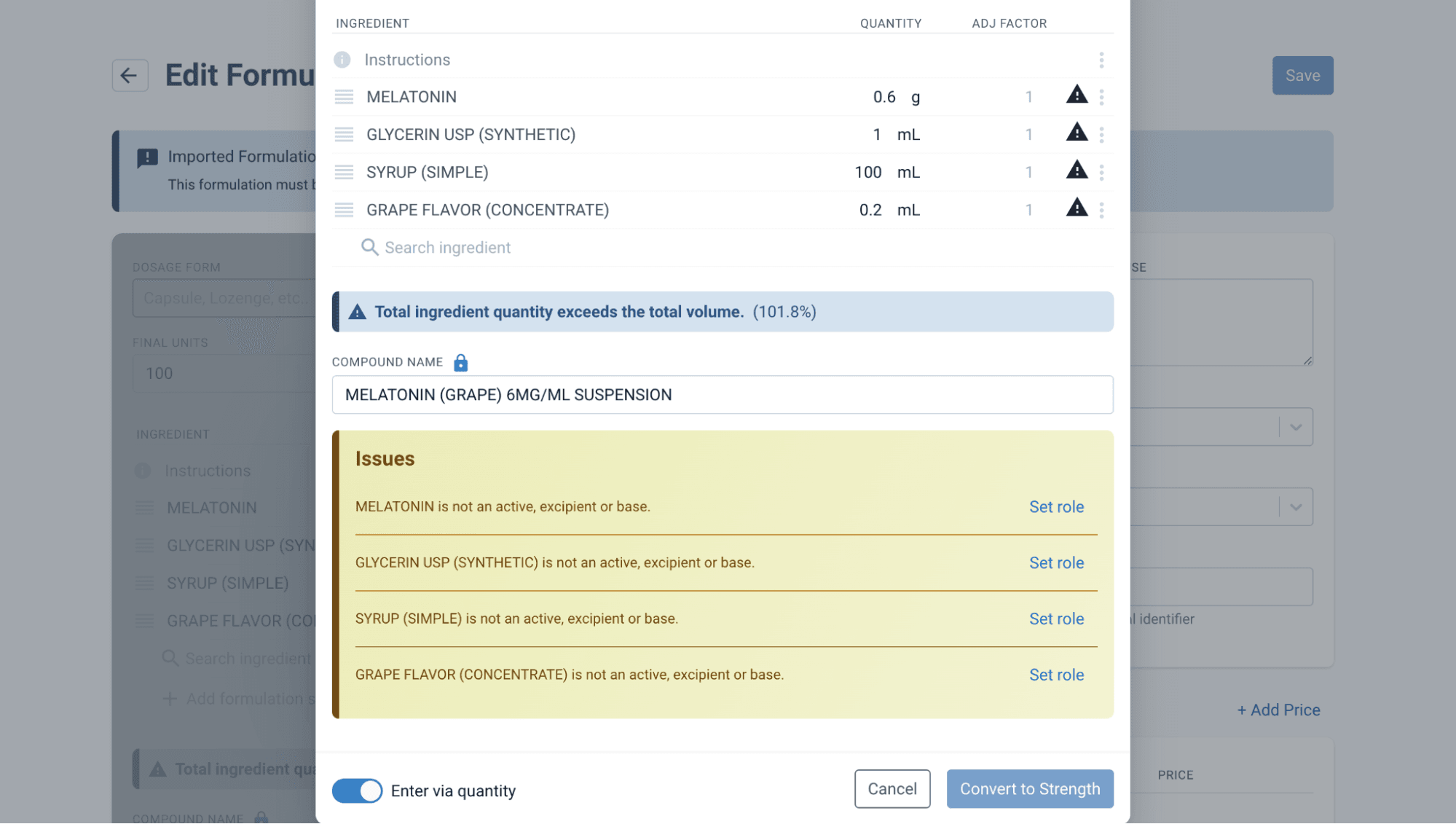
From the edit formulation page
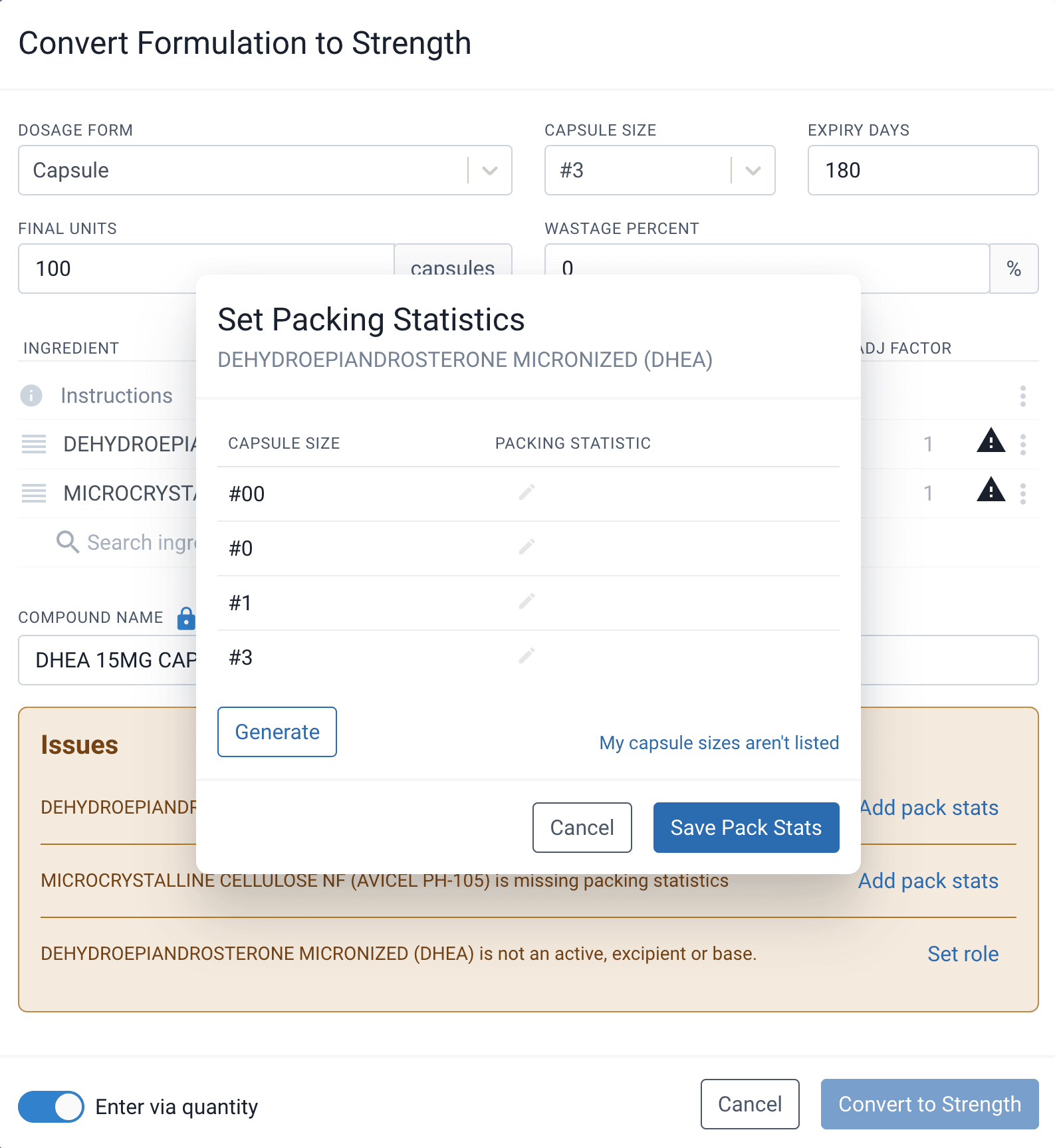
From the edit formulation page
Work through each ingredient in a linear fashion by selecting “Set role” next to each ingredient listed.
It is important that these roles are selected correctly, as the software treats each role separately when calculating the final quantities needed. Ingredients can perform three different functions within a formulation: active, excipient, or base. Active ingredients are the prescribed therapeutic ingredient and are provided in their prescribed strength, either mg, IU, or mcg. Excipients are inactive ingredients that aid all ingredients within the formulation to mix correctly, form correctly, or provide flavour. Excipients are provided as a percentage of the final units. Base ingredients fill the remaining quantity not taken up by the base or excipient.
Step 6: Select “Convert to Strength”
Complete a comparison between the strength specified in the formulation name and the strength displayed in the formulation. Make the appropriate strength adjustments to each ingredient, as in some cases, the conversion will not bring across the prescribed strength. Hover over the information icon to check that the conversion has carried over correctly.
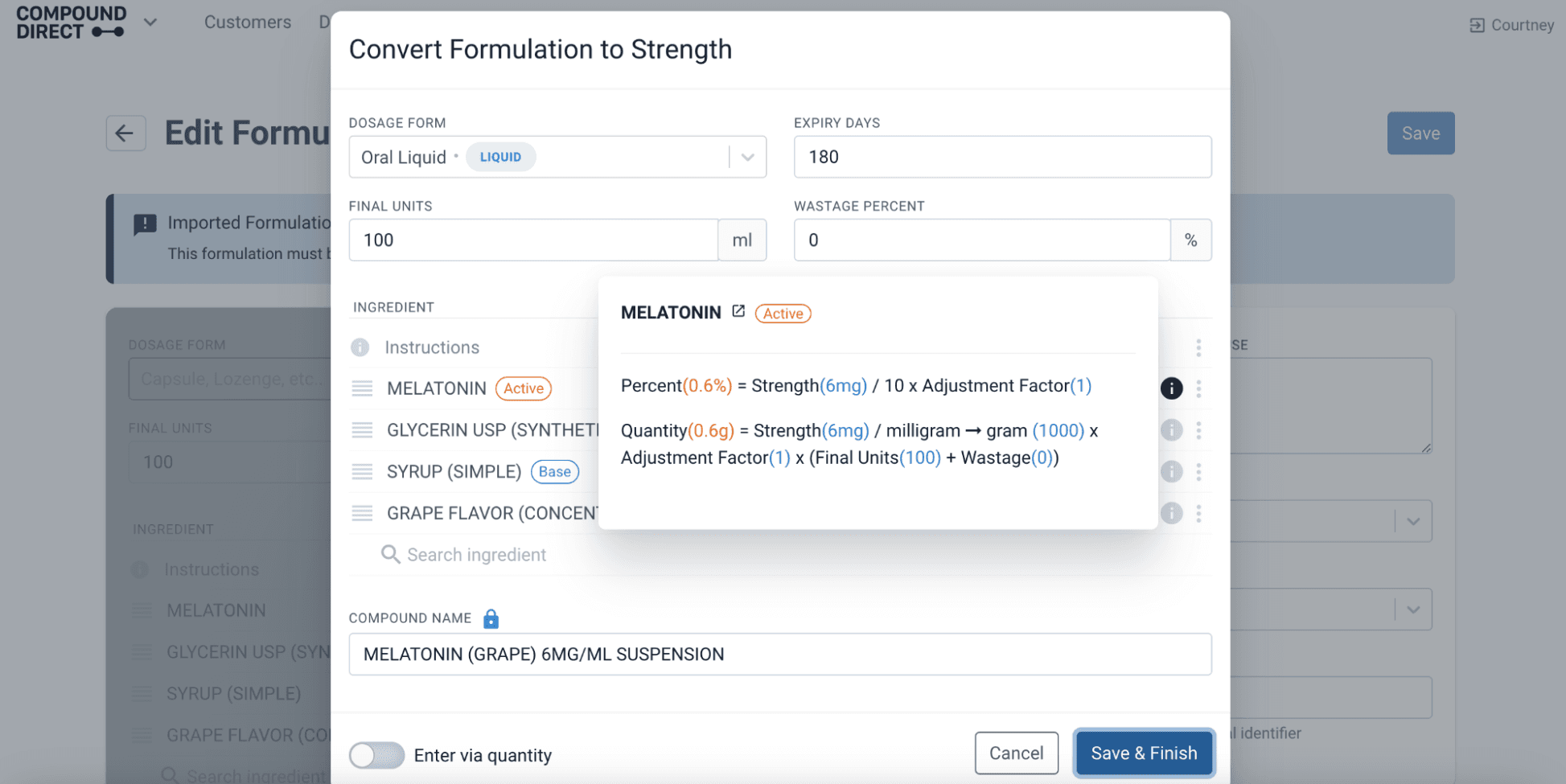
Step 7: Do not “save and finish”
Complete any additional issues prompted by the Software. Additional issues can include a variety of scenarios. You will be prompted if ingredients quantities changed significantly or, if adjustment factors need to be entered.
Check the strength of each ingredient and compare it to the formulation name which should also contain the strength. Ensure that the strength of each ingredient matches the formulation name. It should match exactly.
Once you are sure they match, you can press "save and finish".
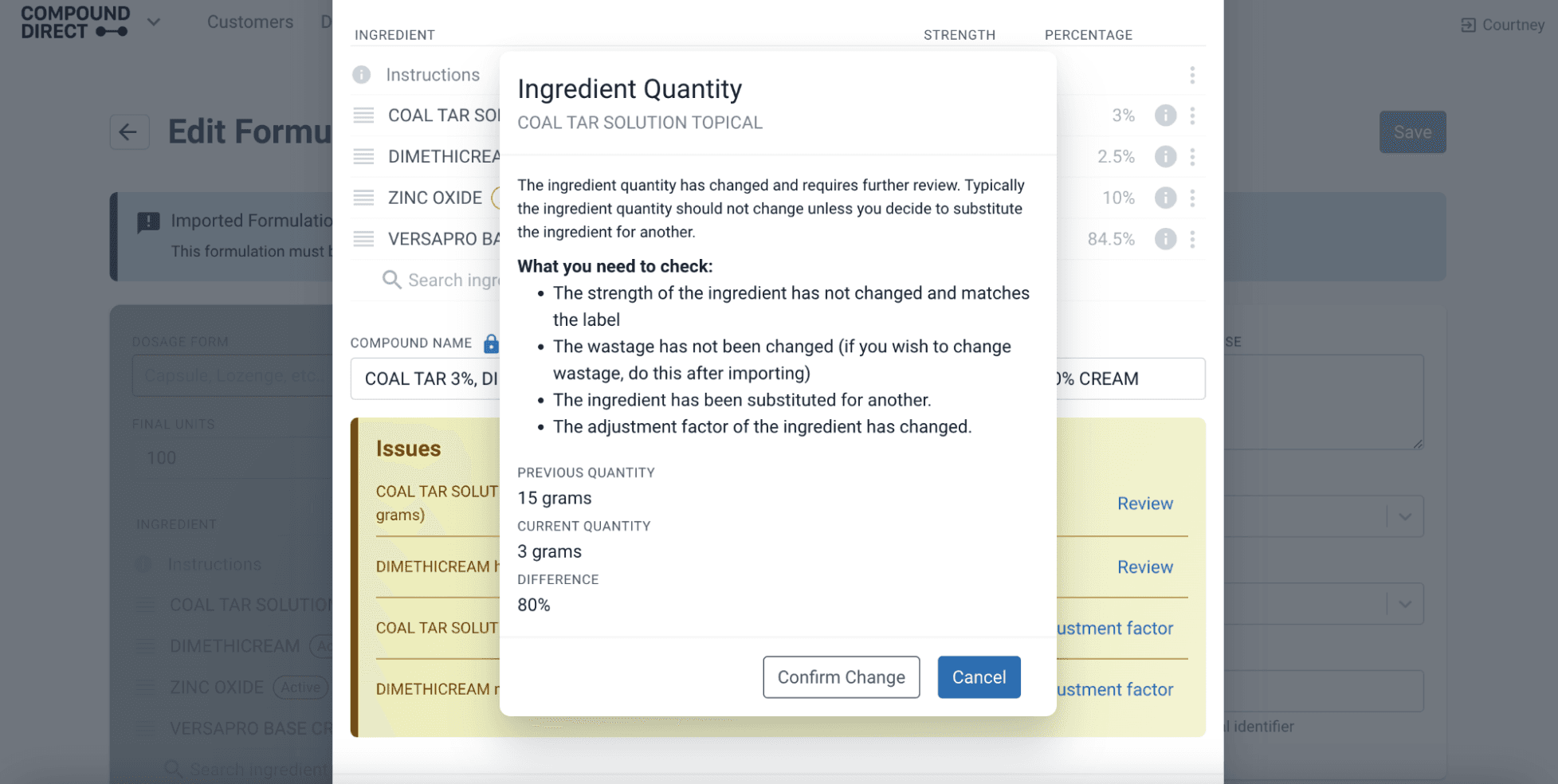
From the edit formulation page
Converting formulations with aliquots/dilutions
When converting formulations that have a dilution/aliquot as an ingredient, this needs to be dealt with separately. Once all issues have been resolved, the formulation has been converted to strength, at this point, dilutions may appear with the incorrect strength due to the system not knowing that they are diluted. It should be easy to determine if they are the incorrect strength by comparing the ingredient strength with the formulation name.
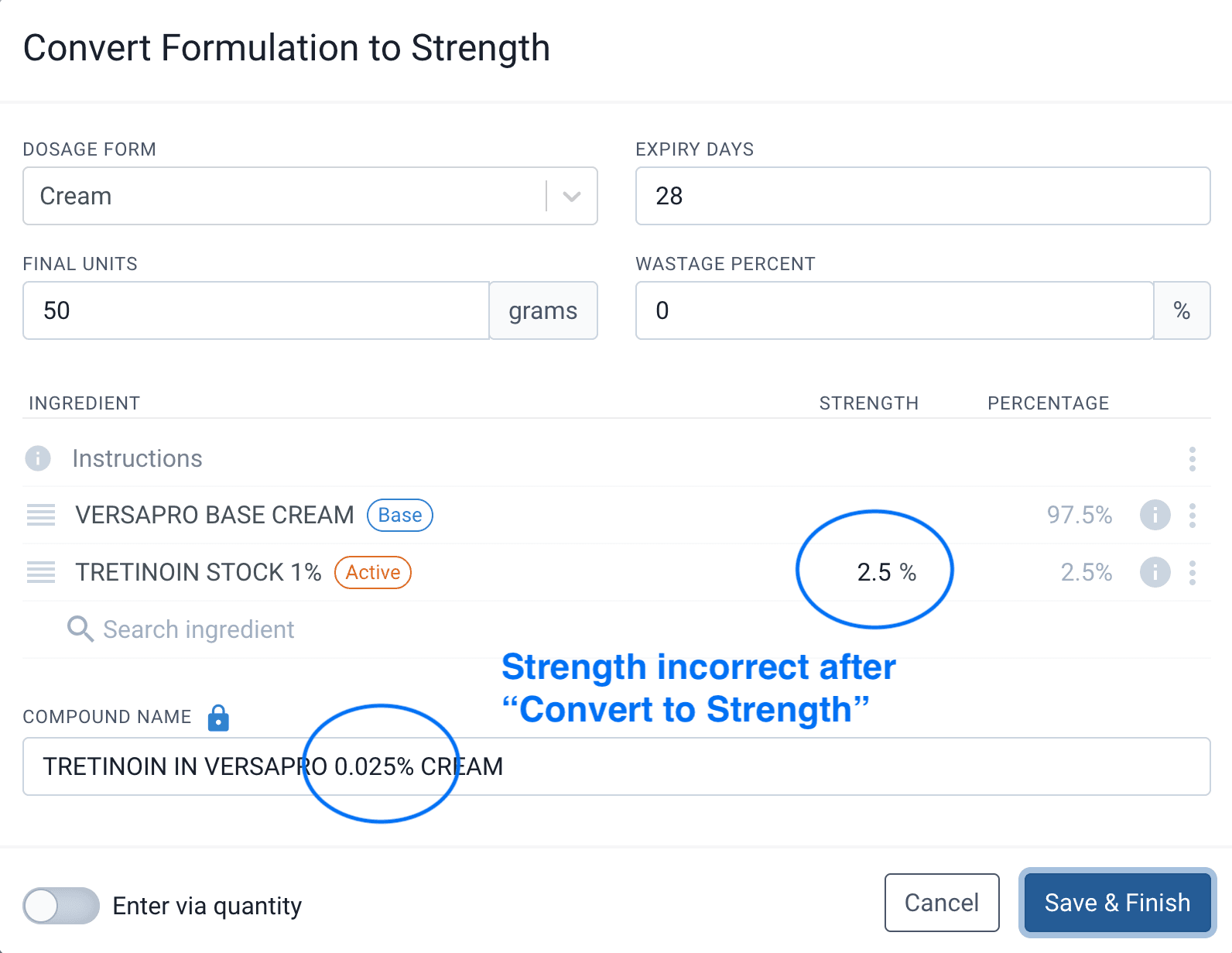
From the edit formulation page
Update the ingredient strength so that it properly matches the name of the formulation. The system will prompt that the ingredient may need an adjustment factor set. This means you need to tell the system what the concentration of the dilution/triturate/aliquot is so that it can adjust accordingly.
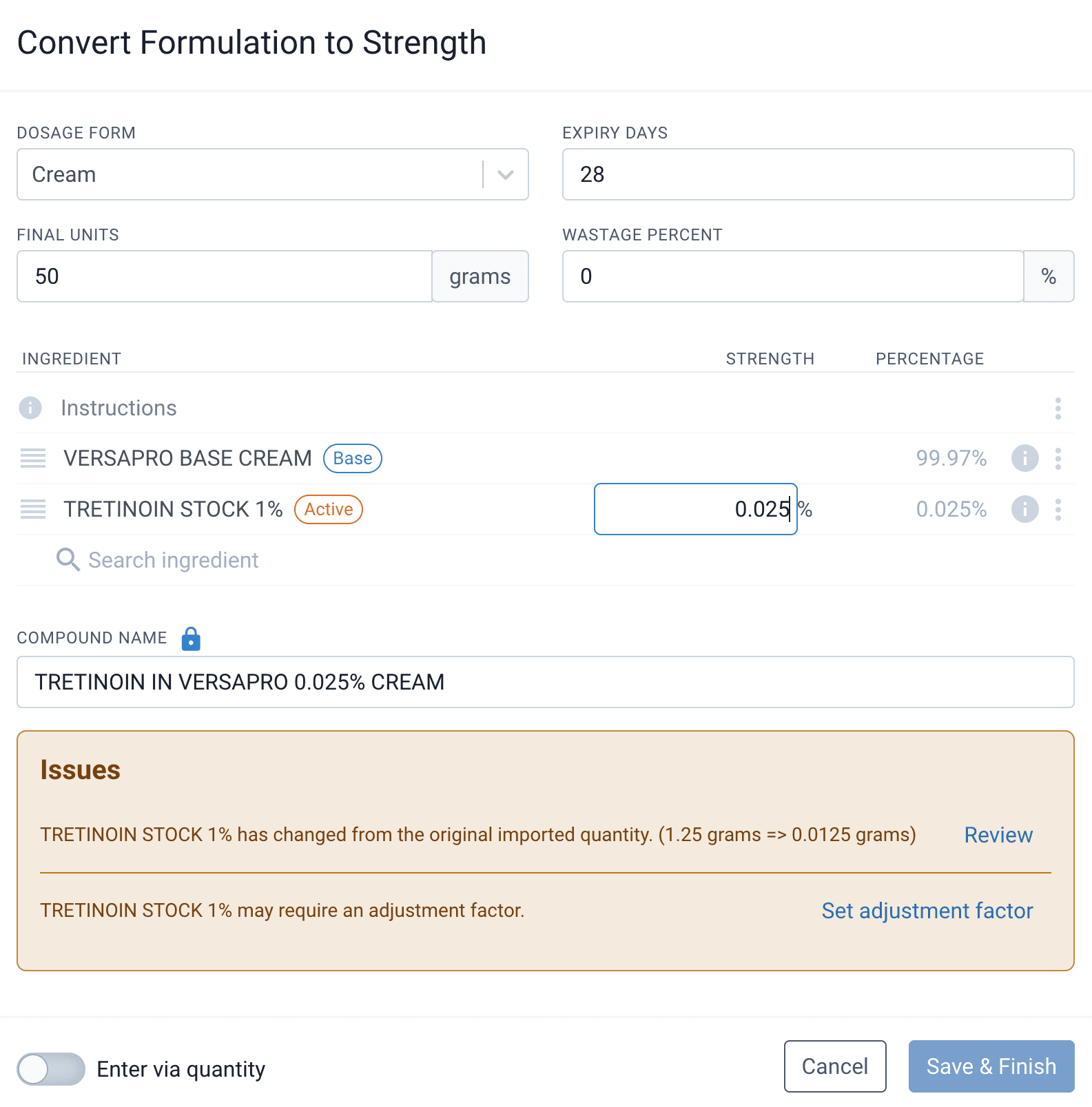
From the edit formulation page
Press the “Set adjustment factor” issue and configure the adjustment factor to match the strength. For most dilutions, this can be done by using the “Percentage of Elemental” method and entering the percentage strength of the dilution in the “Percentage of Elemental” field. This will apply this adjustment factor to ALL current and historical batches of this stock imported from the previous software.
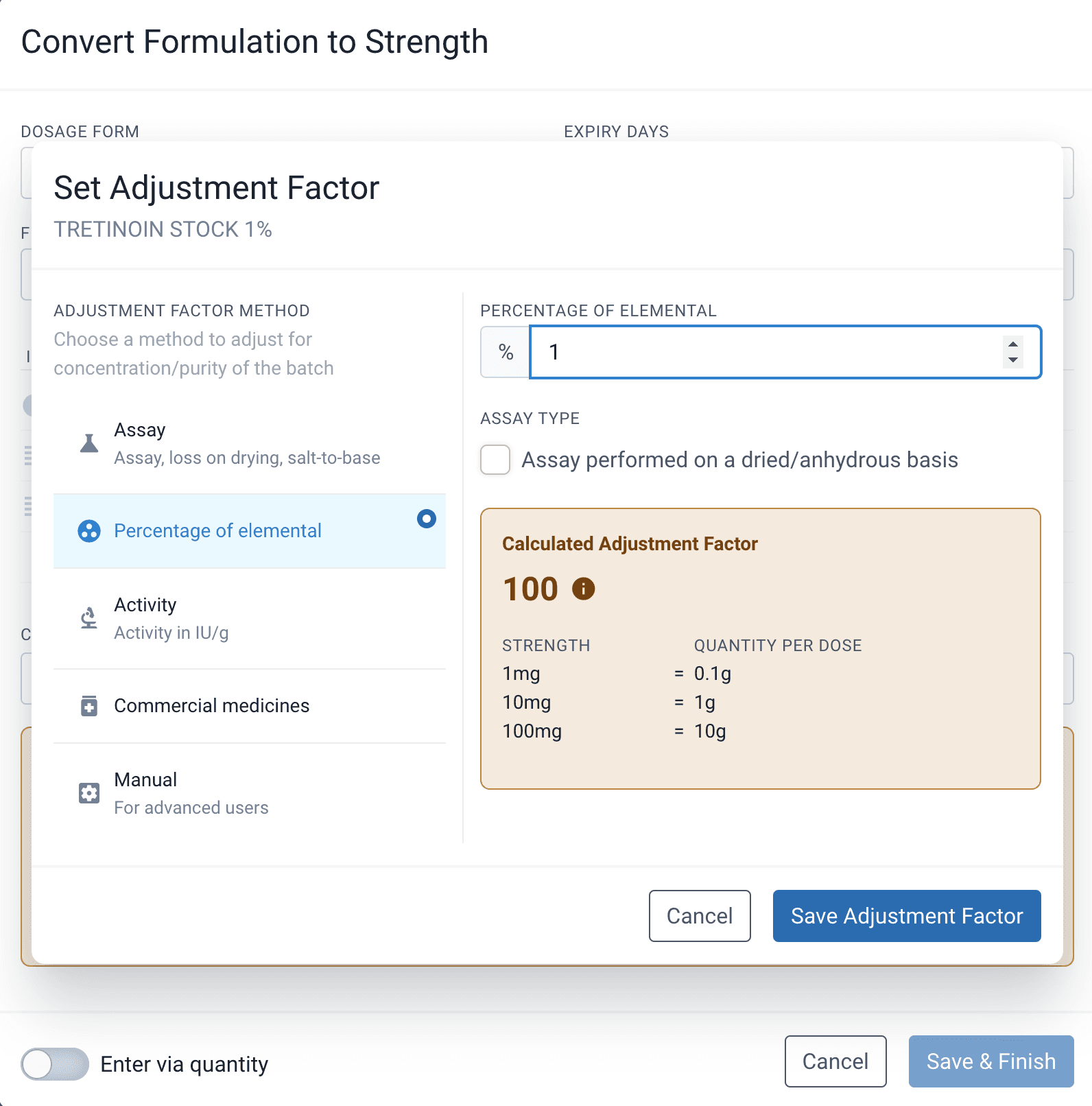
From the edit formulation page
If you fail to miss this step, either import another formula with this ingredient or you can manually adjust the adjustment factor for each batch. To do this, click on the three dots to the right of the ingredient and right-click on View/Edit Ingredient. This will open the ingredient in a new tab. Click on the appropriate batch and enter the adjustment factor. The adjustment factor is used in all formulation calculations, and it is integral when looking at a dilution/aliquot.
Converting a cream formula
When converting a cream, or grams based formulation, complete the standard steps, as outlined above.
Liquid density figures are required when using ingredients that are selected as liquids. In order for the calculations to be accurate it is vital to enter the liquid density figures. This allows the software to convert the total grams required to the total mls required. Meaning the liquid can be weighed at an accurate level in the lab.
To enter the liquid density figures, click on the three dots to the right of the ingredients and right-click on View/Edit Ingredient. This will open the ingredient in a new tab. Click on the appropriate batch and select. This is where you can enter your Density and Displacement Figures. The liquid density (or specific gravity) is entered in the g/ml. If you have multiple current batches, you will need to add liquid density to each batch.
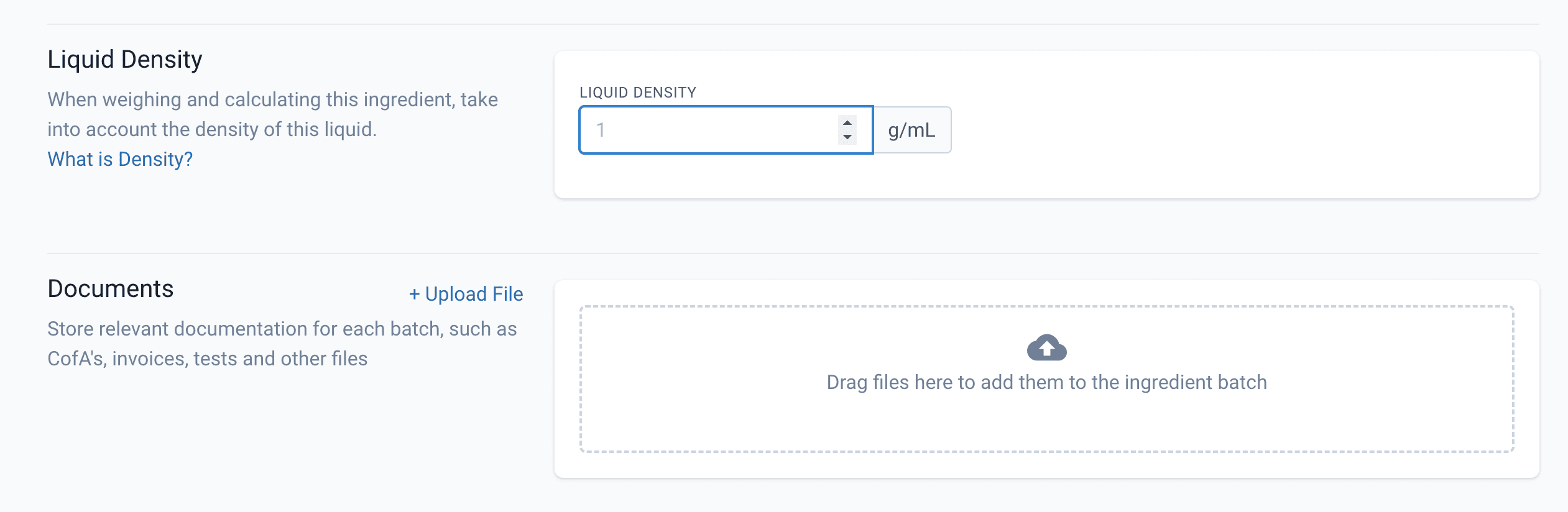
From the edit ingredients page
Deleted ingredients
During the migration process, Compound Direct will archive ingredients that have no stock and that have not been used in more than a year. It will also archive duplicates of ingredients. Because of this, it may require you to unarchive ingredients during the import process. It will also prompt you with the opportunity to merge ingredients that are identical matches. The merge is final and effects all historical compounding records. Ensure that only identical, duplicate ingredients are merged.
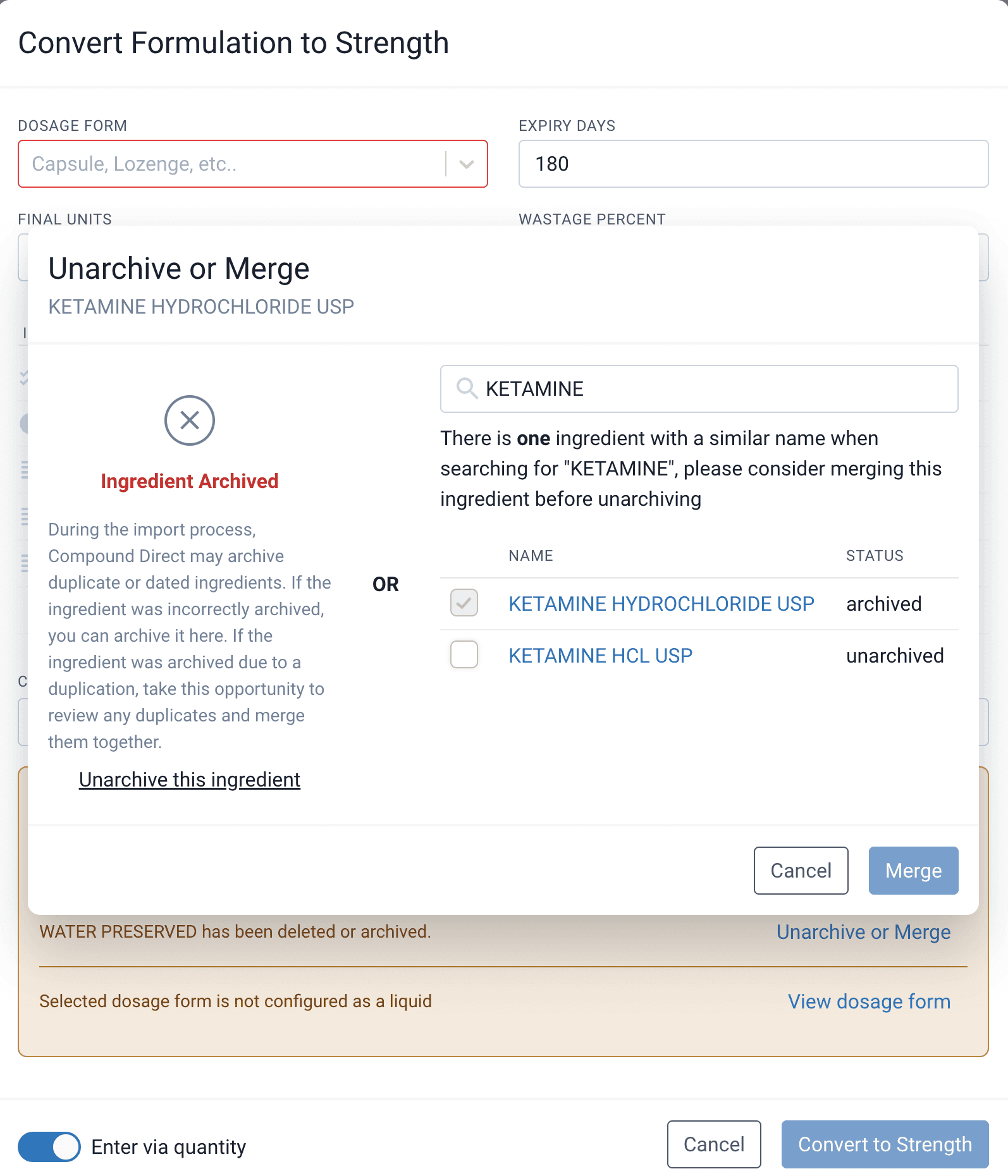
From the edit formulation page
Removing devices
Devices which are often mixed in within ingredients in other software may be incorrectly classified as ingredients. This is typically an issue with the data within the previous software. You will need to note these ingredients, remove them, and add them back in as devices afterwards.
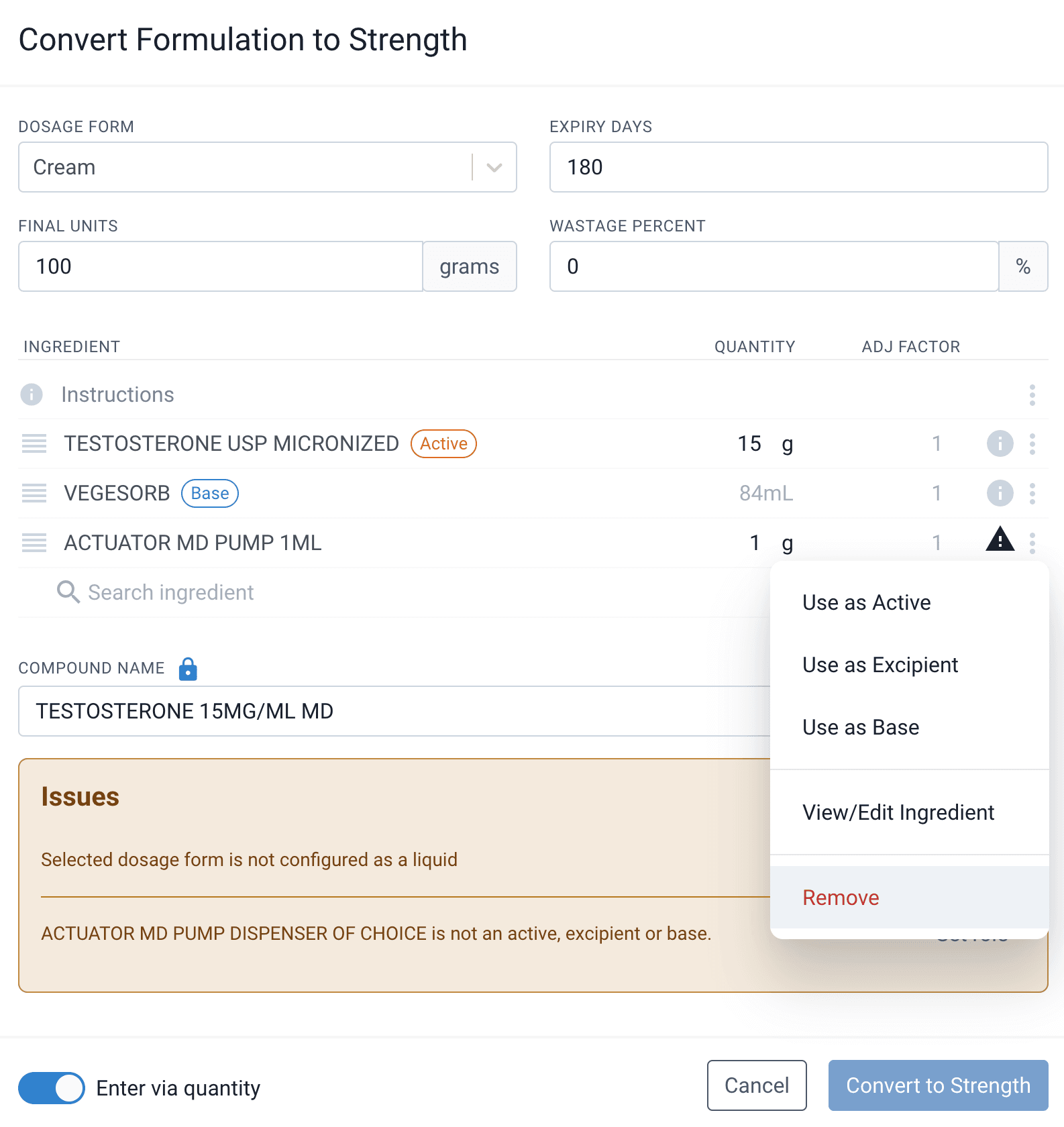
From the edit ingredient page
Conclusion
Compound Direct offers a data migration process for users transferring from other compounding software companies. This process involves converting data to ensure accurate formulation calculations, particularly focusing on strength. The conversion steps include selecting the relevant formulation, determining dosage form and wastage percent, assigning roles to ingredients, and adjusting strengths. grams-based (w/w) formulations require additional steps, including entering liquid density figures. For formulations with dilutions/aliquots, separate handling is necessary to ensure correct strength adjustments. Missing these steps may result in inaccurate calculations.
All names and medical data shown in software screenshots are fictional and for demonstration purposes only. These figures represent fictional persons; any resemblance to real individuals is purely coincidental. Use of existing fictional names is for illustrative purposes and does not imply affiliation or endorsement.