
How to manage devices and consumables in Compound Direct


Photo by Denise Chan
Compound Direct allows you to easily add any devices and consumables used during the compounding process, as well as those needed to package finished products for use.
Types of devices and consumables
Compound Direct has several types of devices or consumables. These are:
- Containers - such as bottles, jars or troche molds
- Per Container - such as lids, adaptors, desiccants or syringes used per container
- Per Final Unit - any items used per unit, such as suppository shells or wrappers
- Capsules - for all capsule sizes, colours and variants
- Other - anything outside of the above
Devices & Consumables are organised first, by their broader categorisation, such as a capsule or bottle, and within that category, you can add the different variants. Variants should be substitutable during the compounding process, such as a 100mL glass bottle and a 200mL glass bottle.
Why add devices or consumables?
Being able to add in the devices and/or consumables used in both the formulation process itself and those used to package the finished product gives you extra insight into the true cost of a particular formulation and allows you to provide more accurate quotes for customers.
Setting the devices per formulation will also provide consistency to the patients. You may wish to have different coloured capsules for different strengths of the same medication or to ensure a certain medication is only provided in glass bottles. The ‘Devices & Consumables’ upgrade allows consistency and customisation.
Devices & consumables dashboard
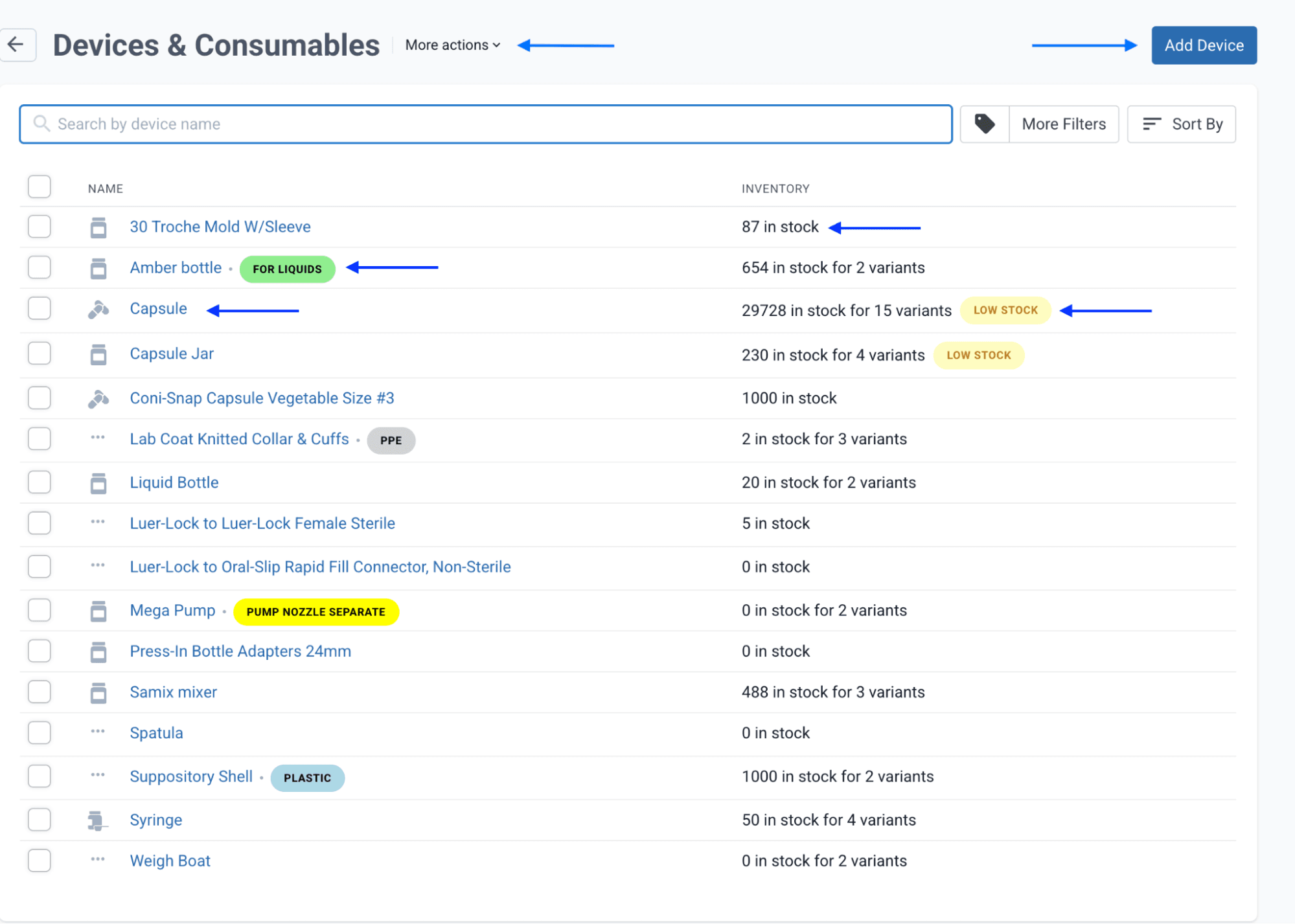
The ‘Devices & Consumables’ section can be found on the ‘Settings’ page. Just start typing Devices for quick searching. The dashboard will show any devices already created, the current SoH, any tags or low stock warnings and the number of variants for that device.
Adding a new device
If the type of device or consumable has not yet been created, you can do so by selecting ‘Add Device’ shown above. This will take you to the creation screen where you can name your device, choose the type, apply any tags and begin to input the variants.
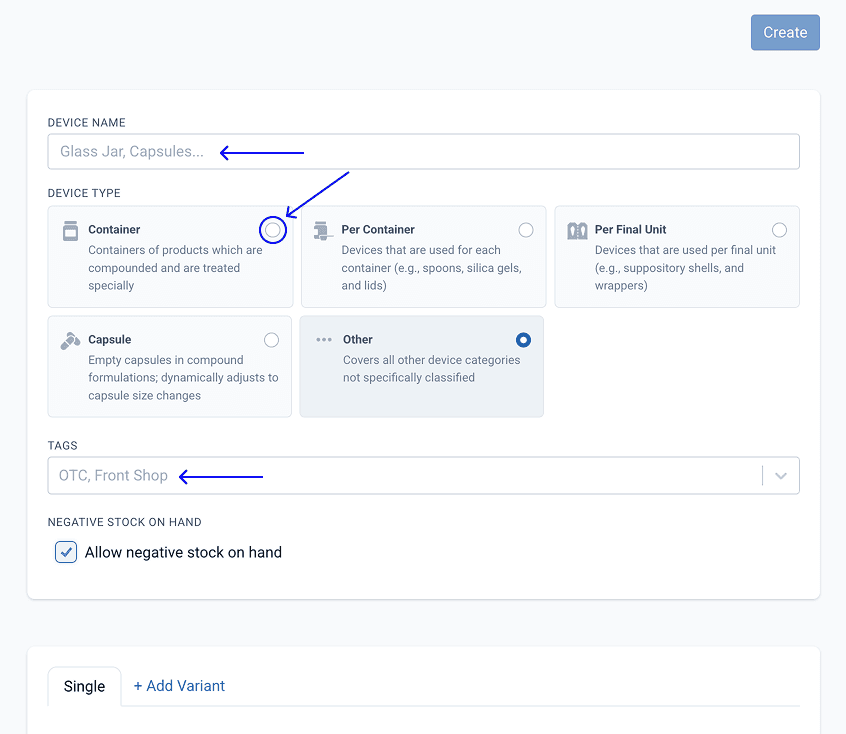
Example Containers
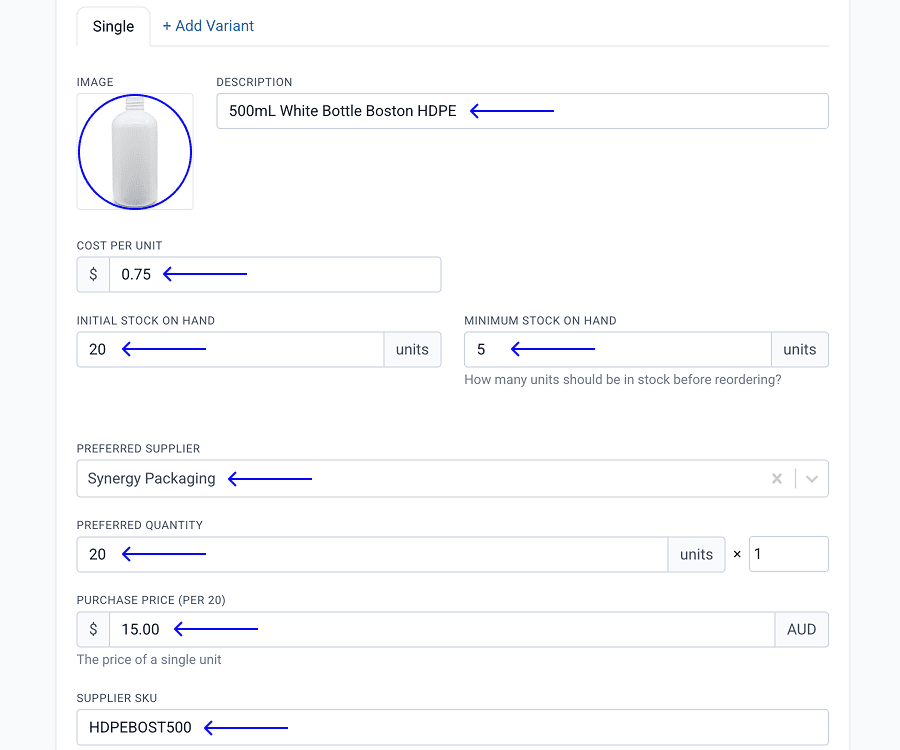
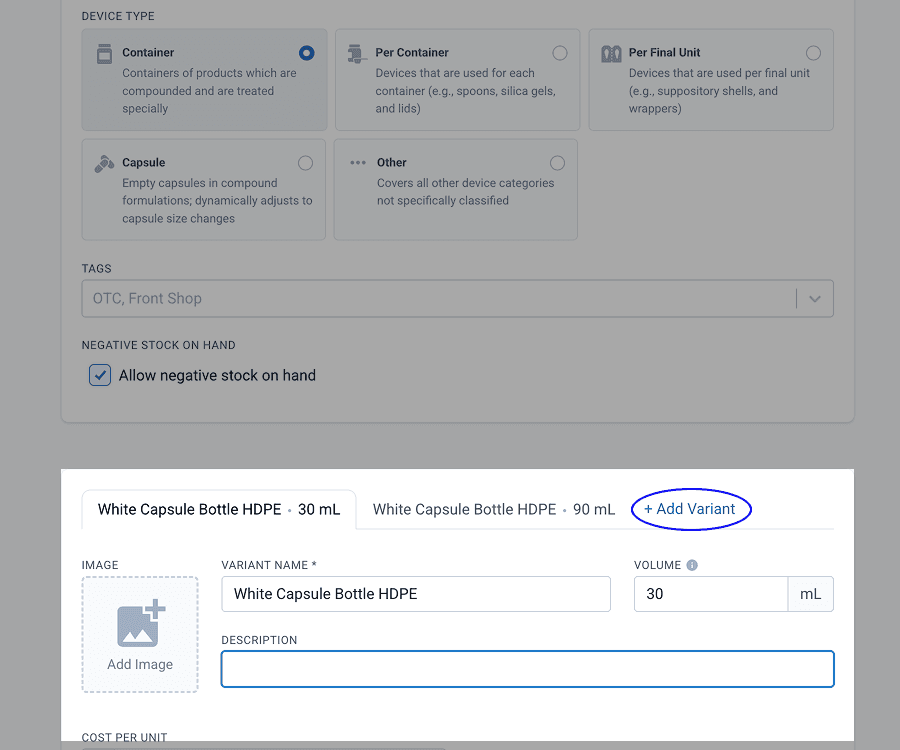
To add a container, such as a bottle, first select the ‘Container’ device type and input the volume in mL and a description. An image can be uploaded from a file, or you can take a photo if you are using a device with a camera. The image will be presented during the compounding process to aid the compounder in using the correct device.
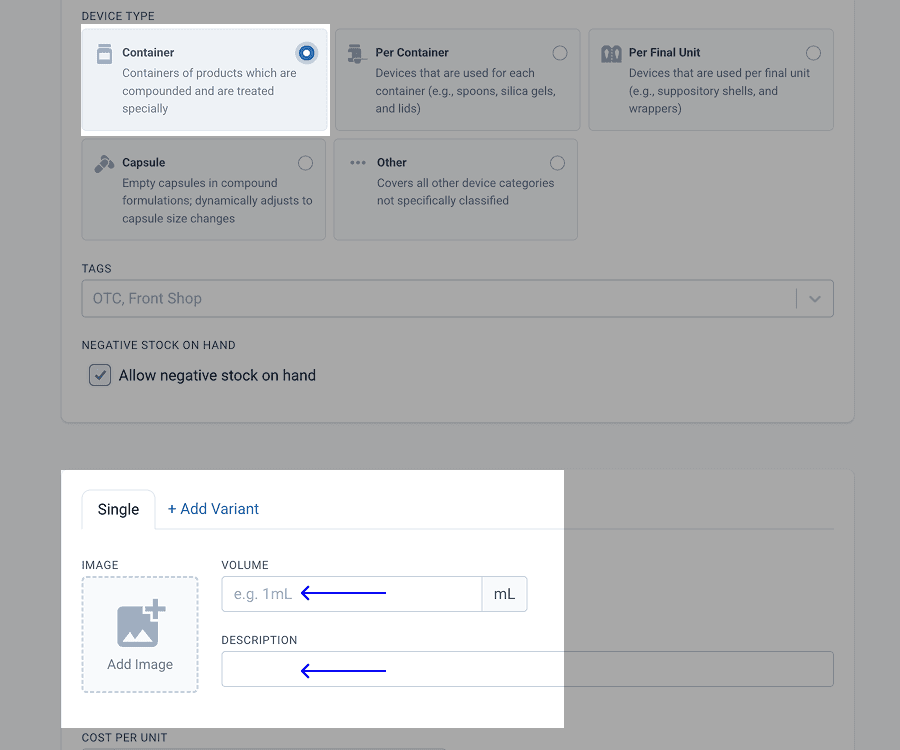
The volume of a container is important, as Compound Direct will aid in automatically calculating the appropriate variant and quantity based on the final units of your compound and the number of containers specified. Compound Direct utilises the volume within its algorithms to determine the typical device for the preparation, whether it is used for liquids, creams, or holding capsules. This is useful if you wish to set up devices at a dosage form level and allow Compound Direct to choose the best size for the preparation automatically.
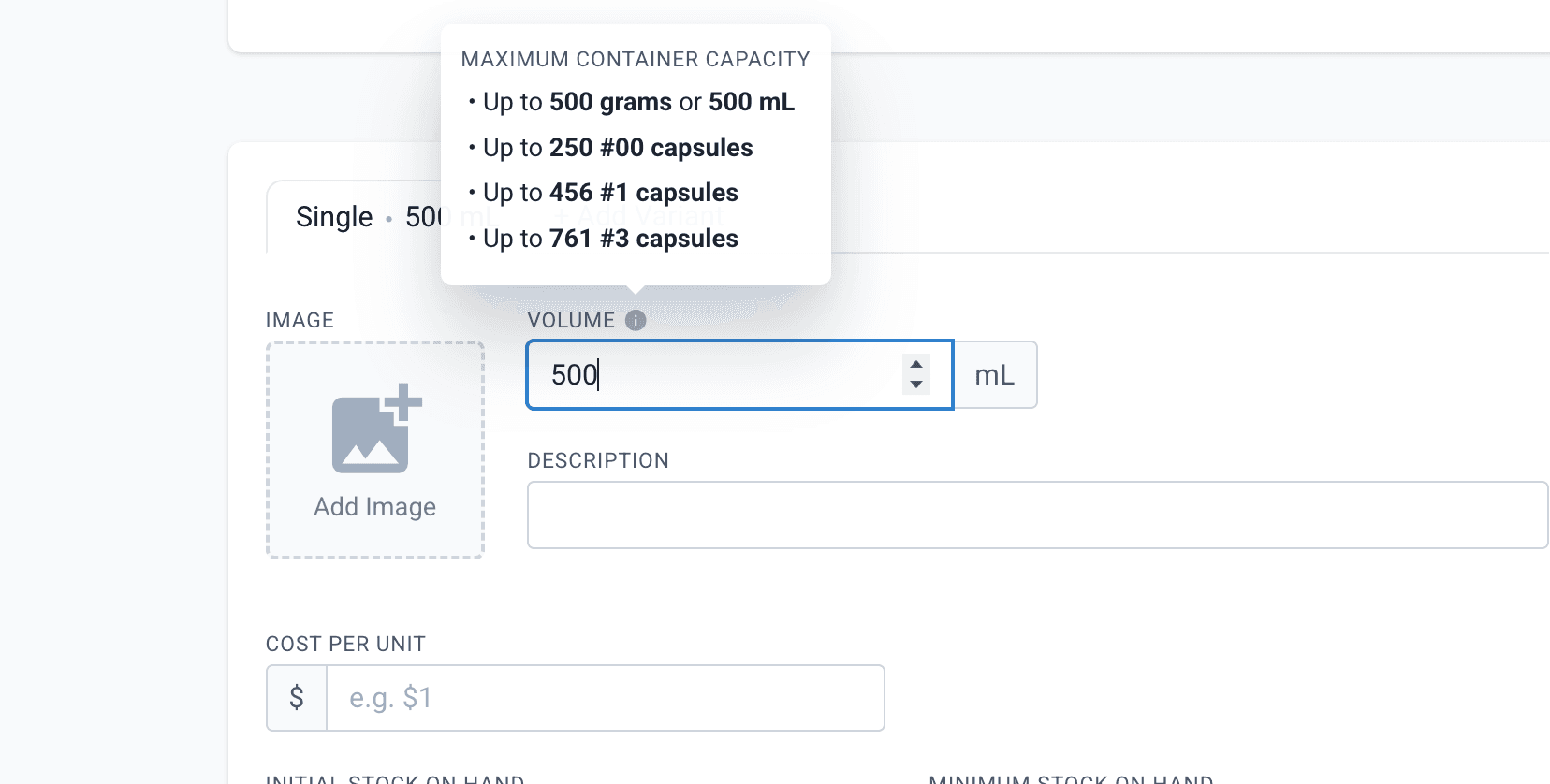
When creating the device, you can add as much detail as you wish. The more detail added, the better the device management will be when tracking, counting and ordering. Adding the ‘minimum stock on hand’ value will trigger the low stock flag on your device dashboard to alert you when you need to reorder.
The ‘cost per unit’ will allow Compound Direct to account for the device cost when pricing the finished product.
‘Preferred Supplier’, ‘Preferred Quantity’ & ‘Supplier SKU’ entries will ensure the purchase orders for devices are accurate and can be quickly sent to the supplier. This will eliminate the time lost when trying to find out where to reorder certain devices from.
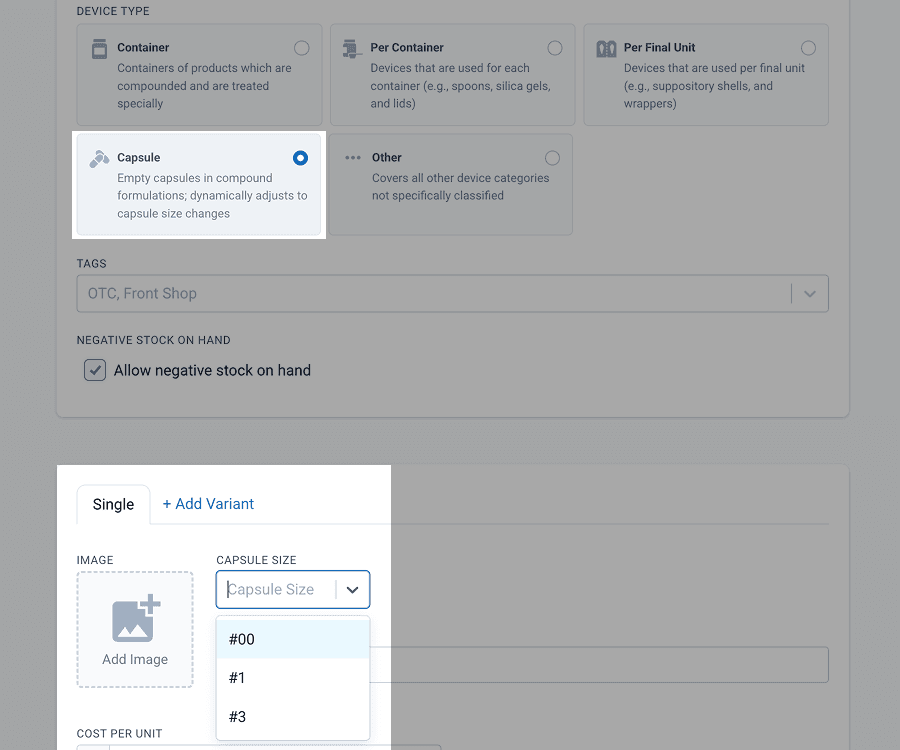
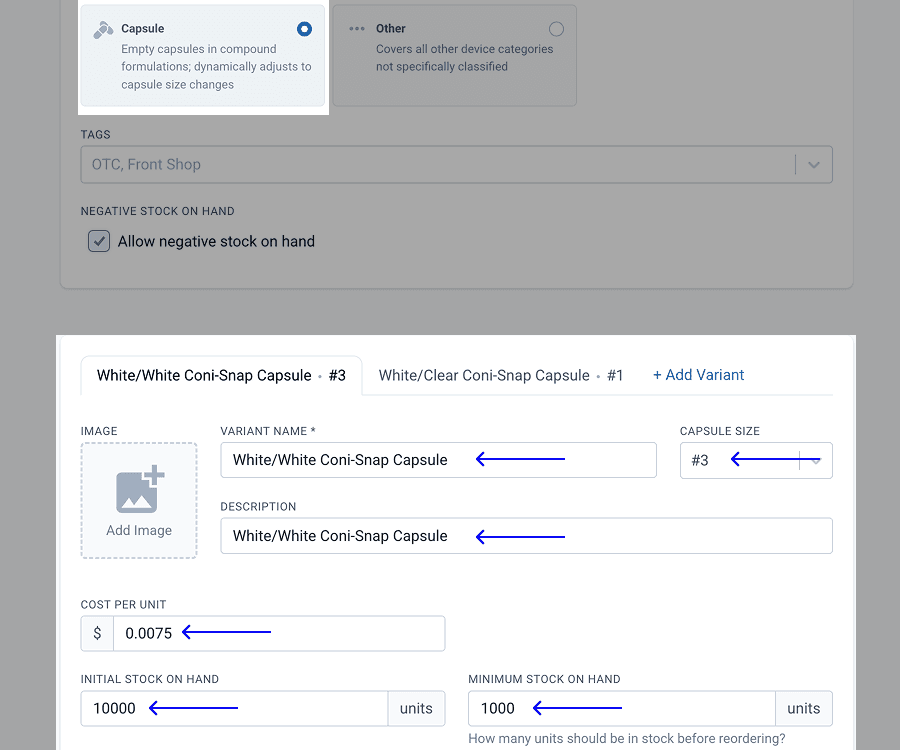
Example capsules
When adding capsules, you can follow the same rules as above, but instead of choosing the volume, you select the capsule size. Compound Direct will automatically apply the correct capsule size based on the size in the formulation.
Device dashboard
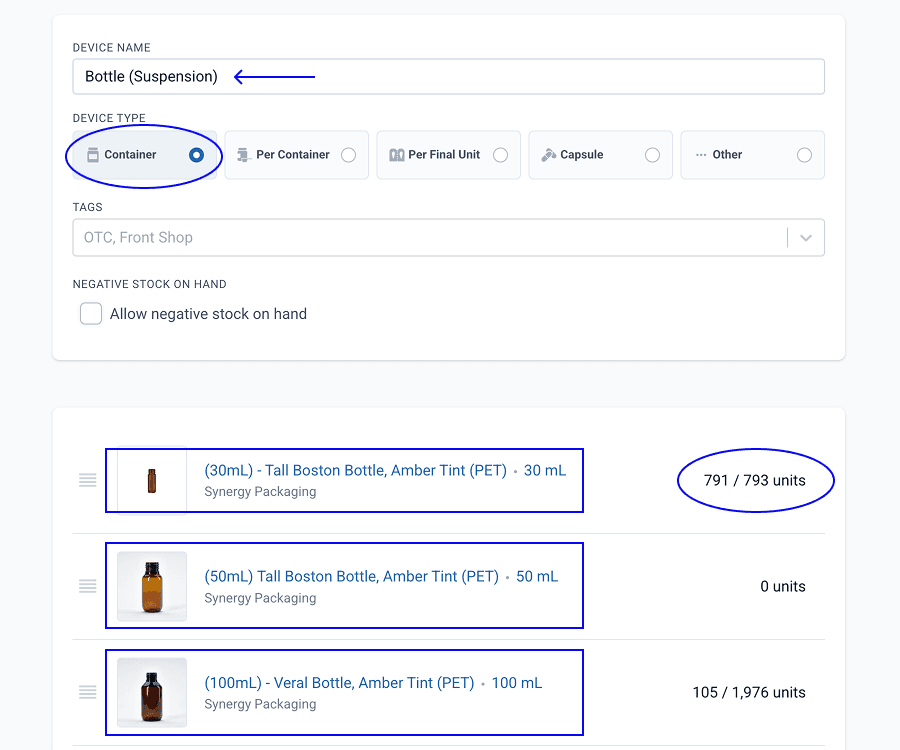
If a device is selected from the dashboard, you will be able to see the relevant information for that family of devices, such as the type, variants and current stock on hand.
Adding Variants
When you have created your device or consumable, you may wish to add variants. Variants would be similar items to the parent device or consumable, but may differ slightly. Variants should be substitutable without affecting the stability or efficacy of a formulation, such as bottles of different volumes or syringes of different sizes. Adding variants allows Compound Direct to calculate the appropriate variant for the compounded medication and keeps similar items grouped together for a neat database.
Variants can be added in the initial set-up of the device, if you know which variants you have or will have, at the set-up. Select ‘+Add Variant’ for each new item.
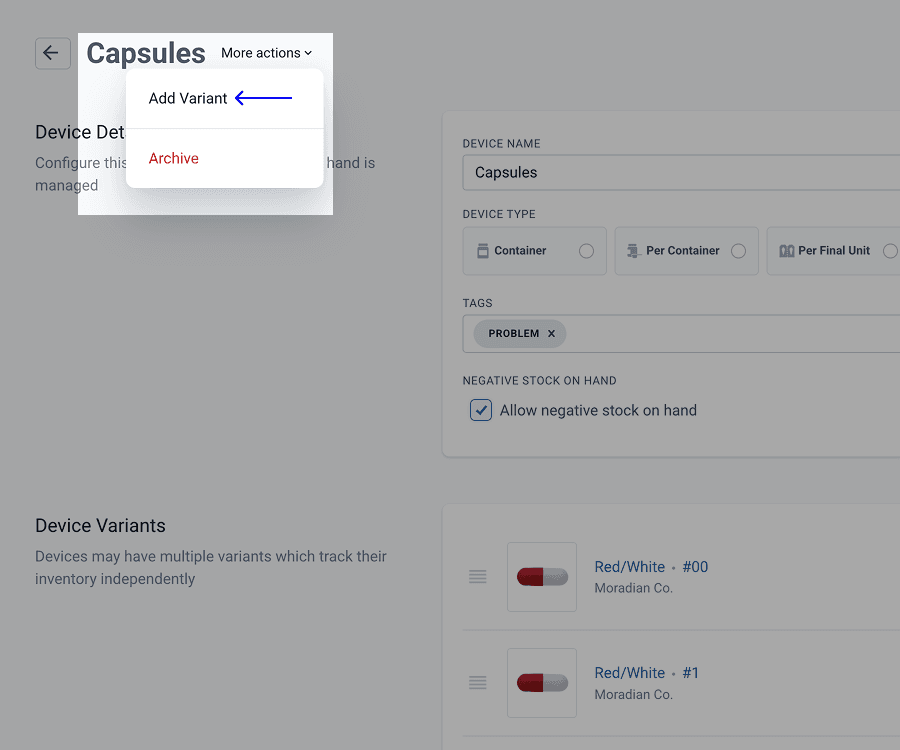
If the device has already been set up, you can click on the ‘More Actions’ drop-down and then select the ‘Add Variant’ button.
Adding devices to formulations
There are 3 ways to add a device or consumable to a formulation.
- Adding to a dosage form - this will apply to all formulations created after the addition
- Adding to individual formulations
- Adding to the dispensed formulation before signing off
Adding devices to dosage forms
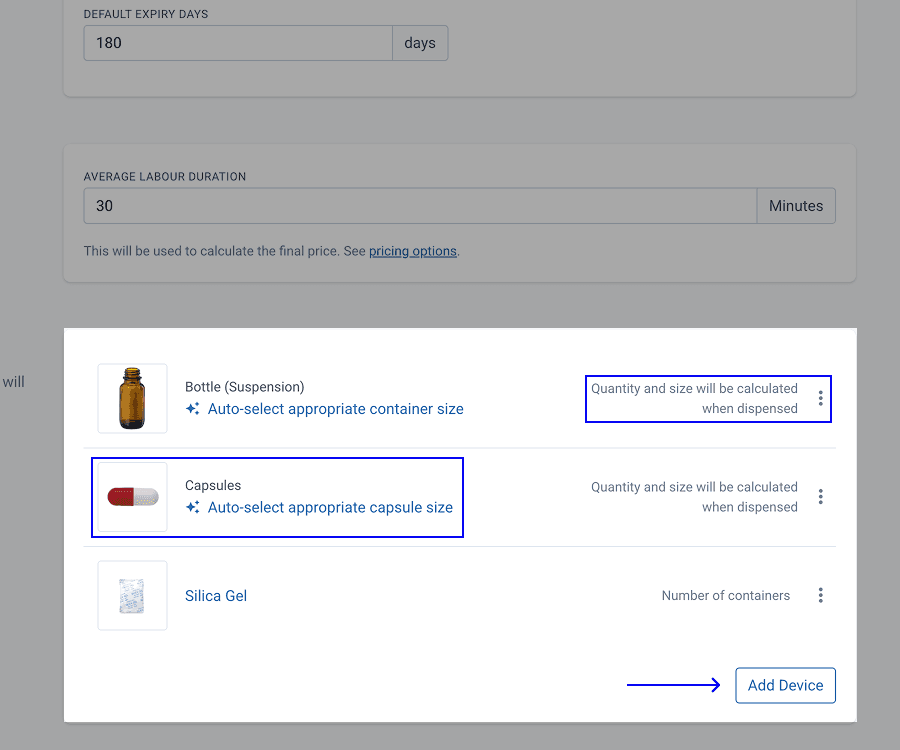
By default, formulations will inherit the devices and consumables from the dosage form, and Compound Direct will automatically pick the appropriate volume and quantity based on the final product or the final number of units.
Modifying the calculation
To change how devices are calculated for your custom formula, click the three dots beside the calculation type. This lets you override the calculation by:
- Multiplier: Use a multiplier for the final units or number of containers
- Exact Number: Input the precise number to be used
- Auto Calculation: Use Compound Direct’s automatic calculation of the size or number of units
Adding devices or consumables to a formulation
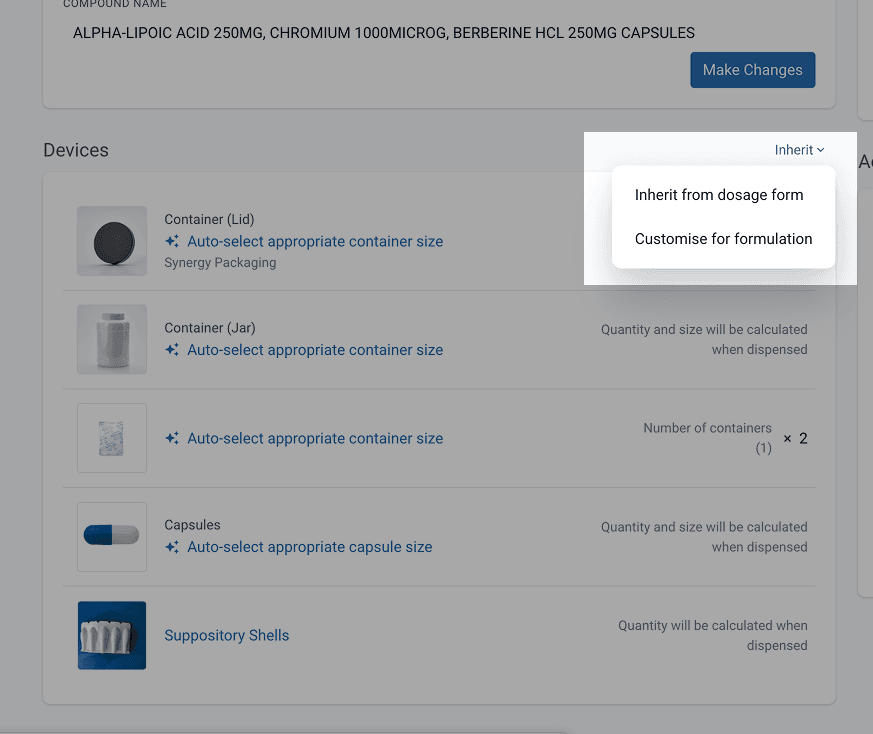
If your formulation requires something different to the dosage form’s defaults, you can select the ‘Inherit’ drop-down and select ‘Customise for formulation’. Some examples might include formulations that need glass bottles rather than the default plastic, or where the formulation requires more devices or consumables than the default.
Adding devices or consumables after dispensing
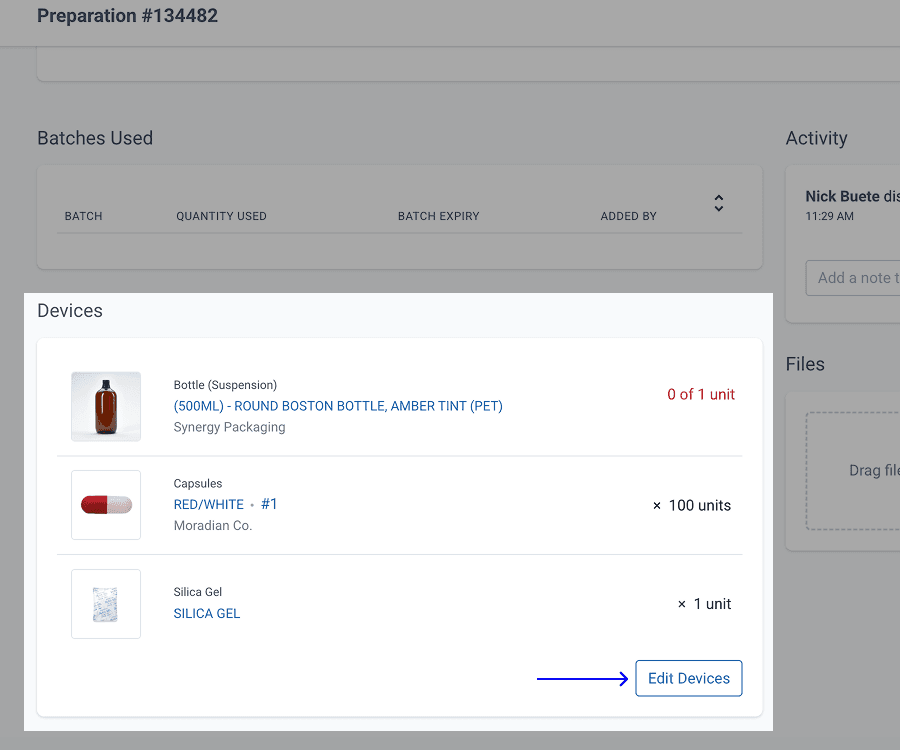
Devices can be added, changed or removed when making the compound on the preparation page. Select ‘Edit Devices’ to customise. This is useful if you wish to make a once-off change, such as a change in capsule colour, using an additional bottle or syringe, etc. Devices cannot be edited during the drafting process and must be edited once dispensed.
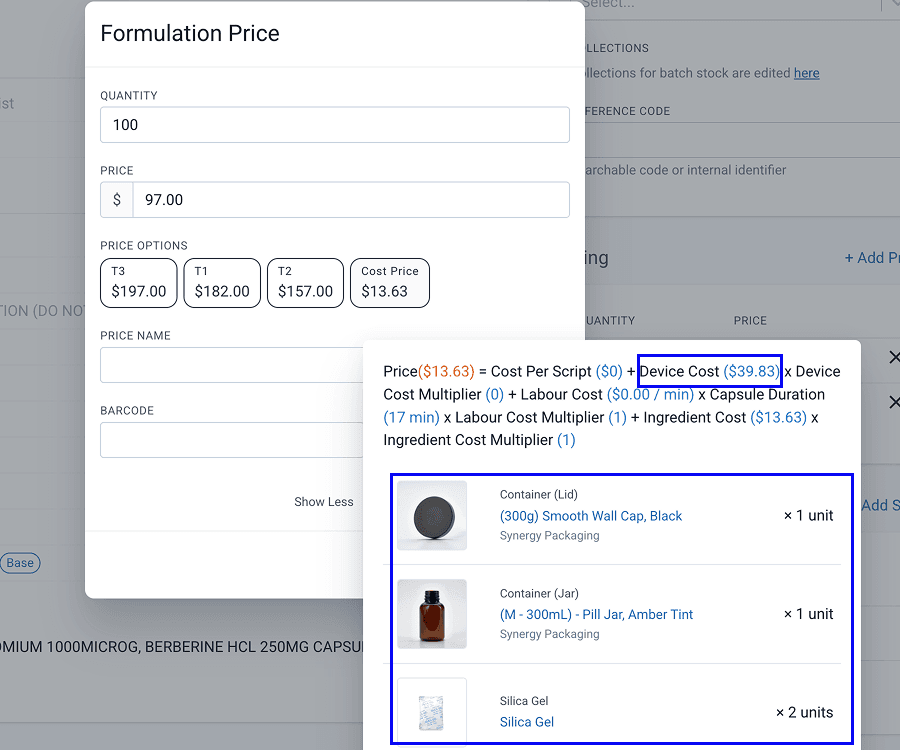
Pricing with devices & consumables
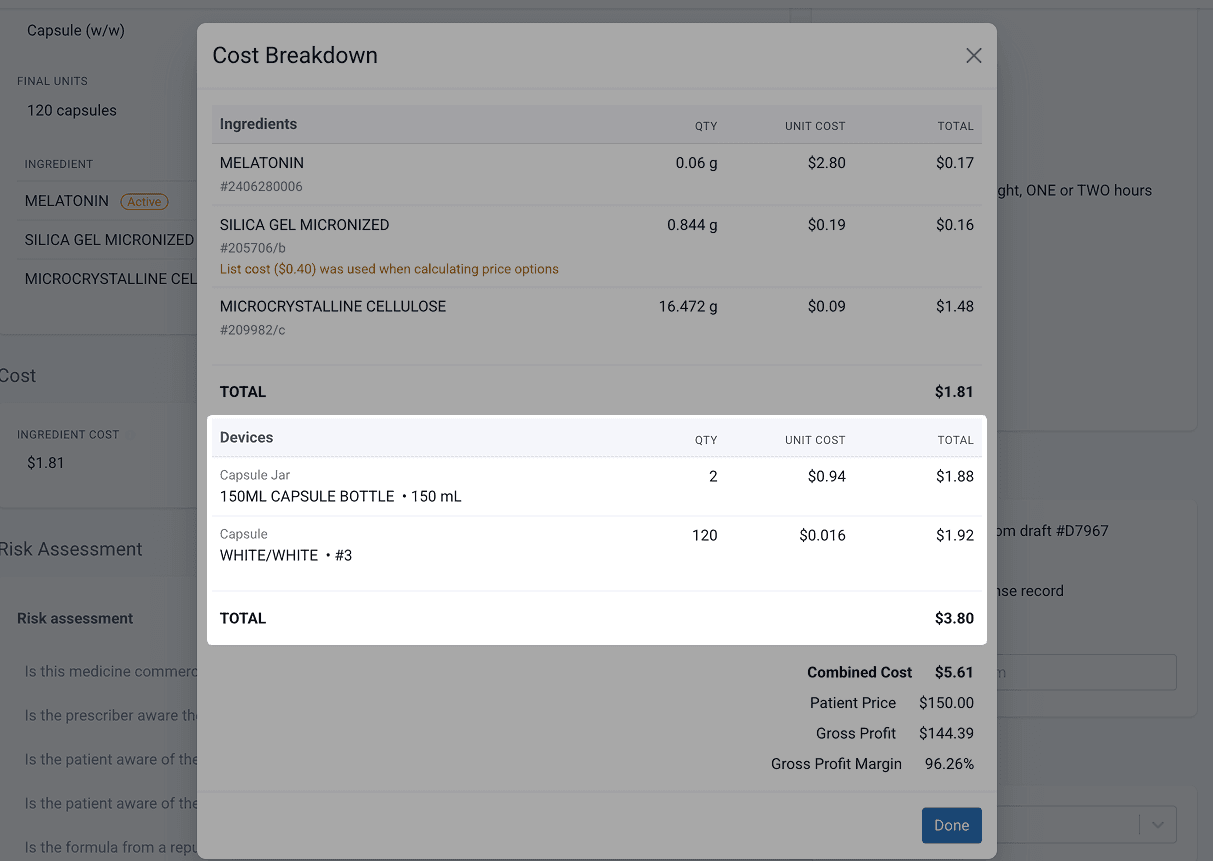
When Compound Direct calculates the cost to make a compound, it will take into account the total cost of the devices used to make and package the formulation based on those added to the formulation. When you hover over a formulation pricing option, it will show the devices added to the formulation and the total cost of those devices.
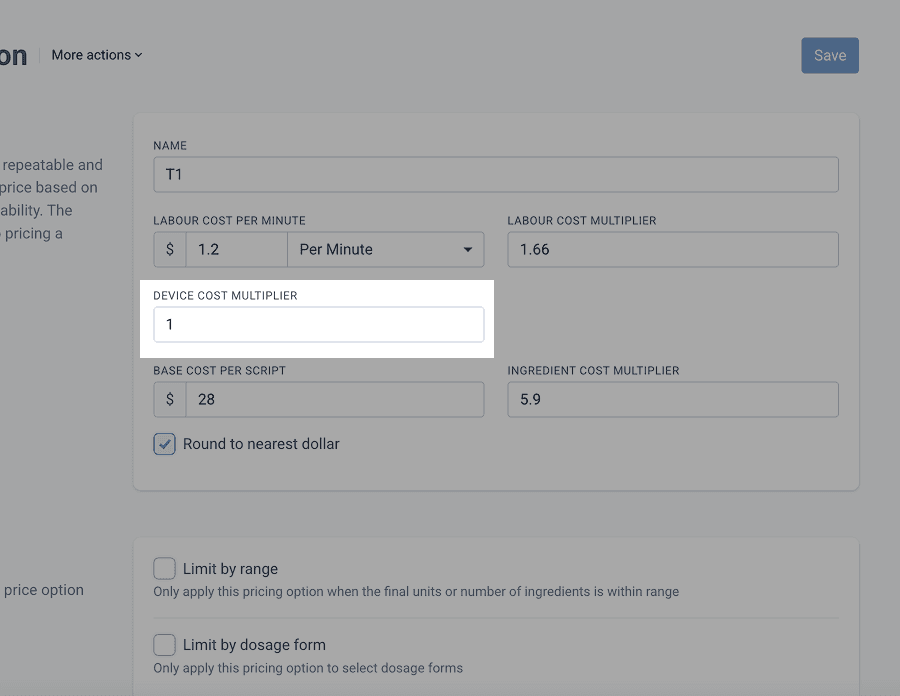
You can also opt to multiply the device cost in the pricing structure set up.
Viewing the cost after dispensing
You can see a detailed breakdown of the cost by clicking the ‘i’ next to the ingredient cost at the bottom of the dispense page
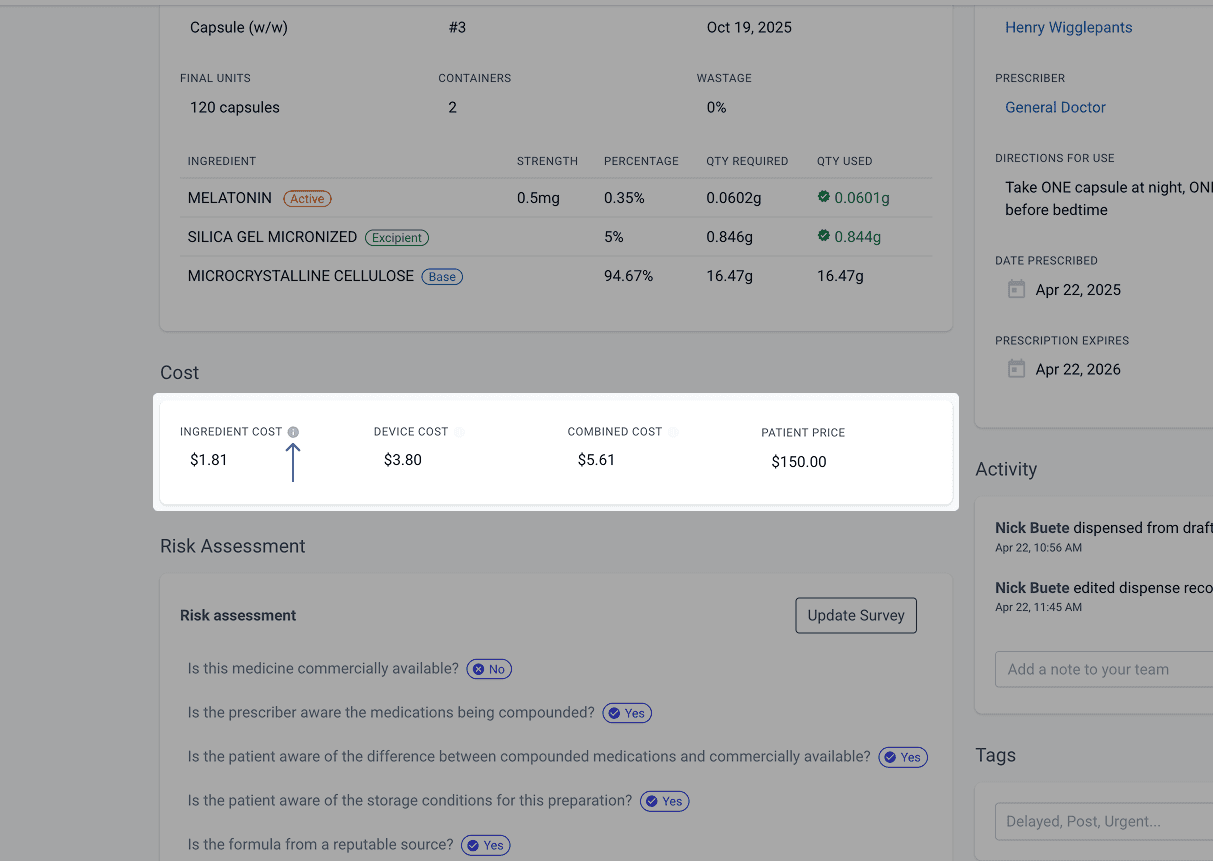
This will show a detailed breakdown of the ingredient and device cost so that you can determine how the combined cost was calculated
Stock on hand and allocation
Some pharmacies may wish to specify the type and quantity of consumables and devices needed or the formulation of a compound, but may not want to stocktake or report on the value on hand.
Compound Direct can allow you to have zero stock on hand and still allocate the device(s) to the formulation. By default, this is set to on, but if you notice products are being made without any device allocation, ensure that the device has “allow negative stock” ticked. This can be found in the device settings.
Summary
Compound Direct allows users to add devices and consumables used in the compounding process and finished product packaging. This provides insights into the true cost of formulations and allows for more accurate customer quotes. Devices and consumables can be set per formulation for consistency, and the system allows for customisation and tracking of stock on hand. Devices can be added to formulations through the Dosage Form dashboard or customised for individual formulations.
All names and medical data shown in software screenshots are fictional and for demonstration purposes only. These figures represent fictional persons; any resemblance to real individuals is purely coincidental. Use of existing fictional names is for illustrative purposes and does not imply affiliation or endorsement.