
Compound Direct Order Discounts: Take control of pricing and promotions

Discounts in Compound Direct give pharmacies the flexibility to manage pricing, reward customers, and run targeted promotions. With compound direct order discounts, you can apply predefined discount options, stack additional order-level reductions, and tailor pricing to specific items, customers, or accounts. Whether you are running a seasonal sale, setting up account-based pricing, or making quick adjustments at the order level, these tools provide clear visibility and control.
Discounts can be configured in two places directly from the Discounts page and from the Accounts page. In this article, we explore how direct order discounts work, how to configure them effectively, and how account-level settings help streamline billing and maintain consistent pricing.
Order discounts
Order discounts allow you to apply predefined pricing reductions directly to an order, giving you flexibility and control at the point of sale. Discounts are configured in advance and can be applied to eligible items or customers as needed. Whether you are running a promotion or offering targeted pricing, order discounts make it easy to adjust costs while maintaining clear visibility of how discounts are applied across each order.
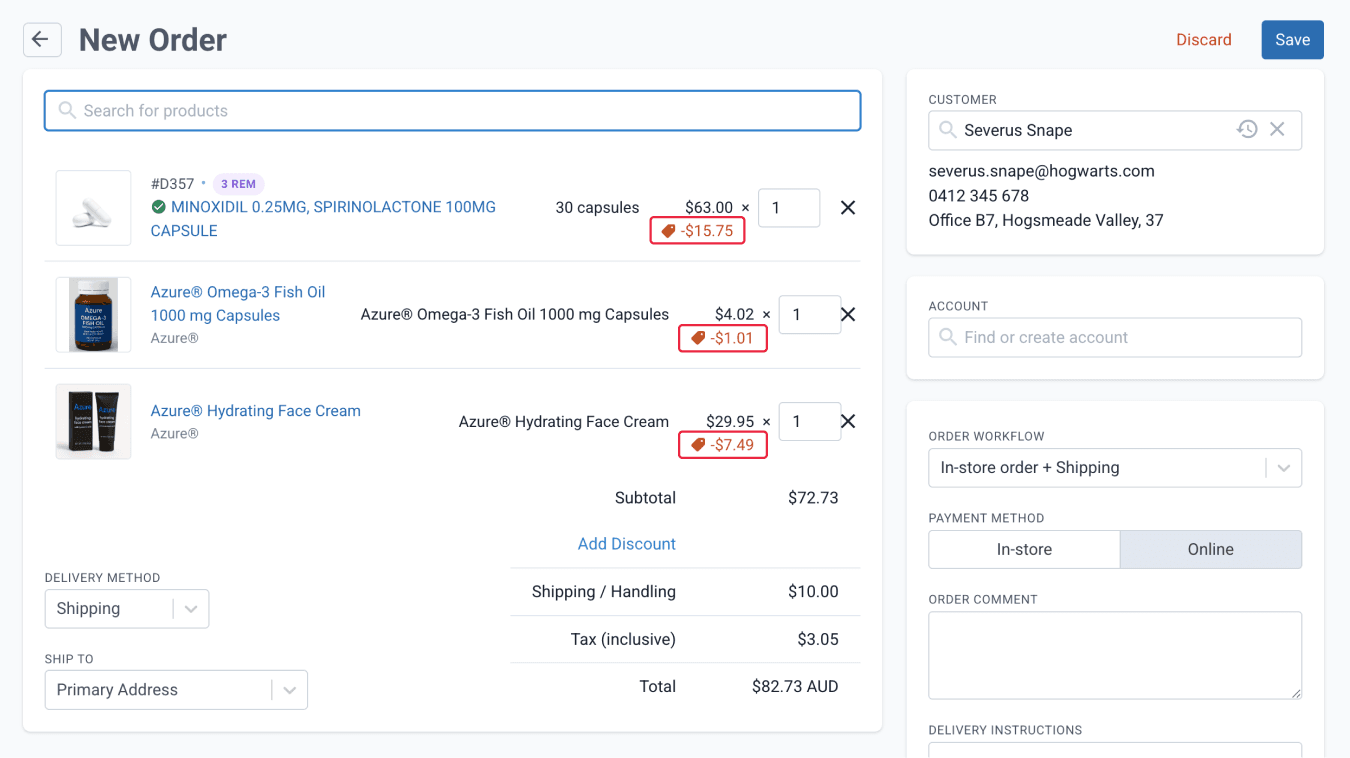
From the discounts page
Creating discount options
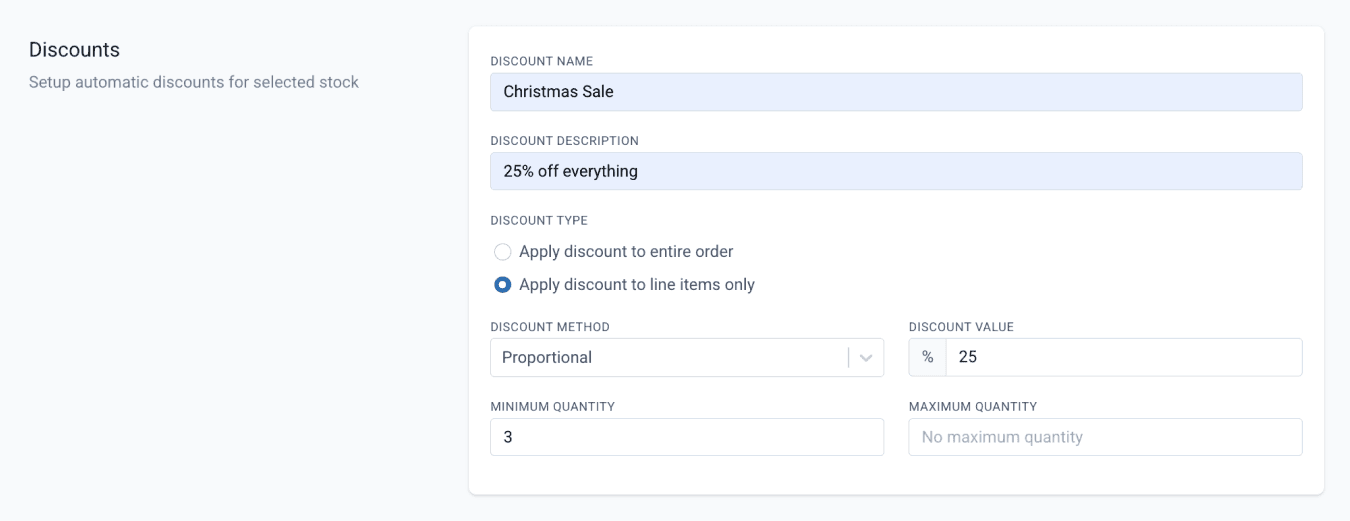
To create or edit discount options, go to ‘Settings’ and search for ‘Discounts’. You can create a new discount or edit an existing one, then complete the required fields to customise your discount settings.
To customise a discount option, enter the key settings that control how it applies. You can choose whether the discount applies to the entire order or to specific line items only. For line-item discounts, you may set minimum or maximum quantity thresholds that must be met before the discount is applied. Discounts can be configured as either a fixed amount (for example, $10 off) or a proportional discount that applies a percentage reduction (for example, 25% off).
From the discounts page
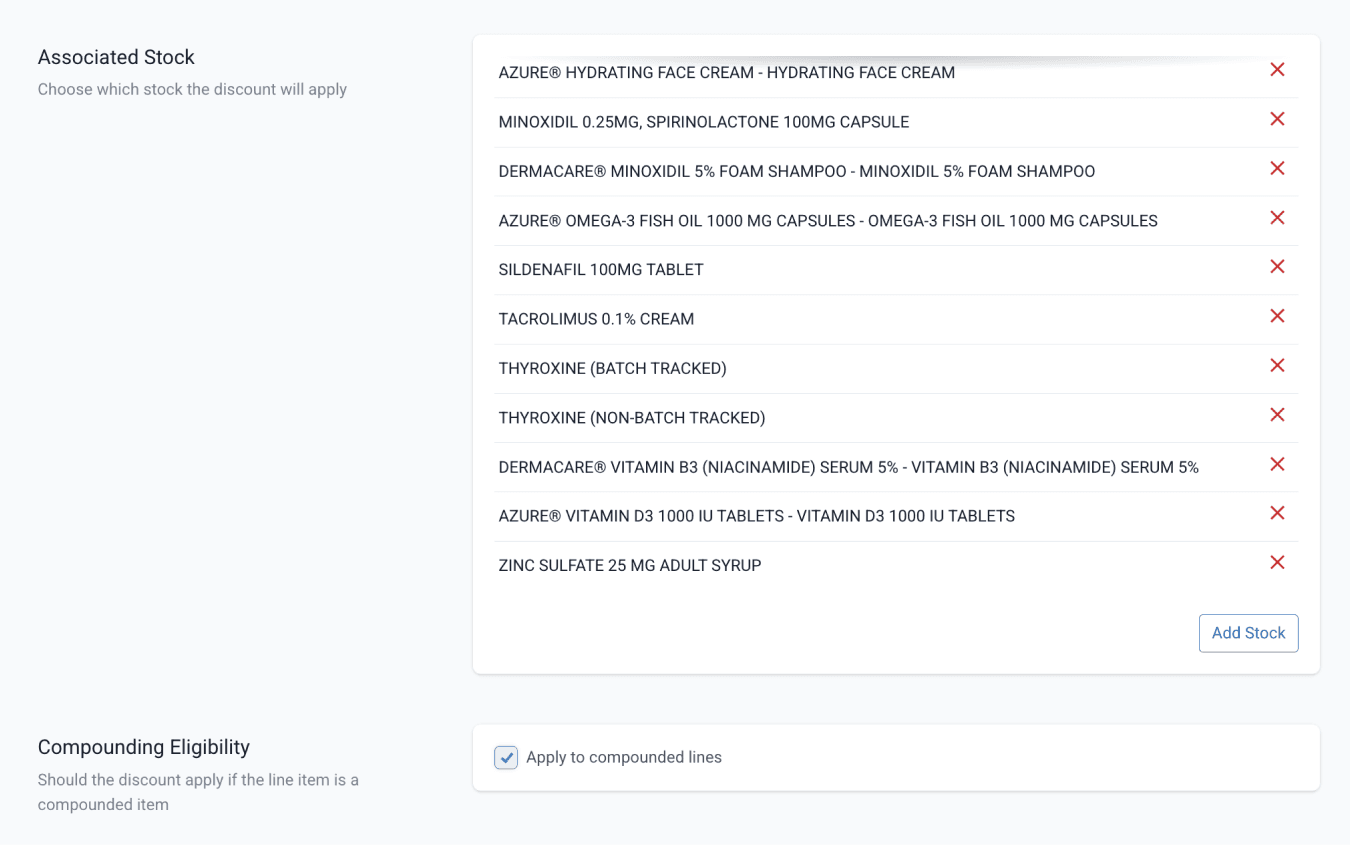
You can add specific stock items to a discount to clearly define eligible products. This streamlines discount selection and prevents unintended discounting.
To apply discounts to products for compounding, enable ‘Apply to compounded lines’.
Batch stock formulations are not considered compounded lines and must instead be configured under Associated Stocks.
From the discounts page
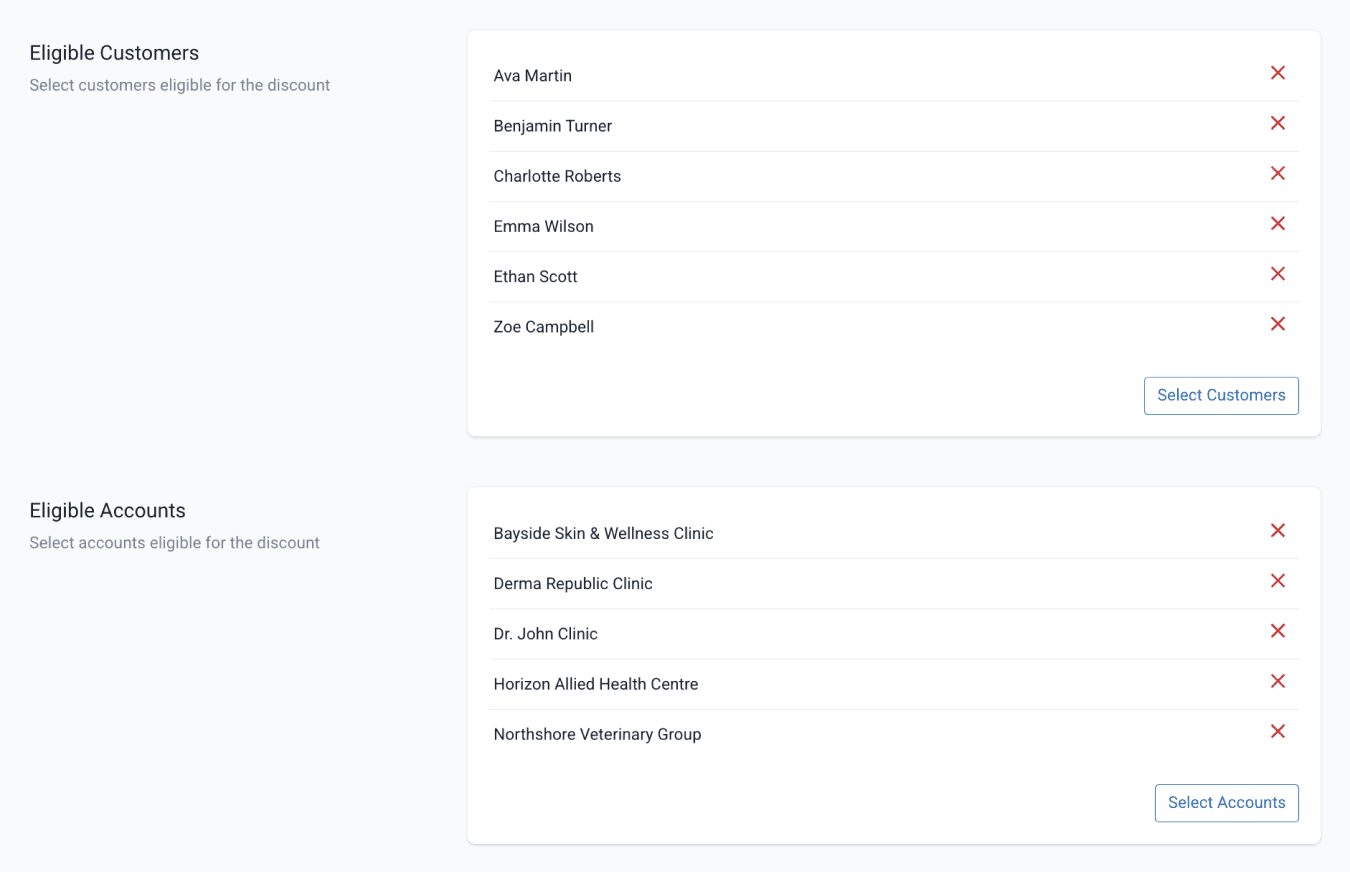
You can specify which customers and accounts qualify for the discount, allowing you to tailor each discount to your pharmacy’s operational needs.
From the discounts page
Once all discount details have been added, click ‘Create’.
Discount rules
- A discount is applied only when all configured eligibility requirements are met.
- To apply a discount to any customer or account, only configure eligible stocks or compounded lines.
- To apply a customer-specific discount, configure the eligible customer and eligible stocks or compounded lines. If a customer is eligible, but the stock/compounded line is not eligible, no discount will be applied
- To apply an account-specific discount, configure the eligible account and eligible stocks or compounded lines. If an account is eligible, but the stock/compounded line is not eligible, no discount will be applied.
- When an order workflow has a default account that is eligible for a discount, changing the workflow may also change the discount applied to the order. Discounts will always follow the configured eligibility settings, including eligible accounts, customers, stock items, and compounded lines.
- When multiple discounts have the same eligibility and settings, select one from the drop-down menu. These discounts do not increment or stack.
- Discounts can be added on top of each other when one applies to a line item and another applies to the entire order, resulting in an incremental discount.
Account discounts
To create or edit account-level discount options, go to 'Settings' and search for 'Accounts', then select the account you want to apply a discount to. In the Settings section, you can apply custom discounts and billing preferences to individual accounts, providing greater flexibility and control over pricing.
You can set a standard discount percentage, define payment terms in days, and choose whether invoice line items are taxable by automatically including the default tax rate.
These account-level settings help streamline billing, ensure consistent pricing, and reduce manual adjustments when processing clinic orders.
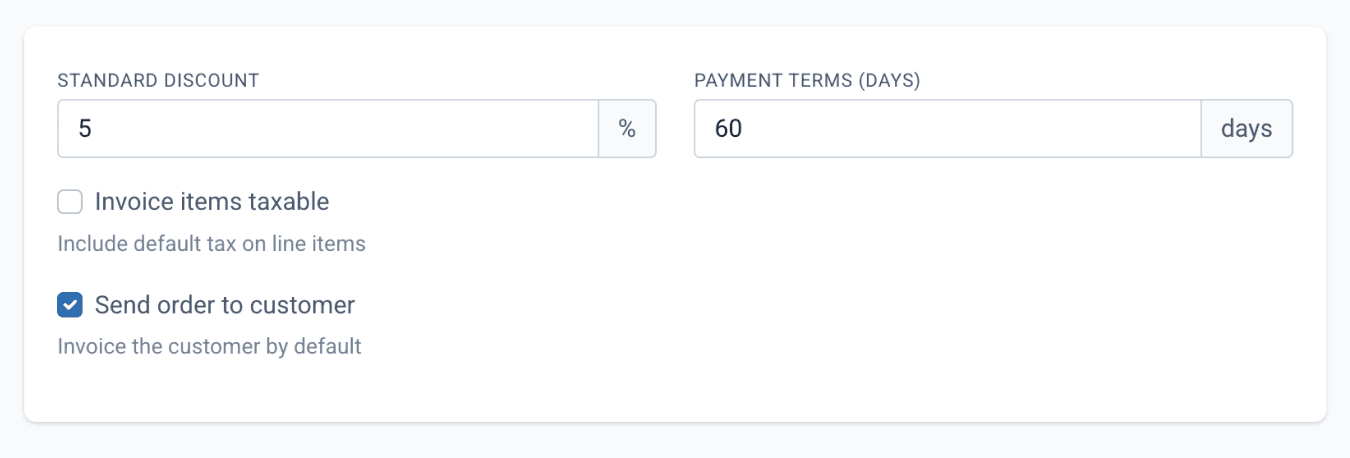
From the accounts page
Discounts in action
A good example of a discount in action is the senior citizen discount. This discount is applied because the customer added to the order is eligible. Since the discount is set to apply to line items only, the discount appears on each line item in the order.
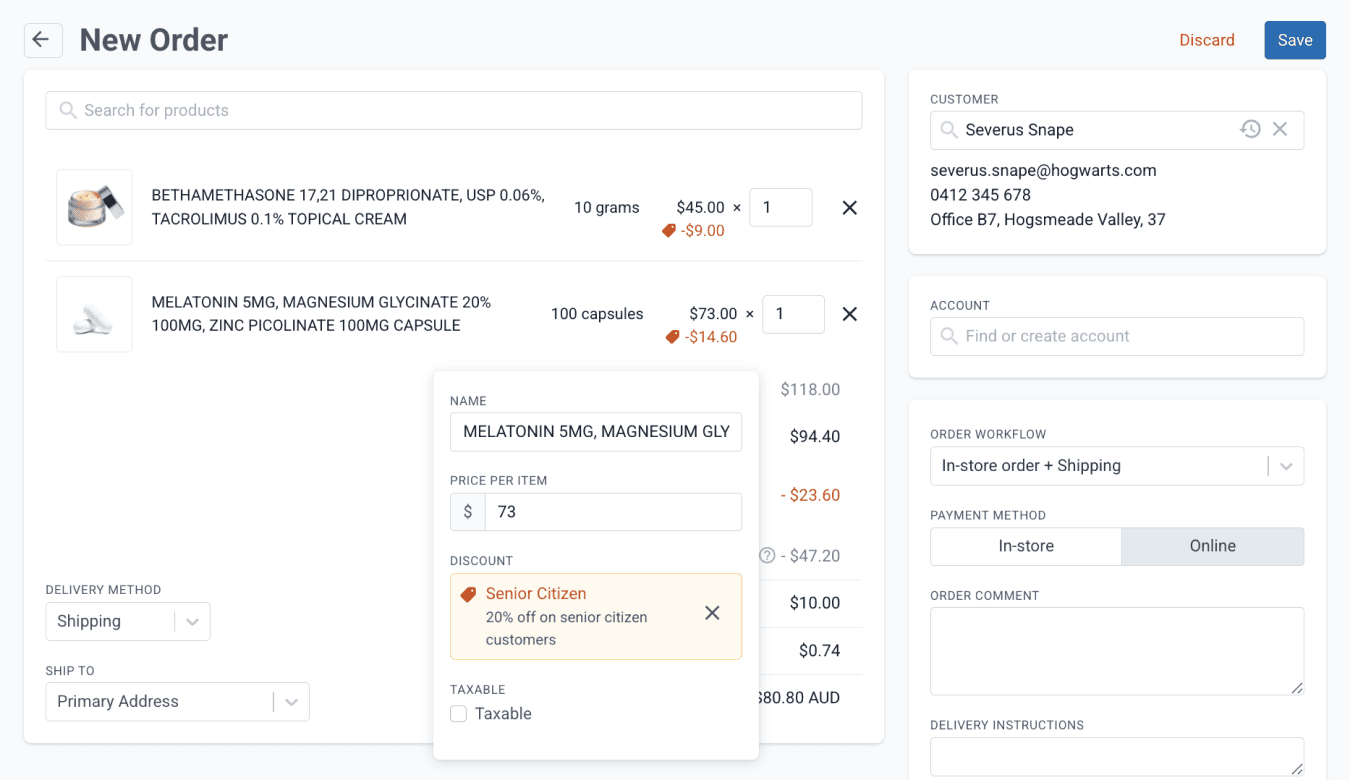
From the orders page
In the example shown below, a discount option named Christmas Sale has been added in addition to the senior citizen discount. Because the discount is set to apply to the entire order, the discount is applied to the subtotal.
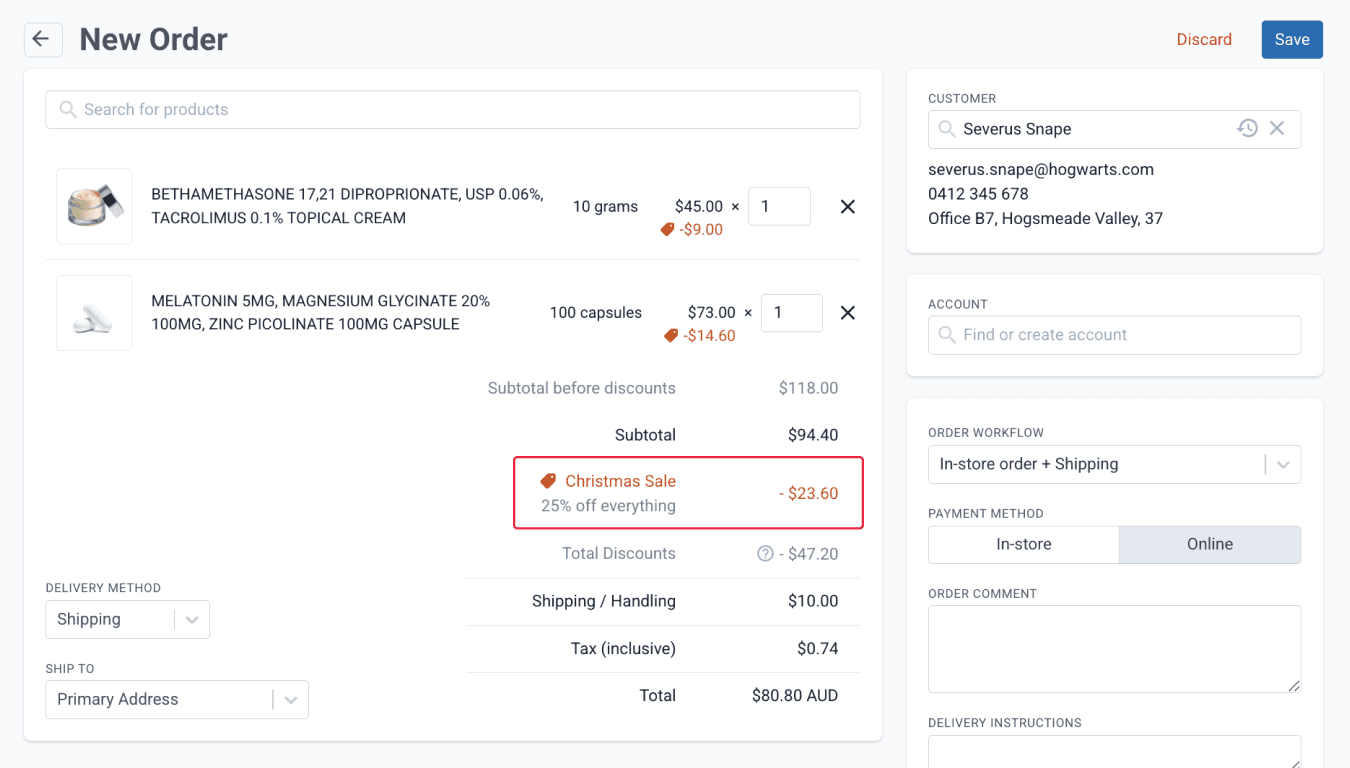
From the orders page
You can switch to a different discount by clicking the discount tag icon and selecting an alternative discount option from the drop-down menu.
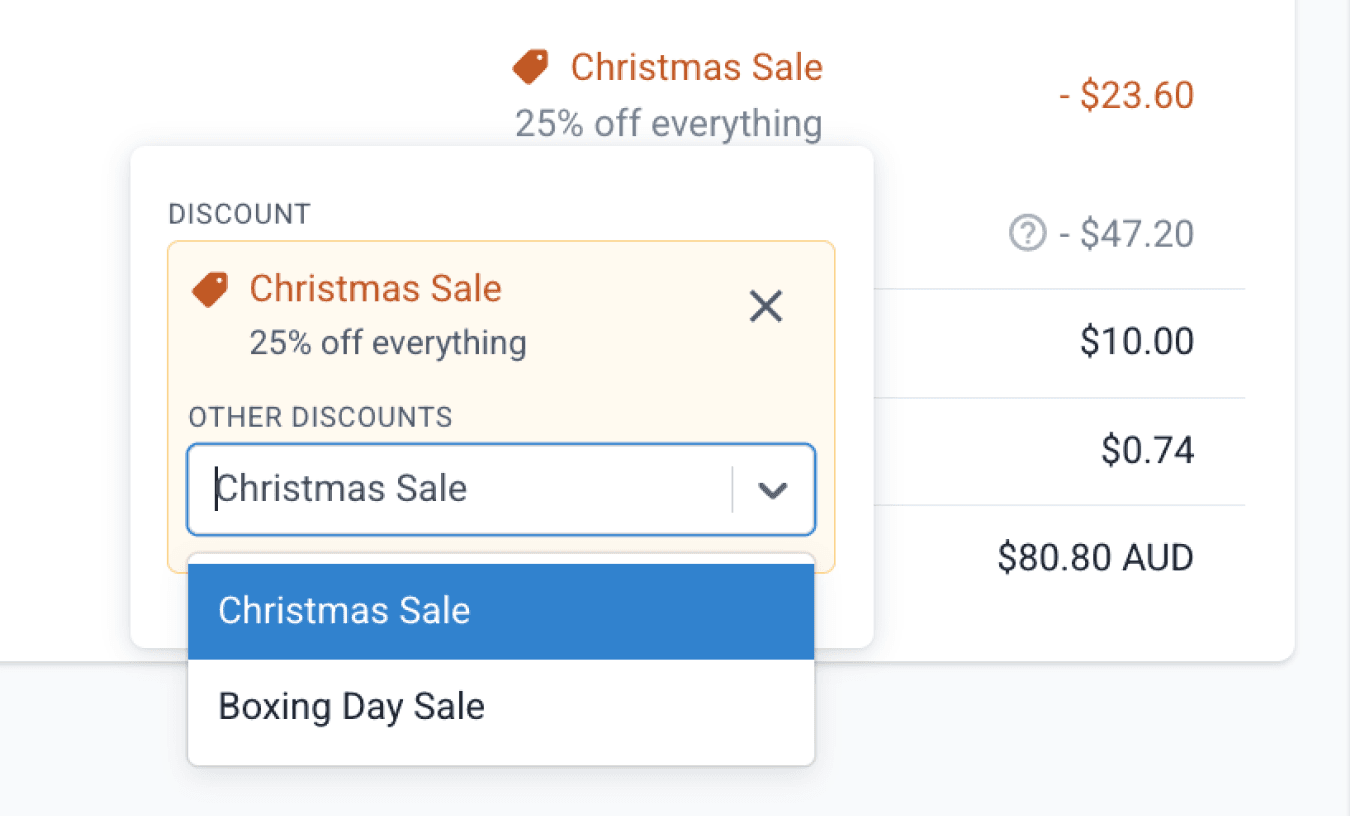
From the orders page
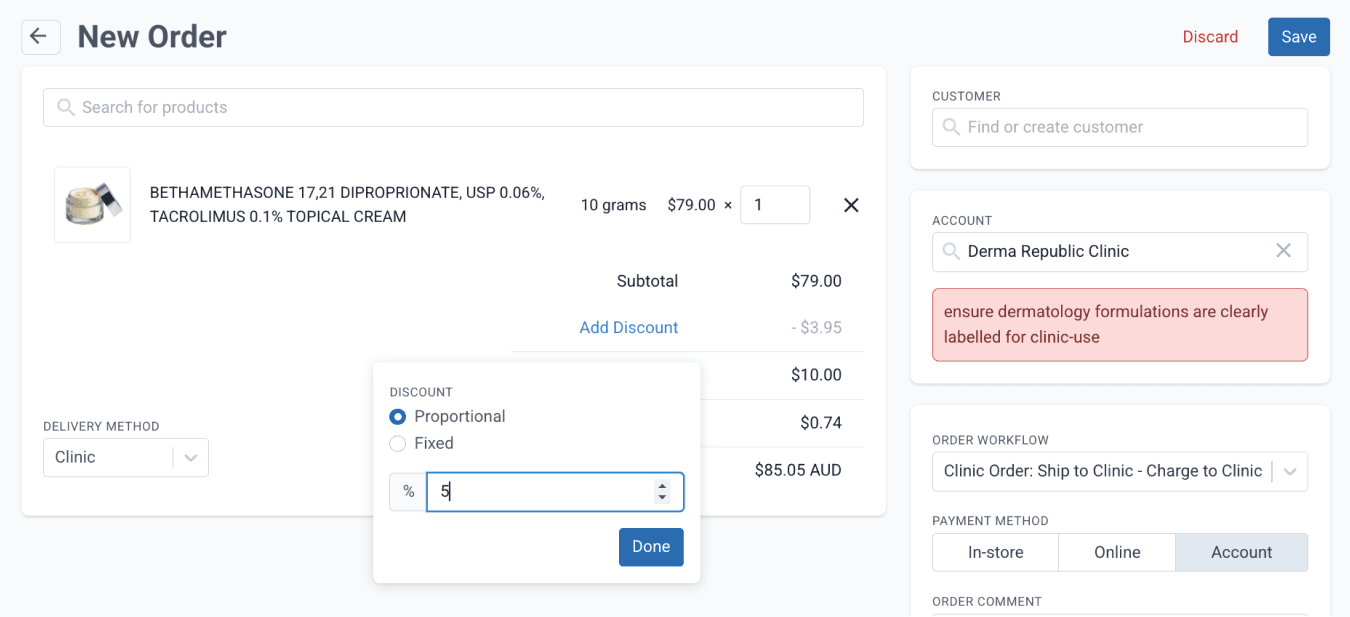
Account-level discounts can only be added when none of the discounts mentioned above are in effect. Account discounts are set as the default and can be viewed or edited by clicking the ‘Add Discount’ button. The discount modal applies any account-level discounts you have configured and can also be used to set manual discounts.
From the orders page
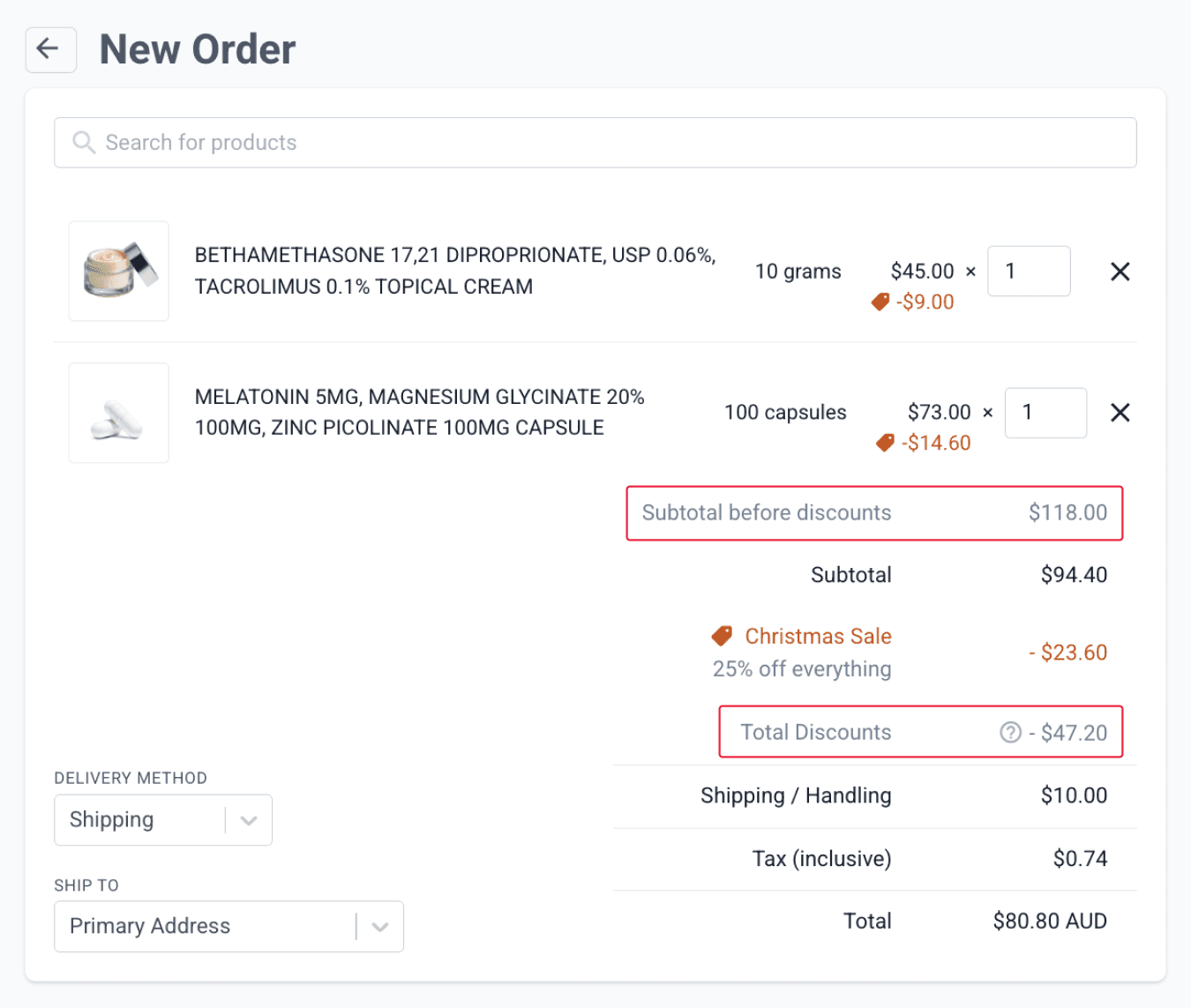
The order page displays a clear price breakdown, including the subtotal before discounts and the total discount amount.
From the orders page
Summary
Order Discounts in Compound Direct give pharmacies flexible control over pricing and promotions by allowing predefined discounts to be applied at the order or account level. Discounts can be set as fixed amounts or percentages, applied to entire orders or specific line items, and tailored by product, quantity, customer, account, or compounded item eligibility. Multiple discounts can be combined, such as line-item and order-level promotions, to support targeted campaigns like seasonal sales, while account-level discounts standardise pricing, billing terms, and tax settings. Clear discount visibility and breakdowns help ensure consistent pricing, accurate billing, and reduced manual adjustments.
All names and medical data shown in software screenshots are fictional and for demonstration purposes only. These figures represent fictional persons; any resemblance to real individuals is purely coincidental. Use of existing fictional names is for illustrative purposes and does not imply affiliation or endorsement.