
A More Powerful Compound Direct: New interface, advanced features, built for better compounding

Say hello to a more powerful Compound Direct, designed to make everyday compounding workflows clearer, smoother, and easier to manage.
This update introduces a cleaner interface, improved visibility, and practical workflow enhancements that help pharmacy teams access key information faster and reduce unnecessary clicks. From the updated script and dispensing layout to prescription overlay mode, hotkeys, font size adjustment, and streamlined order navigation, these changes are focused on supporting safer, faster, and more consistent pharmacy workflows.
Let’s take a closer look at what has changed.
Expanded layout mode
Draft and Dispensed record screens now use a more structured layout, making it easier for pharmacy staff to review key information without moving back and forth across the page.
Patient details, script history, costs, files, risk checks, ingredient concentrations, and patient instructions are grouped into clearer sections, giving staff a more complete view of the script at a glance.
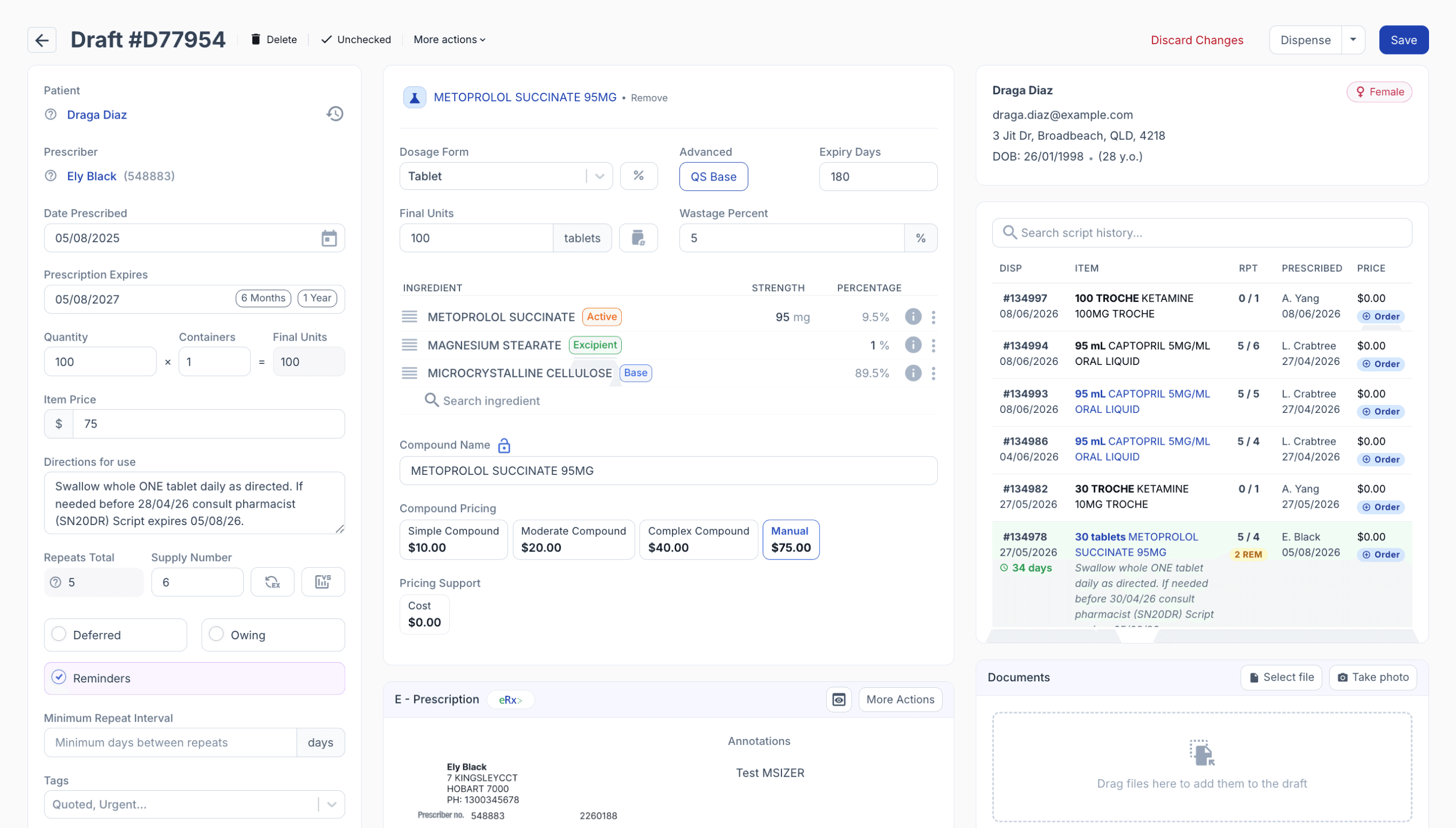
From the drafts page
This helps reduce excessive scrolling, supports faster checking, and makes it easier to identify important details during dispensing or draft review.
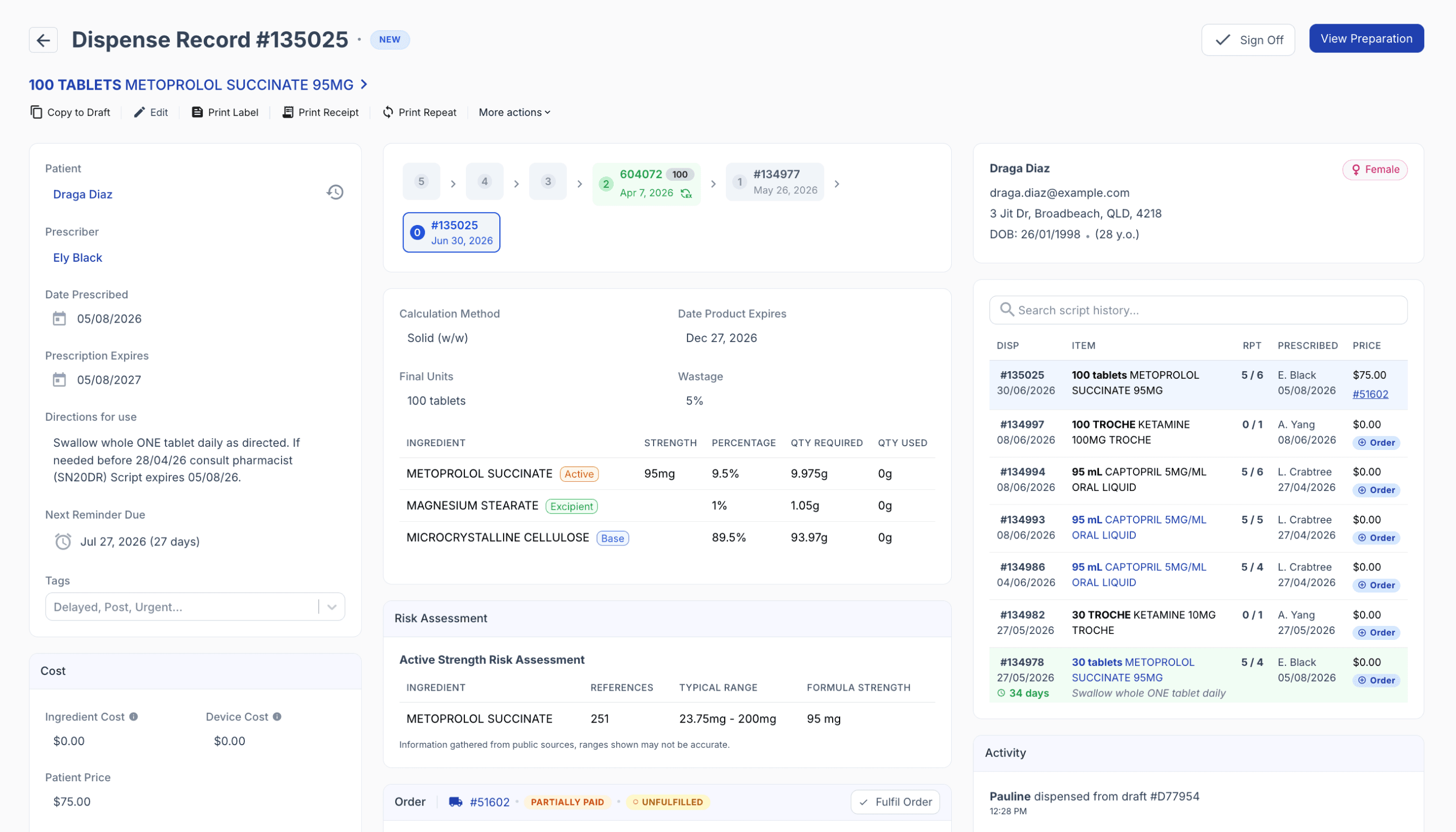
From the dispensed page
The layout may vary depending on your device's screen size. The view can be adjusted by zooming the screen display in or out, or by selecting your preferred view mode at the bottom of the page, either Default View or Expanded View.

From the dispensed page
Save and dispense buttons
The Draft page now includes separate Save and Dispense buttons, supporting a clearer workflow between saving progress and completing a dispense. Prescriptions can now be dispensed with a single click, helping reduce extra steps during dispensing.
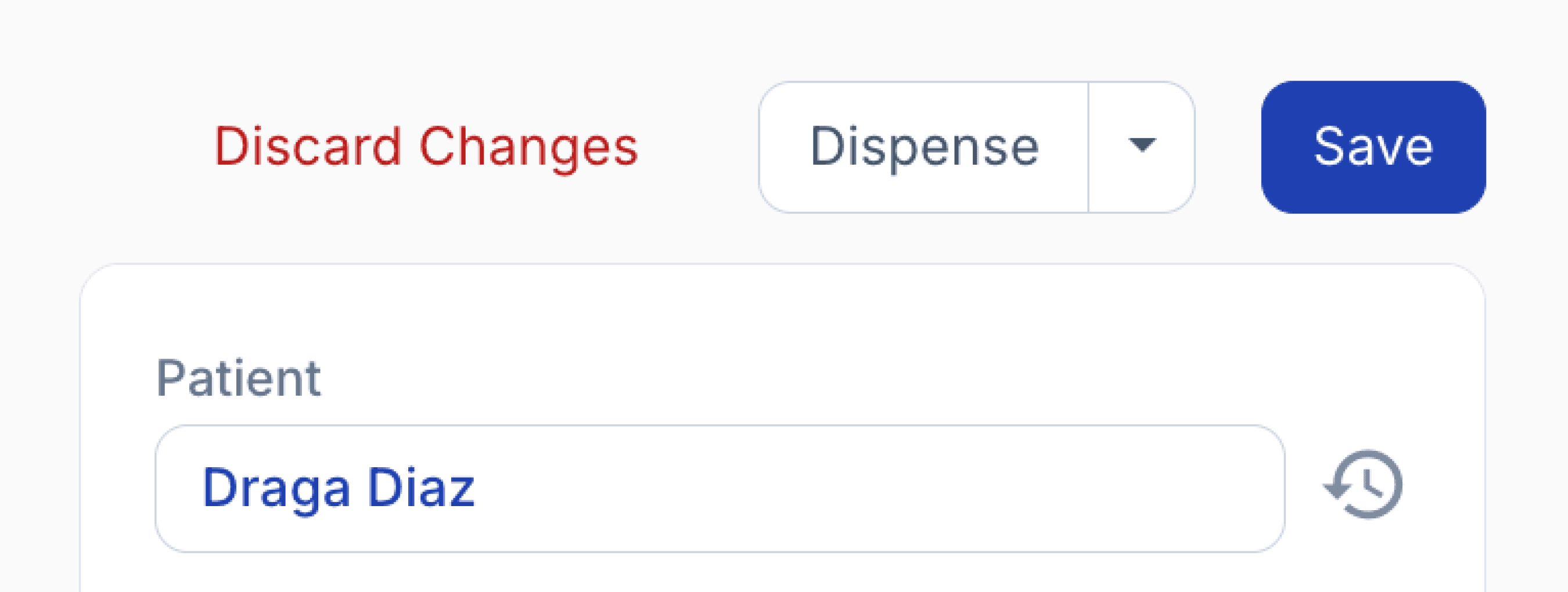
From the drafts page
Prescription overlay mode
Prescription Overlay Mode has been added to make it easier to compare draft records, dispensed records, or uploaded documents against the original prescription while completing script and dispensing workflows.
The overlay now supports improved priority handling, can be opened without first displaying the image, includes helpful hotkey hints, and remains active as you move between pages.
To enable Overlay Mode, press O on your keyboard. For drafts with uploaded prescriptions, an ‘Overlay Mode’ button will appear in the prescription section.
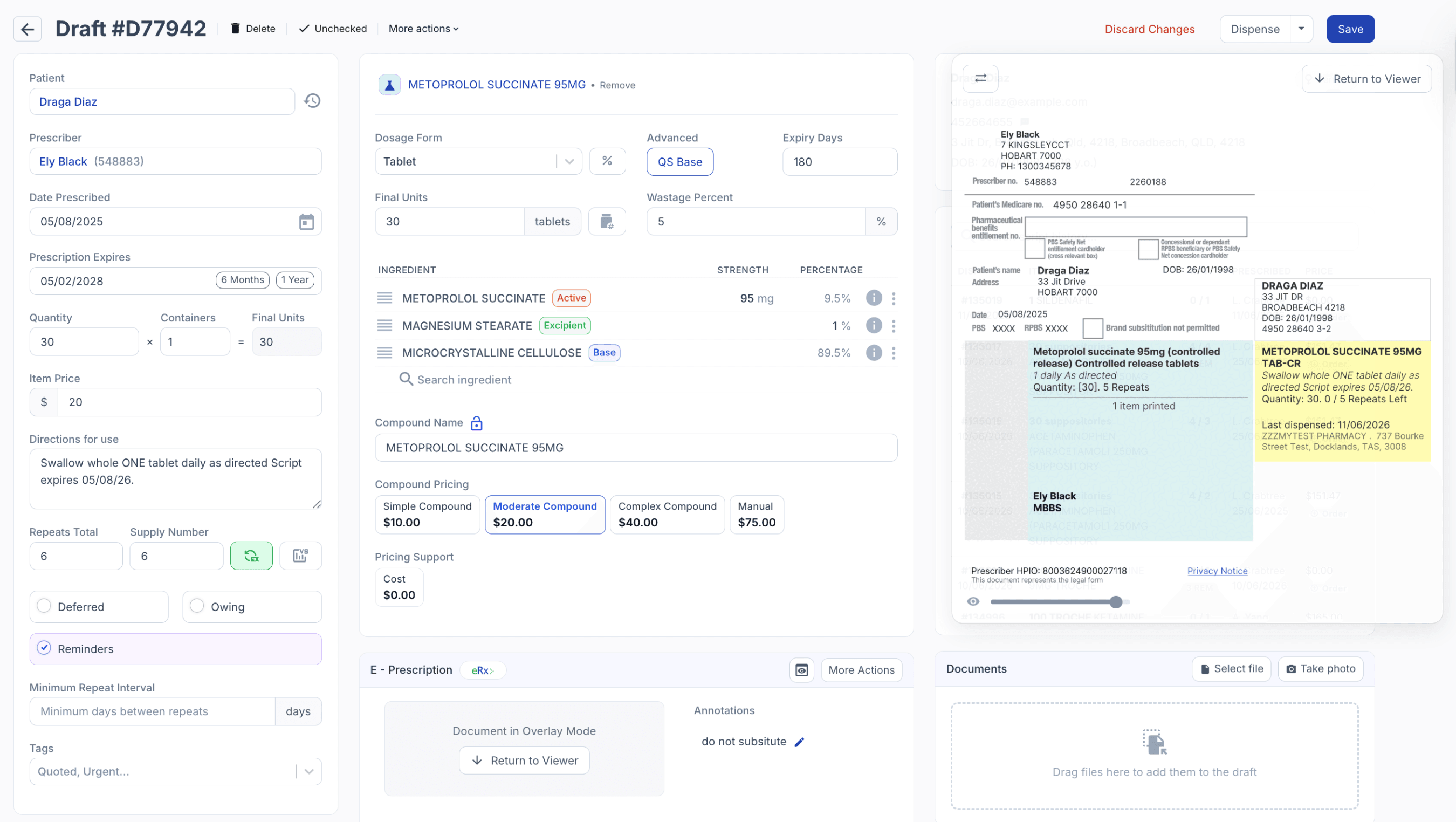
From the dispensed page
AI label check (beta)
Safe compounding starts with accurate checks. AI Label Check uses an advanced algorithm to analyse compound names as they are entered, comparing the label name against the formulation ingredients to identify potential strength mismatches before compounding begins.
By providing an additional layer of clinical oversight early in the workflow, AI Label Check helps staff detect potential labelling errors sooner, supporting safer dispensing and greater confidence throughout the compounding process.
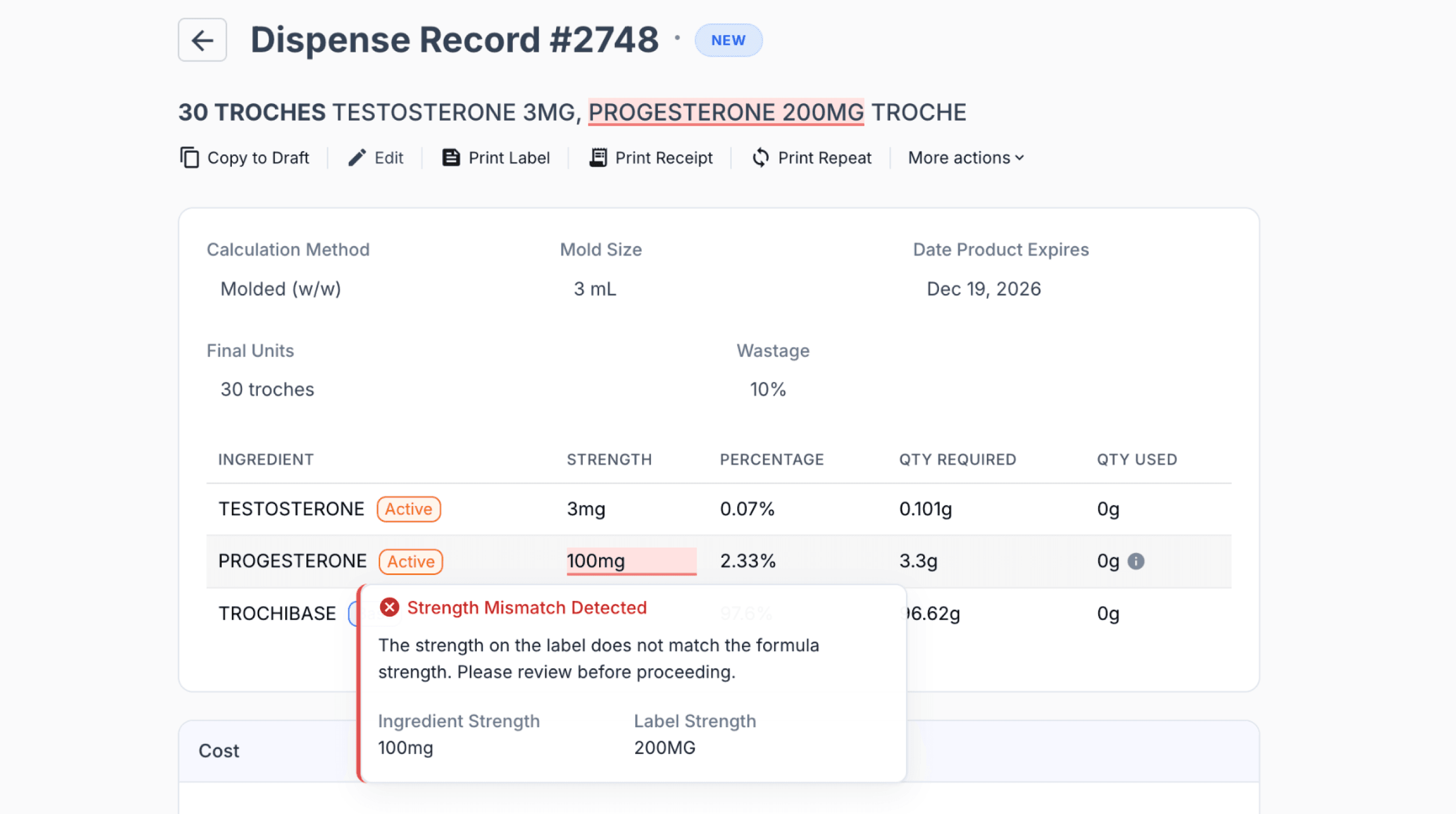
From the dispensed page
The AI Label Check feature can now be enabled in Settings → Your workspace → Dispensing → Import & AI Settings.
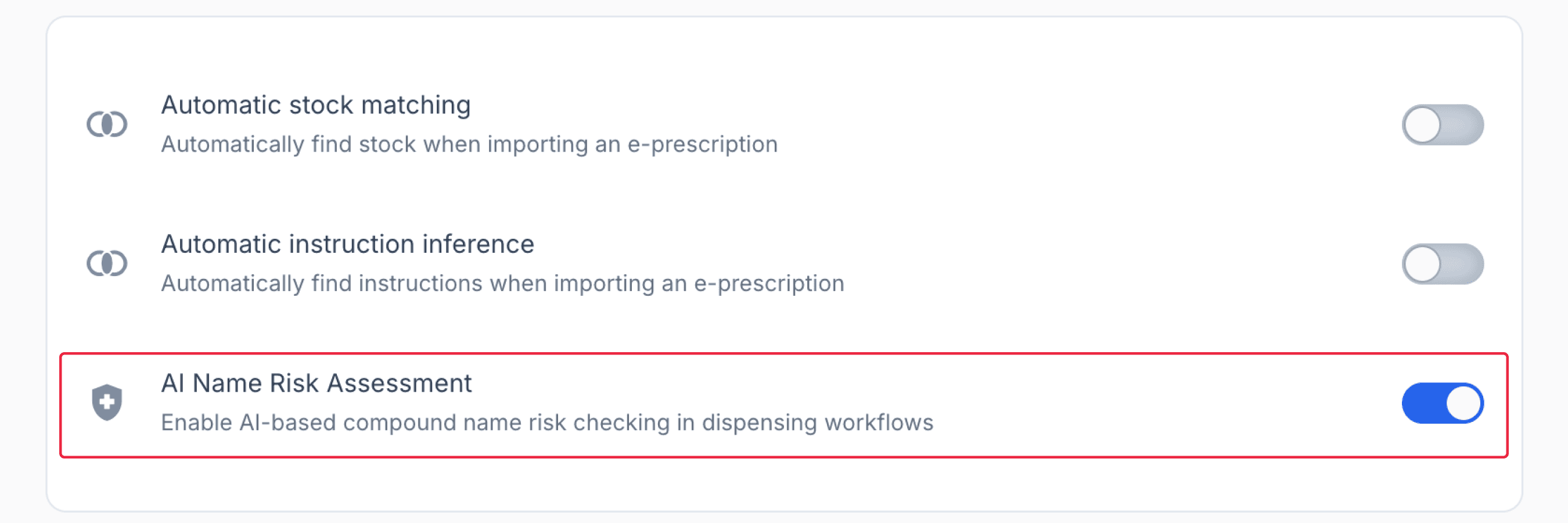
From your workspace dashboard
Quick scan
One scan. Instant action. Our new scan-anything feature allows staff to scan a wide variety of barcode types across ingredients, batch records, patient scripts, and more. Whether it is a manufacturer-provided QR code, standard linear barcode, eRx token, or Medisca lot number barcode, Compound Direct recognises it instantly to reduce manual entry and support a faster workflow.
Open Quick Scan at any time by pressing the period key (.) or by selecting the QR code scanner icon at the top-right corner of the workspace. Quick Scan works on any device with a camera or scanner and remembers each user’s preferred scanner or camera mode.
With Quick Scan, staff can quickly access records, import batch information, retrieve electronic prescriptions, and create ingredients with greater accuracy and less manual handling.
Barcode and QR code recognition is available across:
- Commercial drug stock records
- Ingredient stock and batch records
- Retail product records
- Dispensed records
- Order records
- Stock batch records
- Customer records
- eRx Tokens
- Medisca lot number lookups
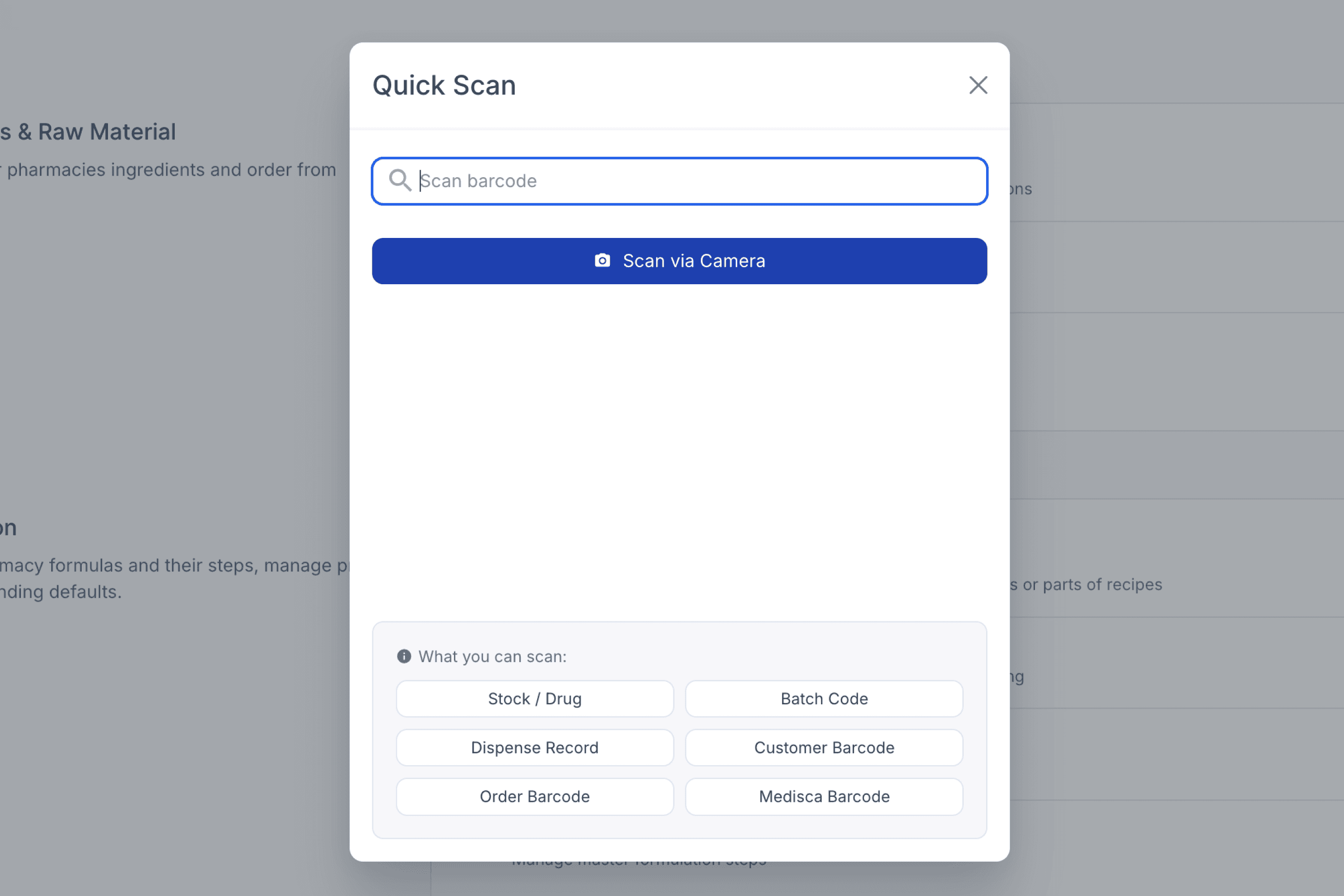
From any dashboard or page
Quick actions
Getting around your workspace should be effortless. This new shortcut system reduces repeated clicks by allowing staff to jump directly to the record, action, or workflow they need.
From a single menu, staff can quickly create a new draft for the same patient, check product pricing, scan an e-prescription, and access other frequently used actions without navigating through multiple menus.
Open Quick Actions at any time by pressing the forward slash key (/) or by selecting the compass icon in the top-right corner of the workspace.
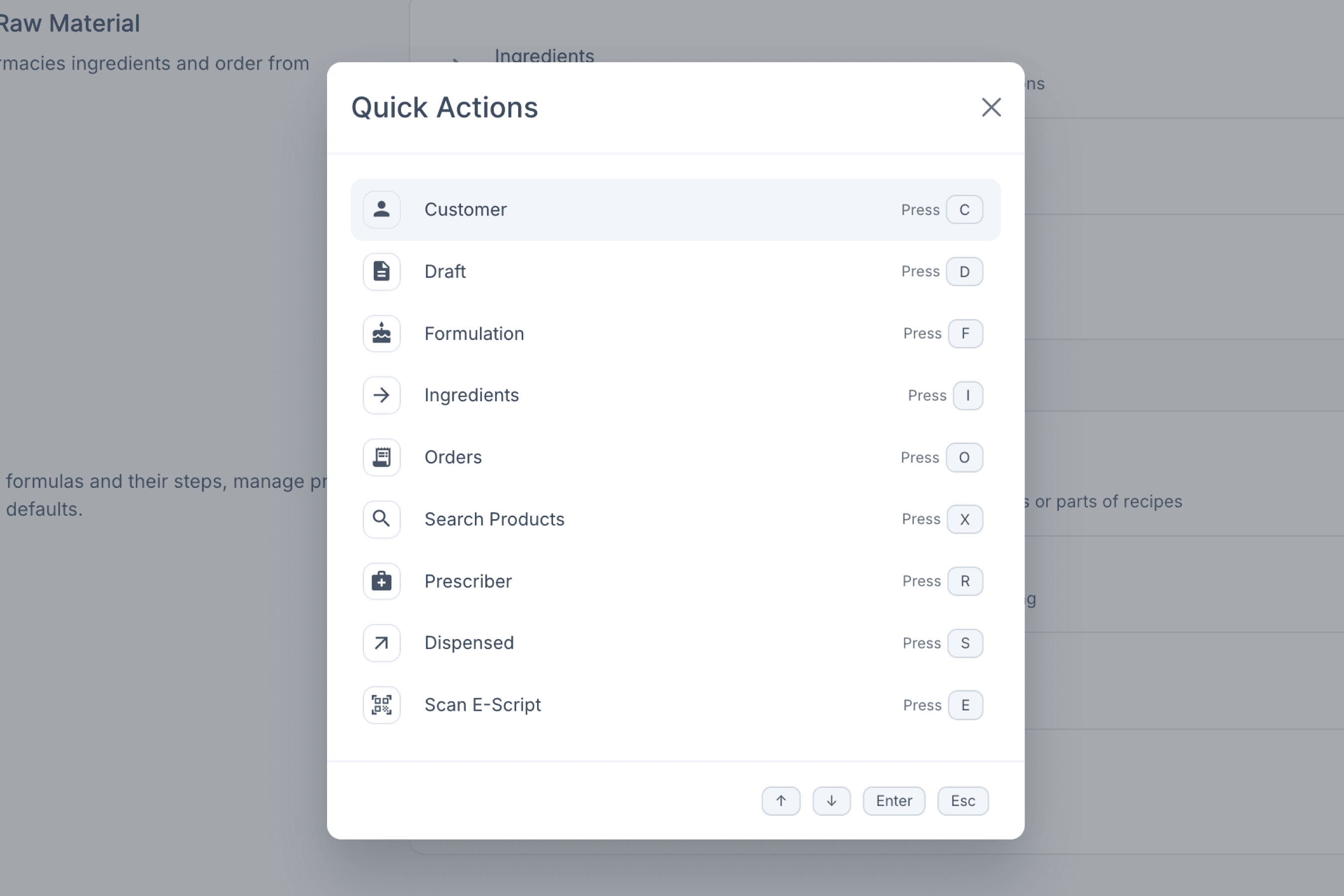
From any dashboard or page
Self-upgrade
Enhance your pharmacy with powerful Add-On Features that improve efficiency, productivity, and overall performance. You can unlock these features directly from your workspace Settings in the Add-on Features section.
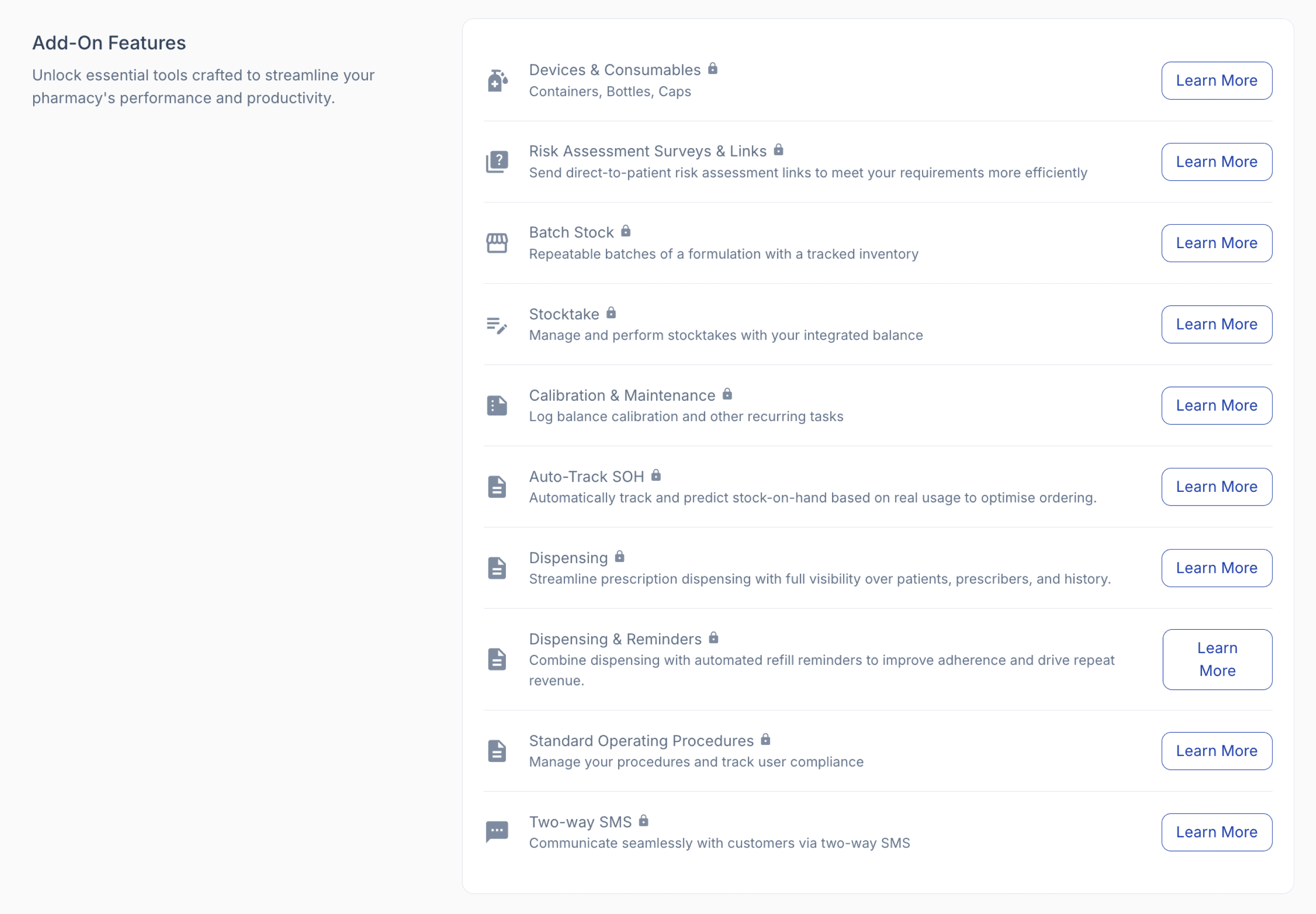
From the settings page
Hotkeys
Hotkeys are keyboard shortcuts that help streamline everyday tasks by reducing repetitive clicks and enabling faster navigation throughout the workspace. Whether you're managing customers, creating drafts, dispensing prescriptions, processing orders, or working with formulations, hotkeys can improve efficiency while maintaining accuracy.
Use the Hotkeys guide as a quick reference to discover available shortcuts and build faster, more confident workflows.
When ‘Show Hotkey Hints’ is enabled, a matching keyboard shortcut is displayed when a staff member hovers over supported buttons, applied per user.
These hotkey hints appear across supported parts of the workspace to help users build confidence with available shortcuts as they work, supporting a smoother workflow without needing to memorise them all at once, and making it easier to stay focused on the patient, order, or prescription in front of them.

From any dashboard or page
Font size adjustment
Interface Settings now include font size adjustment, allowing you to increase or decrease the workspace font size to suit your preferred viewing experience, applied per user.

From the preferences sidebar
Order navigation bar
When adding items to an order, you can now select the order workflow and account directly from the bottom navigation bar on draft and dispense pages, without needing to go to the Orders page.
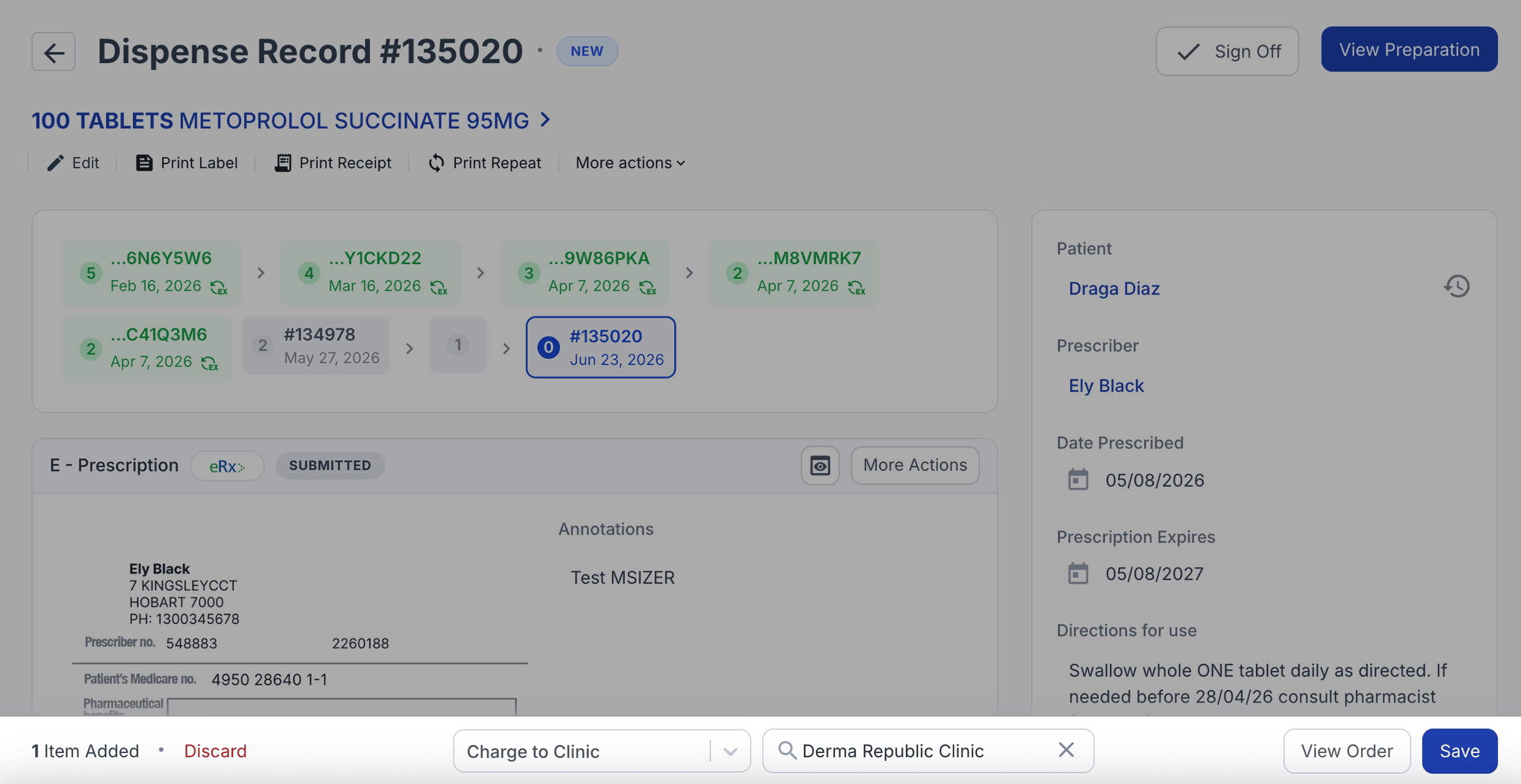
From the dispensed page
Other changes and improvements
Interface and navigation
- General UI refresh, with increased visual contrast for easier reading.
- User Guide buttons are now available in Settings, providing quick access to help whenever needed.
- Workspace tint helps staff identify the correct workspace more easily.
- Icons for each animal species have been added.
- The crowded top navigation bar now supports horizontal scrolling without pushing account controls off-screen
Uploads, editing, and content handling
- Mobile photo uploads now open the device camera directly, restoring expected portrait-first capture behaviour.
- Long file names are handled better in upload areas.
- Image and file handling in text-editing and upload experiences is more consistent.
- Rich text editing in formulation steps now supports inline image uploads.
- Label editor now supports select all and drag to select.
Summary
This update delivers a more powerful Compound Direct, combining a refreshed interface with smarter tools designed to improve every stage of the pharmacy workflow. From Expanded Layout Mode, Prescription Overlay Mode, and AI Label Check to Scan Anything, Quick Actions, new otkeys, and interface customisation, every enhancement is focused on reducing clicks, improving visibility, and supporting safer, faster, and more consistent compounding. Together with refinements across orders, navigation, editing, and reporting, this update helps pharmacy teams work more efficiently while keeping their attention where it matters most: delivering safe, high-quality patient care.
All names and medical data shown in software screenshots are fictional and for demonstration purposes only. These figures represent fictional persons; any resemblance to real individuals is purely coincidental. Use of existing fictional names is for illustrative purposes and does not imply affiliation or endorsement.